
Search Our Database
Reconfigure incoming and outgoing for existing Email Account on Thunderbird
Introduction
Changing your server settings is a vital task when migrating to a new mail provider or upgrading security protocols. This guide explains how to update existing Thunderbird account configurations to ensure your emails continue to send and receive without interruption.
Prerequisite
-
Access to the Mozilla Thunderbird application
-
Updated email server details (Incoming/Outgoing hostnames, ports, and security types)
-
Active email account password
-
Basic knowledge of email protocols (IMAP/POP3/SMTP)
Step-by-step guide
Step 1: Access to your email account
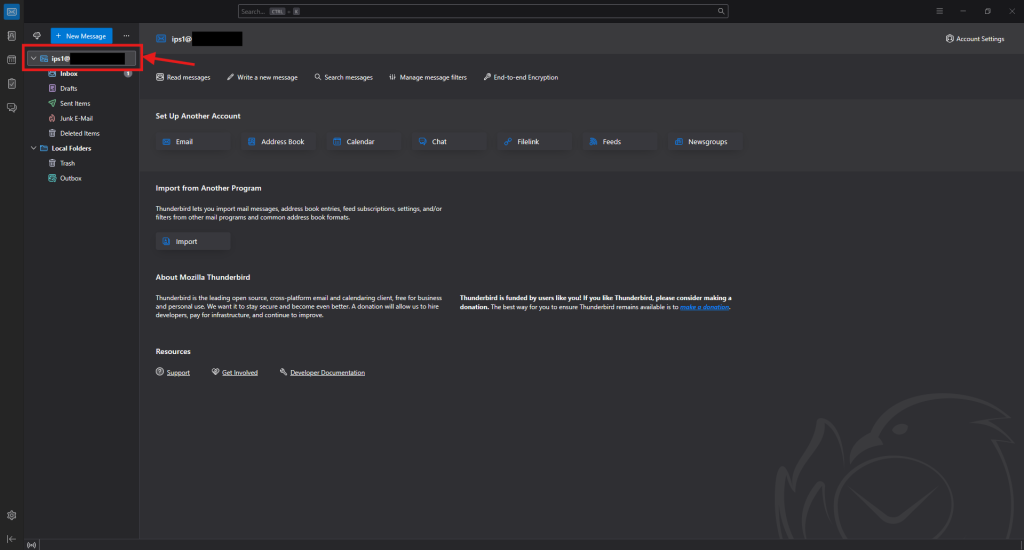
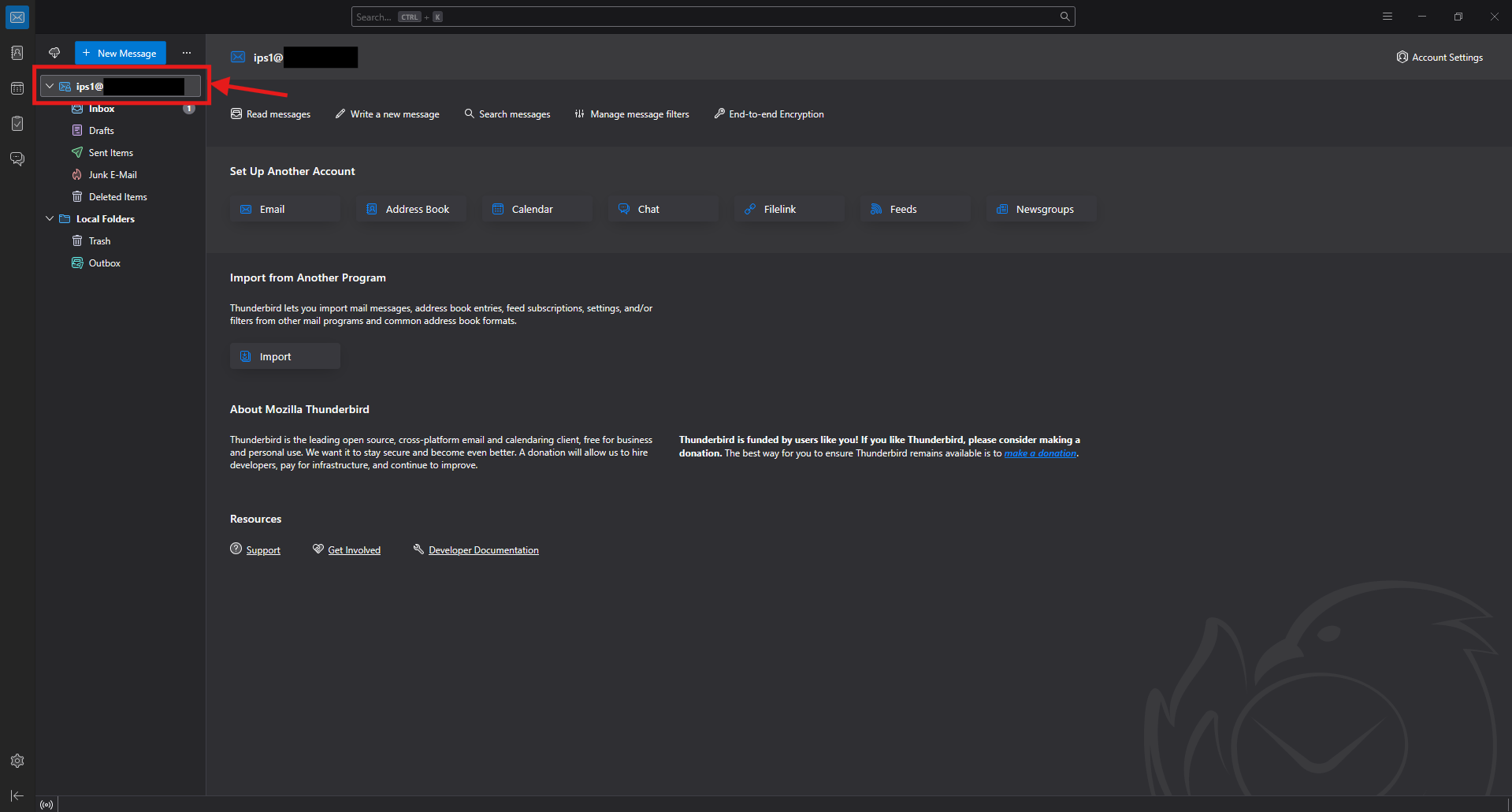
- In Thunderbird, click on your email account and shows the email account settings site.
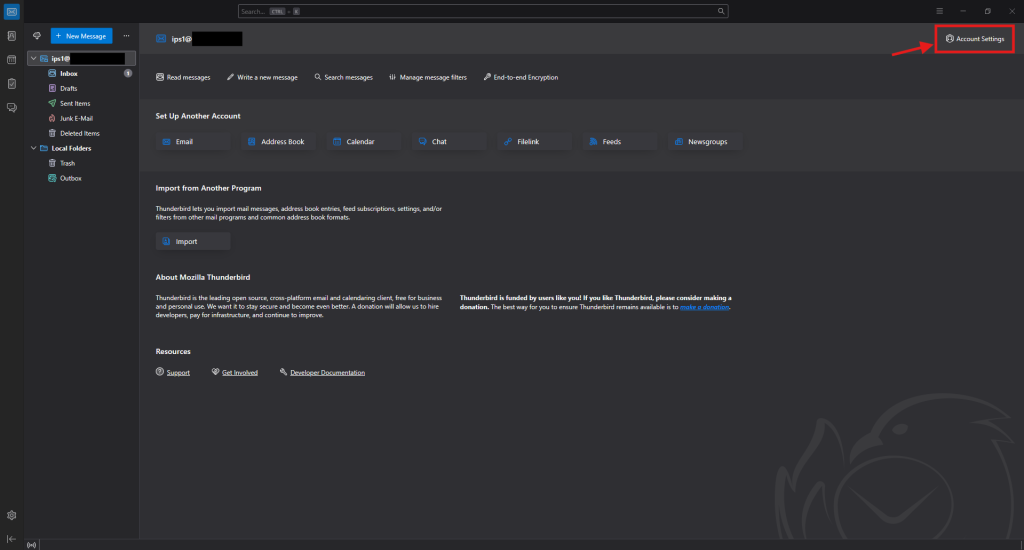
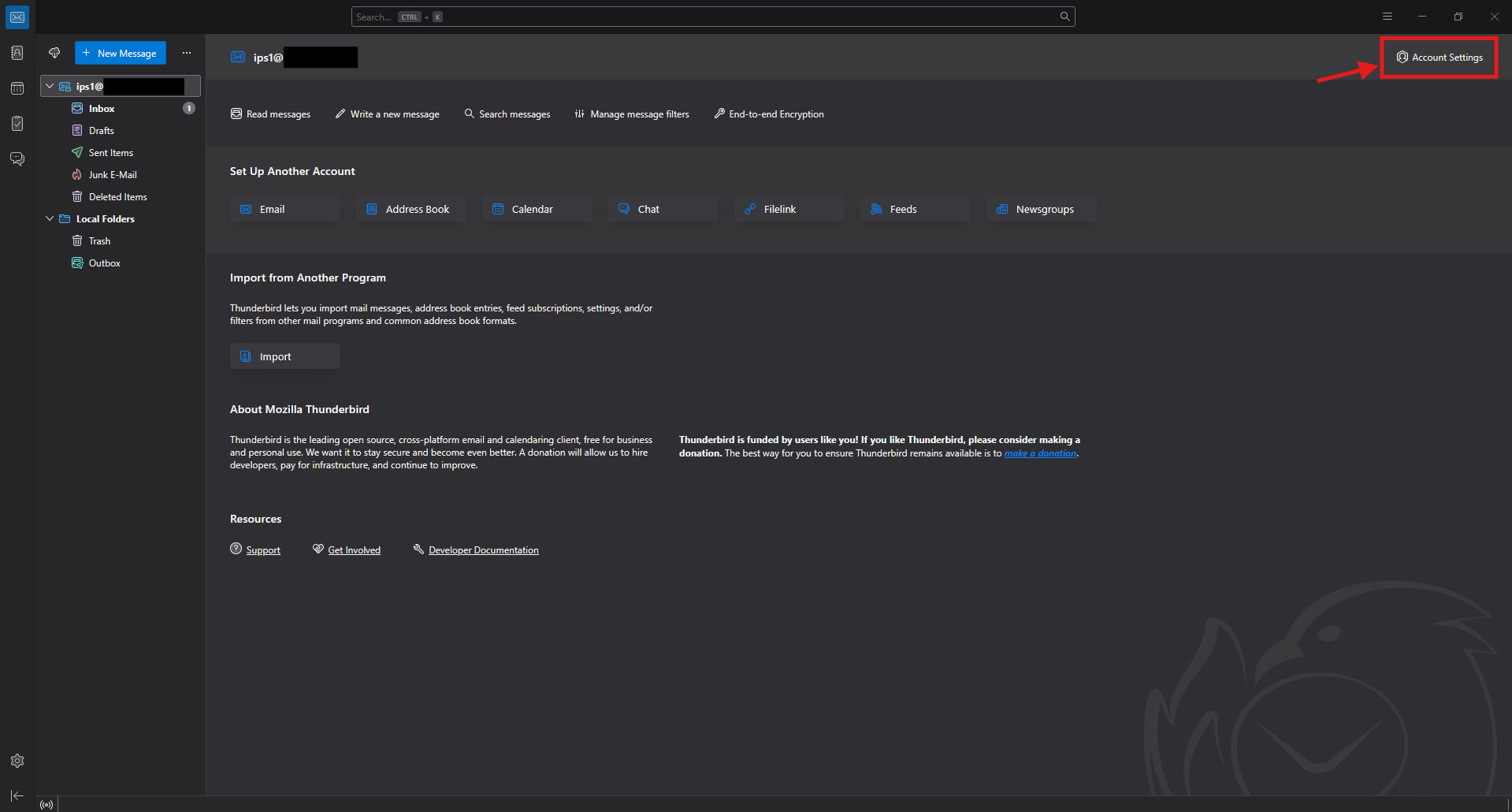
- Then click on the Account Settings on the top right corner.
Step 2: Reconfigure outgoing mail server
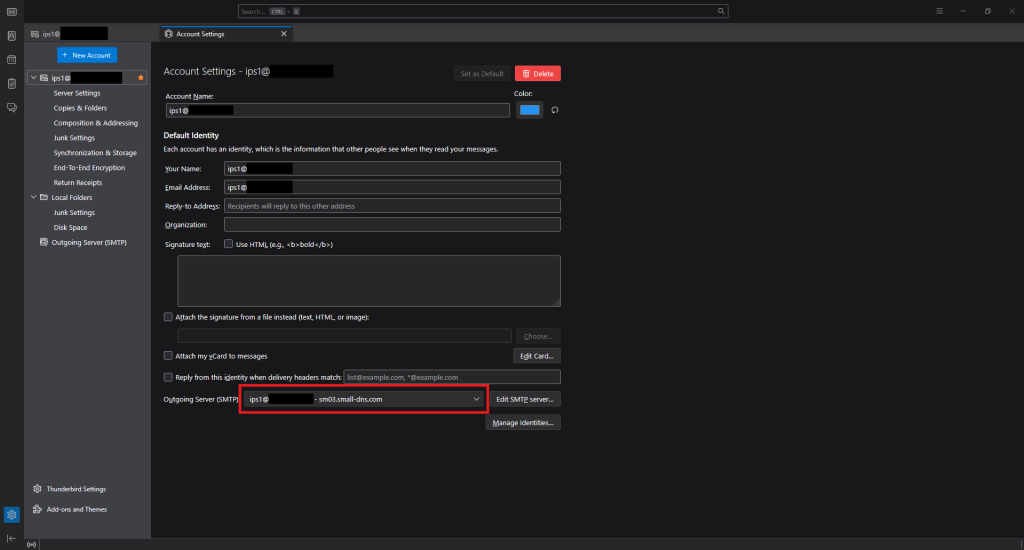
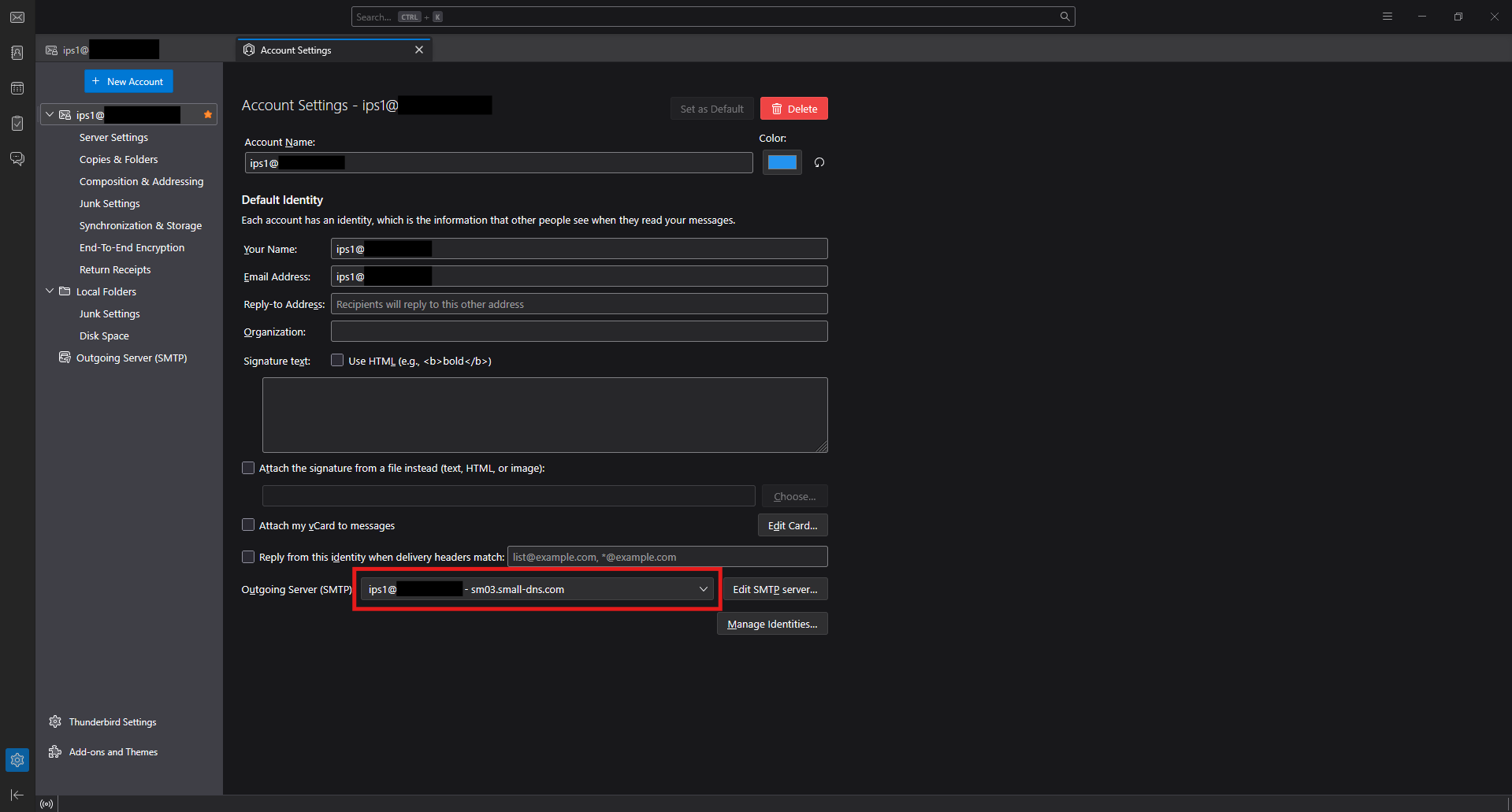
- Once you have entered Account Settings page, you will see the outgoing mail server configuration located at the bottom. To reconfigure, click on the Edit SMTP server button on the right side of the outgoing mail server details.
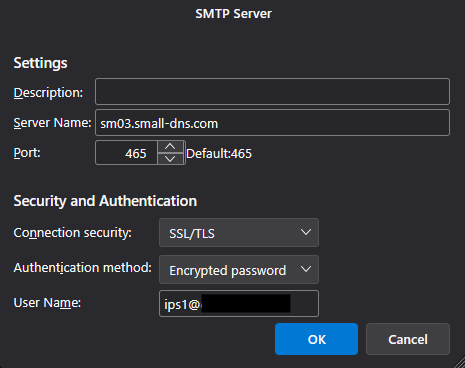
- In the Edit SMTP server window, you may update the configuration based on your latest outgoing mail server details.
Step 3: Reconfigure incoming mail server
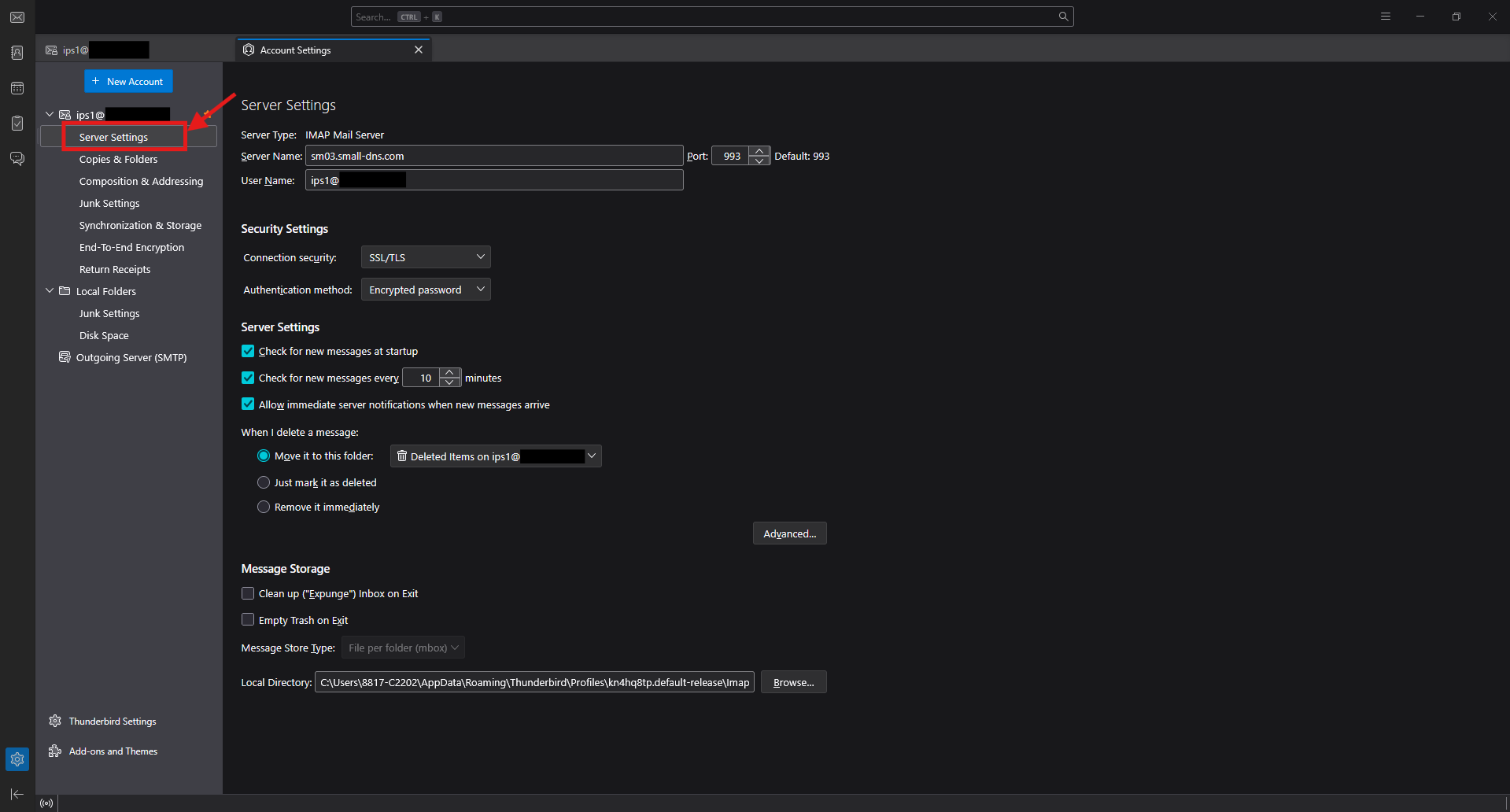
- Navigate to Server Settings on the left panel.
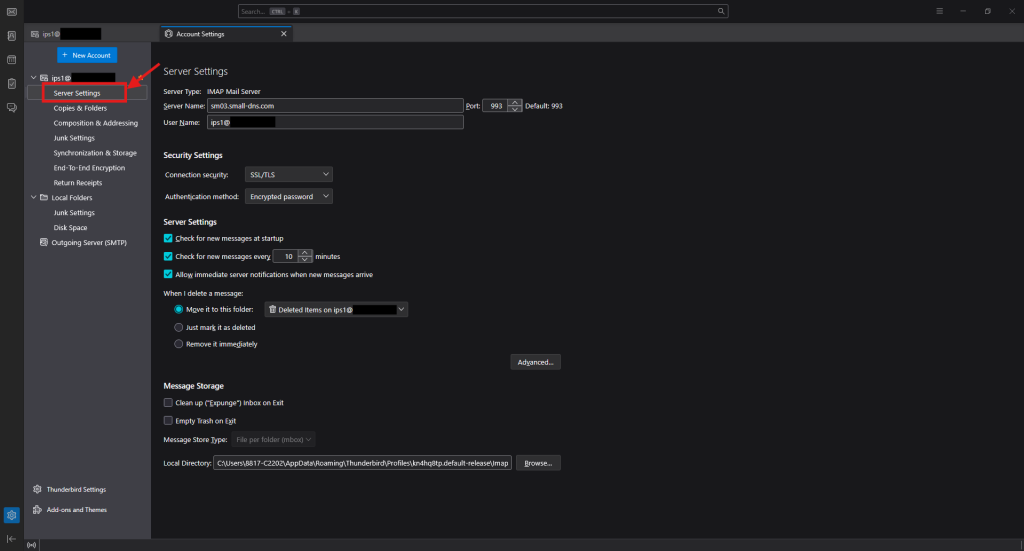
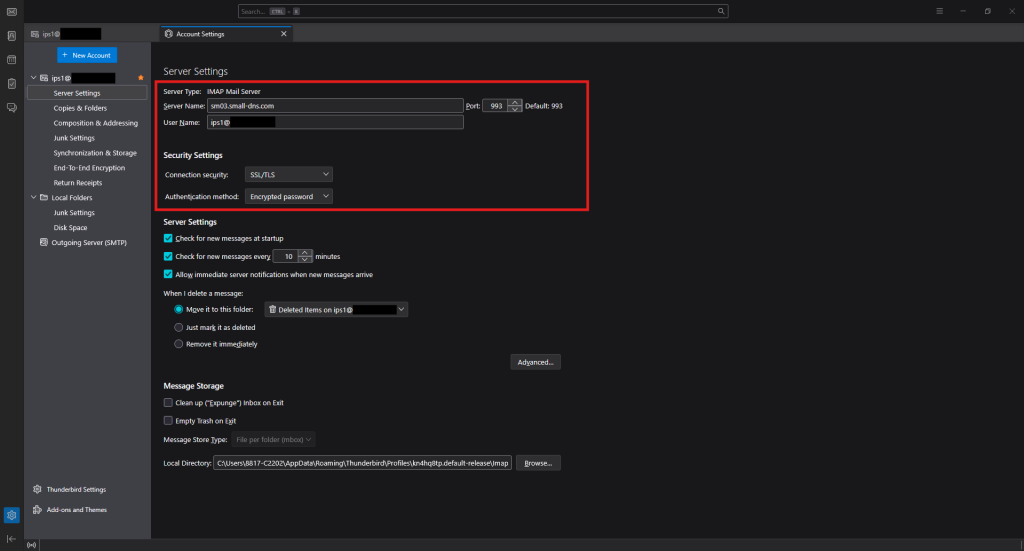
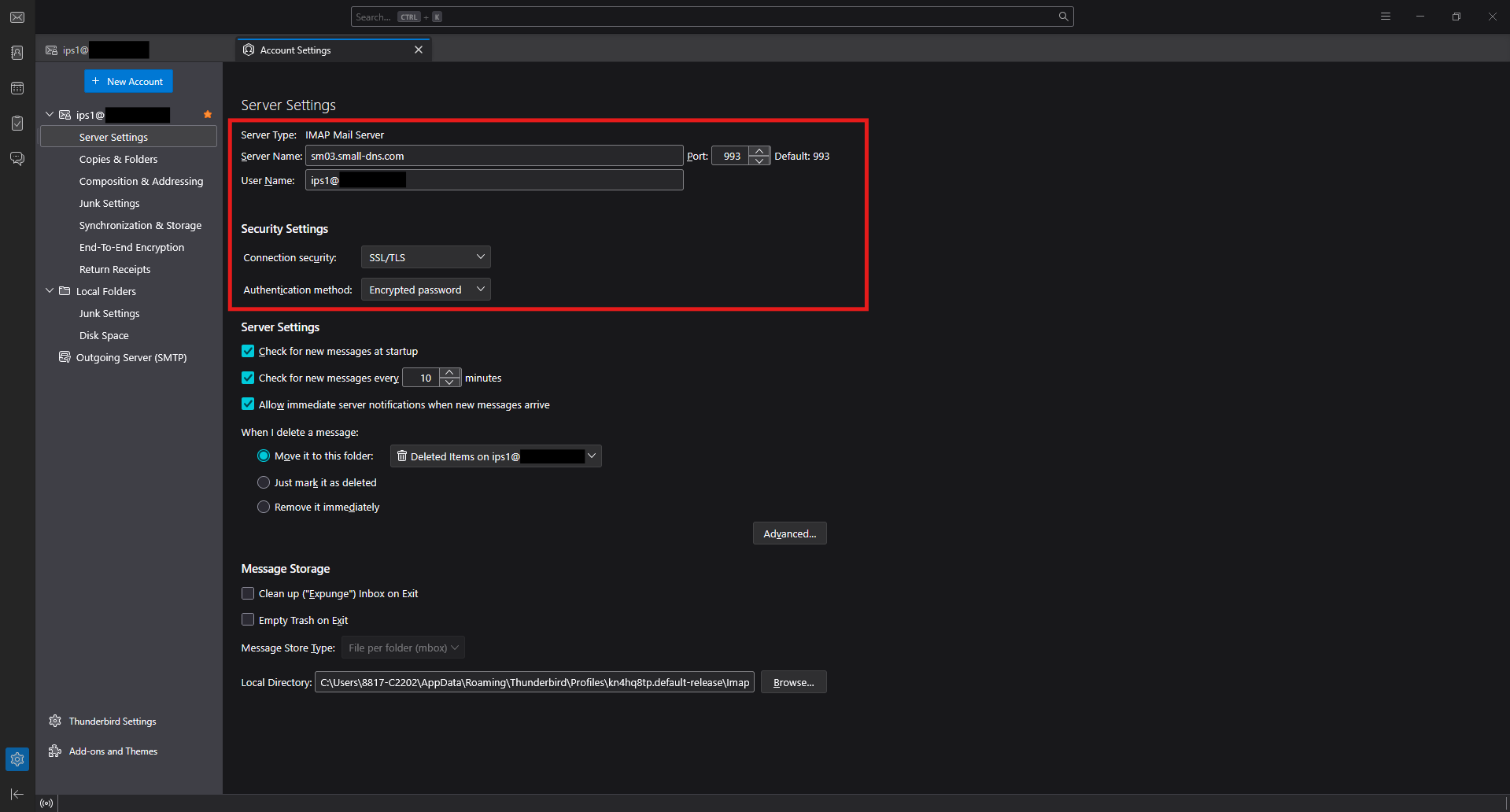
- You will see the incoming mail server configuration located at the beside. To reconfigure, you may straight update the configuration based on your latest incoming mail server details.
**There is no Save button on this site, Thunderbird will autodetected the changes and save the new configuration and restart upon exit the Account Settings page.
Conclusion
By following this guidance, you can successfully update your email server configurations to maintain a secure and reliable connection between Thunderbird and your mail server.
For additional assistance or if you encounter any issues, please contact our support team at support@ipserverone.com.