
Search Our Database
Reconfigure incoming and outgoing for existing Email Account on Android using Gmail
Introduction
Updating your mail server settings ensures your mobile device remains synchronized with the latest security protocols. This guide explains how and why you should modify existing account configurations in the Android Gmail app to maintain uninterrupted email communication.
Prerequisite
-
Access to an existing email account already added to the Gmail app.
-
Latest details of incoming and outgoing server addresses.
-
The email account password and port numbers (SSL/TLS).
Step-by-step guide
Step 1: Navigate to Settings in Gmail app
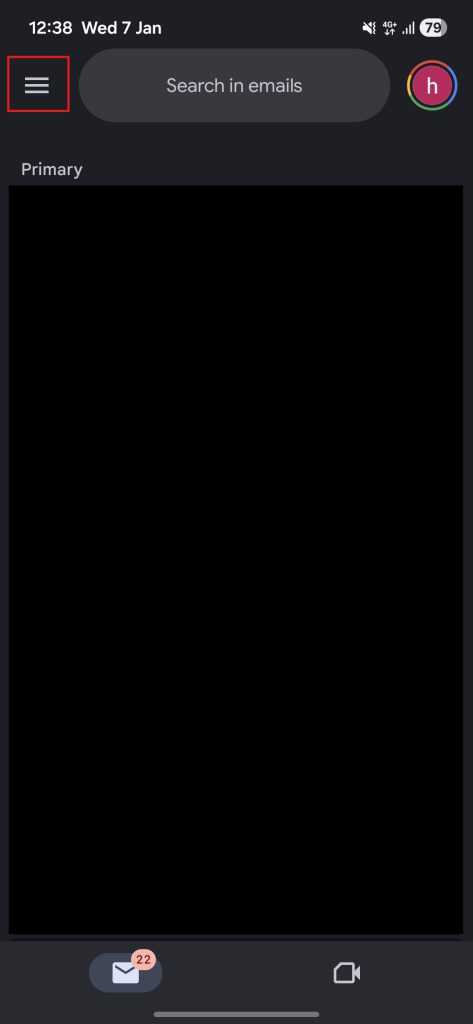
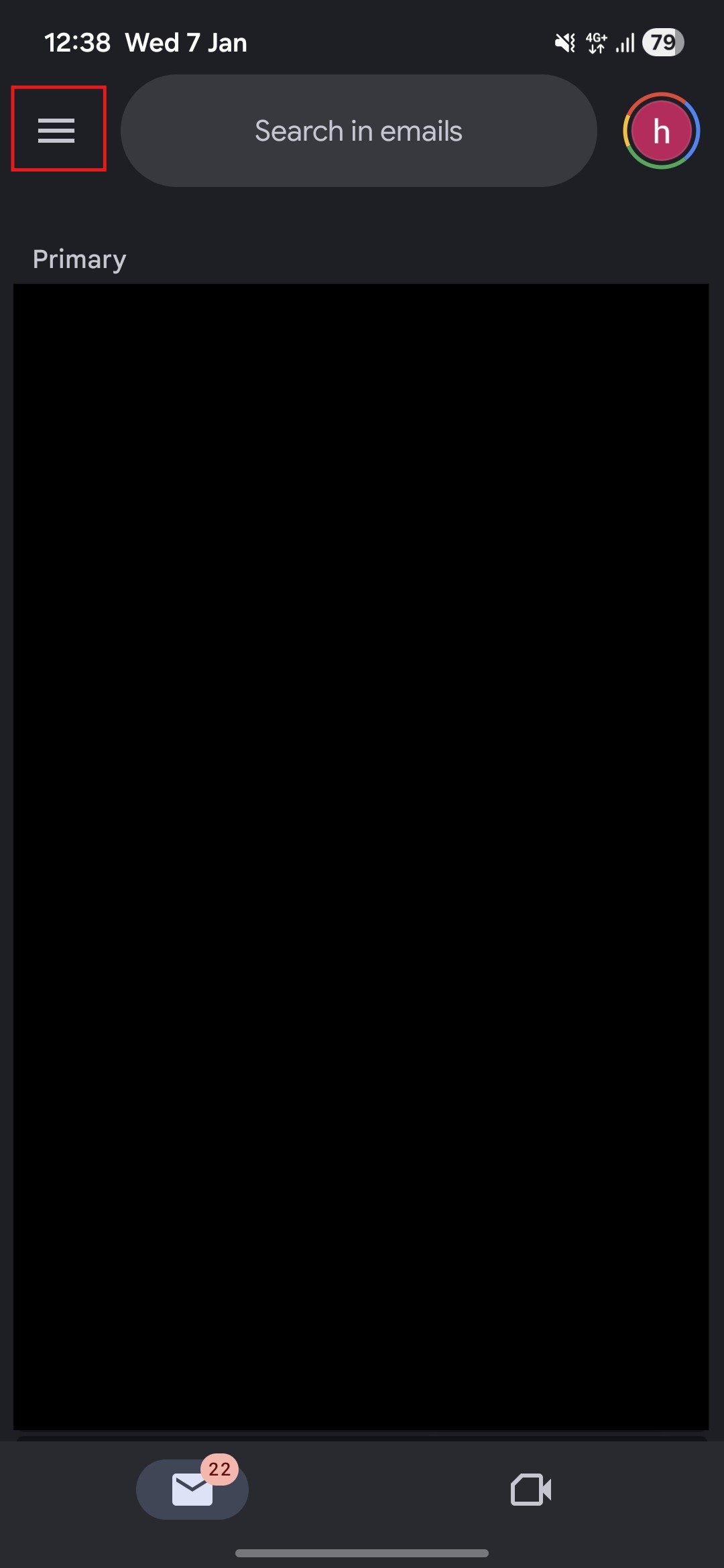
- Navigate to Gmail app on your phone then press the More button on the top left corner.
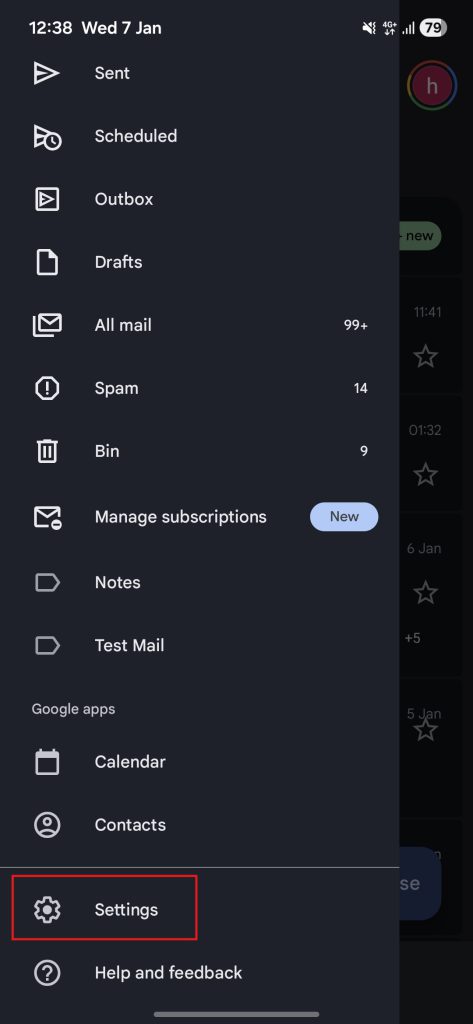
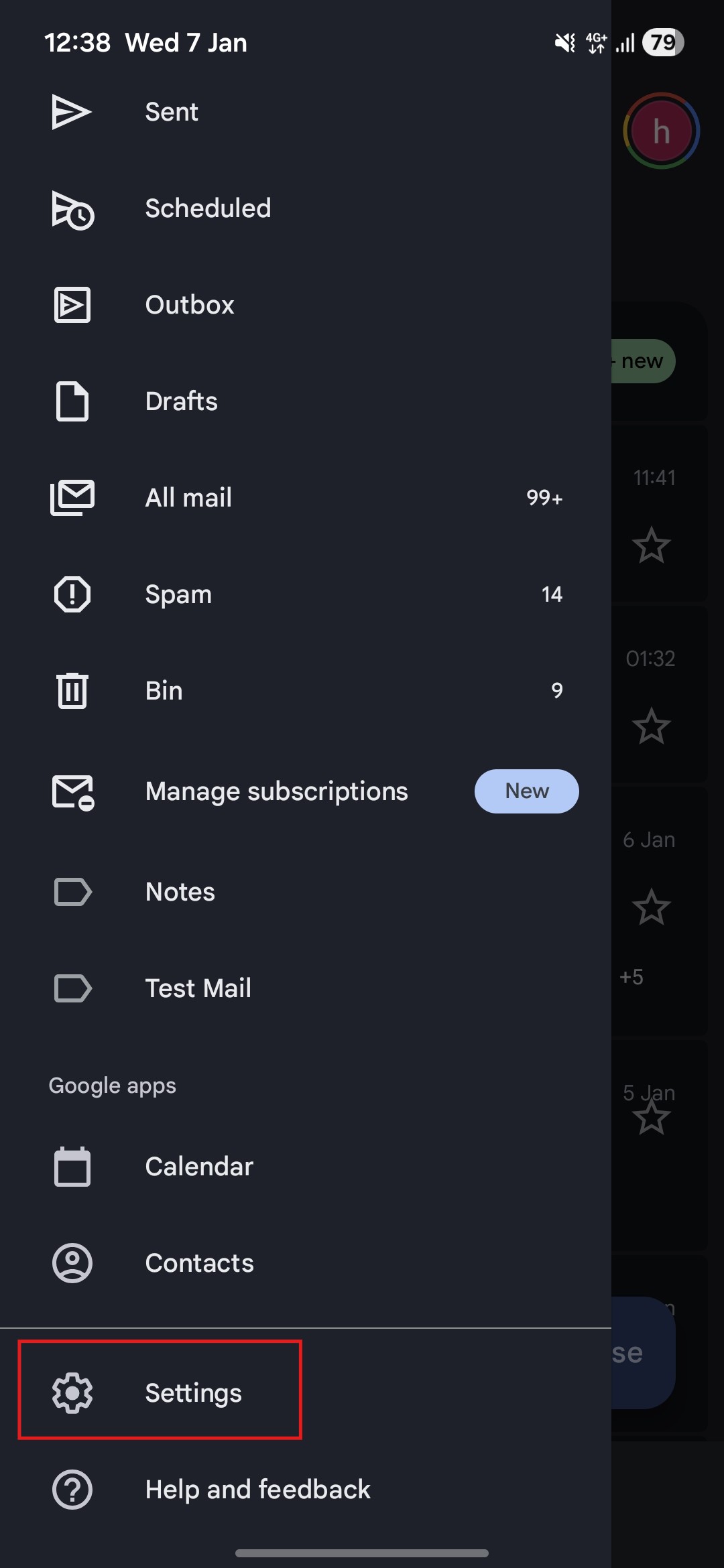
- Then scroll to the bottom and press the Settings button.
Step 2: Reconfigure incoming and outgoing mail server
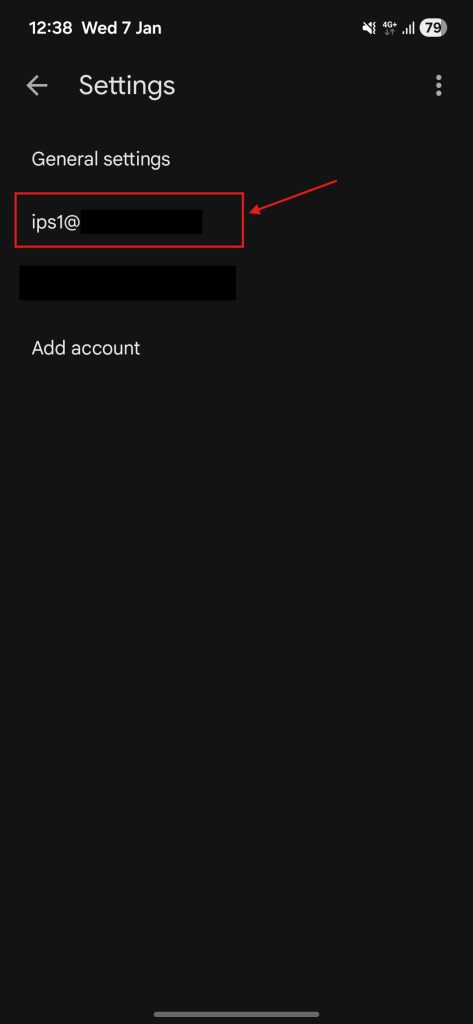
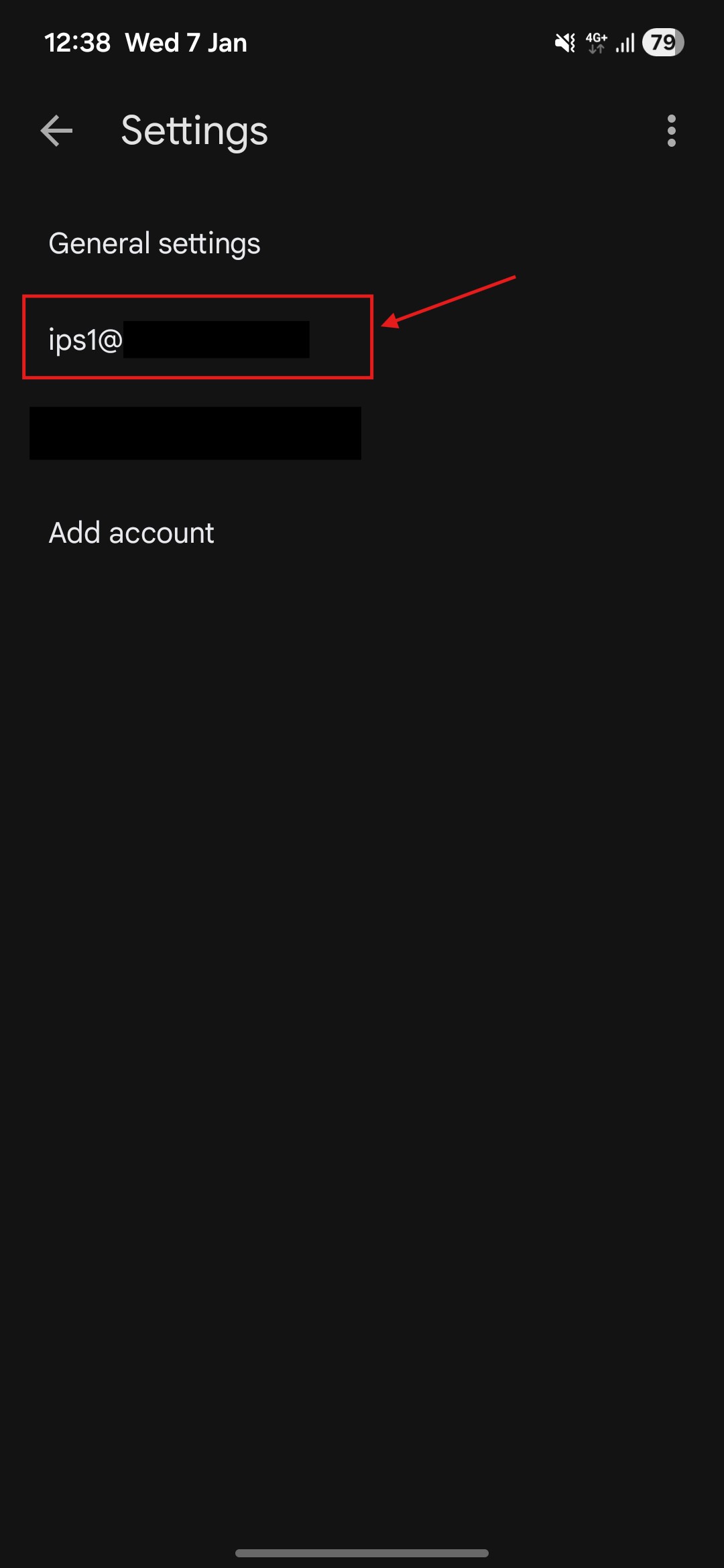
- In Settings page, select the email account you wish to reconfigure.
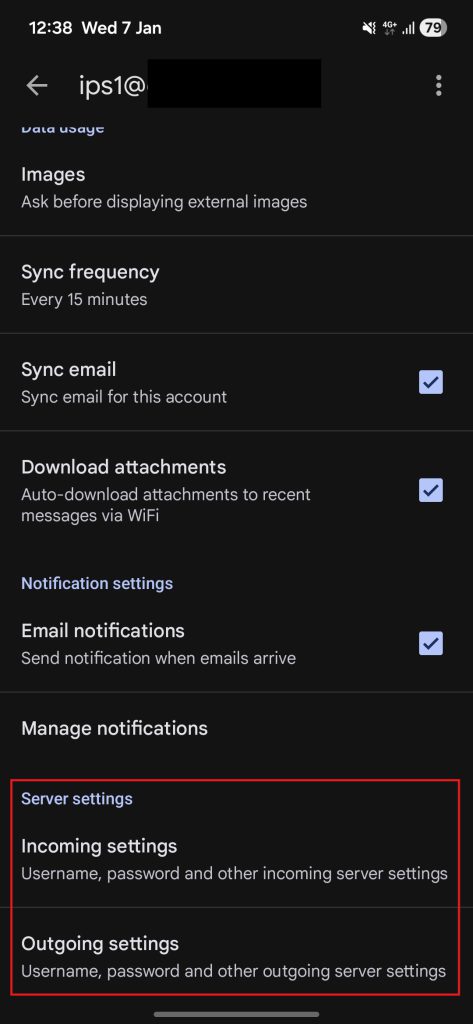
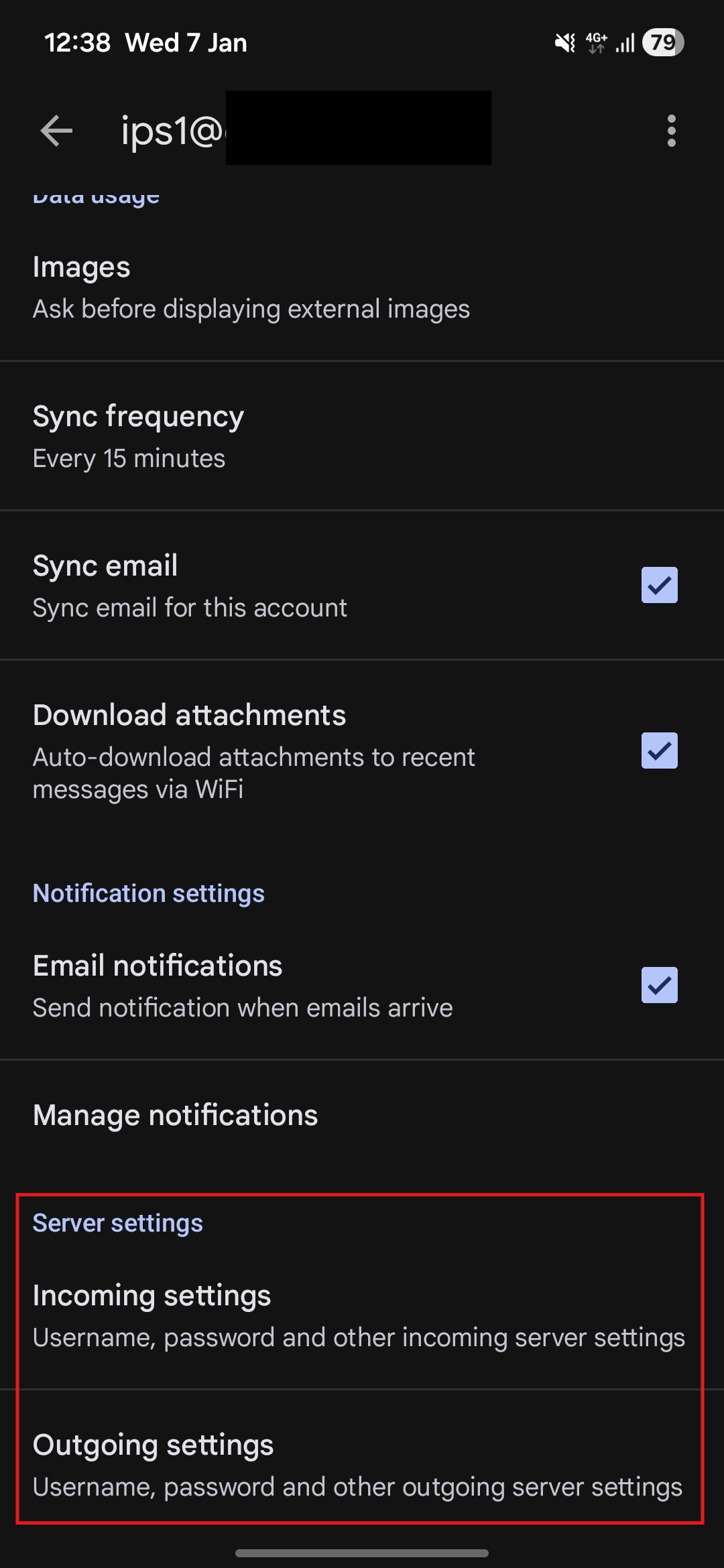
- In the email account Settings page, scroll to the bottom until you see the incoming and outgoing mail server settings.
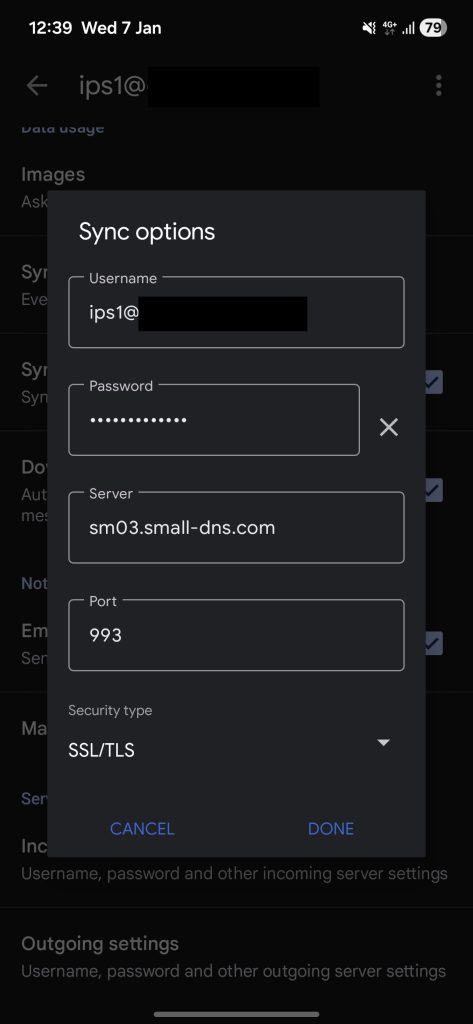
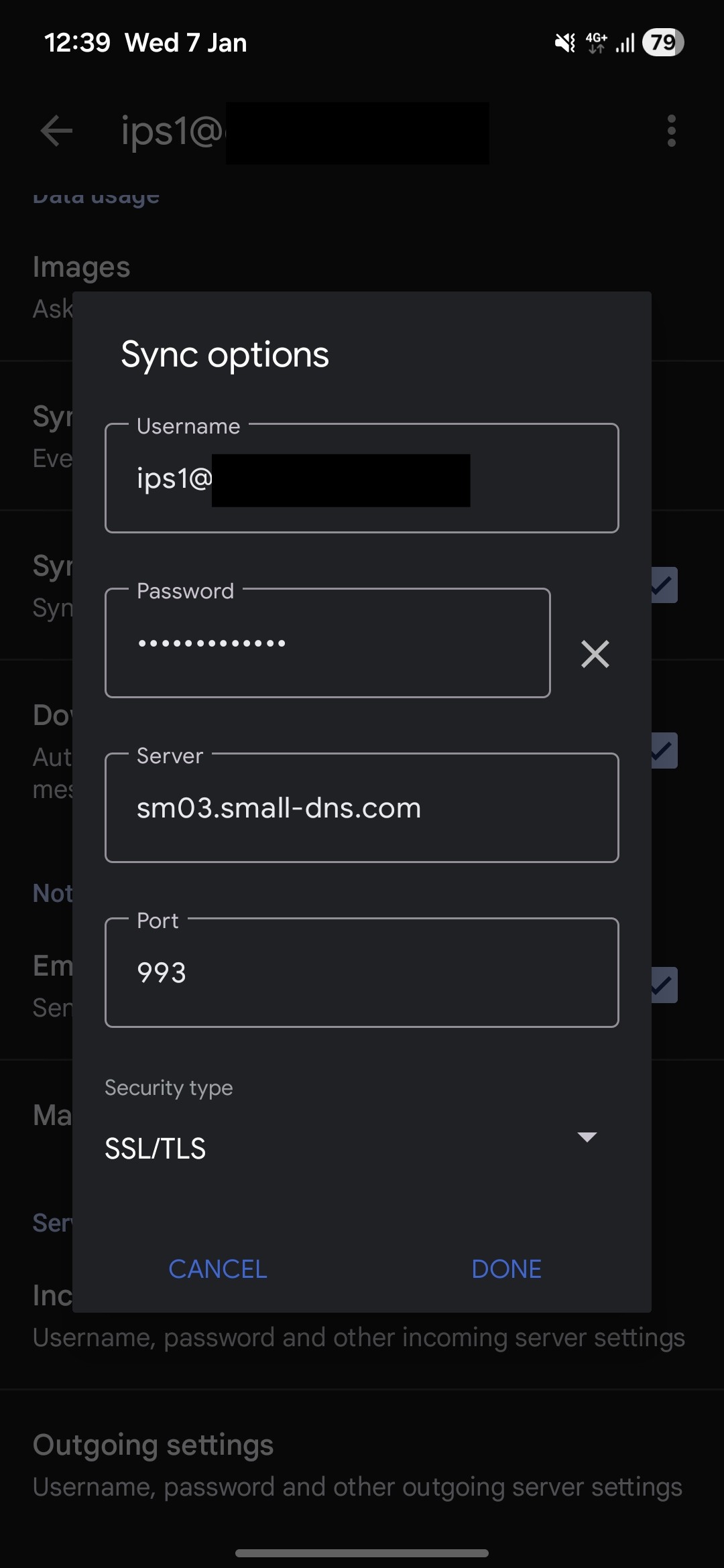
- Reconfigure the incoming mail server.
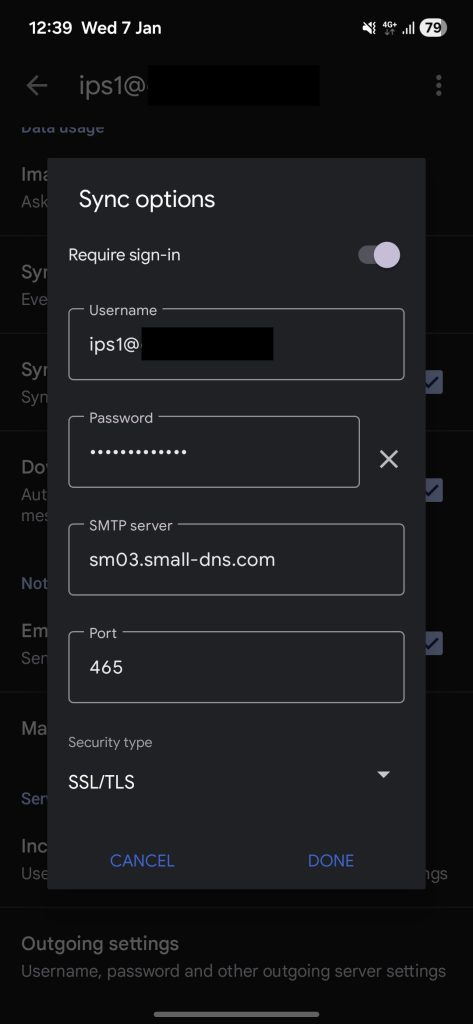
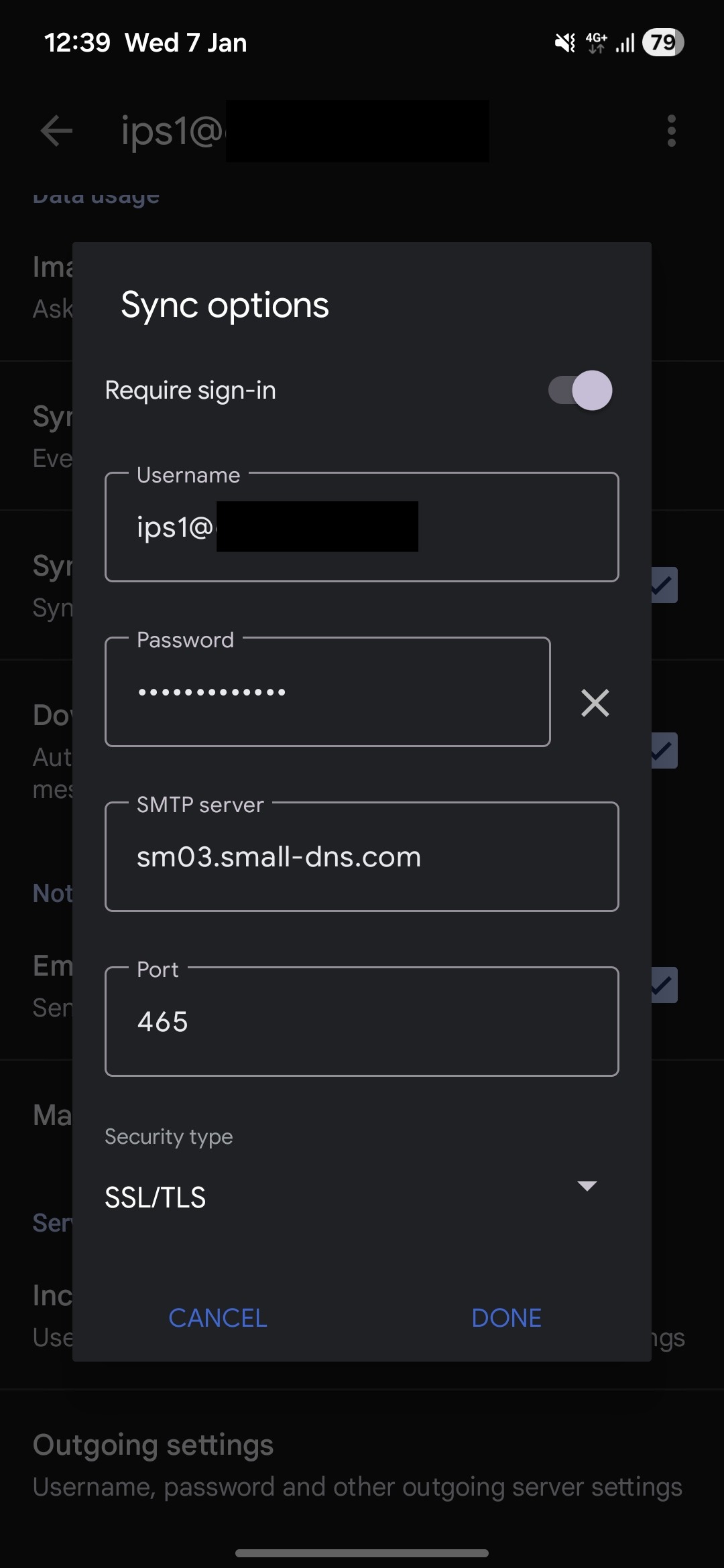
- Reconfigure the outgoing mail server.
Conclusion
By following this guidance, you can successfully update your mail server credentials and connection types to ensure your mobile email remains functional and secure.
For additional assistance or if you encounter any issues, please contact our support team at support@ipserverone.com.