
Search Our Database
How to restore Thunderbird emails – individual user
Introduction
Recover your essential communications by manually importing backed-up email data back into your Thunderbird application today. This process allows individual users to restore lost messages from local storage to their active mailbox, ensuring no critical information is permanently lost after a system migration or accidental deletion.
Prerequisite
-
Access to Mozilla Thunderbird desktop application
-
Existing backup files (MBOX or EML format)
-
Basic knowledge of Thunderbird account settings
Step-by-step guide
Step 1: Access to Thunderbird Add-on Manager
- We will need to install an add-on in Thunderbird, because the default backup option in Thunderbird will back up the entire Thunderbird profile, and not available to only backup an email account.
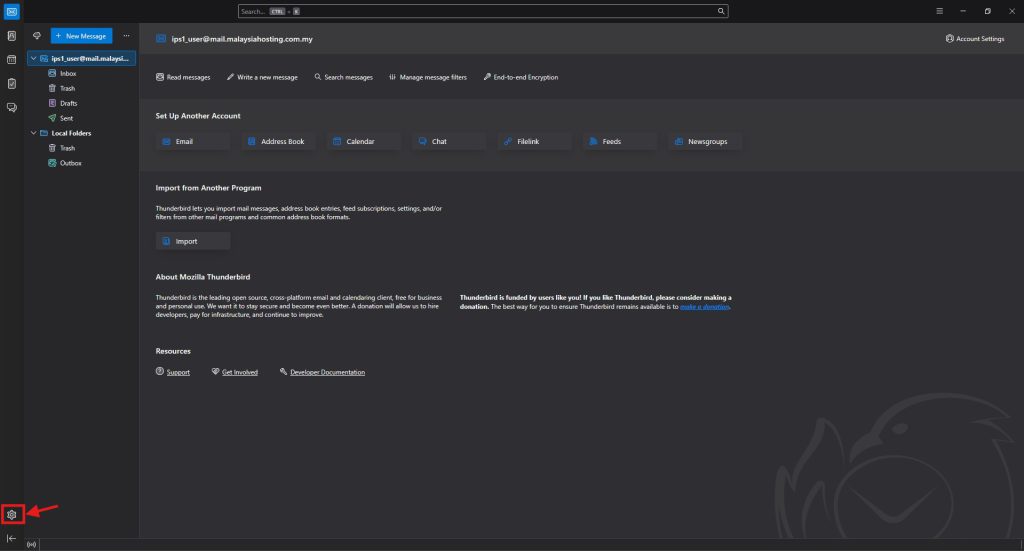
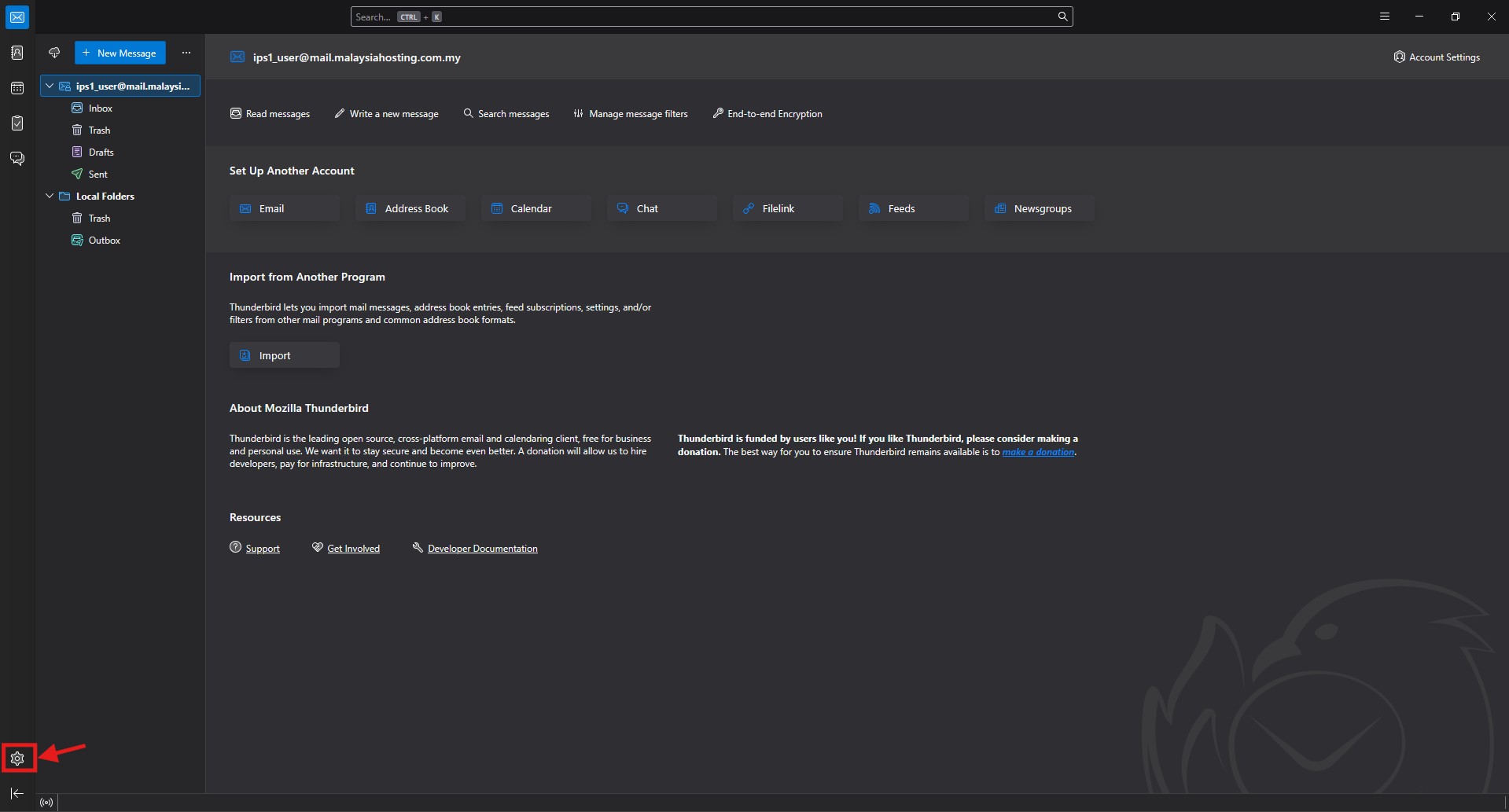
- Click the Settings on the bottom left corner.
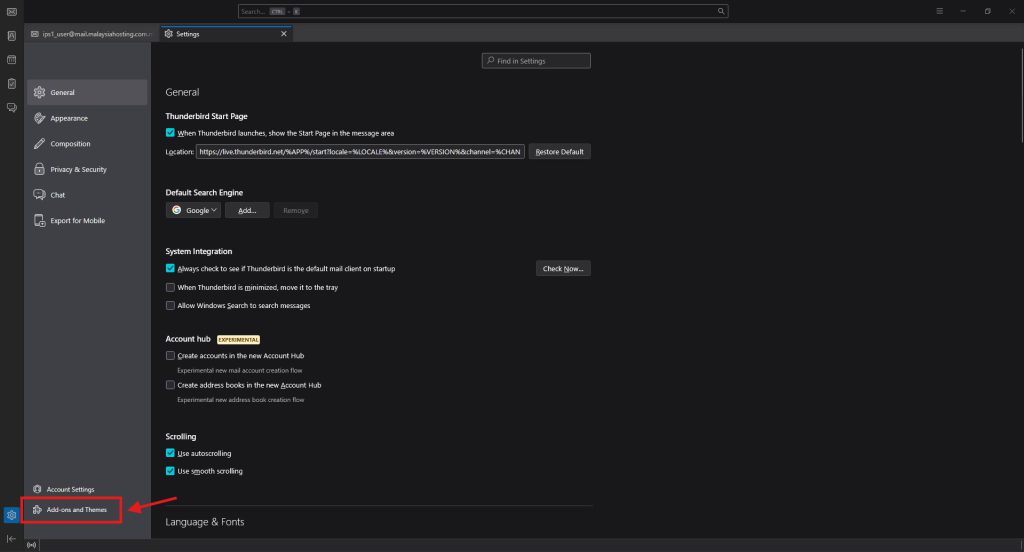
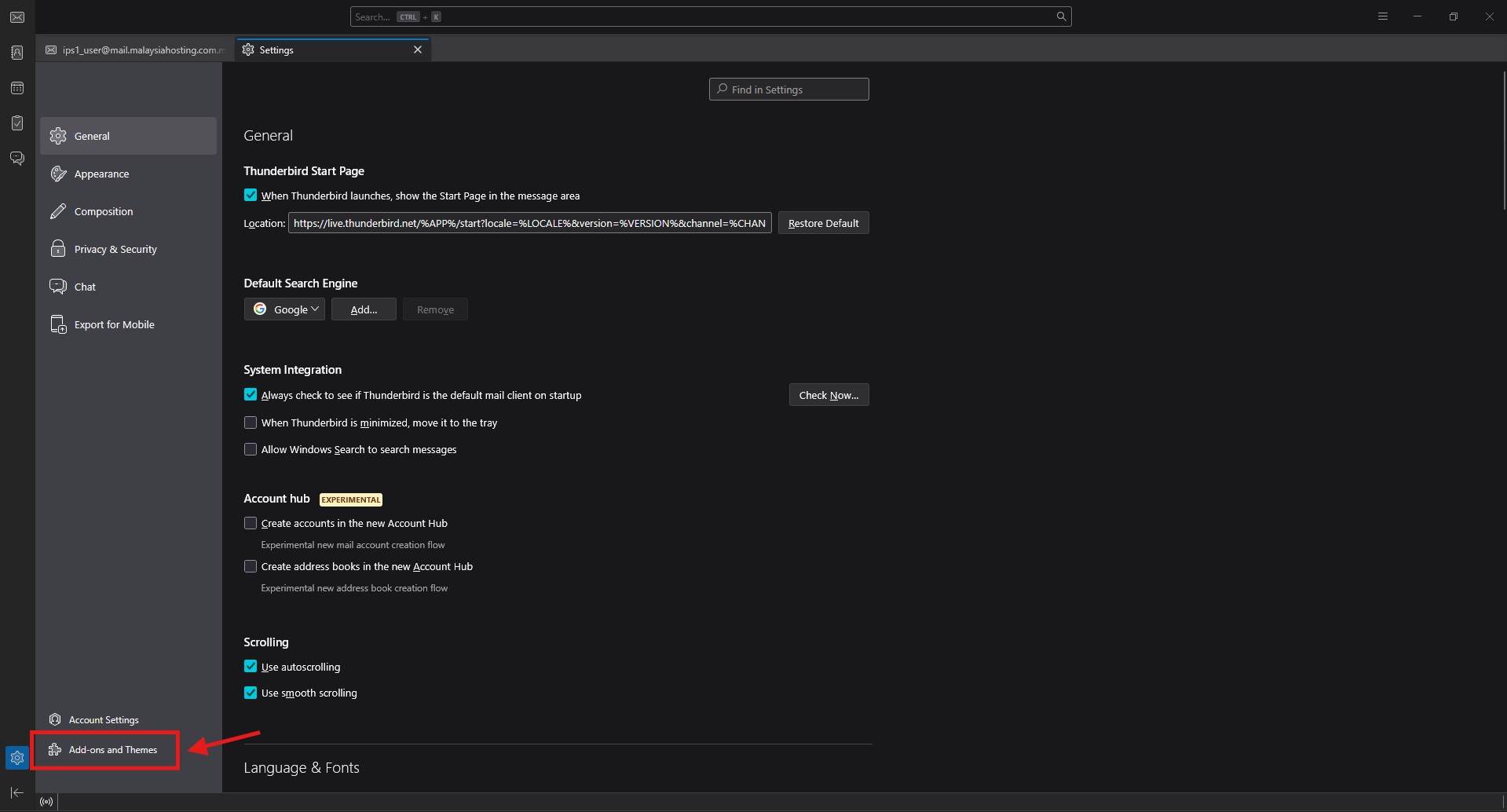
- Click Add-ons and Themes.
Step 2: Install add-on in Thunderbird
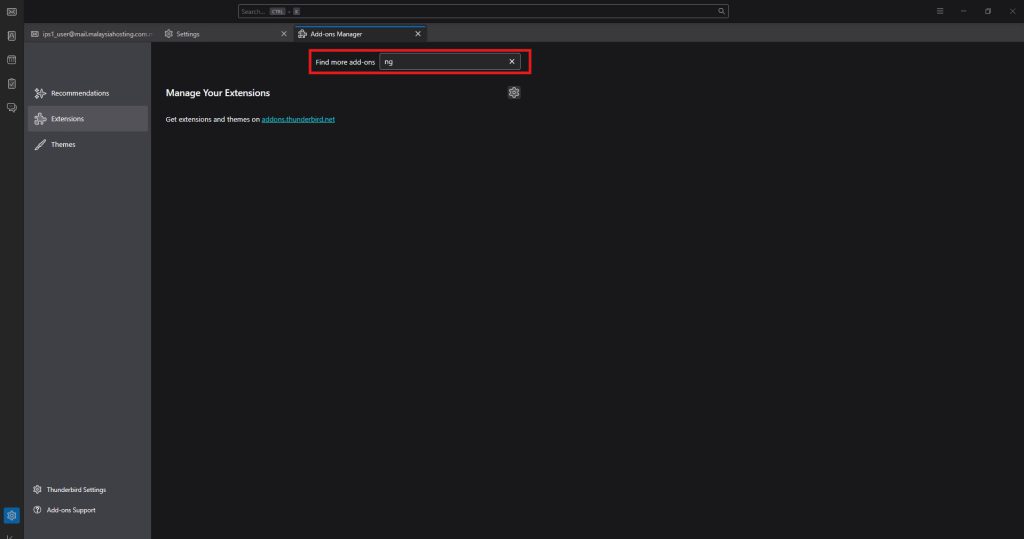
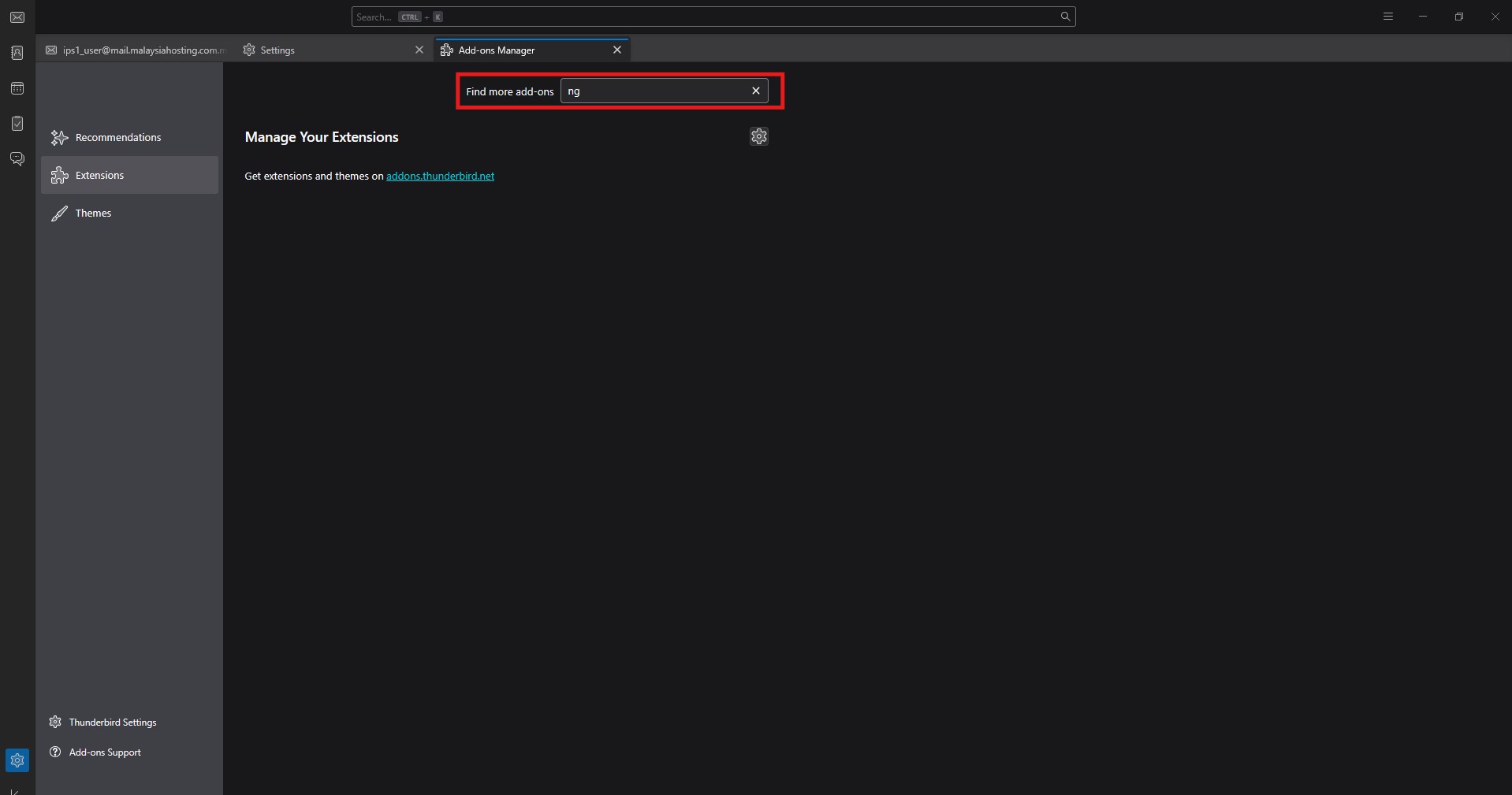
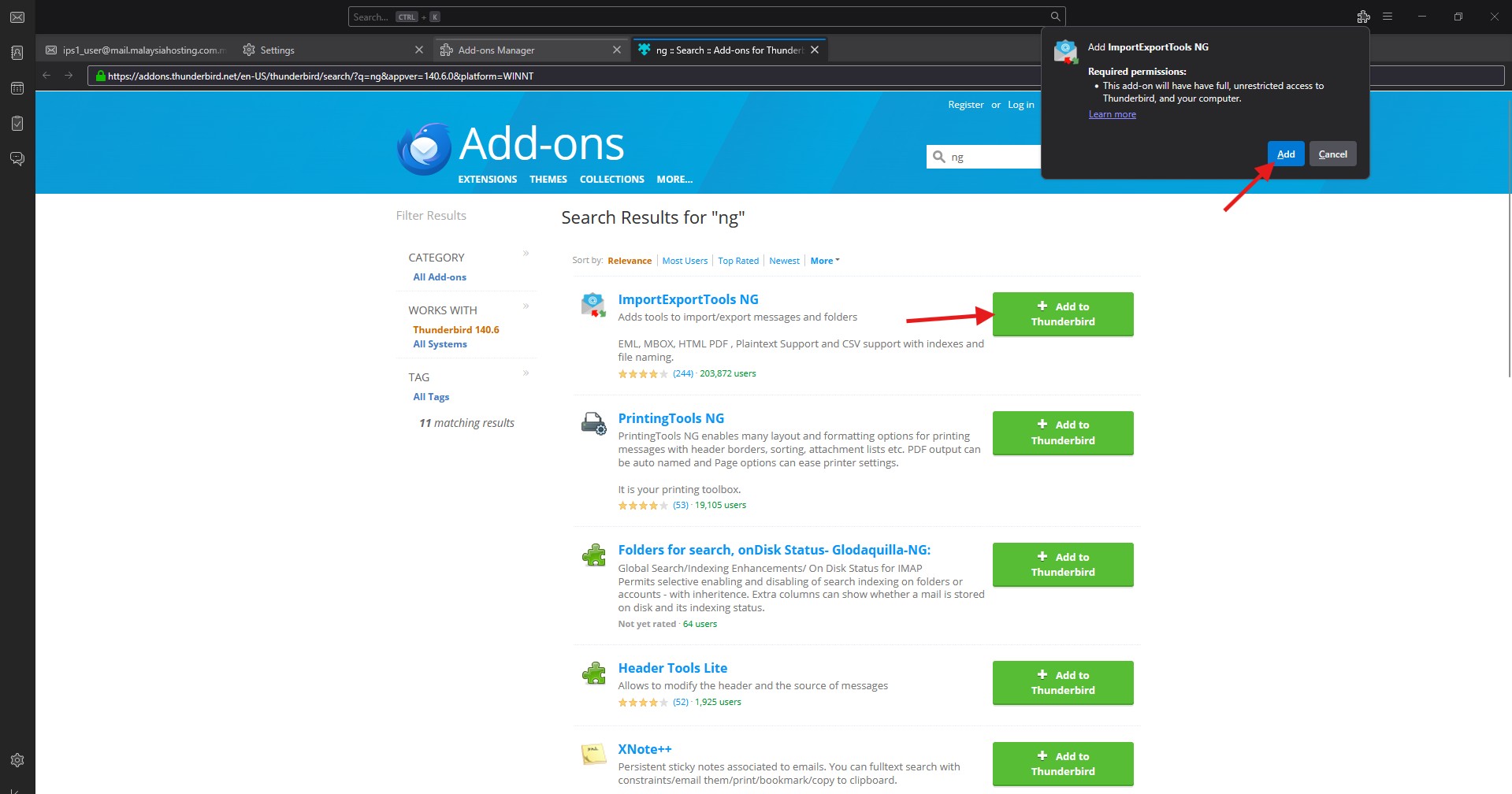
- Search ng in the search bar.
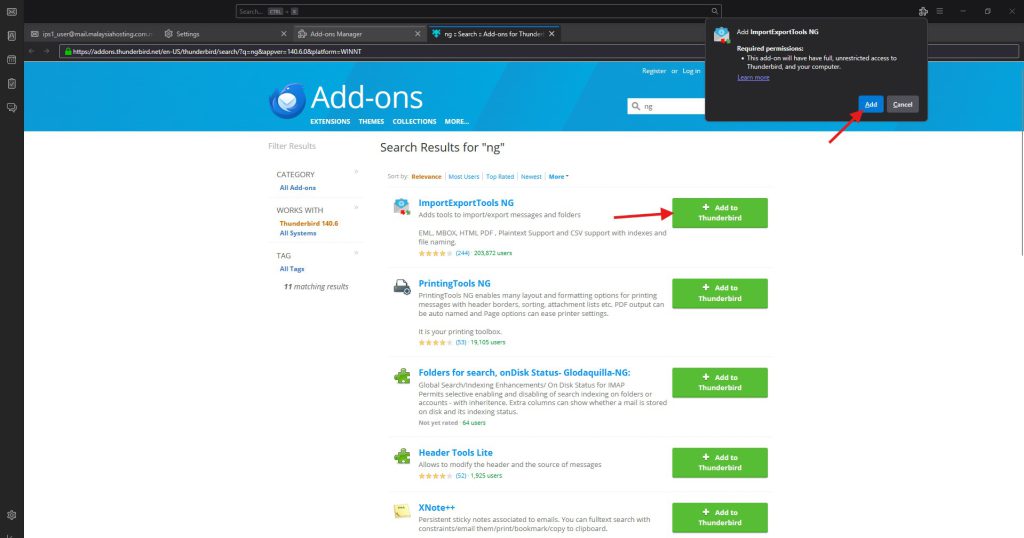
- Click + Add to Thunderbird then click Add again to install.
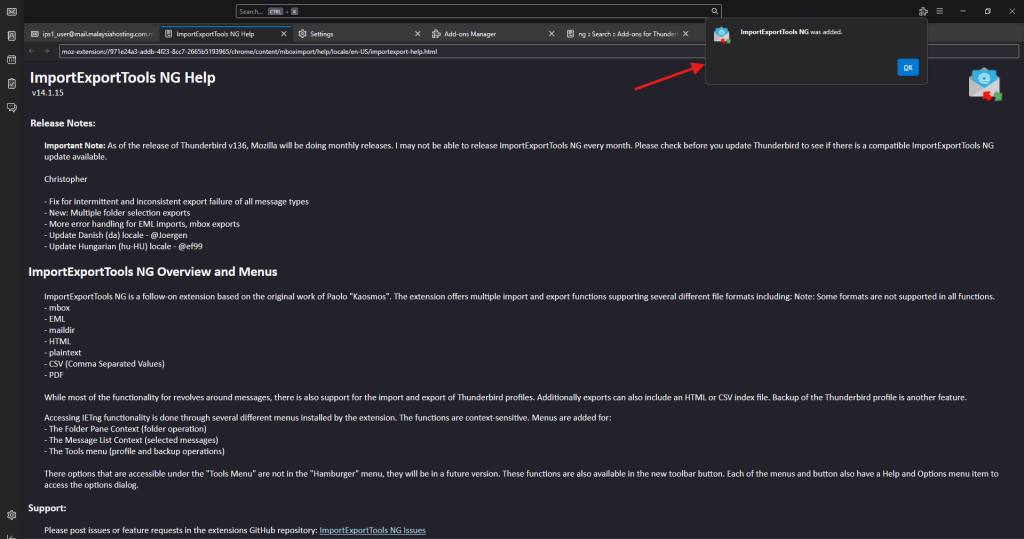
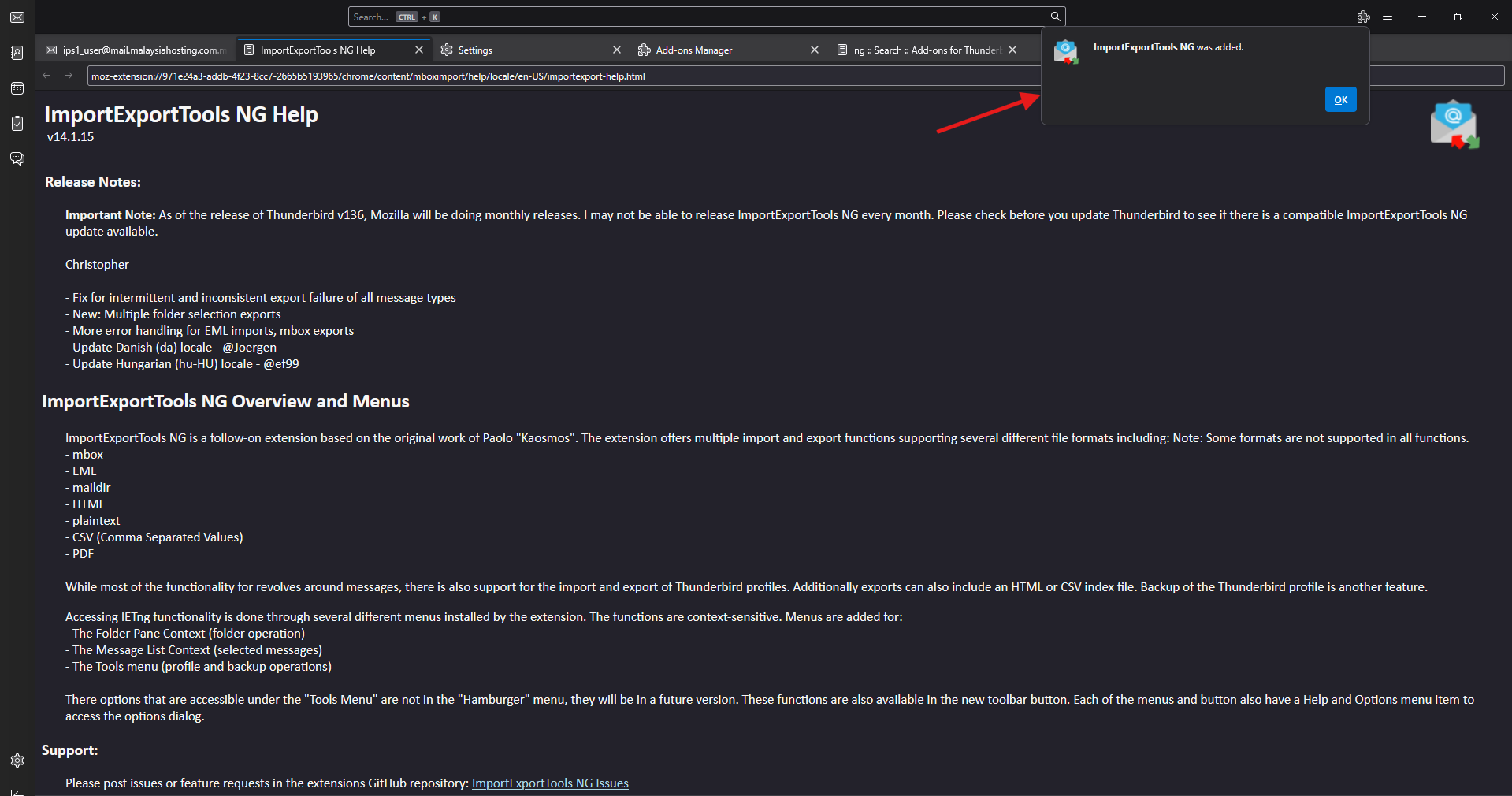
- You will see a message when the add-on installed.
Step 3: Create new folder to restore your email account
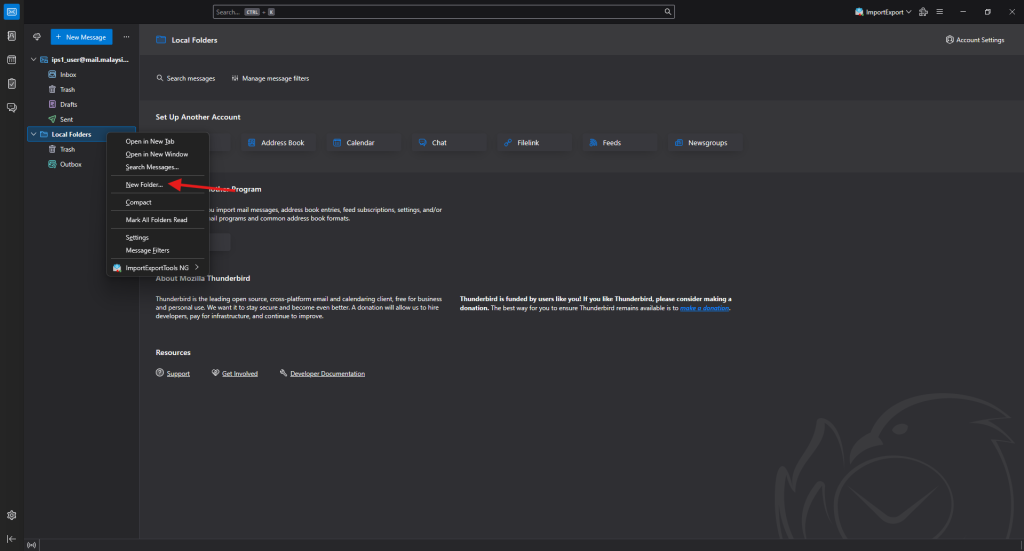
- Right click Local Folders then select New Folder….
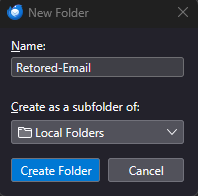
- Enter the folder name then Create Folder.
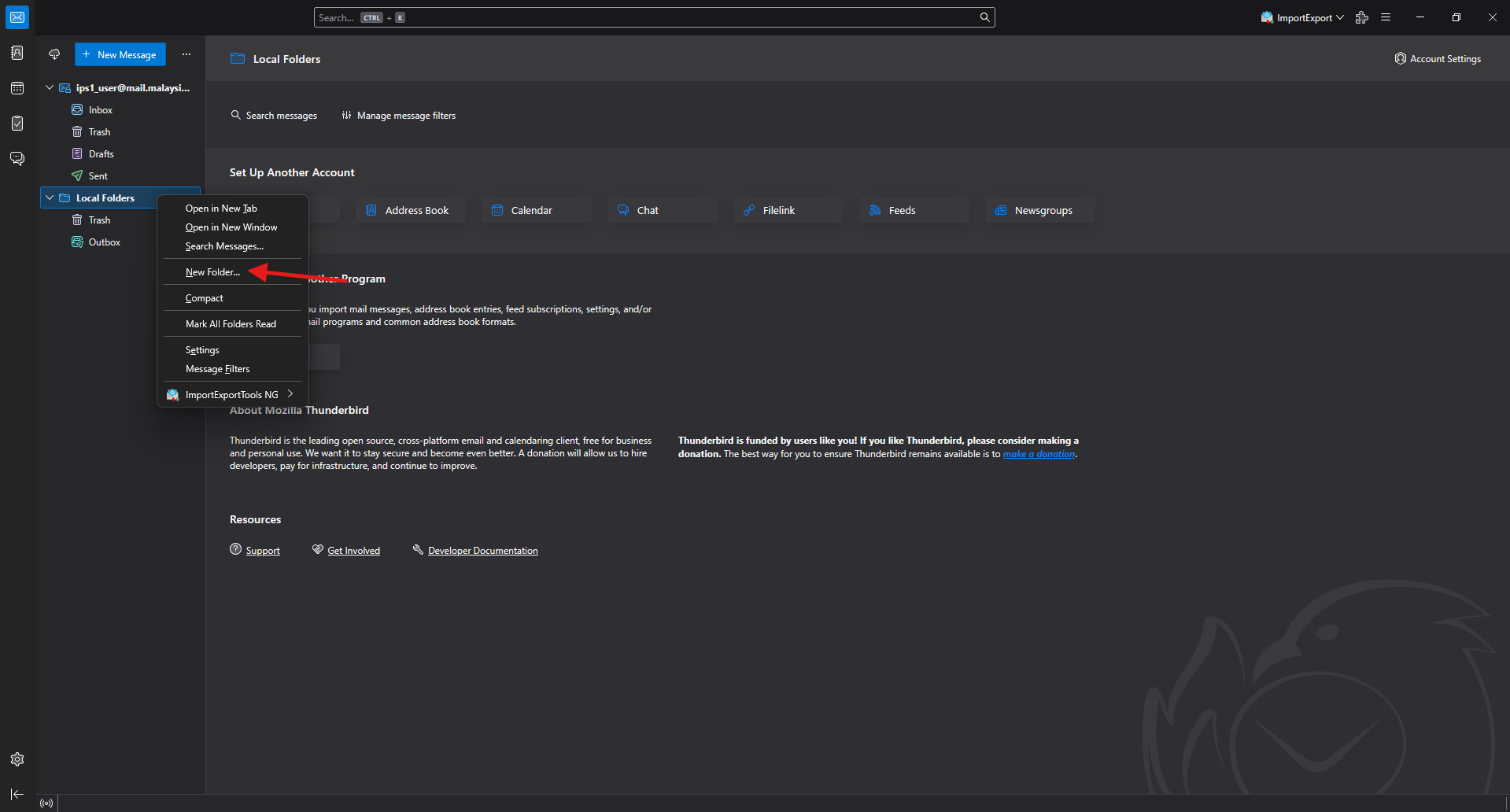
Step 4: Restore your email account
- Right click your email account then select ImportExportTools NG then Import mbox Files then All mbox Files from directory (with sbd structure).
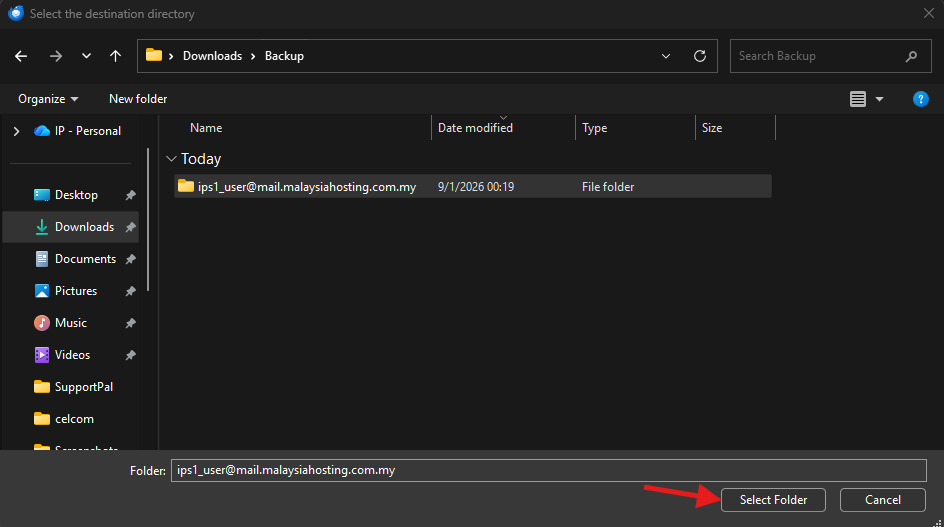
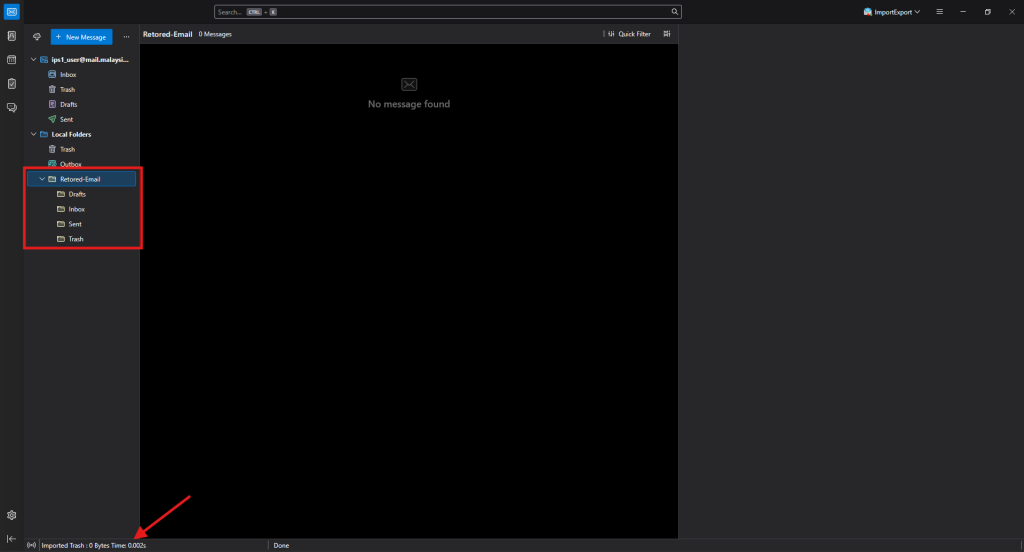
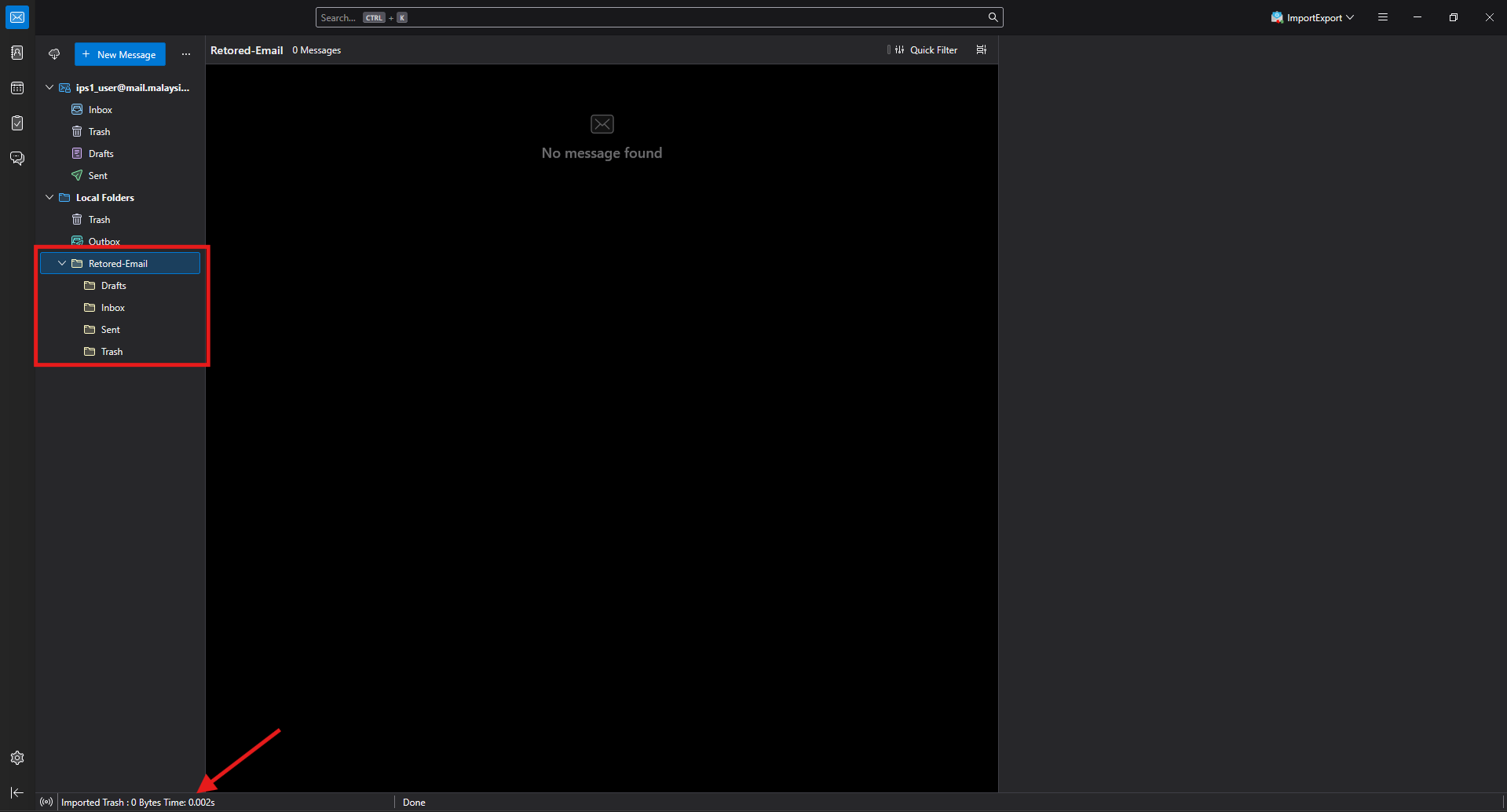
- The progress can be view on the bottom left corner and you email folder will start appearing.
Conclusion
By following this guidance, you can successfully restore your Thunderbird emails from local backups, ensuring your historical data is safely reintegrated into your mail client for daily use.
For additional assistance or if you encounter any issues, please contact our support team at support@ipserverone.com.