
Search Our Database
How to backup Thunderbird emails – individual user
Introduction
Secure your important digital correspondence by manually exporting your Thunderbird mailbox data to a local directory today. This process ensures individual users maintain a reliable recovery point, protecting critical information against data corruption or accidental deletion within the application.
Prerequisite
-
Access to Mozilla Thunderbird desktop application
-
Basic knowledge of Thunderbird account settings
Important Note ⚠️: If you have back up your email account using the add-on, you can refer to the LINK for the step to restore your email account.
Step-by-step guide
Step 1: Access to Thunderbird Add-on Manager
- We will need to install an add-on in Thunderbird, because the default backup option in Thunderbird will back up the entire Thunderbird profile, and not available to only backup an email account.
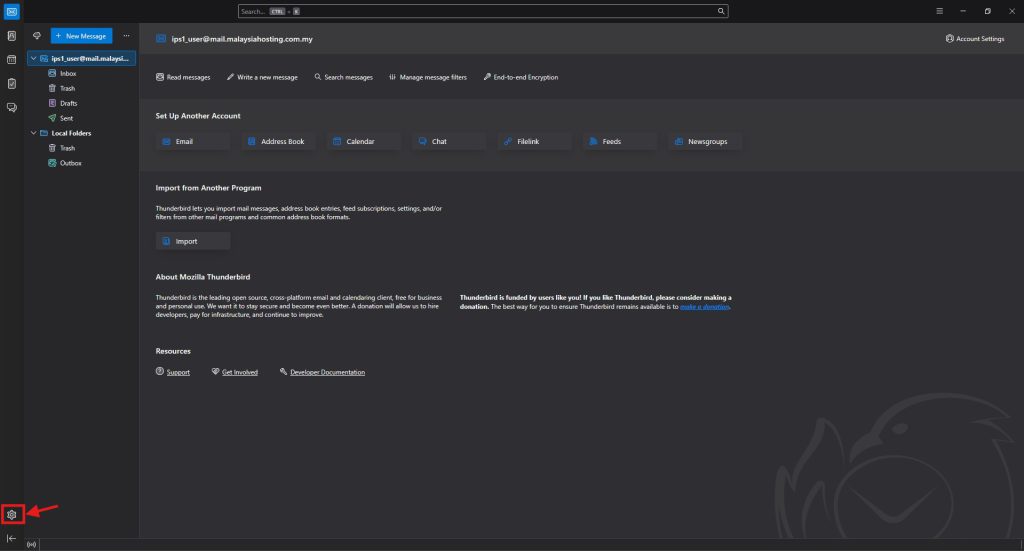
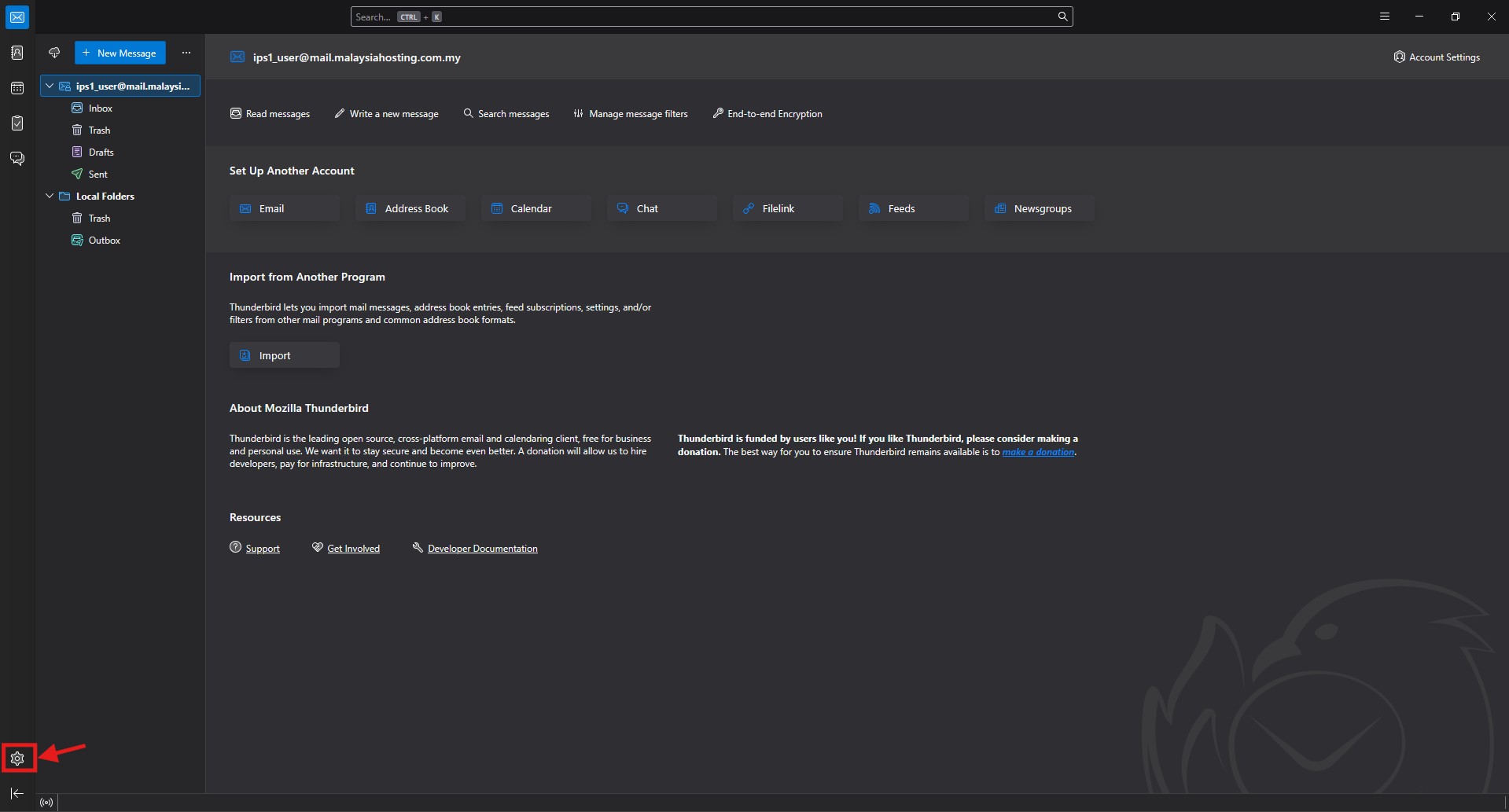
- Click the Settings on the bottom left corner.
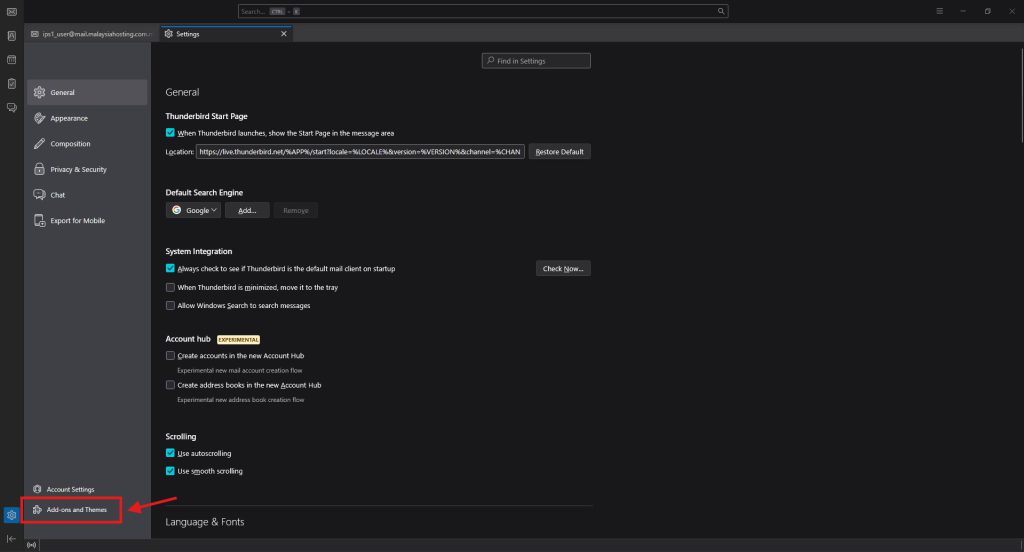
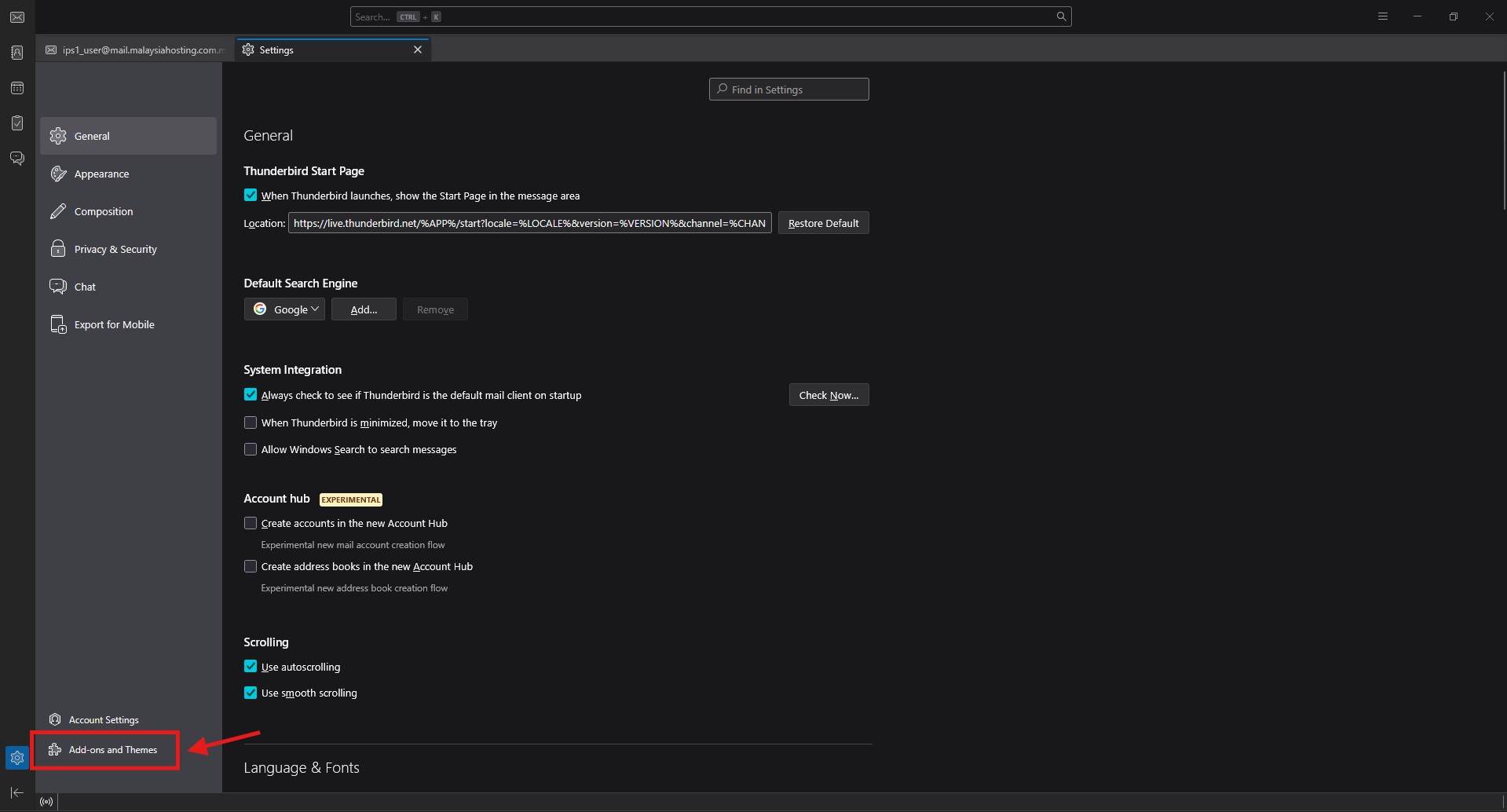
- Click Add-ons and Themes.
Step 2: Install add-on in Thunderbird
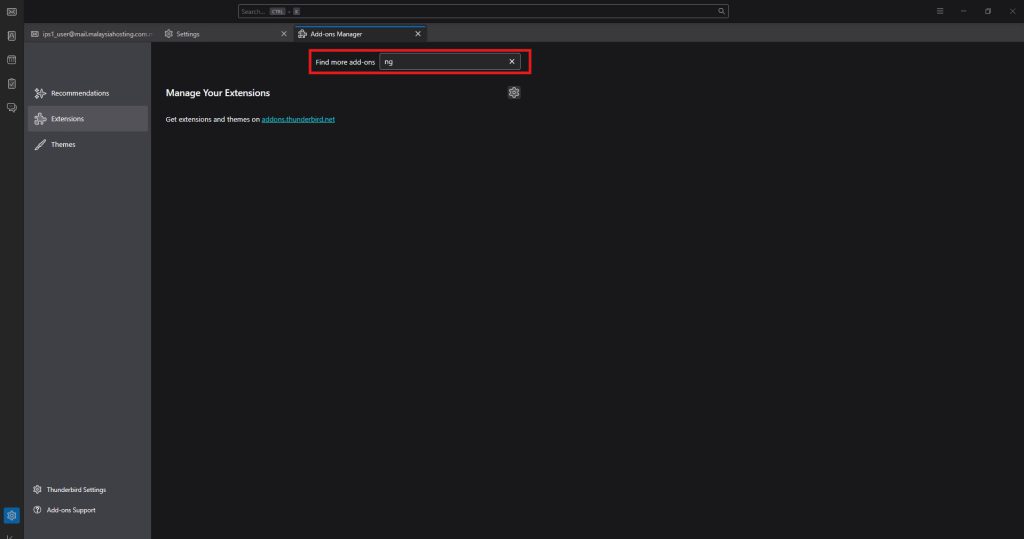
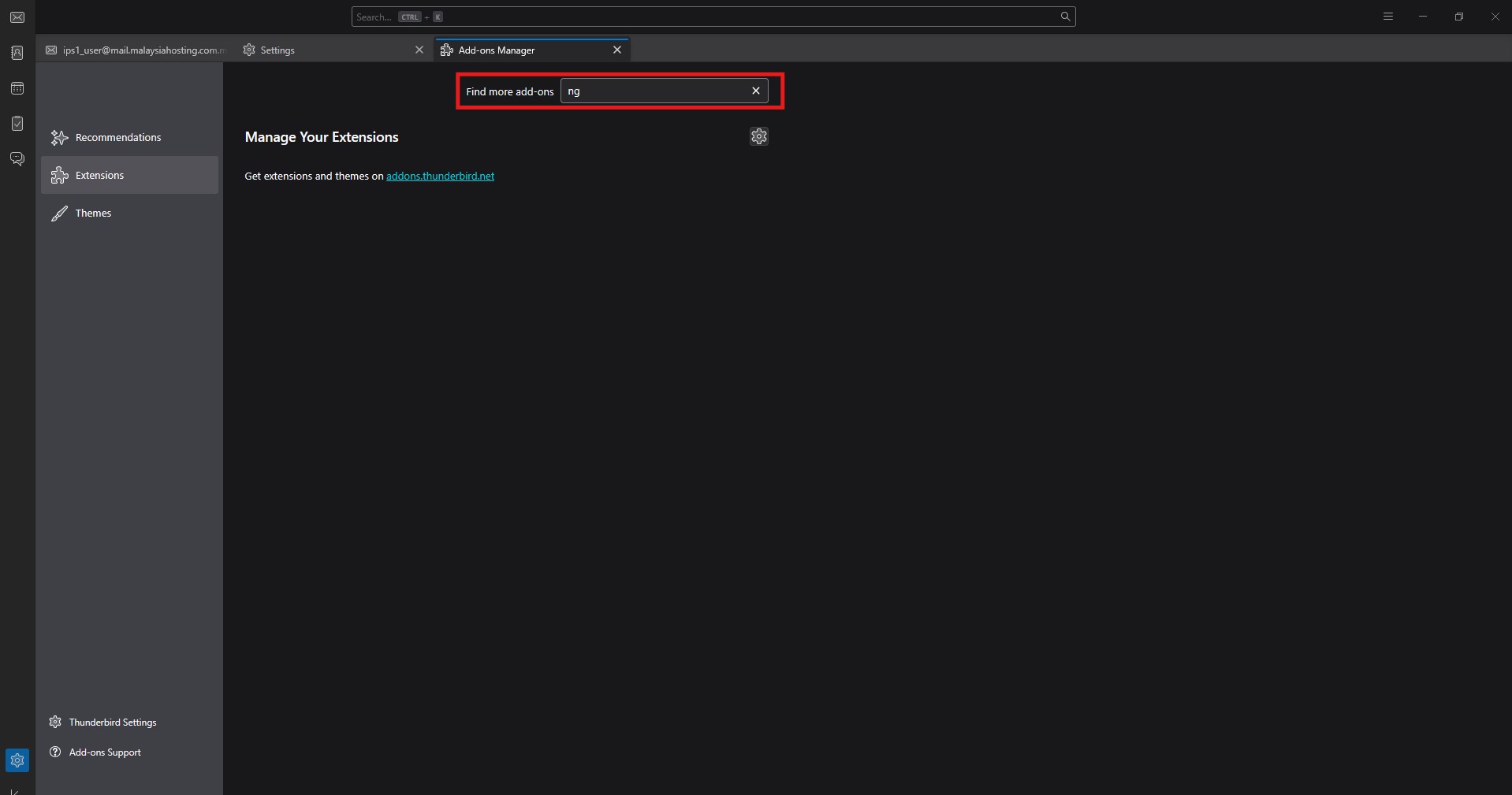
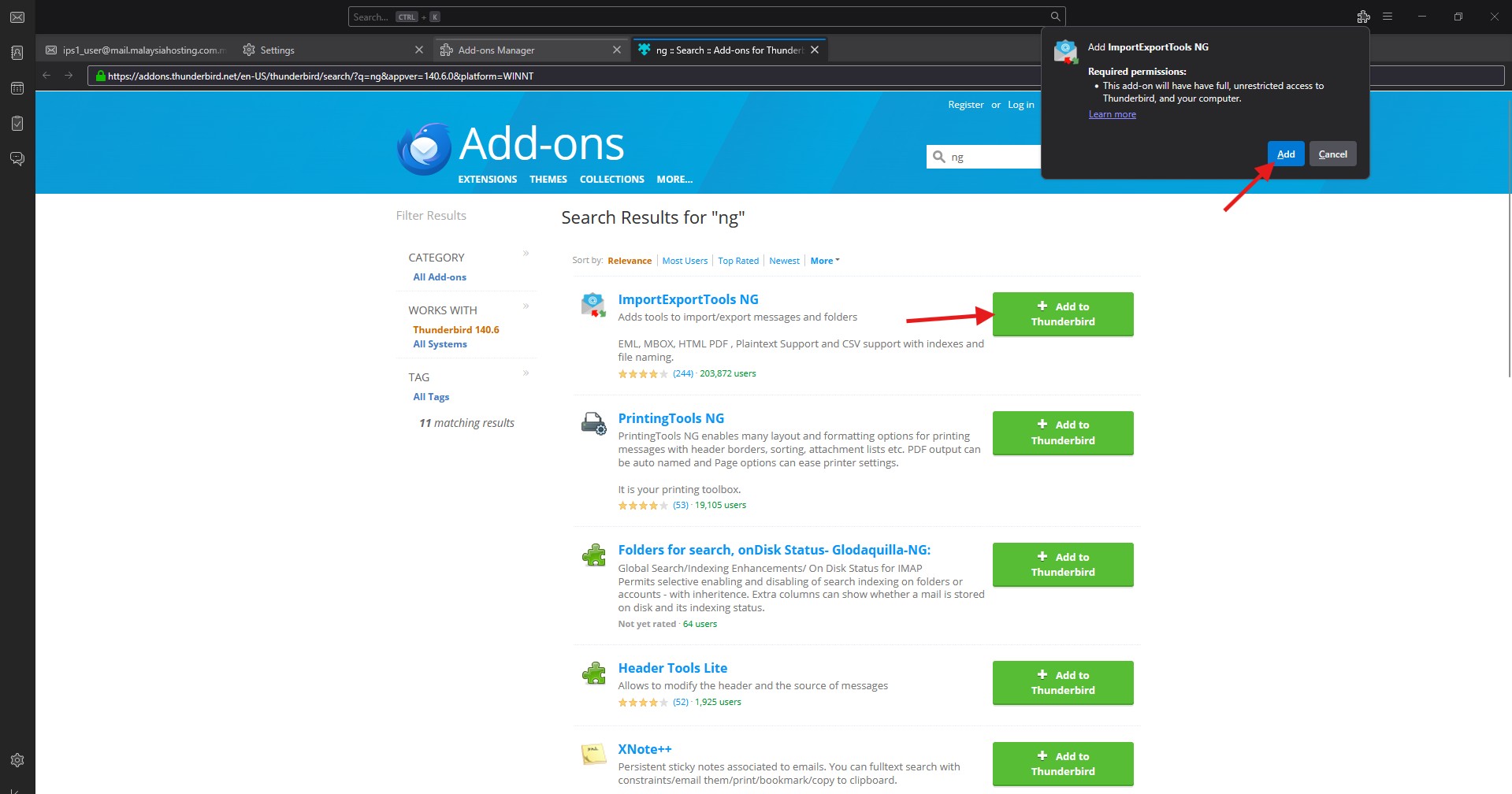
- Search ng in the search bar.
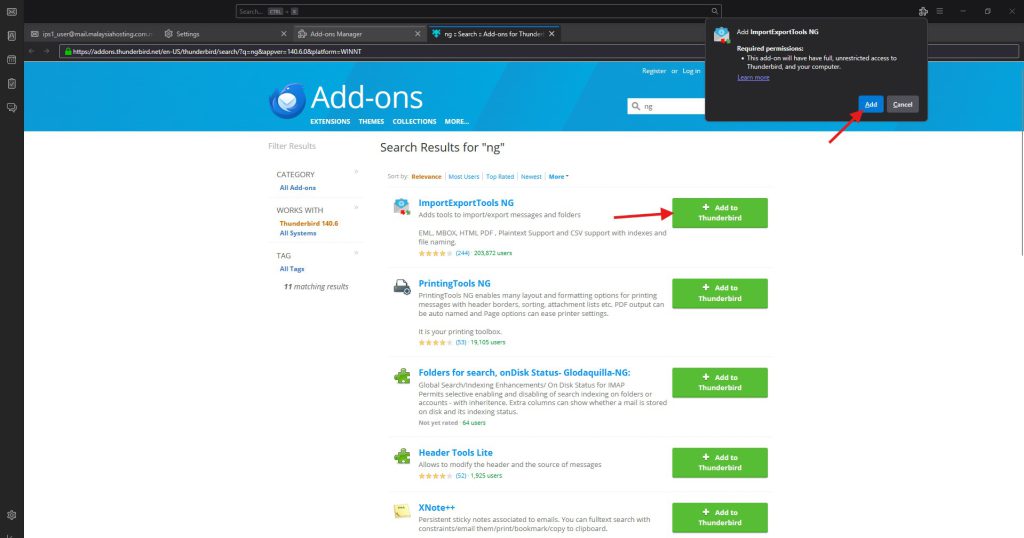
- Click + Add to Thunderbird then click Add again to install.
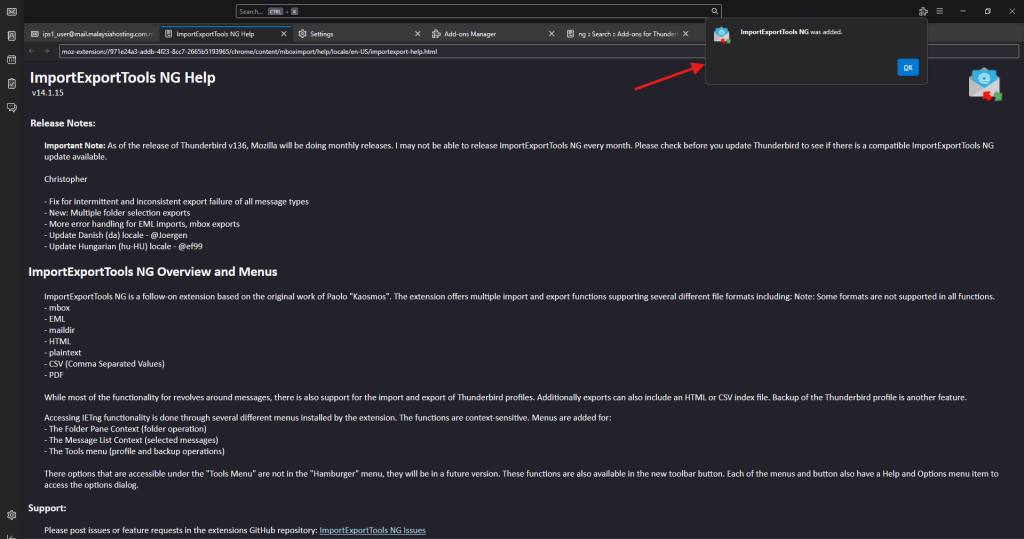
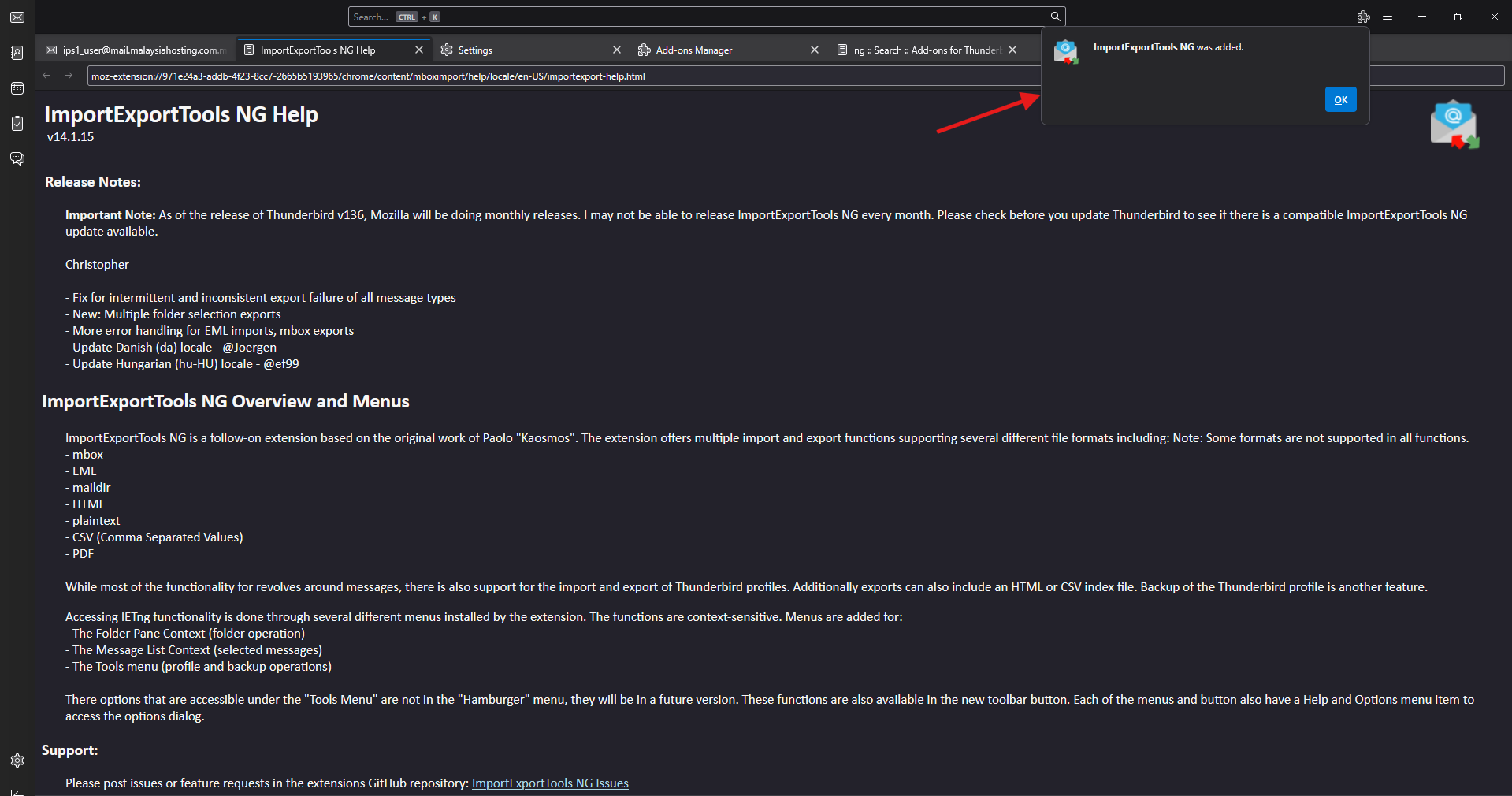
- You will see a message when the add-on installed.
Step 3: Back up your email account
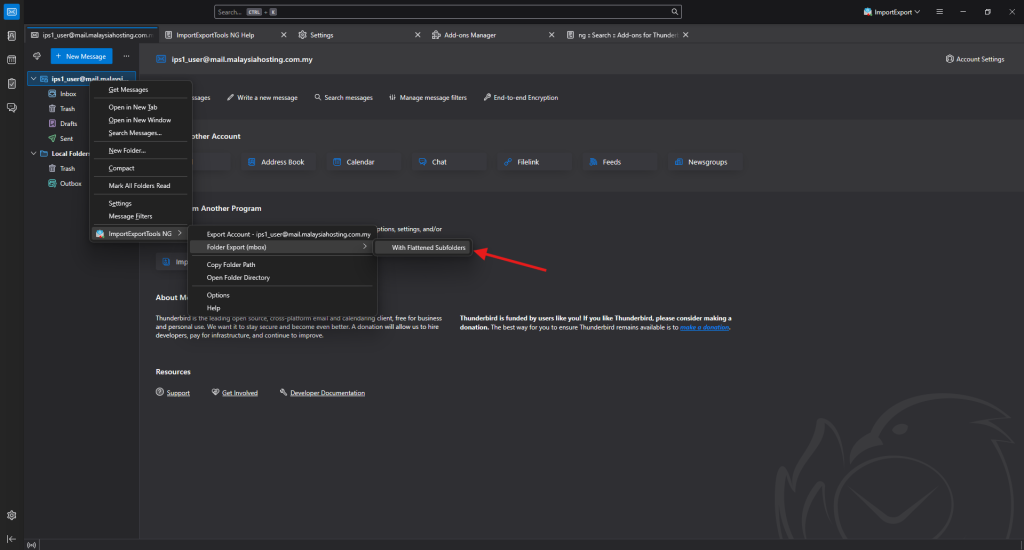
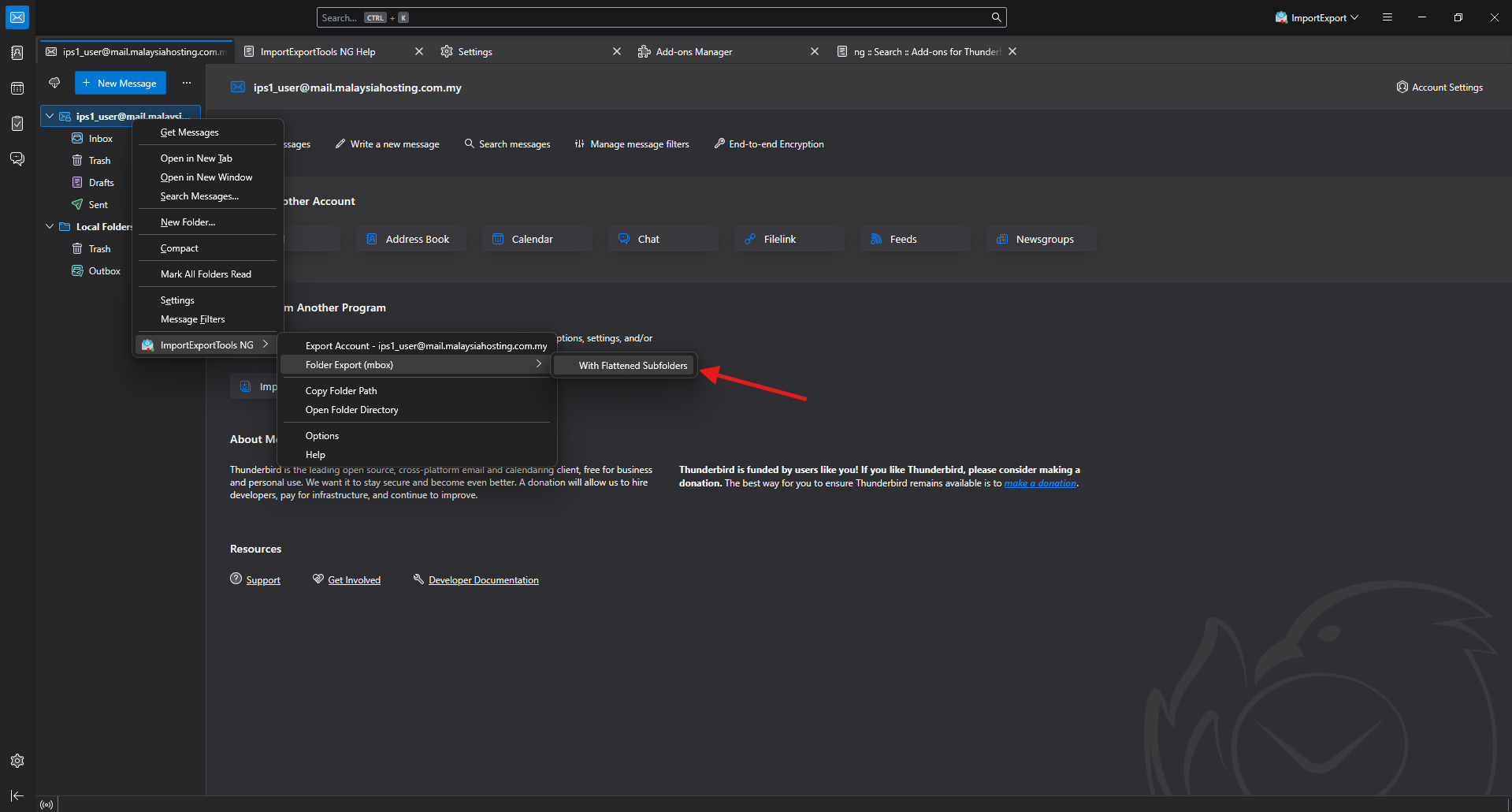
- Right click your email account then select ImportExportTools NG then Folder Export (mbox) then With Flattered Subfolders.
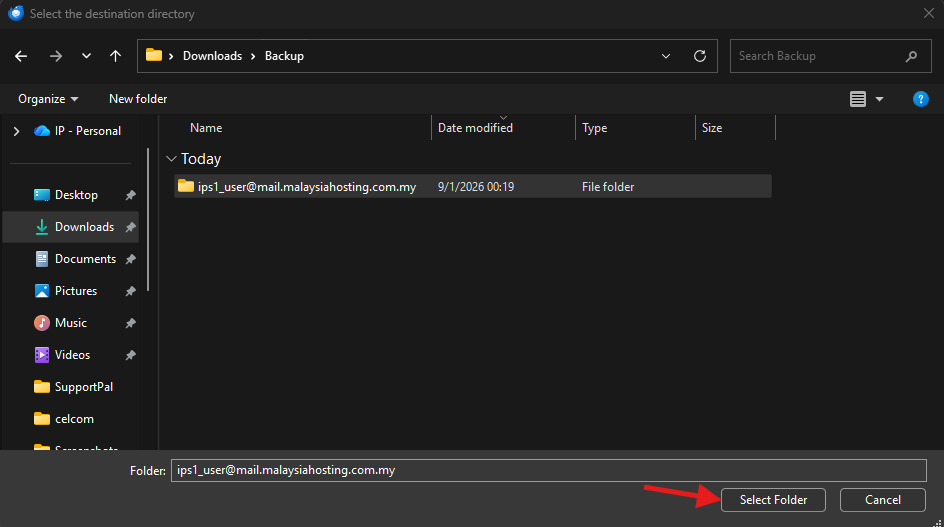
- There will be a new window pop out, then create a new folder to save the backup.
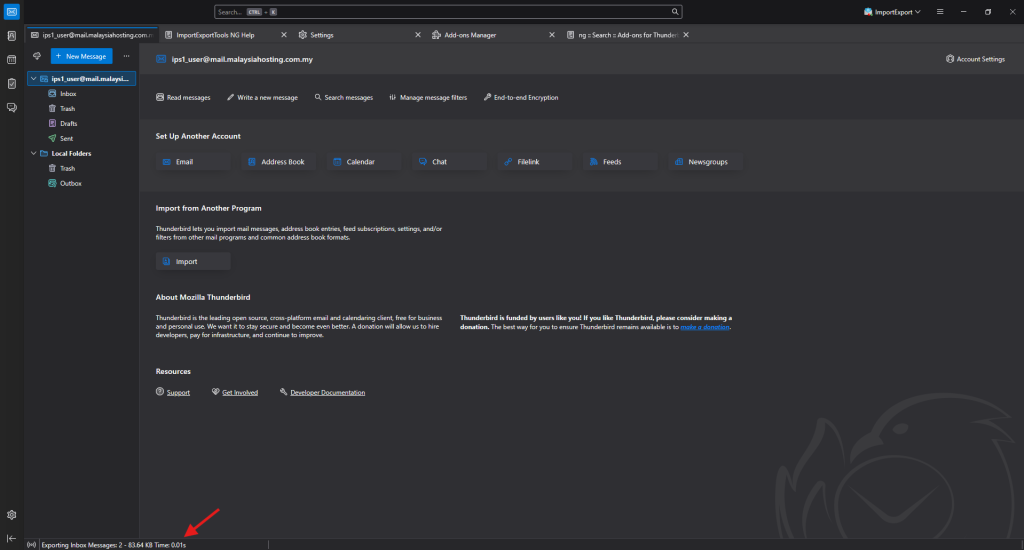
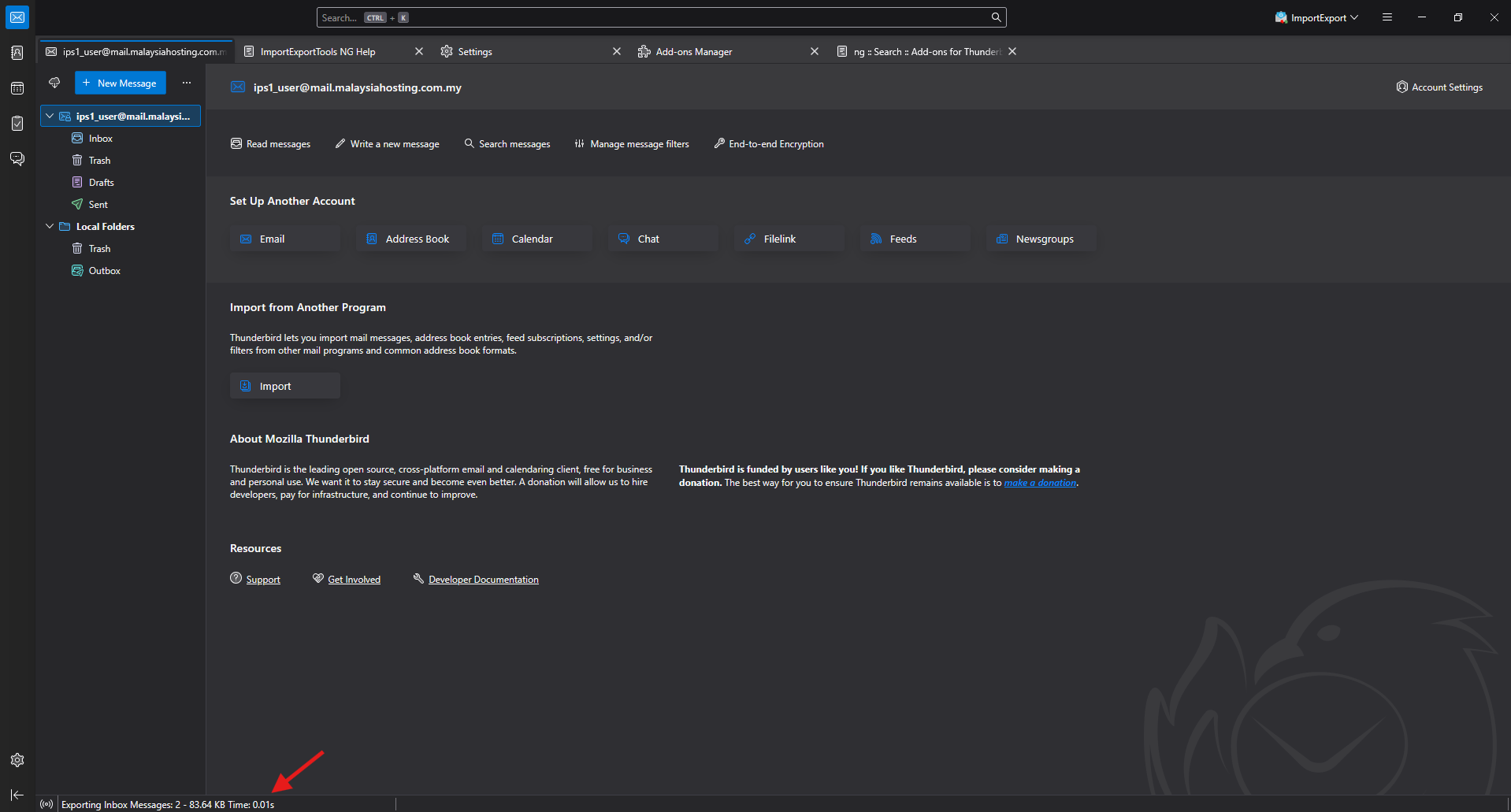
- The progress can be view on the bottom left corner.
Conclusion
By following this guidance, you can successfully secure your Thunderbird emails, providing you with a reliable and accessible backup of your communication history for future peace of mind.
For additional assistance or if you encounter any issues, please contact our support team at support@ipserverone.com.