Introduction
SmarterMail administrators implement these security protocols within the dashboard to ensure email integrity. By enforcing strict validation and opportunistic TLS, you prevent man-in-the-middle attacks and encrypt data during transit, safeguarding sensitive communications against unauthorized interception.
Prerequisite
-
Access to SmarterMail with Global Administrator privileges
-
Access to SmarterMail Domain Administrator for domain-specific settings
-
Valid SSL/TLS certificates installed on the mail server
-
Basic knowledge of SSL/TLS handshake processes
Before configuration
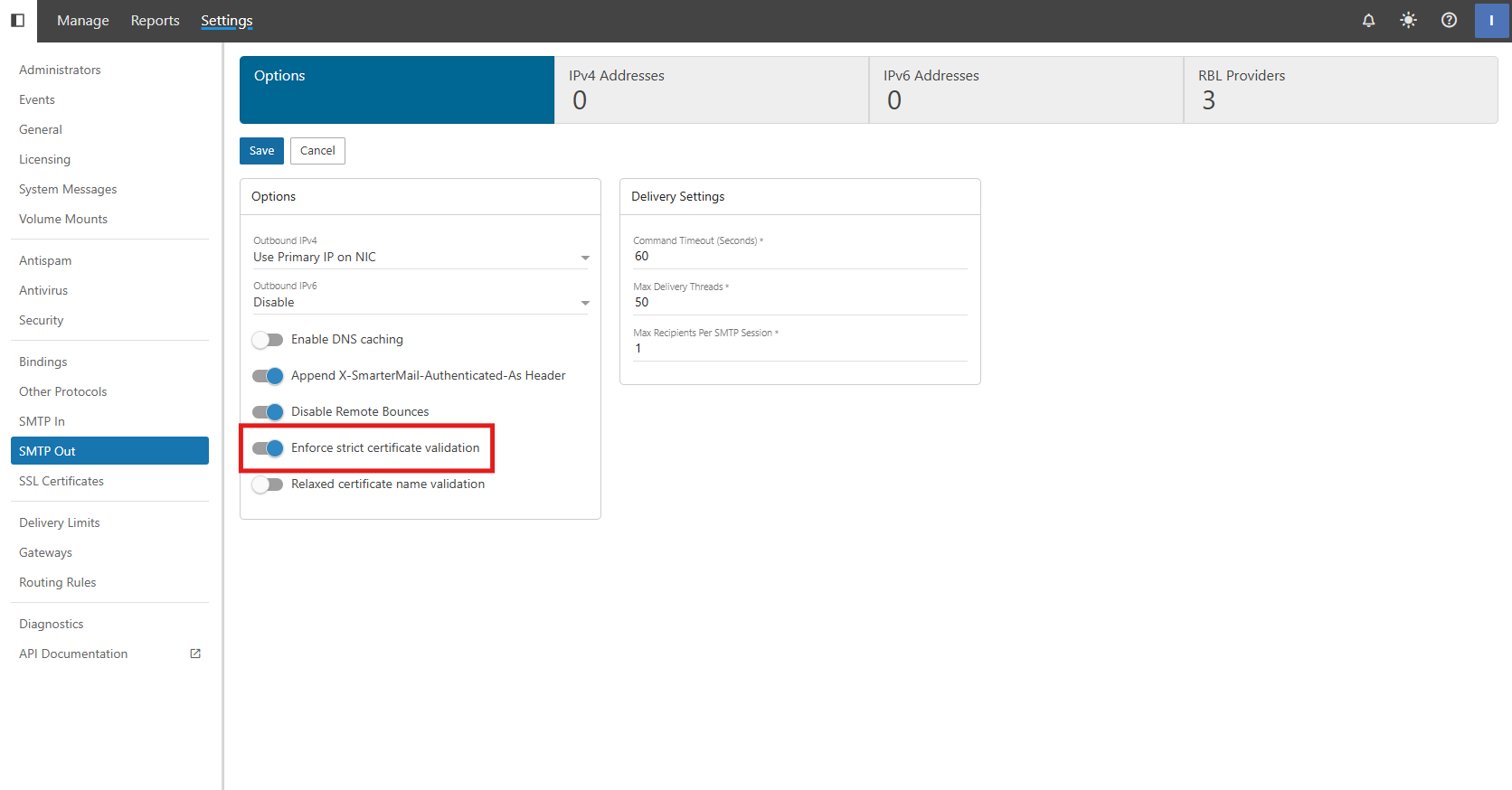
Enforce strict certificate validation
- This is a global security setting that dictates how SmarterMail handles encrypted connections with other mail servers. When enabled, SmarterMail will strictly verify the validity of the remote server’s SSL certificate.
- Because this is a global setting, it affects every outgoing connection made by the server. If a remote server uses a self-signed, expired, or mismatched certificate, SmarterMail will terminate the connection. While this maximizes security, it may lead to delivery failures if you frequently communicate with servers that have poorly configured SSL.
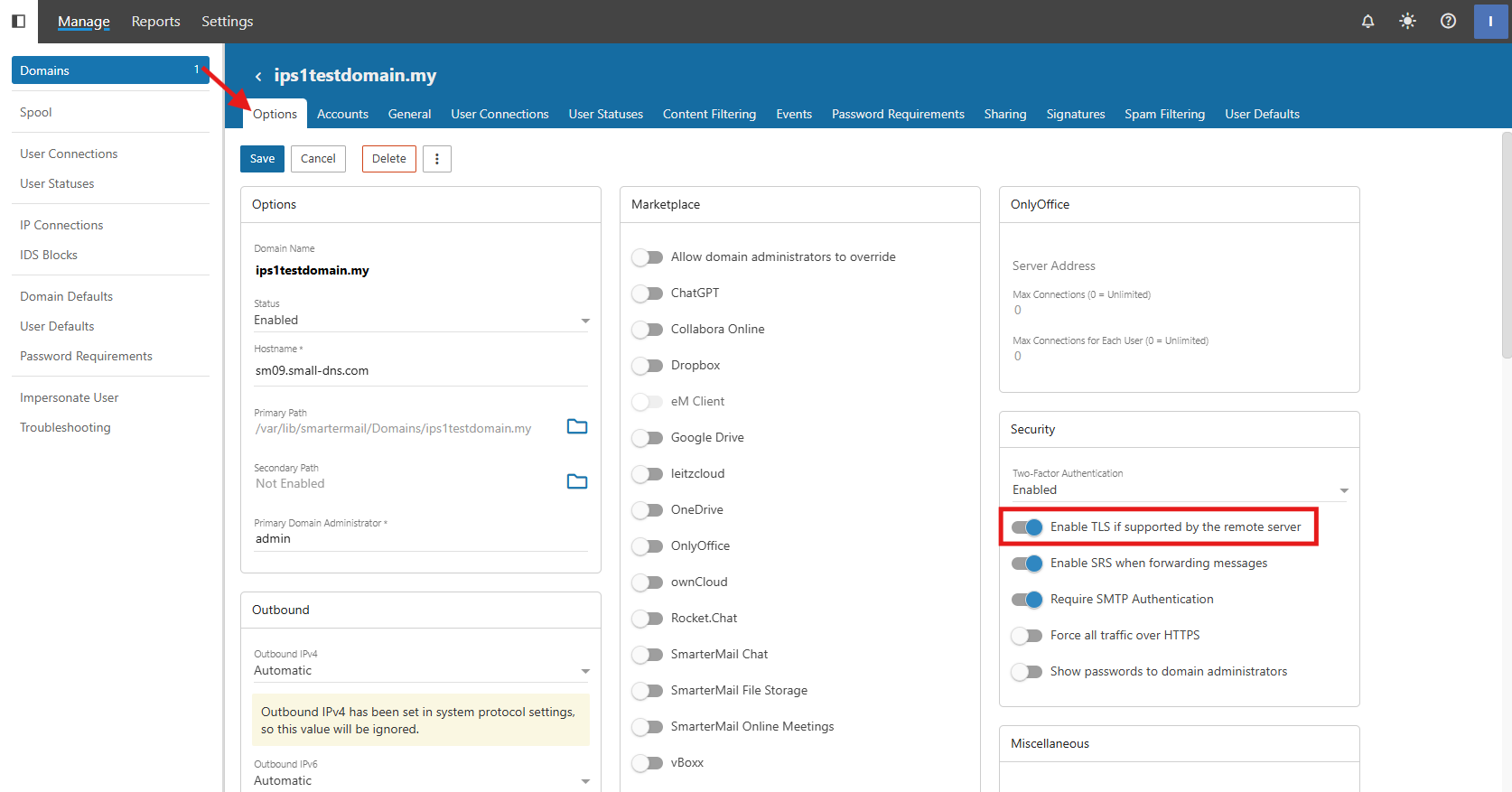
Enable TLS if supported by the remote server
- This feature enables “Opportunistic TLS.” When SmarterMail connects to a remote server, it checks if that server supports encryption. If supported, the mail is sent over a secure tunnel; if not, it falls back to plain text to ensure the email is still delivered.
- This specific setting is managed at the domain level, allowing for flexibility across different hosted clients.
How Enforce strict certificate validation and Enable TLS if supported by the remote server interact
- Enforce strict certificate validation is ON and Enable TLS if supported by the remote server is ON
- SmarterMail won’t just encrypt the mail; it will actively reject the connection if the remote certificate is untrusted.
- Enforce strict certificate validation is OFF and Enable TLS if supported by the remote server is ON
- SmarterMail will encrypt the mail if the remote server also support; else, it will just send as plain text to ensure the email can be delivered.
- Enforce strict certificate validation is ON and Enable TLS if supported by the remote server is OFF
- SmarterMail will follow the global setting and encrypt the mail; it will actively reject the connection if the remote certificate is untrusted.
- Enforce strict certificate validation is OFF and Enable TLS if supported by the remote server is OFF
- SmarterMail won’t encrypt the mail; it will just send the email without any encryption. This is the least secure and not recommended because mail server like Google, Microsoft are required to have encrypted connection.
Step-by-step guide
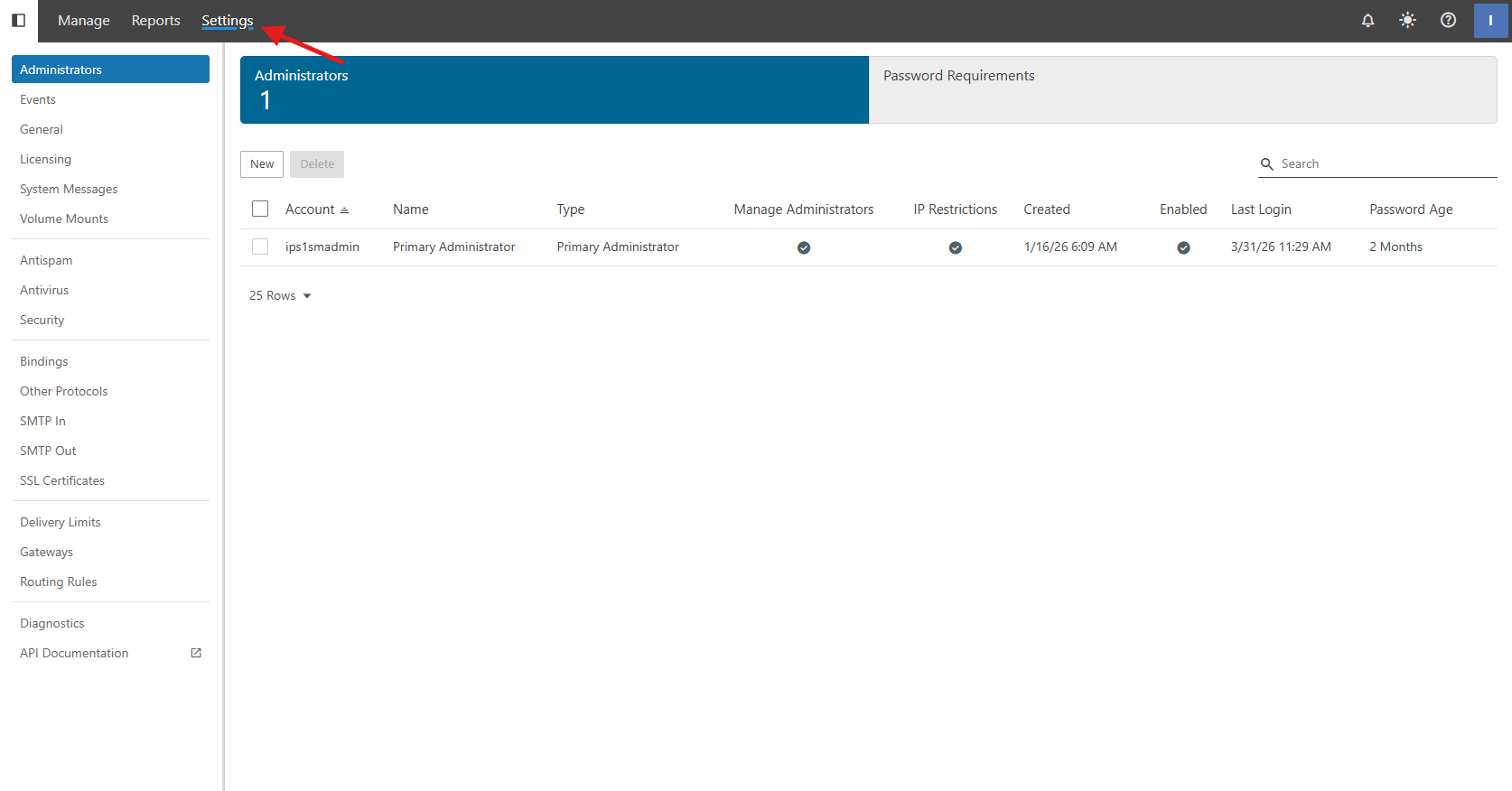
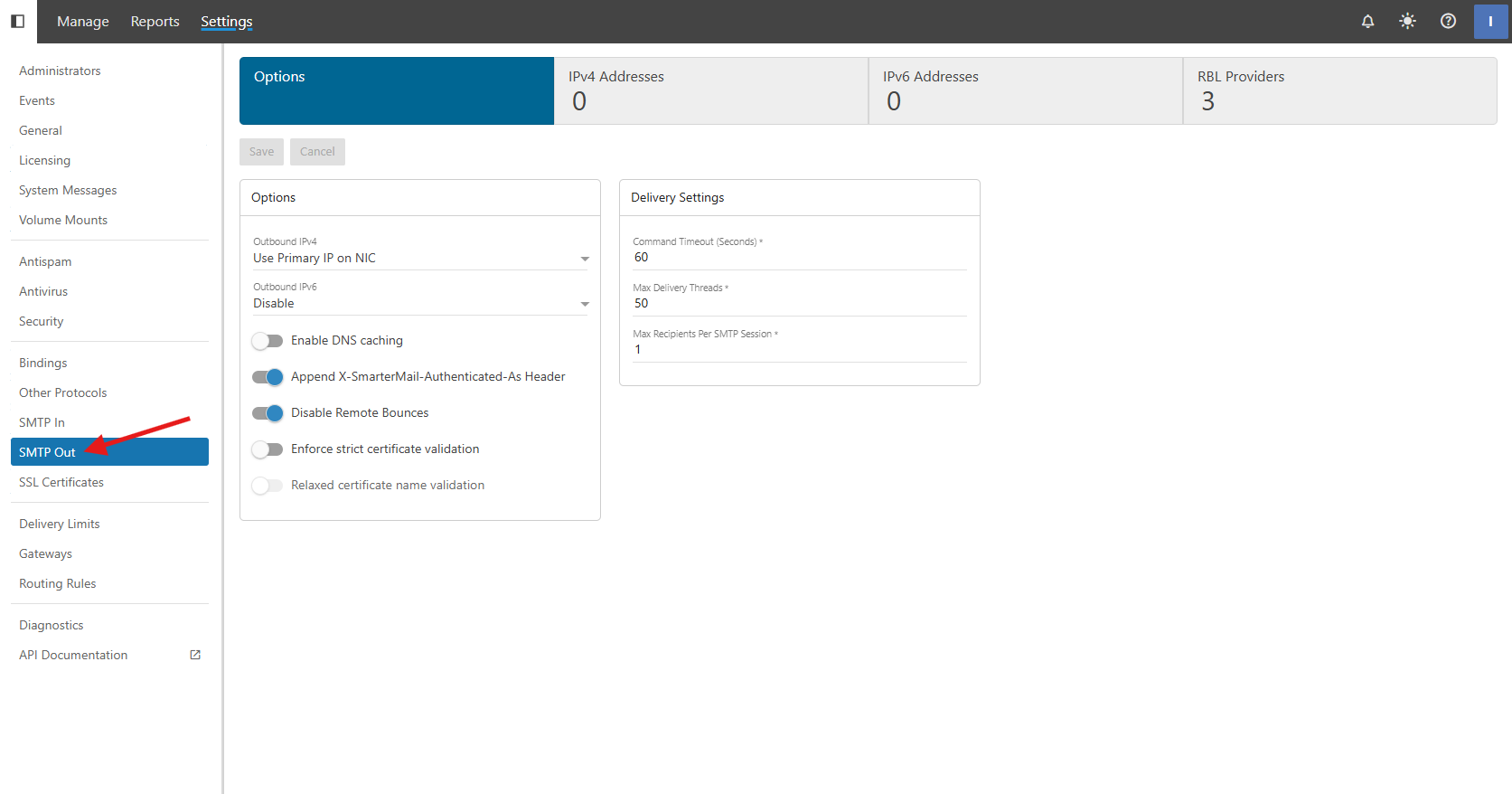
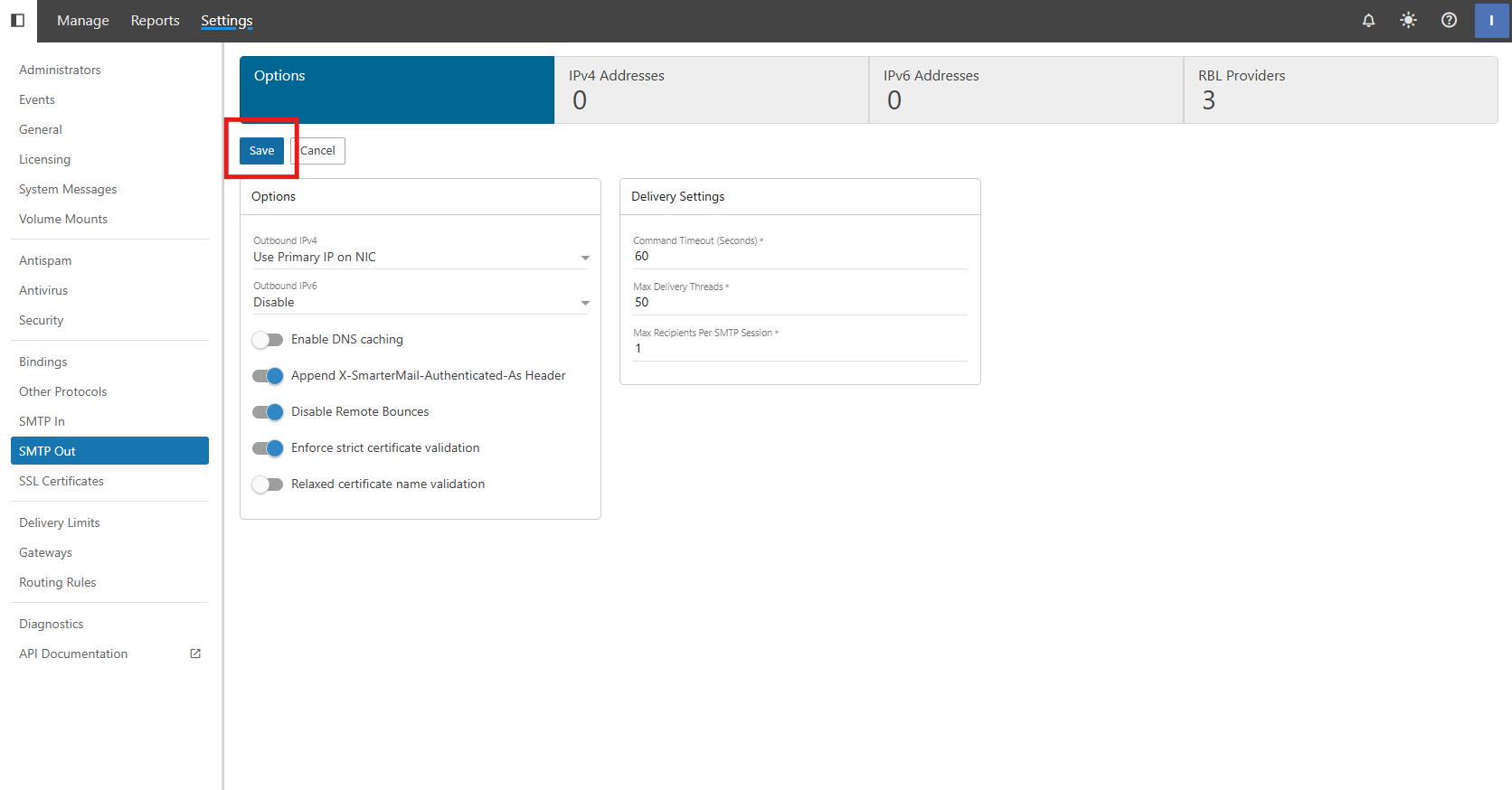
Step 1: Enable “Enforce strict certificate validation”
-
Select SMTP Out settings
-
Click Save
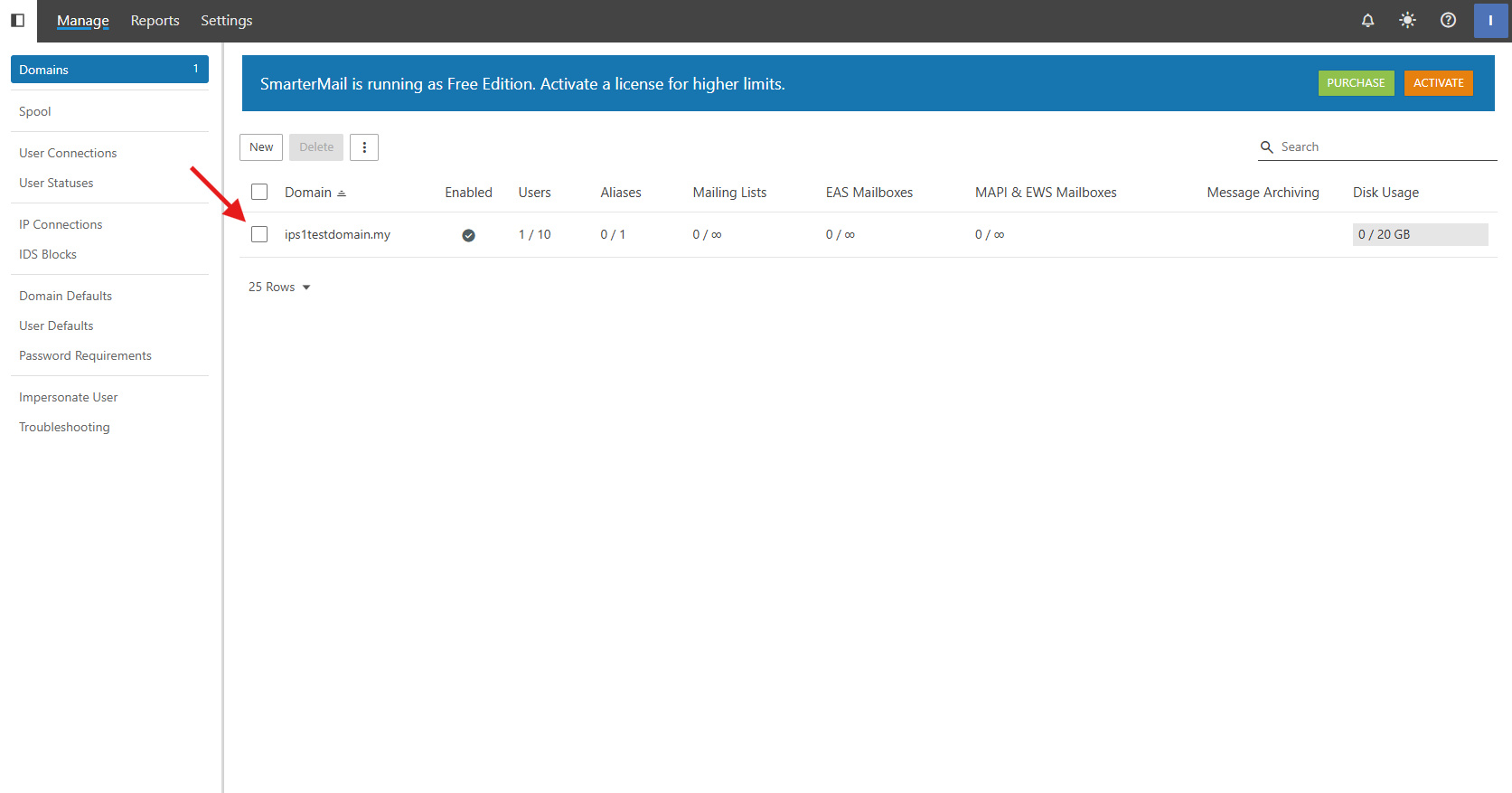
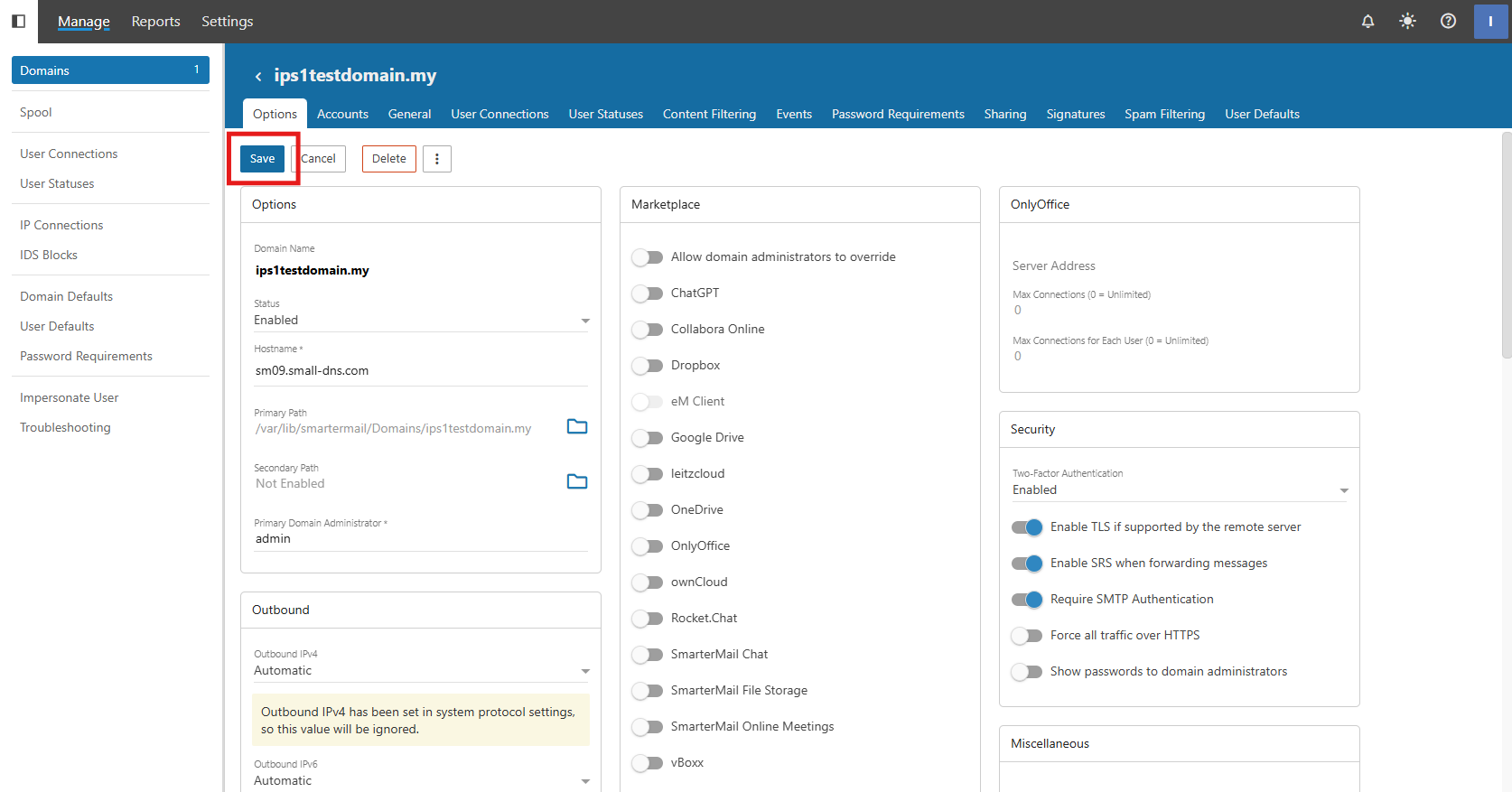
Step 2: Enable “Enable TLS if supported by the remote server”
-
Click Save
Conclusion
By following this guidance, you can significantly harden your SmarterMail server’s security posture by ensuring that all encrypted transmissions meet industry-standard validation requirements while maintaining flexible TLS options for your domains.
For additional assistance or if you encounter any issues, please contact our support team at support@ipserverone.com.