
Search Our Database
How to View Server Uptime in DirectAdmin (Evolution Skin)
Introduction
Server uptime indicates how long your server has been continuously running since its last reboot, providing valuable information about system stability and maintenance schedules. Monitoring uptime helps track server reliability, verify successful reboots, or confirm continuous operation for critical services. DirectAdmin’s System Information interface displays comprehensive server statistics, including uptime details that show elapsed time since the last system restart. This guide explains how to check server uptime using the System Info & Files > System Information section in DirectAdmin, enabling you to monitor your server’s operational continuity and performance history.
Prerequisites
- You must have access to your DirectAdmin control panel.
Step-by-step Guide
Step 1: Access DirectAdmin
Log in to your DirectAdmin control panel.

Step 2: Navigate to System Information
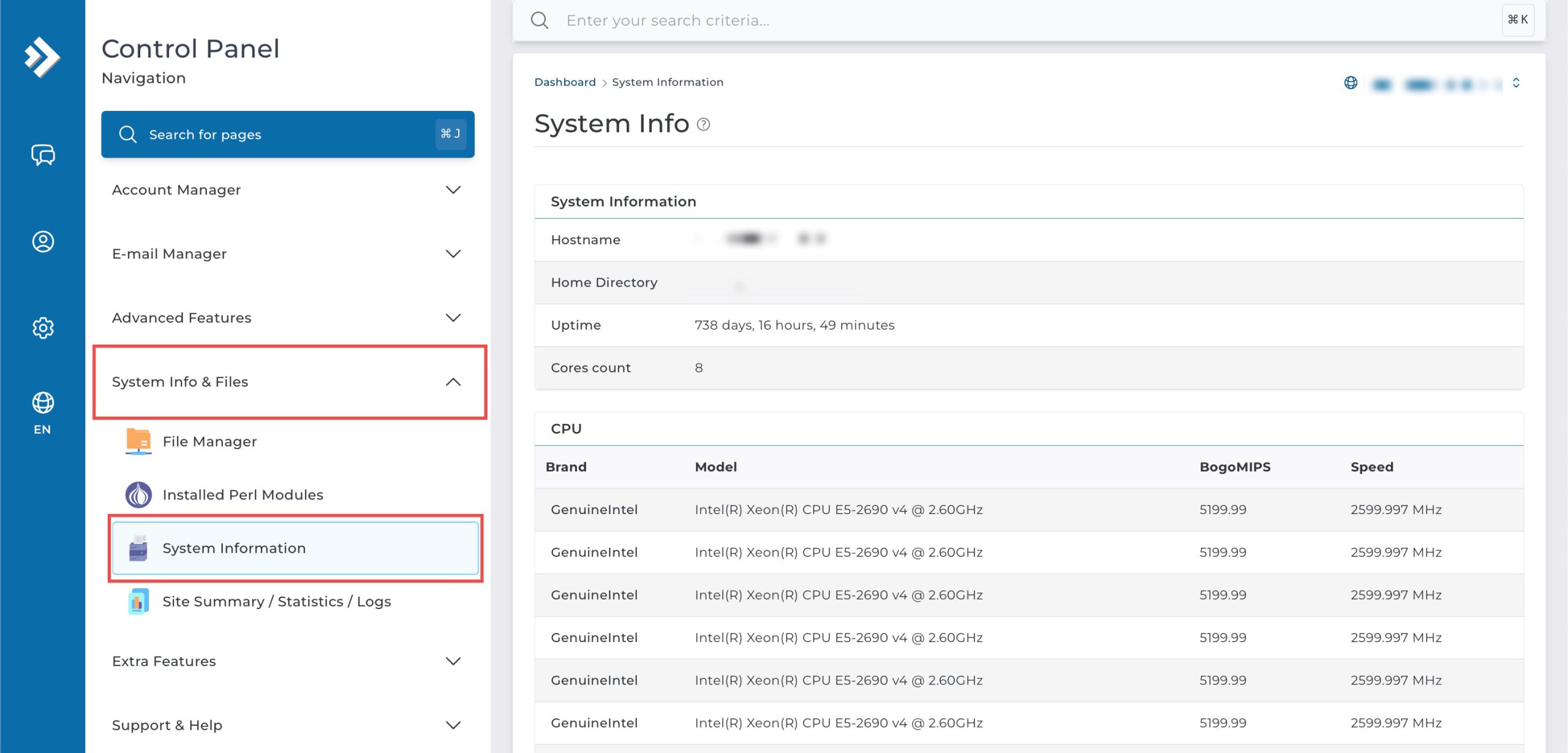
Go to the System Info & Files section and click on System Information.
Step 3: View Server Uptime
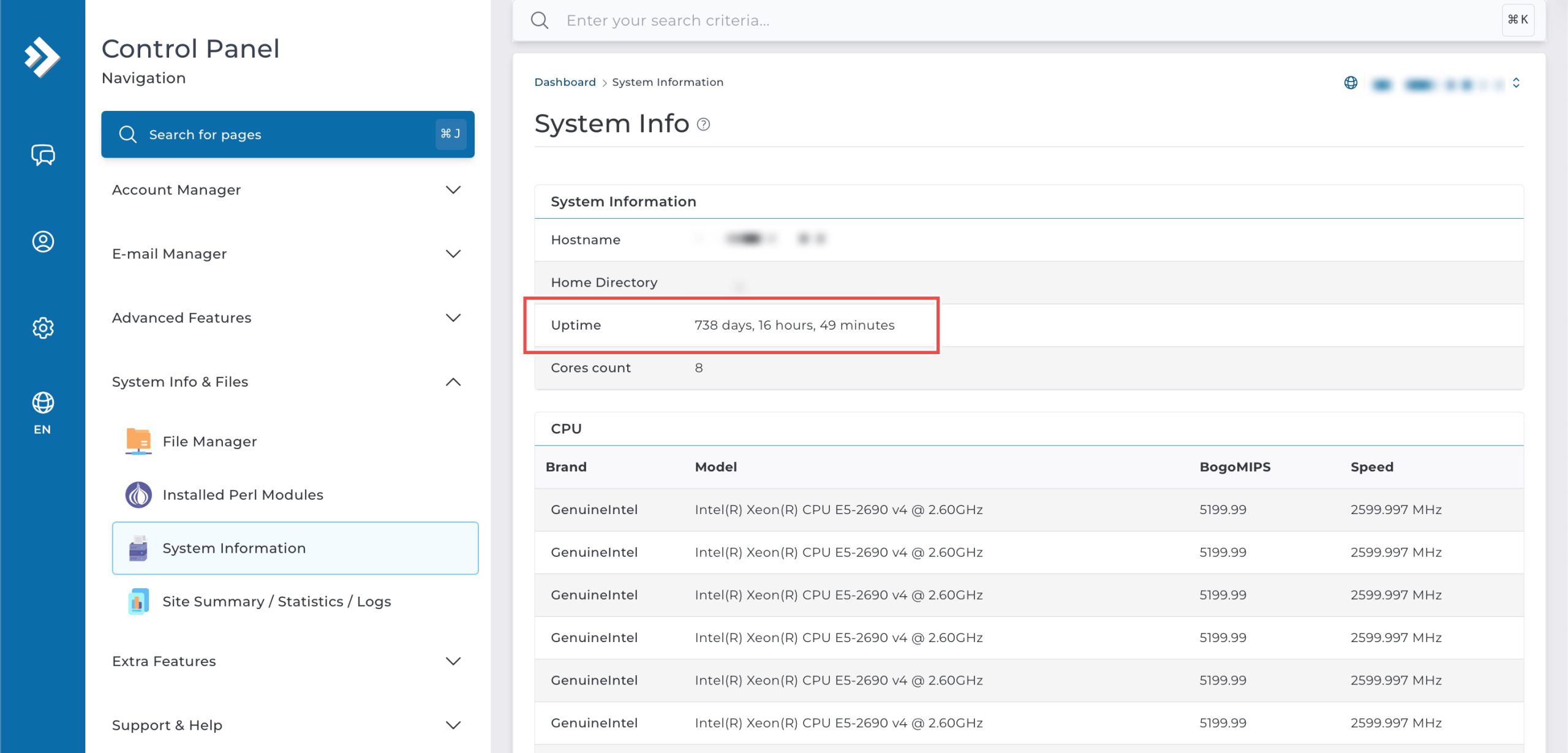
On the System Information page, you will see a table containing various server details. Locate the row labeled Uptime. The corresponding value will display the total time your server has been running since its last reboot.
Conclusion
Checking server uptime through DirectAdmin’s System Information interface is a straightforward process that provides insight into your server’s operational stability. Monitoring uptime information helps you track system reliability, verify maintenance activities, and ensure continuous operation of your hosted services.
Should you have any inquiries about the guidelines, please feel free to open a ticket through your portal account or contact us at support@ipserverone.com. We’ll be happy to assist you further.