
Search Our Database
How to View Load Average in DirectAdmin (Evolution Skin)
Introduction
Server load average measures the number of processes waiting for CPU resources over specific time intervals, providing essential insight into system performance and resource demands. Monitoring load averages helps identify performance issues, plan capacity upgrades, or troubleshoot periods of high server activity. DirectAdmin’s System Information interface displays load average data across multiple time intervals, showing both current and historical system load patterns. This guide explains how to check server load average using the System Info & Files > System Information section in DirectAdmin, enabling you to assess server performance and identify potential resource constraints.
Prerequisites
- You must have access to your DirectAdmin control panel.
Step-by-step Guide
Step 1: Access DirectAdmin
Log in to your DirectAdmin control panel.

Step 2: Navigate to System Information
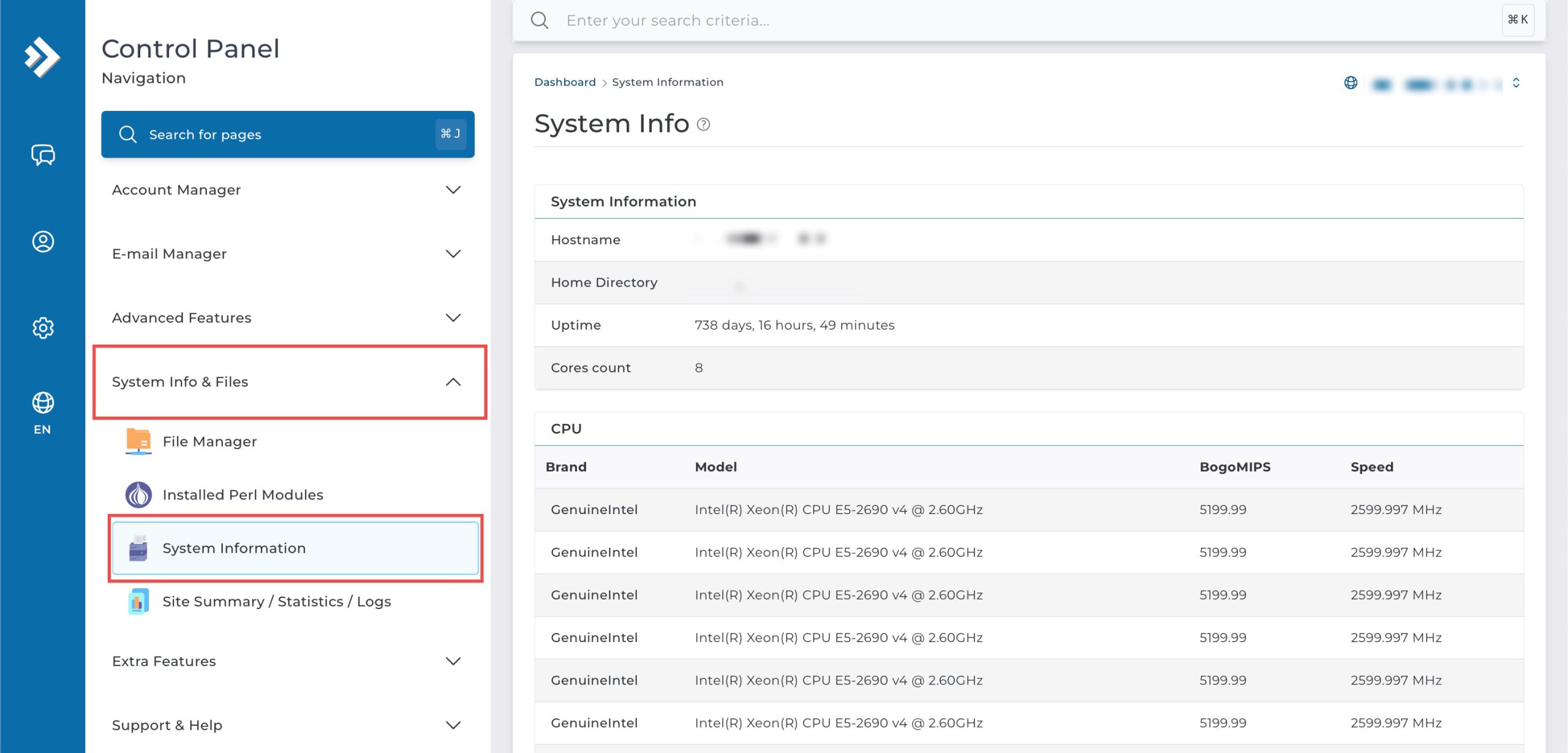
Go to the System Info & Files section and click on System Information.
Step 3: View Server Load Average
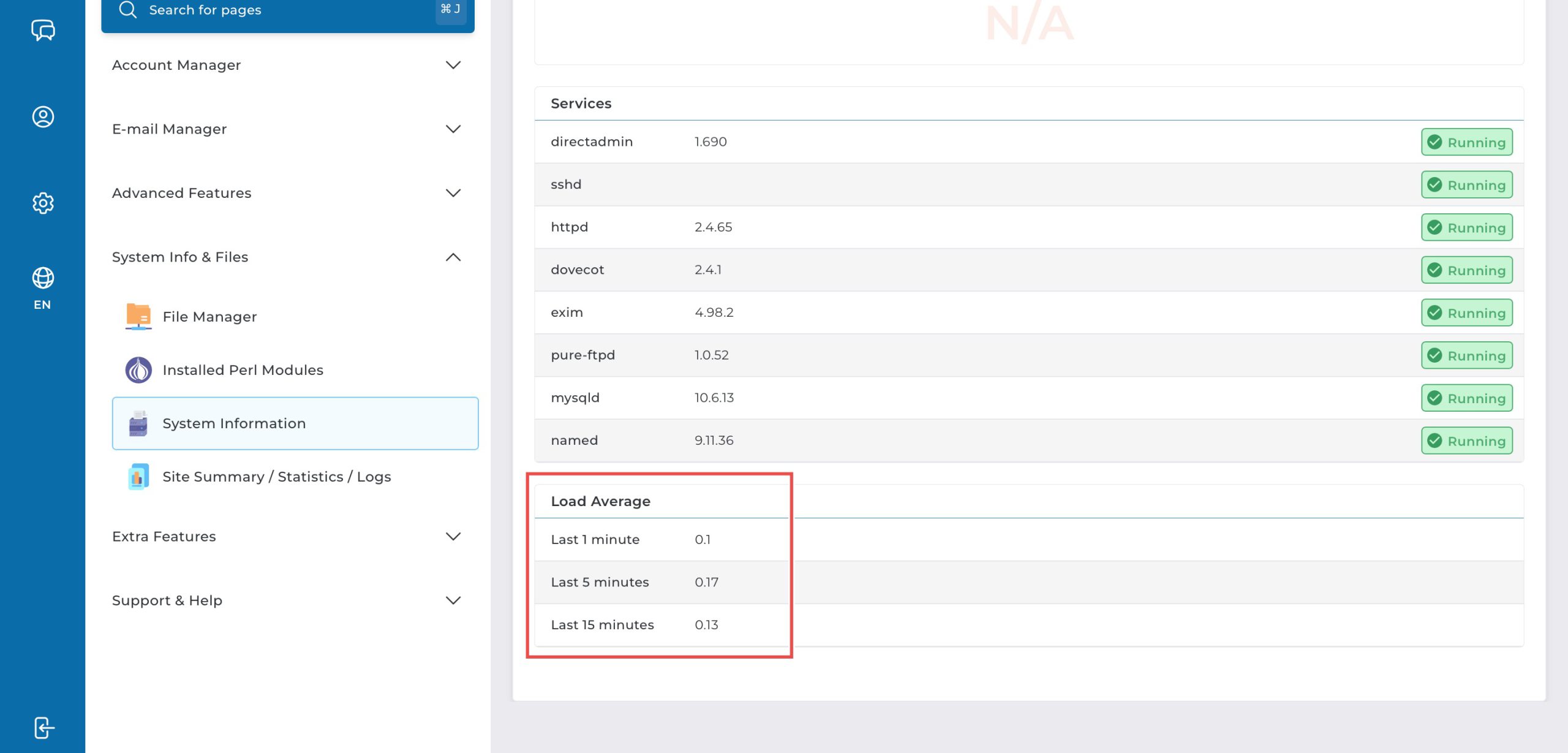
Scroll to the very bottom of the page to find the Load Average section, the load average is displayed for three intervals, indicating the average system process loads.
Conclusion
Checking server load average through DirectAdmin’s System Information interface is a straightforward process that provides valuable insight into system resource utilization. Monitoring load averages across different time intervals helps you understand server performance patterns, identify potential bottlenecks, and make informed decisions about resource management and capacity planning.
Should you have any inquiries about the guidelines, please feel free to open a ticket through your portal account or contact us at support@ipserverone.com. We’ll be happy to assist you further.