
Search Our Database
How to Suspend Email Account from Receiving Incoming Email in cPanel
Introduction
This Knowledge Base article provides a step-by-step guide on How to Suspend Email Account from Receiving Incoming Email in cPanel. Suspending an email account prevents it from receiving new messages while maintaining the account and its existing data, which is useful for temporarily disabling compromised accounts, inactive users, or accounts under investigation. Use this guide when you need to block incoming email to an account without deleting it.
Prerequisite
- Access to your cPanel login page.
- An existing email account created in cPanel.
Step-by-Step Guide
Step 1: Log in to cPanel
- Access and log in to your cPanel account using your username and password.

Step 2: Open Email Accounts
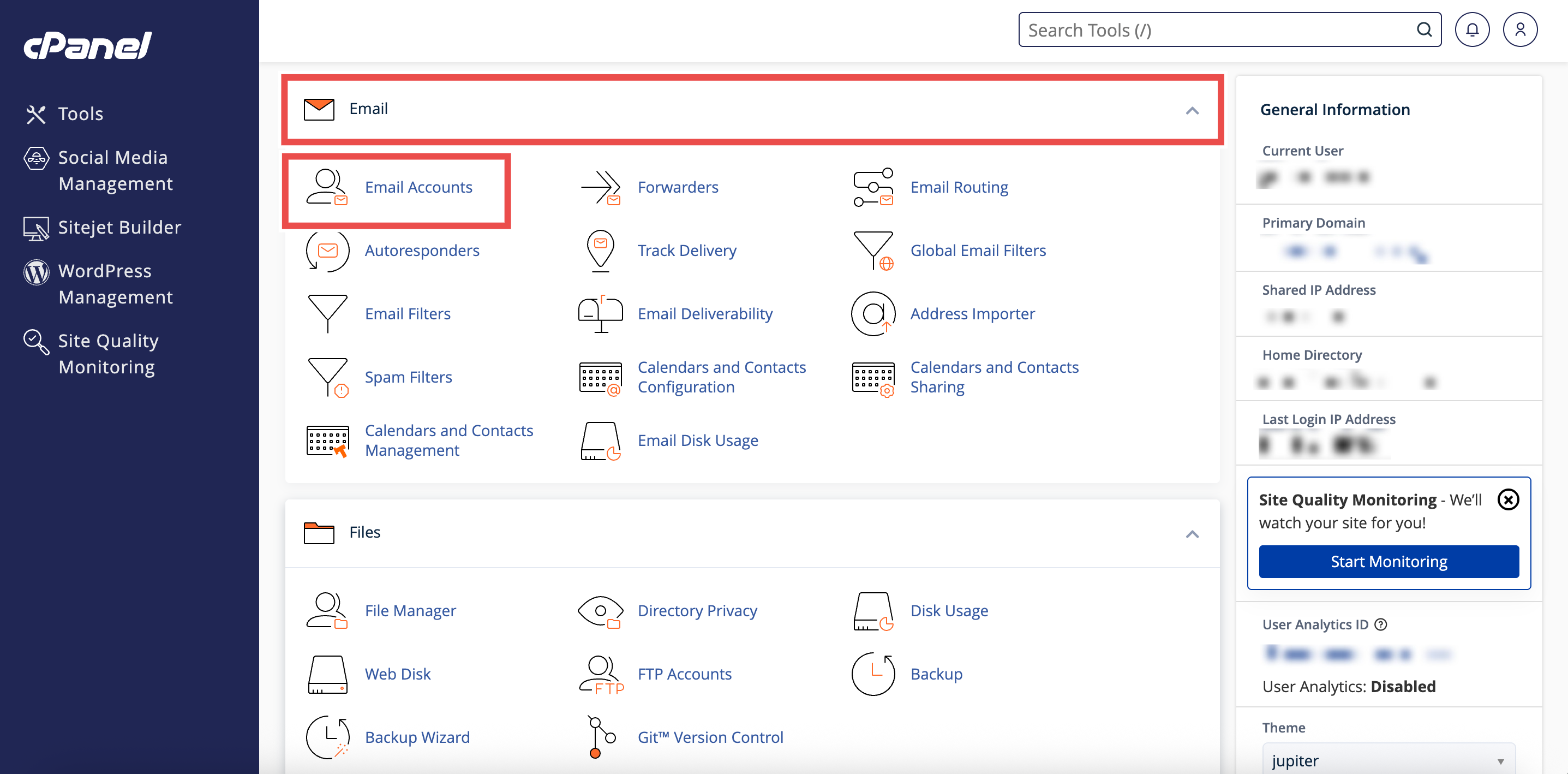
- In the Home page, under Email, click Email Accounts.
Step 3: Locate the Email Account
-
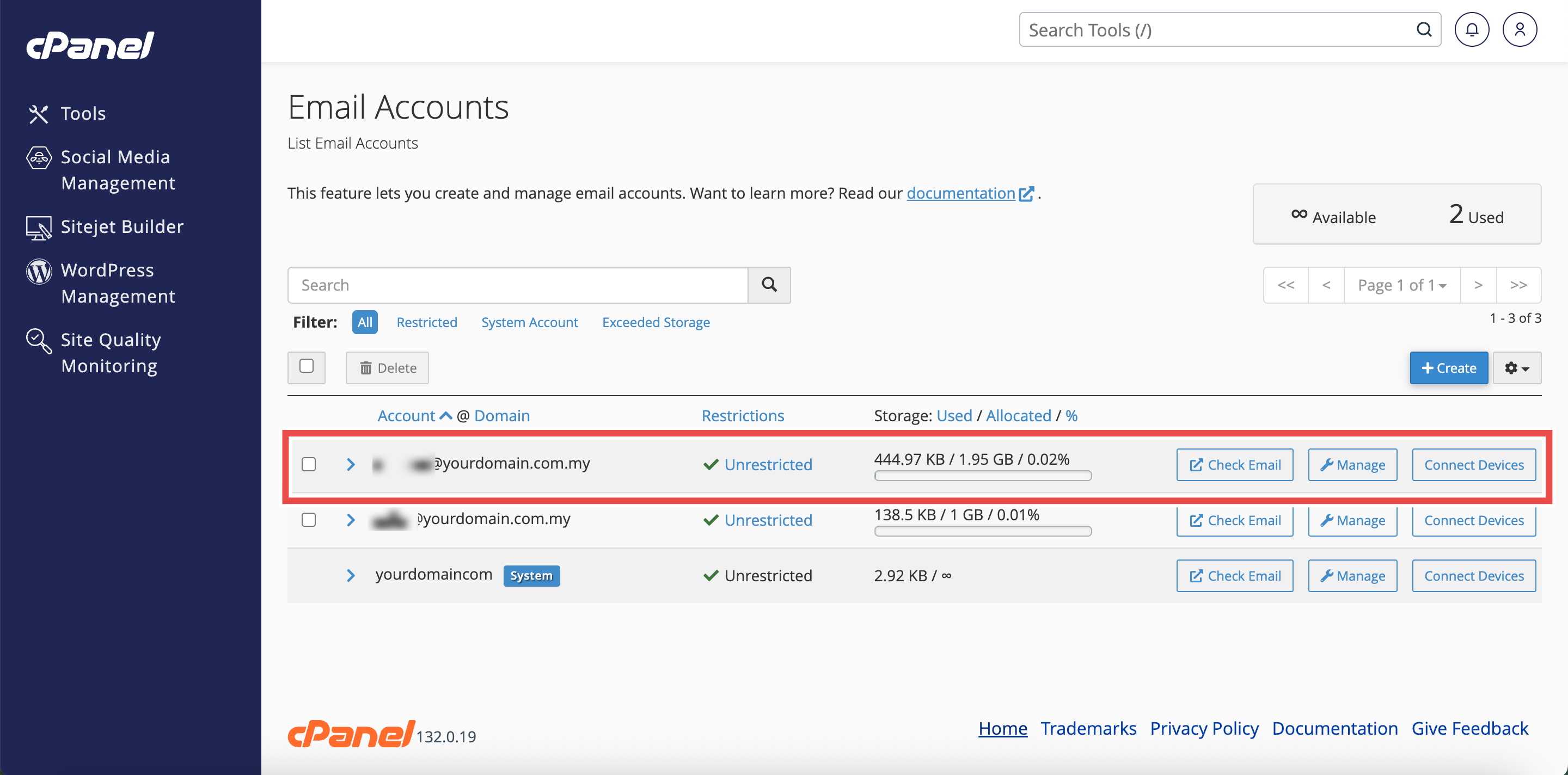
In the Email Accounts table, locate the email account for which you want to suspend.
⚠️ Important Note: You can use the search bar to find a specific email account by entering the account name or domain.
Step 4: Access Manage Email Account
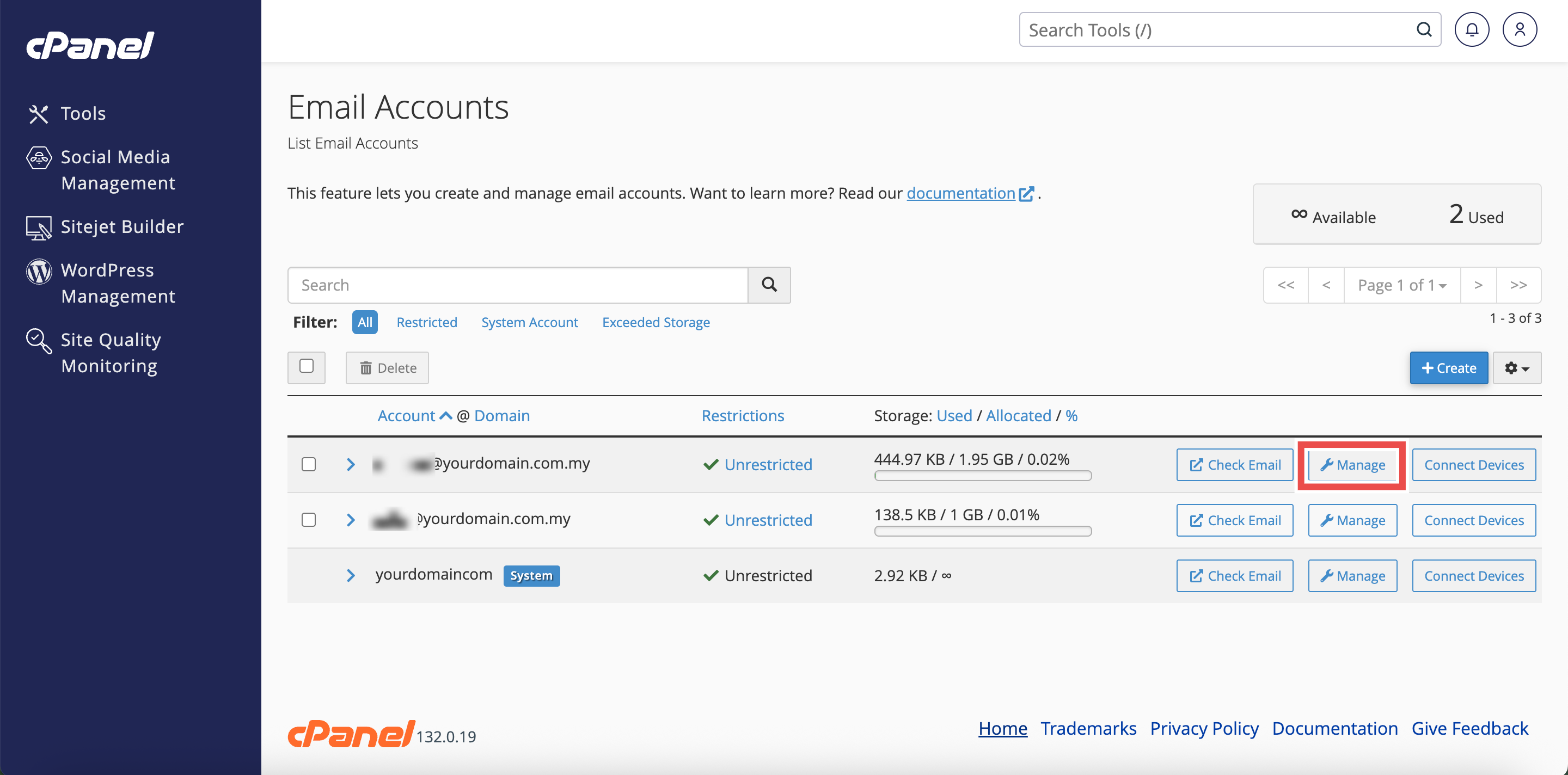
- Click Manage in the Actions column for the email account you want to modify.
- The Manage Email Account interface will appear.
Step 5: Suspend Incoming Email
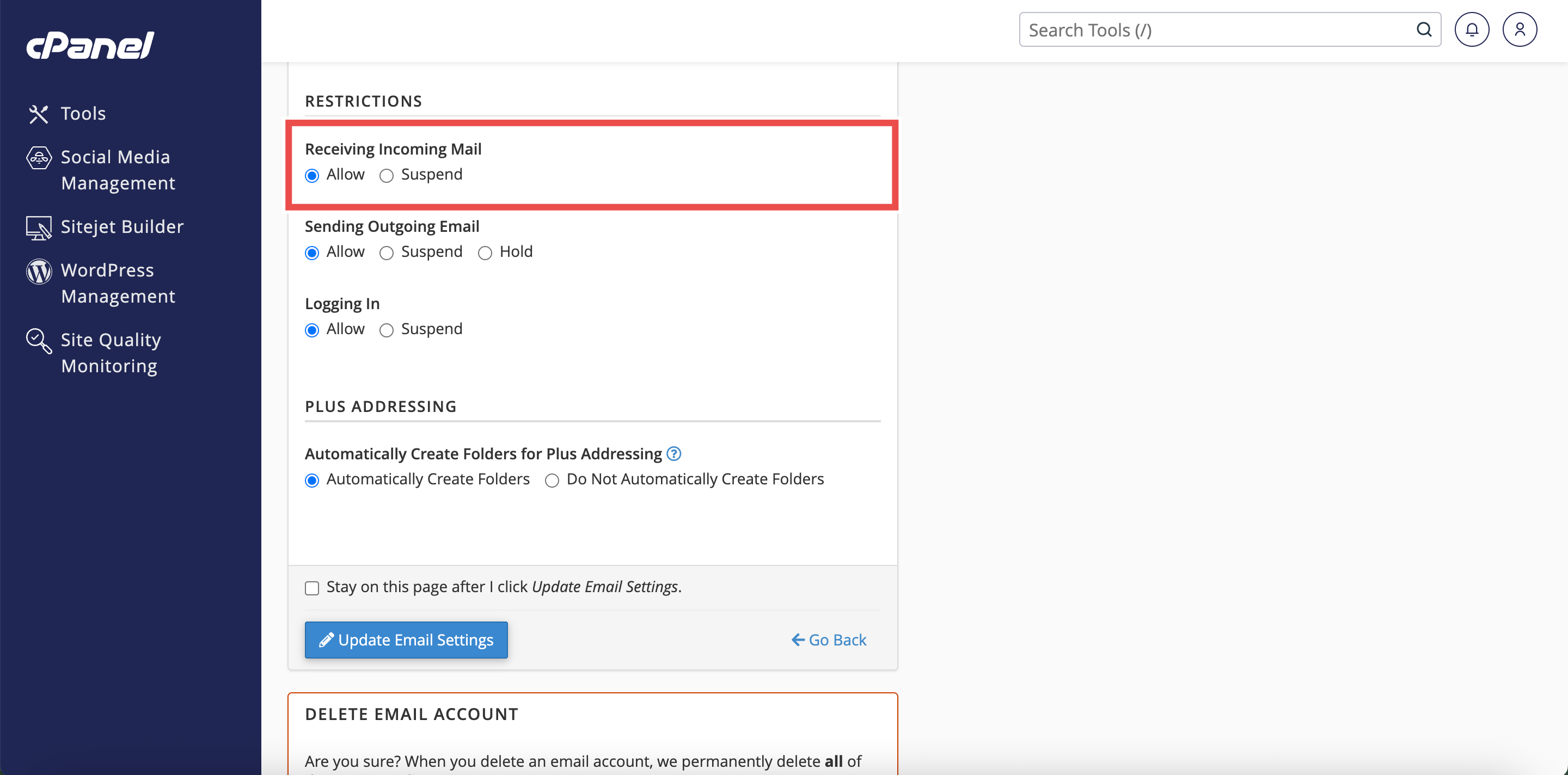
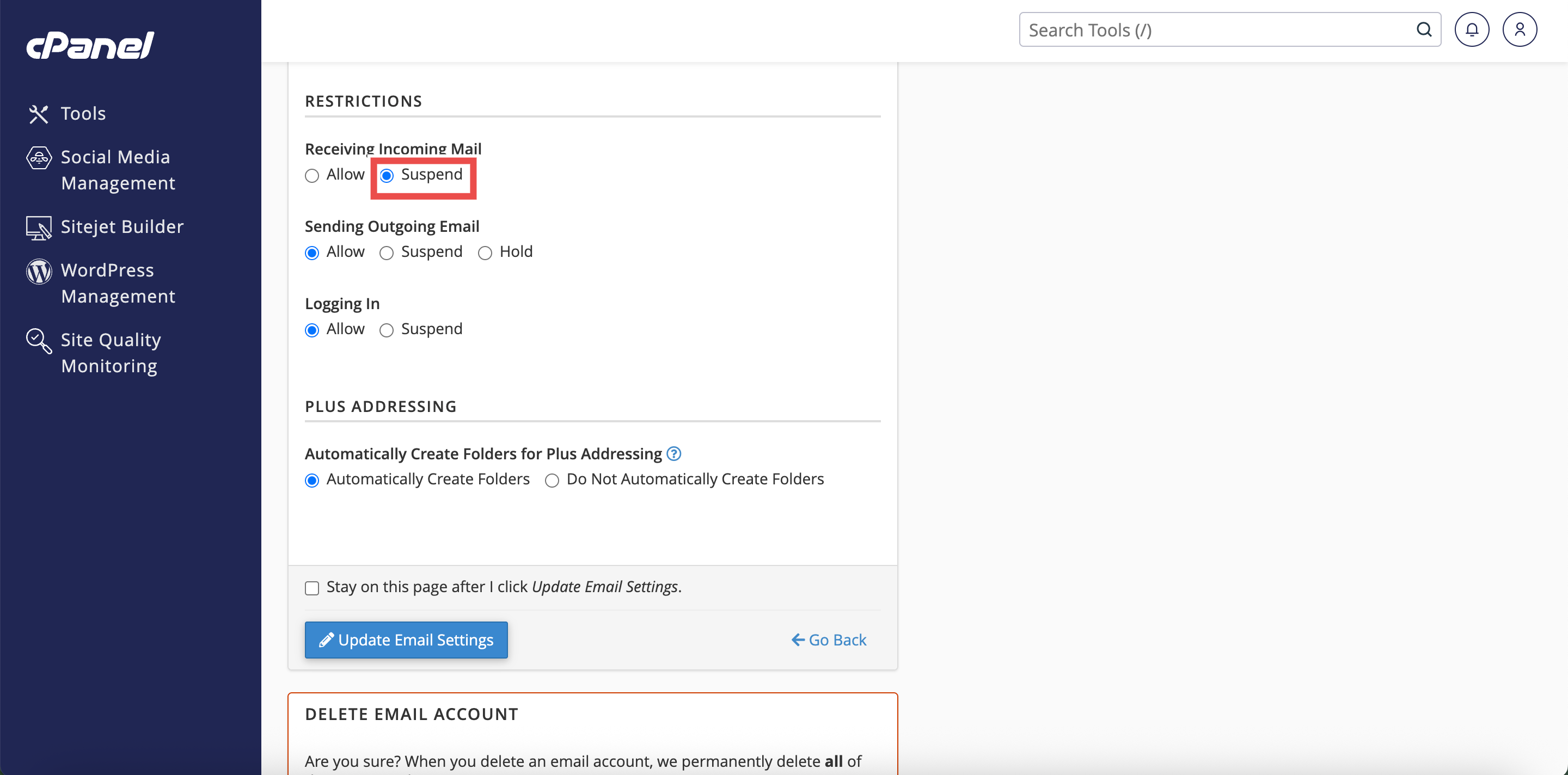
- In the account settings, locate the Restrictions section.
- Select Suspend in the Receiving Incoming Mail section.
⚠️ Important Note:This will prevent the account from receiving new incoming messages.
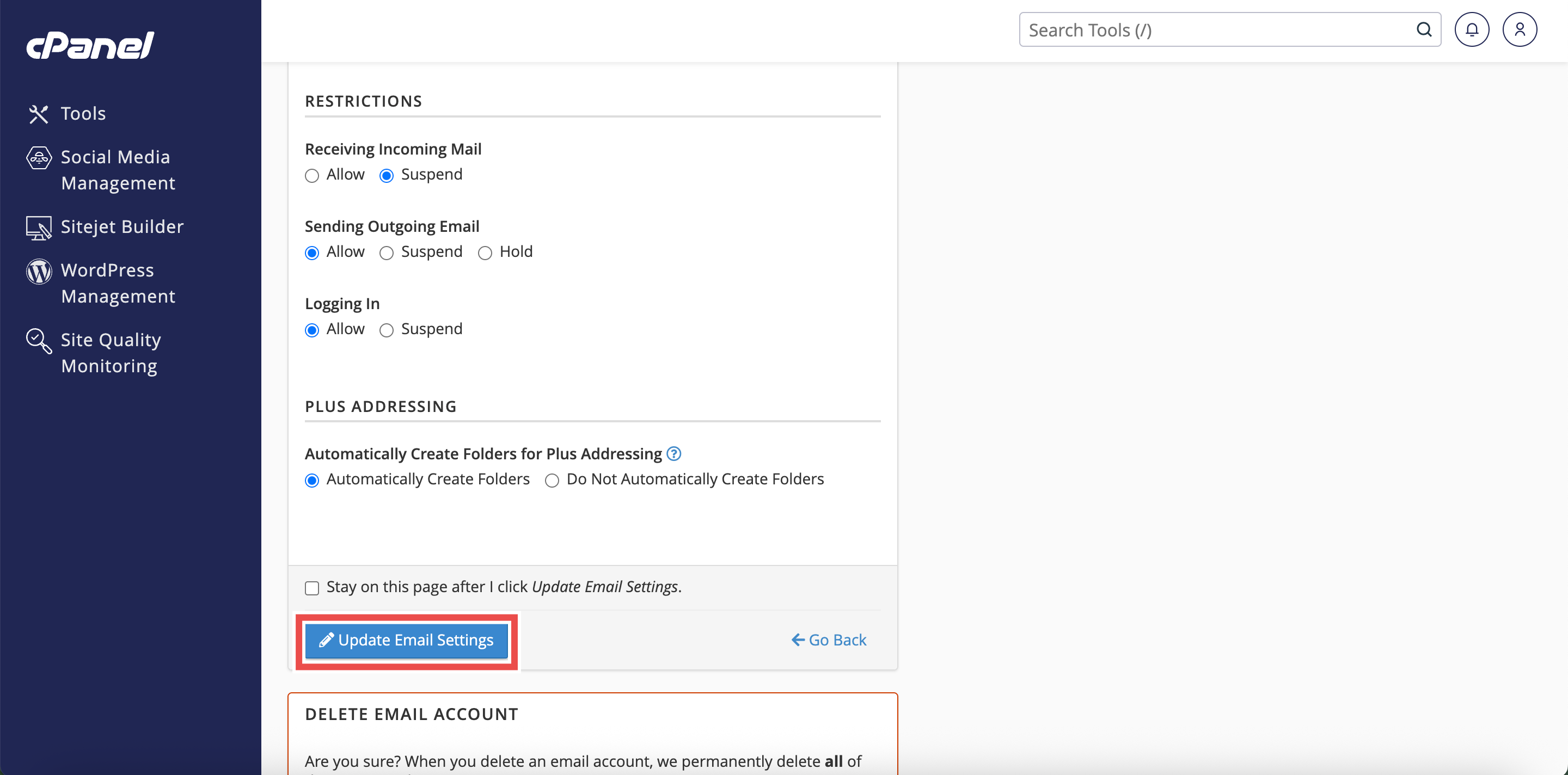
Step 6: Save the Changes
- Click Update Email Settings to apply the changes.
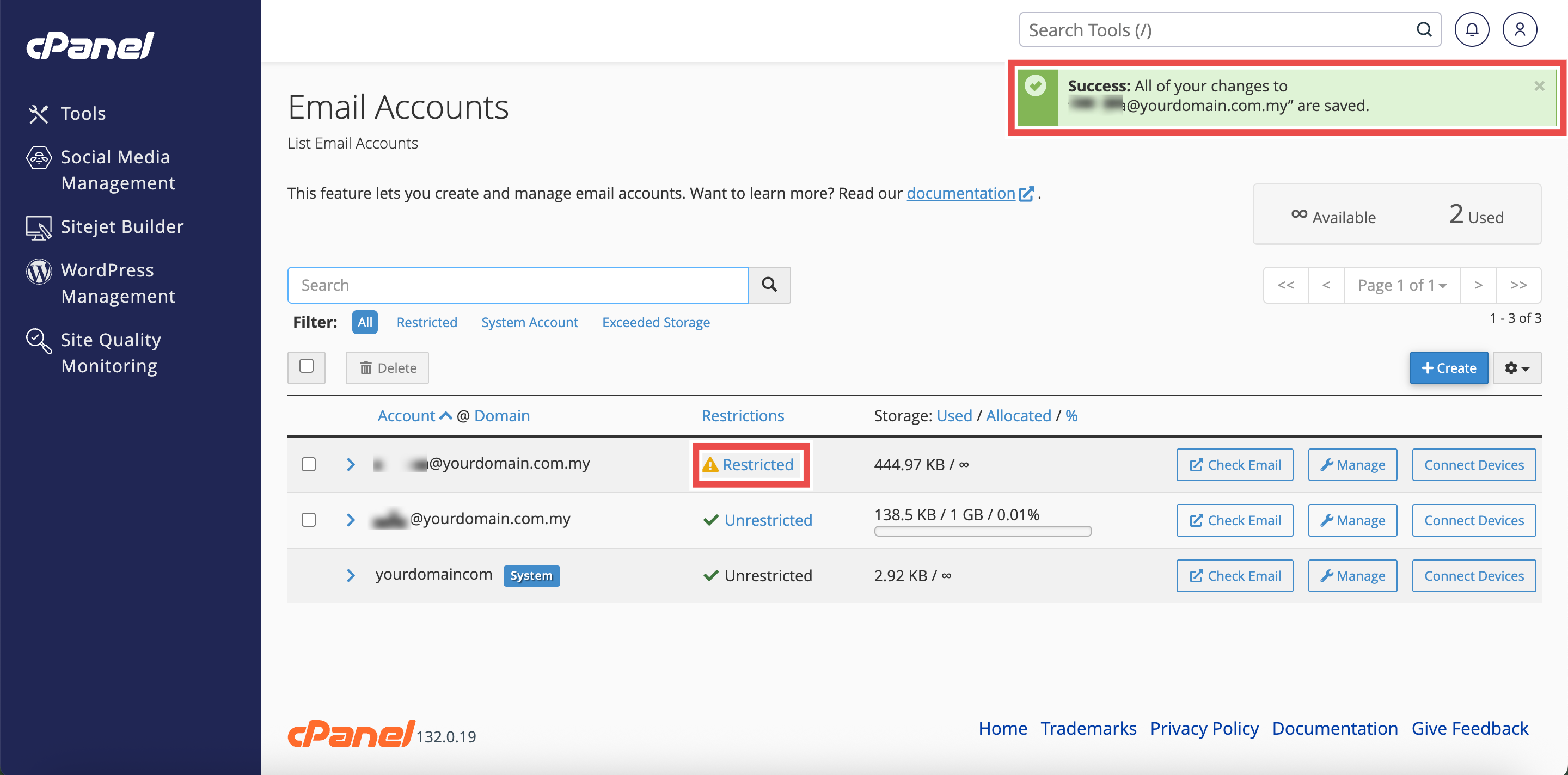
Step 7: Verify Changes
- A pop-up window will appear indicating your changes was applied successful.
- The Restrictions column will display that the account has restrictions enabled.
- Additionally, you may send a test email to the suspended account to verify that incoming messages are being blocked.
Conclusion
By following these steps, you can suspend an email account from receiving incoming email in cPanel. Account suspension provides a reversible way to temporarily disable email accounts while maintaining the account data and settings. This is particularly useful for security management, temporary inactivation, or troubleshooting email issues.
Should you encounter any issues or have any questions, our support team at IPSERVERONE is always here to assist you. Don’t hesitate to reach out to us at support@ipserverone.com for any help you need.