
Search Our Database
How to Request Cloud Instance Limit Increase in Customer Portal
Introduction:
As a cloud infrastructure user, there may be instances where your existing resource allocation restricts your ability to scale operations or deploy necessary services, particularly when encountering a limit on available Load Balancers. The availability of Load Balancer as a Service is one of the network offerings provided by IP ServerOne.
This professional guide outlines the precise steps required to request an increase in your Load Balancer limits within the Customer Portal. This crucial scaling process is managed efficiently through the NovaCloud interface, ensuring that you can initiate resource expansion as soon as additional capacity is needed.
The procedure involves accessing the dedicated Limits section under the NovaCloud menu. By following the structured steps outlined below, you will successfully navigate the Customer Portal to formally submit your capacity expansion request for Load Balancers and support your ongoing infrastructural requirements.
Prerequisites:
- The user must have established credentials and active access to the Customer Portal.
- Limit increases are requests not immediate self-service activations that require review.
Step-by-step Guide:
Step 1: Access NovaCloud Services
- On the left-hand navigation menu of the Customer Portal, click on “NovaCloud”.
- This section provides access to your cloud computing resources.
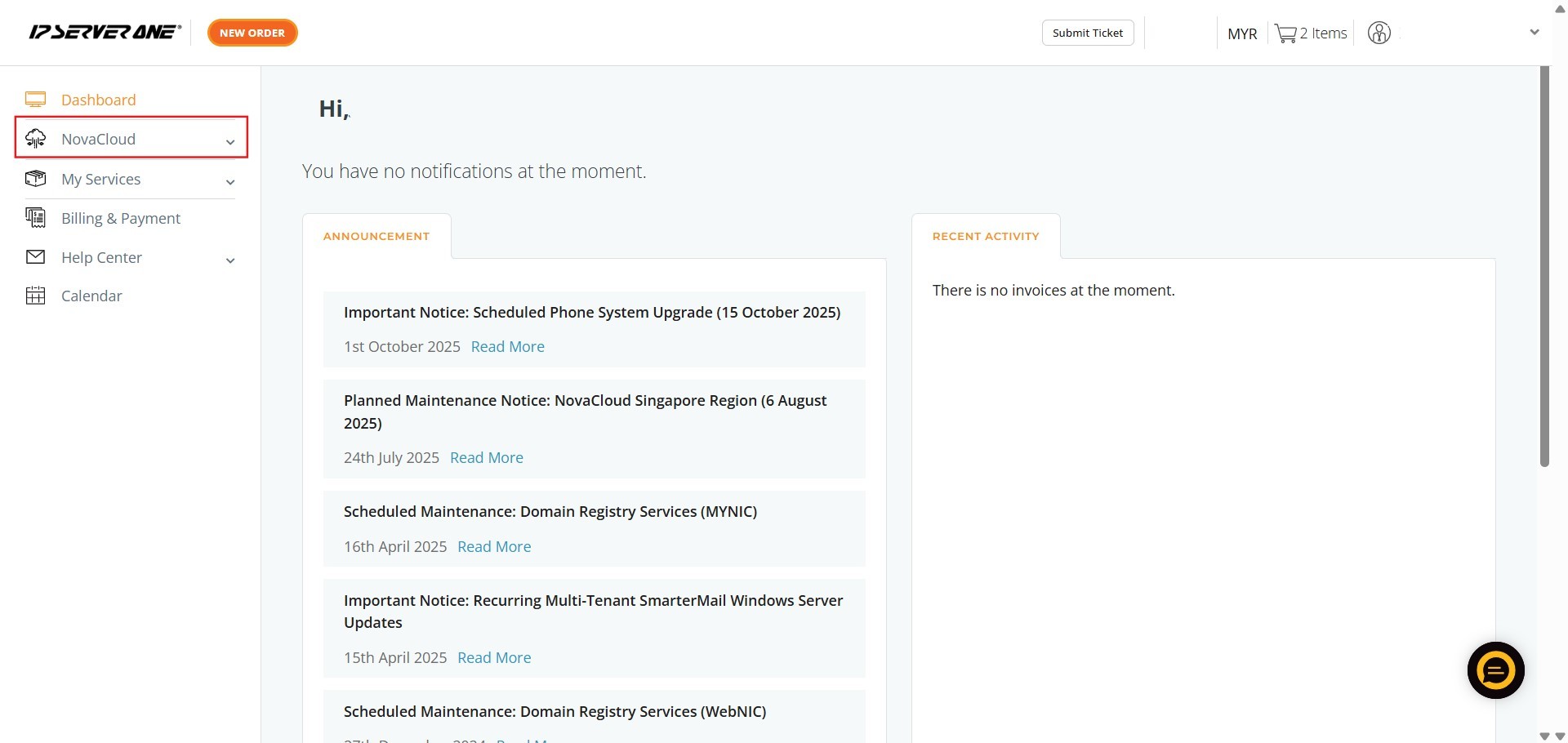
Step 2: Navigate to Limits
- From the expanded NovaCloud menu, click on “Limits”.
- This section allows you to manage restrictions on your provisioned resources.
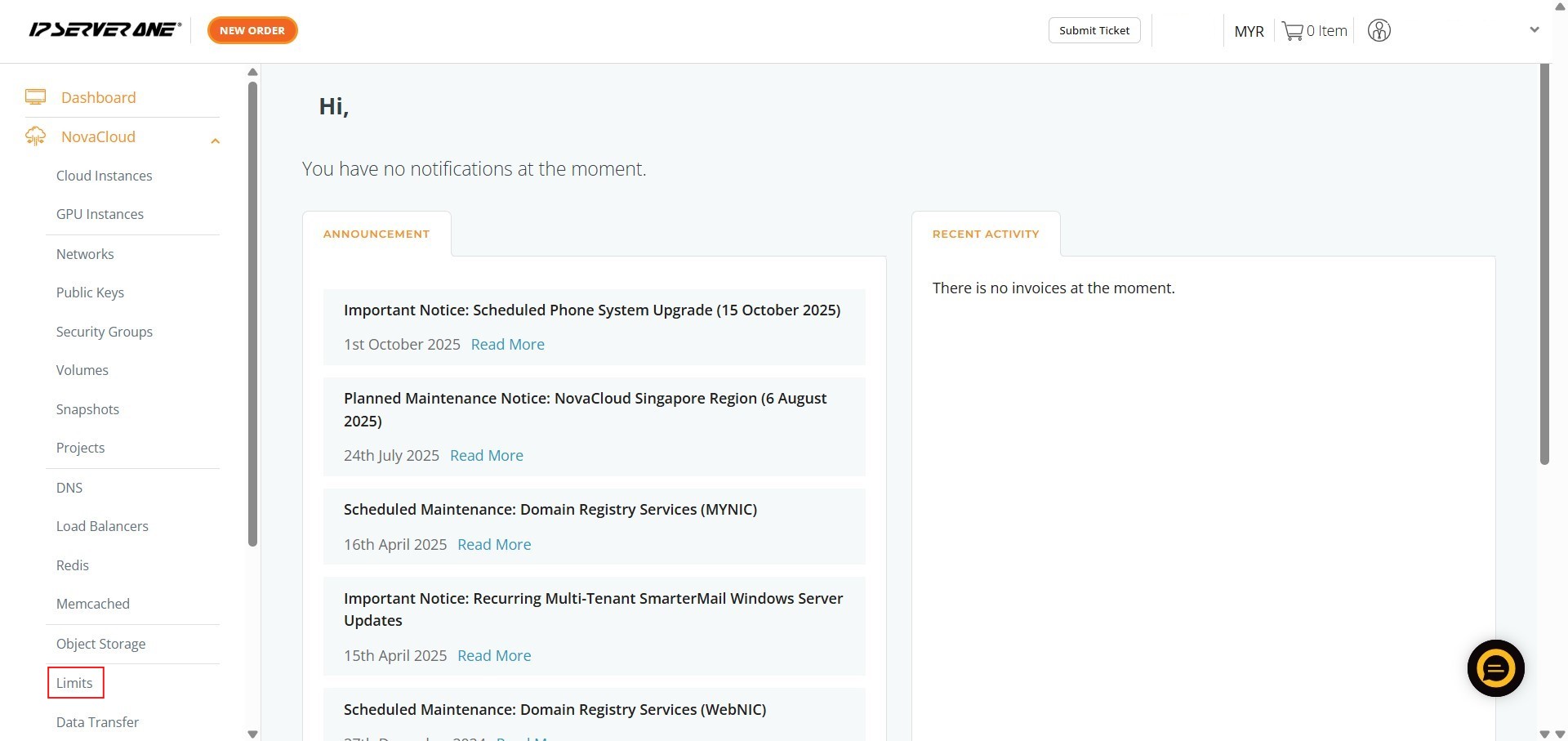
Step 3: Initiate the Request
- Within the Limits area, locate the section pertaining to Cloud Instances and click “Request More”.


Step 4: Submit Request Details
-
In the request interface that appears, you must input the necessary information:1. Key in the Date.2. Key in the Contact Number.3. Key in Addition details.4. Once all details are entered, click “Submit”.

Step 5: Conclude the Process
- Finally, click “Close” to finish the submission process.

Conclusion:
By diligently executing the steps outlined in this guide, you have successfully utilized the Customer Portal to submit a formal request for an increase in your Cloud Instance limit. This essential process ensures that you can proactively address the lack of cloud instances and secure the necessary resources—such as those provisioned via NovaCloud—to sustain and scale your ongoing operations.
Completing this process via the portal confirms your dedication to efficient resource management and timely capacity planning.
Should you require any further clarification concerning your resource allocation request or encounter any issues during the submission, please do not hesitate to contact our support team for dedicated assistance. You can reach us at support@ipserverone.com.