
Search Our Database
How to Remove a Shared Calendar from a User in cPanel
Introduction
This Knowledge Base article provides a step-by-step guide on How to Remove a Shared Calendar from a User in cPanel. Removing calendar access revokes a user’s permissions to view or edit another user’s calendar, which is necessary when team members change roles, leave projects, or no longer need access to shared calendars. Use this guide when you need to revoke calendar access from an email user on your cPanel account.
Prerequisite
- Access to your cPanel login page.
Step-by-Step Guide
Step 1: Log in to cPanel
- Access and log in to your cPanel account using your username and password.

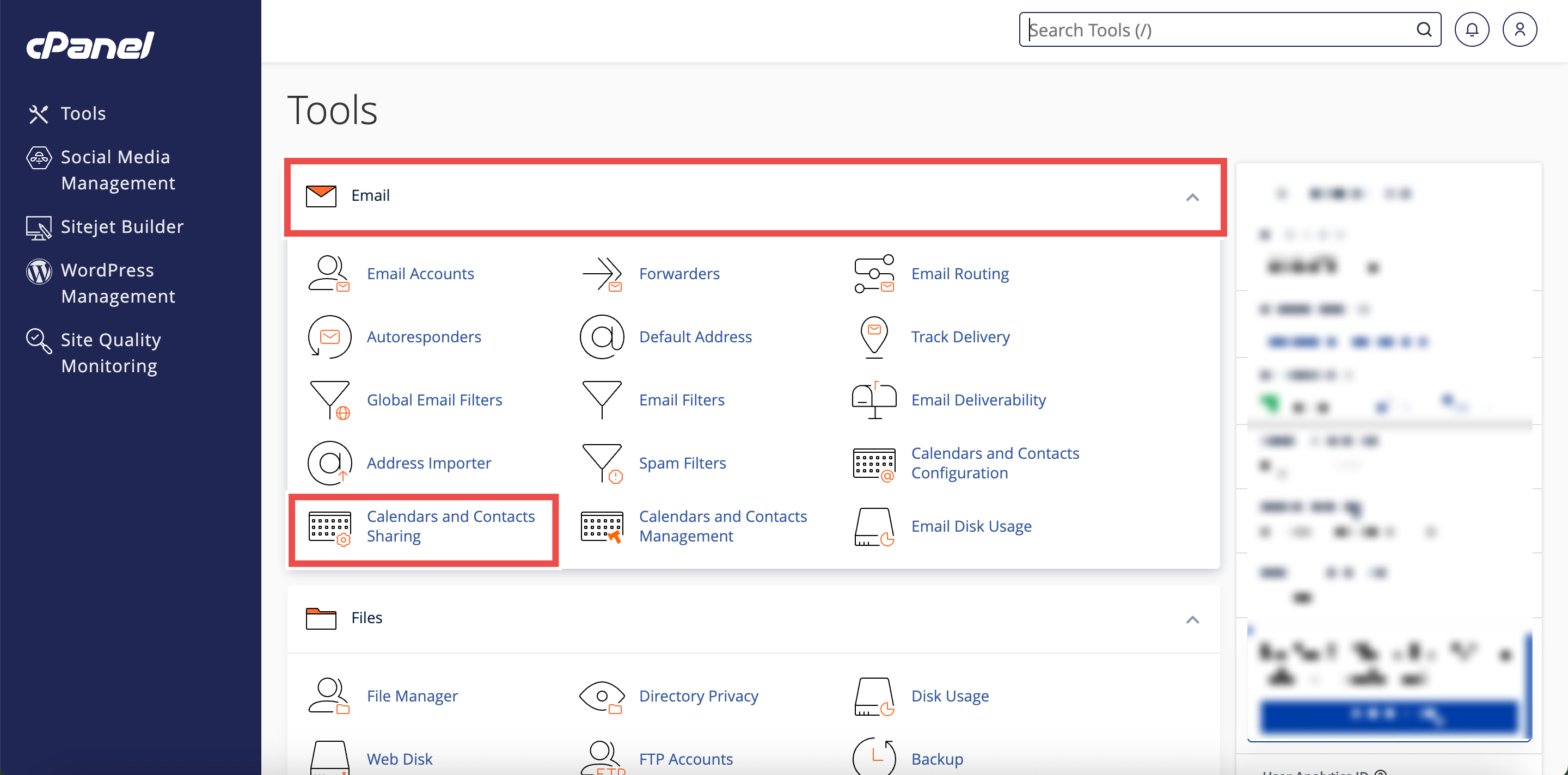
Step 2: Open Calendars & Contacts Sharing
- On the Home page, under Email, click Calendars & Contacts Sharing.
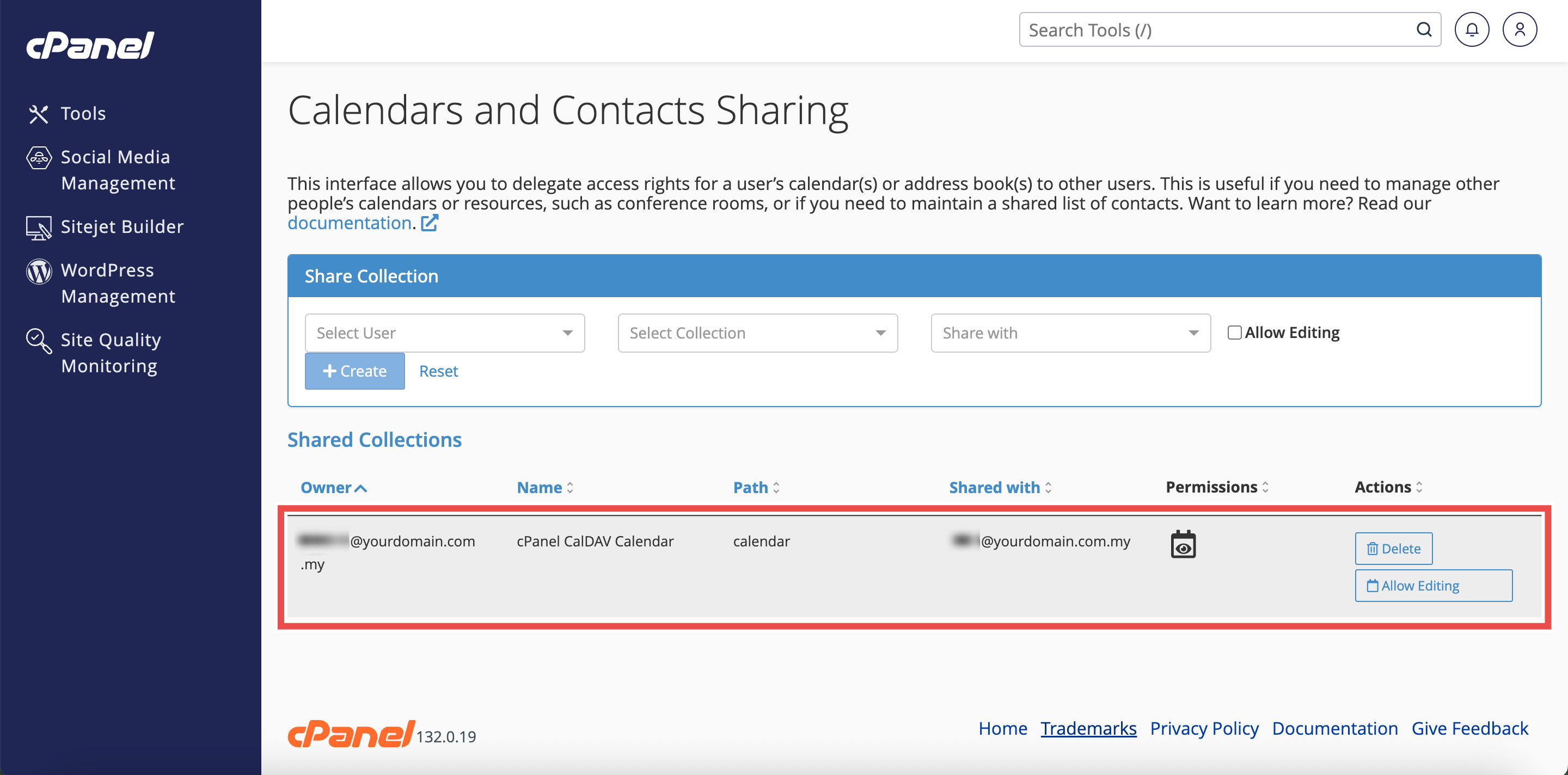
Step 3: Locate the Shared Calendar
- Scroll down to the Shared Collections table.
- Locate the entry for the calendar you want to remove from the user.
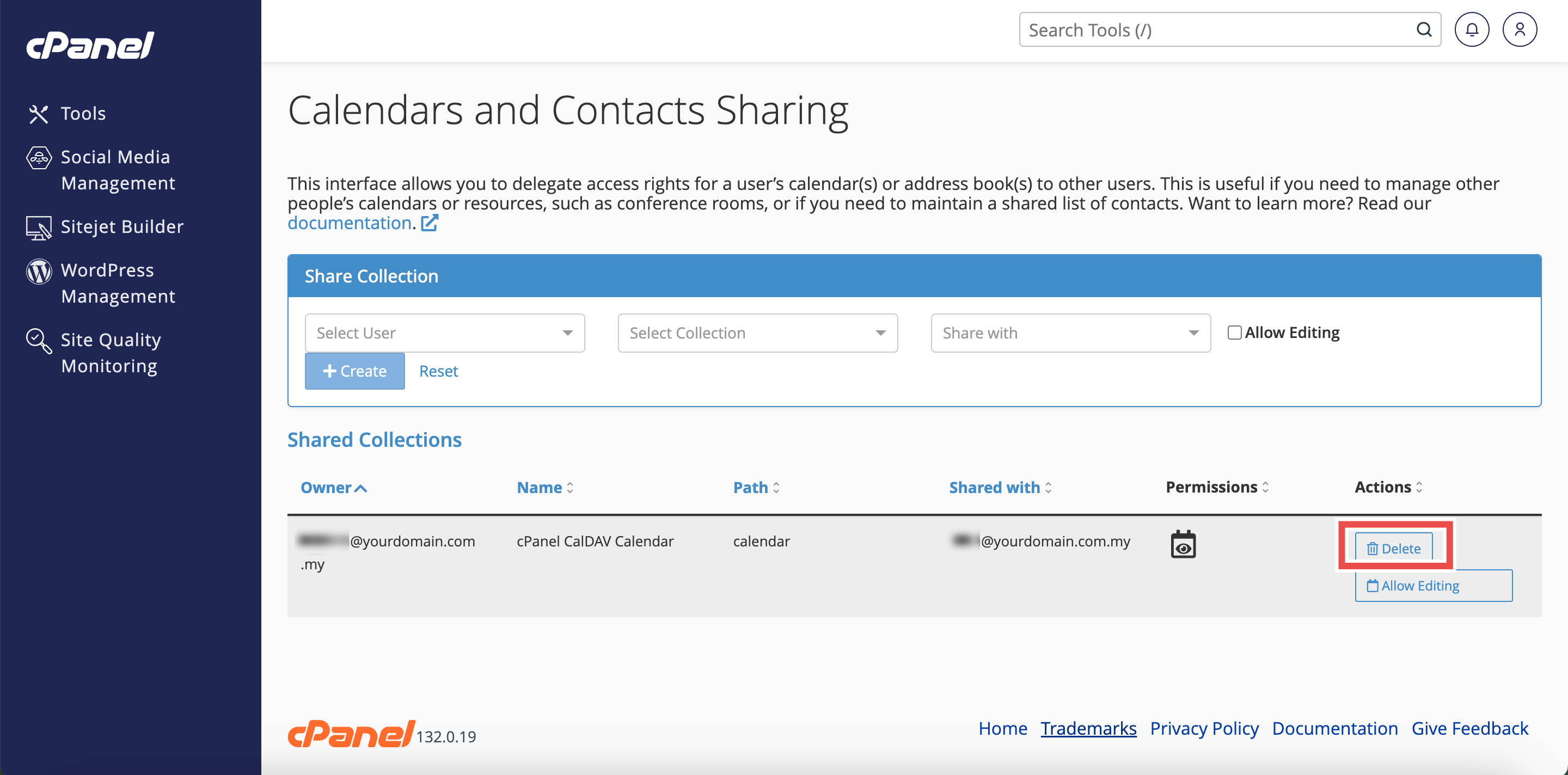
Step 4: Delete the Shared Calendar Access
- In the Actions column for the calendar entry, click Delete.
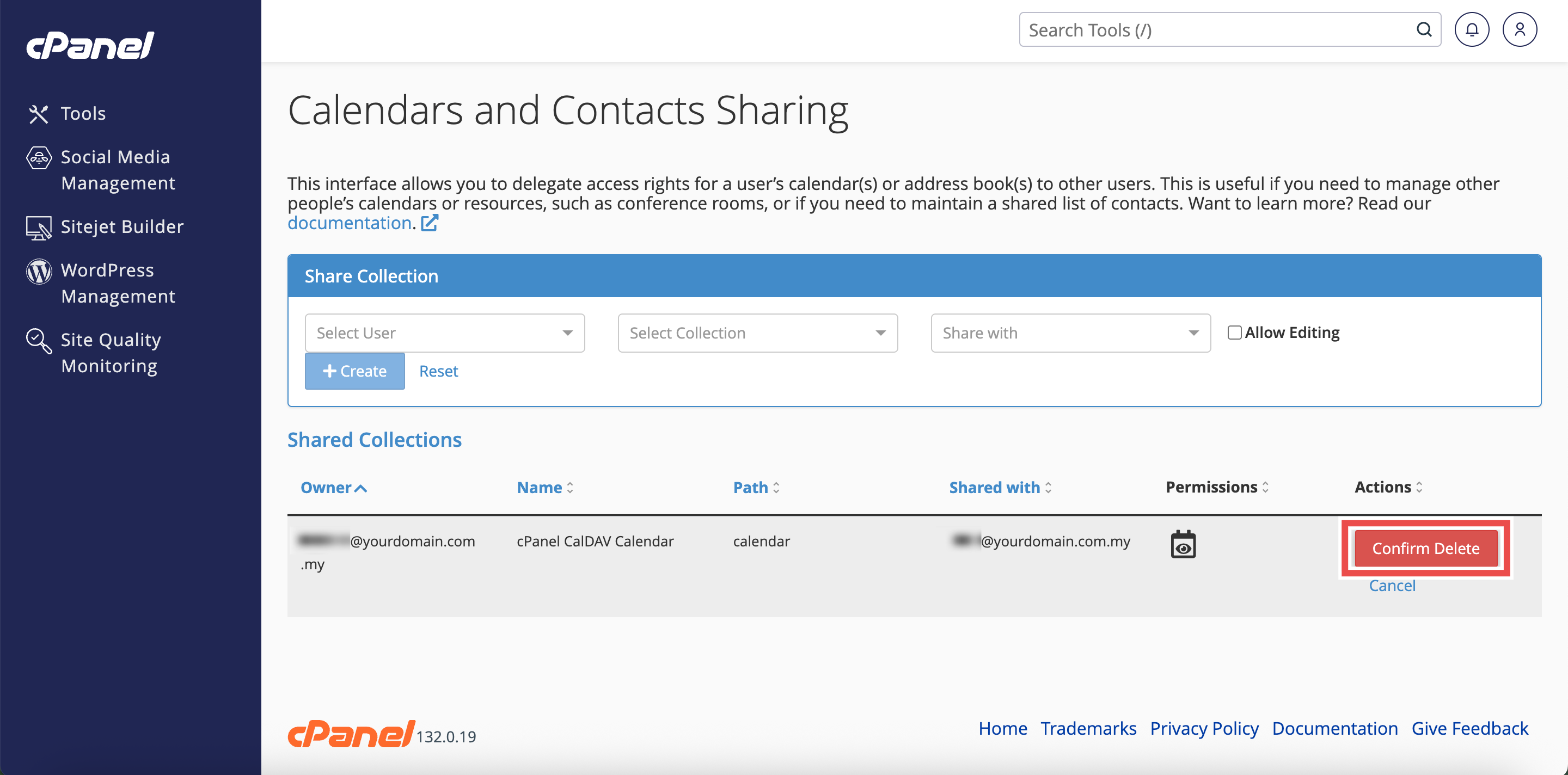
Step 5: Confirm Deletion
- A confirmation dialog will appear.
- Review the calendar details to ensure you are removing the correct access.
- Click Confirm Delete to revoke the user’s access to the calendar.
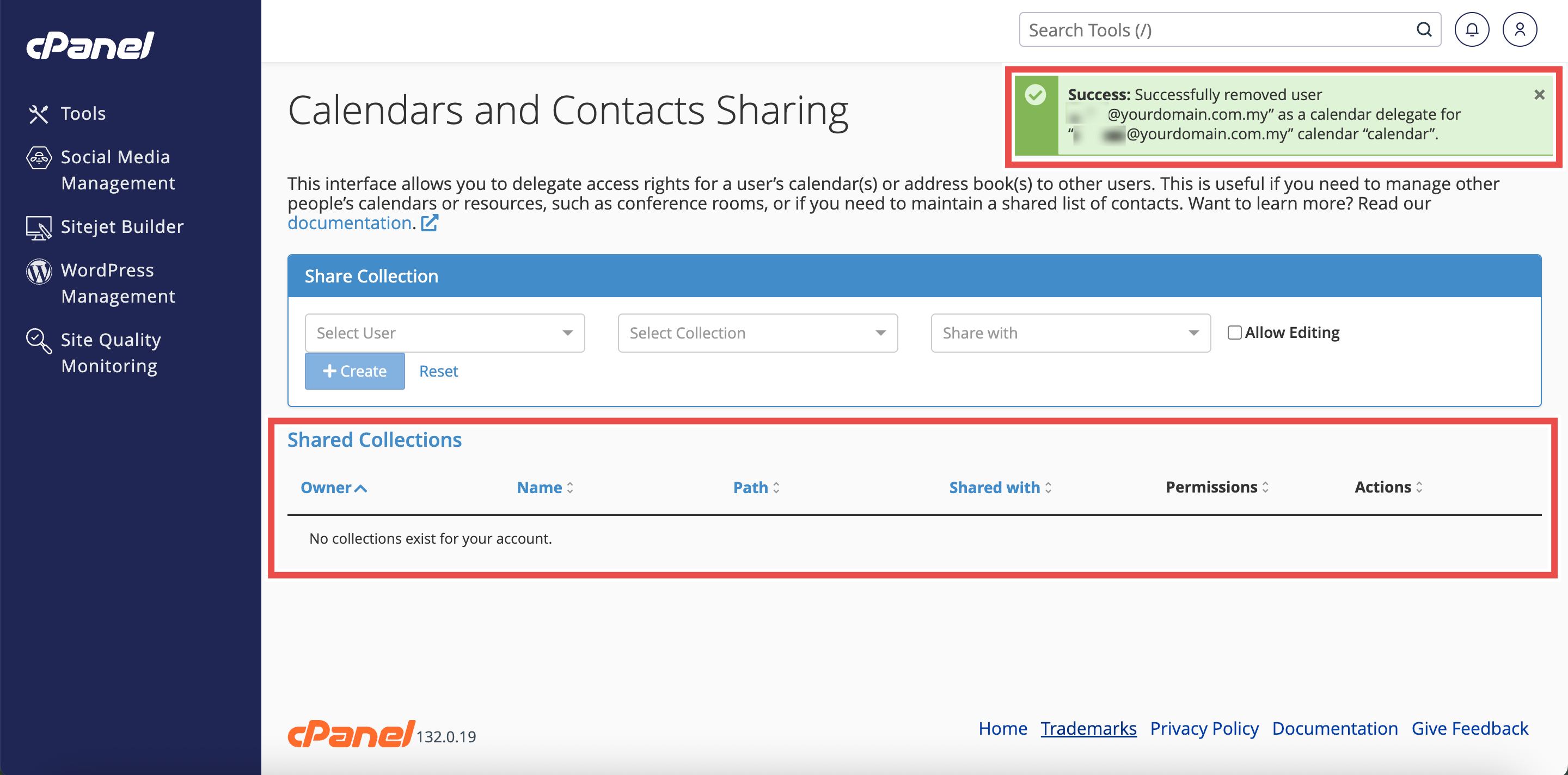
Step 6: Verify Removal
- The shared calendar entry will be removed from the Shared Collections table.
⚠️ Important Note:
- The user will no longer have access to the calendar.
- Removing a shared calendar immediately revokes all access (both read and write) from the user.
- Removing access does not delete the calendar itself, only the sharing permission.
Conclusion
By following these steps, you can remove a shared calendar from a user in cPanel. Revoking calendar access ensures that only authorized users can view or edit calendars, maintaining proper access control and data security. Remember to communicate access changes to affected users to avoid confusion.
Should you encounter any issues or have any questions, our support team at IPSERVERONE is always here to assist you. Don’t hesitate to reach out to us at support@ipserverone.com for any help you need.