
Search Our Database
How to Prevent Incoming Emails using Forwarders in DirectAdmin (Evolution Skin)
Introduction
Email forwarders typically redirect messages to other addresses, but DirectAdmin’s forwarder functionality also enables blocking incoming mail to specific addresses entirely. Preventing spam, stopping mail to discontinued addresses, or blocking unwanted communications may require rejecting emails before delivery rather than simply forwarding or deleting them. DirectAdmin’s Forwarders interface provides a straightforward method for creating rejection rules that bounce incoming messages with delivery failure notifications. This guide explains how to block incoming mail using the E-mail Manager > Forwarders section in DirectAdmin, enabling you to completely prevent email delivery to specified addresses.
Prerequisites
- Access to DirectAdmin control panel with the necessary permissions.
Step-by-step Guide
Step 1: Access DirectAdmin
Log in to your DirectAdmin control panel.

Step 2: Access Forwarders Settings
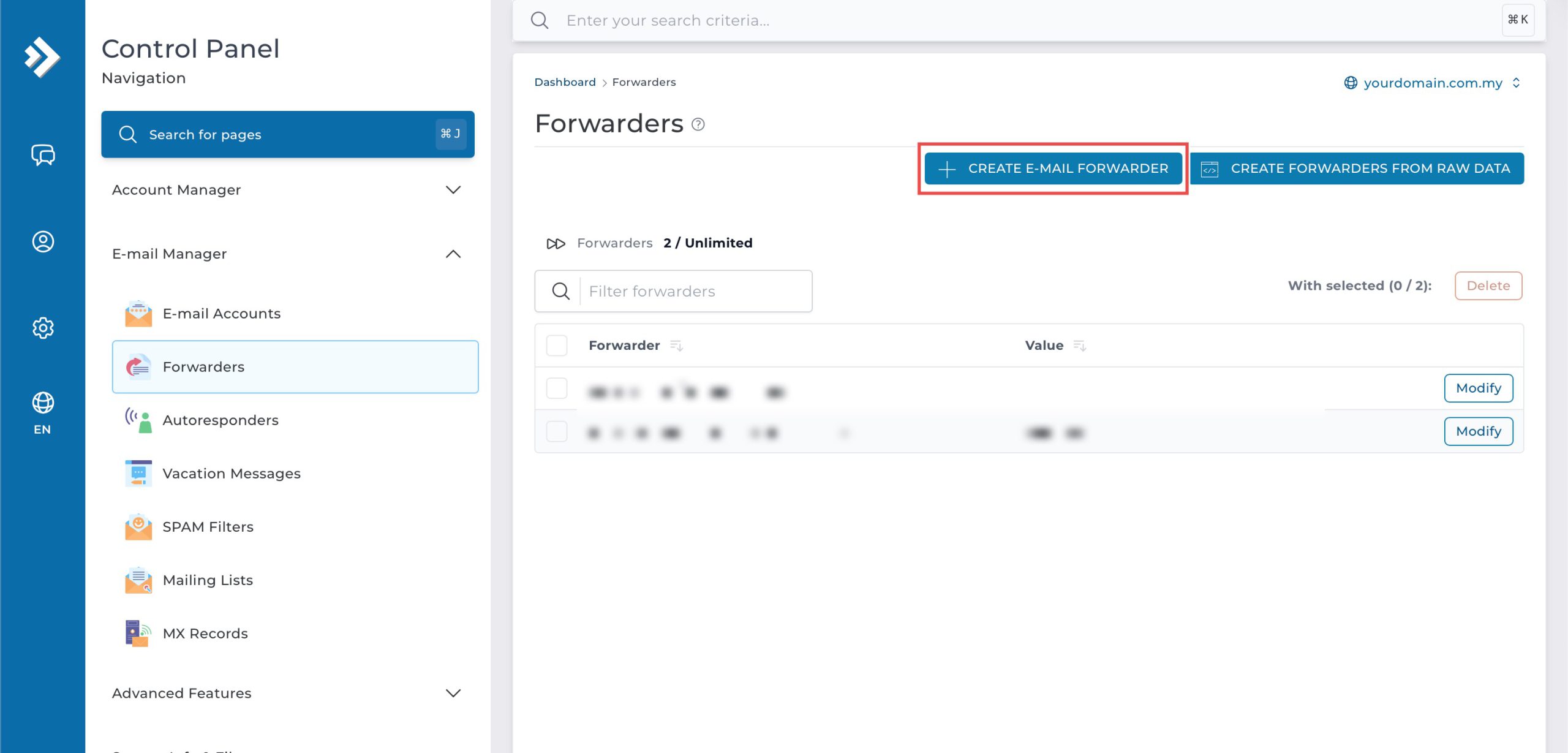
Go to the E-mail Manager section and click on Forwarders. You will see a list of your existing email forwarders.

Step 3: Configure the Forwarder to Block Incoming Mail
Click Create E-mail Forwarder at the top.
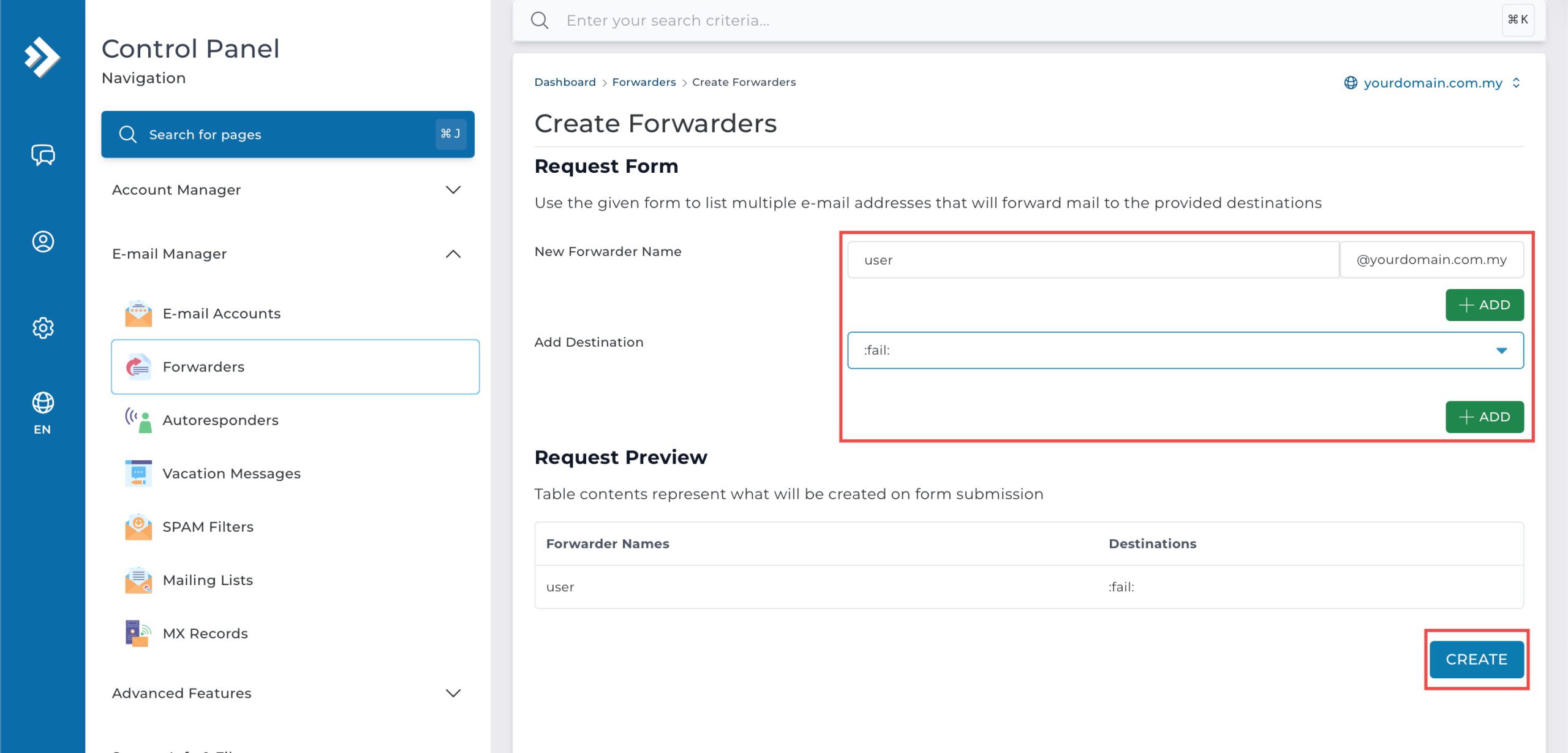
- New Forwarder Name: Enter the account you wish to prevent incoming emails of.
- Add Destination: Select :fail: from the drop-down menu.
Then, click Save at the bottom of the form.
Step 4: Verify the Changes
To confirm your changes are live, send a test email to the forwarder address. You should receive a delivery failure notification, indicating that the recipient was not found or is otherwise blocked.

Conclusion
Blocking incoming mail through DirectAdmin’s Forwarders interface is a simple process that completely rejects messages sent to specific addresses. Creating forwarder rules with the :fail: destination ensures unwanted emails are bounced back to senders with delivery failure notifications, providing an effective method for preventing unwanted communications or managing discontinued email addresses.
Should you have any inquiries about the guidelines, please feel free to open a ticket through your portal account or contact us at support@ipserverone.com. We’ll be happy to assist you further.