
Search Our Database
How to Move Emails to Spam Folder in Roundcube Webmail
Introduction
This Knowledge Base article provides a concise, step-by-step guide on How to Move Emails to Spam Folder in Roundcube Webmail. Moving unwanted emails to the Spam folder helps train your email filter and keeps your inbox clean from junk messages. Use this guide when you receive spam or unwanted emails that need to be marked and moved to the Spam folder.
Prerequisite
- Access to your Roundcube Webmail login page.
Step-by-Step Guide
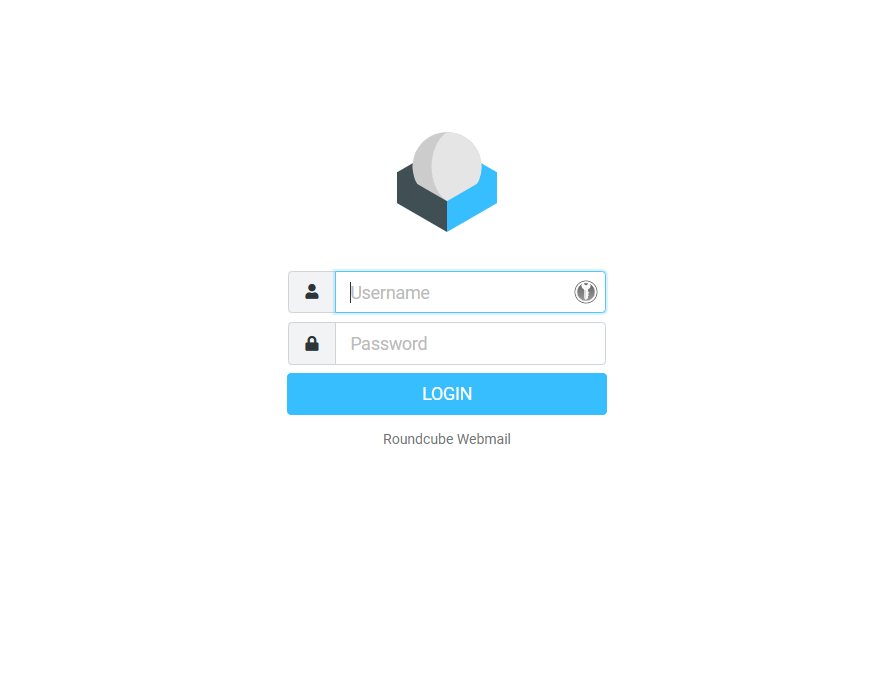
Step 1: Log in to Roundcube Webmail
- Visit the webmail login page (e.g., https://webmail.yourdomain.com).
- Enter your email address and password, then click Login .
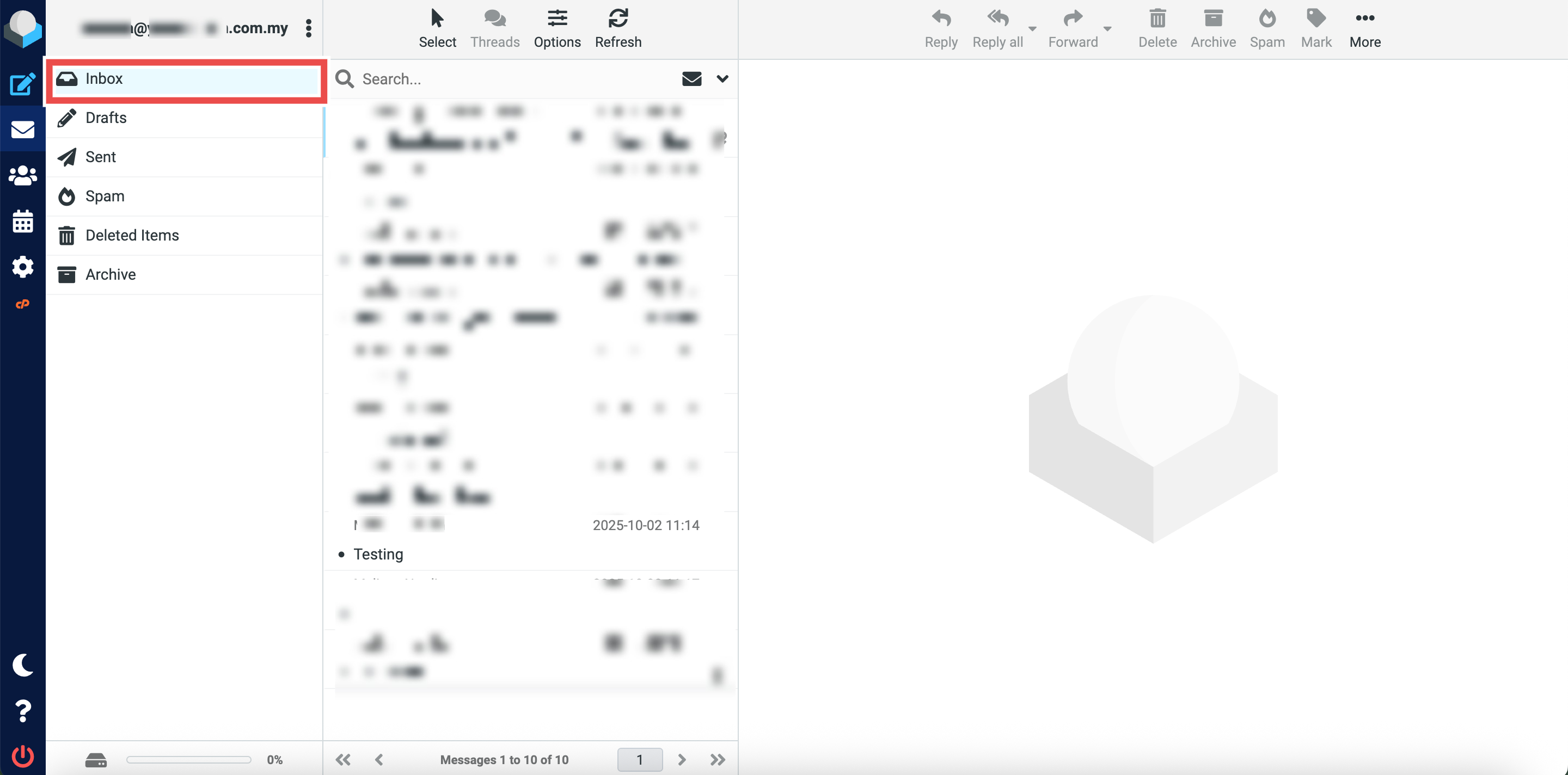
Step 2: Locate the Original Folder
- Navigate to the folder containing the email you want to move (e.g., Inbox).
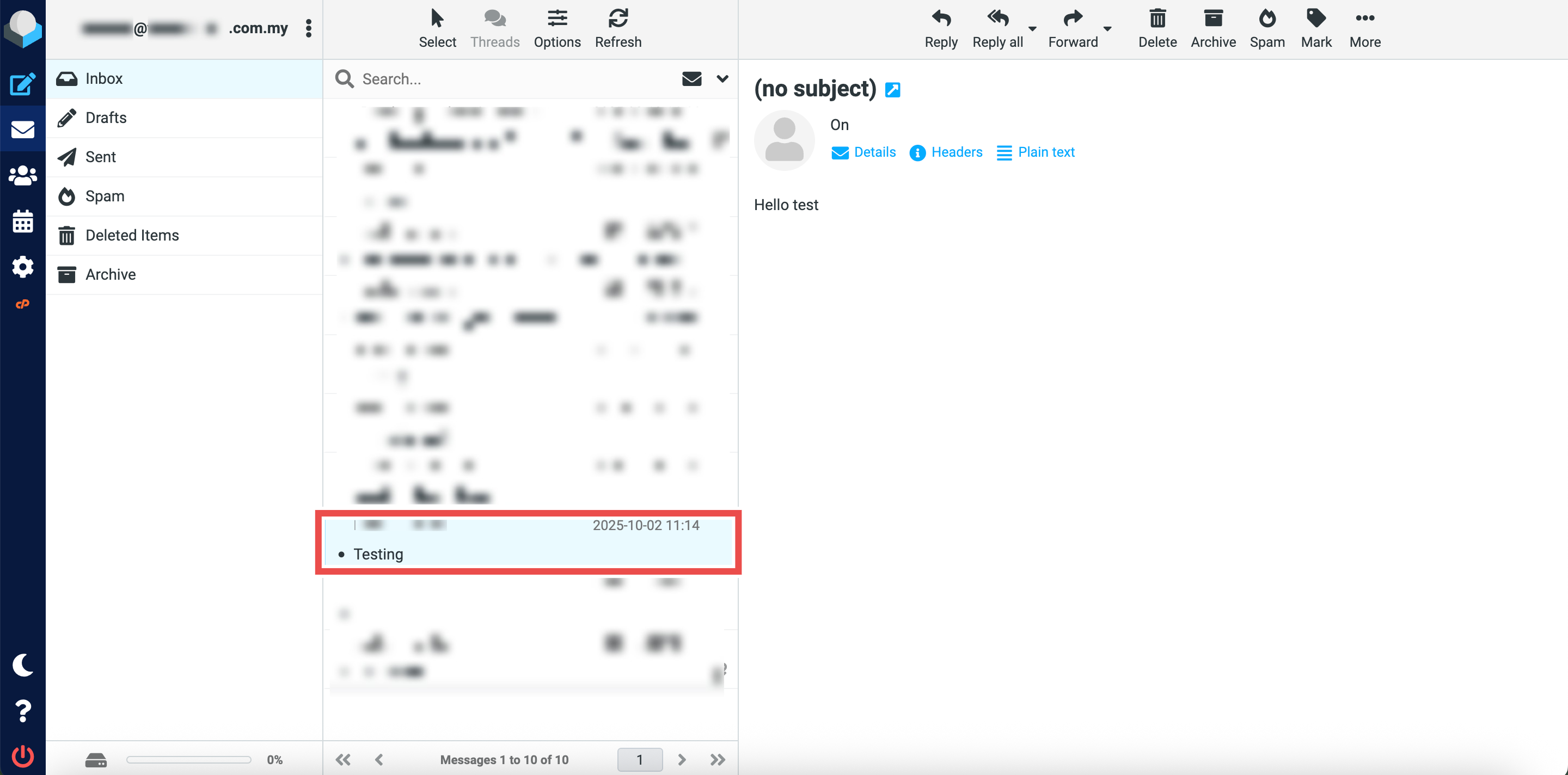
Step 3: Select the Email to Move
- Locate the email message you wish to move to the Spam folder.
- You can select multiple emails.
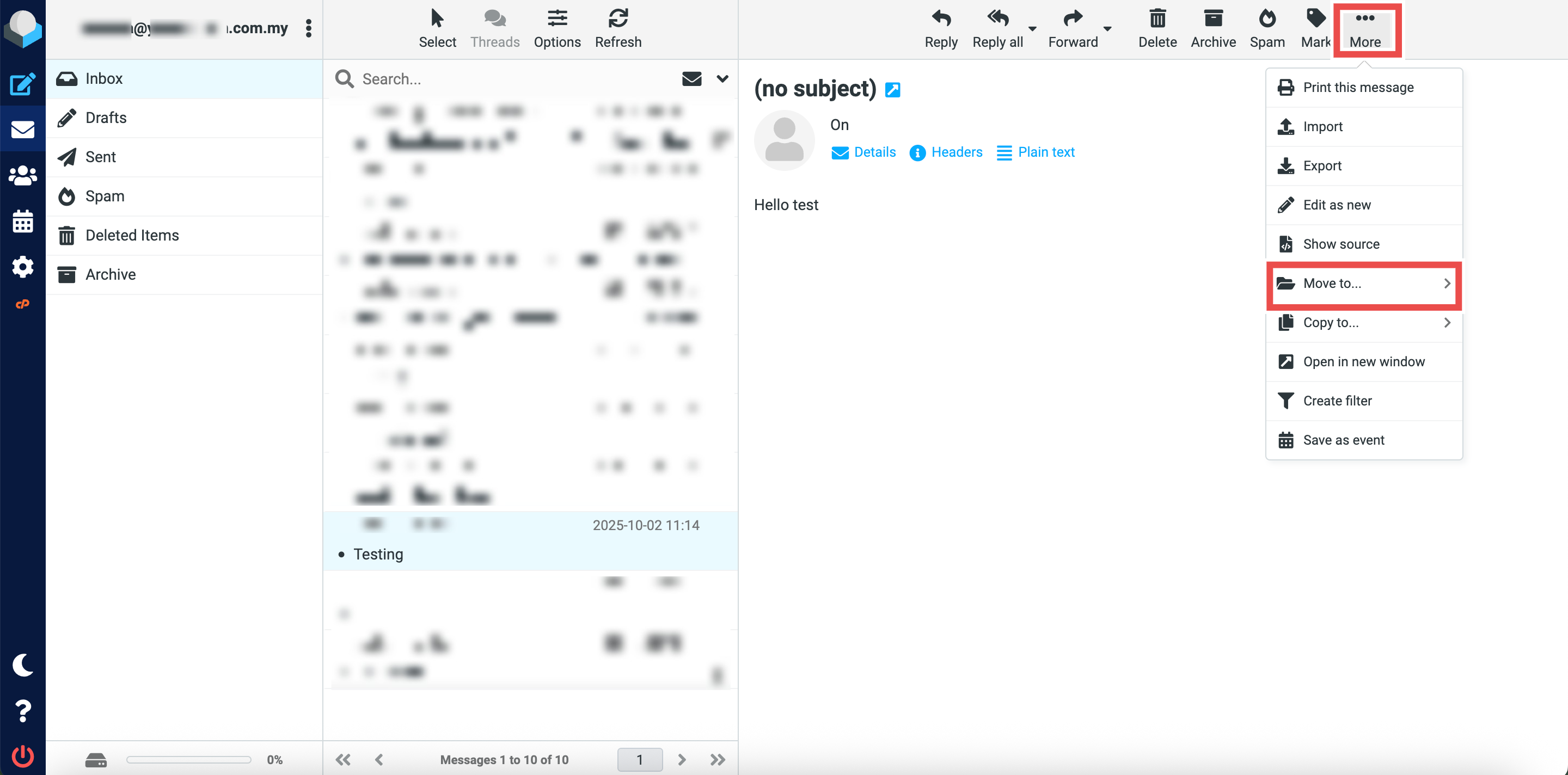
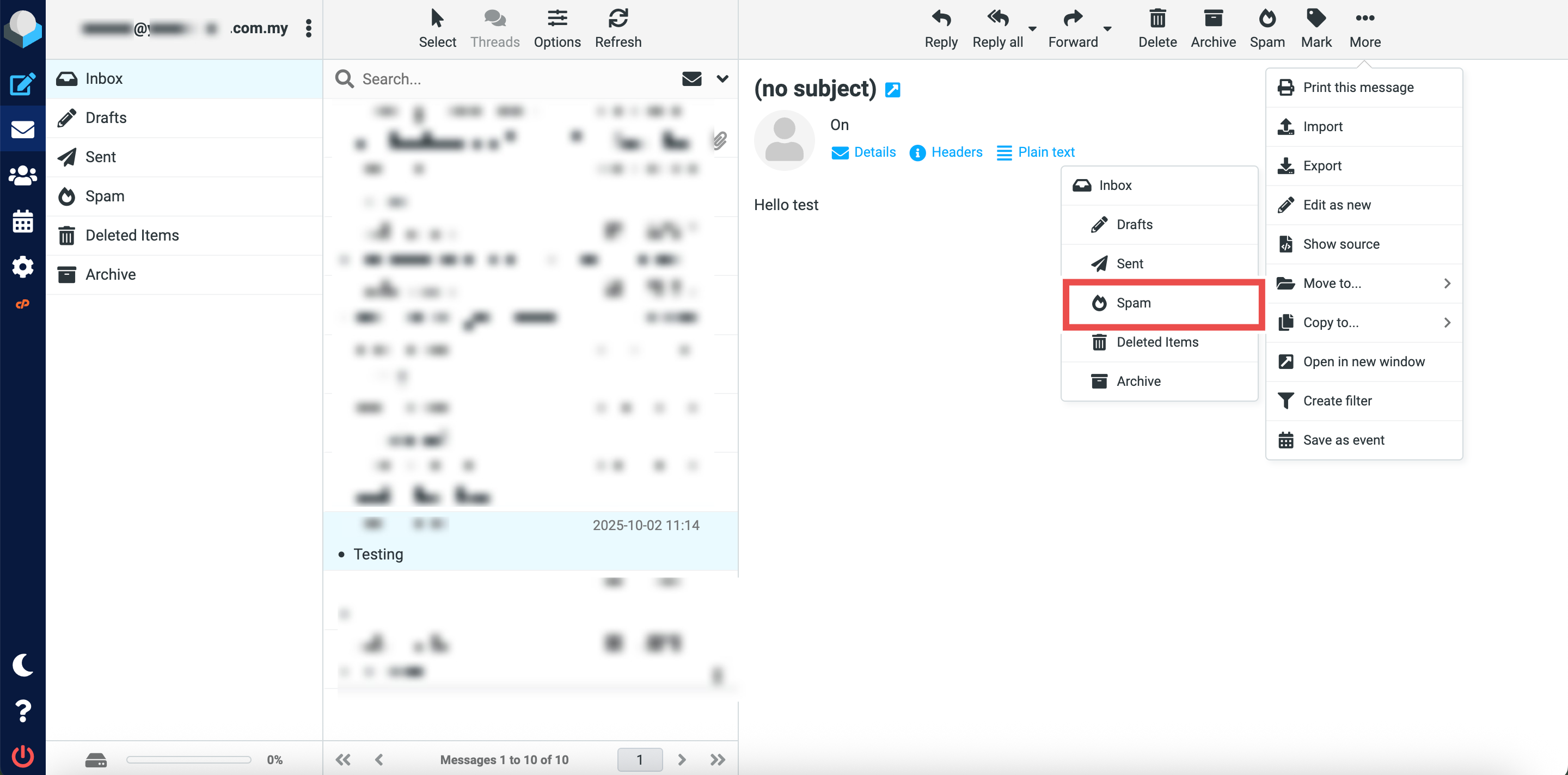
Step 4: Move the Email to Spam Folder
- Click More button at the top right of the page.
- Click Move to button from the dropdown options.
- Click Spam to move the selected email(s) to the Spam folder.
Step 5: Verify the Email Was Moved
- Successful message will appear confirming the email has been moved to the Spam folder.
- Additionally, you may click on the Spam folder in the left sidebar and locate the email you just moved in the folder, the email should now appear in the Spam folder and be removed from its original location.

Conclusion
By following these steps, you can move emails to the Spam folder in Roundcube Webmail. This action helps improve your spam filter’s accuracy by training it to recognize similar messages as spam in the future.
Should you encounter any issues or have any questions, our support team at IPSERVERONE is always here to assist you. Don’t hesitate to reach out to us at support@ipserverone.com for any help you need.