
Search Our Database
How to Modify Vacation Message in DirectAdmin (Enhanced Skin)
Introduction
Vacation messages provide automated responses to incoming emails while you’re away, but there are situations where updating these messages becomes necessary. Extending your absence period, correcting message content, adjusting reply frequency, or updating contact information may require modifying existing vacation message settings. DirectAdmin’s Vacation Messages interface provides a straightforward method for editing auto-reply configurations without needing to delete and recreate them. This guide explains how to edit vacation messages using the E-mail Management > Vacation Messages section in DirectAdmin, enabling you to maintain accurate and professional out-of-office communications.
Prerequisites
- Access to DirectAdmin control panel with the necessary permissions.
- An existing email account with an active vacation message set up.
Step-by-step Guide
Step 1: Access DirectAdmin
Log in to your DirectAdmin control panel.

Step 2: Access Vacation Messages
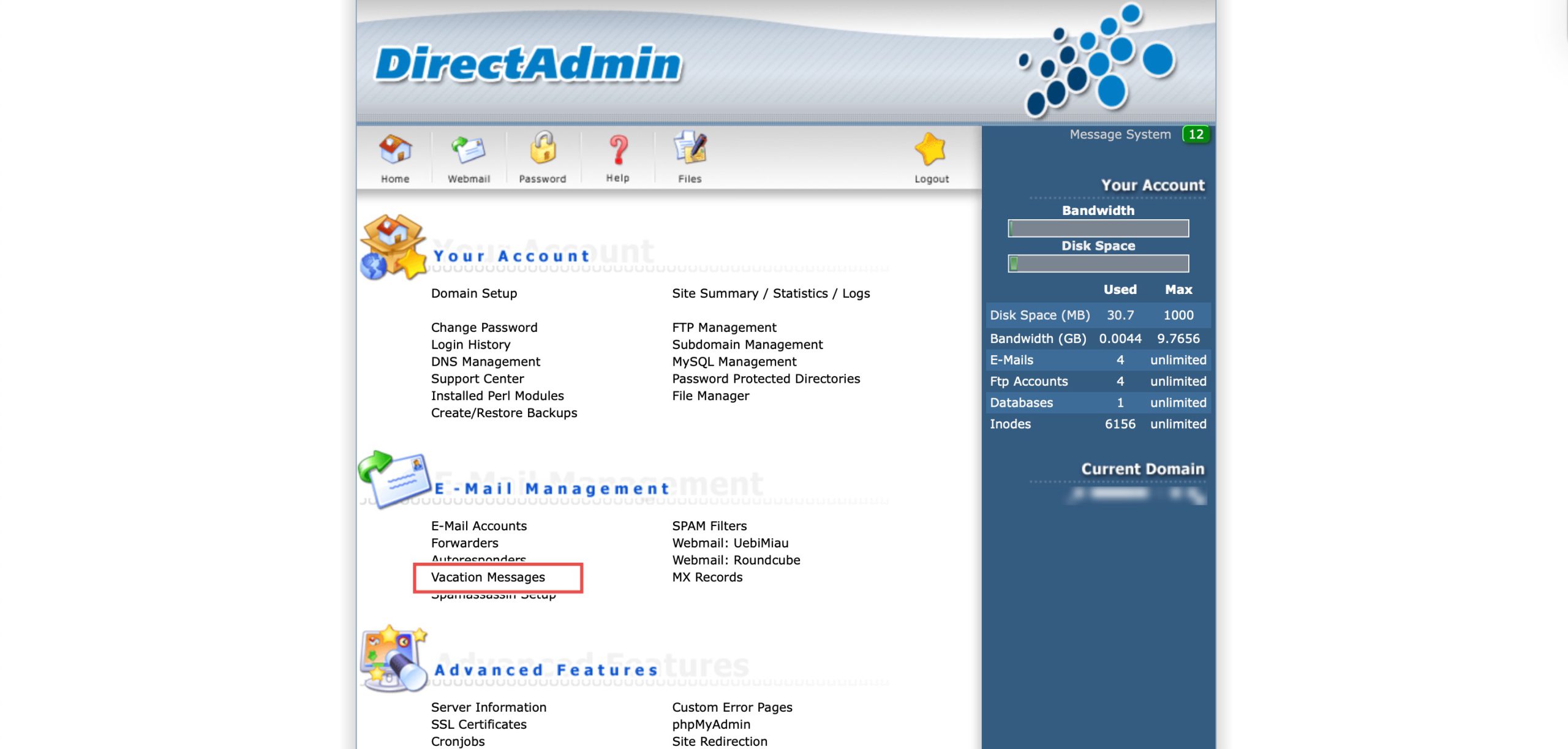
Go to the E-mail Management section and click on Vacation Messages. You will see a list of your currently active vacation messages.
Step 3: Edit Vacation Message
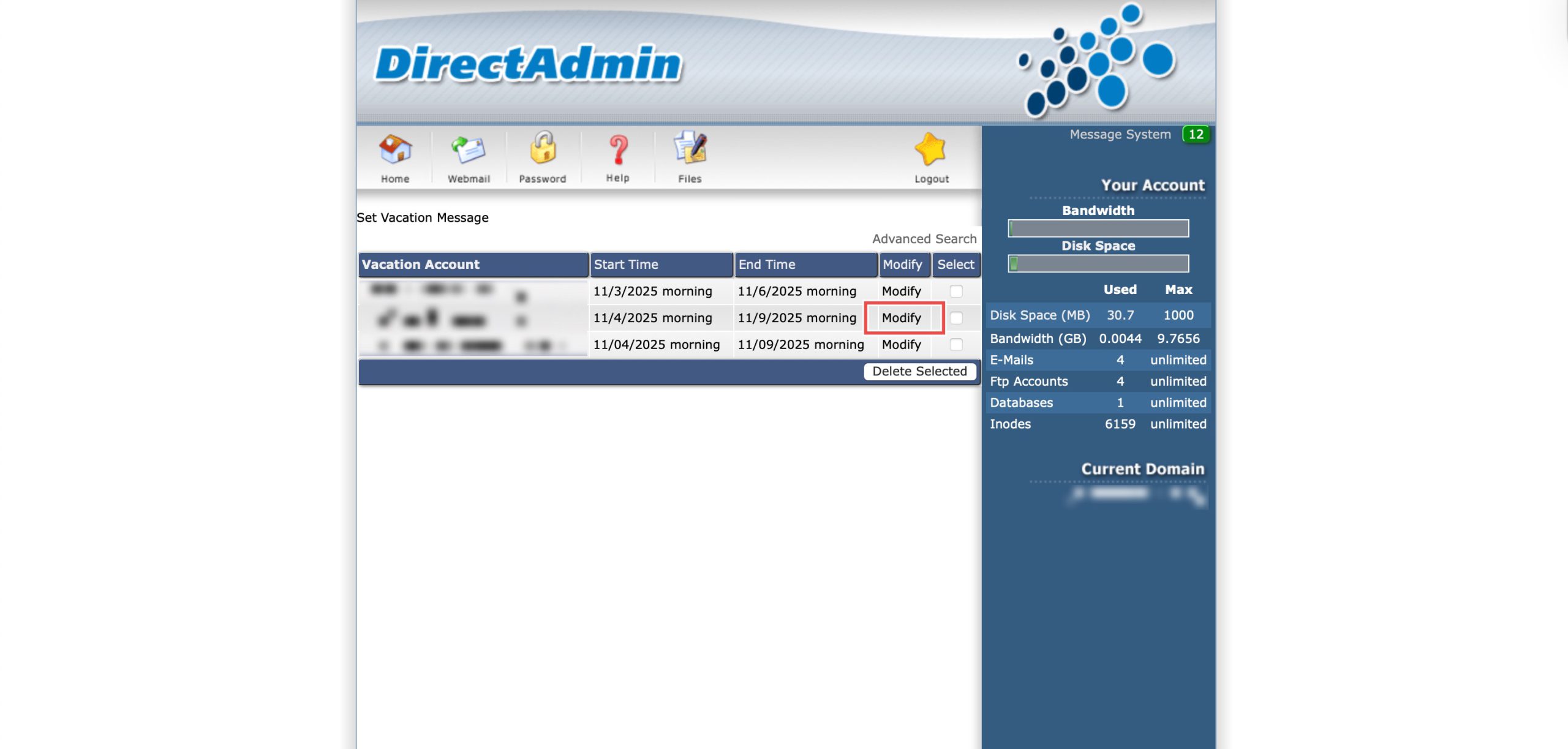
Locate the email address whose settings you wish to modify. Then, click Modify on the right of the row.
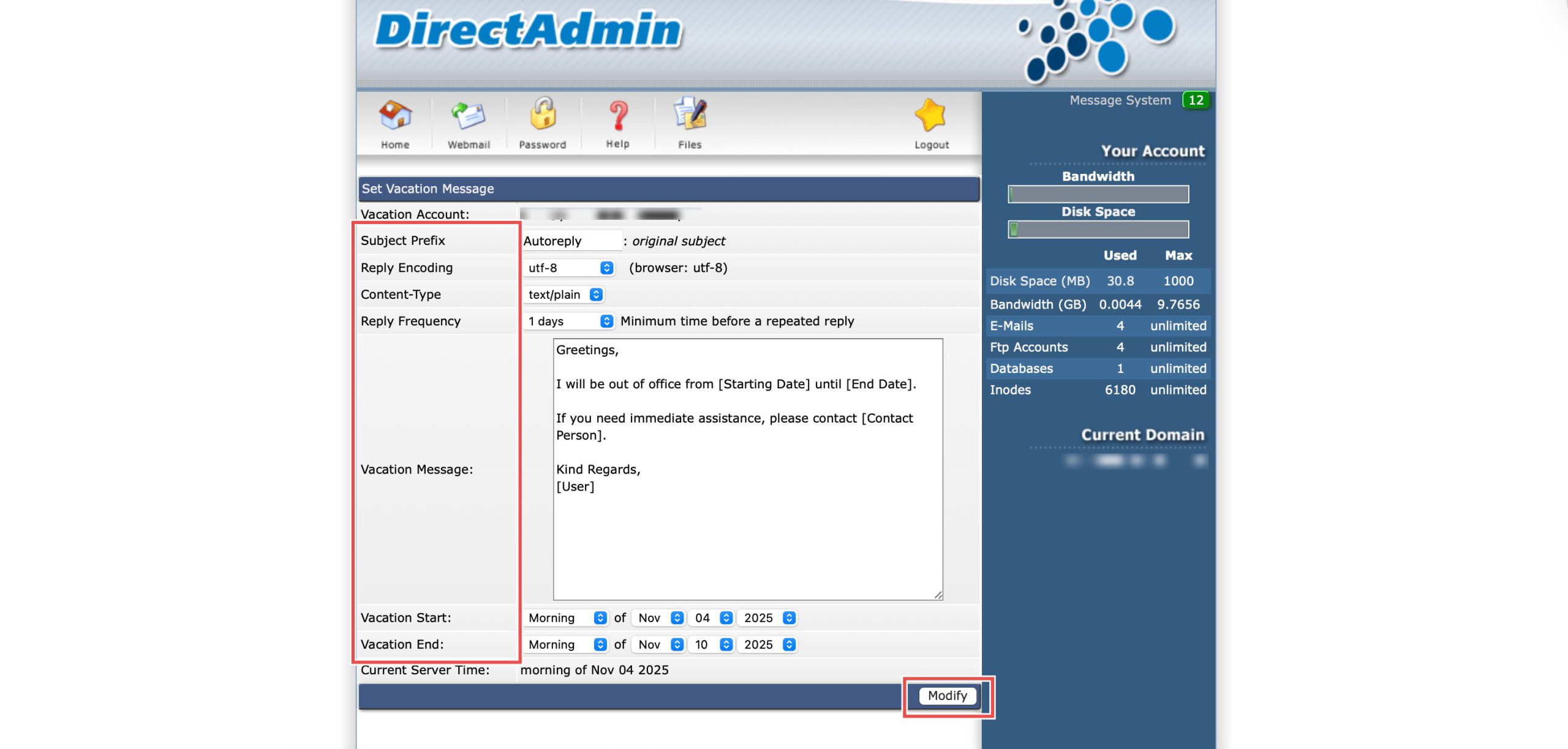
You may change the following fields:
- Subject Prefix: Subject line of the auto-reply email.
- Reply Frequency: How often the auto-reply is sent to the same sender.
- Vacation Message: Main body text of your out-of-office response.
- Vacation Start/End: Dates and times the message is active.
Then, click Modify at the bottom of the form.
Step 4: Verify the Changes
To confirm your changes are live, send a test email from an external email address to the email address that has the modified vacation message enabled. You should immediately receive an automated reply with your new subject and message content.
Conclusion
Editing vacation messages through DirectAdmin’s Vacation Messages interface is a simple process that provides flexibility in managing automated email responses. Modifying message content, schedules, and reply frequency ensures your out-of-office communications remain accurate and professional, with automatic deactivation once the end date passes.
Should you have any inquiries about the guidelines, please feel free to open a ticket through your portal account or contact us at support@ipserverone.com. We’ll be happy to assist you further.