
Search Our Database
How to Modify PHP Error Reporting in DirectAdmin (Evolution Skin)
Introduction
PHP error reporting controls which types of errors, warnings, and notices are logged or displayed during script execution. Configuring error reporting levels enables appropriate visibility into code issues for different environments, comprehensive reporting for development and debugging, or selective reporting for production to reduce log clutter while maintaining awareness of critical issues. DirectAdmin’s PHP Settings interface provides a straightforward method for adjusting error reporting behavior through custom PHP overrides. This guide explains how to configure error reporting using the Account Manager > PHP Settings section in DirectAdmin, enabling tailored error visibility that matches your development workflow and production requirements.
Prerequisites
- Access to DirectAdmin control panel with the necessary permissions.
Step-by-step Guide
Step 1: Access DirectAdmin
Log in to your DirectAdmin control panel.

Step 2: Access PHP Settings
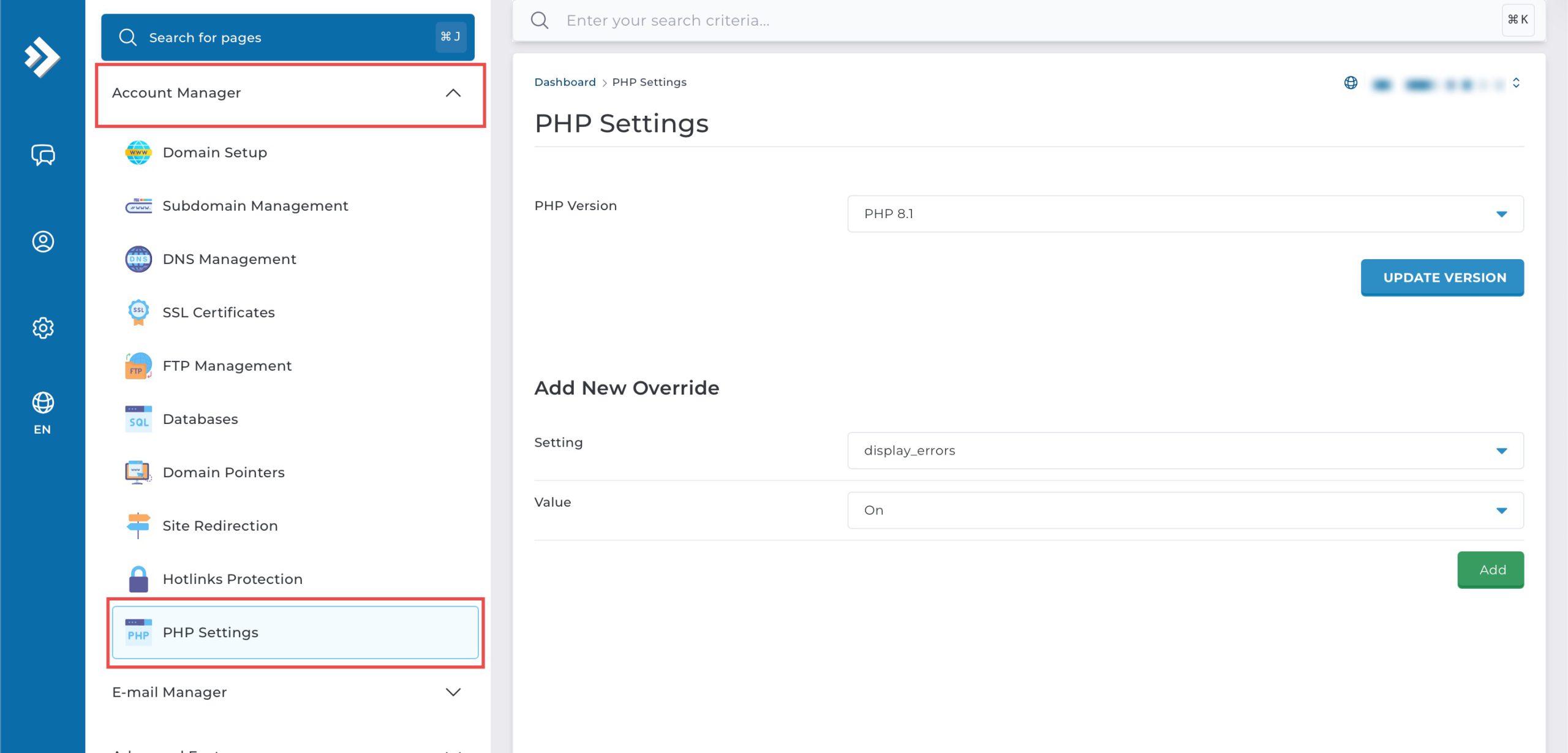
Go to the Account Manager section and click on PHP Settings.
Step 3: Modify Error Reporting
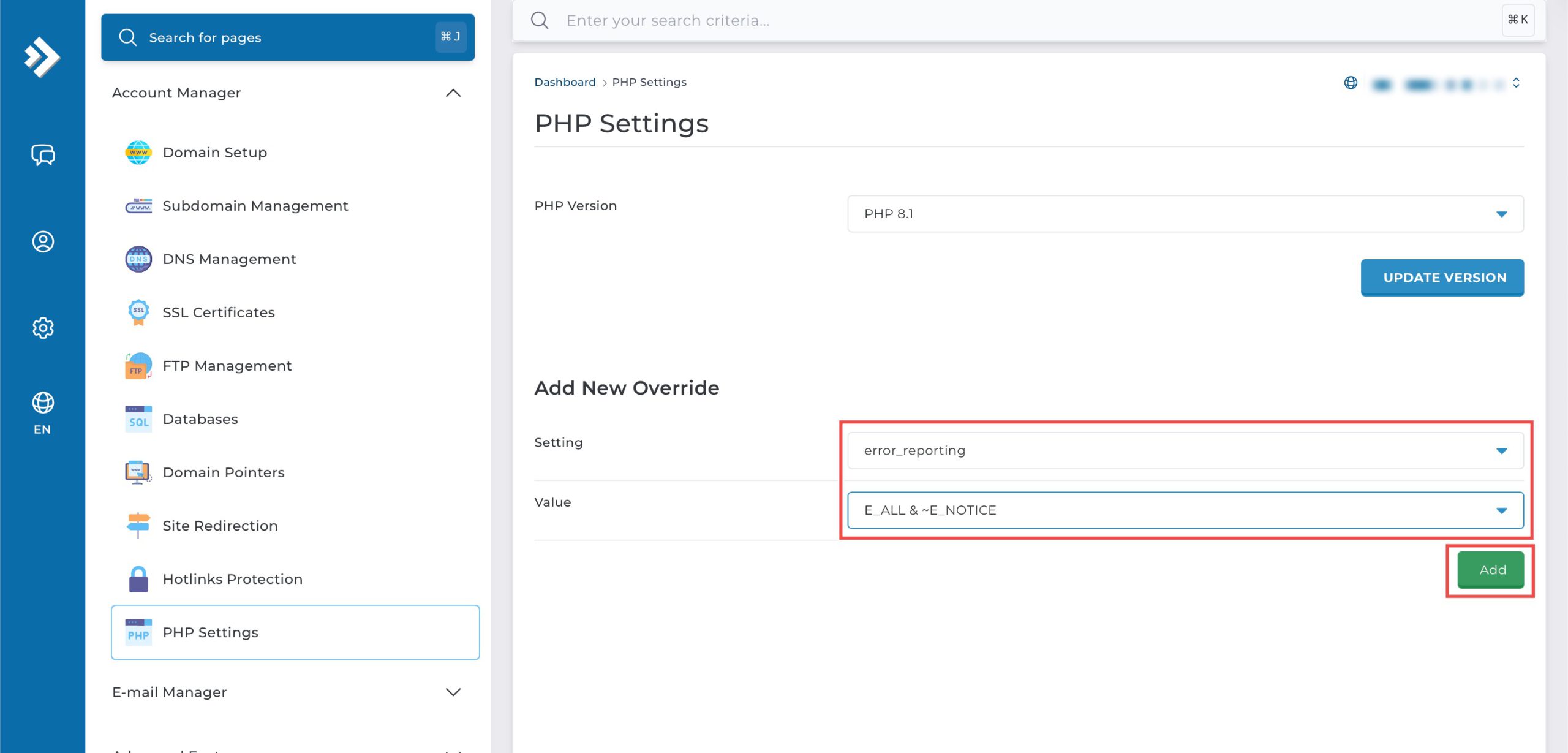
Scroll down to the Add New Override section. From the Setting drop-down menu, select error_reporting. From the Value drop-down menu, you may select either:
- E_ALL & ~E_NOTICE: PHP will report all error types except notices.
- E_ALL: PHP will report everything, or
- ~E_ALL: PHP will report nothing.
Then, click Add at the bottom right.
Step 4: Verify the changes
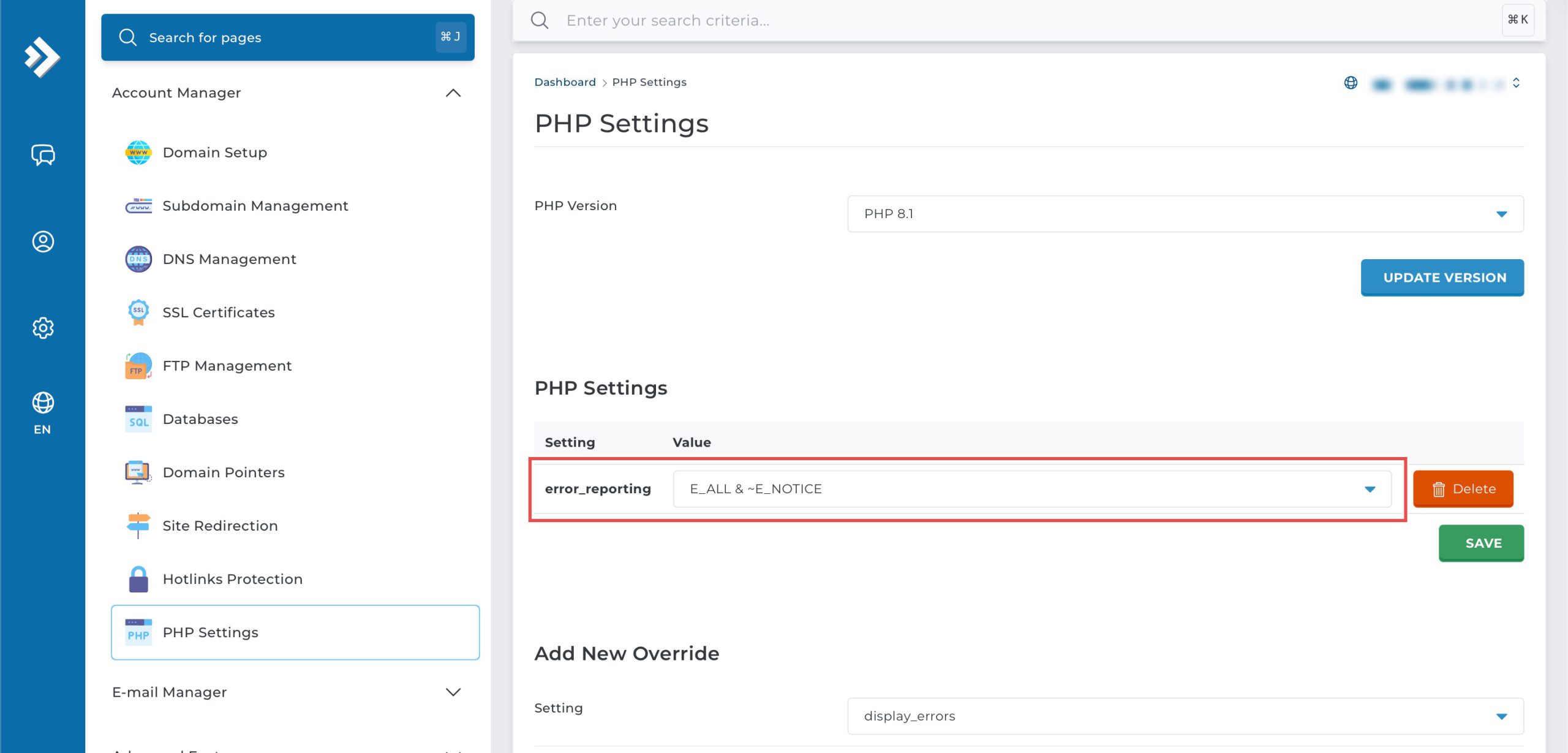
You may confirm the new override settings in the updated PHP Settings table. PHP errors will now be reported as configured.
Conclusion
Configuring PHP error reporting through DirectAdmin’s PHP Settings interface is a simple process that provides control over which error types are tracked and logged. Adjusting the error_reporting setting allows you to balance comprehensive error visibility for debugging with practical error management for production environments, ensuring appropriate awareness of code issues without unnecessary noise.
Should you have any inquiries about the guidelines, please feel free to open a ticket through your portal account or contact us at support@ipserverone.com. We’ll be happy to assist you further.