
Search Our Database
How to Modify Maximum Input Parsing Time for PHP in DirectAdmin (Evolution Skin)
Introduction
PHP max input time defines how long the server allows for receiving and parsing input data, and adjusting this limit is essential for handling large file uploads or slow network connections. Users uploading large files, submitting extensive form data, or connecting over slower internet connections may require increased input time limits to complete data transfers without timeout errors. DirectAdmin’s PHP Settings interface provides a straightforward method for configuring input time limits through custom PHP overrides. This guide explains how to modify max input time using the Account Manager > PHP Settings section in DirectAdmin, ensuring adequate time allowances for data reception and preventing premature connection termination during uploads.
Prerequisites
- Access to DirectAdmin control panel with the necessary permissions.
Step-by-step Guide
Step 1: Access DirectAdmin
Log in to your DirectAdmin control panel.

Step 2: Access PHP Settings
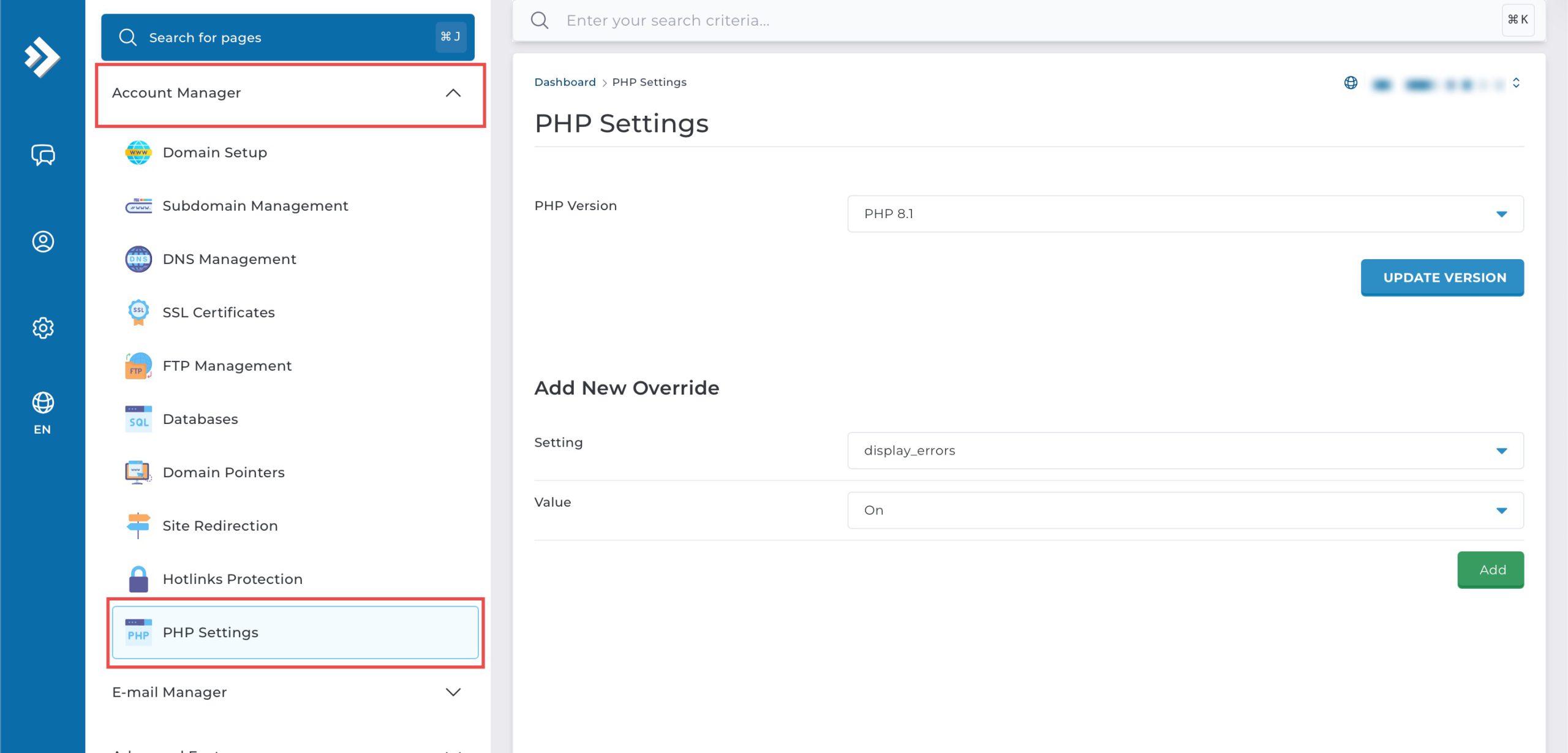
Go to the Account Manager section and click on PHP Settings.
Step 3: Modify Max Input Time
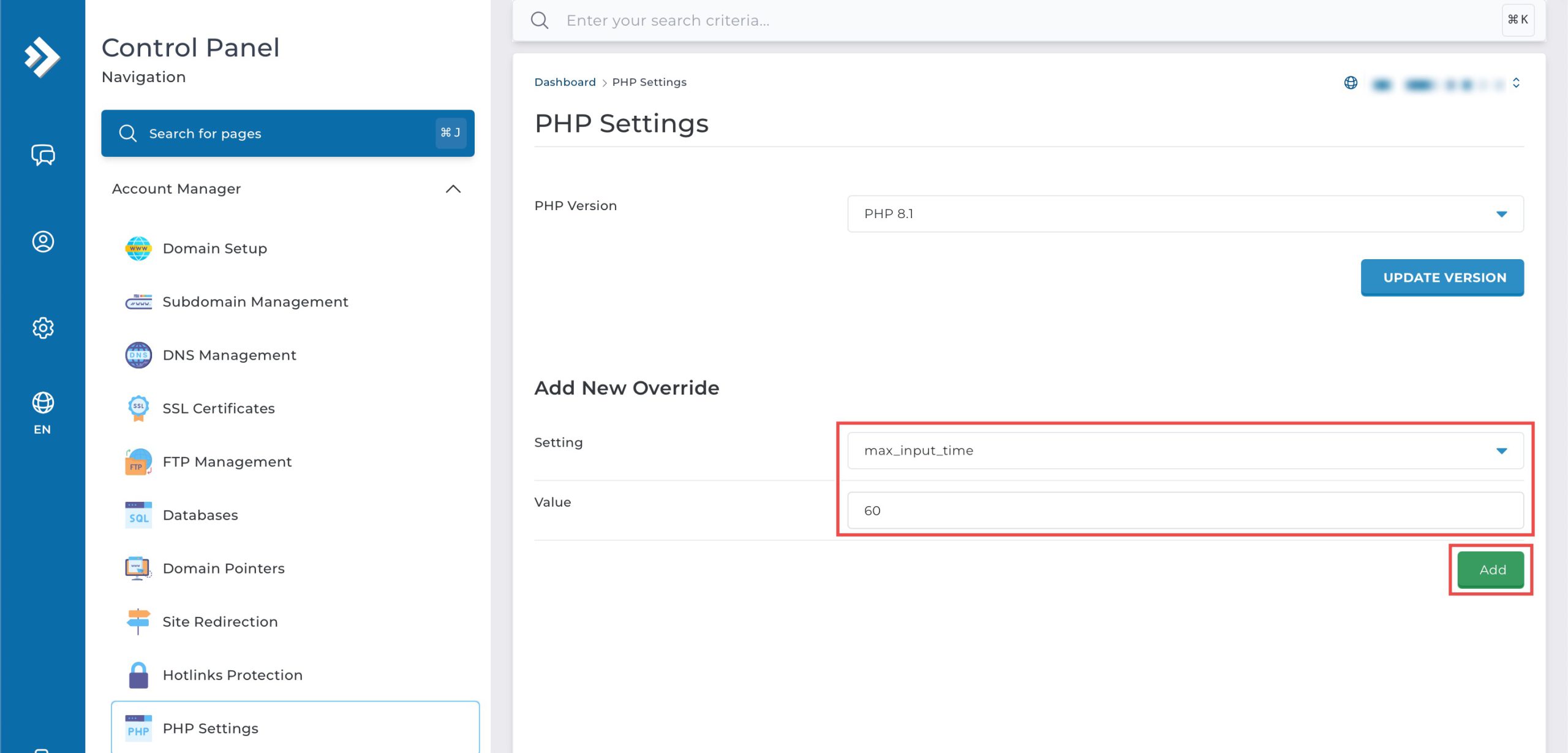
Scroll down to the Add New Override section. From the Setting drop-down menu, select max_input_time. In the Value field, you may enter the maximum time in seconds you wish to allow PHP to spend parsing input data.
Then, click Add on the bottom right.
Tips: This setting specifically covers the time it takes to receive data. If users are trying to upload very large files on slow internet connections, they may need to increase this significantly so the connection doesn’t drop before the file finishes transferring.
Step 4: Verify the changes
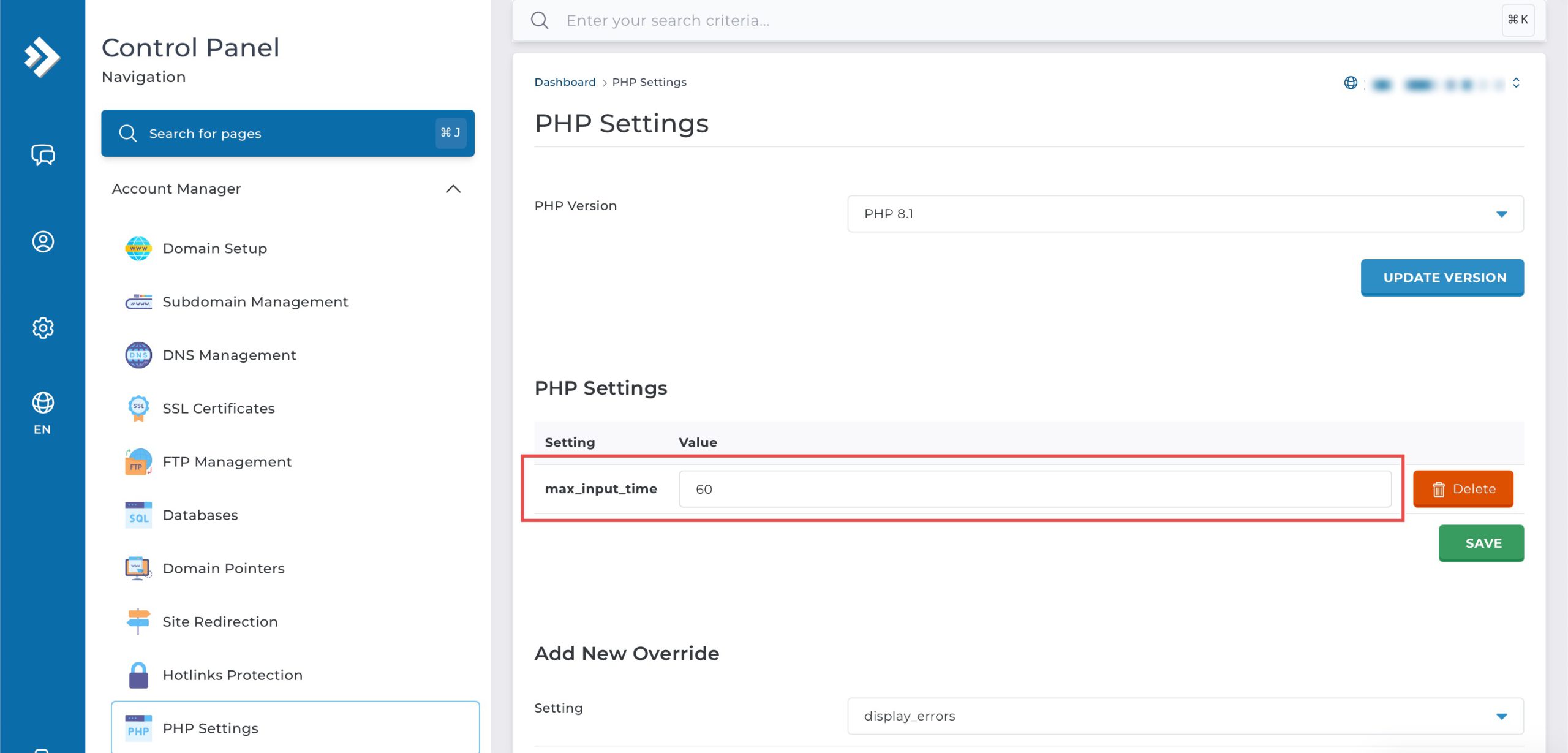
You may confirm the new override settings in the updated PHP Settings table.
Conclusion
Configuring PHP max input time through DirectAdmin’s PHP Settings interface is a simple process that controls how long the server waits to receive input data. Adjusting this limit accommodates large file uploads and slower connections, preventing timeout errors during data transfer while maintaining reasonable limits to protect server resources from stalled connections.
Should you have any inquiries about the guidelines, please feel free to open a ticket through your portal account or contact us at support@ipserverone.com. We’ll be happy to assist you further.