
Search Our Database
How to Modify Default Address in cPanel
Introduction
This Knowledge Base article provides a simple, step-by-step guide on How to Modify Default Address in cPanel. Modifying your default address allows you to change how unrouted emails are handled for your domain, whether you need to update the forwarding destination, change the error message, or switch to a different handling method. Use this guide when you need to update an existing default address configuration.
Prerequisite
- Access to your cPanel login page.
Step-by-Step Guide
Step 1: Log in to cPanel
-
Access your cPanel account using your username and password.

Step 2: Open Default Address
- In the Home page, under the Email section, click Default Address.
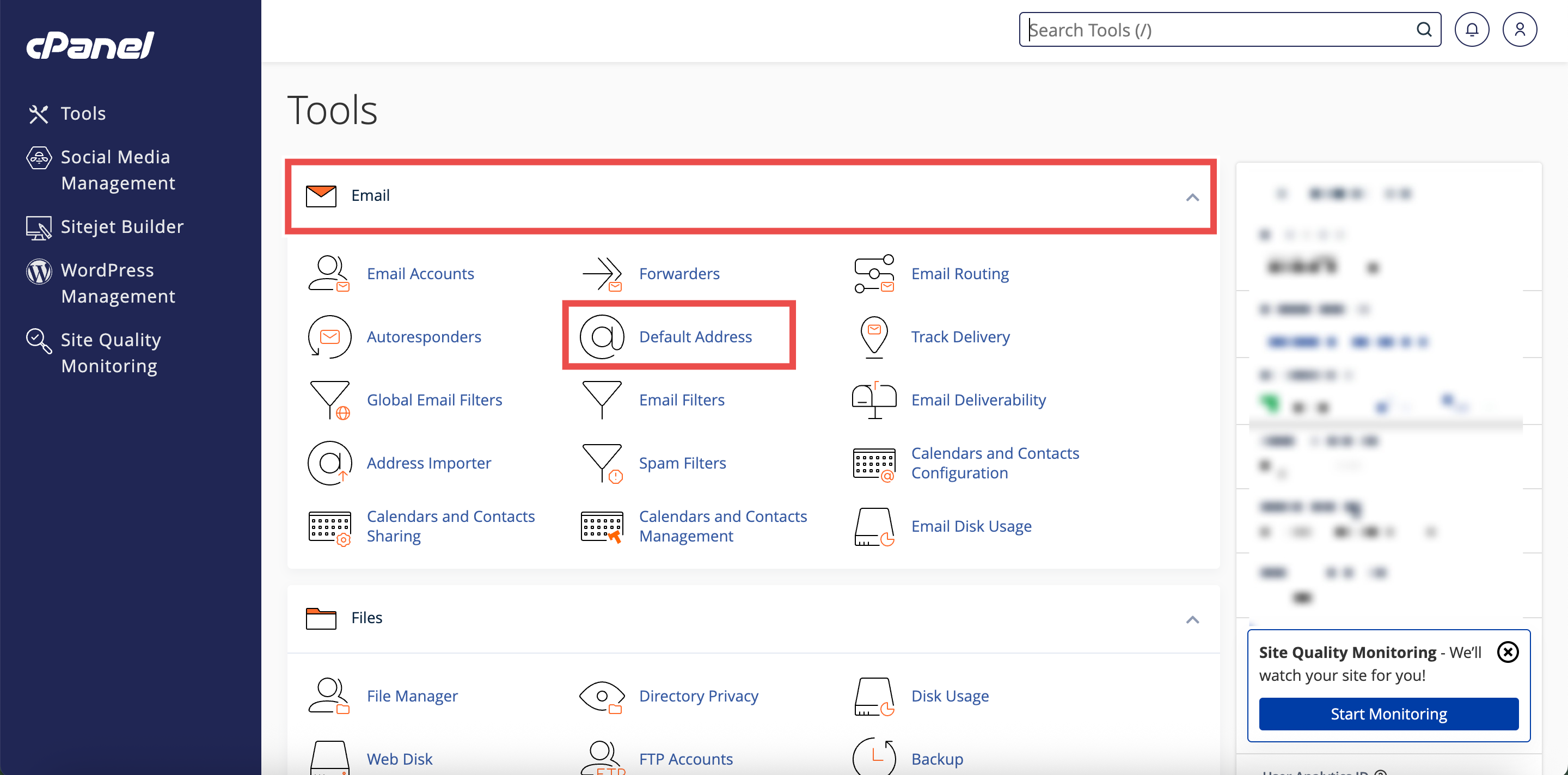
Step 3: Select Your Domain
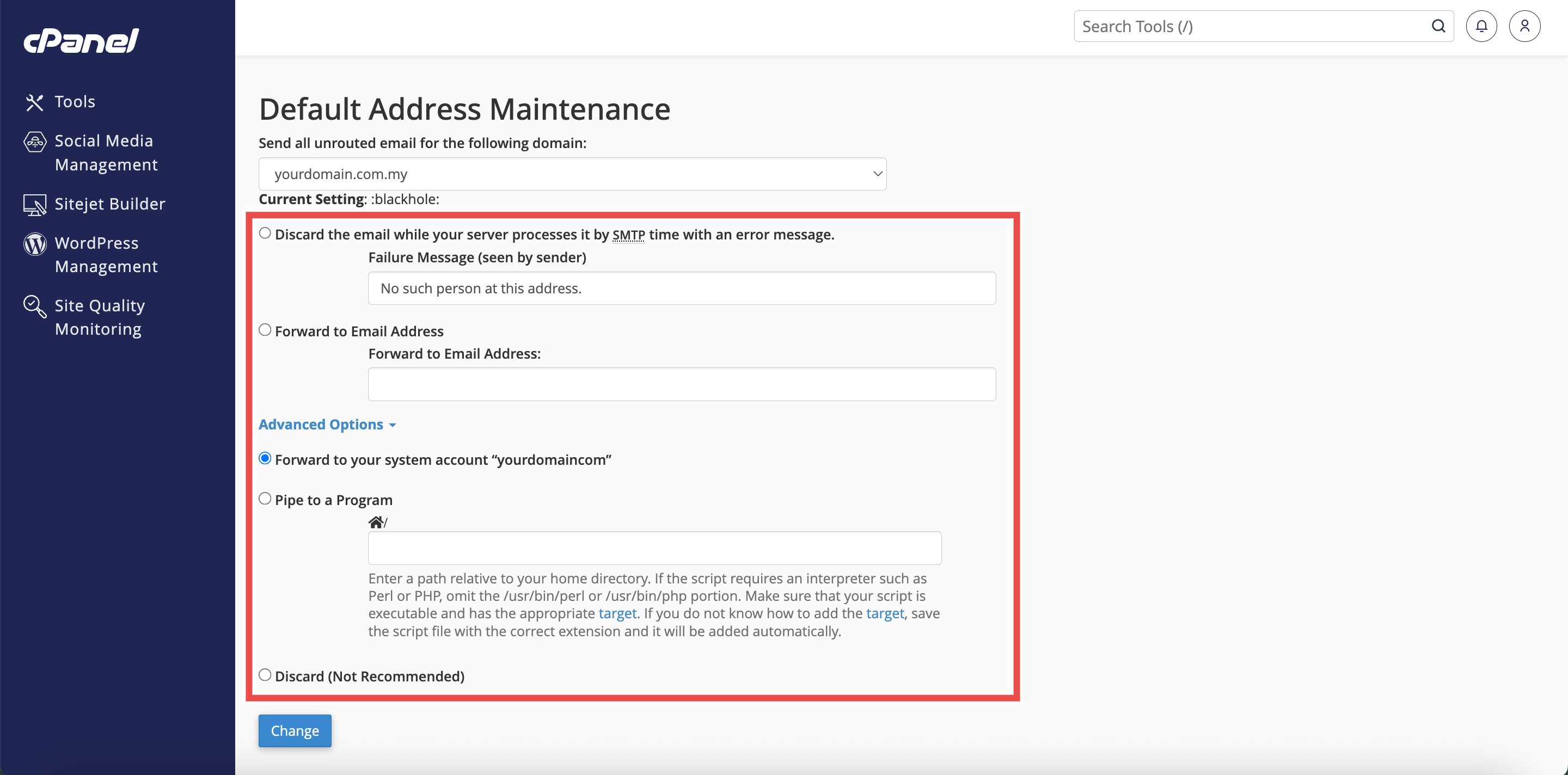
- Under the Send all unrouted email for the following domain dropdown menu, select the domain for which you wish to modify default address.
- The current configuration will be displayed.

Step 4: Modify Your Default Address Settings
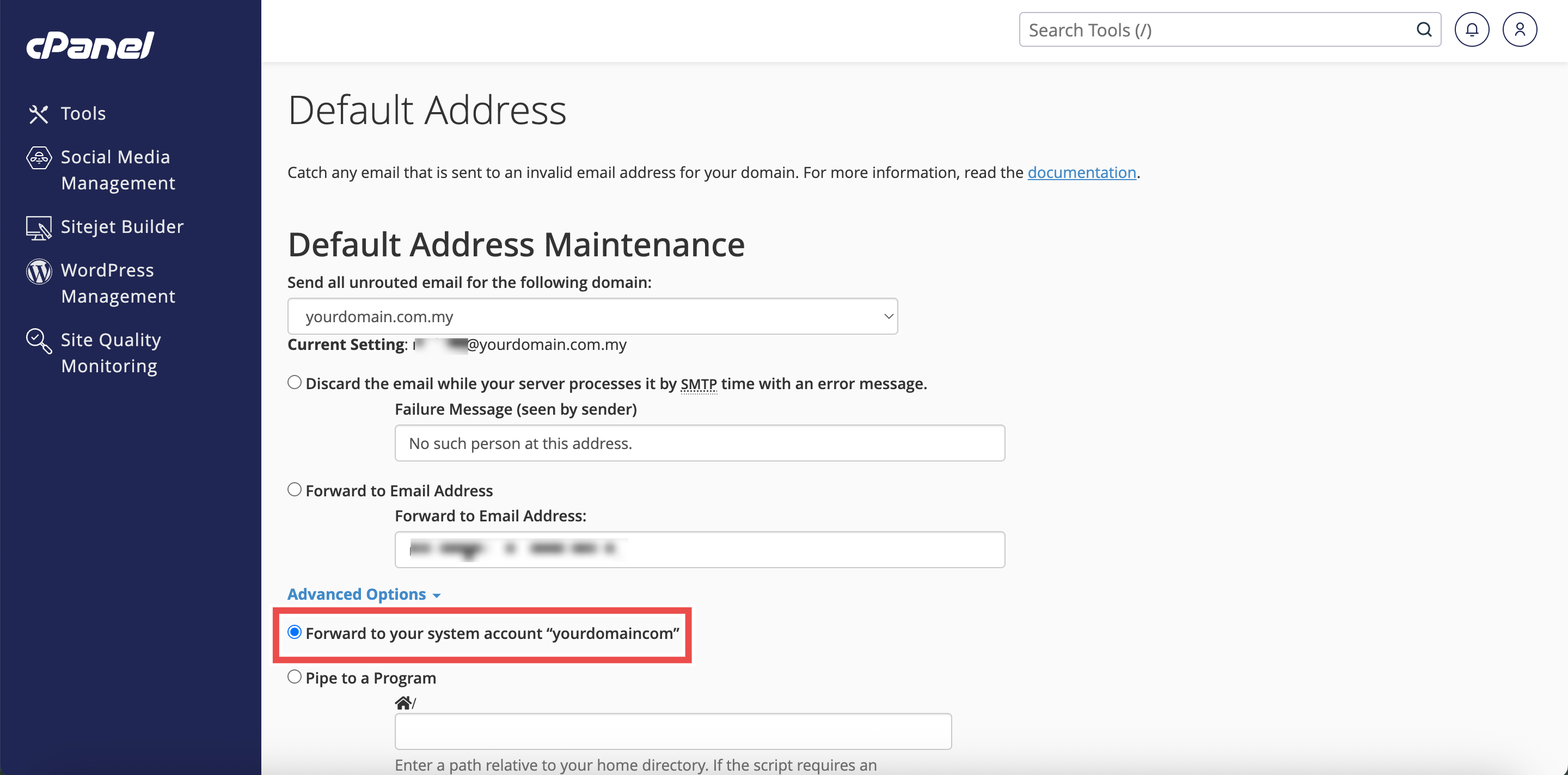
- Update your settings by selecting a different option or modifying the existing configuration:
- Change the forwarding email address if currently forwarding.
- Update the error message if currently discarding with notification.
- Switch to a different handling method (forward, discard, etc.).
- Click Advanced Options if you need to access additional settings.
Step 5: Save Changes
- Click Change to apply the configuration.
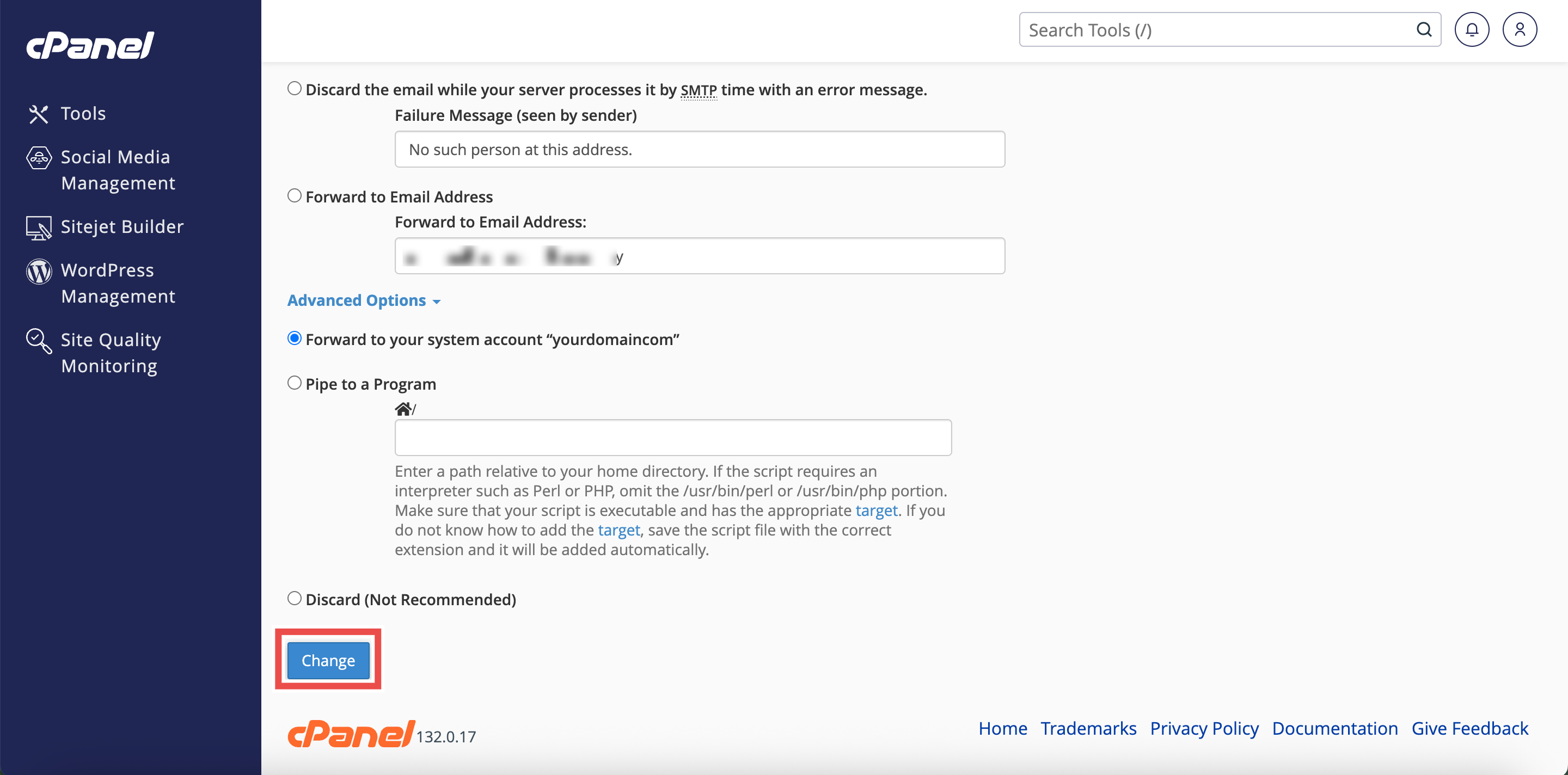
Step 6: Verify Changes
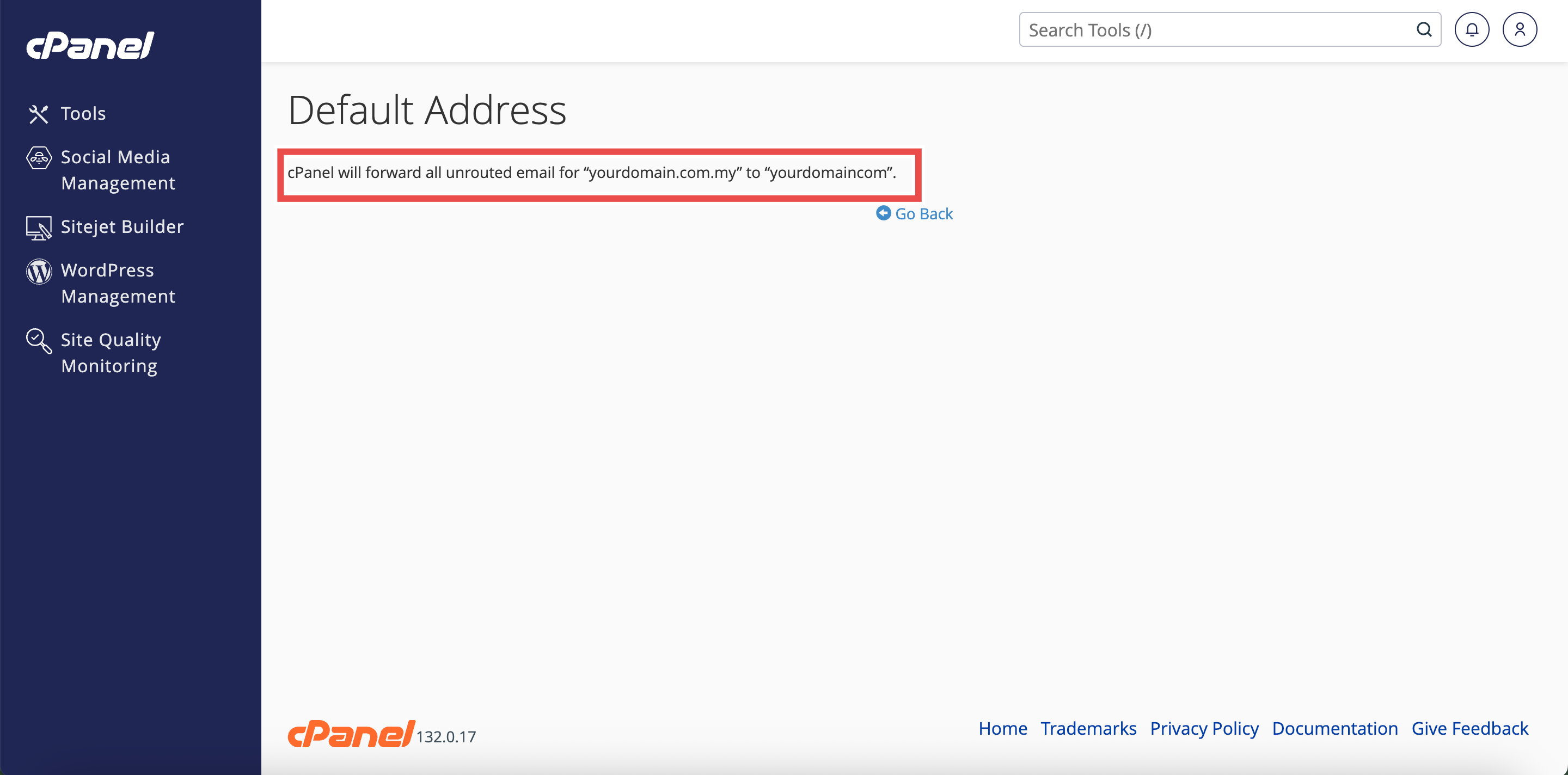
- A confirmation message will appear indicating the default address has been updated.
- Additionally, you may send a test email to an invalid address on your domain to verify that the default address is working as configured.
⚠️ Important Note:
- Changes to the default address take effect immediately after clicking Change.
- If you’re switching from forwarding to discarding, emails will no longer be stored or forwarded.
- If you’re switching from discarding to forwarding, make sure the destination email address is valid and monitored.
- Regular maintenance of your default address helps ensure proper email handling.
- Consider your spam management strategy when modifying default address settings.
Conclusion
By following these steps, you can modify a default address in cPanel. Updating your default address configuration allows you to adapt to changing email management needs, improve spam handling, or update forwarding destinations. Regular review and modification of default address settings ensures optimal email delivery and management for your domain.
Should you encounter any issues or have any questions, our support team at IPSERVERONE is always here to assist you. Don’t hesitate to reach out to us at support@ipserverone.com for any help you need.