
Search Our Database
How to Modify Cron Job in DirectAdmin (Enhanced Skin)
Introduction
Editing cron jobs allows you to adjust scheduled task timing and commands as your automation requirements evolve. Changing execution schedules, updating script paths, or modifying task parameters may become necessary as your website or application needs change over time. DirectAdmin’s Cronjobs interface provides a straightforward method for modifying existing scheduled tasks without needing to delete and recreate them. This guide explains how to edit cron jobs using the Advanced Features > Cronjobs section in DirectAdmin, enabling you to maintain and optimize your automated processes efficiently.
Prerequisites
- Access to DirectAdmin control panel with the necessary permissions.
- At least one existing cron job configured in DirectAdmin.
Step-by-step Guide
Step 1: Access DirectAdmin
Log in to your DirectAdmin control panel.

Step 2: Access Cron Jobs Settings
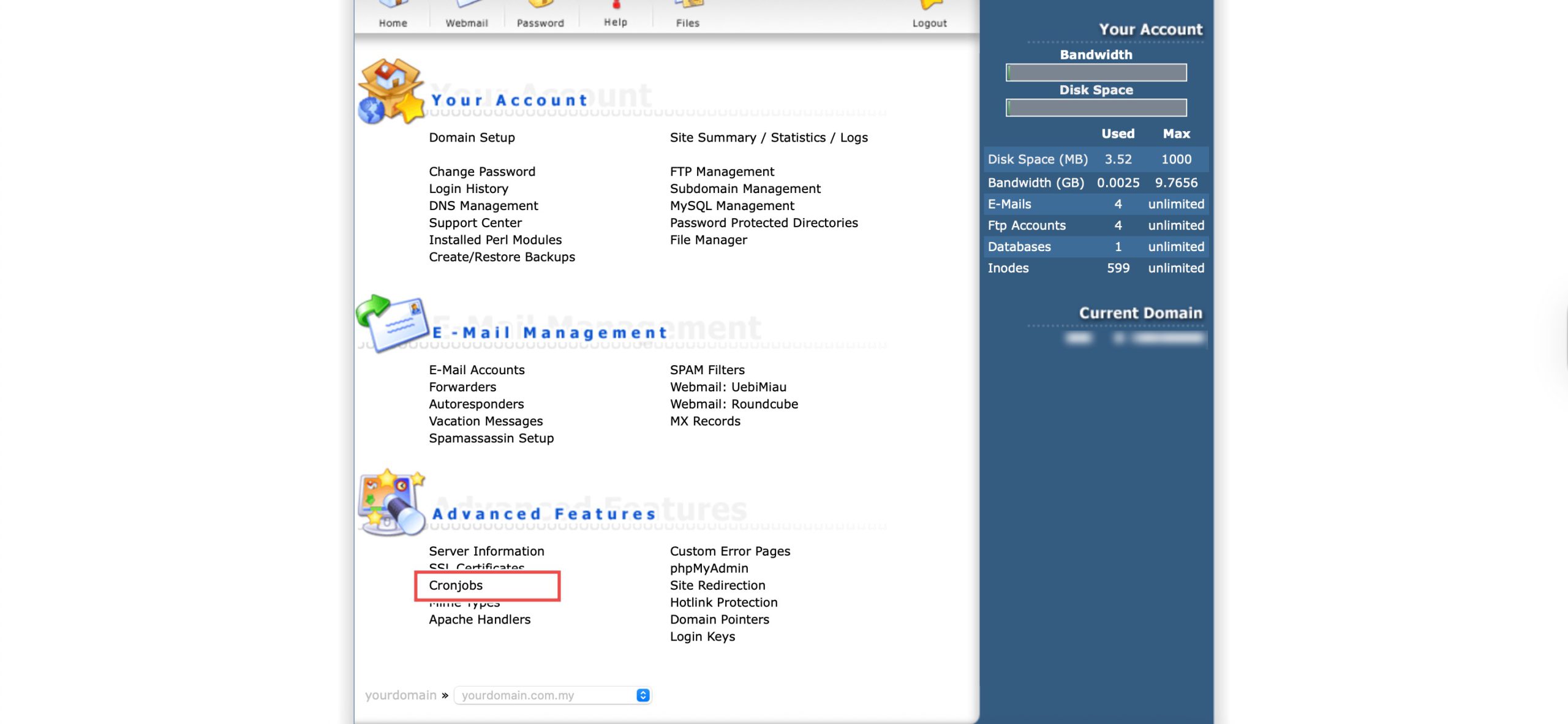
Go to the Advanced Features section and click on Cronjobs. You will see the list of currently set up cron jobs.
Step 3: Edit Cron Job
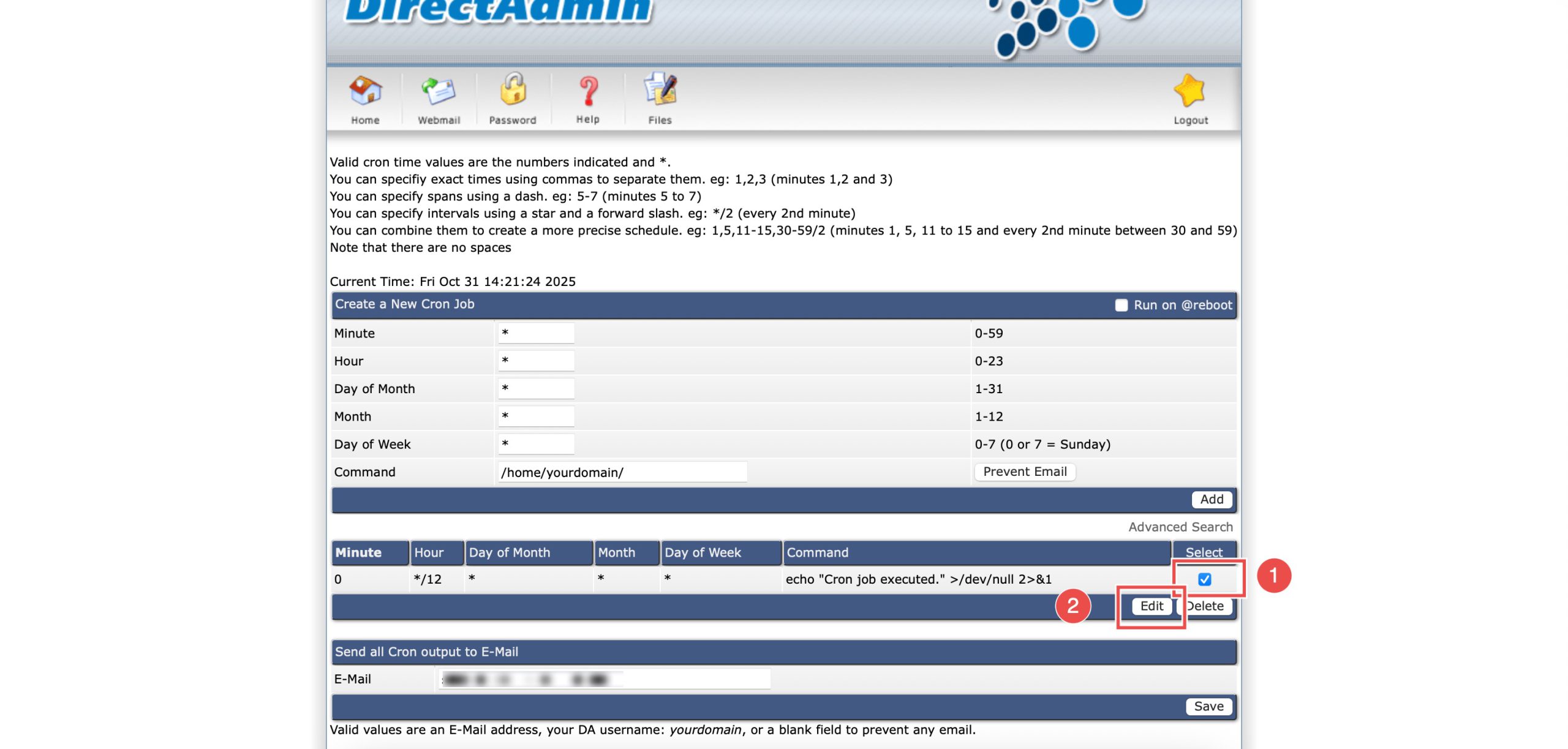
In the list of cron jobs, select the cron job you wish to edit by clicking the checkbox for that row. Then, click Edit.
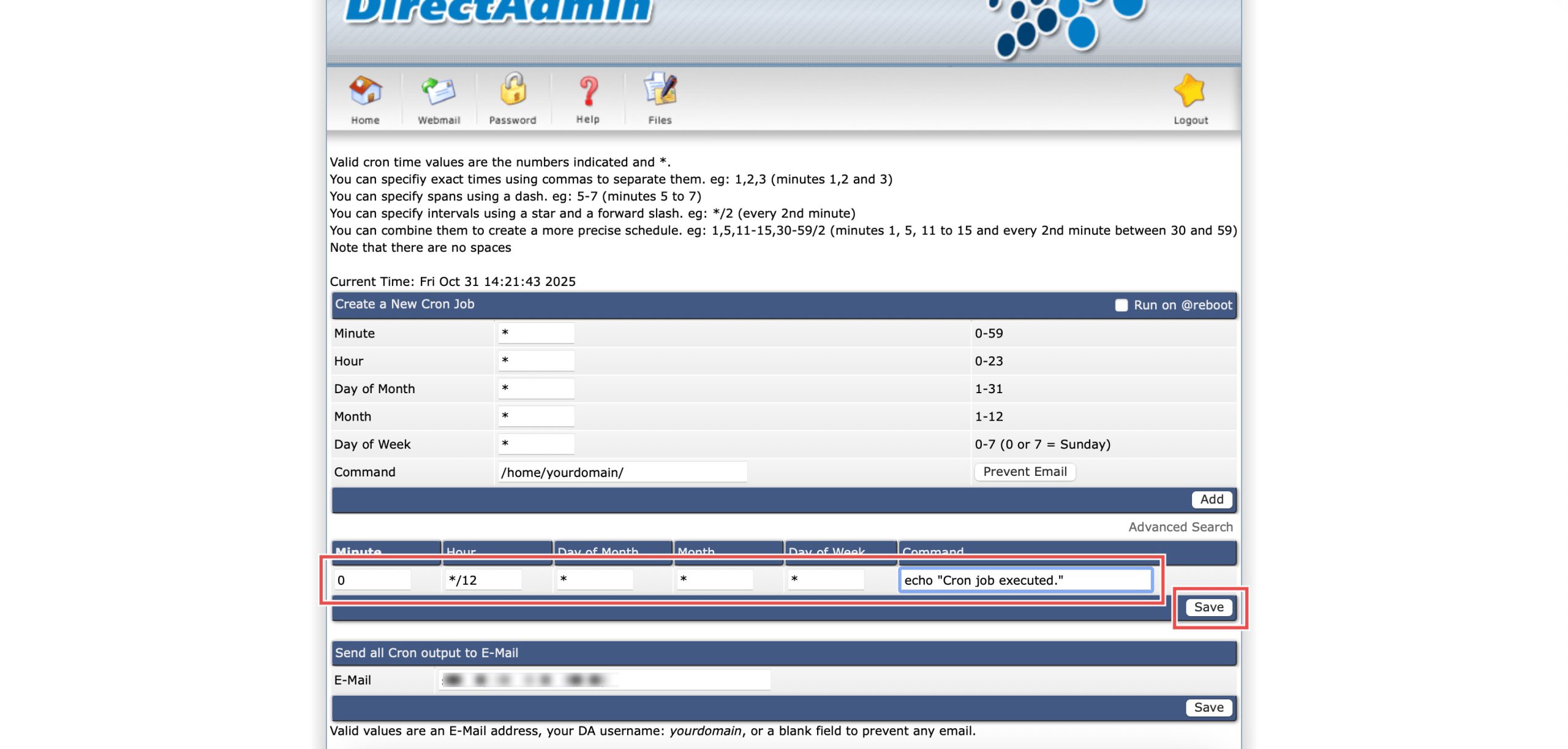
You may modify the schedule (time settings) and/or the command using the fields provided. Then, click Save.
Step 4: Verify the Changes
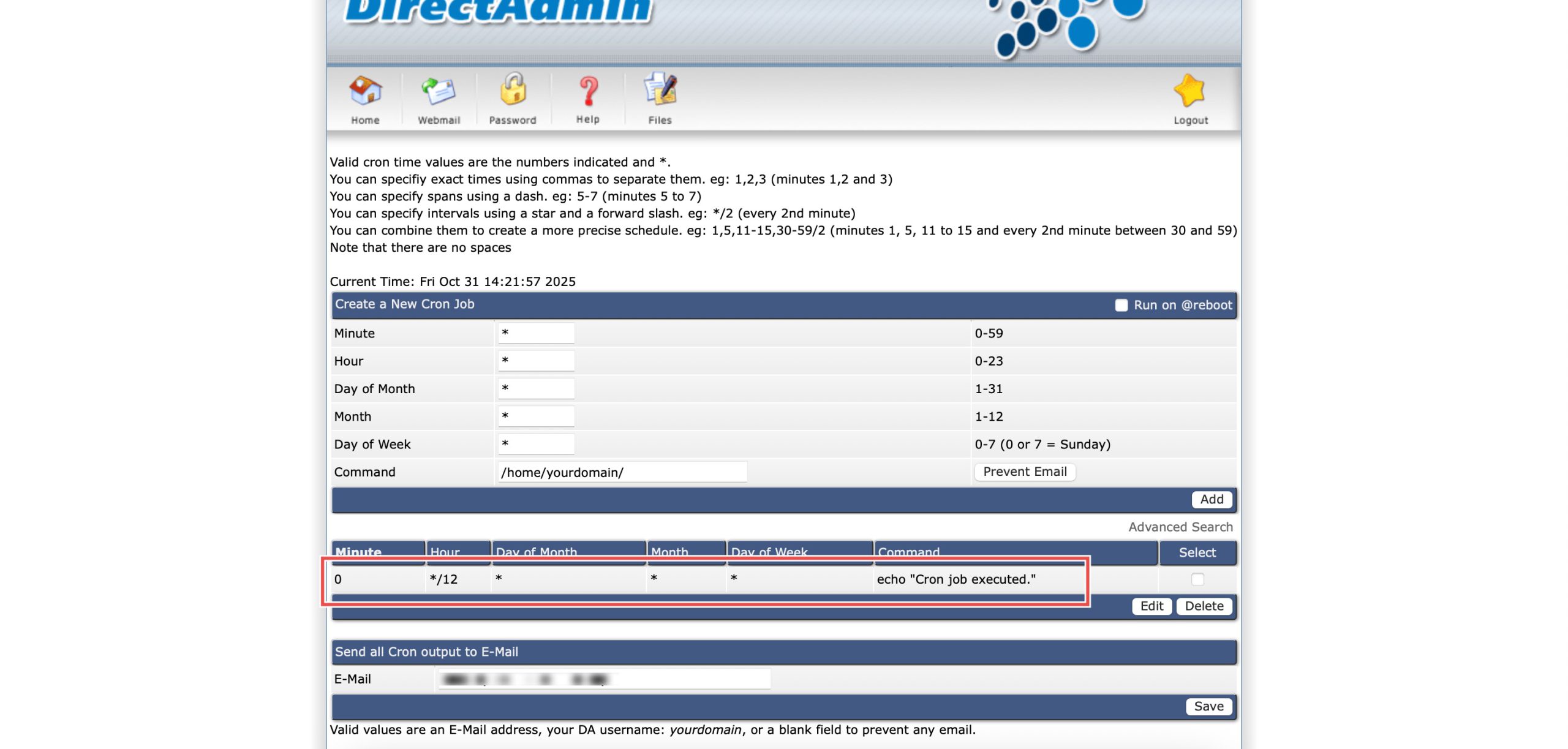
You may verify the modifications by checking the updated details in the list of cron jobs.
Conclusion
Editing cron jobs through DirectAdmin’s Cronjobs interface is a simple process that provides flexibility in managing automated task schedules and commands. Modifying existing cron jobs allows you to adapt your automation to changing requirements while maintaining organized and efficient server operations.
Should you have any inquiries about the guidelines, please feel free to open a ticket through your portal account or contact us at support@ipserverone.com. We’ll be happy to assist you further.