
Search Our Database
How to Include Sender Information in Autoresponses using cPanel
Introduction
This Knowledge Base article provides a simple, step-by-step guide on How to Include Sender Information in Autoresponses using cPanel. Using dynamic tags in your autoresponder message allows you to personalize automatic replies by including the sender’s name, email address, or the subject of their original message. Use this guide when you want to create more personalized and professional automatic responses.
Prerequisite
- Access to your cPanel login page.
Step-by-Step Guide
Step 1: Log in to cPanel
-
Access your cPanel account using your username and password.

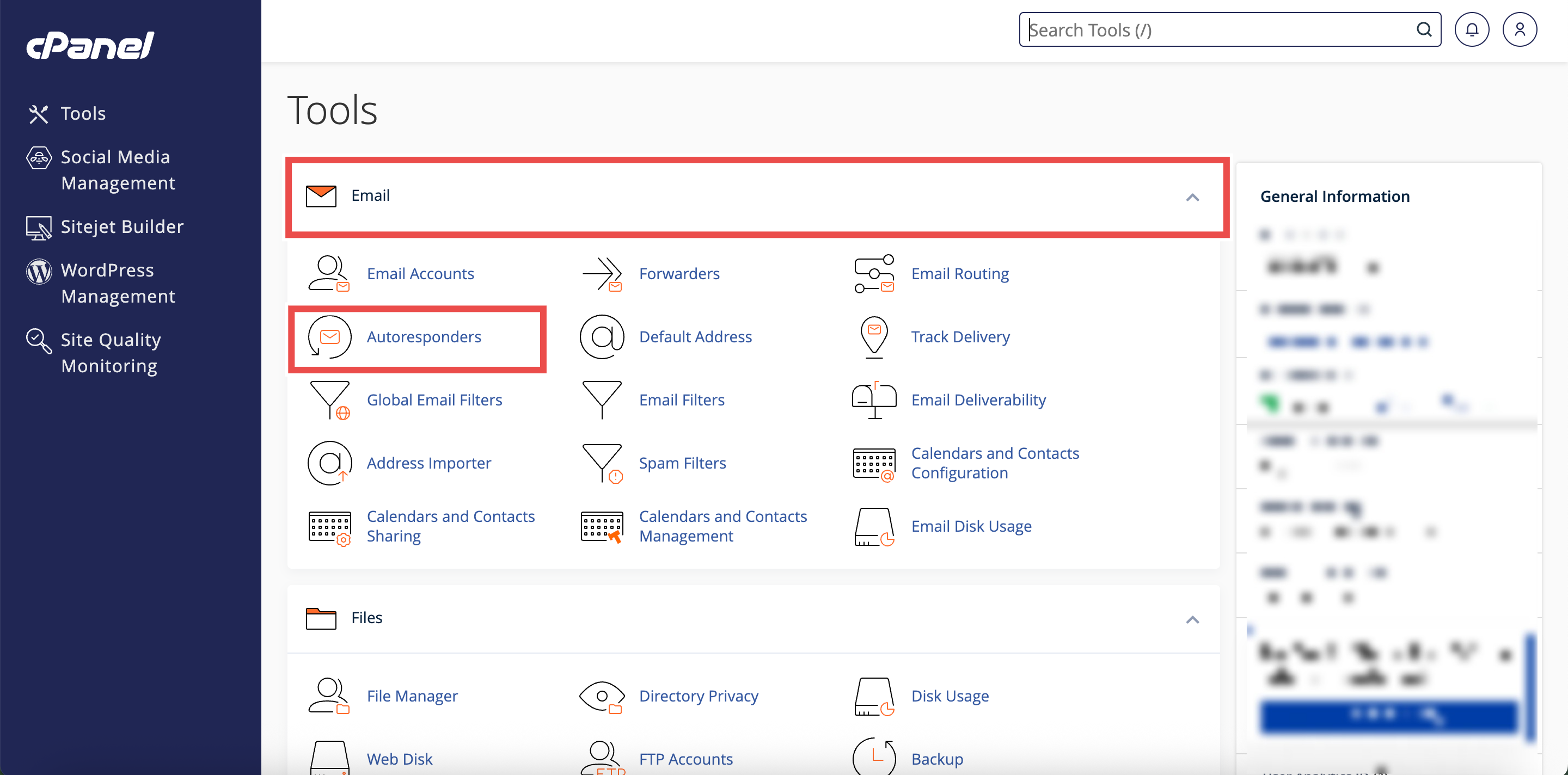
Step 2: Open Autoresponders
- In the Home page, under the Email section, click Autoresponders.
Step 3: Select Your Domain
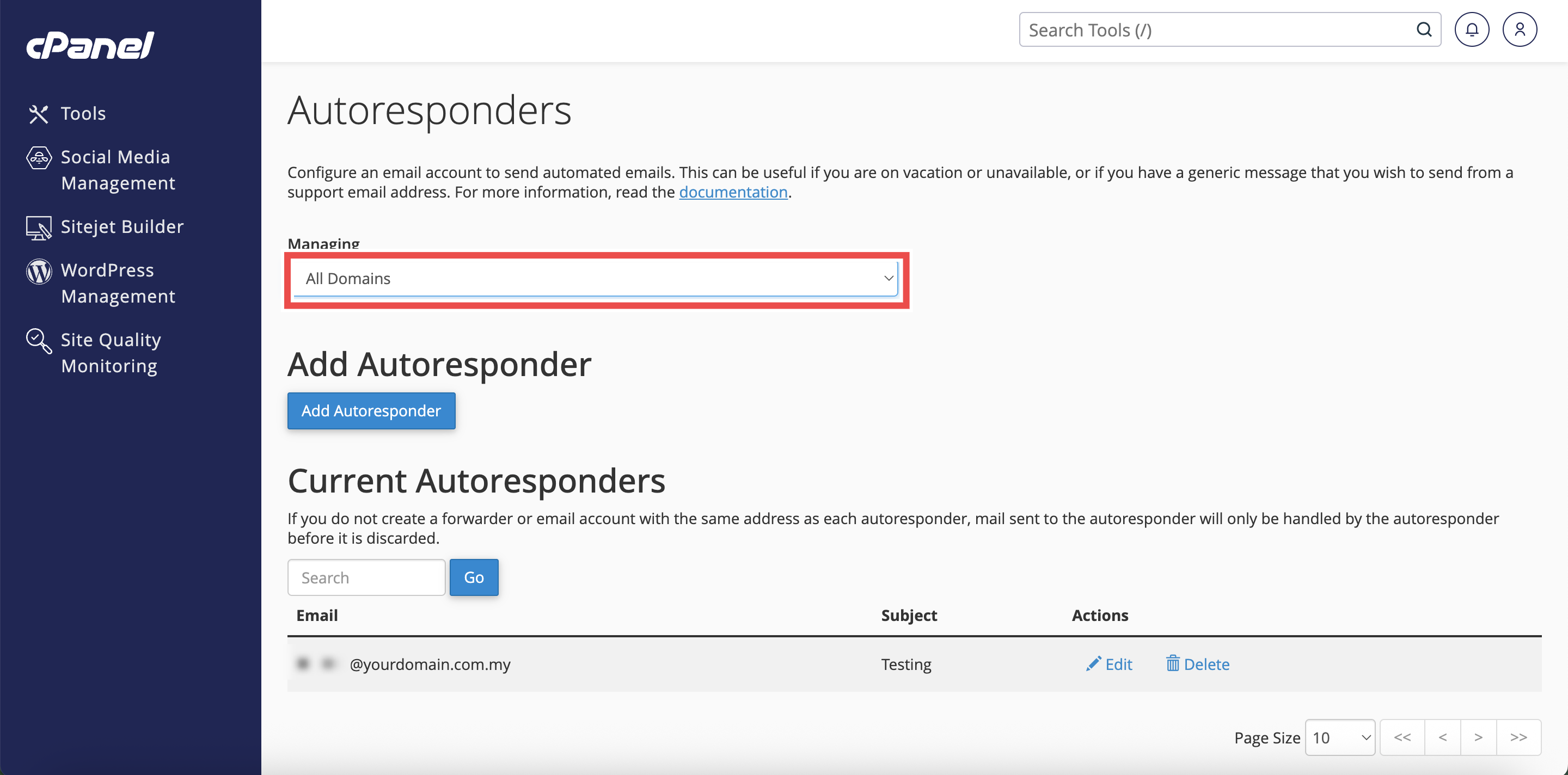
- From the Managing menu on the top left side of the interface, select the domain for which you want to configure an autoresponder.
⚠️ Important Note:
- Select All Domains if you want the autoresponders to be applied to all of your domain.

Step 4: Create or Edit Autoresponder
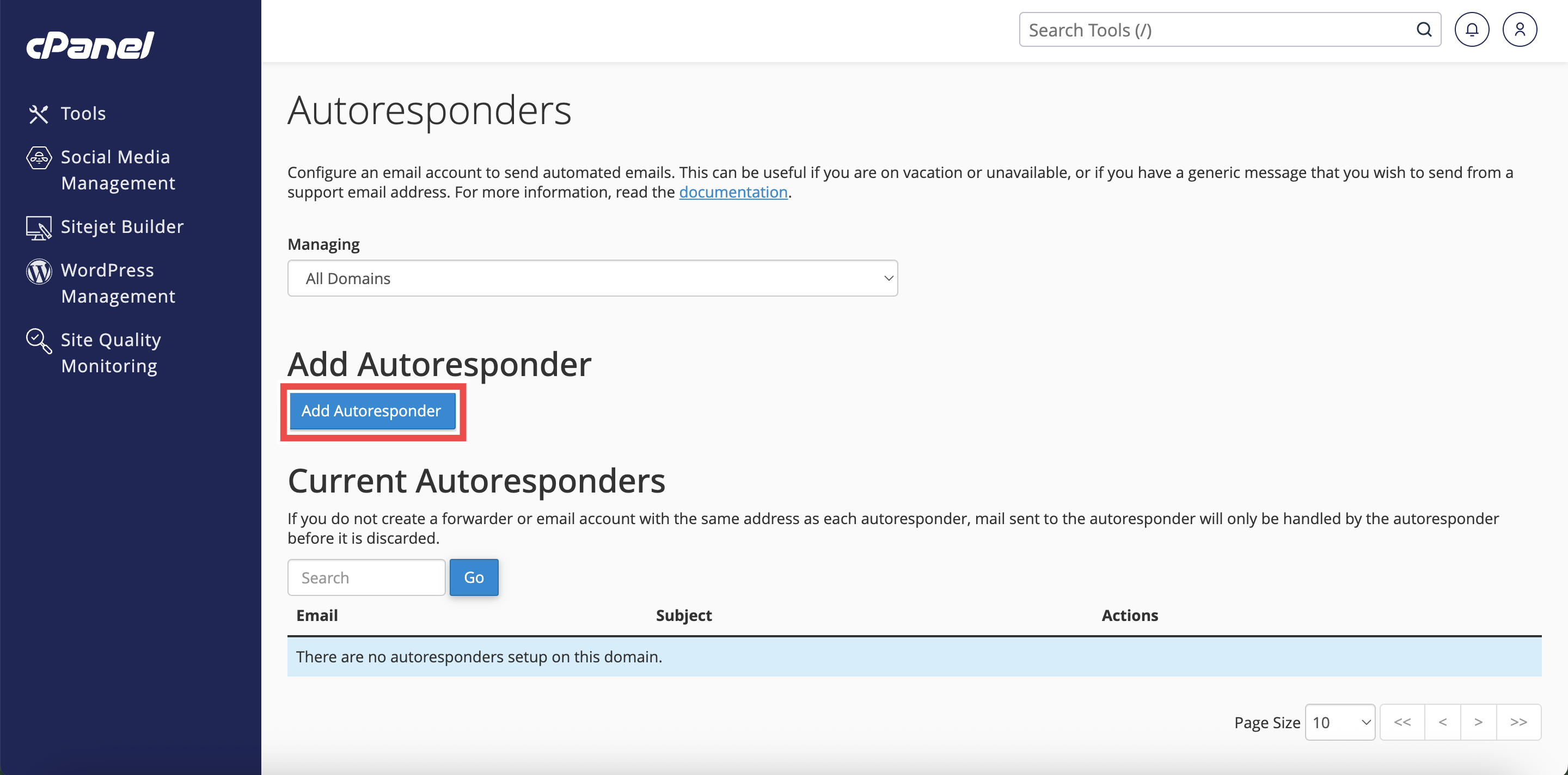
- Click Add Autoresponder to create a new one, or click Edit next to an existing autoresponder.
- The autoresponder configuration interface will appear.
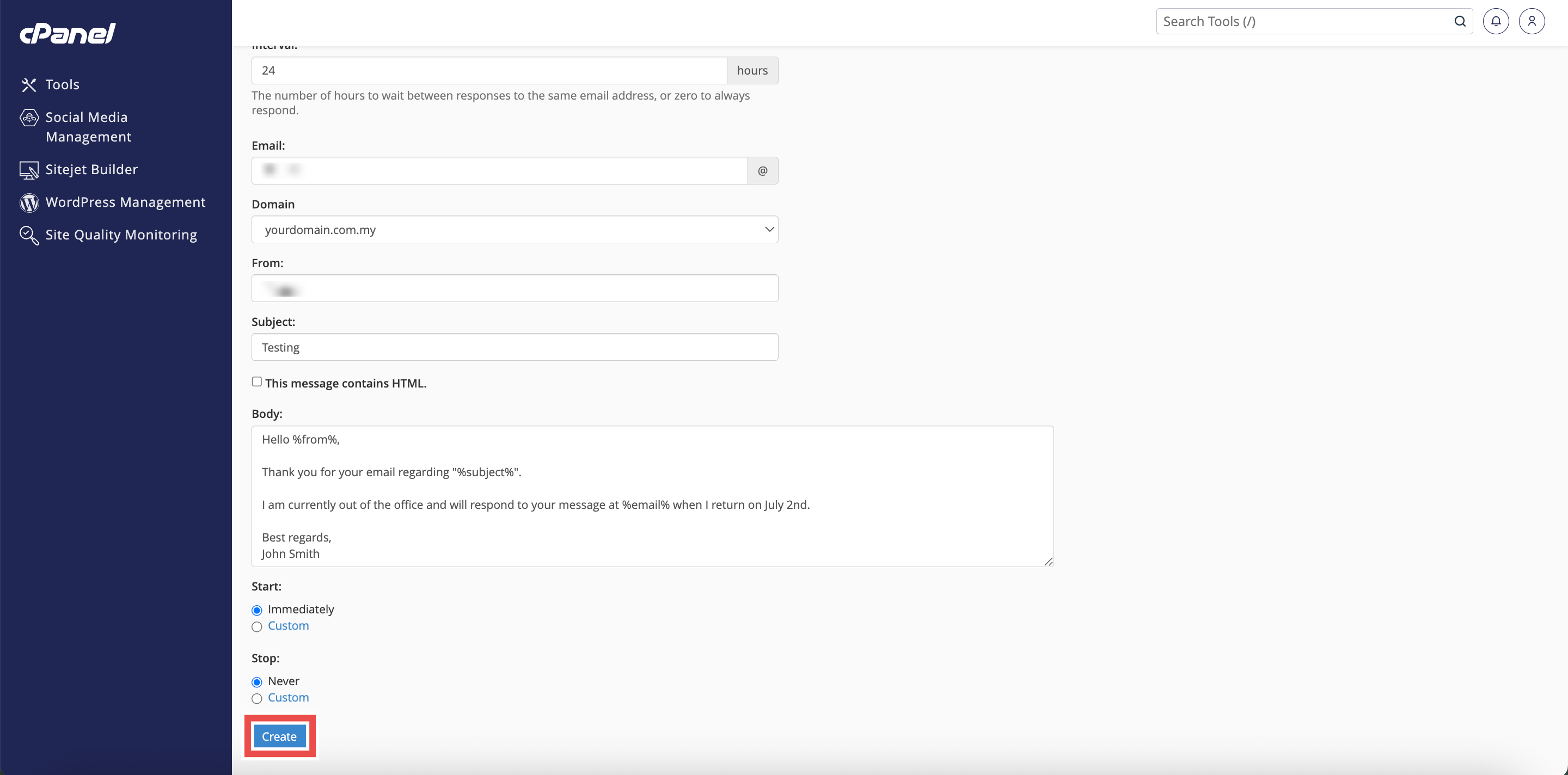
Step 5: Compose Message with Sender Information Tags
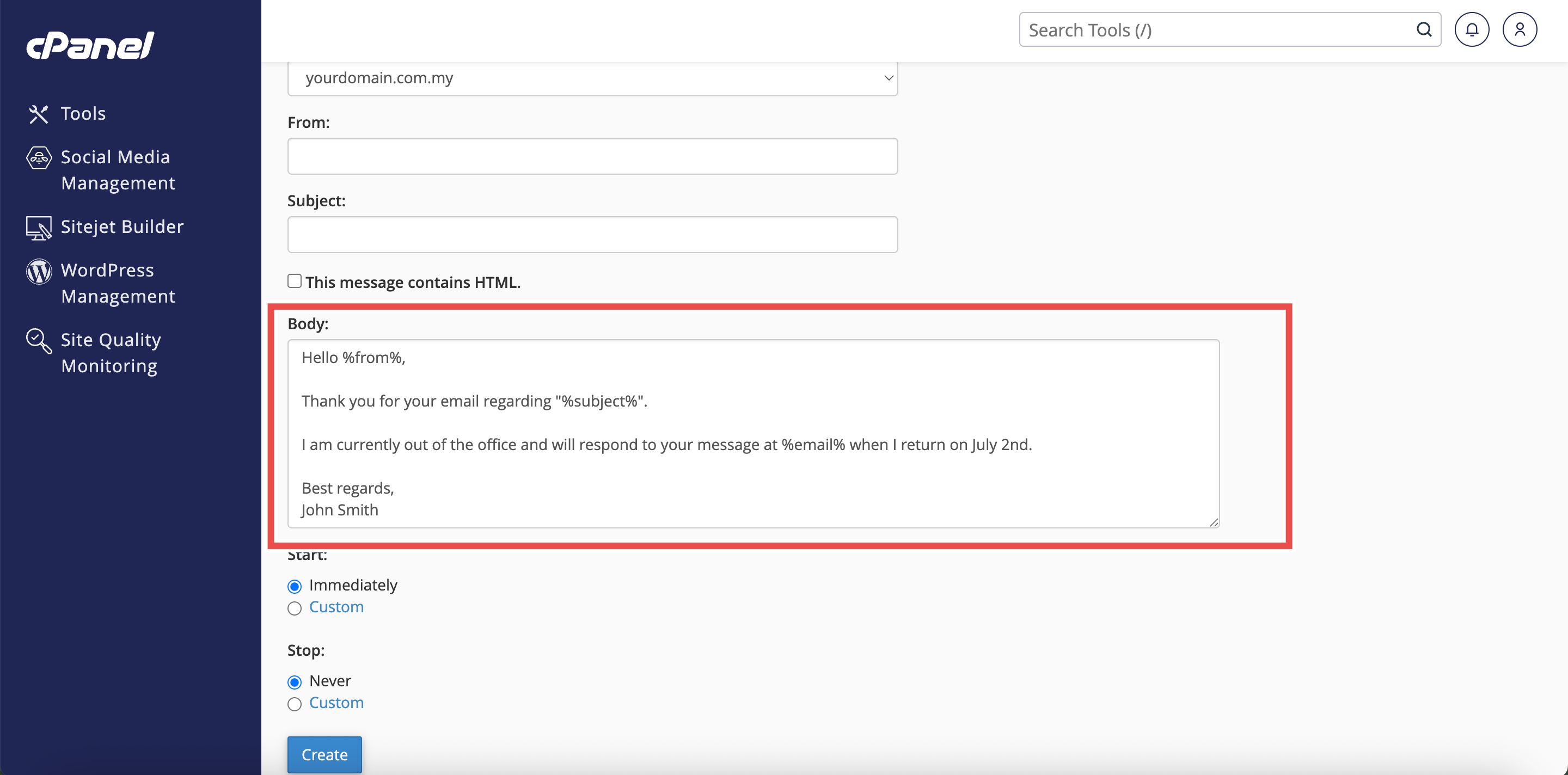
- In the Body text box, compose your autoresponse message.
- Include sender information tags as needed:
- %from%: Display the sender’s name
- %email%: Display the sender’s email address
- %subject%: Display the subject line from the sender’s email
Step 6: Complete Configuration
- Fill in other required fields (Email, From, Subject, Interval, Start/Stop times).
- Click Create (for new) or Modify (for existing) to save the autoresponder.

Step 7: Verify Changes
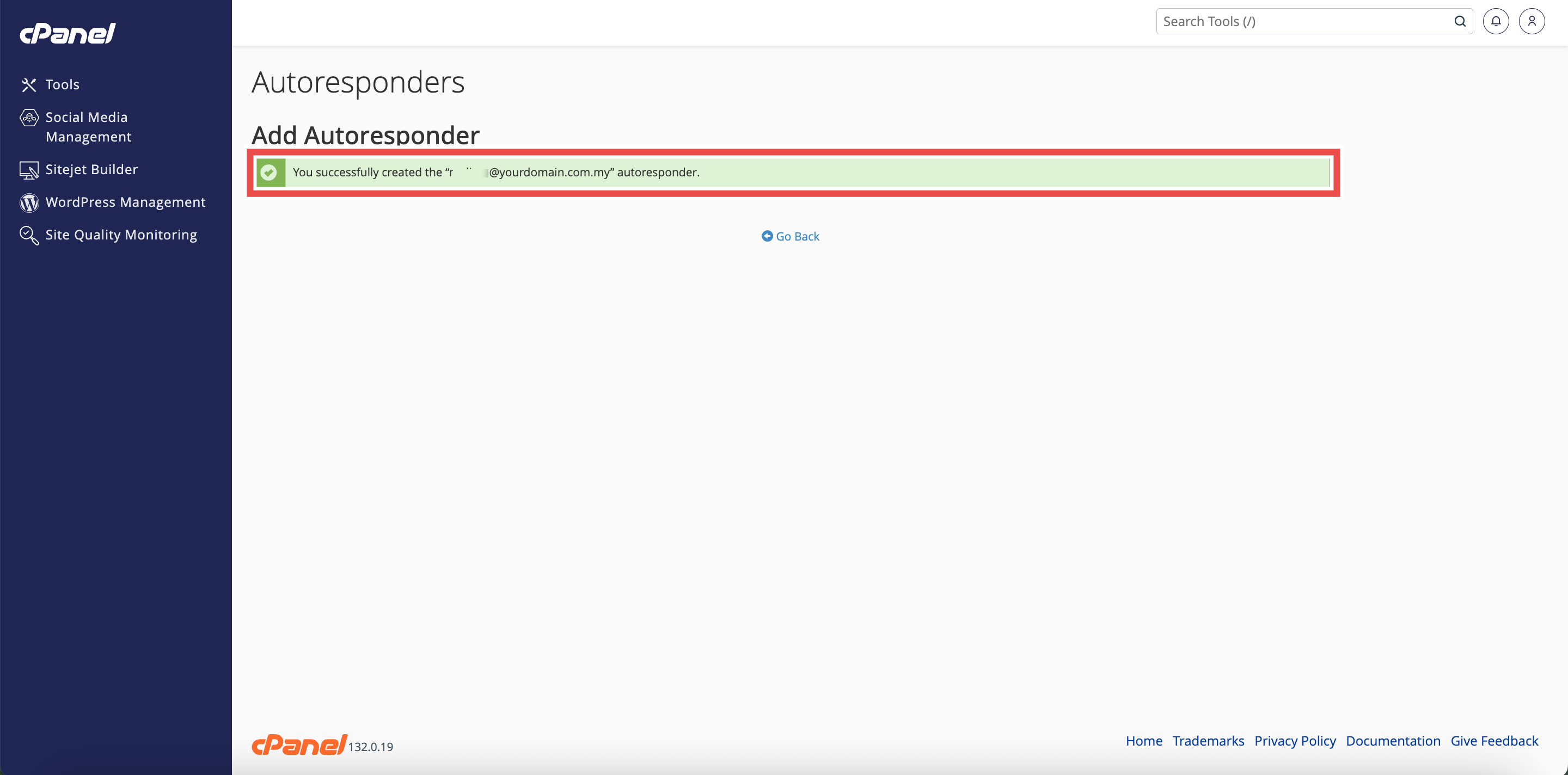
- A confirmation message will appear indicating that the autoresponders has been updated.
- Additionally, you may send a test email to the autoresponder address to verify the modifications are working correctly.
Conclusion
By following these steps, you can include sender information in autoresponses using cPanel. Personalizing automatic replies with sender details creates a more professional and engaging experience for your contacts, showing that their message was received and acknowledged. This is particularly valuable for business communications and customer service.
Should you encounter any issues or have any questions, our support team at IPSERVERONE is always here to assist you. Don’t hesitate to reach out to us at support@ipserverone.com for any help you need.