
Search Our Database
How to Export a New Filter and Blocked with Specific Email User in Gmail Web
Introduction:
Exporting a filter for a specific email user in Gmail Web is a practical way to back up or migrate your personalized inbox rules to another account. To begin this process, you must access the settings gear icon and click the “See all settings” button to open the full configuration menu. Once inside, navigating to the “Filters and Blocked Addresses” tab provides a comprehensive list of all filters currently applied to your incoming mail. By selecting the checkbox next to the desired filter and clicking the “Export” button, you can initiate the creation of a portable data file. The procedure is successfully finalized when the system generates a downloadable XML file, often titled “mailFilters.xml,” which is saved to your local device.
Prerequisites:
- User must possess a fully registered and active Gmail account.
- The procedure explicitly requires accessing the Gmail Web interface.
- You must have at least one pre-configured filter.
Step-by-step Guide:
Step 1: Access Settings
- The initial action required is to Click setting.
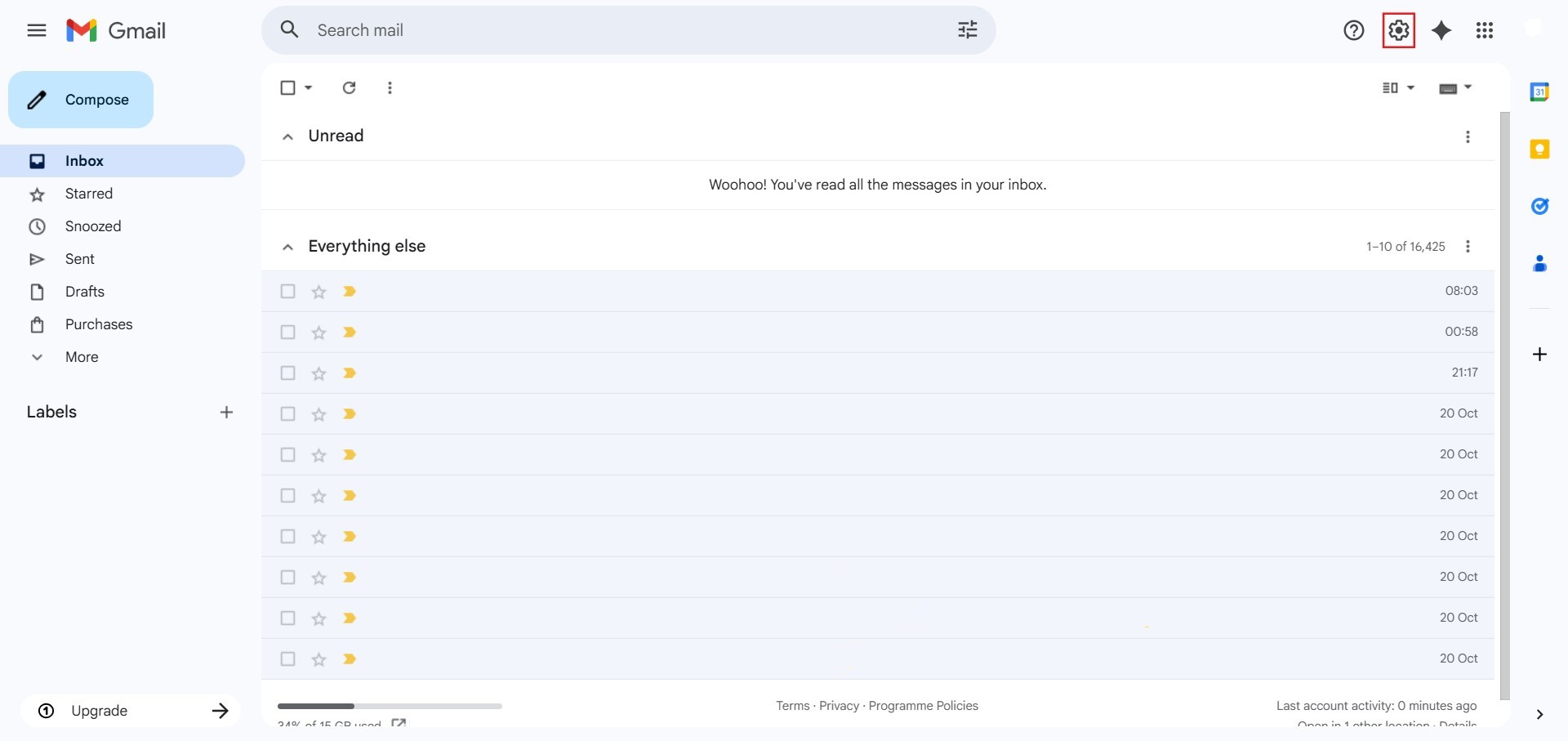
Step 2: Navigate to All Settings
- After clicking “setting,” proceed to select See all Settings.
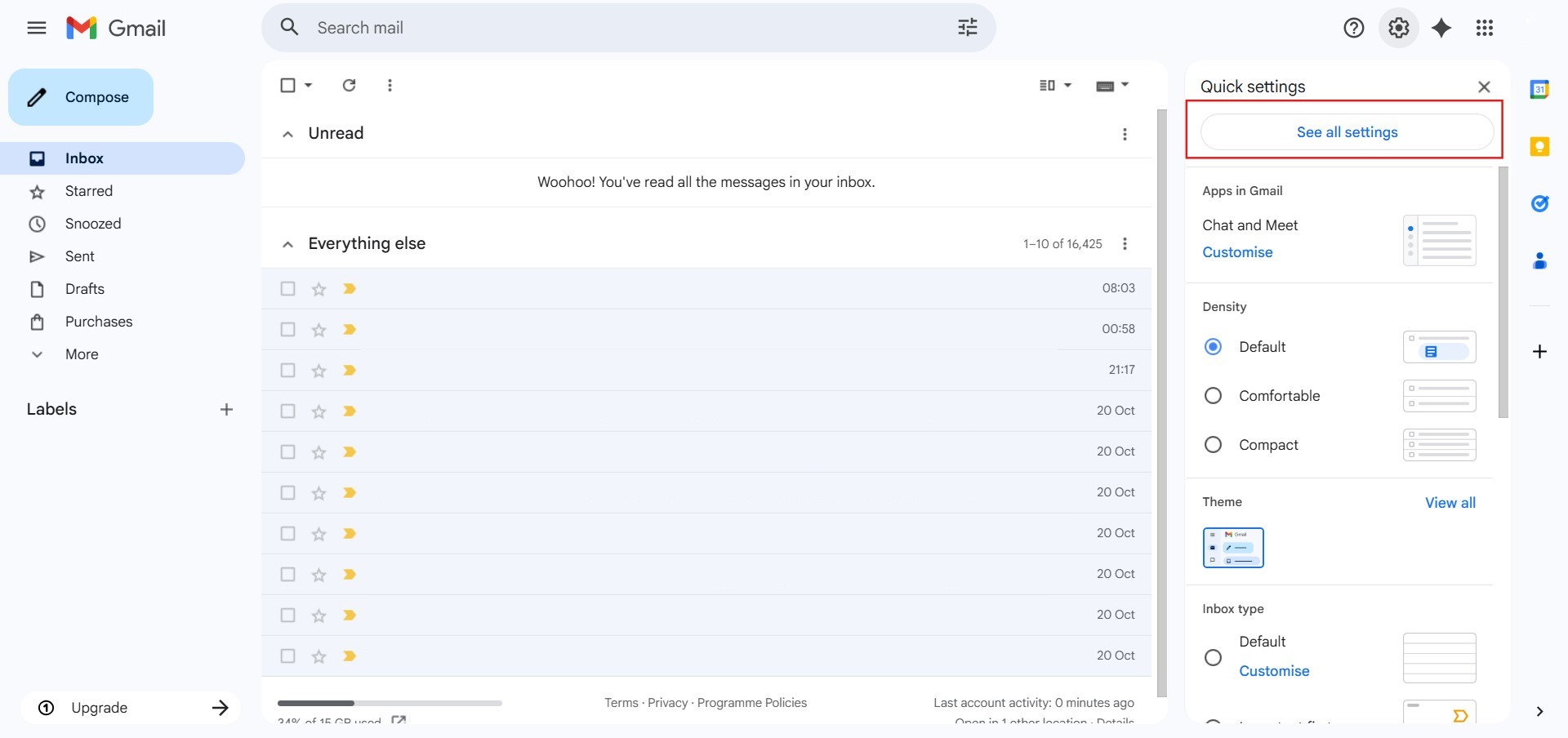
Step 3: Navigate to Filters
- Click on the “Filters and blocked addresses” tab at the top of the settings page.
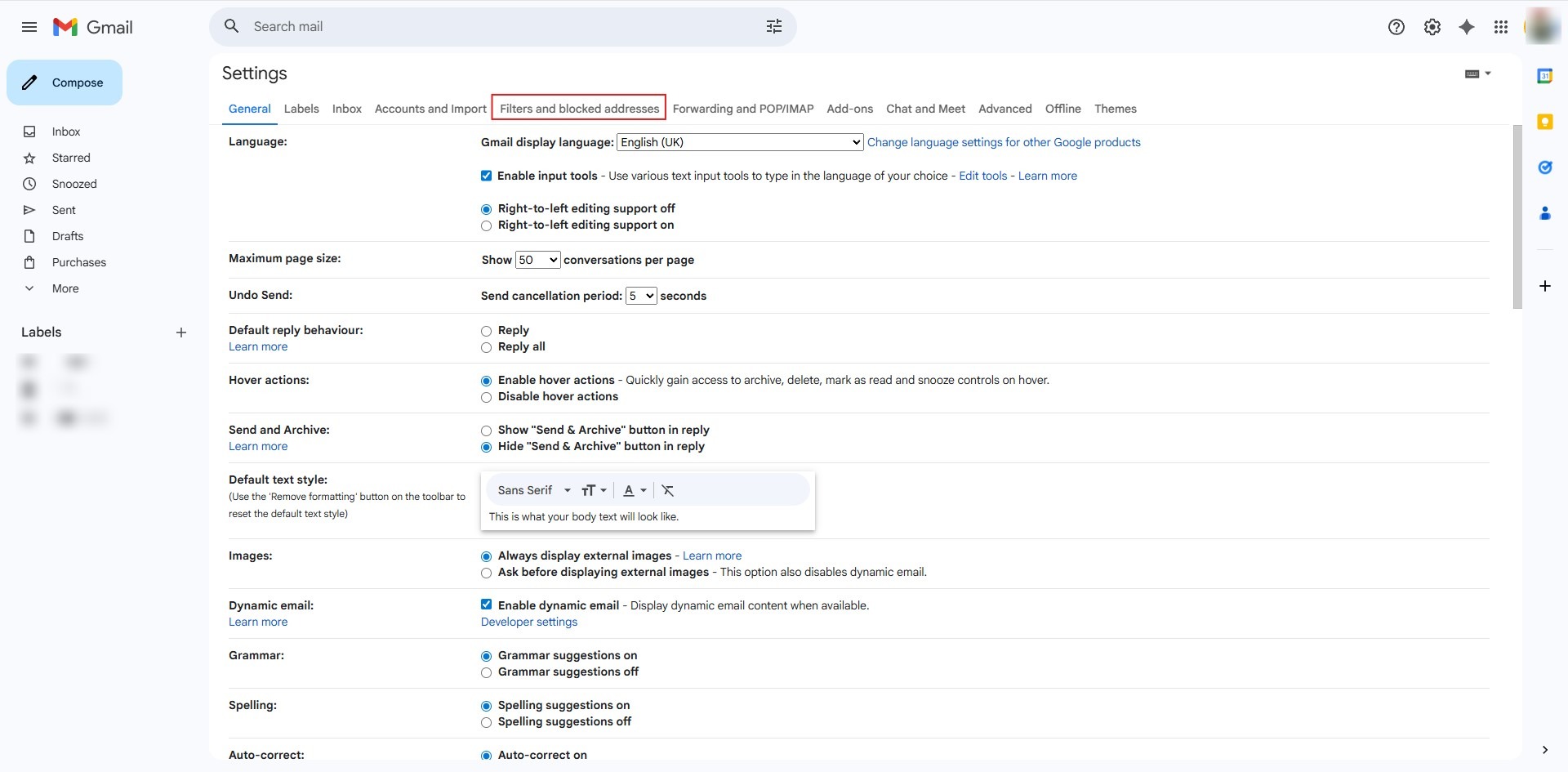
Step 4: Select the Filter and Initiate Export
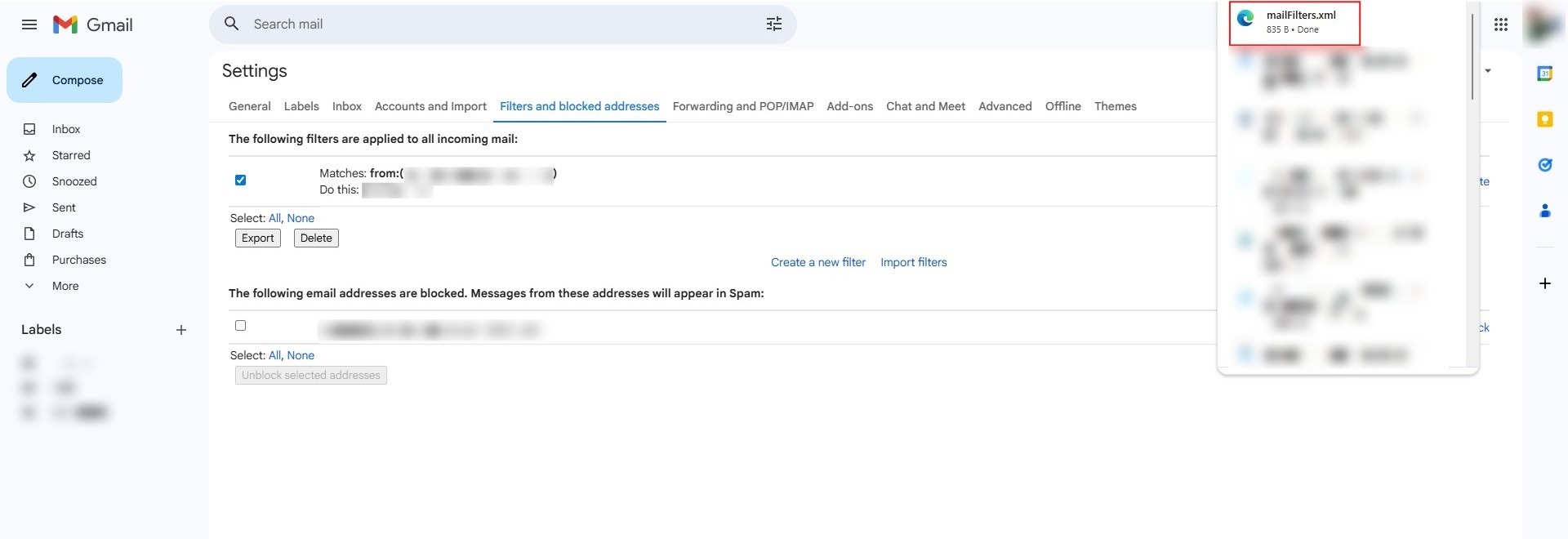
- Locate the filter containing the specific words you wish to save and click the checkbox next to it.
- Click the “Export” button found below the list of filters.
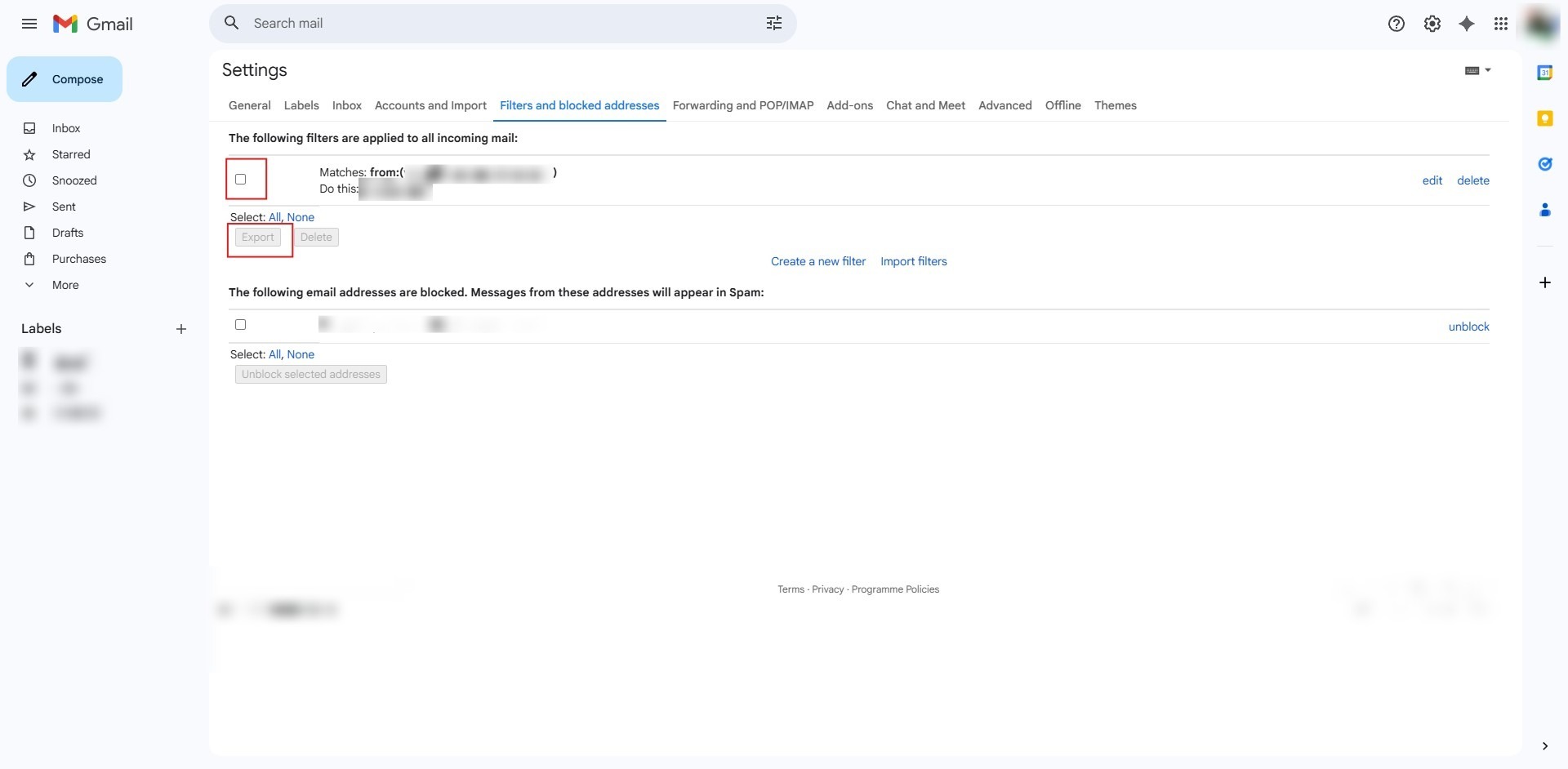
Step 5: Confirmation of Success
- The process is complete when the system successfully downloads the file, typically named “mailFilters.xml,” to your local device.
Conclusion:
In conclusion, exporting a filter for a specific email user in Gmail Web is a simple process that ensures your inbox rules are portable and backed up. By accessing the Settings gear icon and navigating to the “Filters and Blocked Addresses” section, you can manually select the checkbox corresponding to the specific user filter you wish to save. Clicking the “Export” button initiates the download, and the process is finalized when the “mailFilters.xml” file successfully appears on your device.