
Search Our Database
How to Enable Page Compression for a Specific Website using MultiPHP INI Editor in cPanel
Introduction
This Knowledge Base article provides a concise, step-by-step guide on How to Enable Page Compression for a Specific Website using MultiPHP INI Editor in cPanel. The zlib.output_compression directive enables transparent compression of PHP output using the zlib library, which reduces the size of data sent to browsers and improves page load times. By configuring this setting for individual domains, you can enable compression for specific websites based on their performance requirements without affecting other websites on your hosting account.
Prerequisite
- Access to your cPanel login page.
Step-by-Step Guide
Step 1: Log in to cPanel
- Access and log in to your cPanel account using your username and password.

Step 2: Open MultiPHP INI Editor
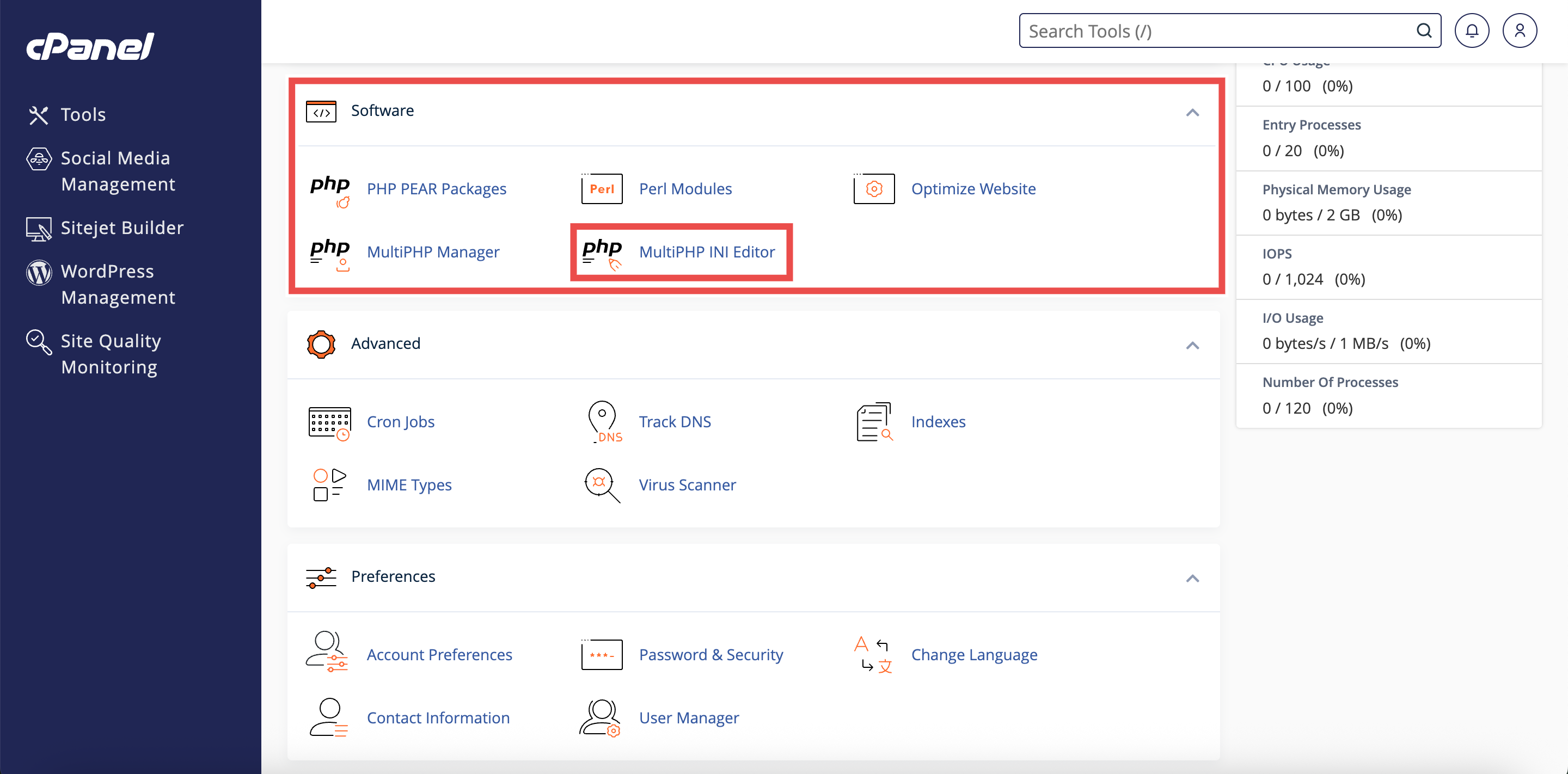
- In the Home page, under Software, click MultiPHP INI Editor.
Step 3: Access Basic Mode
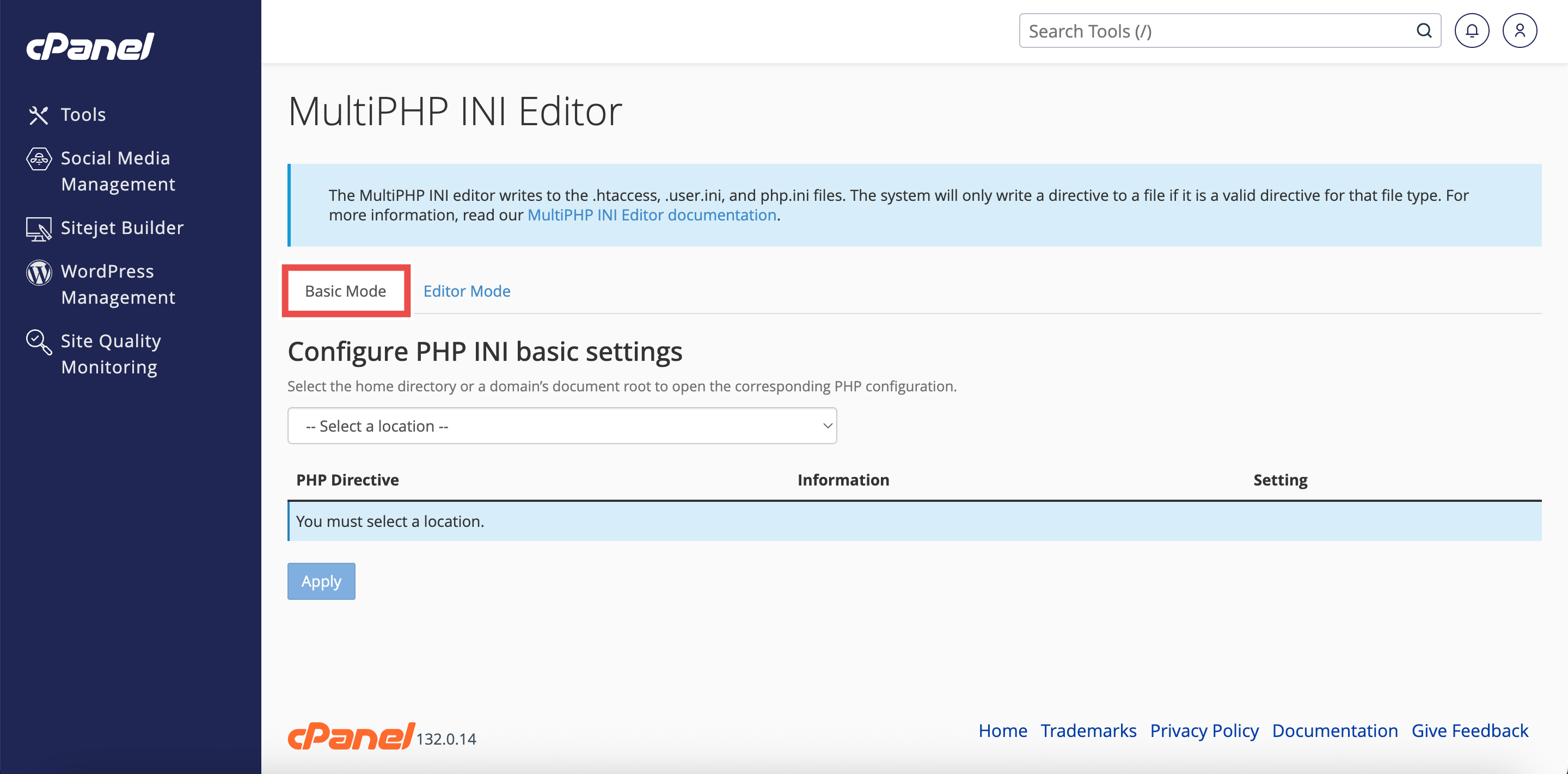
- The interface will open in the Basic Mode tab by default.
- If you are in Editor Mode, click the Basic Mode tab at the top of the interface.
Step 4: Select Your Specific Domain
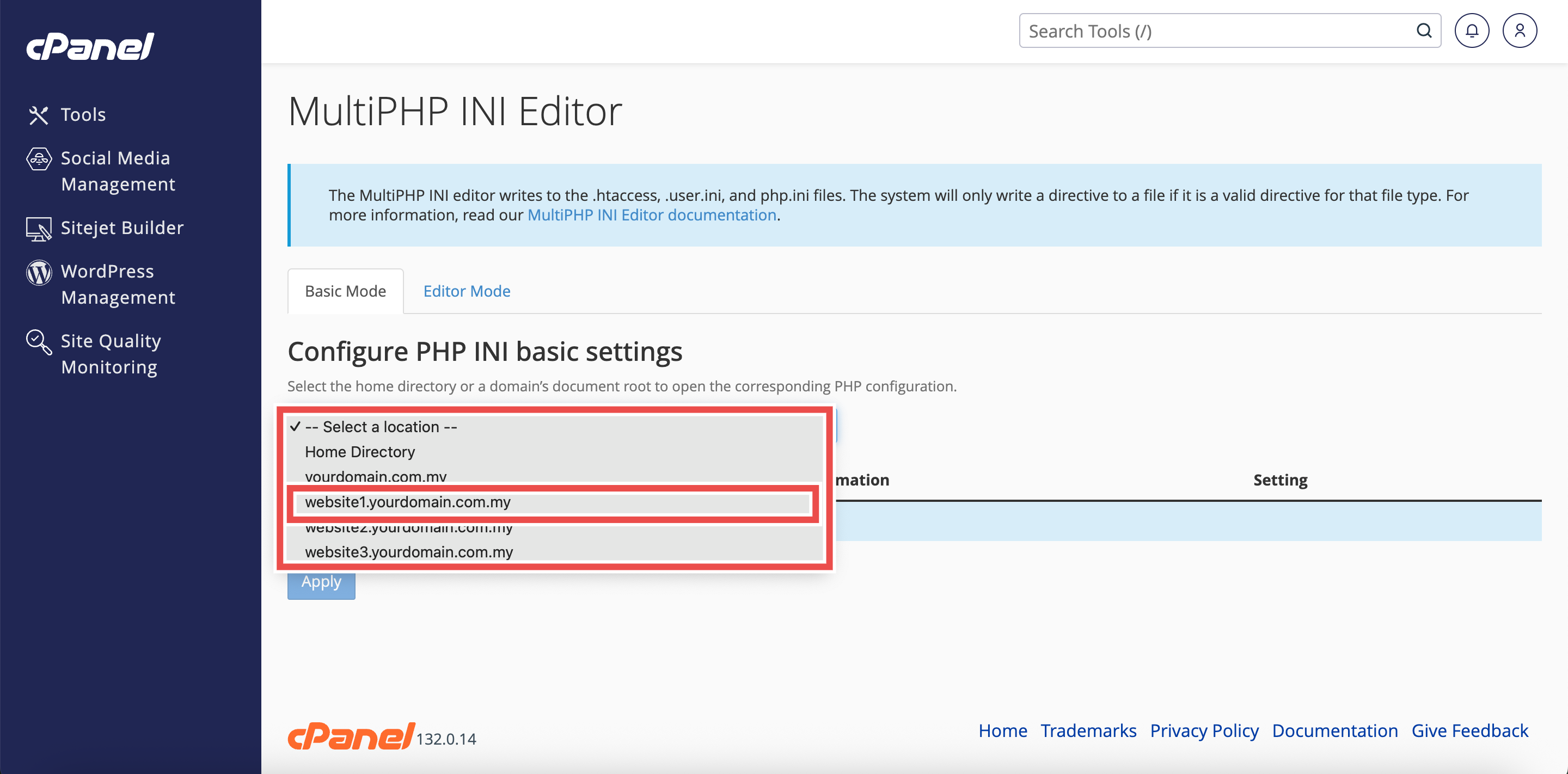
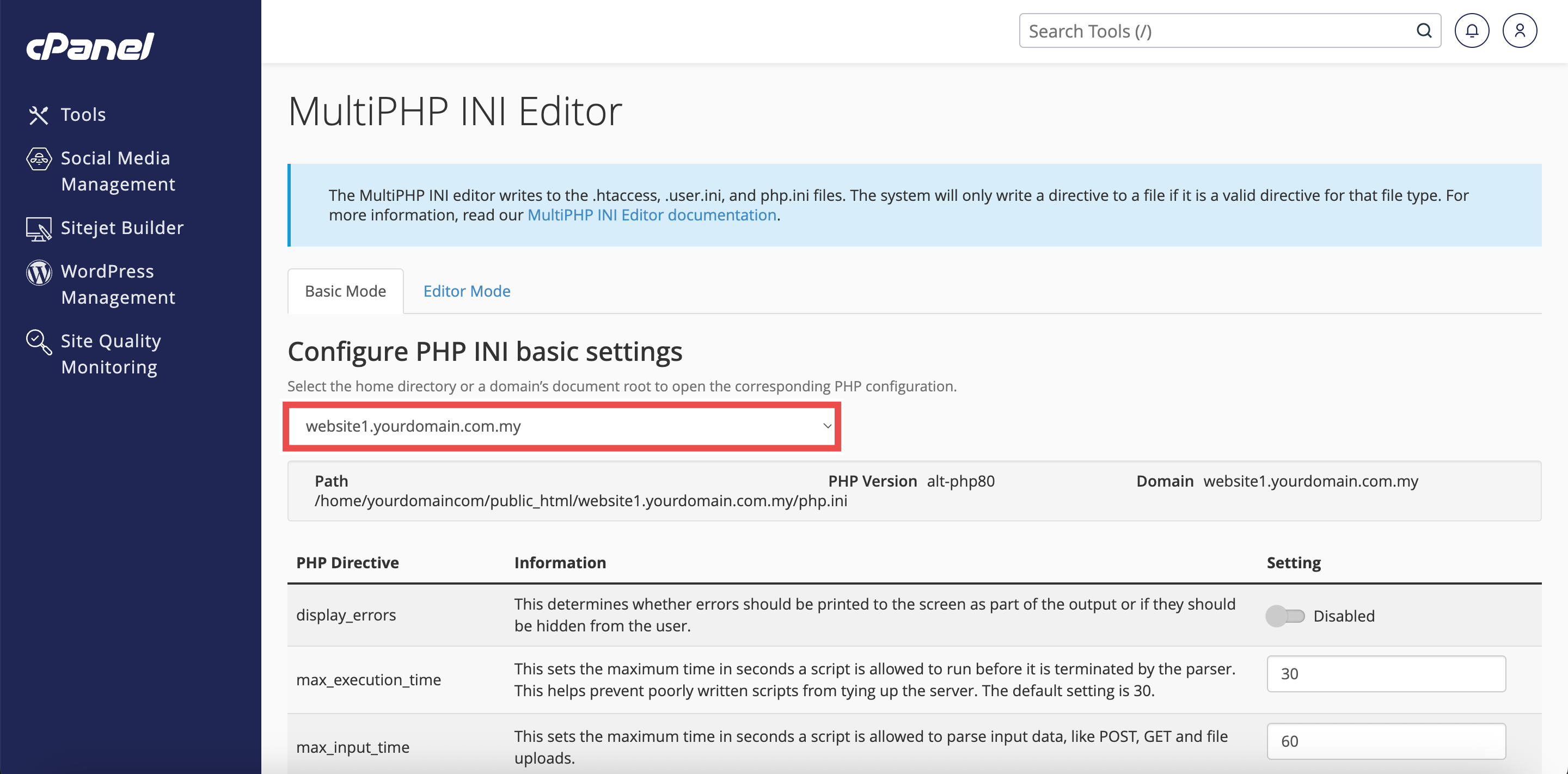
- From the Configure PHP INI basic settings dropdown menu, select the domain name for which you want to change PHP settings.
⚠️ Important Note:
- Selecting a specific domain will apply PHP configuration changes only to that domain.
- Other domains will retain their existing PHP settings.
Step 5: Enable Output Compression
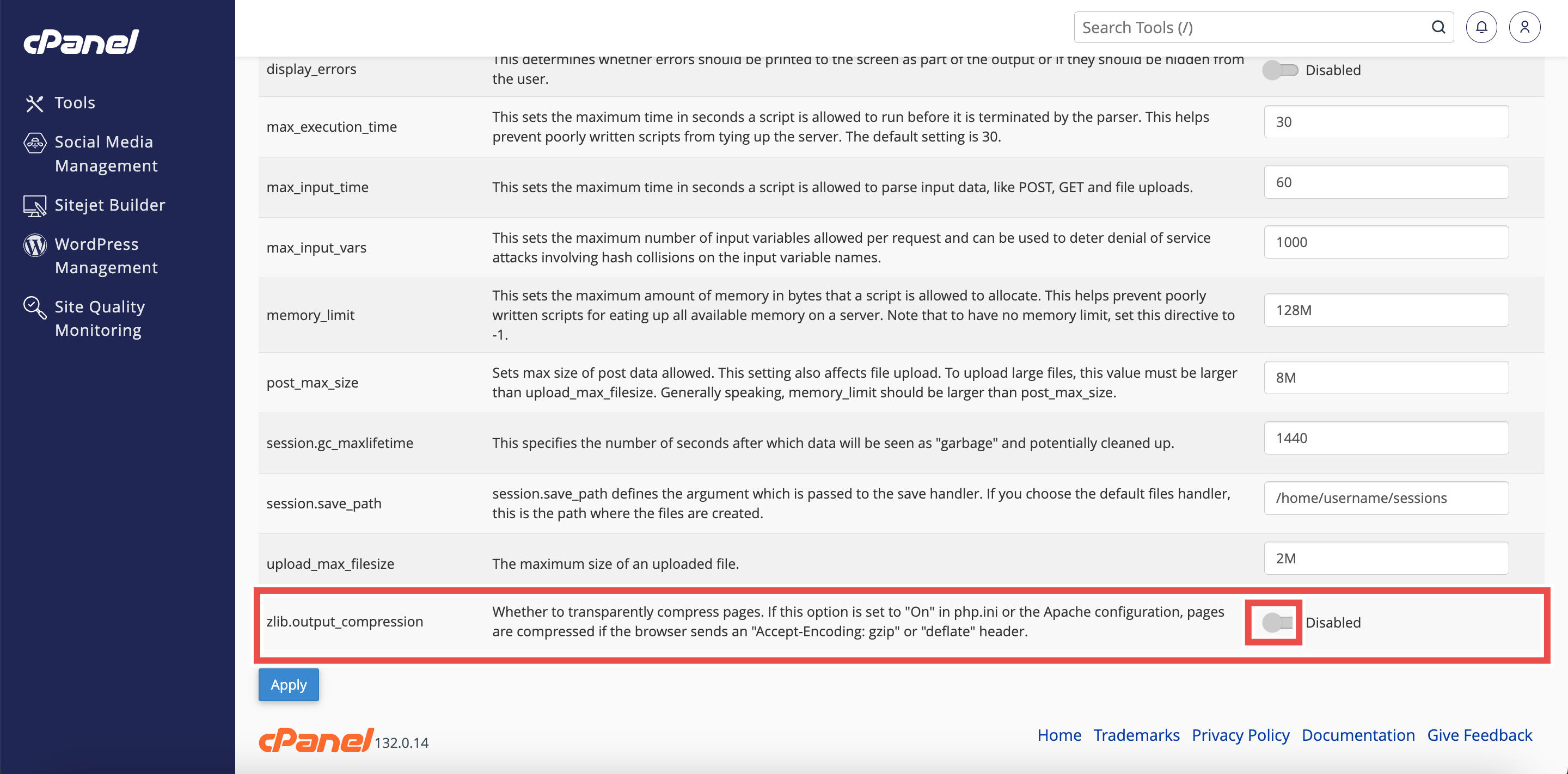
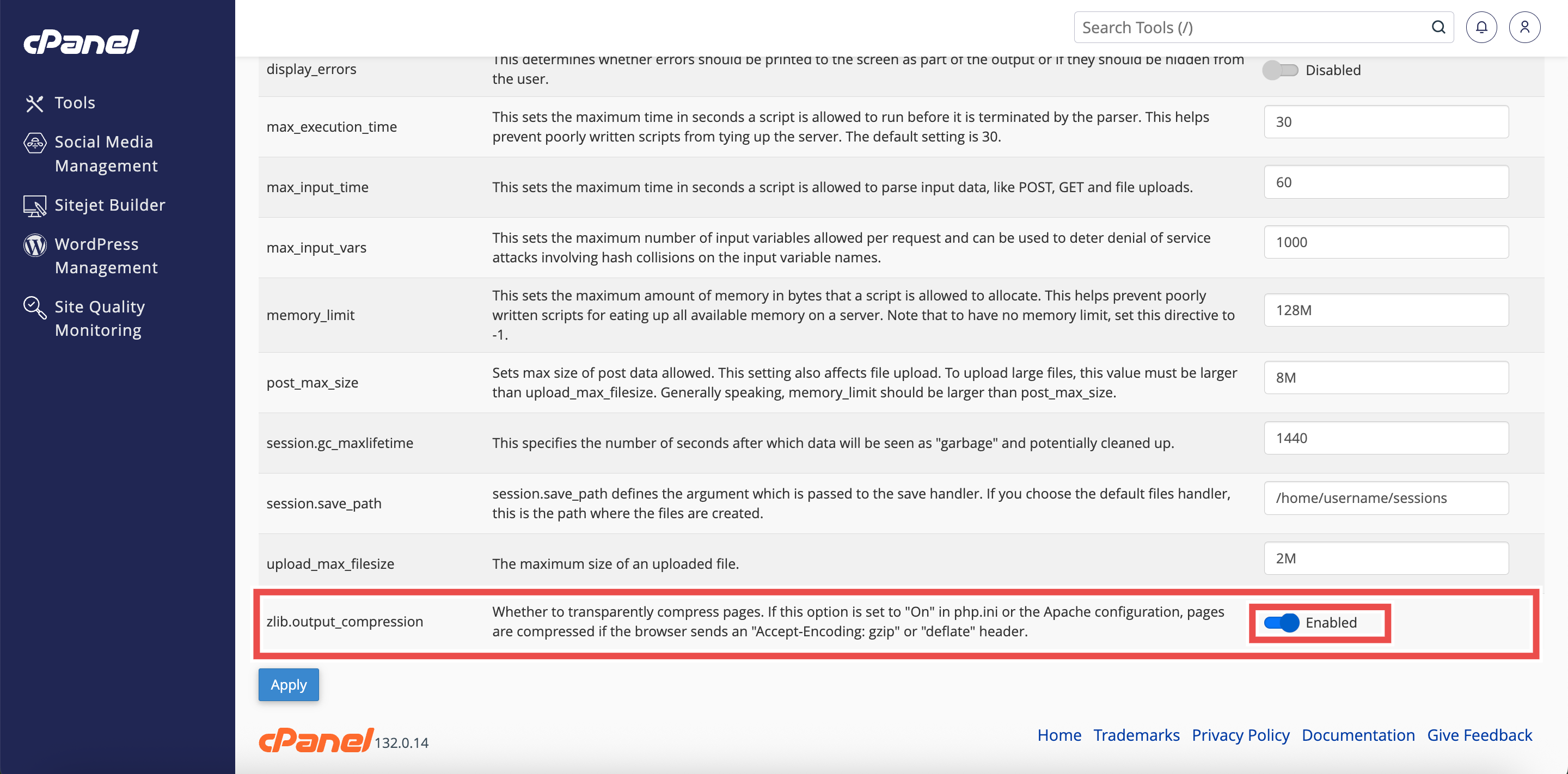
- Locate the zlib.output_compression directive in the list of PHP directives.
- Click the button to enable the page compression.
⚠️ Important Note:
- Page compression can slightly increase server CPU usage but significantly reduces bandwidth consumption and improves page load times for visitors with slower connections.
Step 6: Apply the Changes
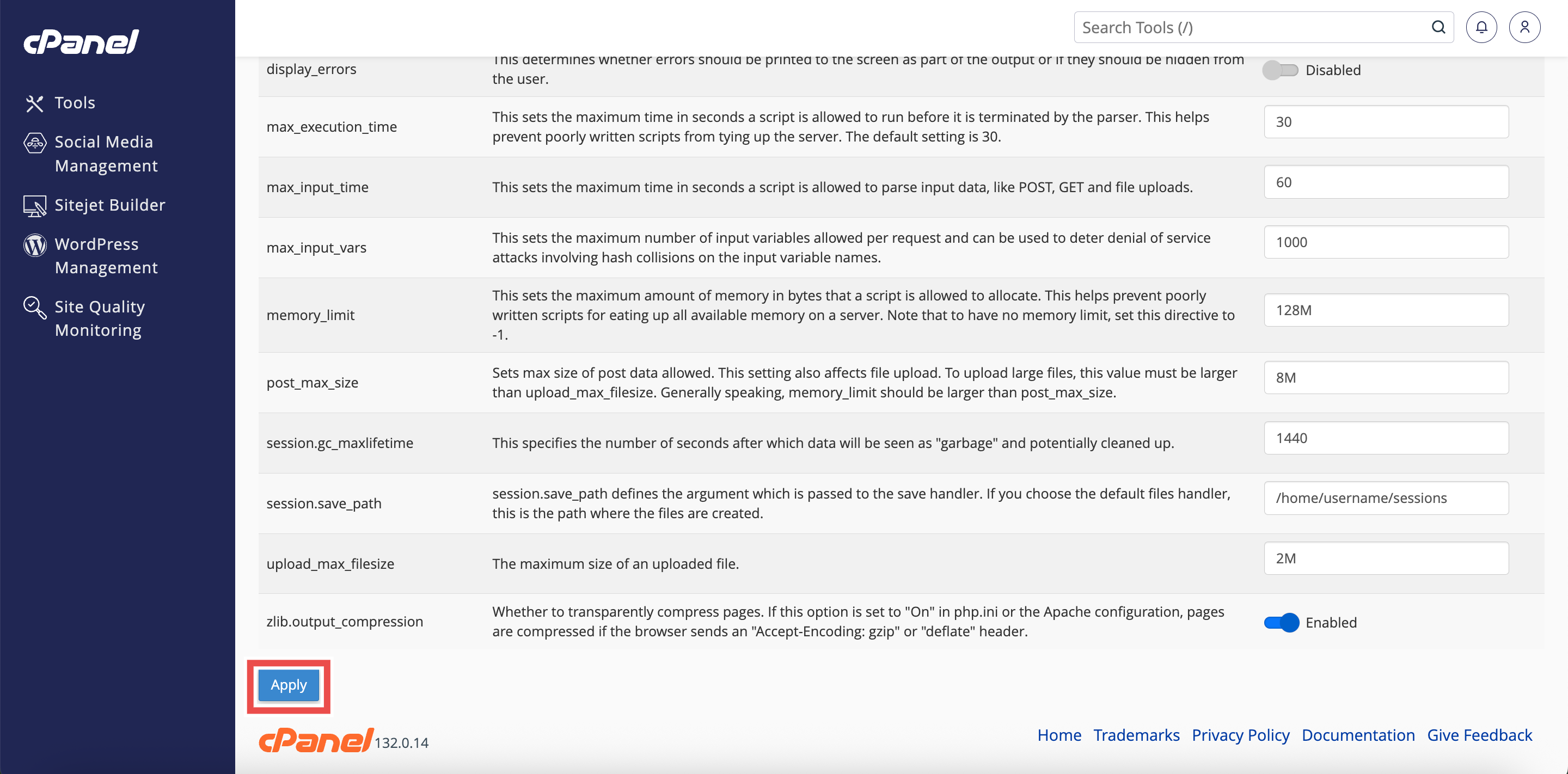
- Click the Apply button at the bottom of the page to apply the changes made.
Step 7: Verify the Changes
- A successful message will pop up to confirm that the changes is applied successfully.
⚠️ Important Note:
- Some content types like images and videos are already compressed and will not benefit from additional compression.
- This setting primarily affects HTML, CSS, and JavaScript output.

Conclusion
By following these steps, you can enable page compression for a specific website using MultiPHP INI Editor in cPanel. This improves website performance by reducing the amount of data transferred between your server and visitors’ browsers for that particular domain.
Should you encounter any issues or have any questions, our support team at IPSERVERONE is always here to assist you. Don’t hesitate to reach out to us at support@ipserverone.com for any help you need.