
Search Our Database
How to Enable Automatically Delete Spam (Auto-Delete) using Spam Filters in cPanel
Introduction
This Knowledge Base article provides a concise, step-by-step guide on How to enable Automatically Delete Spam (Auto-Delete) using Spam Filters in cPanel. The Auto-Delete feature allows Apache SpamAssassin to permanently delete emails that meet or exceed a specified spam score threshold without storing them in your Spam Box. This is useful for managing obvious spam and preventing your email storage from filling up with unwanted messages. However, it’s crucial to configure this carefully to avoid accidentally deleting legitimate emails.
Prerequisite
- Access to your cPanel login page.
- Apache SpamAssassin must be enabled for your account.
Step-by-Step Guide
Step 1: Log in to cPanel
- Access and log in to your cPanel account using your username and password.

Step 2: Open Spam Filters
- In the Home page, under Email, click Spam Filters.

Step 3: Locate the Auto-Delete Feature
- Scroll down to the Automatically Delete New Spam (Auto-Delete) section.
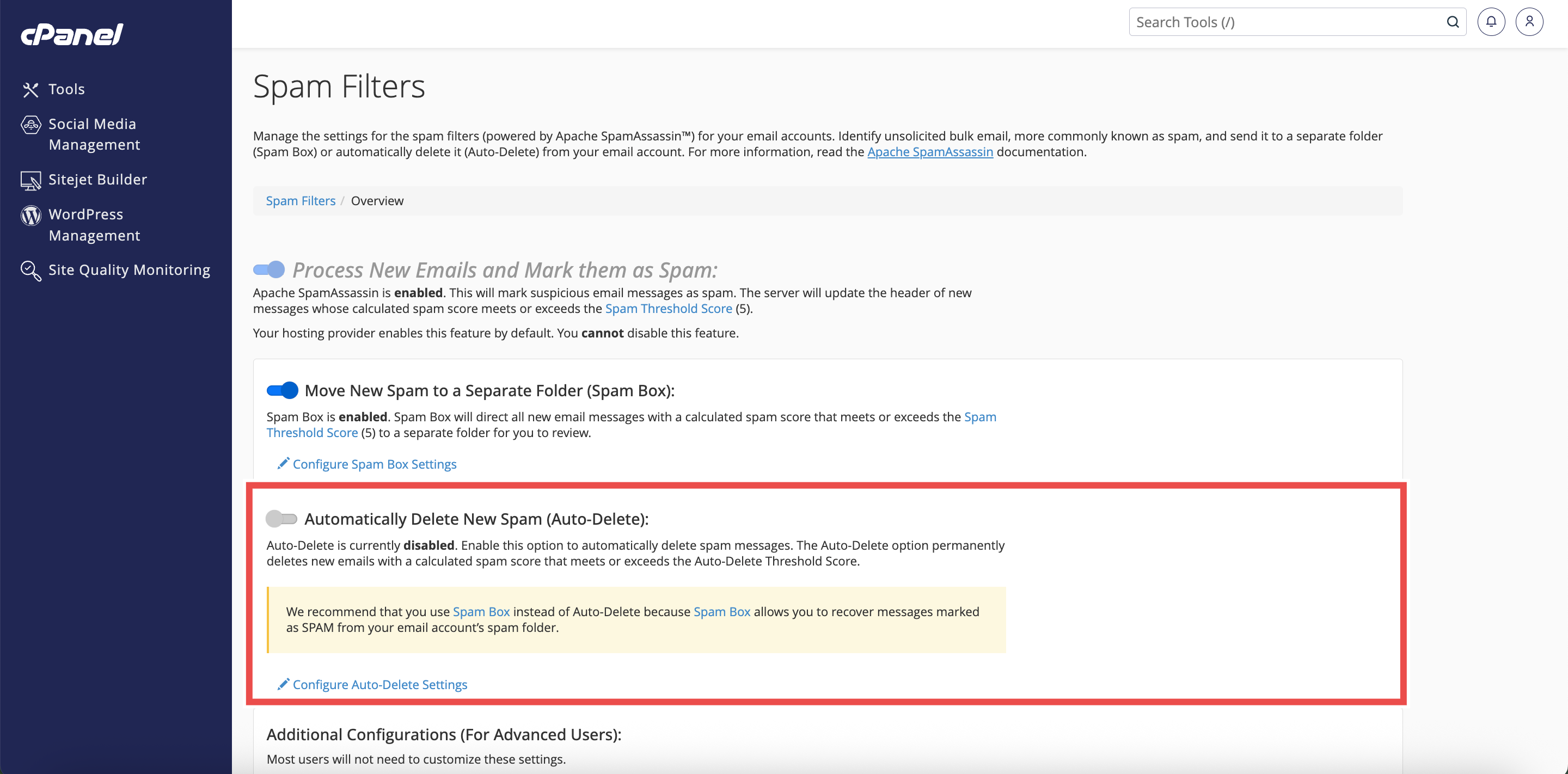
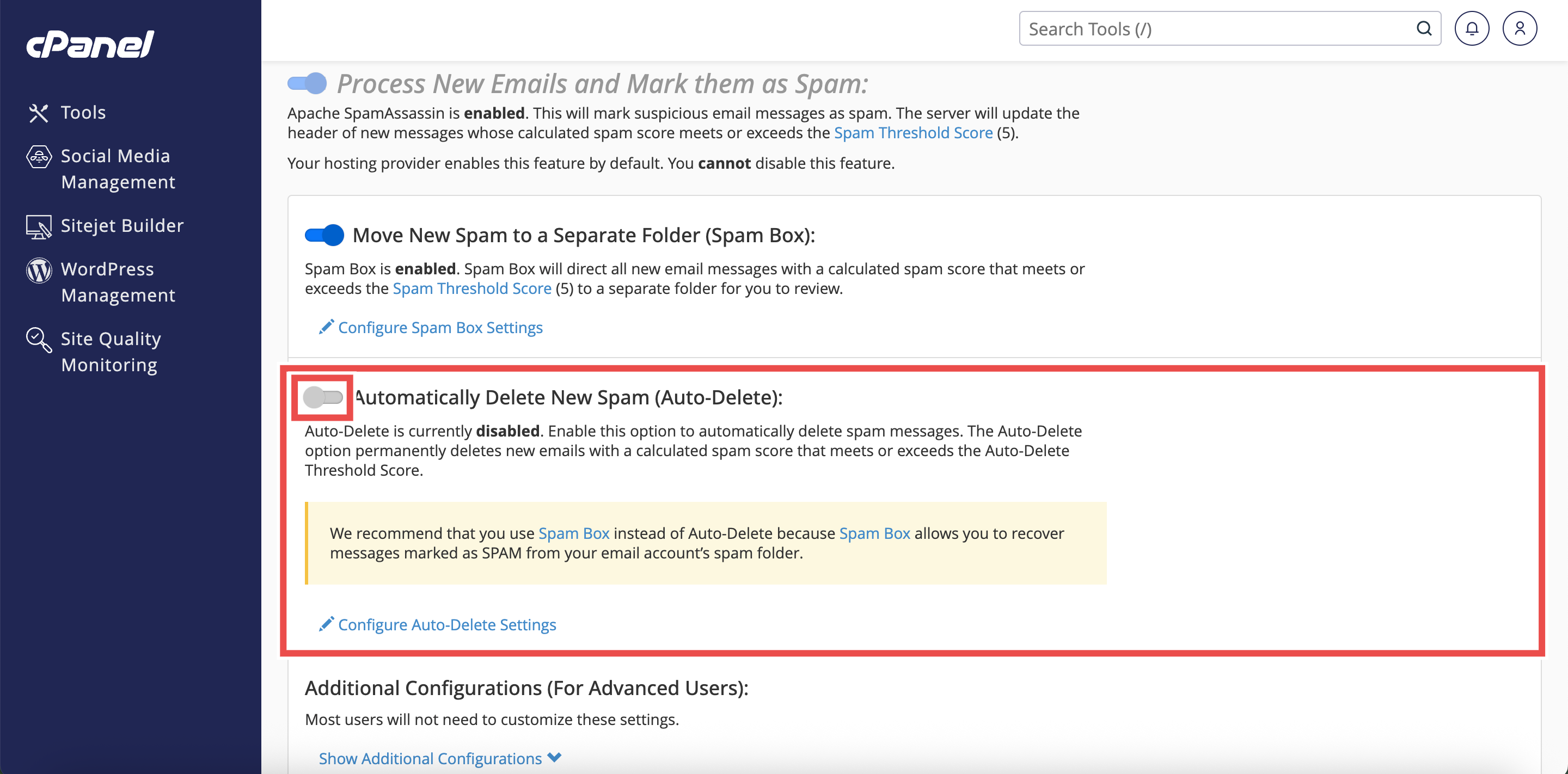
Step 4: Enable Auto-Delete
- Set the Automatically Delete New Spam (Auto-Delete) toggle to enabled.
⚠️ Important Note:
- Enabling Auto-Delete will permanently delete emails that meet or exceed the Auto-Delete Threshold Score.
- Deleted messages cannot be recovered, including legitimate emails that may be incorrectly identified as spam.
- Ensure you set an appropriate threshold score to minimise the risk of losing important emails.
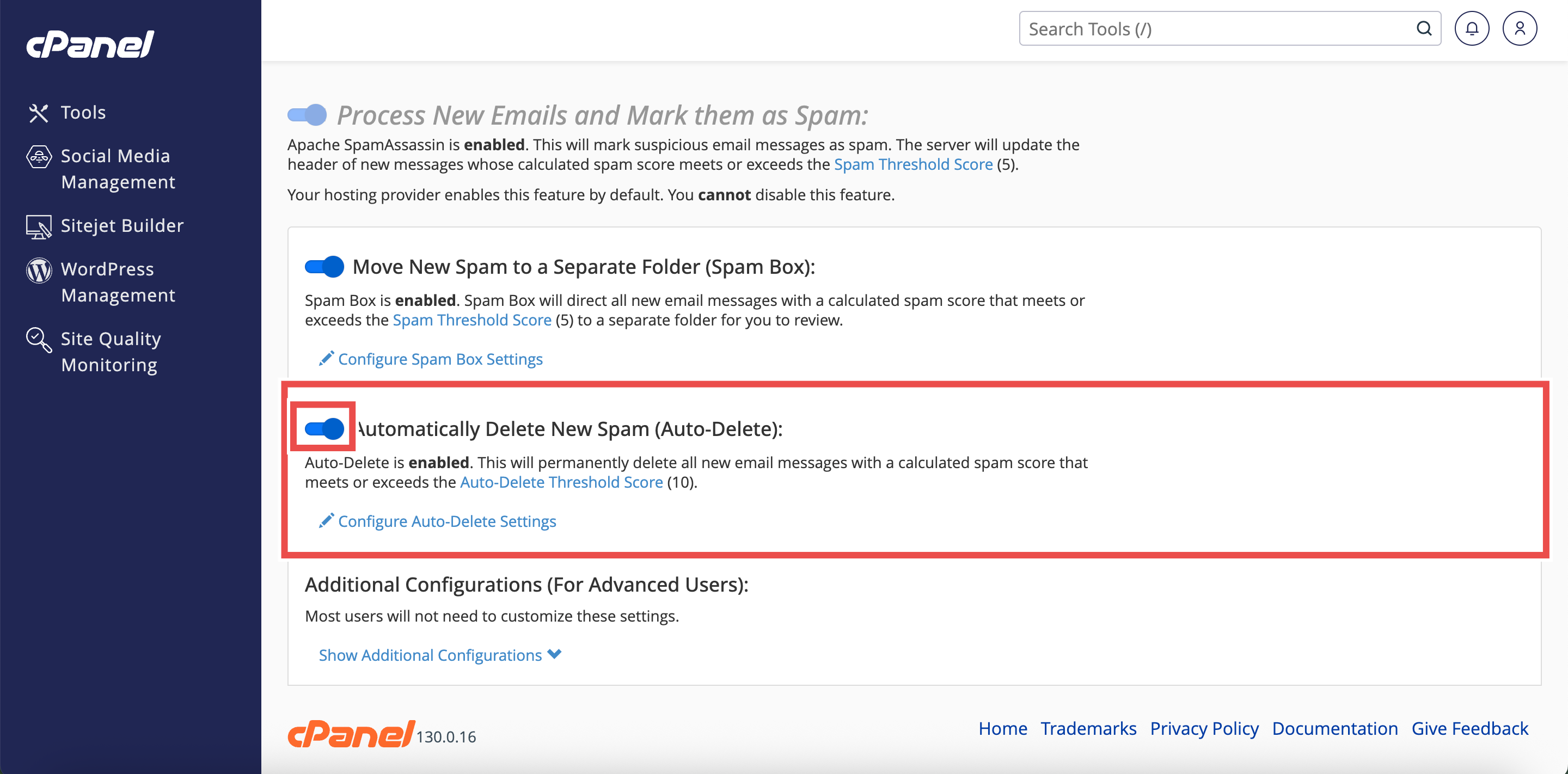
Step 5: Verify Auto-Delete is Active
- A pop-up message will appear confirming that Auto-Delete has been enabled.

Conclusion
By following these steps, you can successfully enable Automatically Delete Spam (Auto-Delete) using Spam Filters in cPanel. This feature helps manage spam automatically and keeps your inbox clean, but it should be used carefully with an appropriately high threshold score to avoid losing important messages.
Should you encounter any issues or have any questions, our support team at IPSERVERONE is always here to assist you. Don’t hesitate to reach out to us at support@ipserverone.com for any help you need.