
Search Our Database
How to Empty the Spam Box Folders using Spam Filters in cPanel
Introduction
This Knowledge Base article provides a concise, step-by-step guide on How to Empty the Spam Box folders using Spam Filters in cPanel. The Spam Box automatically stores emails that Apache SpamAssassin identifies as spam, allowing you to review them before permanent deletion. Over time, this folder can accumulate messages and consume your email quota, so it’s important to periodically empty it. This guide will show you how to delete spam messages from individual email accounts or clear all Spam Box folders at once.
Prerequisite
- Access to your cPanel login page.
- Apache SpamAssassin and Spam Box feature must be enabled.
- Spam messages must be stored in the Spam Box folder.
Step-by-Step Guide
Step 1: Log in to cPanel
- Access and log in to your cPanel account using your username and password.

Step 2: Open Spam Filters
- In the Home page, under Email, click Spam Filters.

Step 3: Enable Spam Box (If Not Already Enabled)
- Ensure the Spam Box is enabled toggle is turned on.
- If it’s disabled, enable it to activate the Spam Box feature.
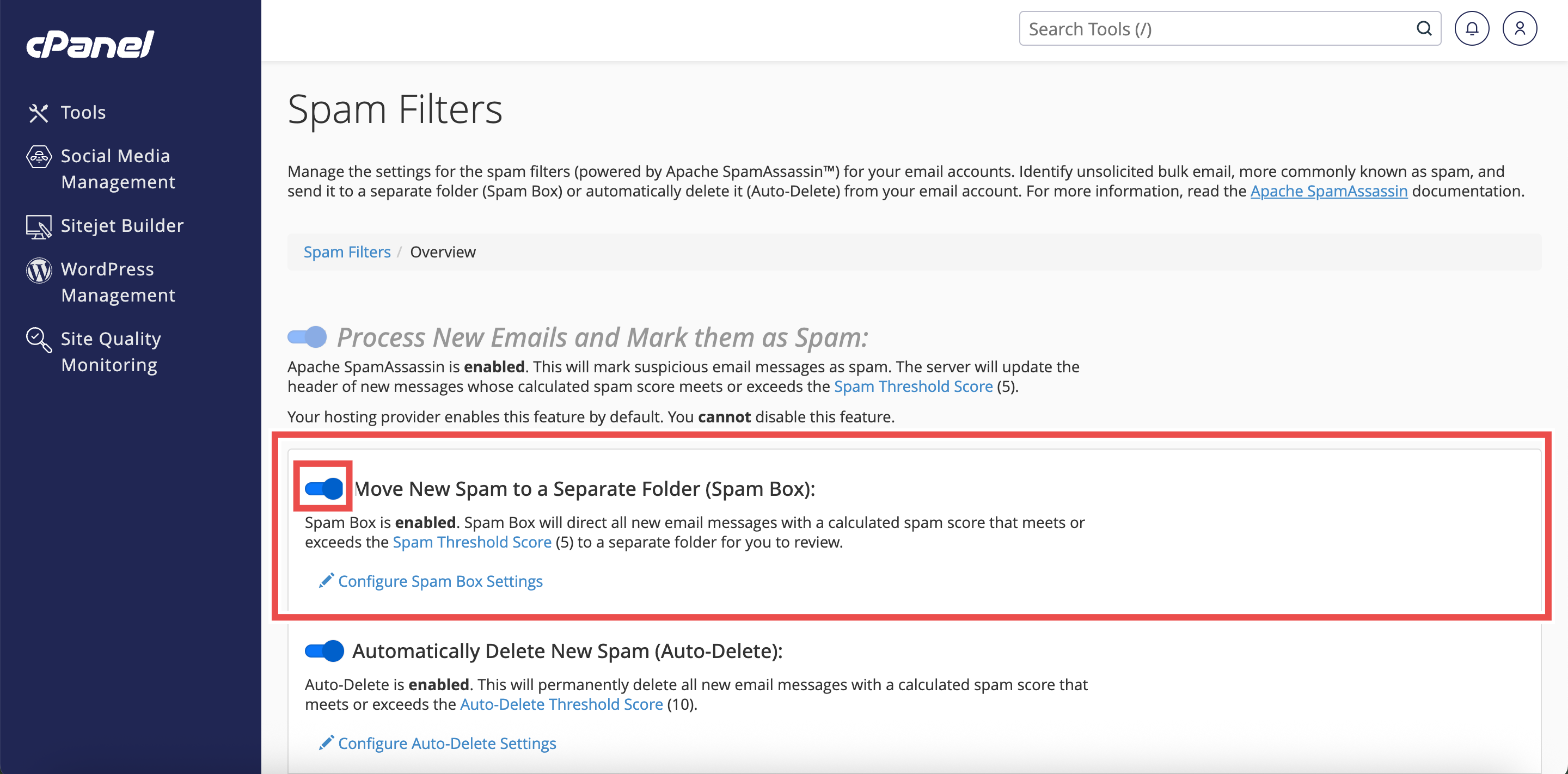
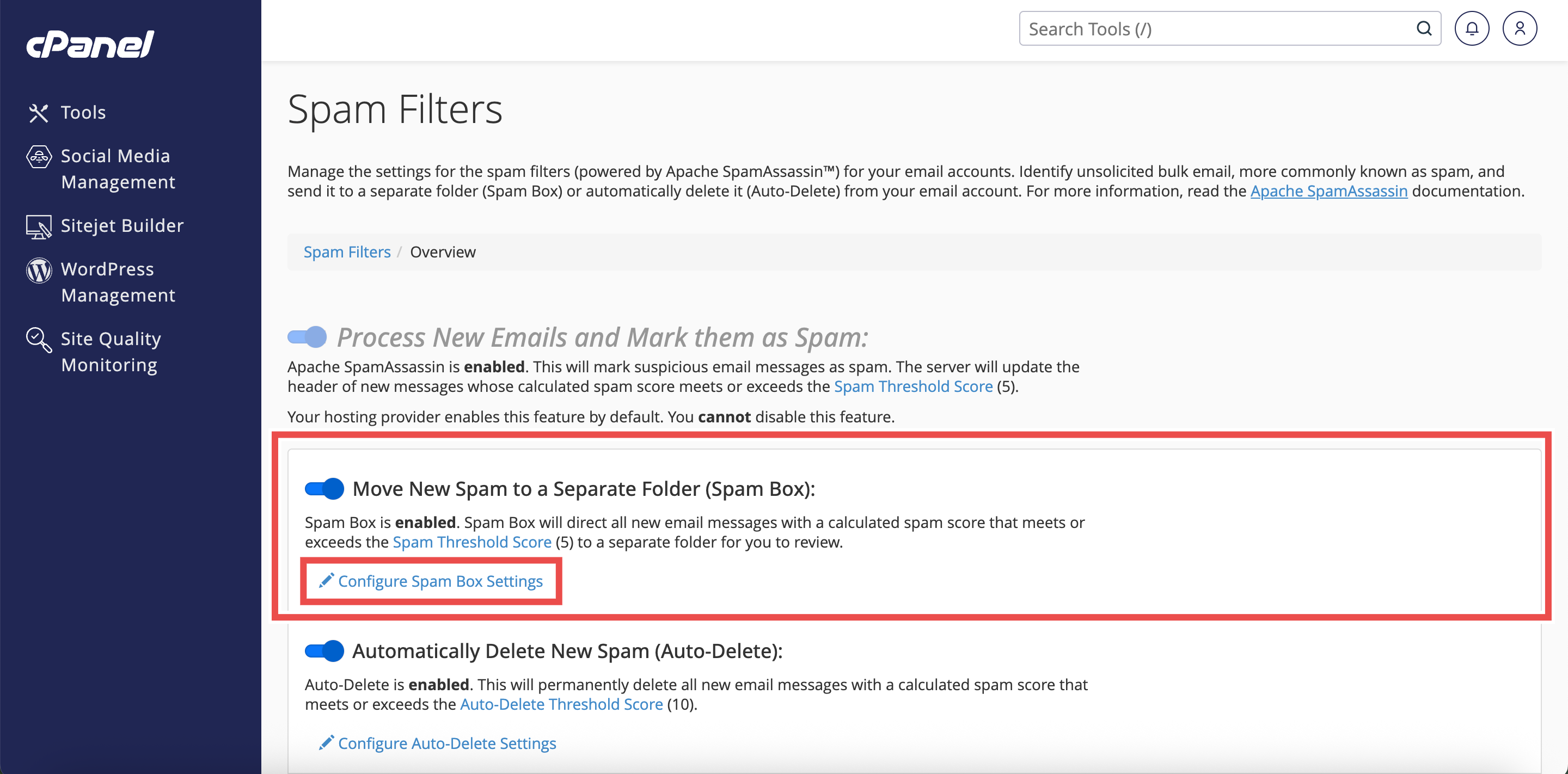
Step 4: Access Spam Box Settings
- Locate the Move New Spam to a Separate Folder (Spam Box) section.
- Click Configure Spam Box Settings .
- This will direct you to the Spam Box interface.

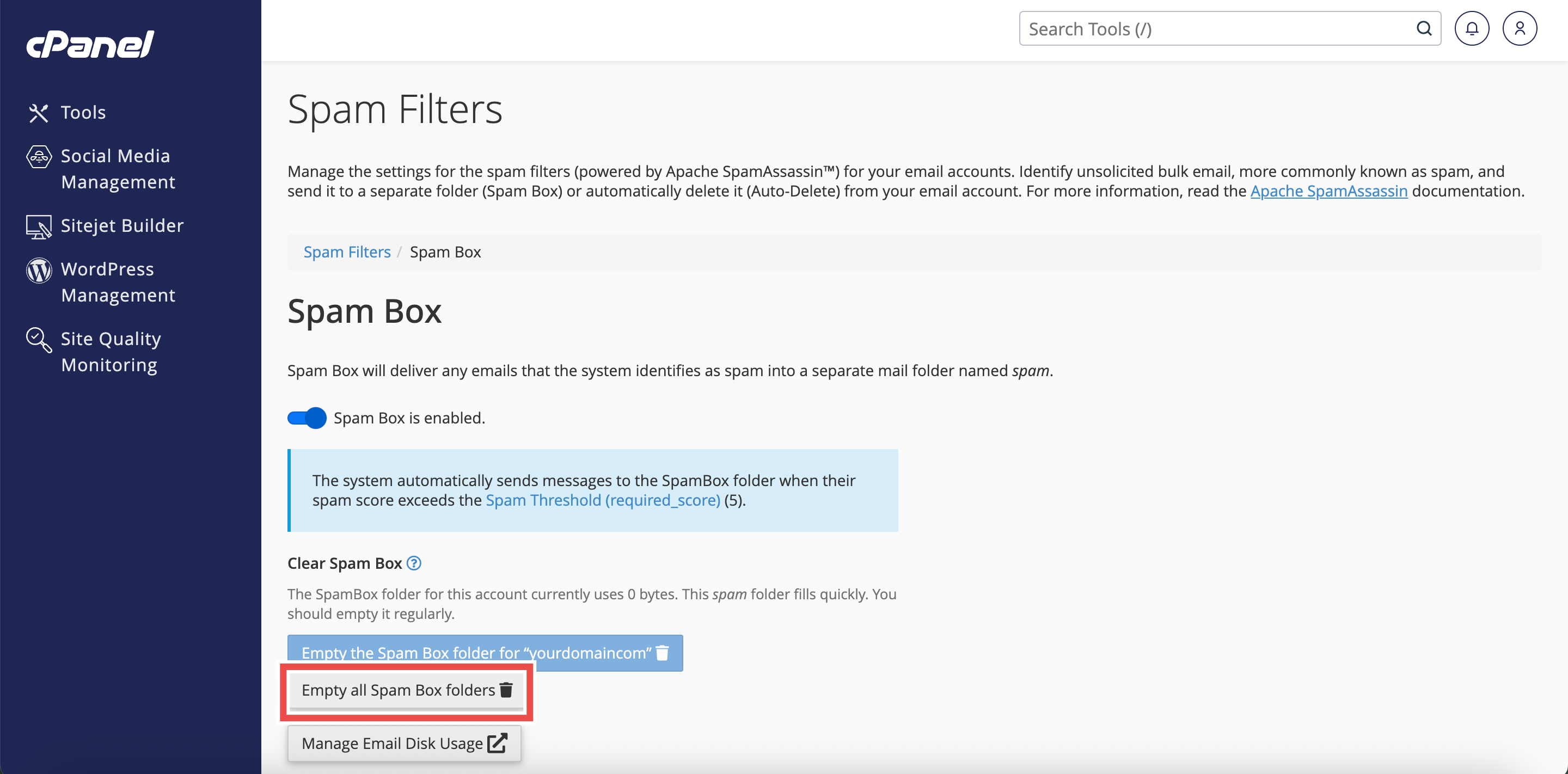
Step 5: Choose Your Deletion Option
- Click Empty all Spam Box folders .
⚠️ Important Note: The Empty all Spam Box folders option deletes spam from all email addresses associated with your cPanel account.
Step 6: Confirm Deletion
- A confirmation prompt will appear.
- Click Empty all Spam Box folders to proceed with emptying the Spam Box folder(s).

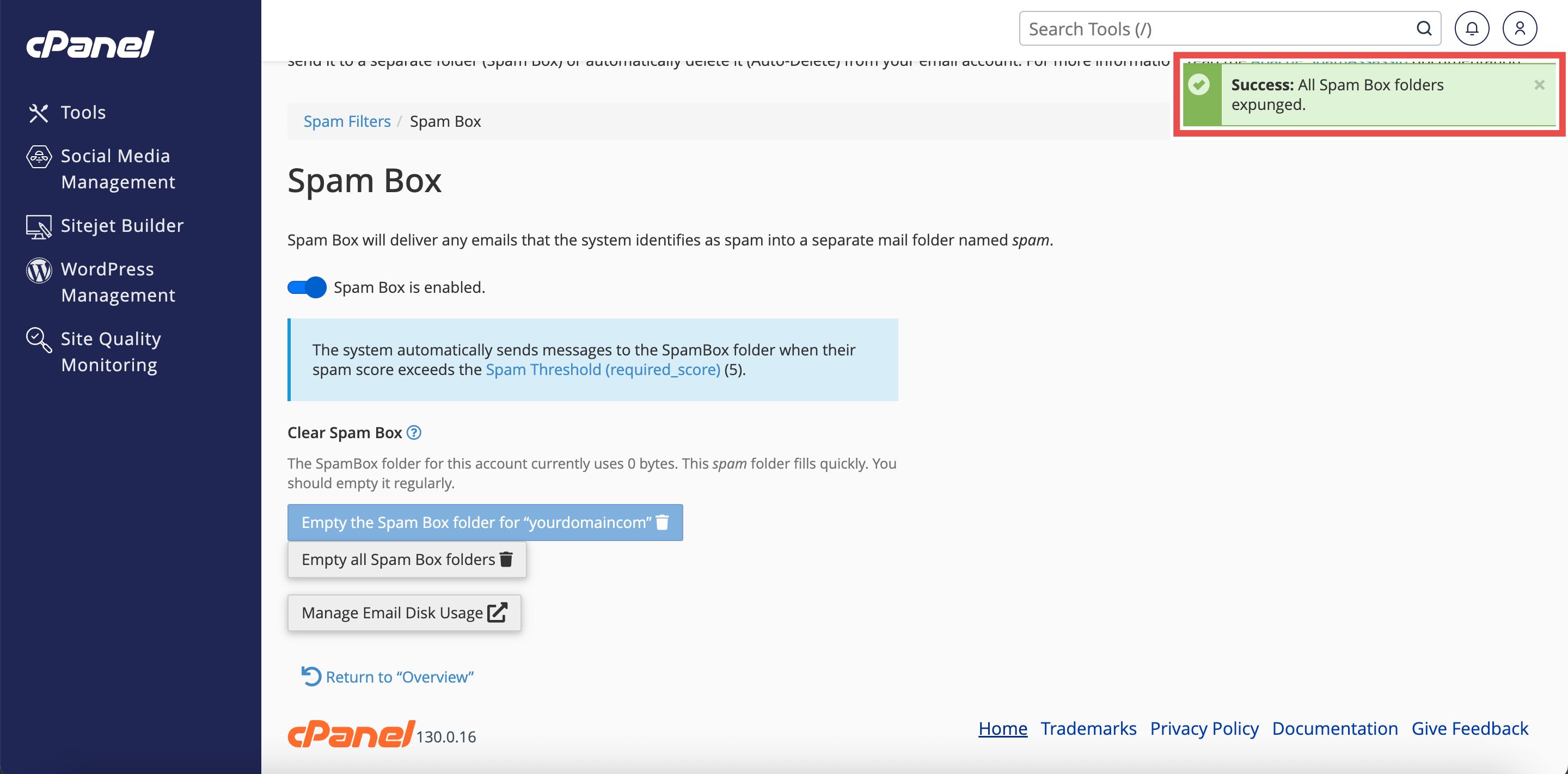
Step 7: Verify the Deletion
- The system will display a success message confirming the spam folders have been emptied.
Conclusion
By following these steps, you can successfully empty the Spam Box folders using Spam Filters in cPanel. Regularly clearing your Spam Box helps manage your email quota and ensures optimal email performance.
Should you encounter any issues or have any questions, our support team at IPSERVERONE is always here to assist you. Don’t hesitate to reach out to us at support@ipserverone.com for any help you need.