
Search Our Database
How to Edit Monitoring Bandwidth Usage Alarm Name in Customer Portal
Introduction:
This essential function is available within the NovaCloud services section, specifically under the Monitoring tab. Monitoring bandwidth usage alarms are initially set up by inputting a Name, Threshold, and message. If you need to update the identification of an alarm—which may be configured to monitor Cloud Instances or GPU Instances—you can follow this process to edit the existing name to your preference. The necessary steps involve accessing the Monitoring area, locating the alarm, clicking the ‘Action’ button, and selecting ‘Edit’ to perform the name modification.
Prerequisites:
- Validated Customer Portal Credentials and Active Account Status.
- There must be at least one Monitoring Bandwidth Usage Alarm.
Step-by-step Guide:
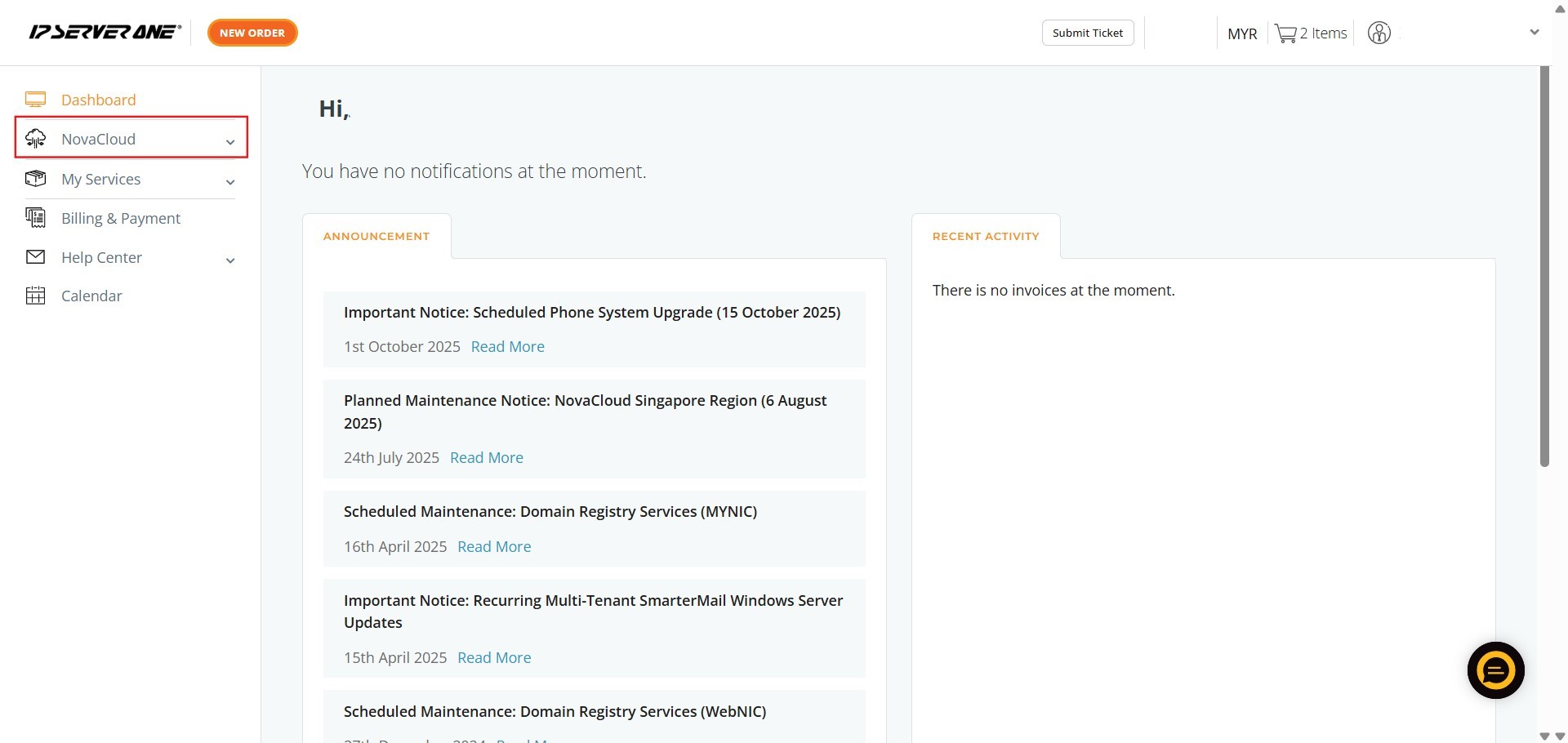
Step 1: Access NovaCloud Services
- On the left-hand navigation menu of the Customer Portal, click NovaCloud.
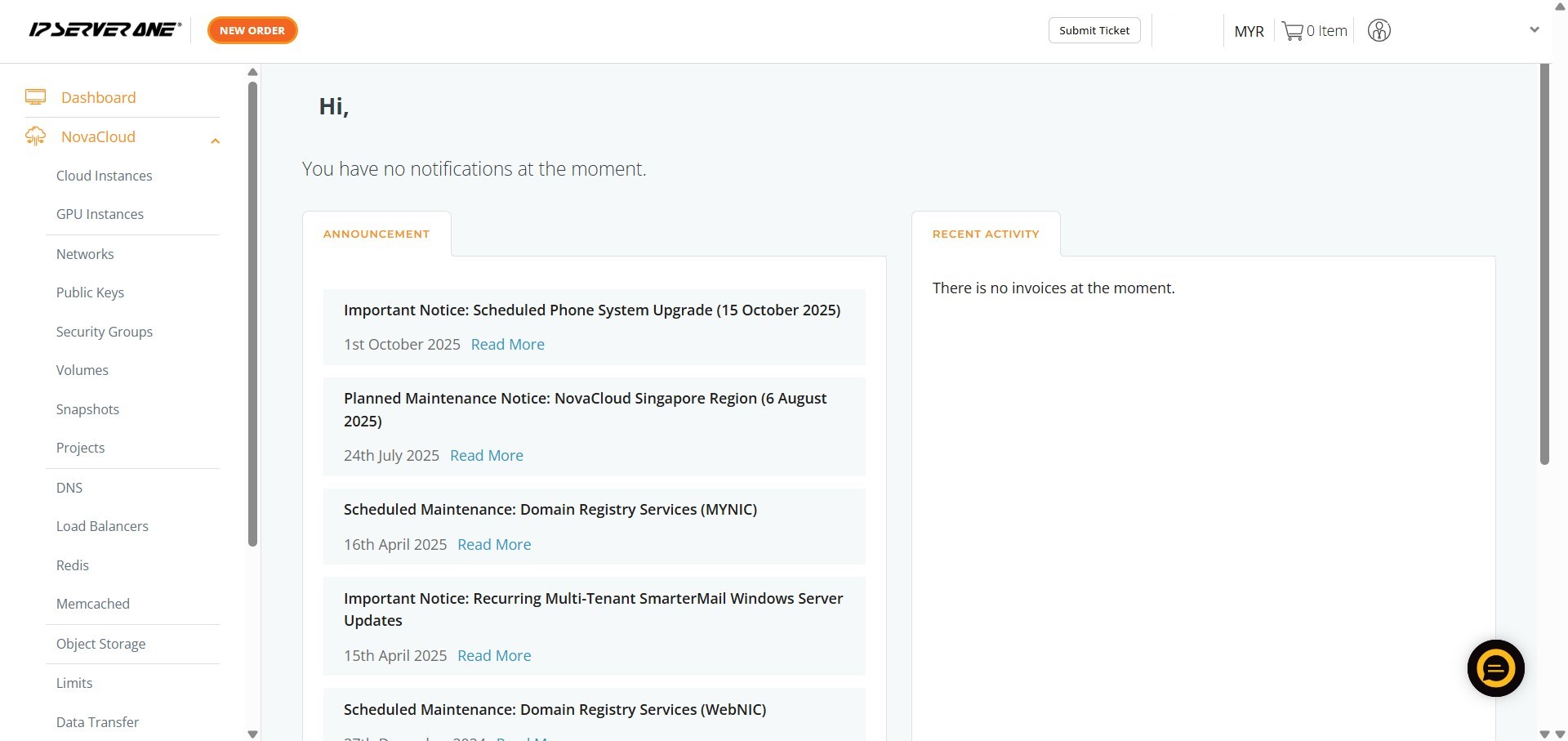
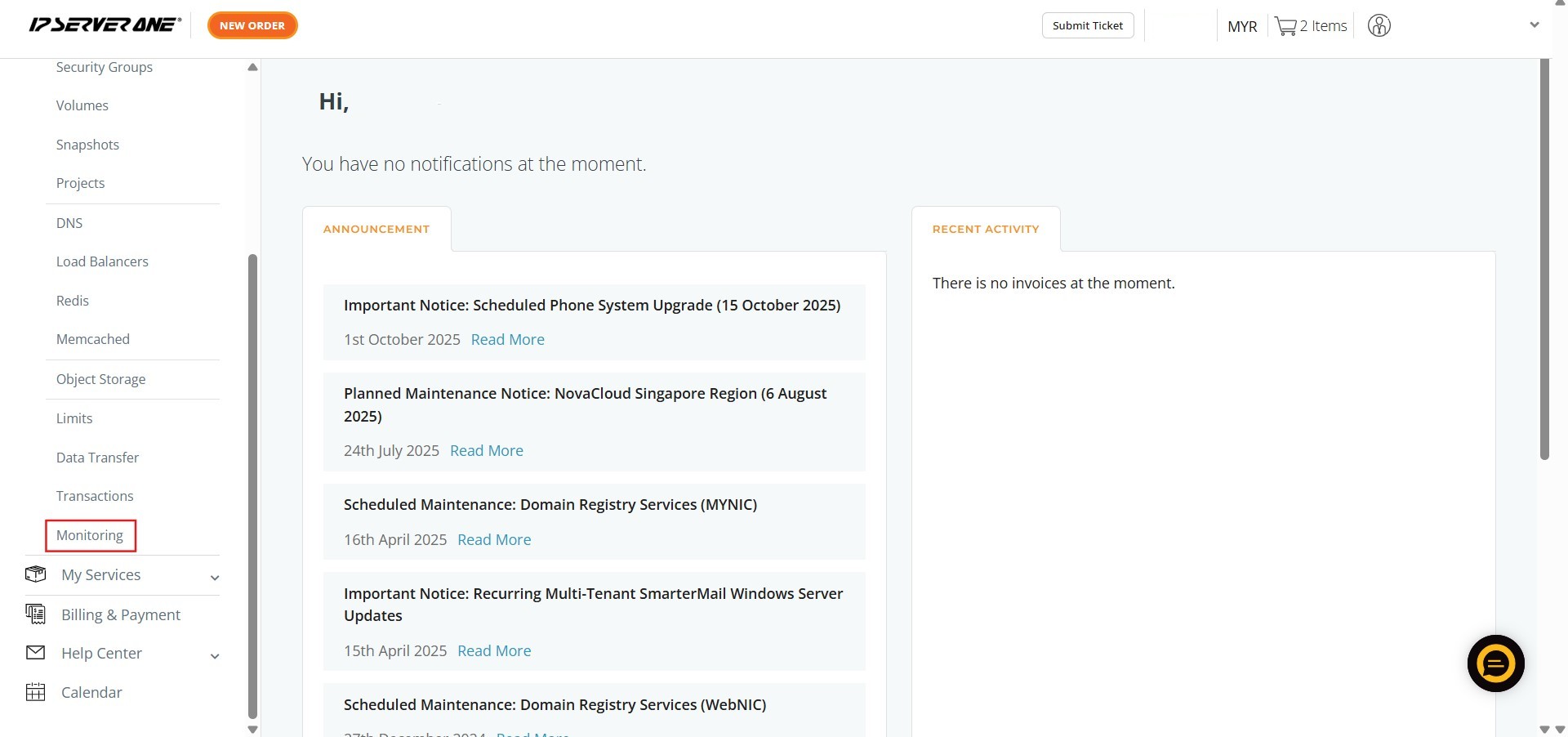
Step 2: Navigate to Monitoring
- Scroll down the expanded NovaCloud menu and click Monitoring.
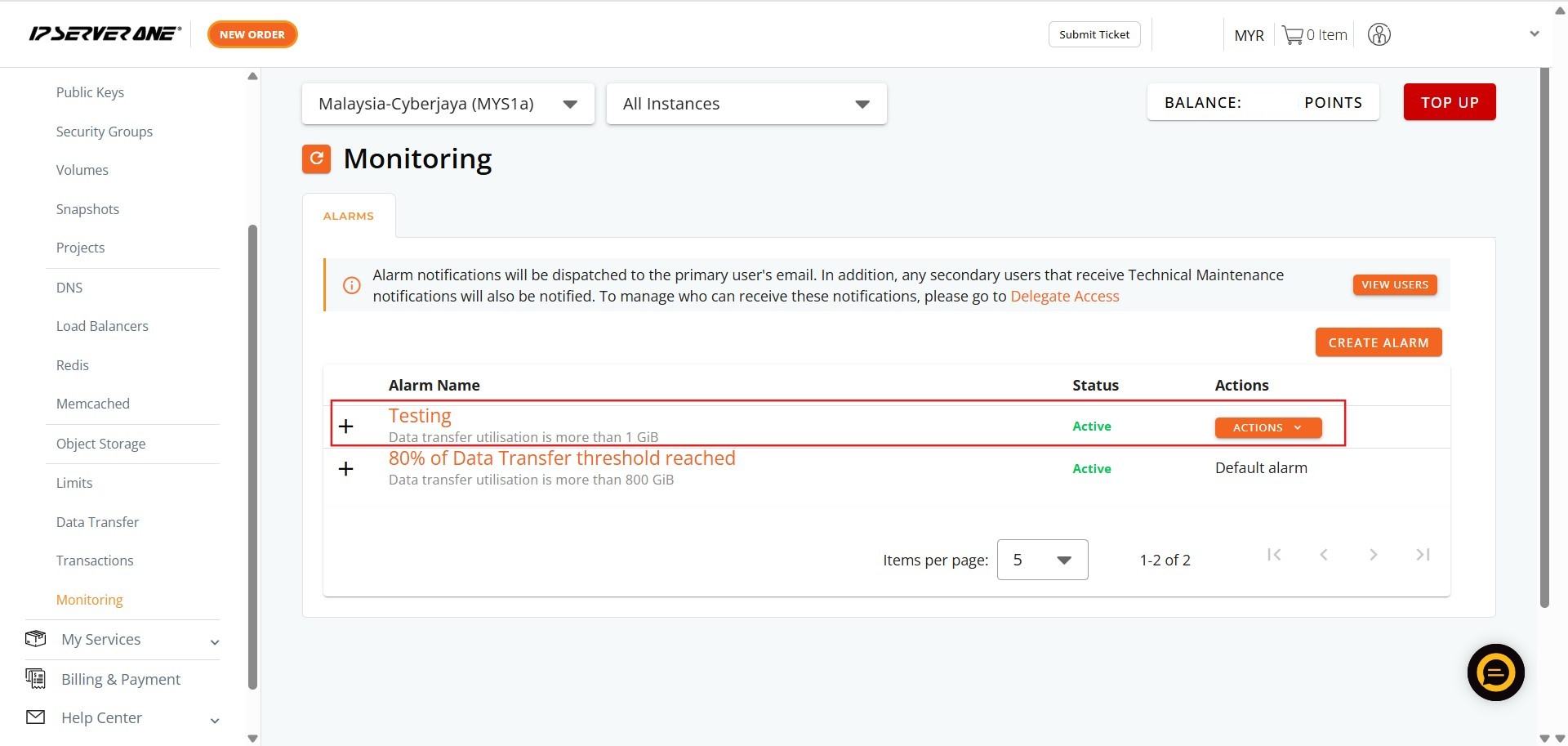
Step 3: Locate Alarm Actions
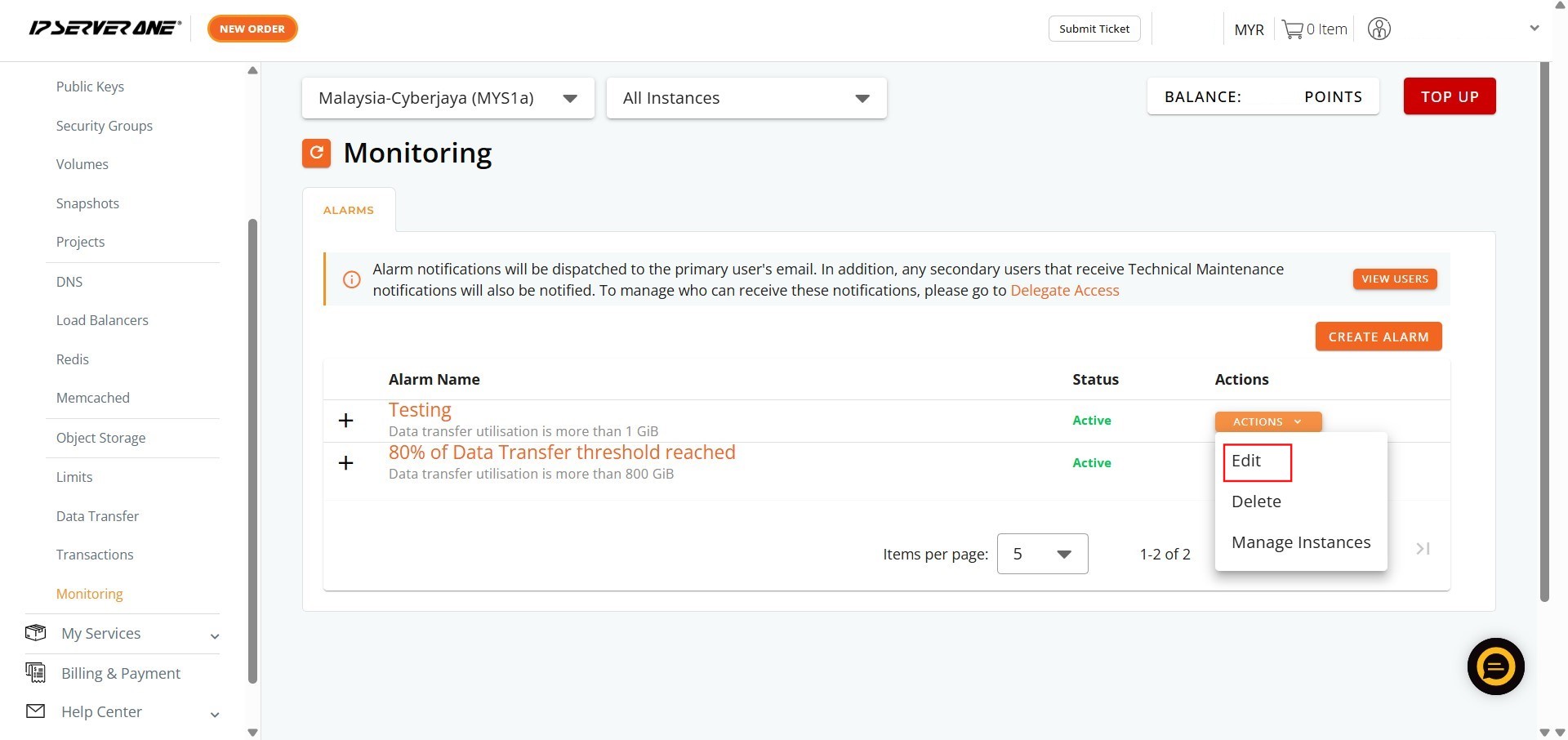
- Locate the existing alarm in the Monitoring list and click Action.
Step 4: Access Edit
- From the dropdown menu, click Edit.
Step 5: Edit the Name to Your Preference and Click Save
- Input the desired new name for the alarm and finalize this change by clicking save.

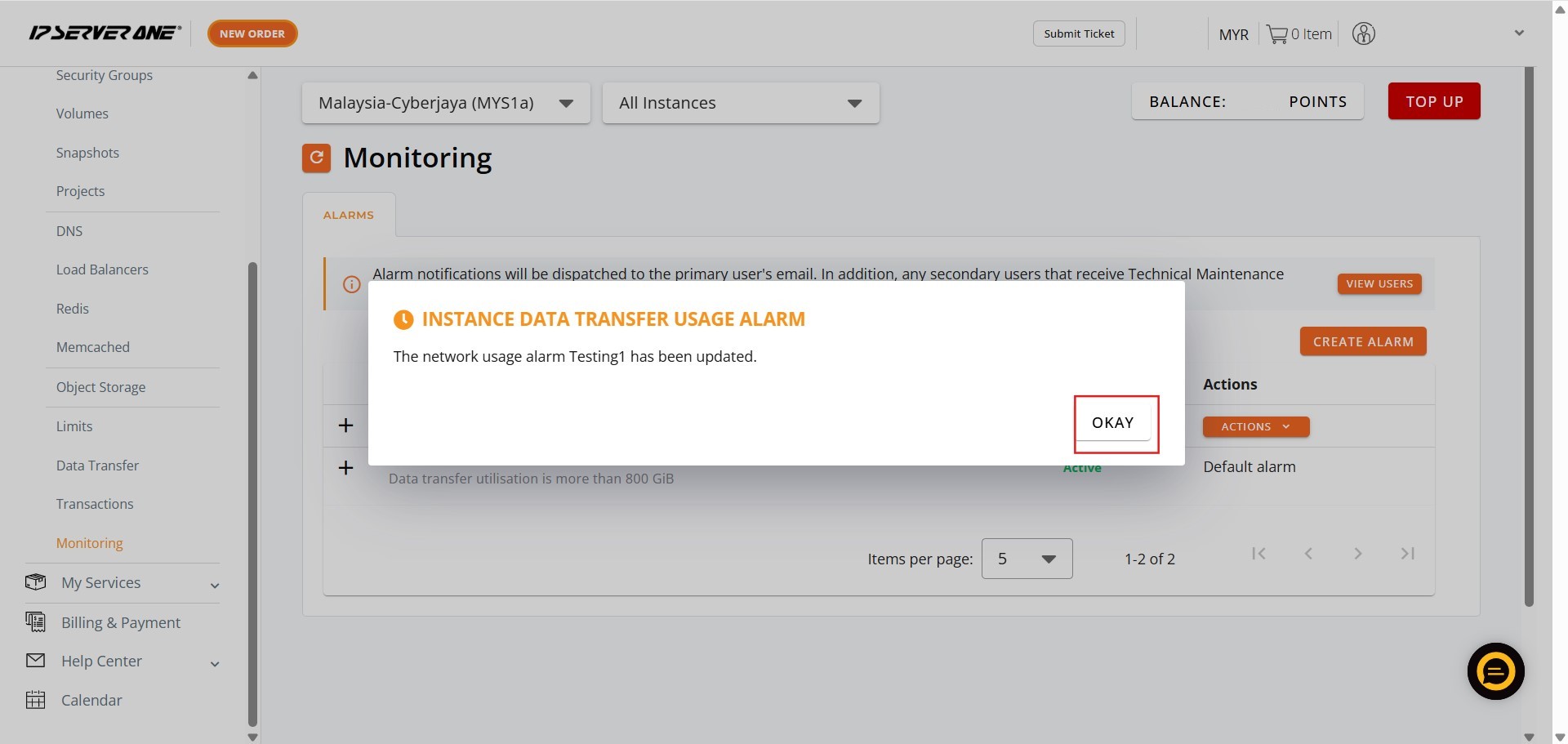
Step 6: Click Okay
- Clicking Okay confirms all the changes made in the edit interface and submits them for processing.
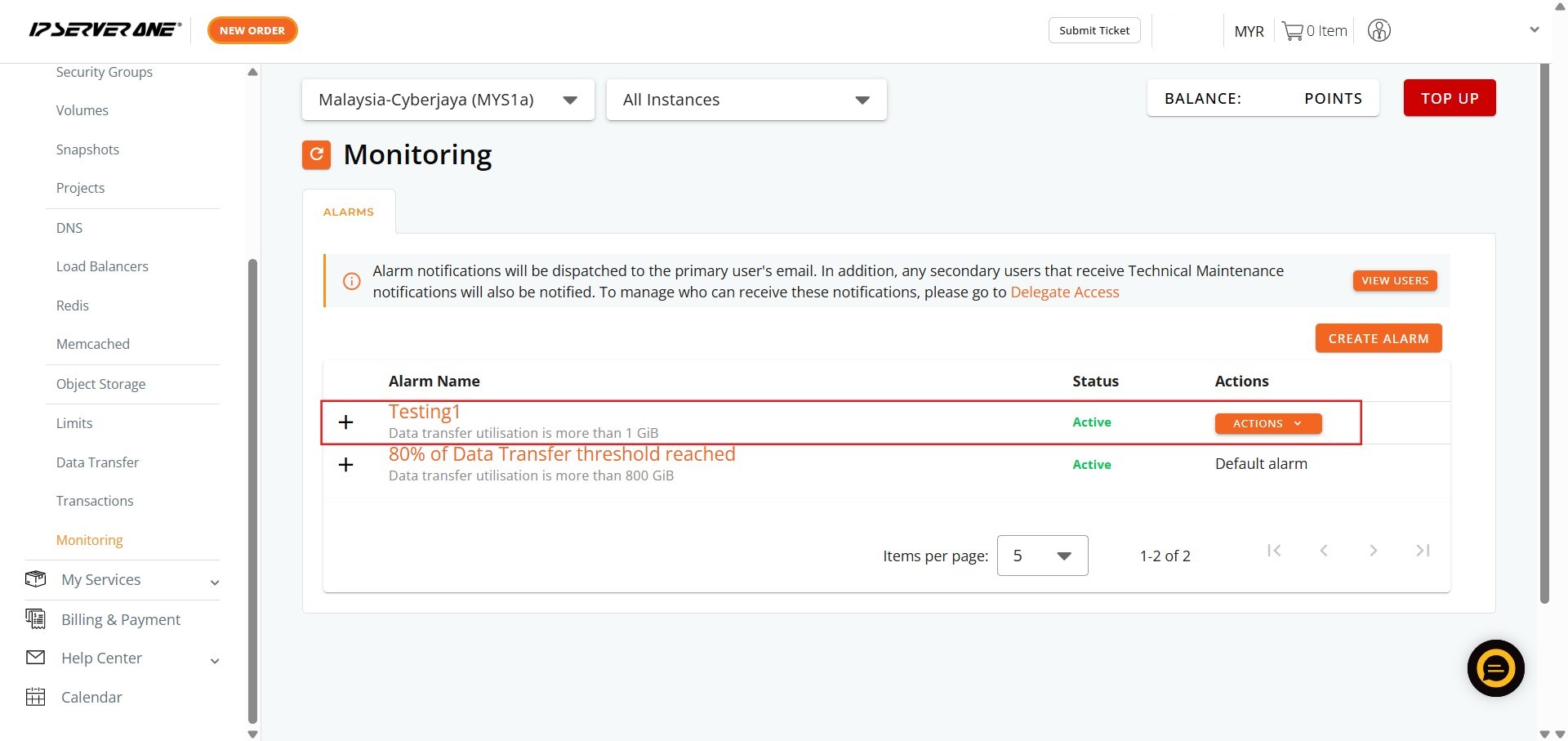
Step 7: The Process is Complete
- The Monitoring Bandwidth Usage Alarm name has been successfully updated.
Conclusion:
You have successfully edited the name of your Monitoring Bandwidth Usage Alarm in the Customer Portal by following the steps outlined. If you have other alarms that require naming updates, you can repeat this process.
Should you encounter any issues or have any questions during this procedure, our support team at IPSERVERONE is always here to assist you. Don’t hesitate to reach out to us at support@ipserverone.com for any help you need.