
Search Our Database
How to Edit Files Directly in DirectAdmin (Evolution Skin)
Introduction
Editing files directly on your server is a common requirement for website maintenance, code updates, and configuration changes. DirectAdmin’s File Manager includes a built-in text editor that allows you to modify text-based files without requiring external editors or FTP downloads. This guide explains how to edit files using the File Manager section in DirectAdmin, providing immediate access to modify HTML, PHP, configuration files, and other text-based content directly through your web browser.
Prerequisites
- Access to DirectAdmin control panel with the necessary permissions.
- Existing text-based file to be edited in File Manager.
Step-by-step guide
Step 1: Access DirectAdmin
Log in to your DirectAdmin control panel.

Step 2: Navigate to your folder.
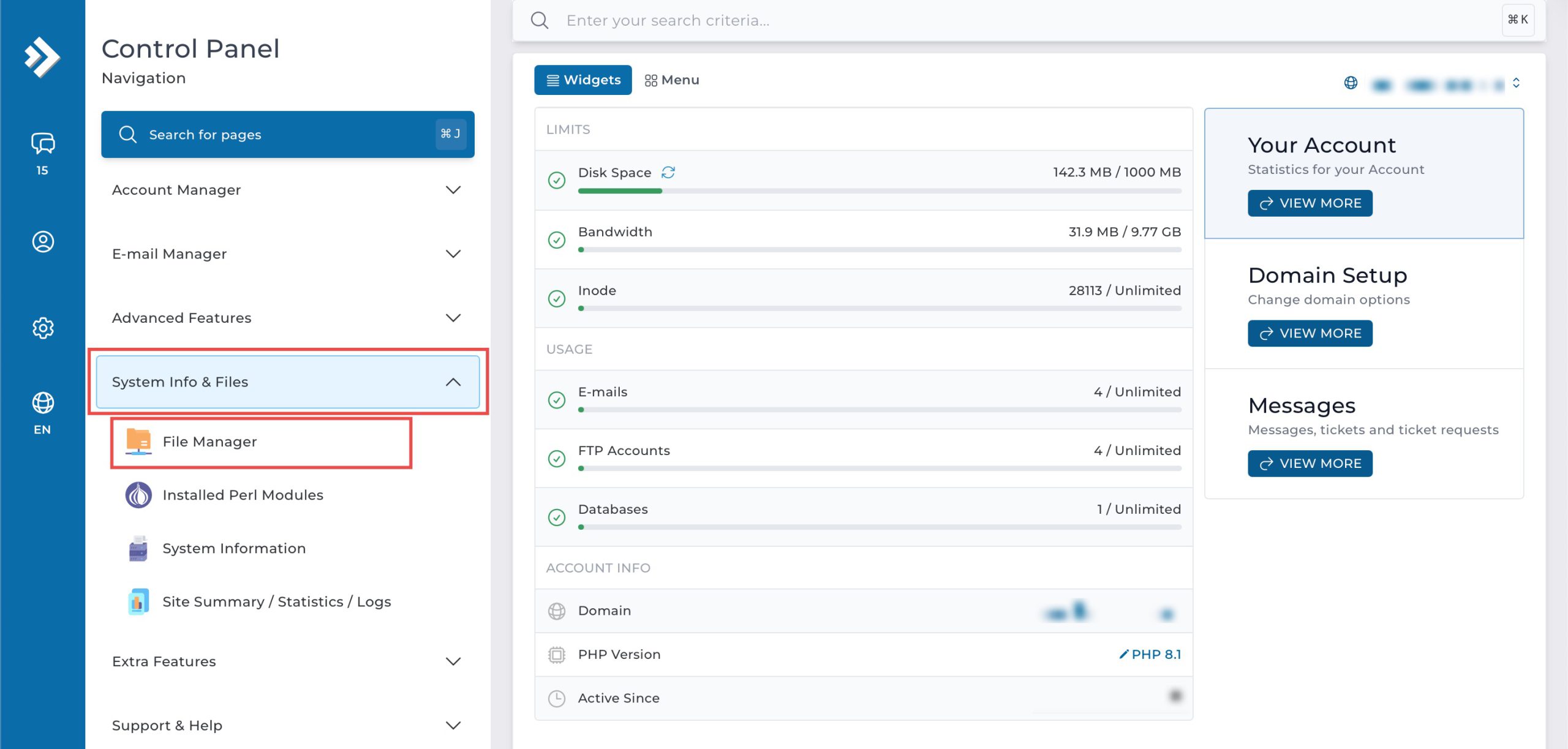
Go to the System Info & Files section and click on File Manager. You will see the list of directories and files available, navigate to the directory with the file you wish to edit.
Step 3: Edit the File.
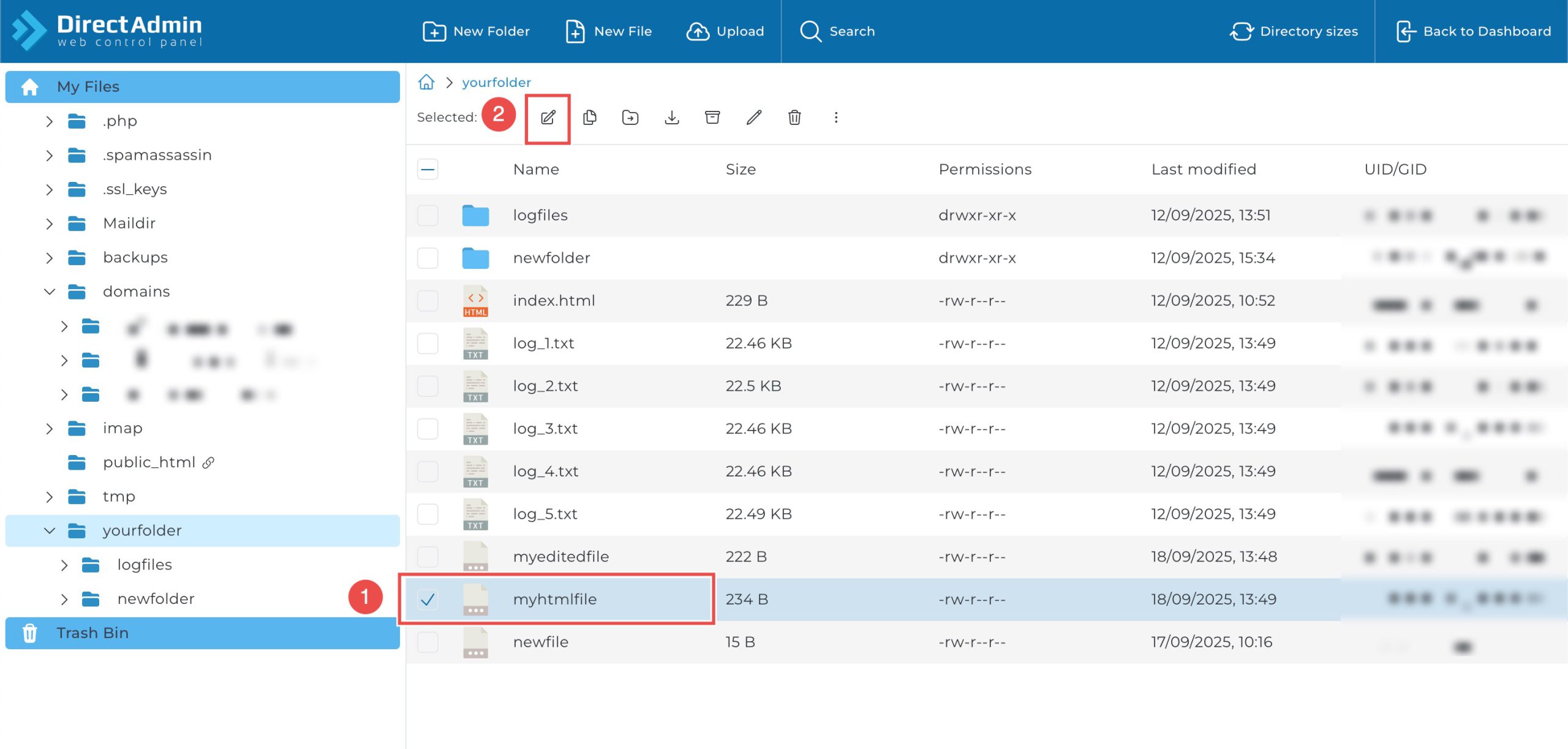
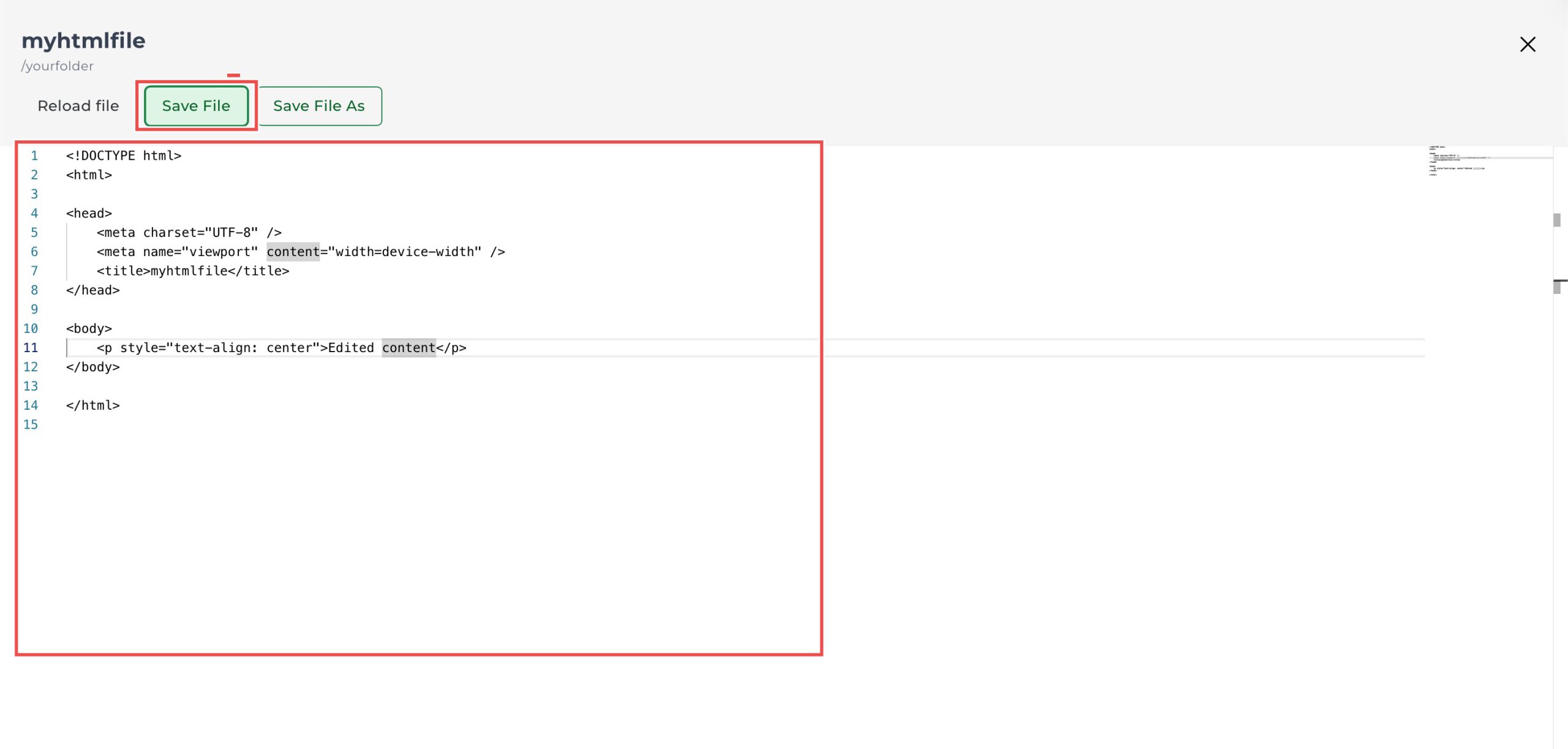
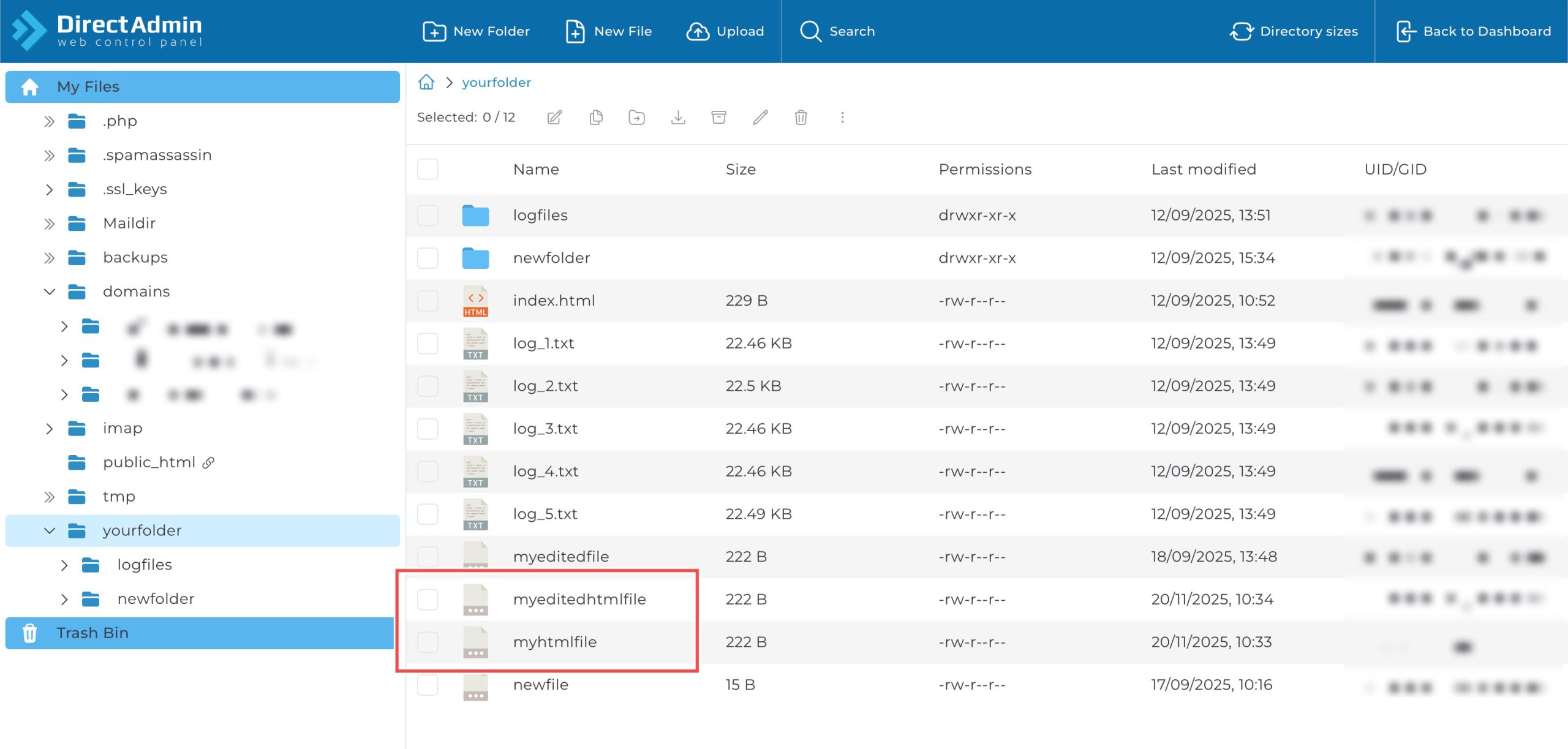
You may open the file by either, double-clicking the file name or, selecting it and clicking the edit icon on the top bar. The contents of the file will be displayed, and you may edit directly in the space.
Once you have made the changes, click Save File.
(Optional) Rename file.
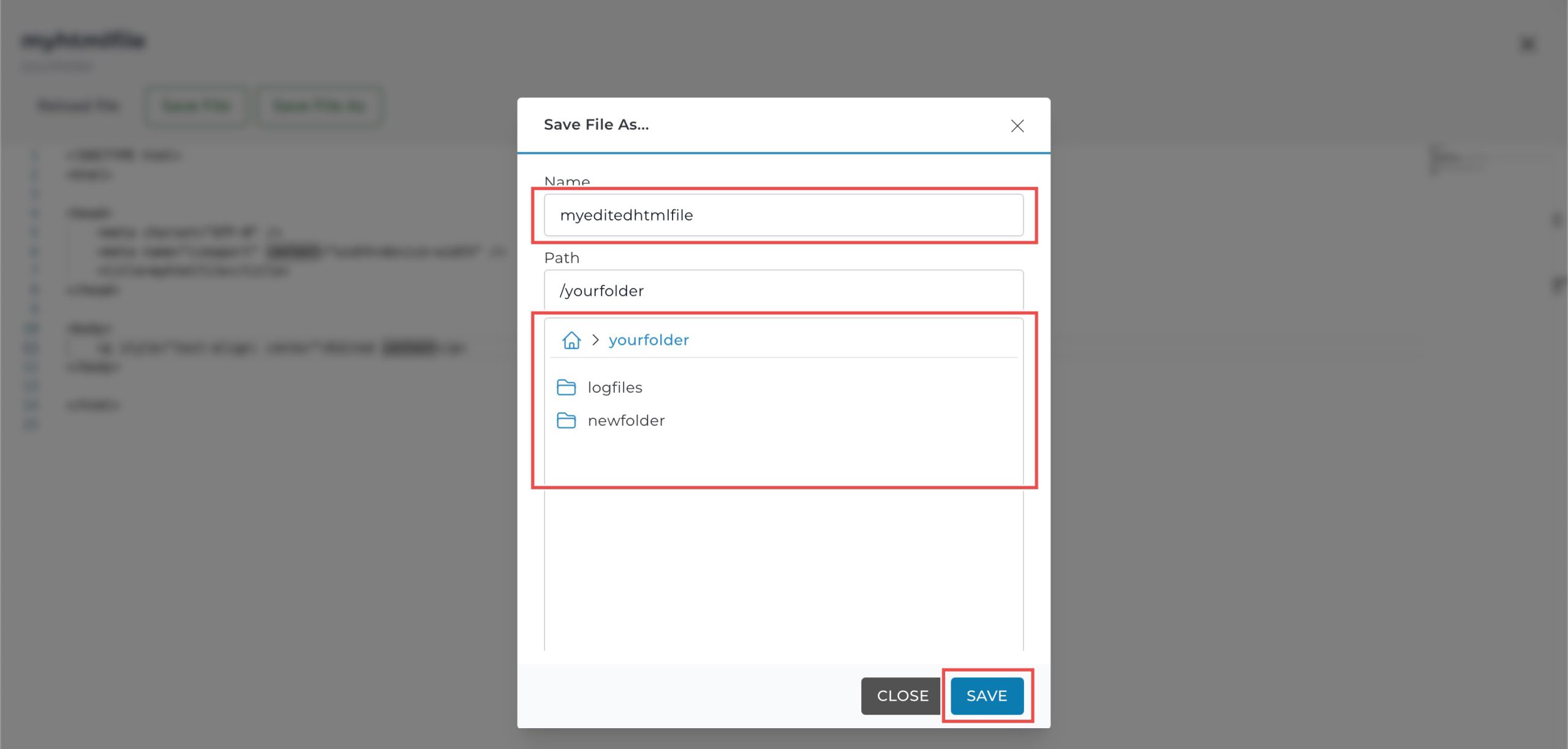
You may also rename the edited file by clicking Save File As instead. In the pop-up window, you may change the file name and file path before clicking Save at the bottom.
Step 4: Verify the creation.
You can verify that the edited content has been successfully saved by double-clicking the name of the file to open it.
Conclusion
Editing files through DirectAdmin’s File Manager is an efficient process that enables direct server-side content modification. The built-in editor provides immediate access to make changes without external tools, while the optional rename feature offers flexibility for creating file variations during the editing process.
Should you have any inquiries about the guidelines, please feel free to open a ticket through your portal account or contact us at support@ipserverone.com. We’ll be happy to assist you further.