
Search Our Database
How to Disable Zlib Compression for PHP Output in DirectAdmin (Evolution Skin)
Introduction
PHP output compression automatically reduces content size before transmission, but there are situations where disabling this feature becomes necessary for troubleshooting or performance optimization. Conflicts with existing server-level compression, debugging output issues, or reducing CPU overhead on high-traffic servers may require turning off PHP-level compression. DirectAdmin’s PHP Settings interface provides a straightforward method for disabling output compression through custom PHP overrides. This guide explains how to disable output compression using the Account Manager > PHP Settings section in DirectAdmin, sending uncompressed content to browsers to resolve conflicts or reduce server processing overhead.
Prerequisites
- Access to DirectAdmin control panel with the necessary permissions.
Step-by-step Guide
Step 1: Access DirectAdmin
Log in to your DirectAdmin control panel.

Step 2: Access PHP Settings
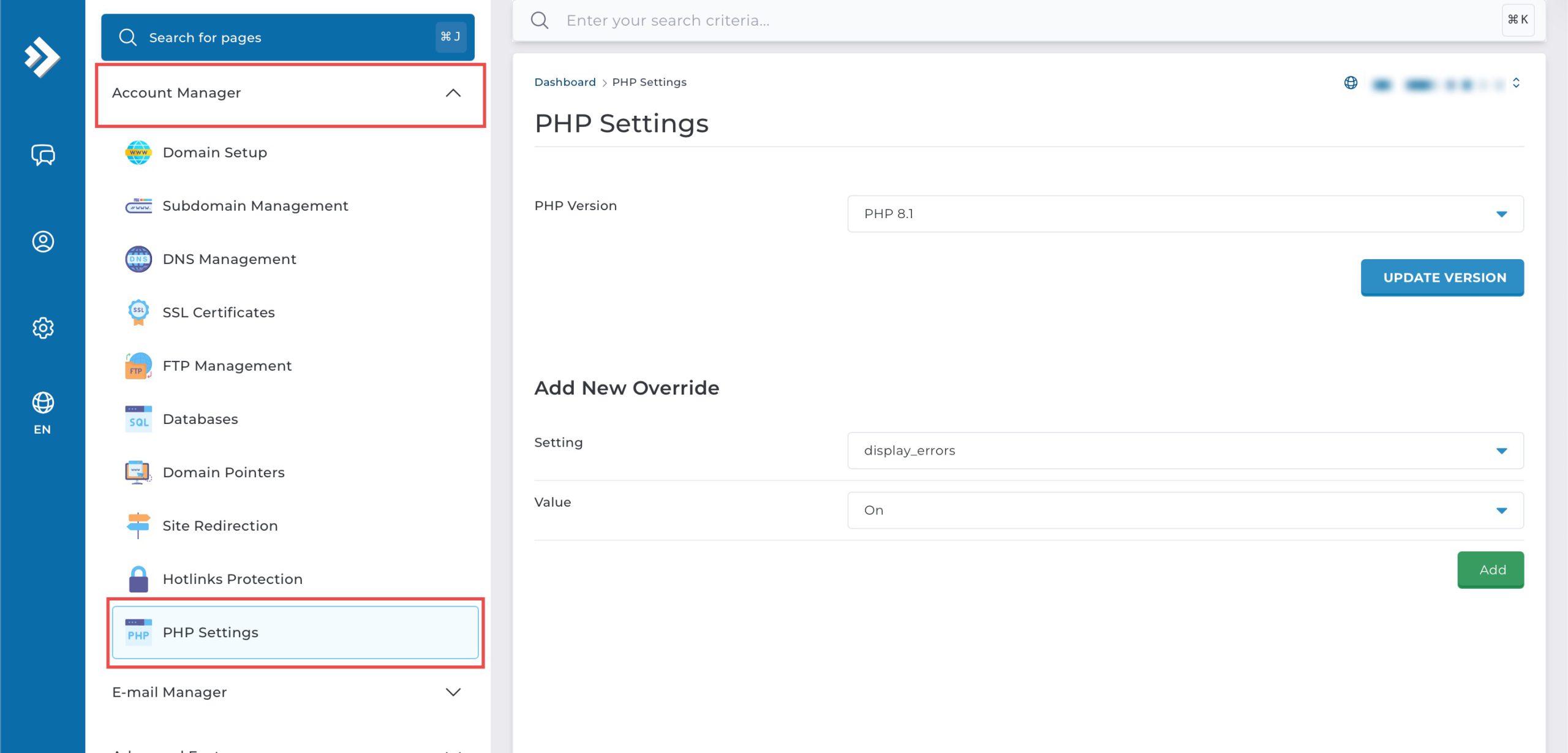
Go to the Account Manager section and click on PHP Settings.
Step 3: Disable Output Compression
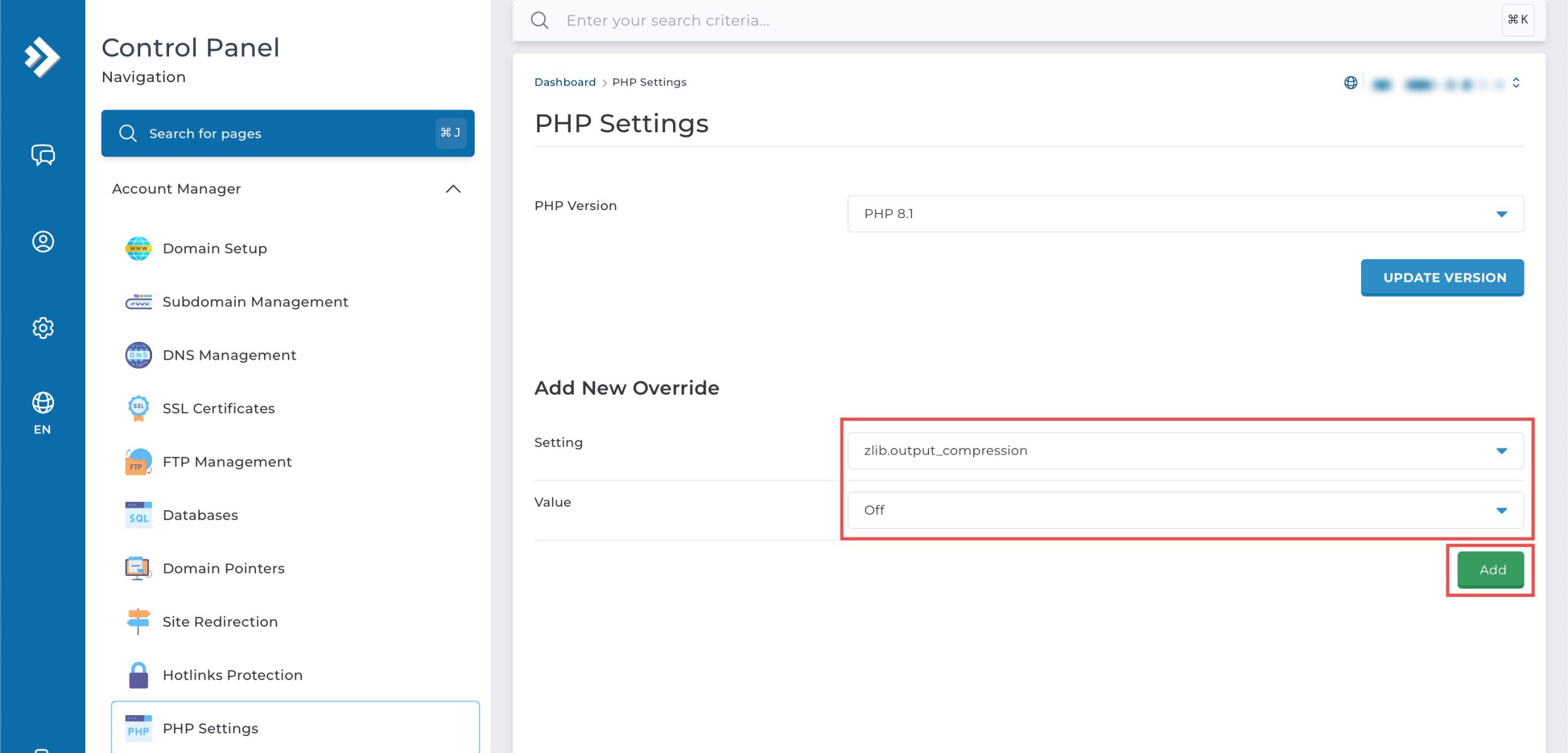
Scroll down to the Add New Override section. From the Setting drop-down menu, select zlib.output_compression. From the Value drop-down menu, select Off. Then, click Add on the bottom right.
Step 4: Verify the changes
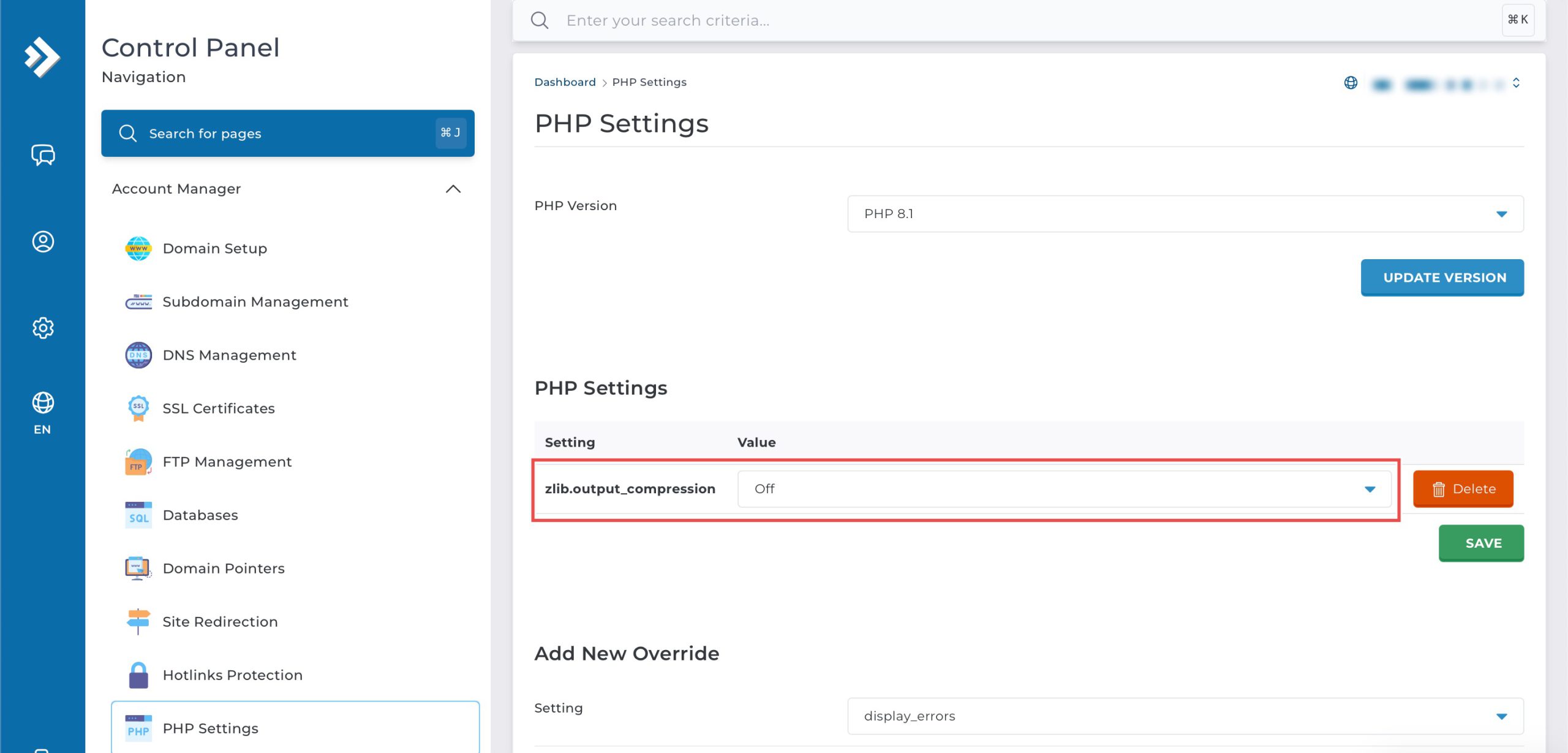
You may confirm the new override settings in the updated PHP Settings table. Pages are now sent uncompressed, which means larger data transfer but less CPU usage.
Conclusion
Disabling PHP output compression through DirectAdmin’s PHP Settings interface is a simple process that stops automatic content compression at the PHP level. Turning off zlib output compression sends uncompressed data to browsers, which increases bandwidth usage but reduces CPU processing overhead and can help resolve conflicts with other compression systems or assist with troubleshooting output-related issues.
Should you have any inquiries about the guidelines, please feel free to open a ticket through your portal account or contact us at support@ipserverone.com. We’ll be happy to assist you further.