
Search Our Database
How to Disable Hotlink Protection in DirectAdmin (Evolution Skin)
Introduction
Hotlink protection prevents other websites from directly linking to your images and files, but there are situations where disabling this feature becomes necessary. Integration with content delivery networks (CDNs), troubleshooting image display issues, or allowing legitimate external access may require turning off hotlink protection temporarily or permanently. DirectAdmin’s Hotlink Protection interface provides a simple method for disabling this security feature when your requirements change. This guide explains how to disable hotlink protection using the Account Manager > Hotlinks Protection section in DirectAdmin, giving you flexibility in managing how your server resources are accessed externally.
Prerequisites
- Access to DirectAdmin control panel with the necessary permissions.
- Hotlink Protection enabled in DirectAdmin
Step-by-step Guide
Step 1: Access DirectAdmin
Log in to your DirectAdmin control panel.

Step 2: Access Hotlink Protection
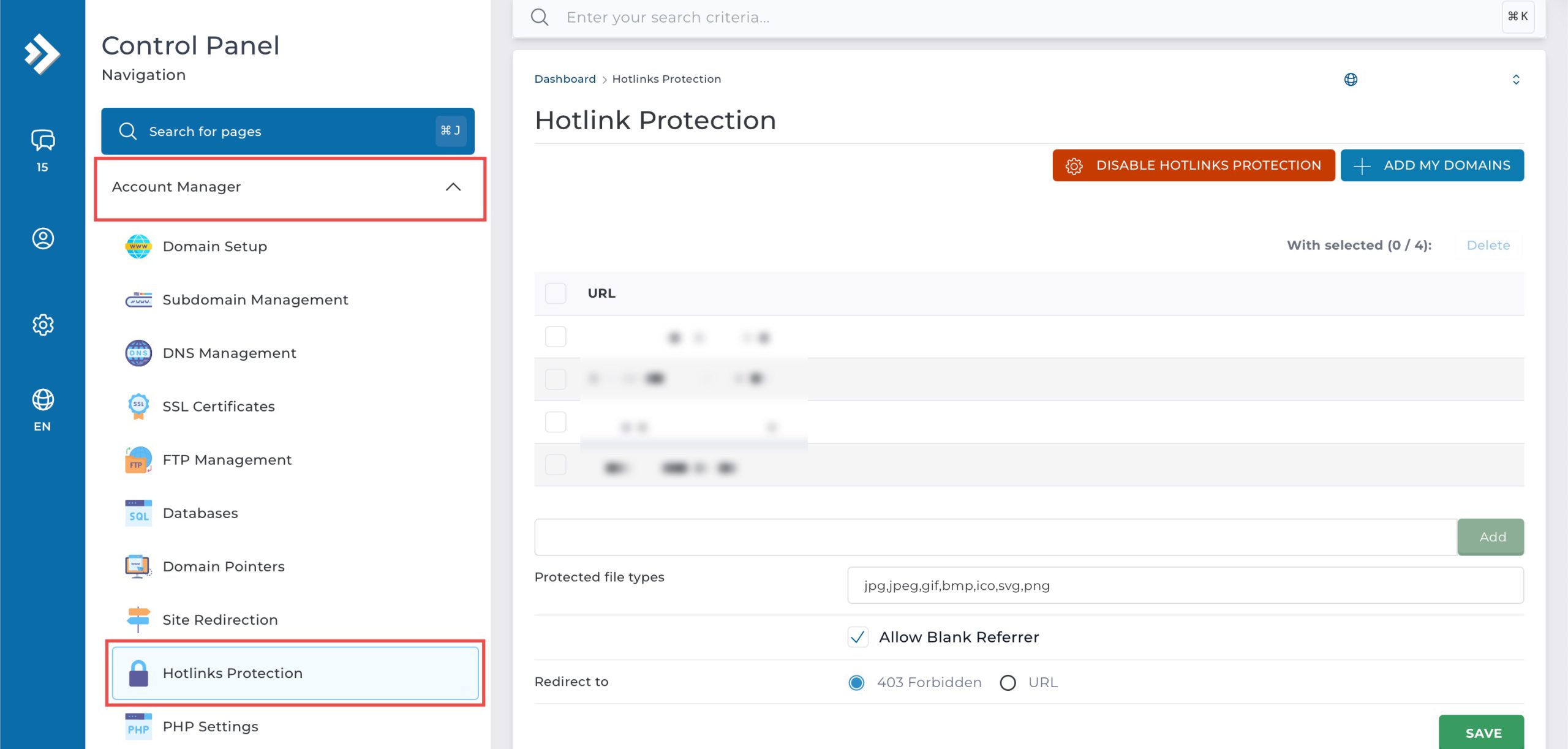
Go to the Account Manager section and click on Hotlinks Protection. You will see the configuration settings for Hotlink Protection.
Step 3: Disable Hotlink Protection
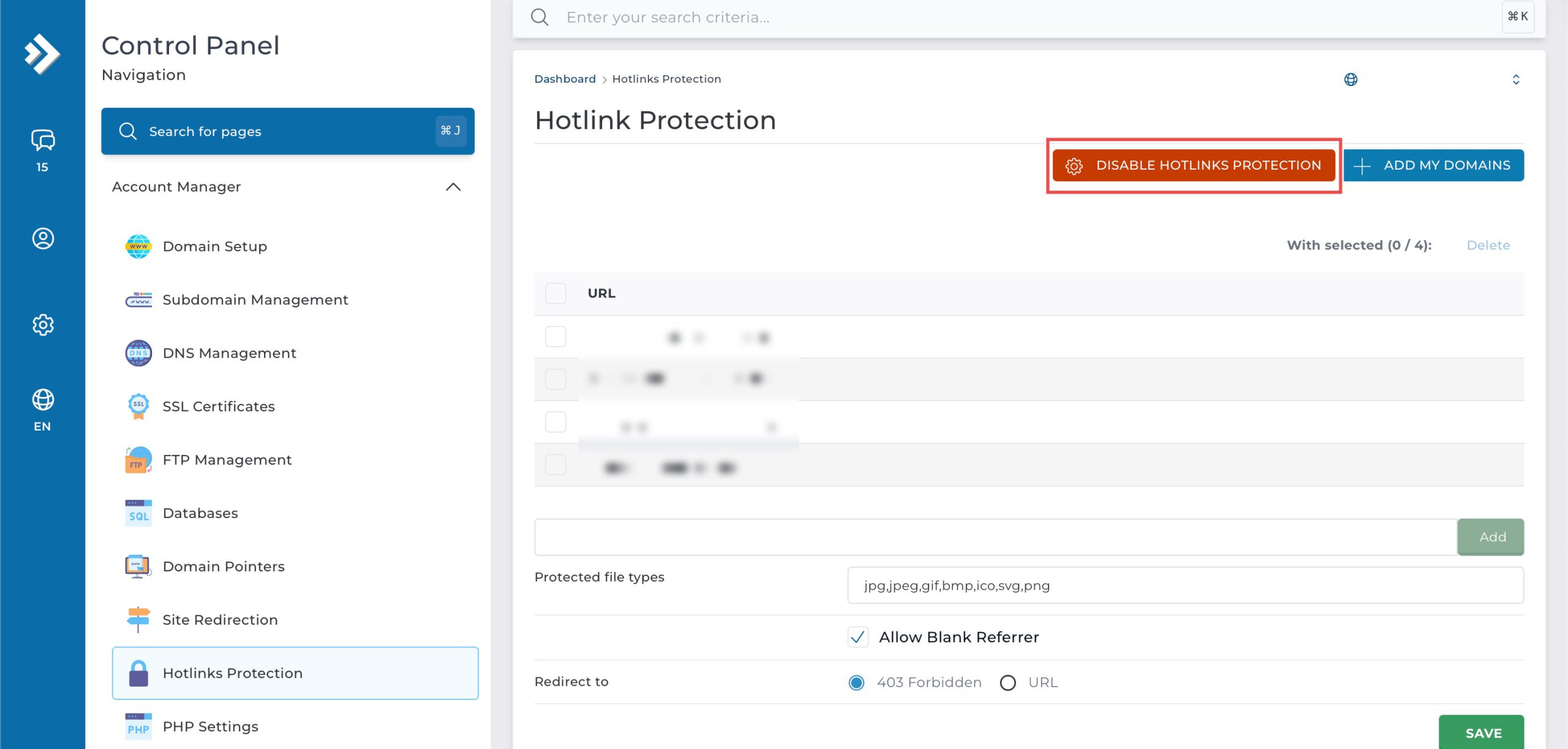
Click Disable Hotlinks Protection.
Step 4: Verify the Changes
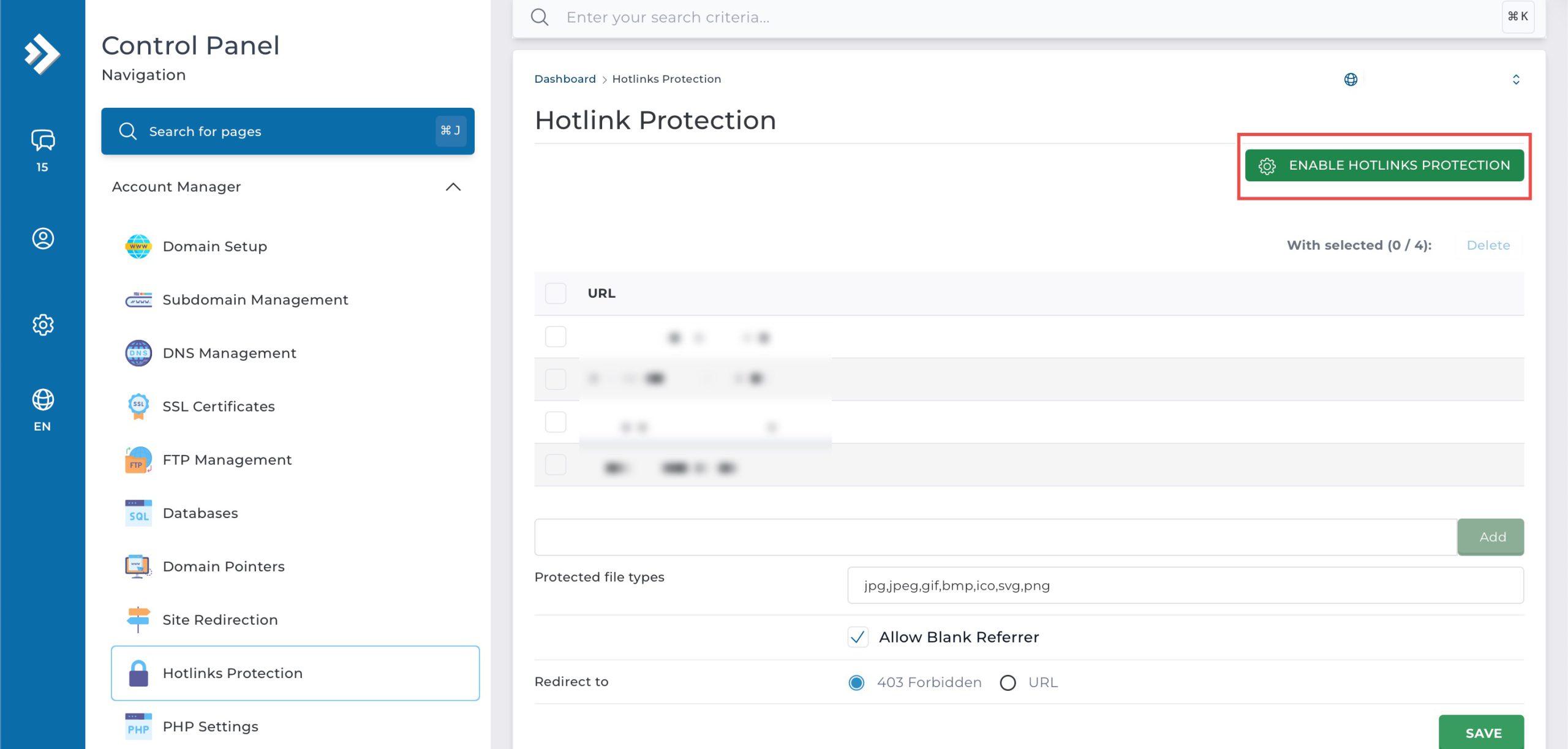
When the Hotlink Protection page refreshes, you should see the button has changed to Enable Hotlinks Protection.
Conclusion
Disabling hotlink protection through DirectAdmin’s Hotlink Protection interface is a straightforward process that provides flexibility in managing external access to your server resources. Turning off this feature when necessary allows for proper integration with CDNs, resolves display issues, or accommodates legitimate external linking requirements while maintaining control over your server configuration.
Should you have any inquiries about the guidelines, please feel free to open a ticket through your portal account or contact us at support@ipserverone.com. We’ll be happy to assist you further.