
Search Our Database
How to Delete Vacation Message in DirectAdmin (Enhanced Skin)
Introduction
Vacation messages provide automated out-of-office responses, but removing these settings becomes necessary when you return from absence or no longer need automated replies. Deleting vacation messages ensures your email account returns to normal operation and prevents unnecessary auto-responses to incoming correspondence. DirectAdmin’s Vacation Messages interface provides a straightforward method for removing one or multiple vacation message configurations simultaneously. This guide explains how to delete vacation messages using the E-mail Management > Vacation Messages section in DirectAdmin, enabling you to quickly restore standard email functionality when automated responses are no longer needed.
Prerequisites
- Access to DirectAdmin control panel with the necessary permissions.
- An existing email account with a vacation message set up.
Step-by-step Guide
Step 1: Access DirectAdmin
Log in to your DirectAdmin control panel.

Step 2: Access Vacation Messages
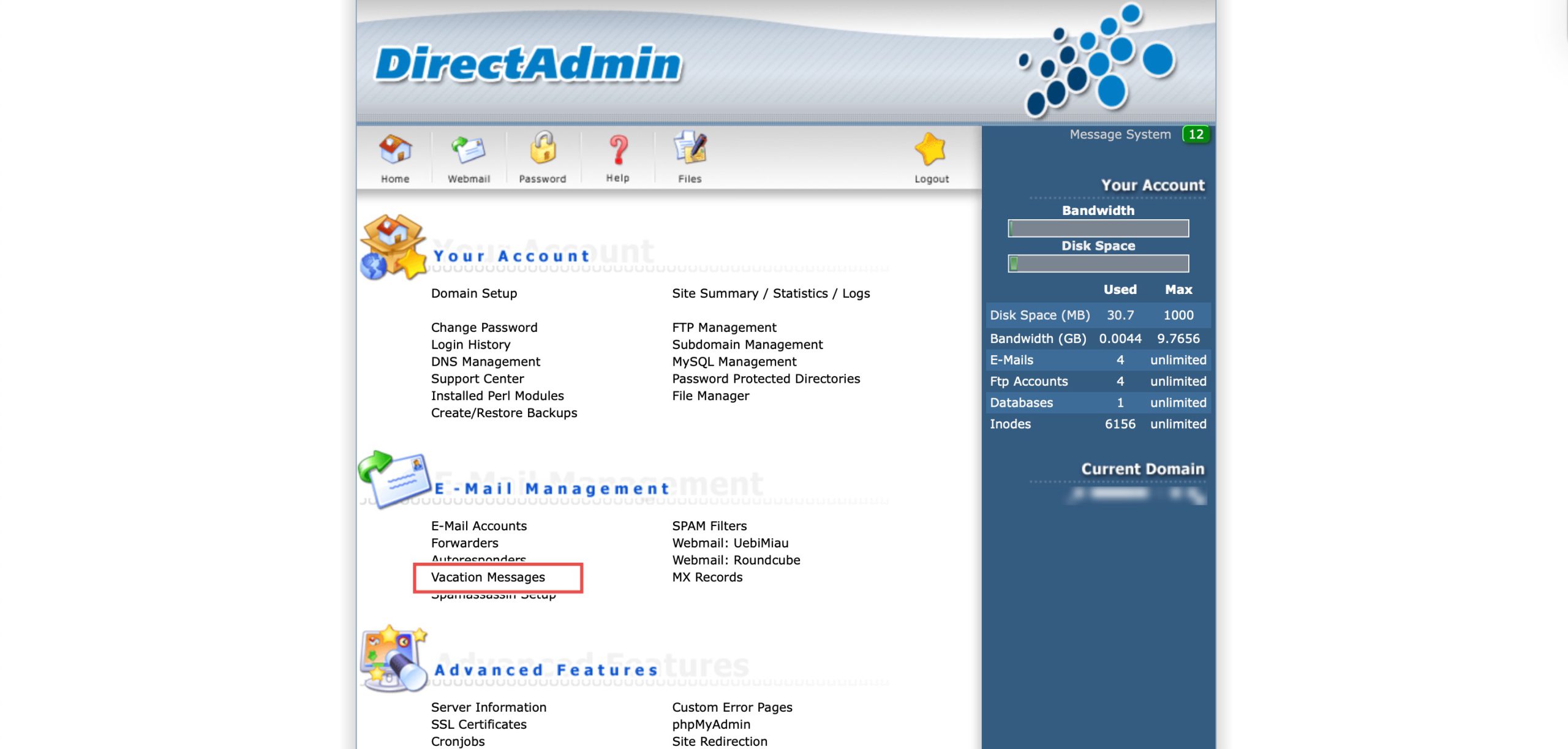
Go to the E-mail Management section and click on Vacation Messages. You will see a list of your currently active vacation messages.
Step 3: Delete Vacation Message
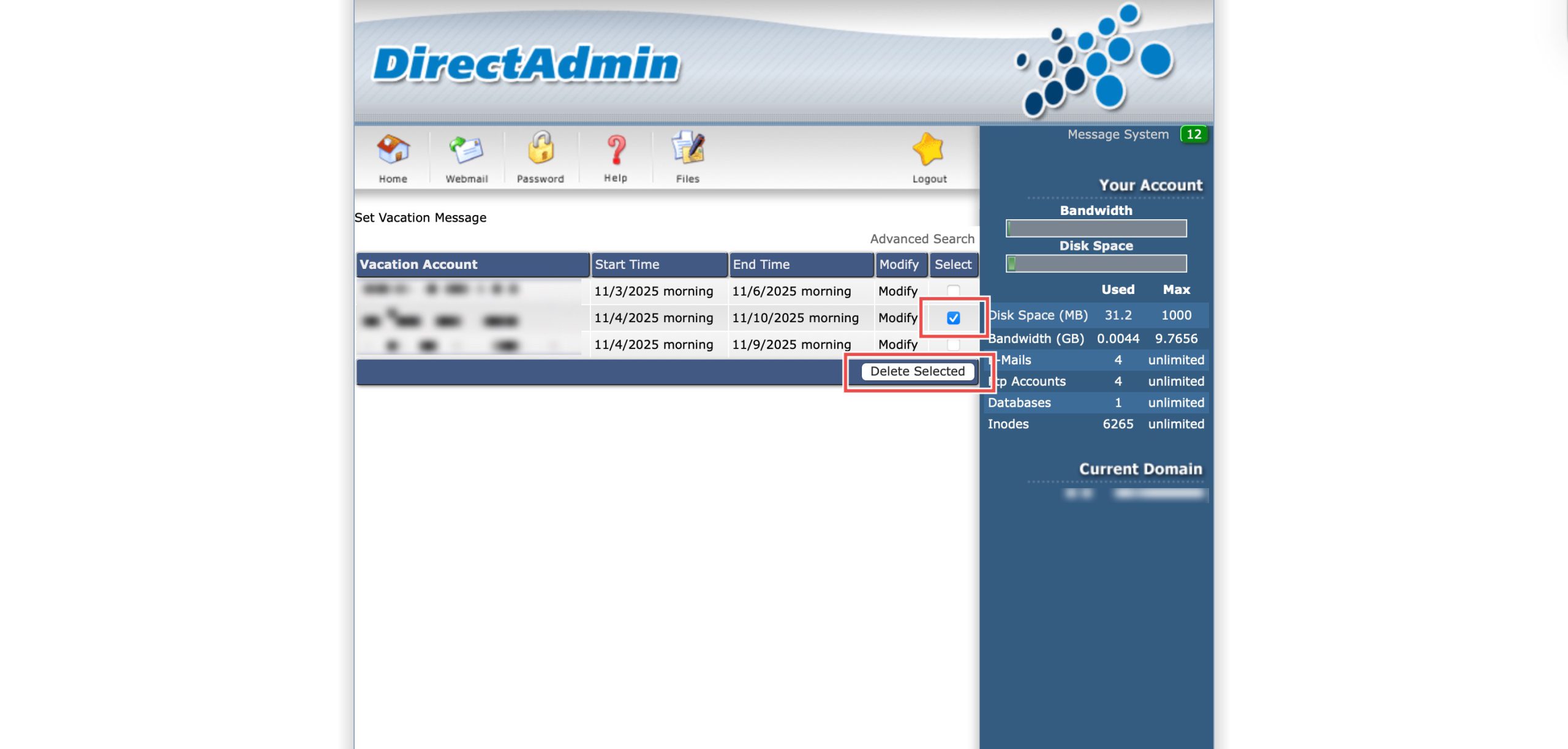
Locate the email address whose message you wish to delete. Select the message(s) by clicking the checkbox on the right side of the row(s). Then, click Delete Selected.
Step 4: Verify the Changes
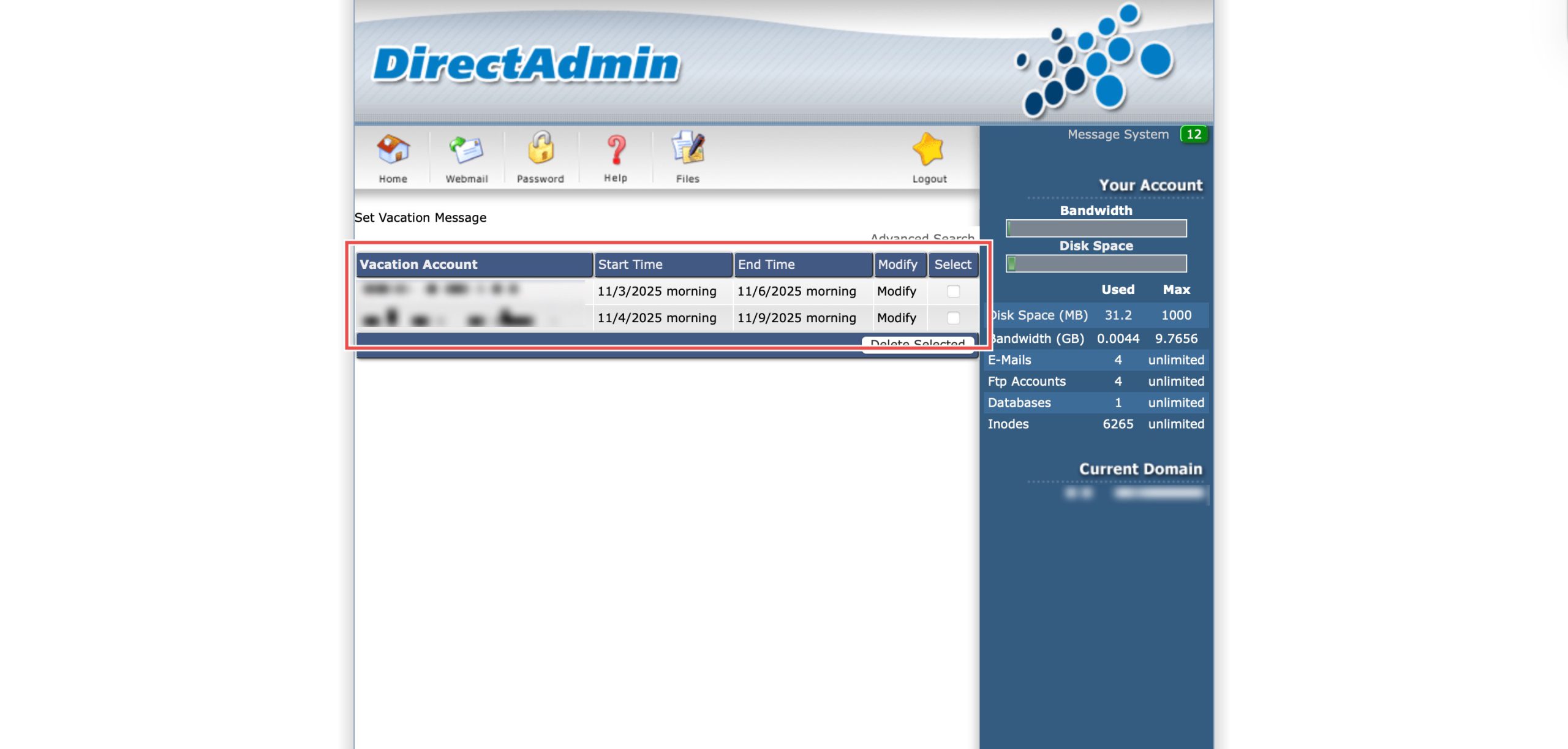
To verify the deletion, check the Vacation Messages list. The email address should no longer appear in the table. Additionally, send a test email from an external address to the email account; you should not receive an automated reply.
Conclusion
Deleting vacation messages through DirectAdmin’s Vacation Messages interface is a simple process that restores normal email operations. Removing automated reply configurations when they’re no longer needed ensures professional communication resumes without unnecessary auto-responses, with the flexibility to delete single or multiple messages as required.
Should you have any inquiries about the guidelines, please feel free to open a ticket through your portal account or contact us at support@ipserverone.com. We’ll be happy to assist you further.