
Search Our Database
How to Delete Existing Email Forward Address on Gmail Web
Introduction:
Managing an efficient communication strategy for high-performance resources like NovaCloud instances, GPU Servers, and Bare Metal Servers requires periodic maintenance of your routing rules. As a Gmail user, you may find that certain verified destination addresses are no longer in use due to completed projects, updated billing workflows, or changes in how you monitor support ticket updates. To maintain a secure and professional workspace, it is necessary to delete these obsolete forwarding entries directly within Gmail Web.
Located under the “Forwarding and POP/IMAP” tab in your account settings, this administrative process ensures that sensitive data regarding your virtual data centers is only relayed to active, monitored mailboxes. By removing outdated addresses, you streamline your account’s configuration and reduce the risk of critical information being sent to an abandoned destination, allowing you to focus on the active management of your IP ServerOne infrastructure.
Prerequisites:
- User must possess a fully registered and active Gmail account.
- The procedure explicitly requires accessing the Gmail Web interface.
- You must have a secondary, active email address to serve as the forwarding destination.
Step-by-step Guide:
Step 1: Access Settings
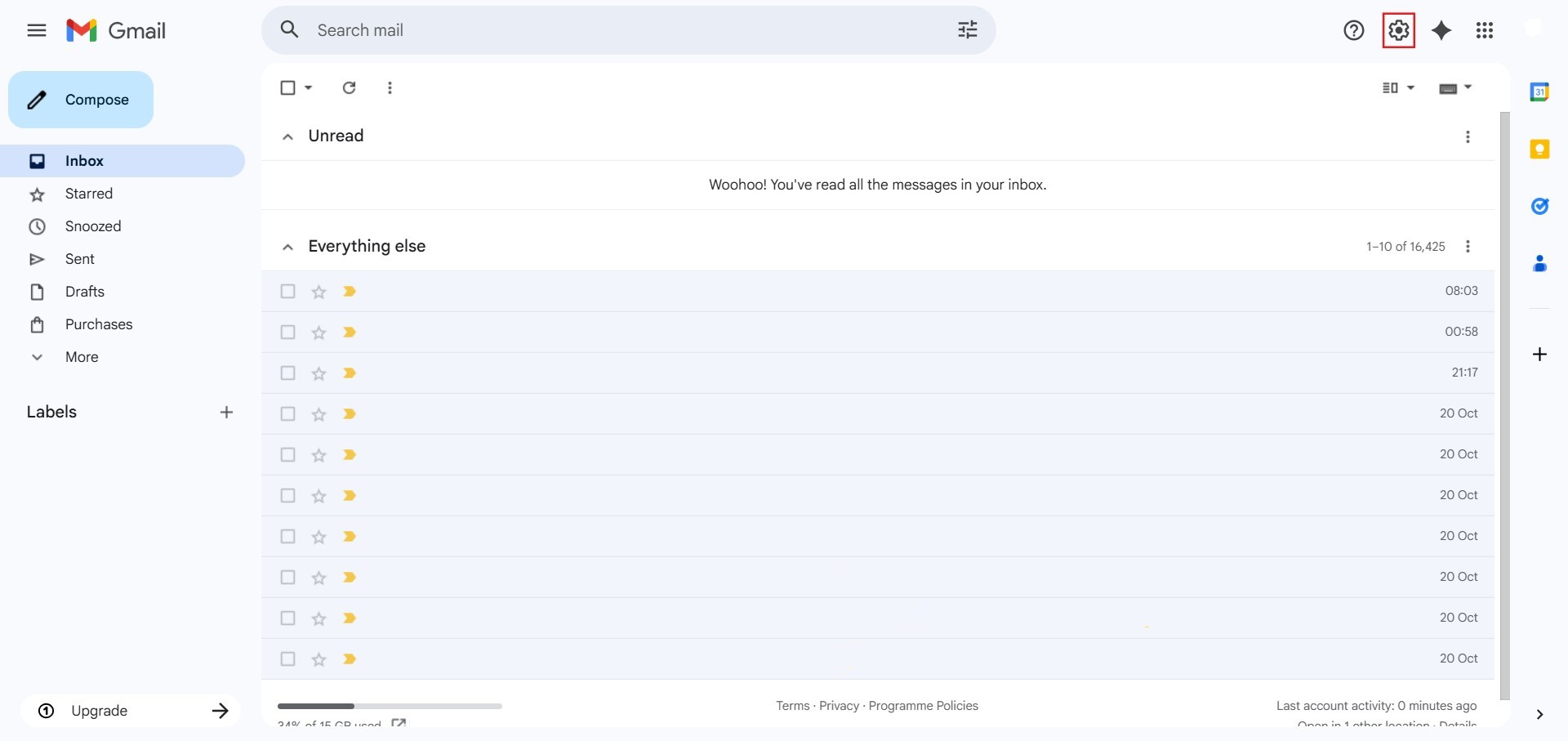
- The initial action required is to Click setting.
Step 2: Navigate to All Settings
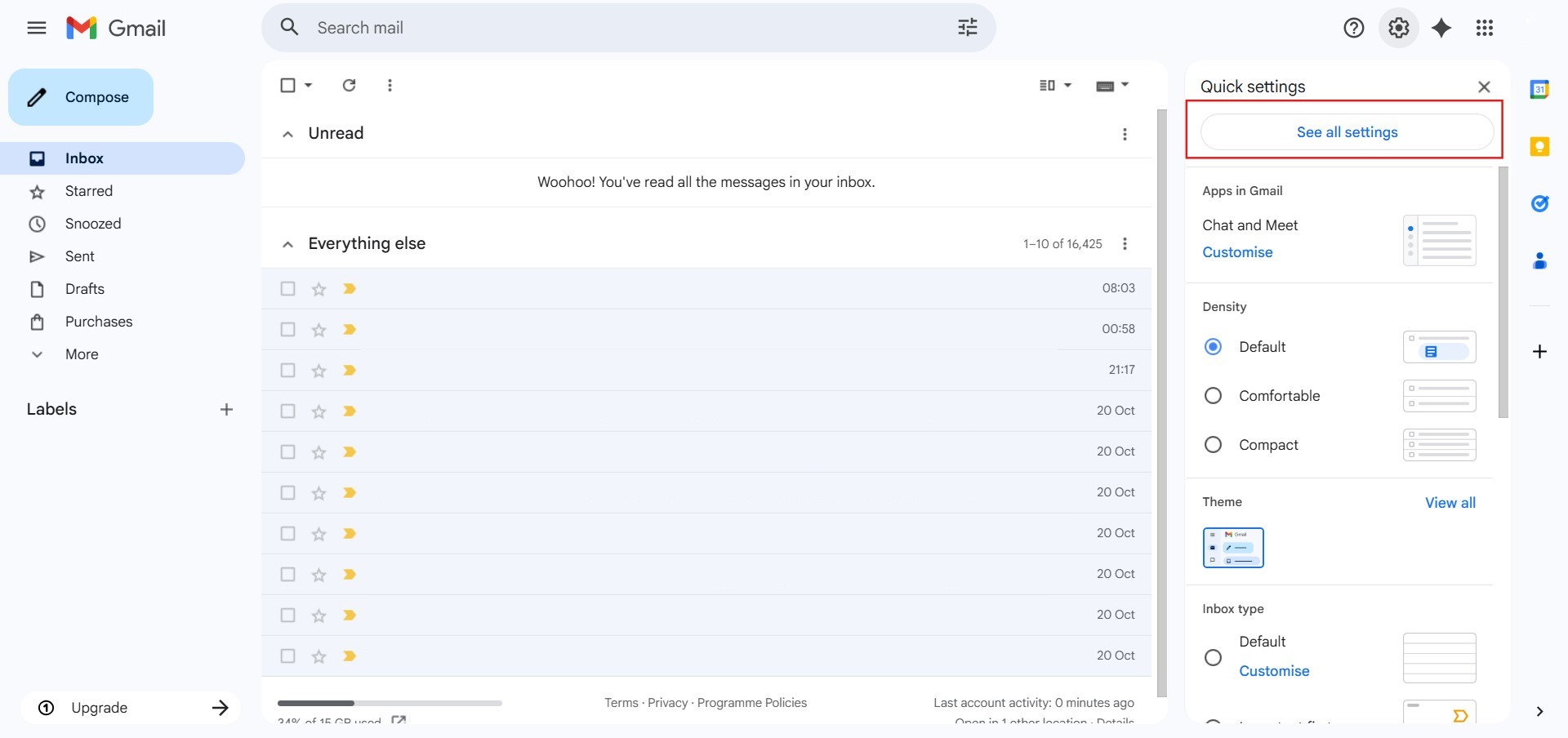
- After clicking “setting,” proceed to select See all Settings.
Step 3: Navigate to Forwarding and POP/IMAP
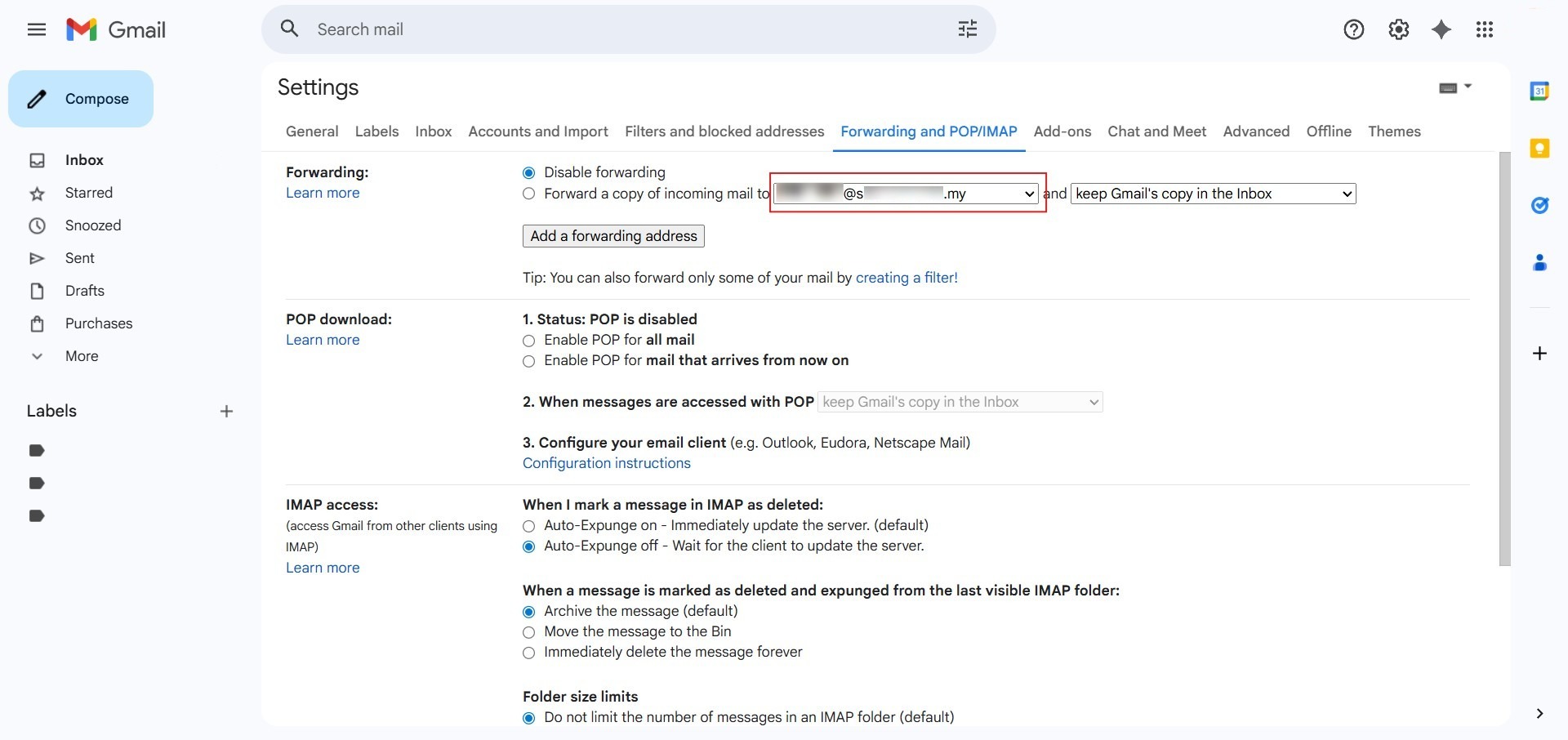
- Click on the tab labeled “Forwarding and POP/IMAP” located in the top menu bar of the settings page.

Step 4: Identify the Address
- Locate the Forwarding section and click on the email address dropdown box that lists your verified recipients.
Step 5: Initiate Removal
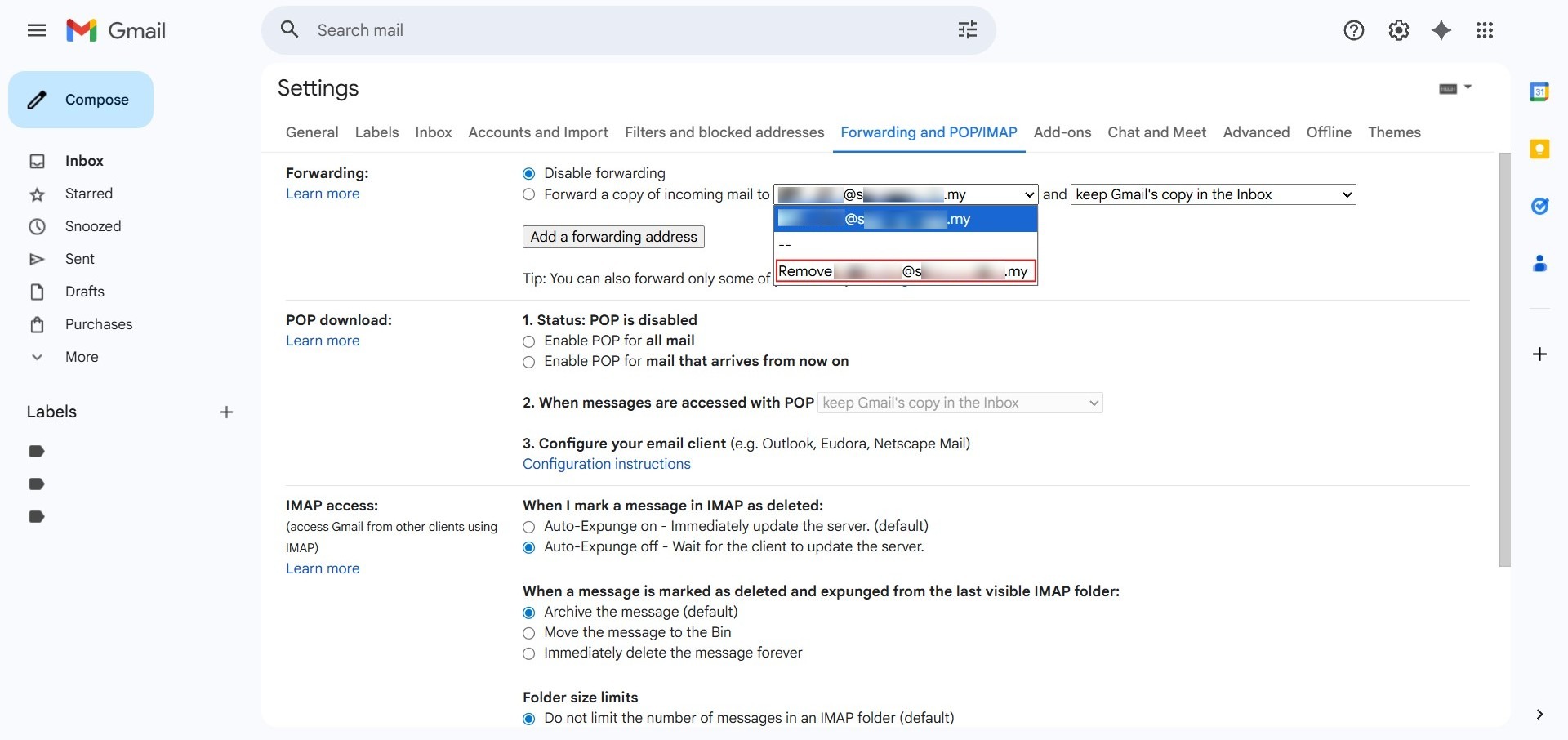
- Select the option to “remove [email address]” for the account you no longer wish to use.
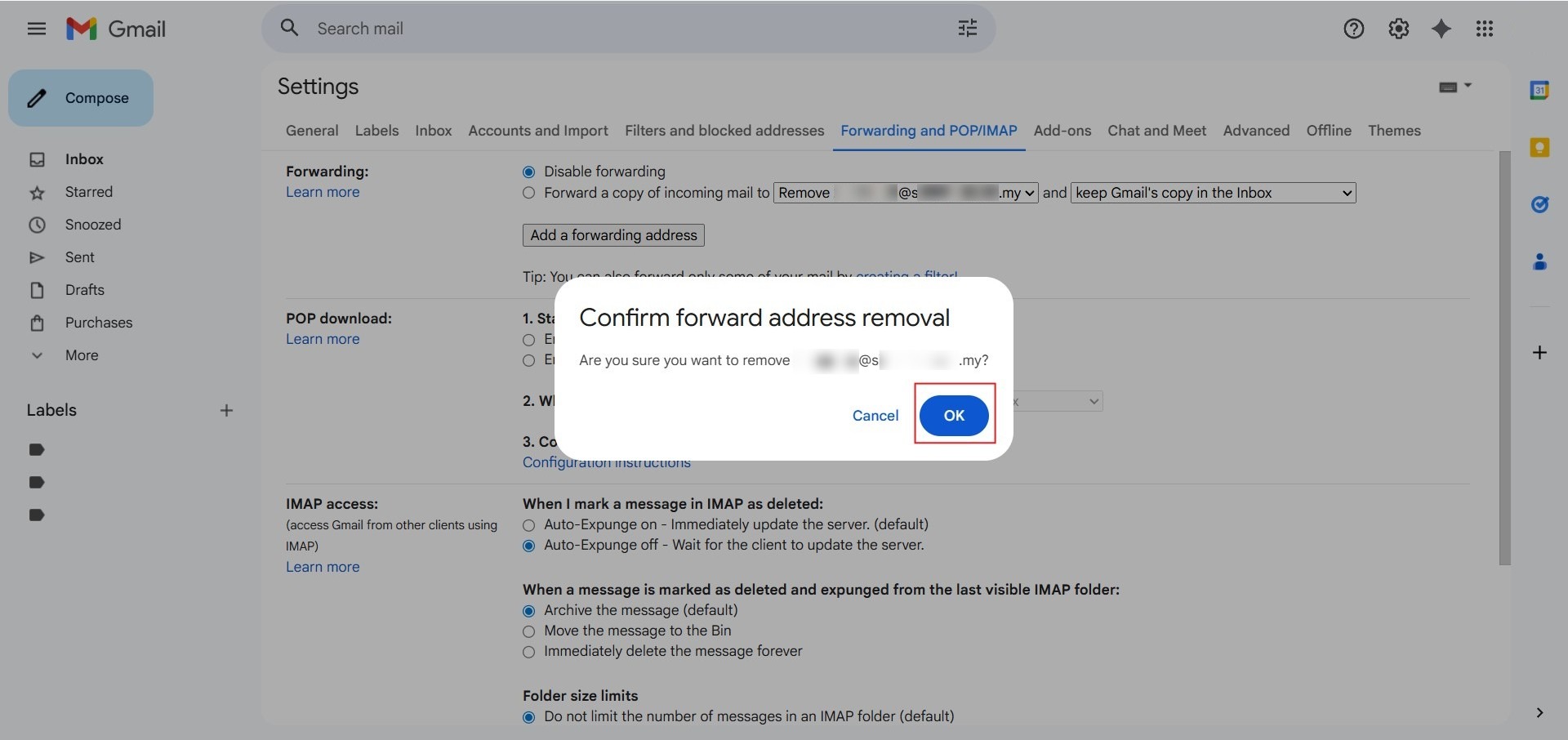
Step 6: Confirm Action
- Click “OK” in the confirmation pop-up to permanently delete the forwarding path.
Step 7: Verification Success
- Ensure the address is no longer visible in the dropdown menu to confirm the removal was successful.

Conclusion:
By successfully removing an obsolete forwarding address, you have strengthened the security of your communication channels and simplified your administrative workflow. This process ensures that critical notifications regarding your NovaCloud instances, GPU Servers, and billing invoices are only sent to active, monitored recipients, preventing sensitive information from being leaked to abandoned or unmonitored mailboxes.
To ensure the long-term effectiveness of this setup, keep the following in mind:
- Security Auditing: Periodically reviewing and deleting unused forwarding paths is a vital security practice that protects the operational details of your email account.