
Search Our Database
How to Delete Email Folders in Roundcube Webmail
Introduction
This Knowledge Base article provides a concise, step-by-step guide on How to Delete Email Folders in Roundcube Webmail. Removing unnecessary folders helps you maintain a clean and organized email structure. Use this guide when you need to delete folders that are no longer needed or to restructure your email organization system.
Prerequisite
- Access to your Roundcube Webmail login page.
Step-by-Step Guide
Step 1: Log in to Roundcube Webmail
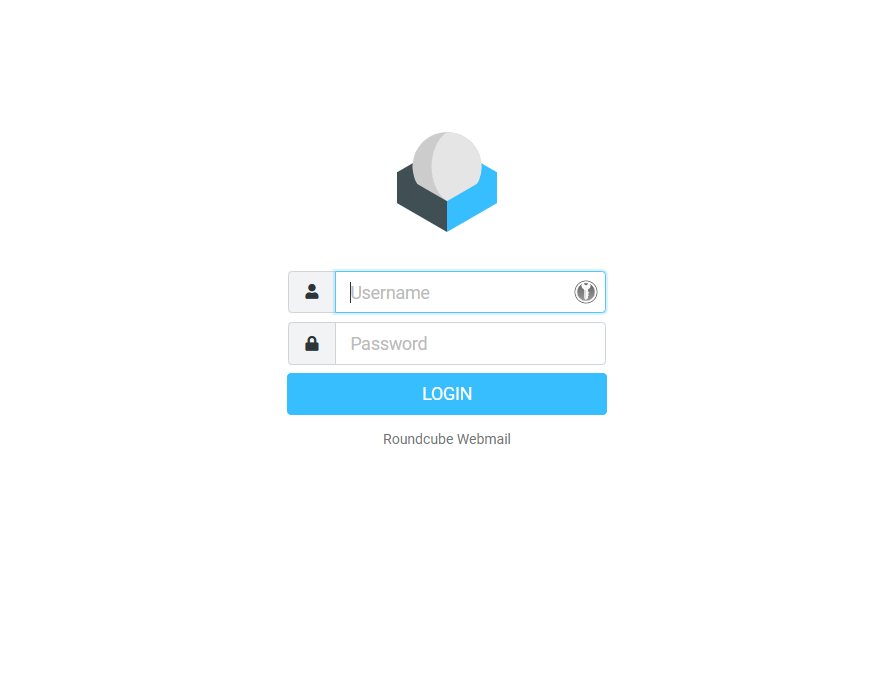
- Visit the webmail login page (e.g., https://webmail.yourdomain.com).
- Enter your email address and password, then click Login .
Step 2: Locate the Folders Section
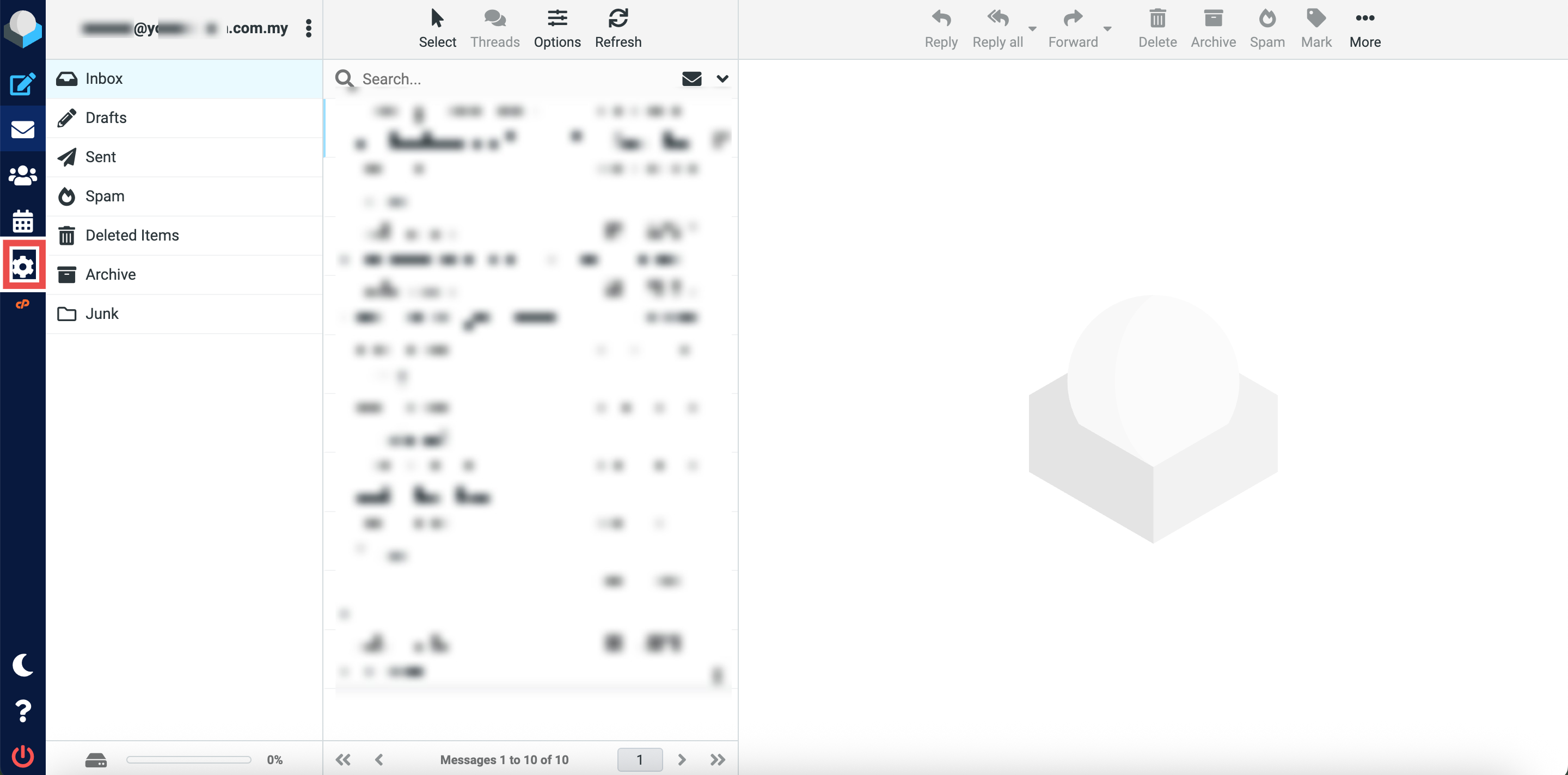
- In Roundcube Webmail, click the gear icon (Settings) in the left side of the page.
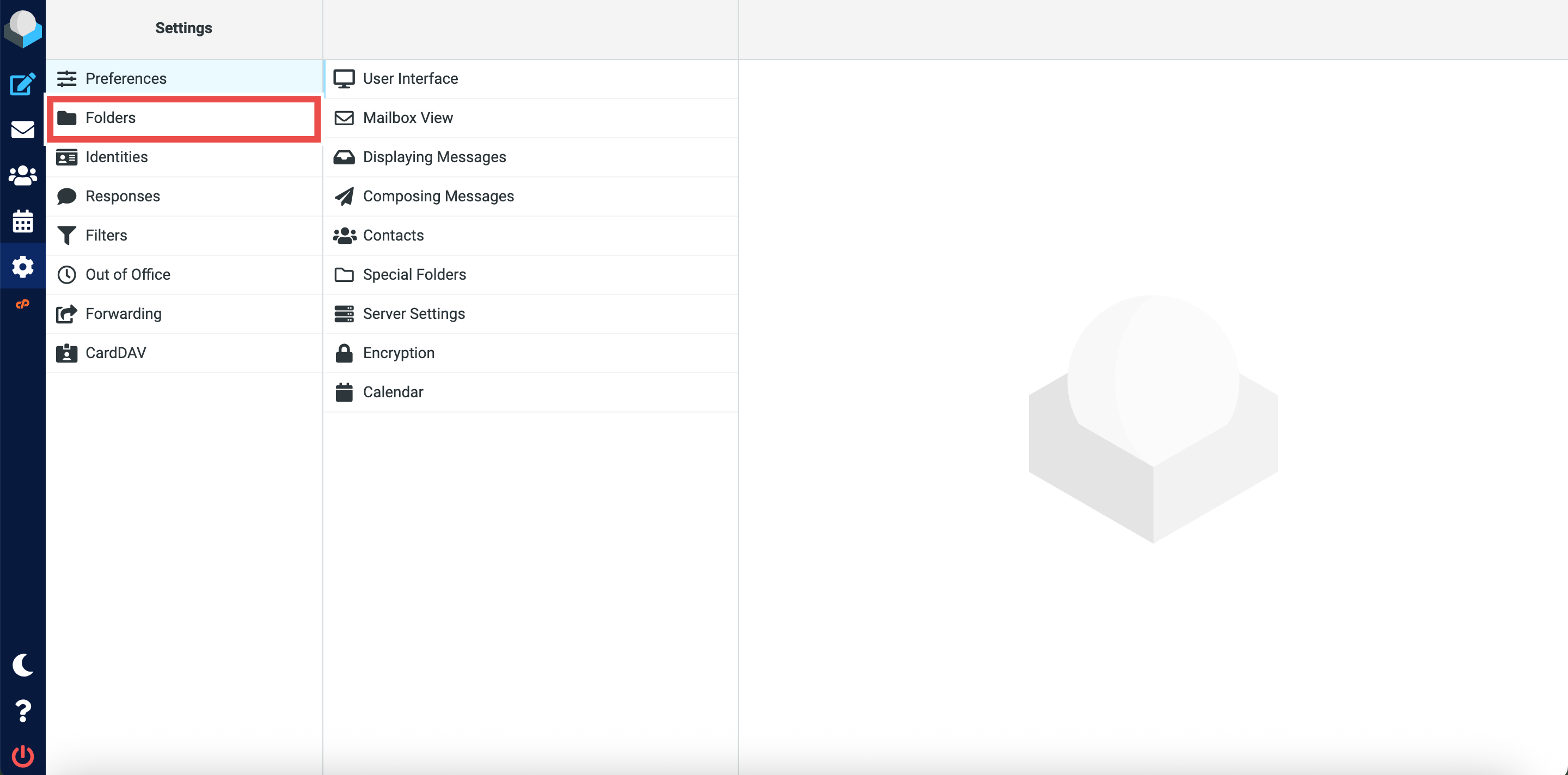
- From the left sidebar, select Folders.
Step 3: Delete the Folder
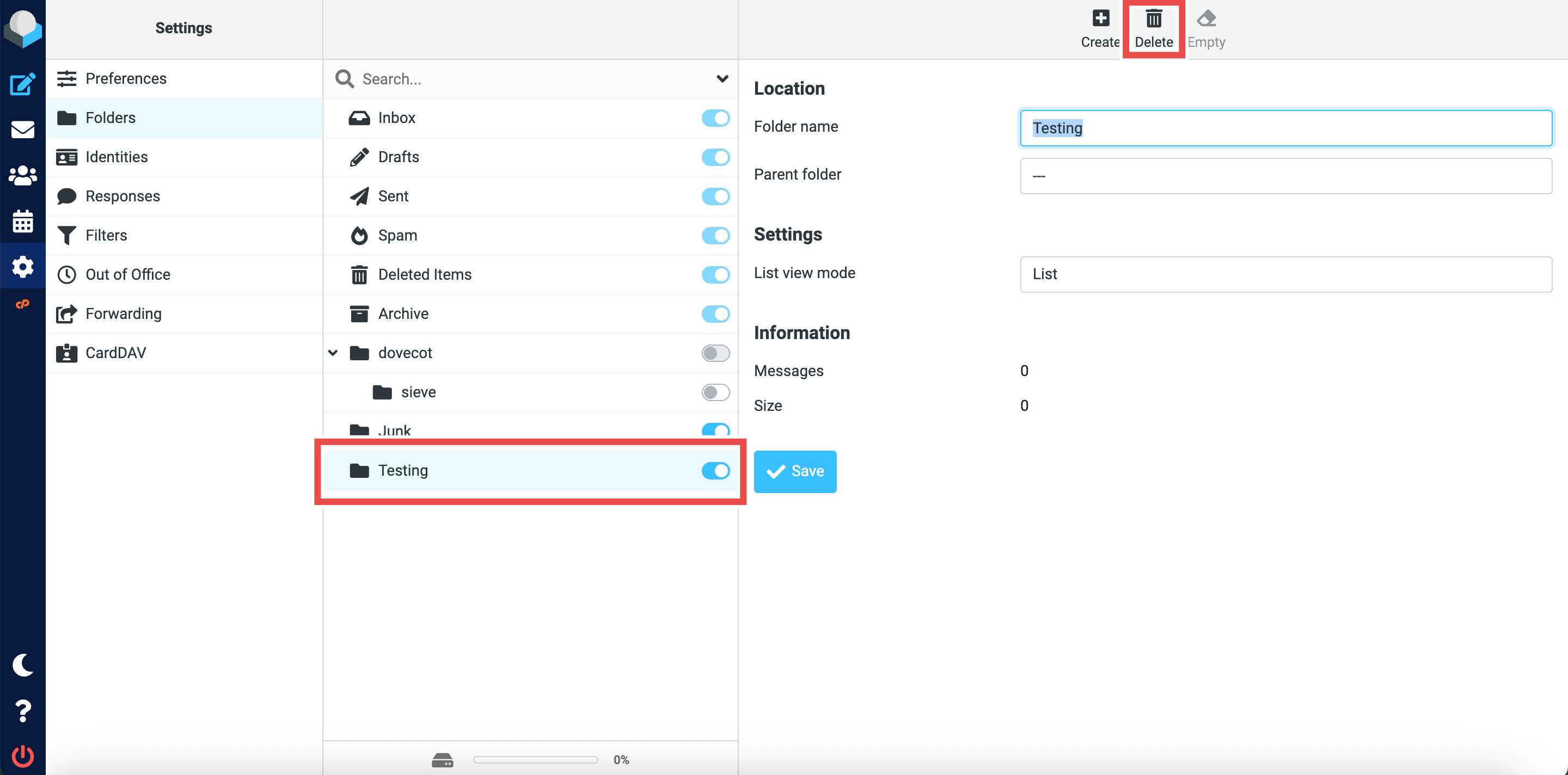
- In the folder list, locate the folder you want to delete.
- Click on the folder name to select it.
- Click Delete button (trash icon) at the top-right of the page.
Step 4: Confirm the Folder Deletion
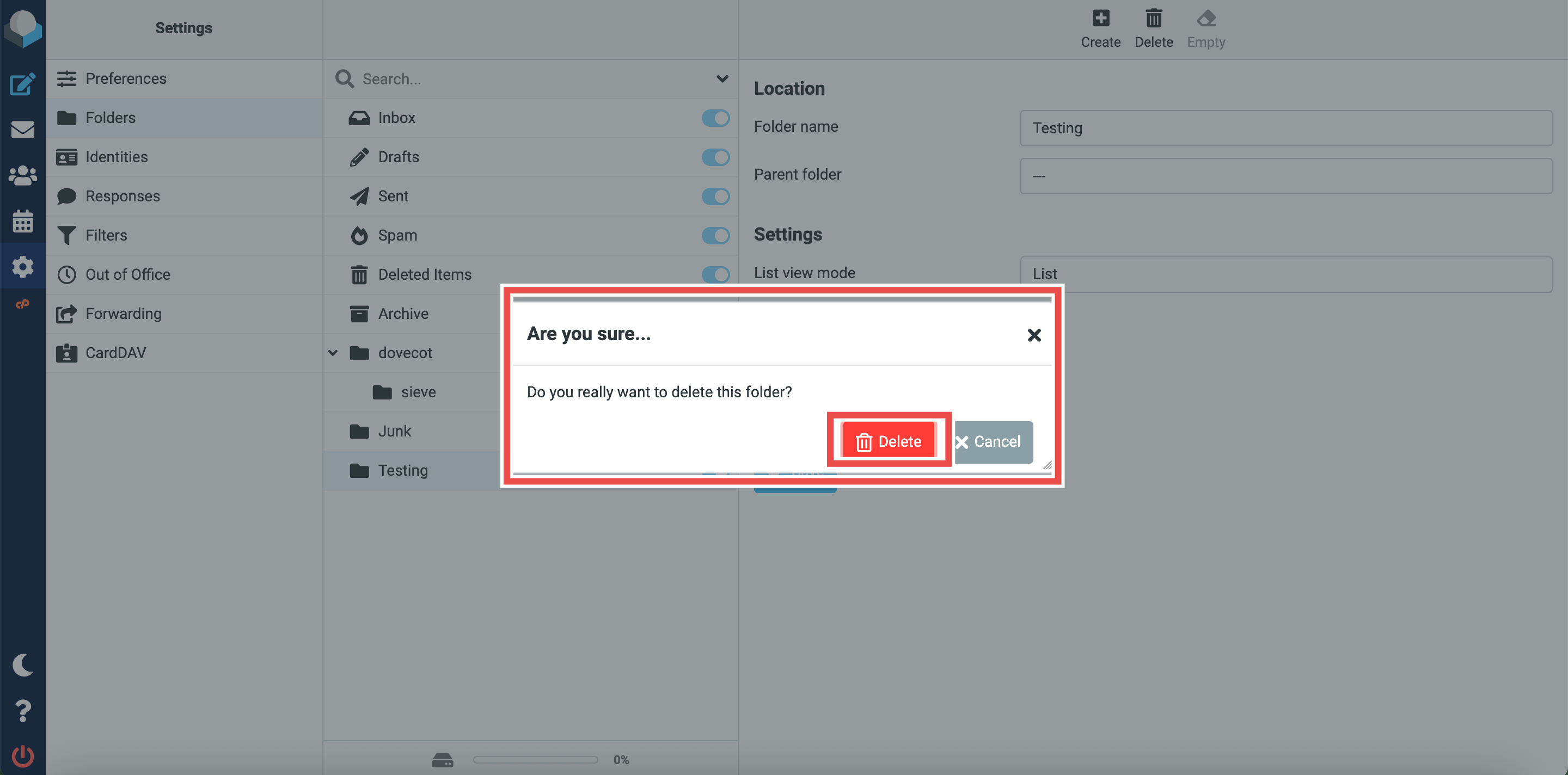
- A confirmation dialog will appear to confirm the deletion.
- Click Delete to permanently delete the folder and all emails it contains.
Step 5: Verify the Folder Deletion
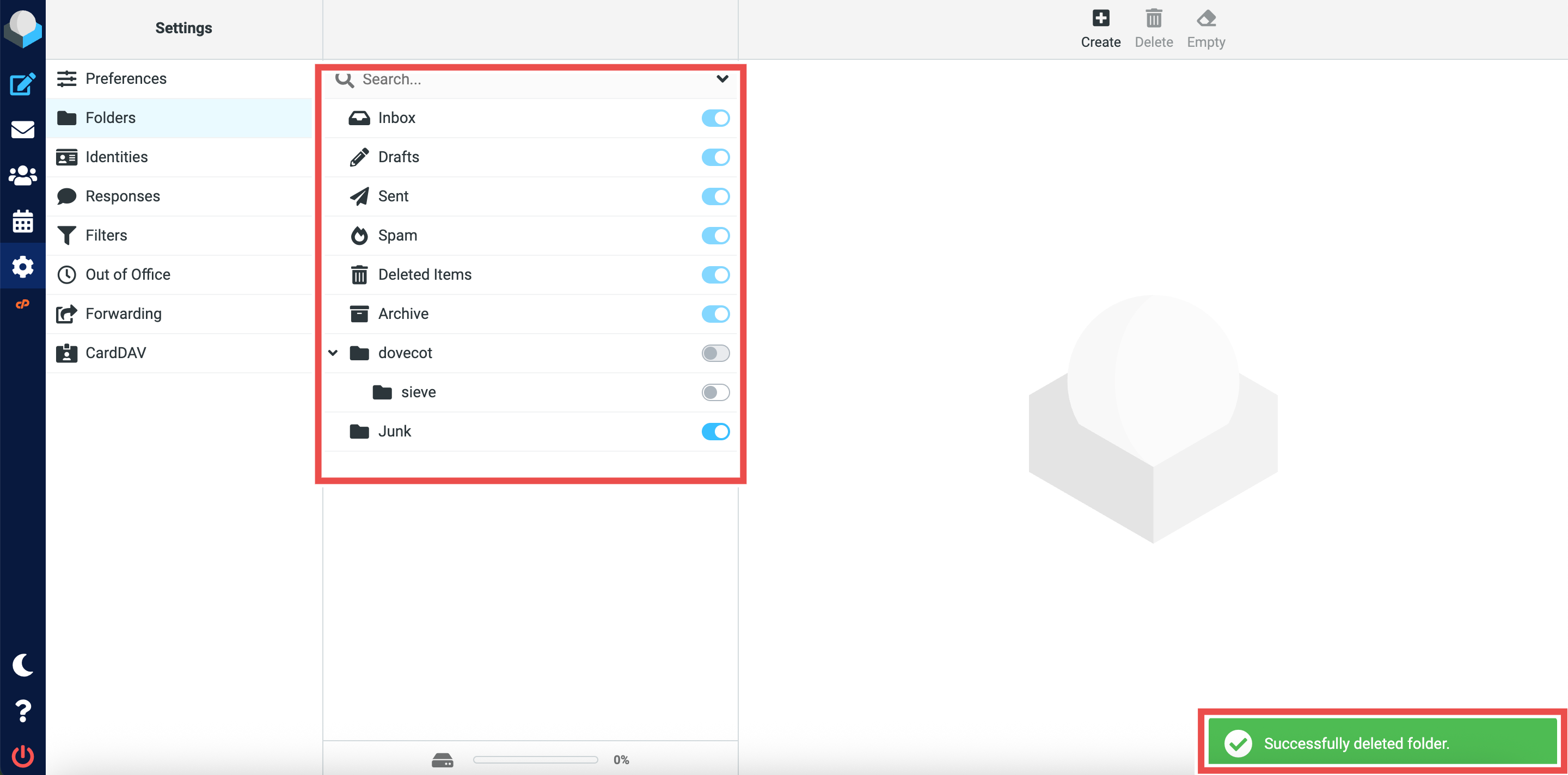
- Successful message will appear confirming the new folder is deleted successfully.
- The deleted folder and its contents will no longer appear in the list.
Conclusion
By following these steps, you can delete email folders in Roundcube Webmail to keep your email structure clean and organized. Be careful when deleting folders as this action will permanently remove the folder and all emails within it. Always make sure you have backed up or moved important emails before deletion.
Should you encounter any issues or have any questions, our support team at IPSERVERONE is always here to assist you. Don’t hesitate to reach out to us at support@ipserverone.com for any help you need.