
Search Our Database
How to Delete Cron Job in DirectAdmin (Enhanced Skin)
Introduction
Deleting cron jobs is essential for maintaining clean server configurations and removing automated tasks that are no longer needed. When scheduled tasks become obsolete, scripts are deprecated, or automation requirements change, removing unnecessary cron jobs helps prevent unwanted executions and keeps your task scheduler organized. DirectAdmin’s Cronjobs interface provides a straightforward method for removing one or multiple scheduled tasks simultaneously. This guide explains how to delete cron jobs using the Advanced Features > Cronjobs section in DirectAdmin, enabling you to maintain efficient and current automation configurations.
Prerequisites
- Access to DirectAdmin control panel with the necessary permissions.
- At least one existing cron job configured in DirectAdmin.
Step-by-step Guide
Step 1: Access DirectAdmin
Log in to your DirectAdmin control panel.

Step 2: Access Cron Jobs Settings
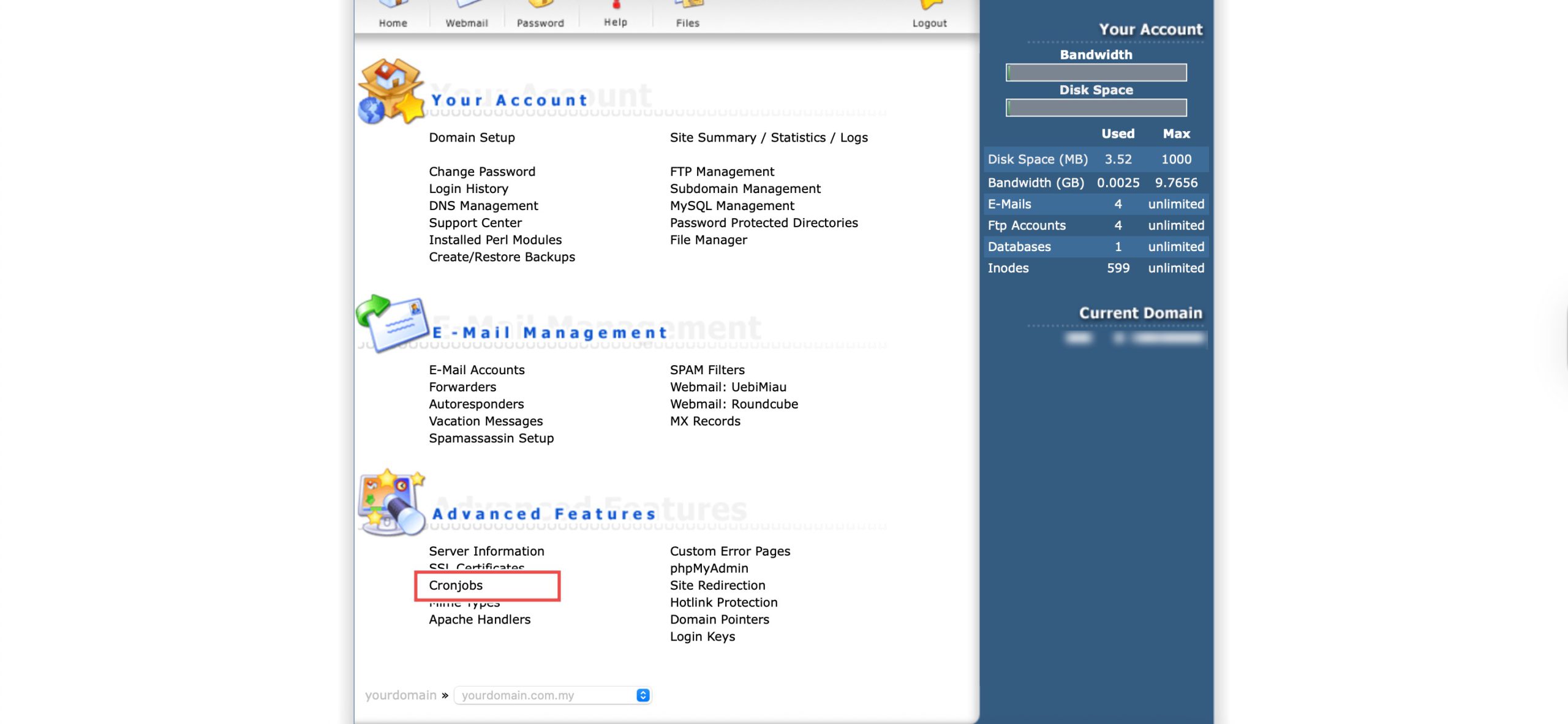
Go to the Advanced Features section and click on Cronjobs. You will see the list of currently set up cron jobs.
Step 3: Delete Cron Job
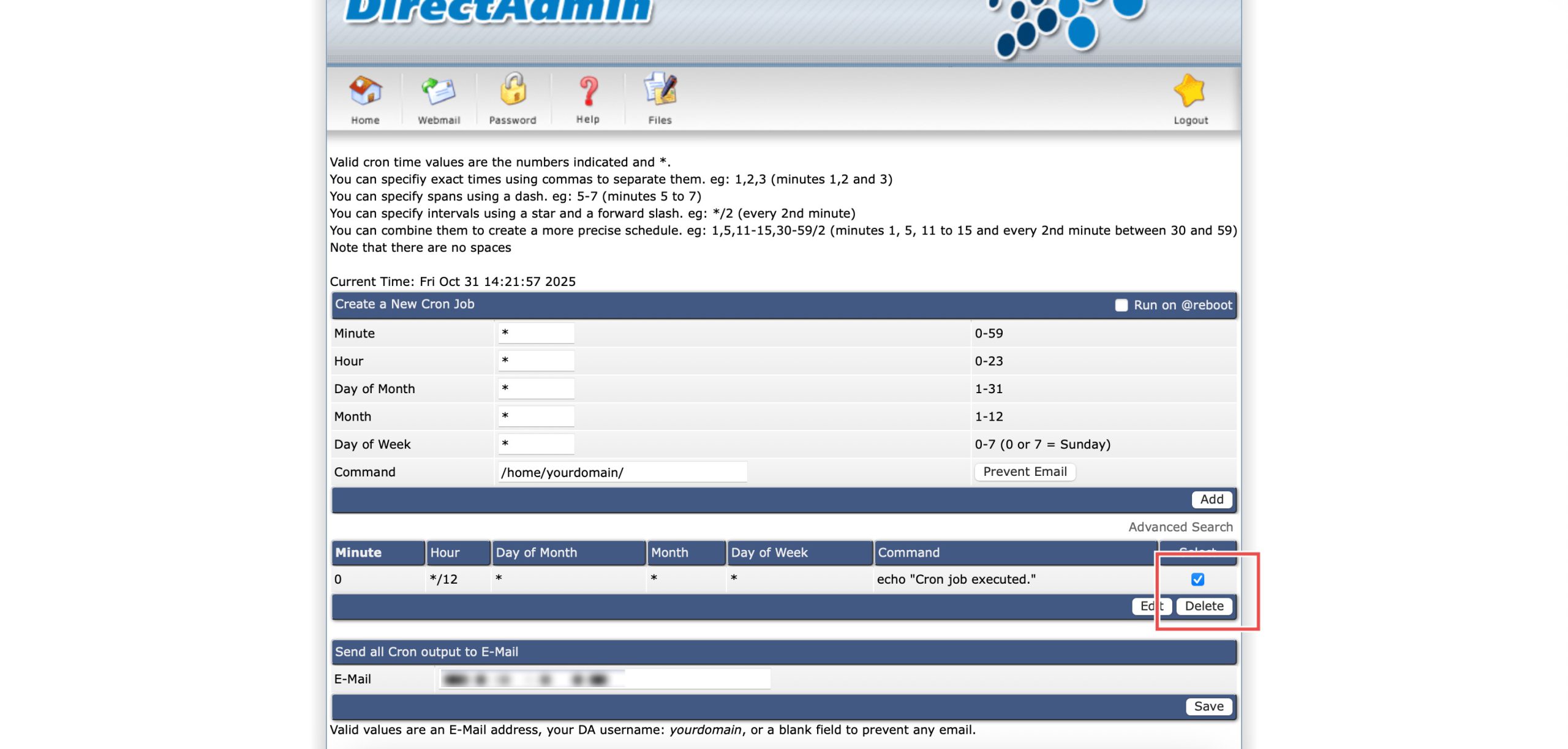
In the list of cron jobs, select the cron job you wish to delete by clicking the checkbox for that row. Then, click Delete on the bottom right of the table.
Step 4: Verify the Changes
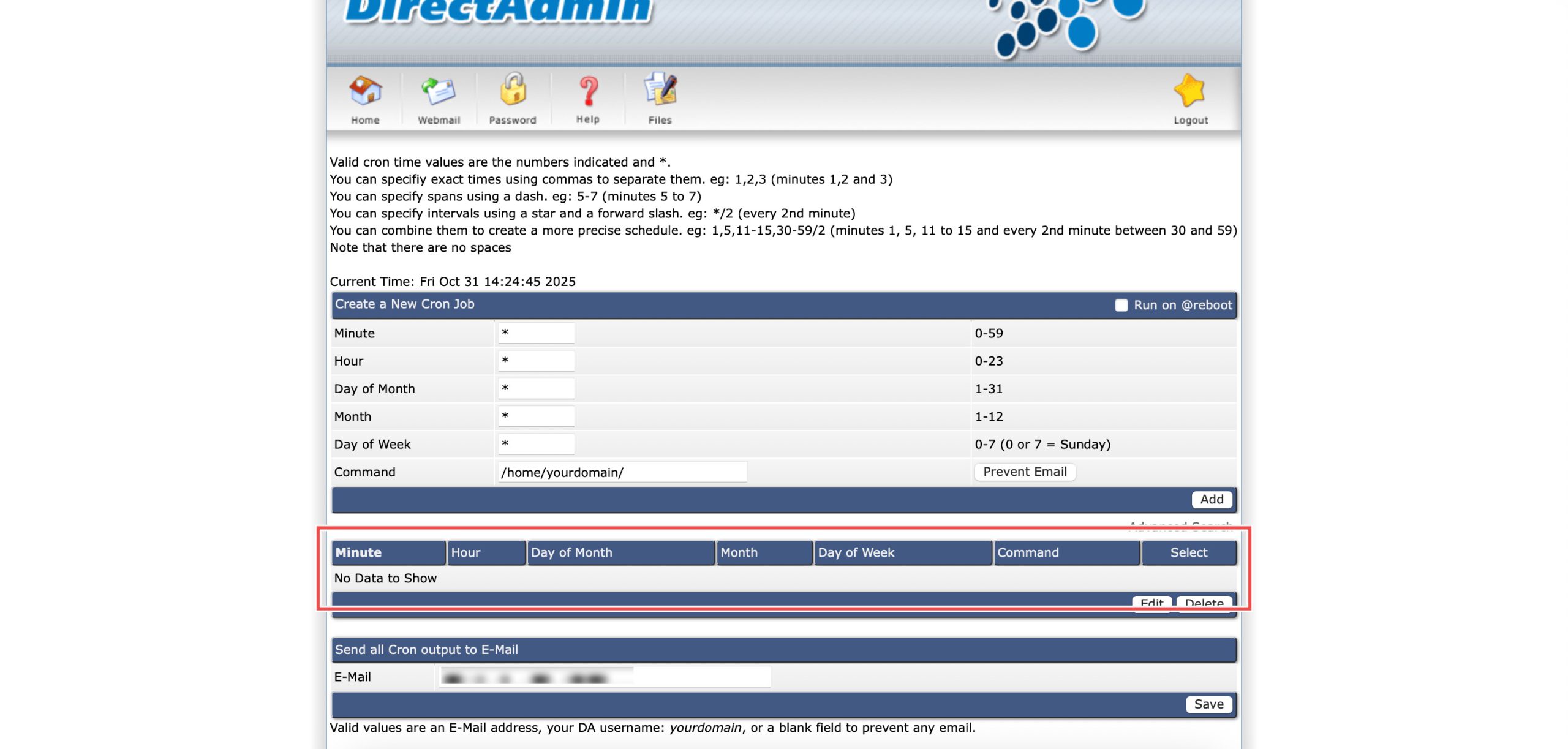
You may verify the deletion by checking the updated details in the list of cron jobs.
Conclusion
Deleting cron jobs through DirectAdmin’s Cronjobs interface is a simple process that helps maintain organized and efficient server automation. Removing obsolete or unnecessary scheduled tasks prevents unwanted executions and ensures your cron job configuration reflects current requirements, with the flexibility to delete single or multiple tasks as needed.
Should you have any inquiries about the guidelines, please feel free to open a ticket through your portal account or contact us at support@ipserverone.com. We’ll be happy to assist you further.