
Search Our Database
How to Delete All Emails from Trash Folder using Email Disk Usage in cPanel
Introduction
This Knowledge Base article provides a concise, step-by-step guide on How to Delete All Emails from the Trash folder using Email Disk Usage in cPanel. Completely emptying your Trash folder is a common maintenance task that permanently removes all deleted emails and frees up storage space. The Email Disk Usage feature allows you to quickly empty your entire Trash folder in a single operation.
Prerequisite
- Access to your cPanel login page.
Step-by-Step Guide
Step 1: Log in to cPanel
- Access and log in to your cPanel account using your username and password.

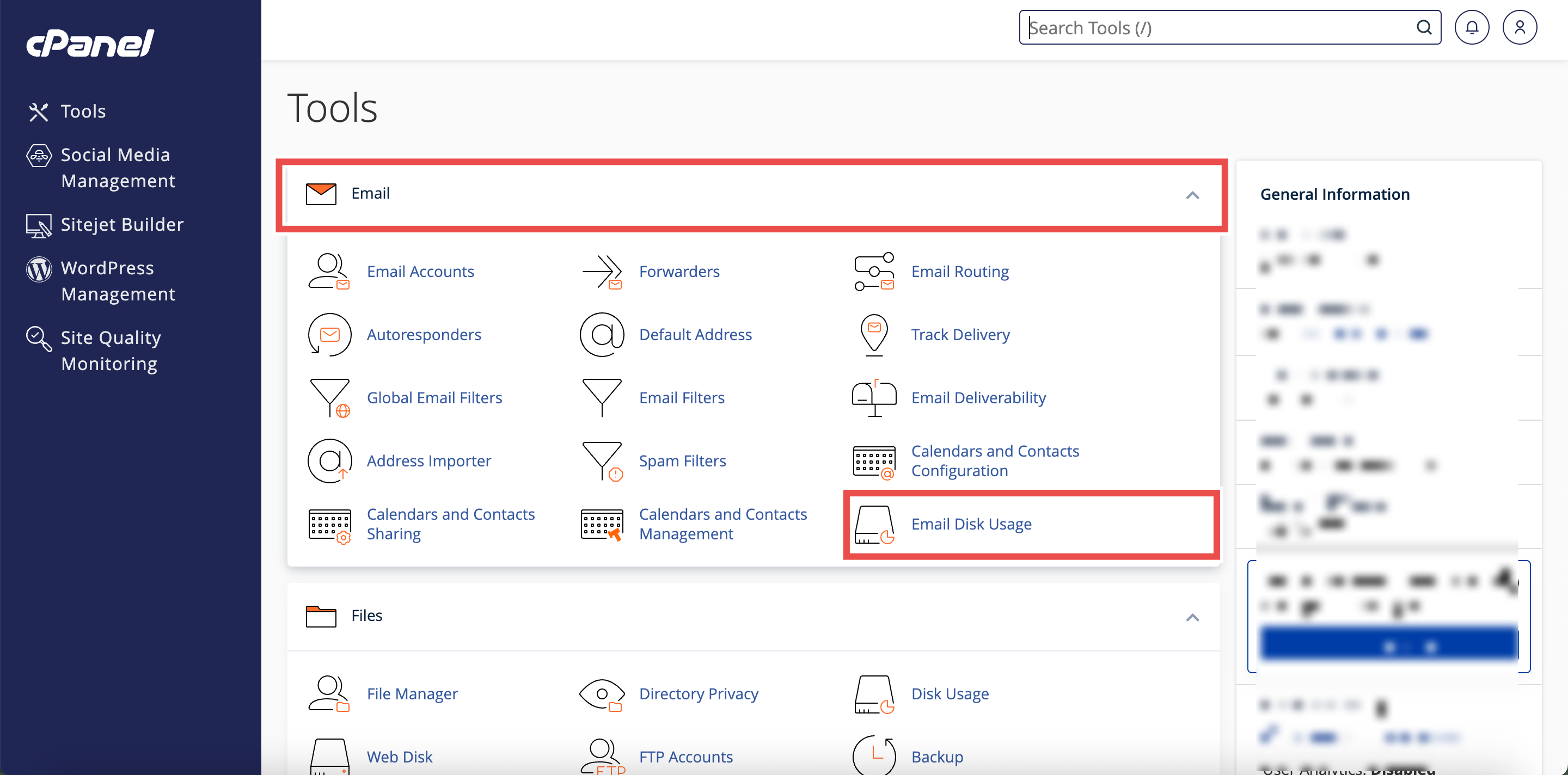
Step 2: Open Email Disk Usage
- In the Home page, under Email, click Email Disk Usage.
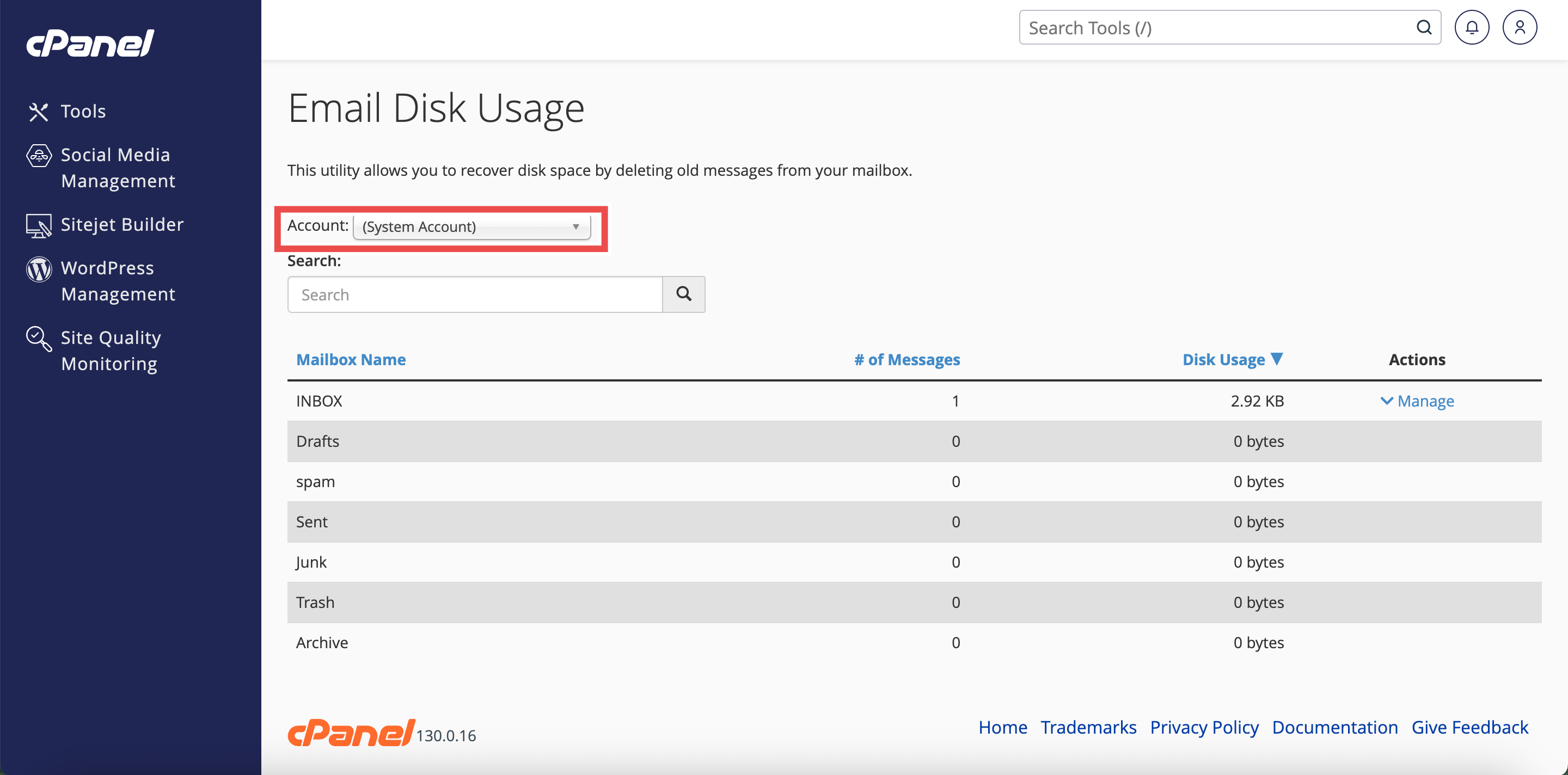
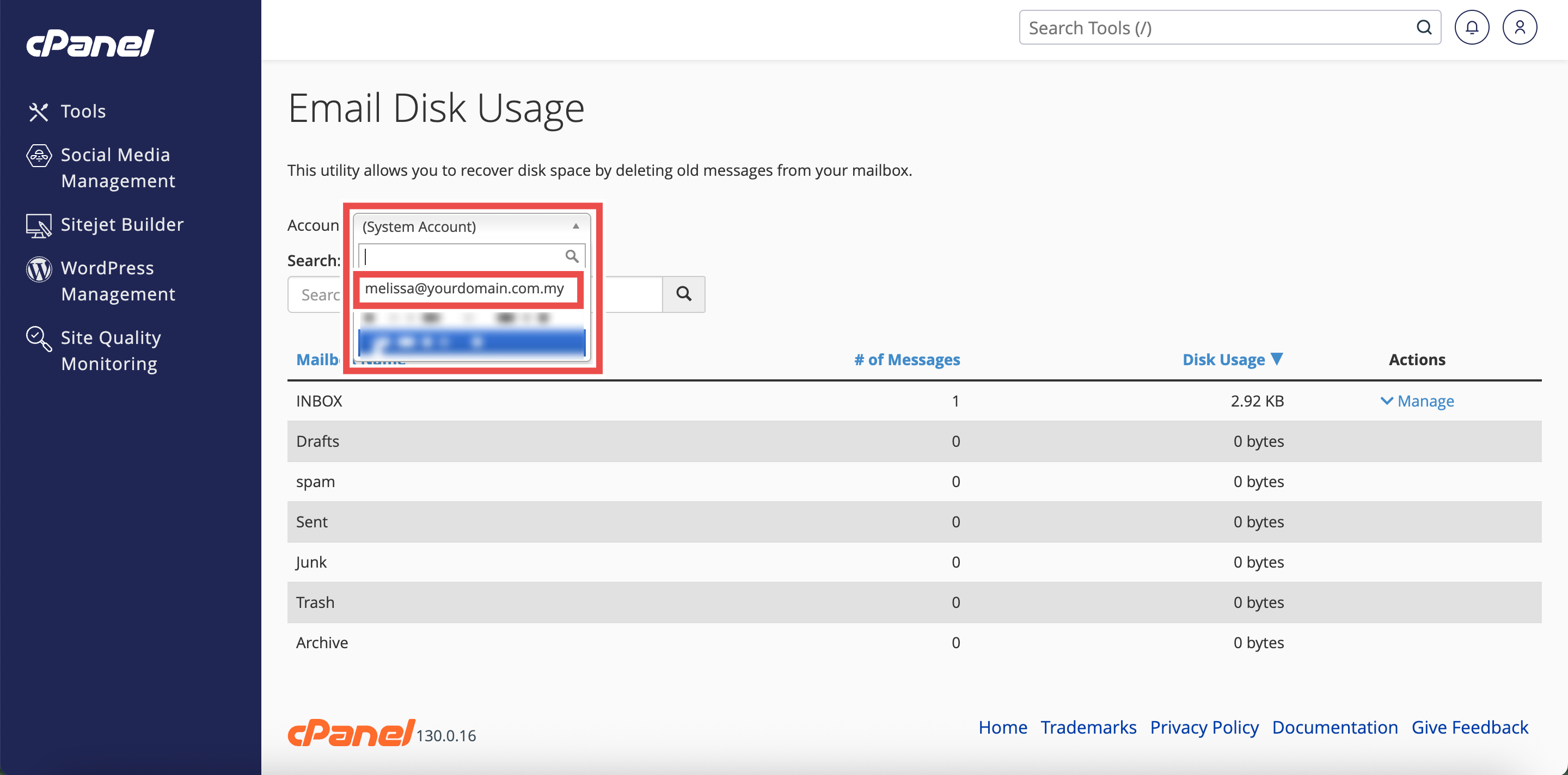
Step 3: Select the Email Account
- From the Account menu, select the email account you want to manage.
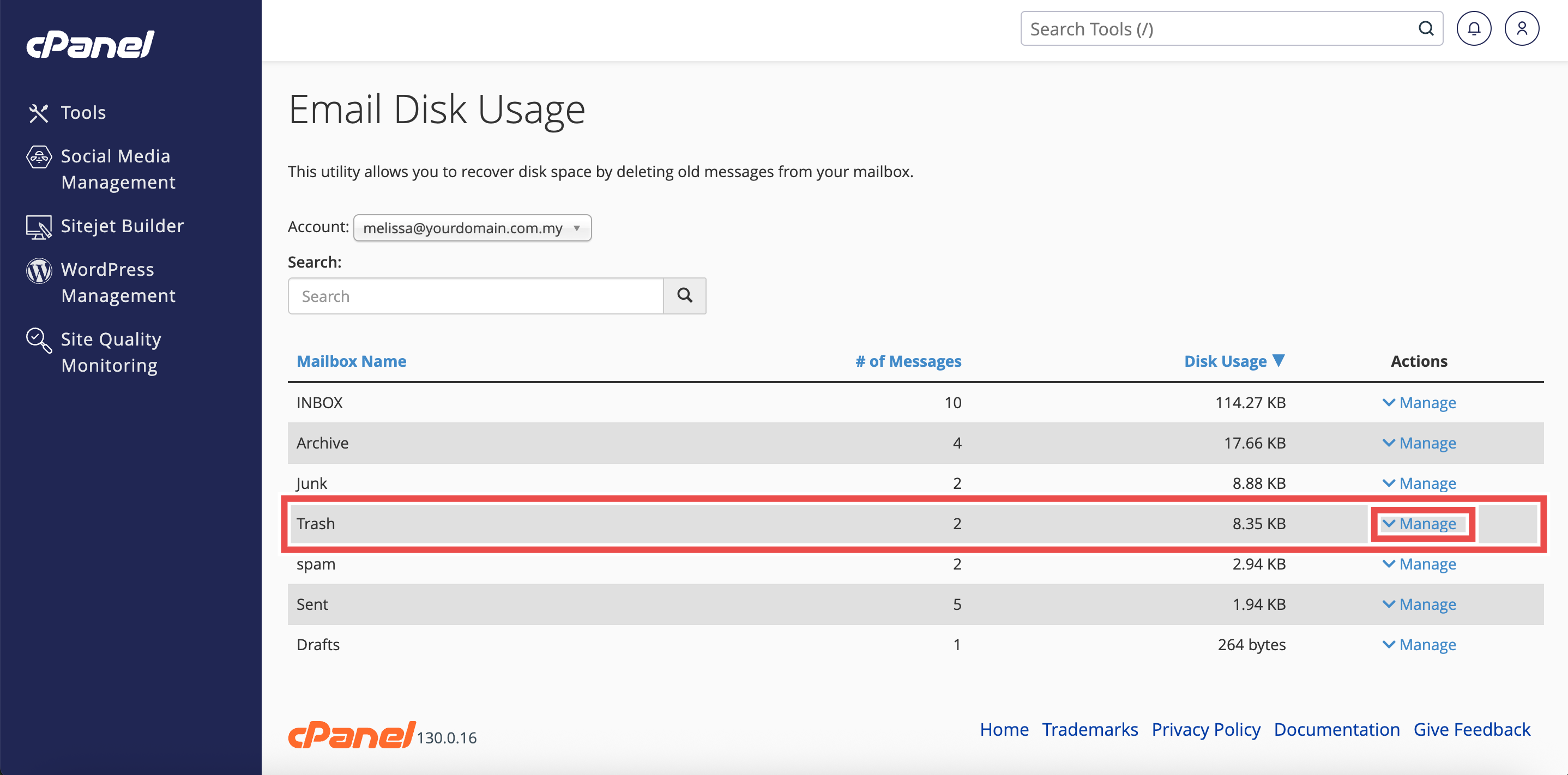
Step 4: Locate the Trash Folder
- In the Mailbox table, find the Trash folder for your email account.
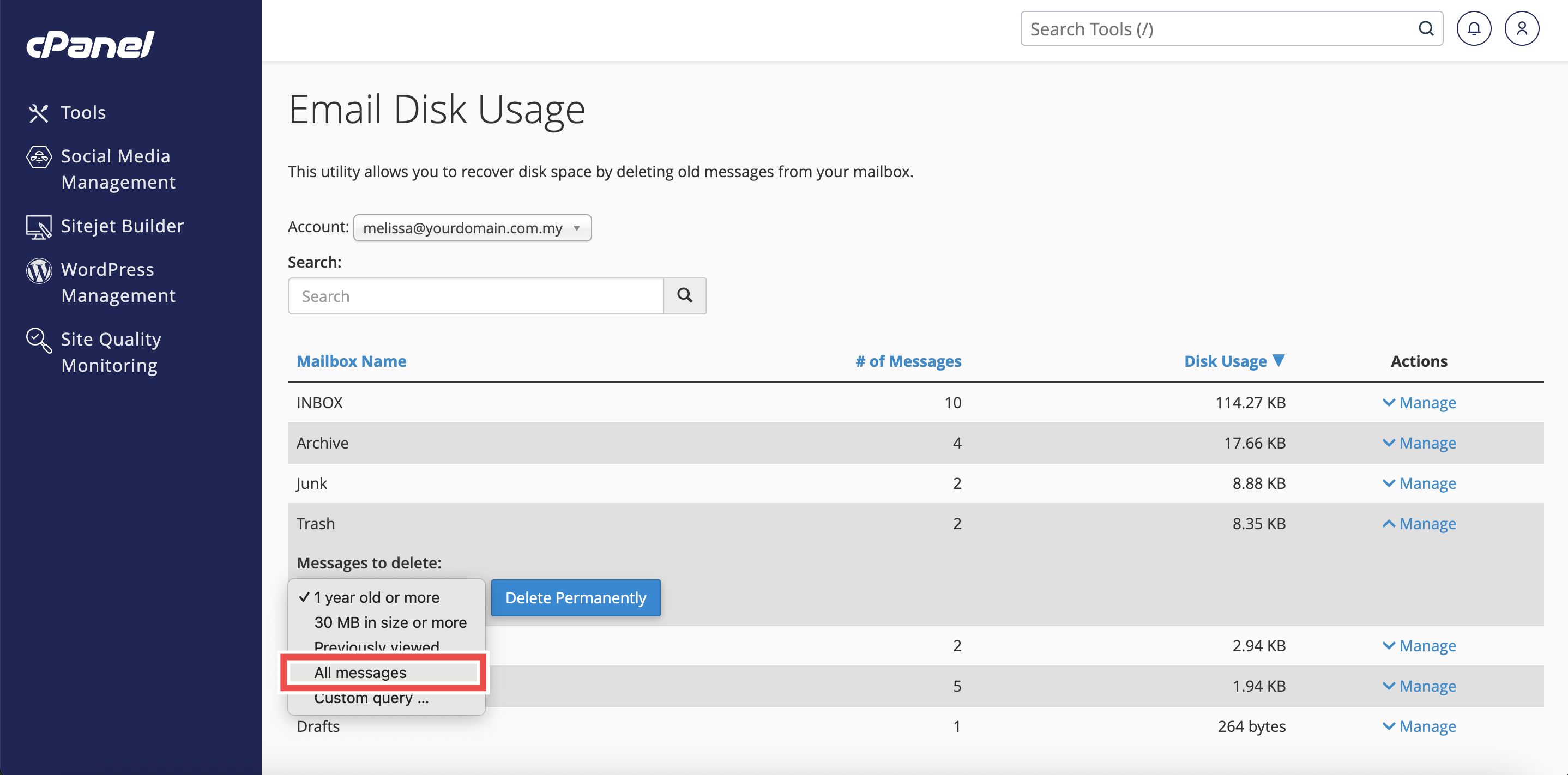
- Click Manage button next to the Trash folder.
Step 5: Select All Email Removal Option
- From the Messages to Delete menu, select All messages.
⚠️ Important Note:
- This action will permanently delete ALL emails in your Inbox folder and cannot be undone.
- Make sure you have backed up any important messages before proceeding.
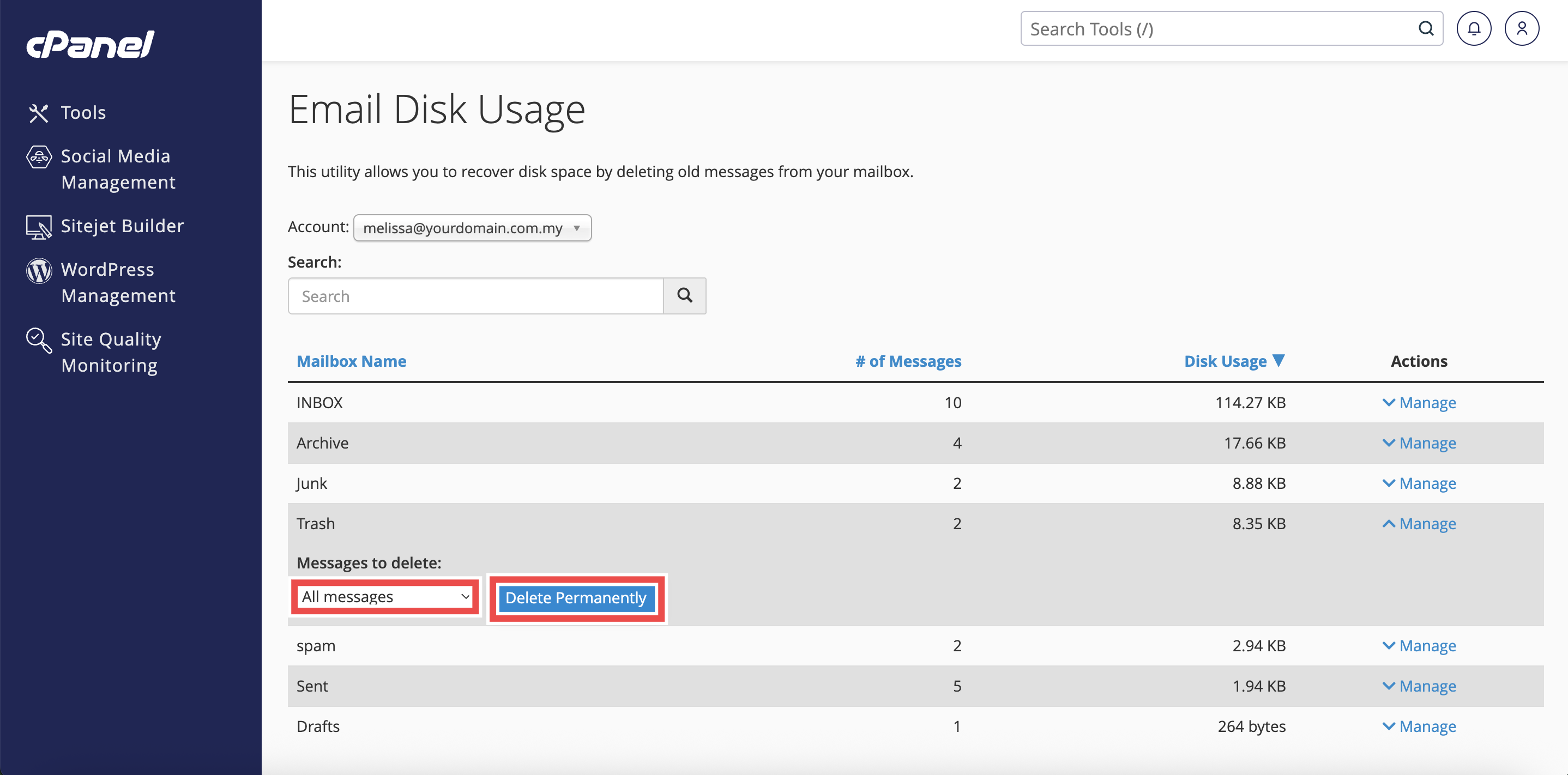
Step 6: Delete All Emails
- Click Delete Permanently to remove all emails from your Trash folder.
Step 7: Verify Deletion
- A success message confirming successful deletion will appear.
- Additionally, you may check your email directly to confirm the deletion was successful.

Conclusion
By following these steps, you can delete all emails from the Trash folder using Email Disk Usage in cPanel. Regularly emptying your Trash folder is recommended to reclaim storage space and maintain optimal mailbox performance.
Should you encounter any issues or have any questions, our support team at IPSERVERONE is always here to assist you. Don’t hesitate to reach out to us at support@ipserverone.com for any help you need.