
Search Our Database
How to Define Search Paths for PHP Include Files in DirectAdmin (Evolution Skin)
Introduction
PHP include path defines the directories where PHP searches for files referenced in include and require statements, and configuring custom paths is essential for organizing application libraries and shared code. Setting include paths enables cleaner code structure, simplifies file references, and allows PHP applications to locate required files without specifying full absolute paths in every include statement. DirectAdmin’s PHP Settings interface provides a straightforward method for defining custom include directories through PHP overrides. This guide explains how to configure include path using the Account Manager > PHP Settings section in DirectAdmin, enabling organized code structure and simplified file inclusion for your PHP applications.
Prerequisites
- Access to DirectAdmin control panel with the necessary permissions.
Step-by-step Guide
Step 1: Access DirectAdmin
Log in to your DirectAdmin control panel.

Step 2: Access PHP Settings
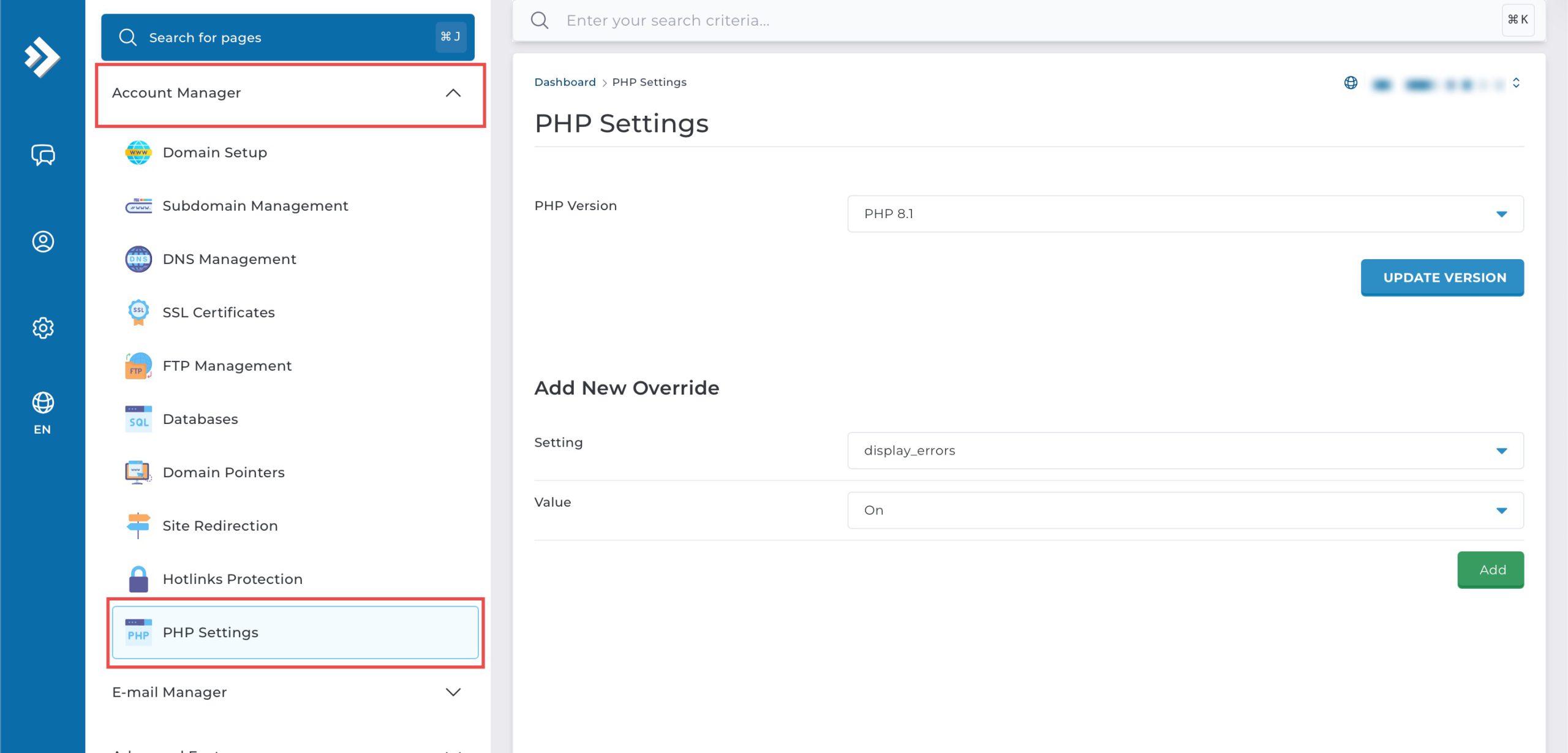
Go to the Account Manager section and click on PHP Settings.
Step 3: Define File Path
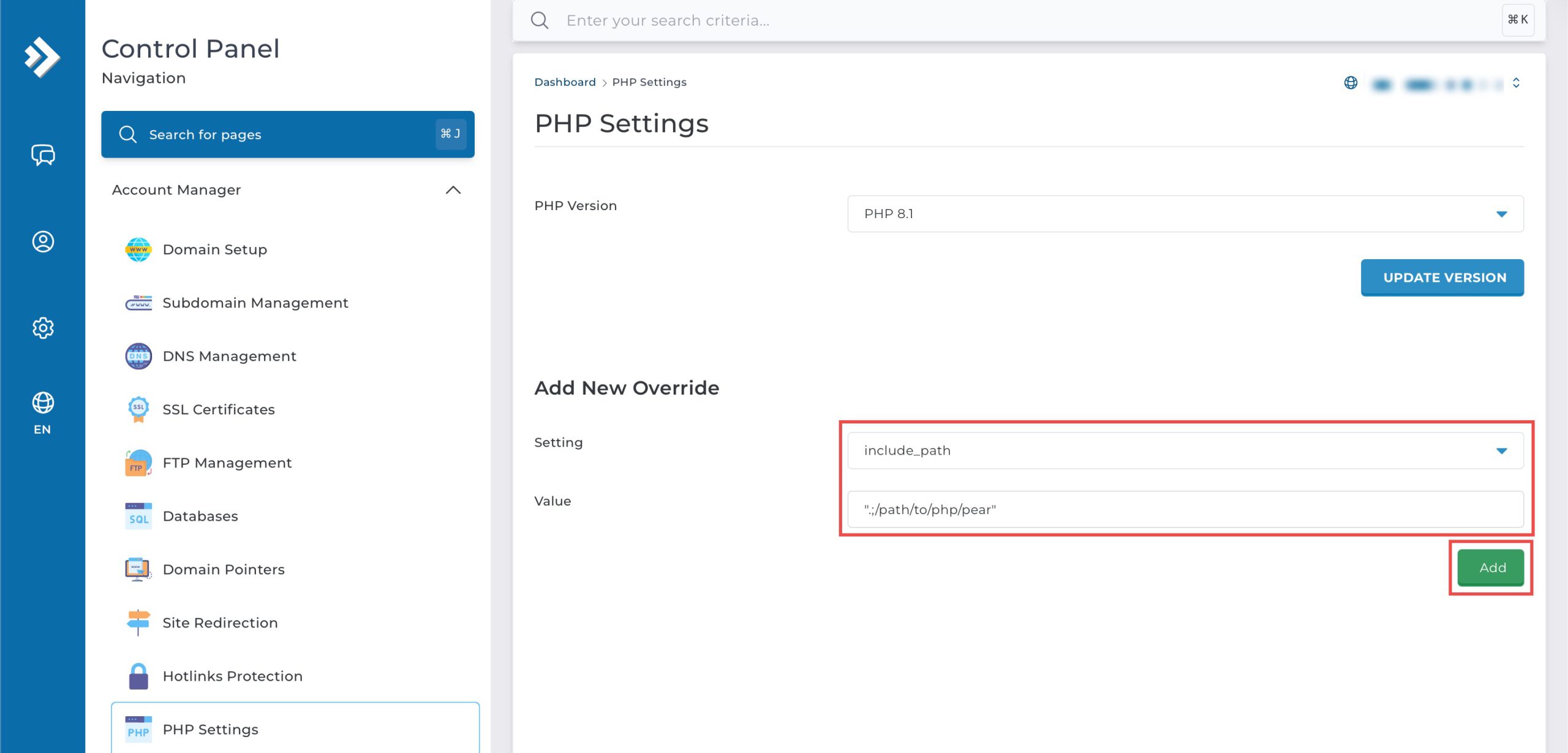
Scroll down to the Add New Override section. From the Setting drop-down menu, select include_path. In the Value field, enter the directory path you wish for PHP to look for when using include statements. Then, click Add at the bottom right.
Step 4: Verify the changes
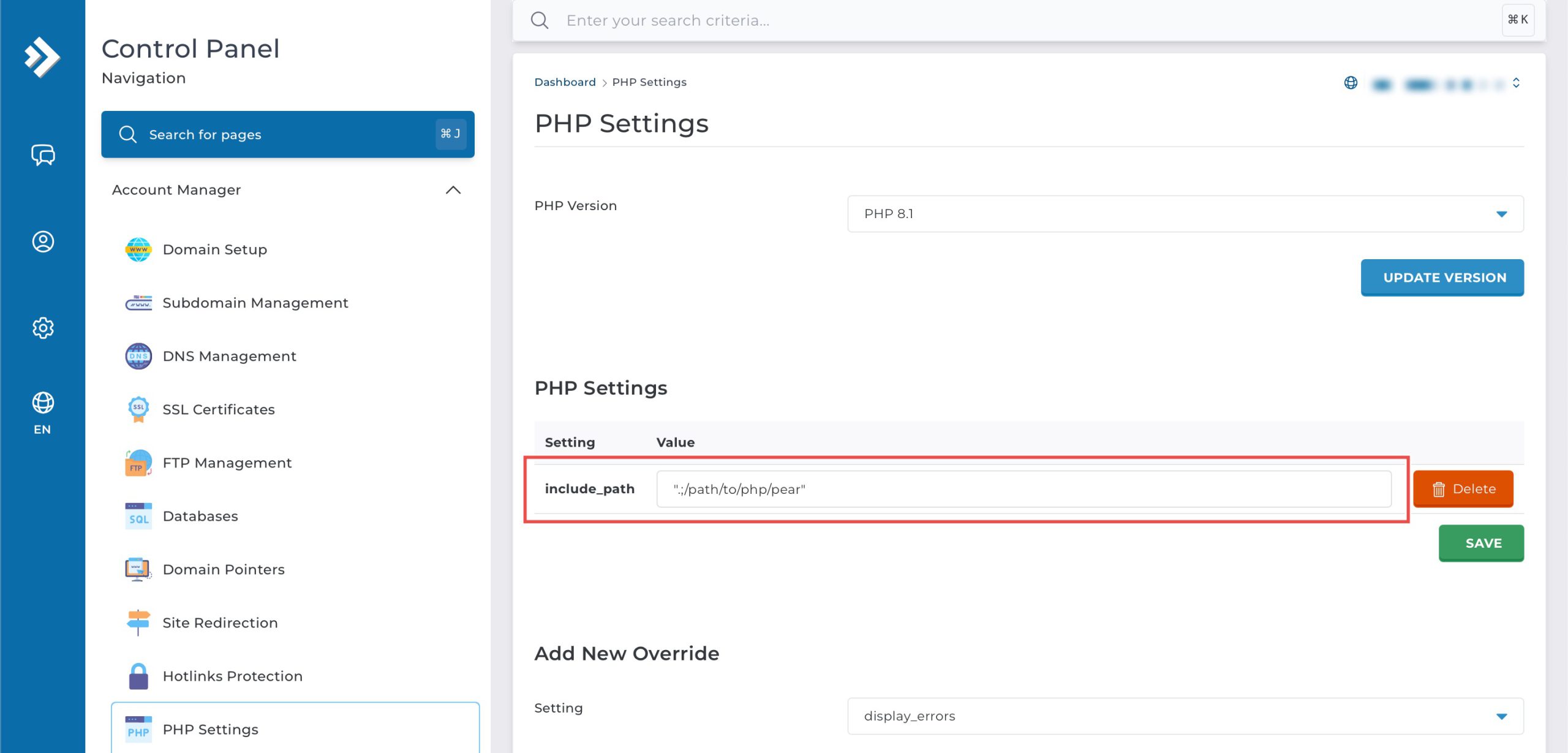
You may confirm the new override settings in the updated PHP Settings table. PHP will now look in the new directories when searching for included files and libraries.
Conclusion
Configuring PHP include path through DirectAdmin’s PHP Settings interface is a simple process that defines where PHP searches for included files and libraries. Setting custom include directories enables cleaner application structure and simplified file references, with support for multiple directory paths to accommodate complex application architectures.
Should you have any inquiries about the guidelines, please feel free to open a ticket through your portal account or contact us at support@ipserverone.com. We’ll be happy to assist you further.