
Search Our Database
How to Create RabbitMQ with Create Instance from One-Click Application in Customer Portal
Introduction:
For users requiring specialized messaging infrastructure, particularly RabbitMQ, deploying queue services efficiently is a key objective. NovaCloud, an affordable, reliable, and highly secure cloud computing service, provides streamlined methods to provision these resources directly within the Customer Portal.
To accelerate the launch of this message broker, the Customer Portal features the Create Instance from One-Click Application deployment option. This specialized path facilitates the quick deployment of a Cloud Instance pre-configured with necessary software. Specifically, to deploy RabbitMQ, users select the Queue category and then choose the desired RabbitMQ version during the instance creation process.
This guide provides a professional, step-by-step walkthrough detailing how to launch a Cloud Instance containing your desired queue service (RabbitMQ) using the One-Click Application feature in the NovaCloud Customer Portal, enabling you to rapidly establish a functional messaging environment.
Prerequisites:
- The user must have access to the Customer Portal.
- The account balance must contain sufficient credit/points
- The user must select an existing Public Key during the creation process. If you do not have any keys yet, you are required to generate or import one before proceeding.
Step-by-step Guide:
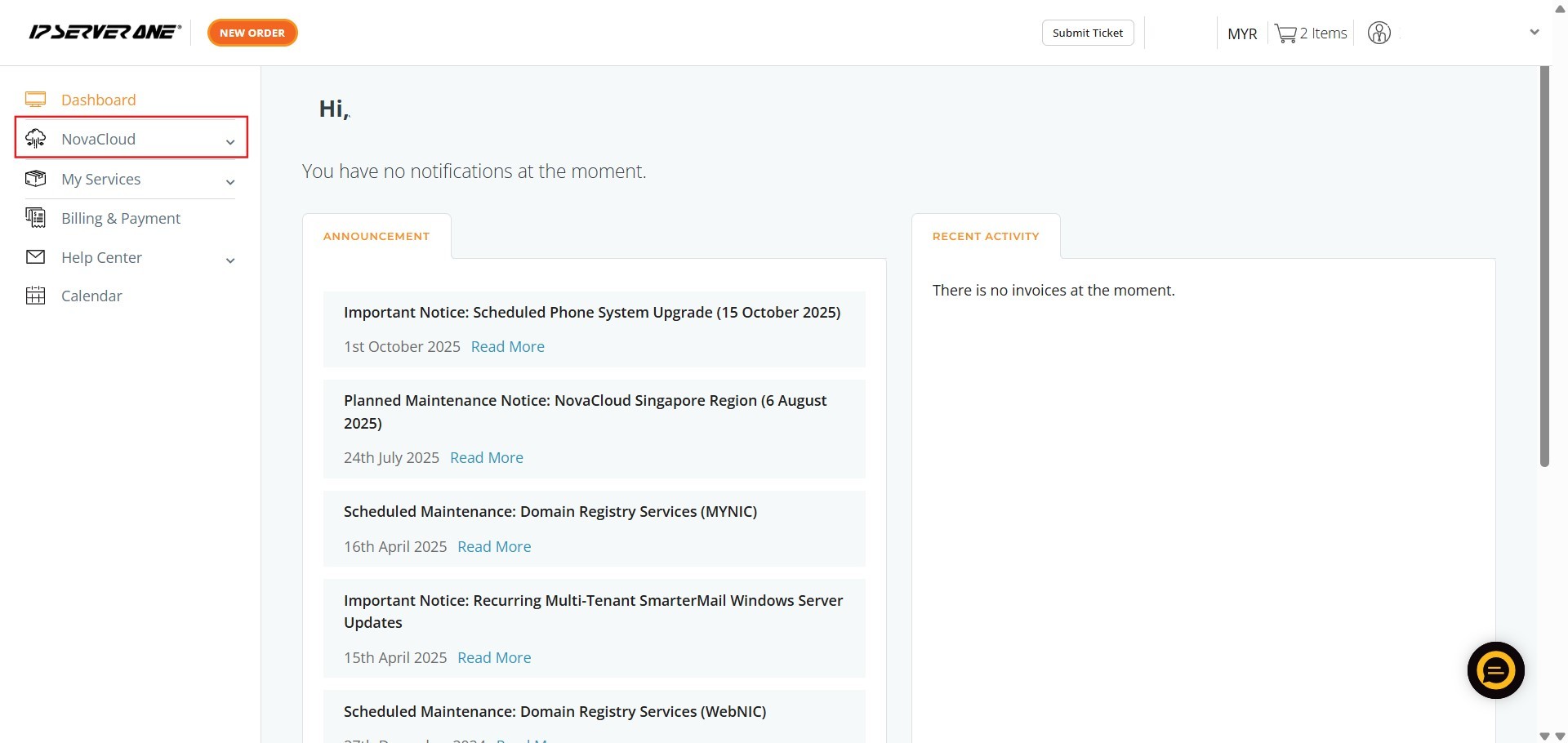
Step 1: Click NovaCloud
- Locate and click on the NovaCloud section in the left-hand navigation menu to access cloud resources.
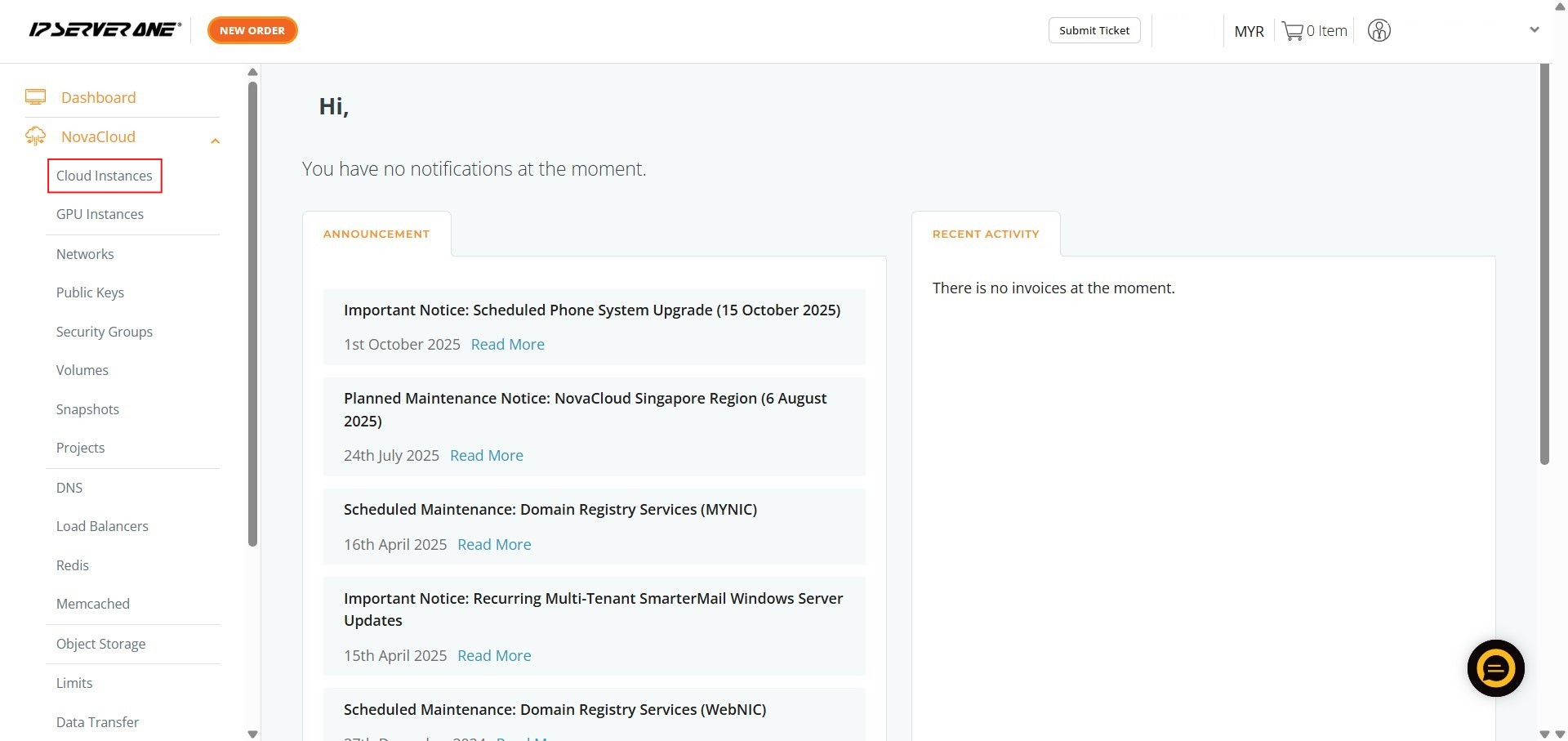
Step 2: Click Cloud Instances
- Navigate to the management interface for your virtual machine resources.
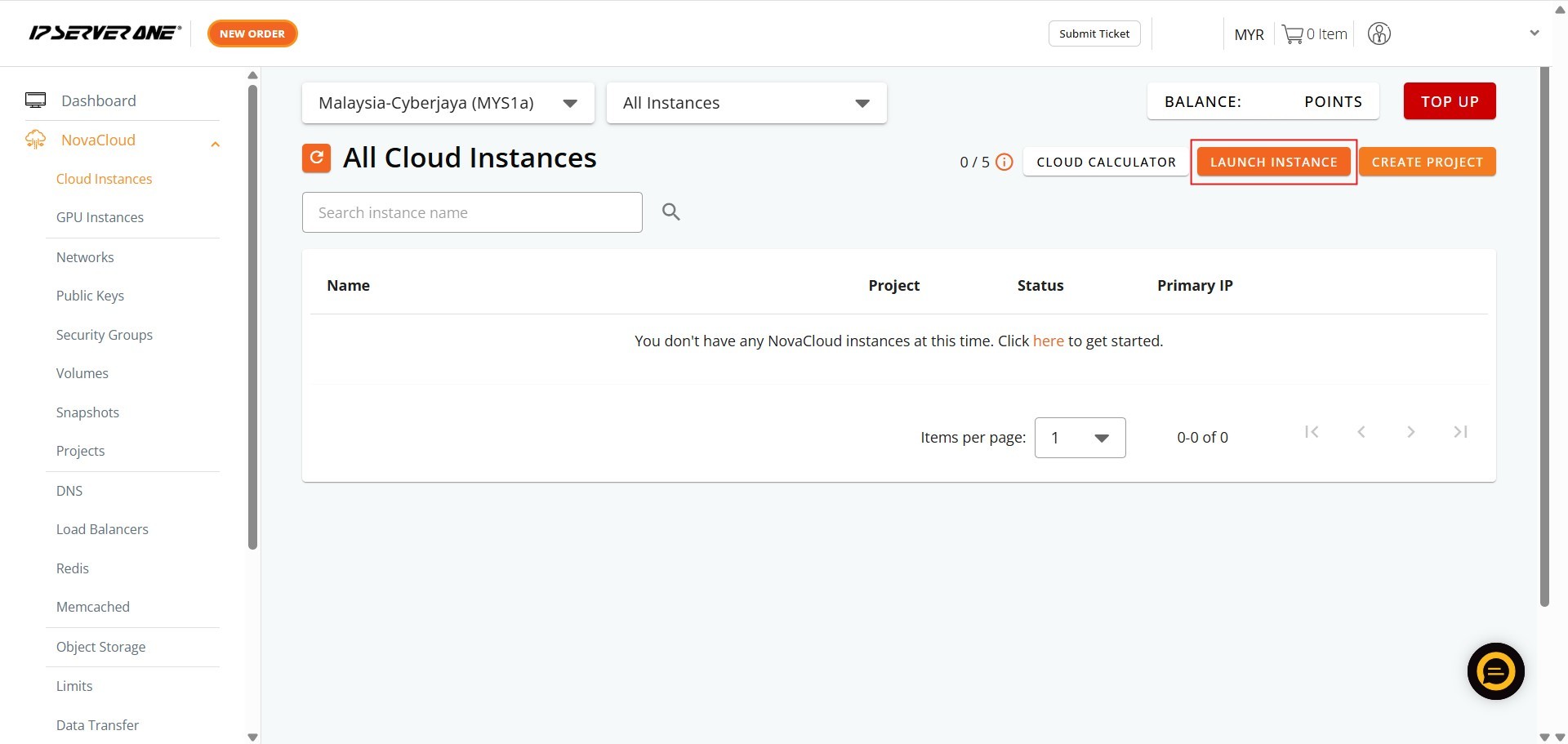
Step 3: Click Launch Project
- Initiate the process for deploying a new cloud resource.
Step 4: Click Create Instance from One-Click Application
- Select the accelerated deployment method designed for provisioning instances pre-installed with your chosen application (database).

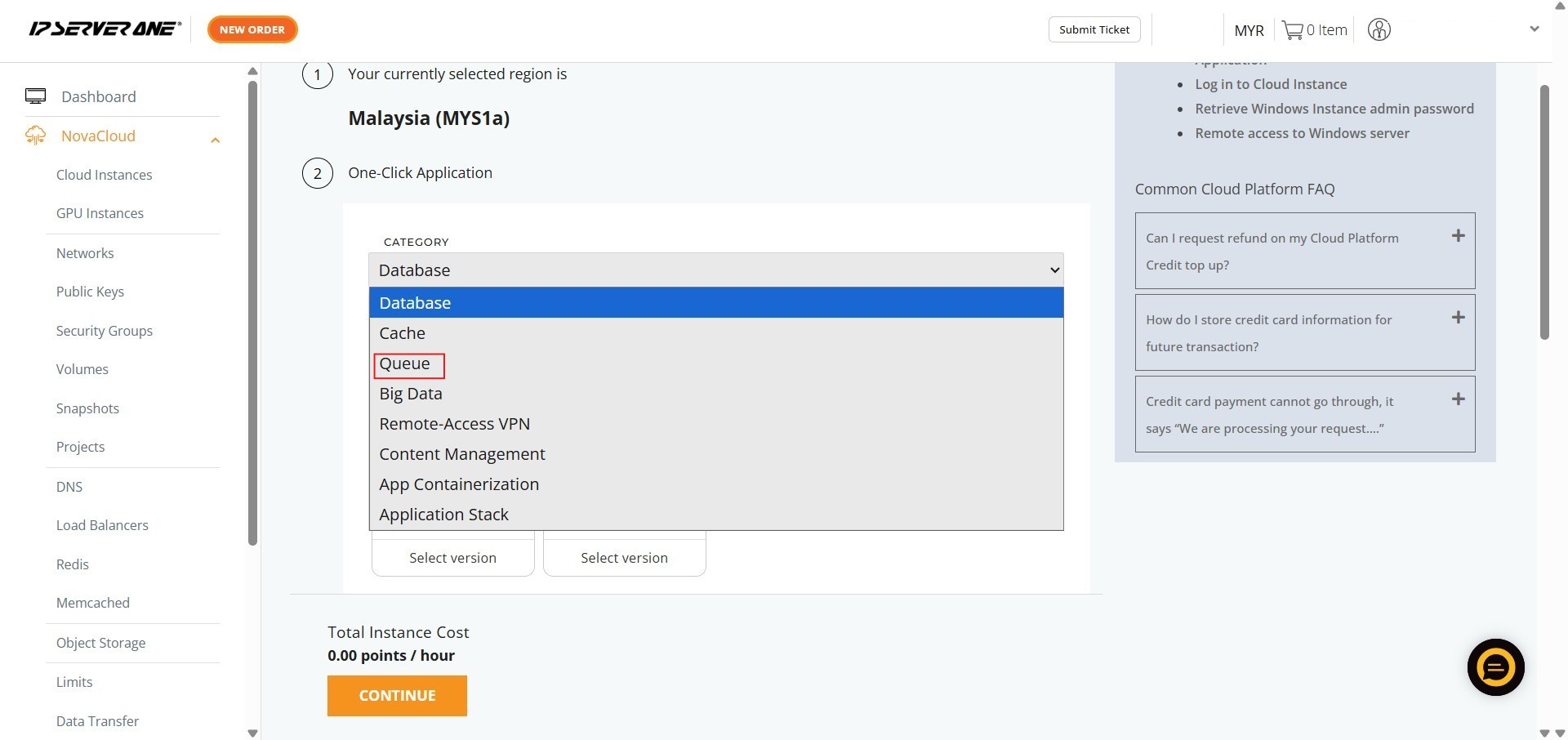
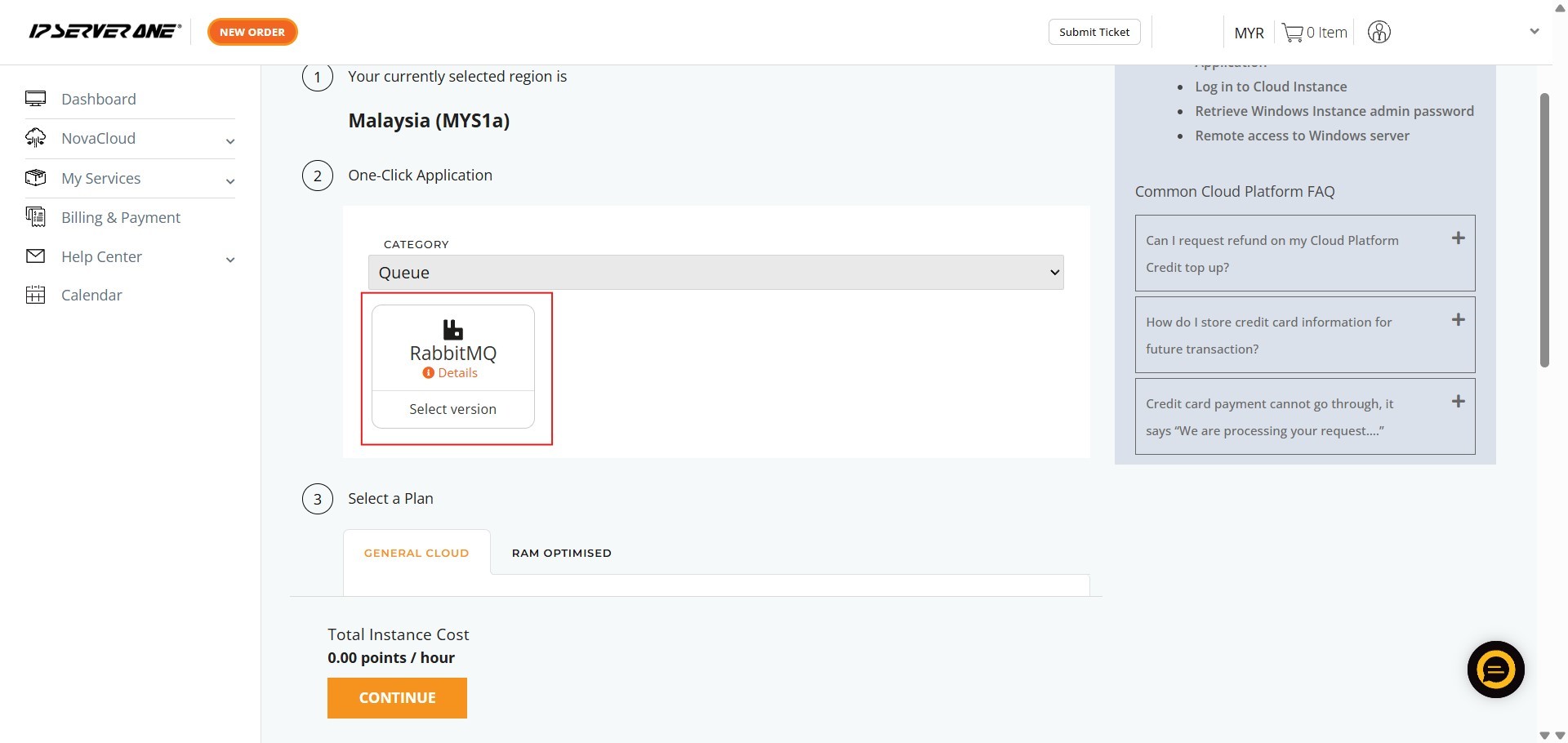
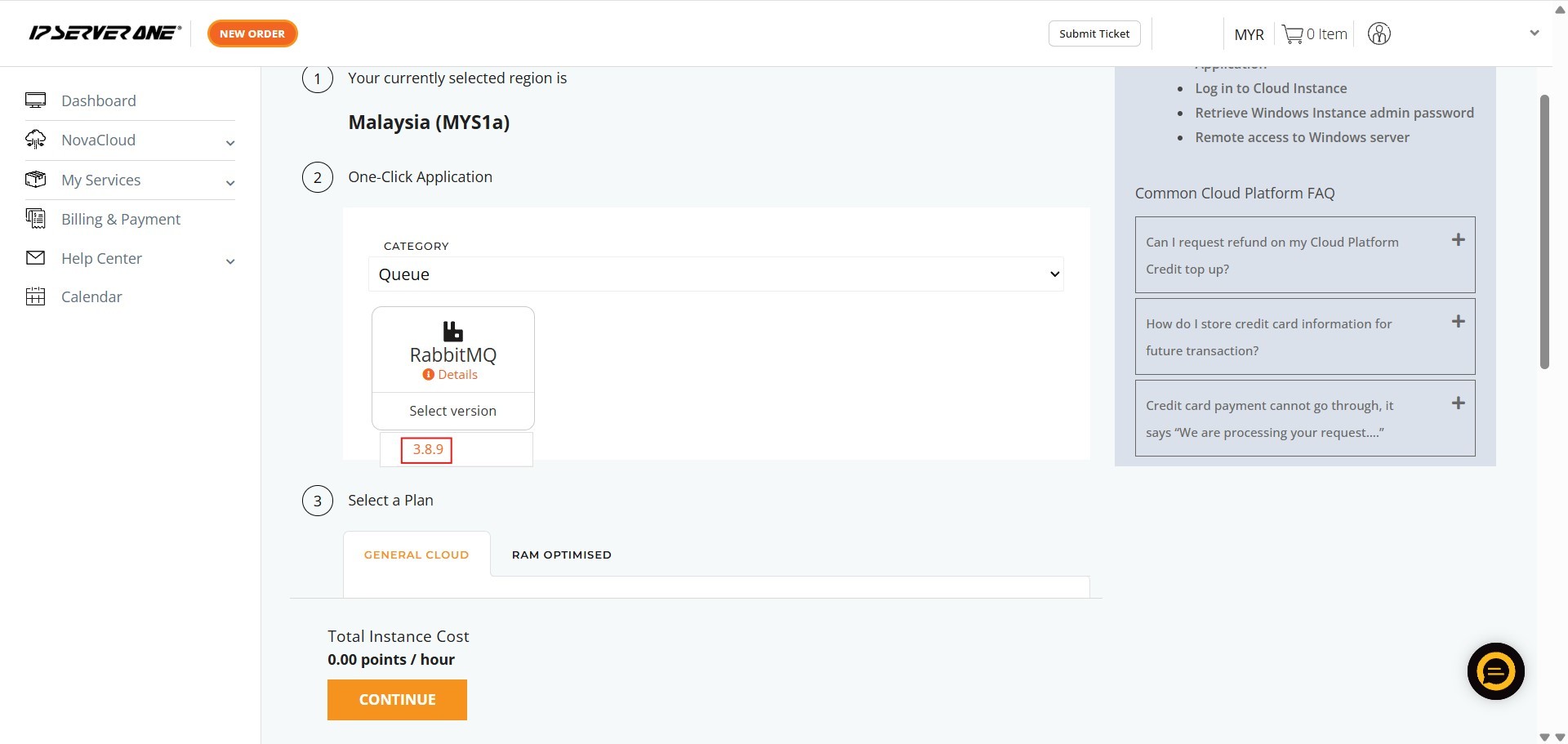
Step 5: Choose Category as Queue and Select RabbitMQ and Choose the Version
- Ensure the Category is selected as Queue.
- Select the specific queue software, RabbitMQ.
- Choose the required version you wish to deploy.
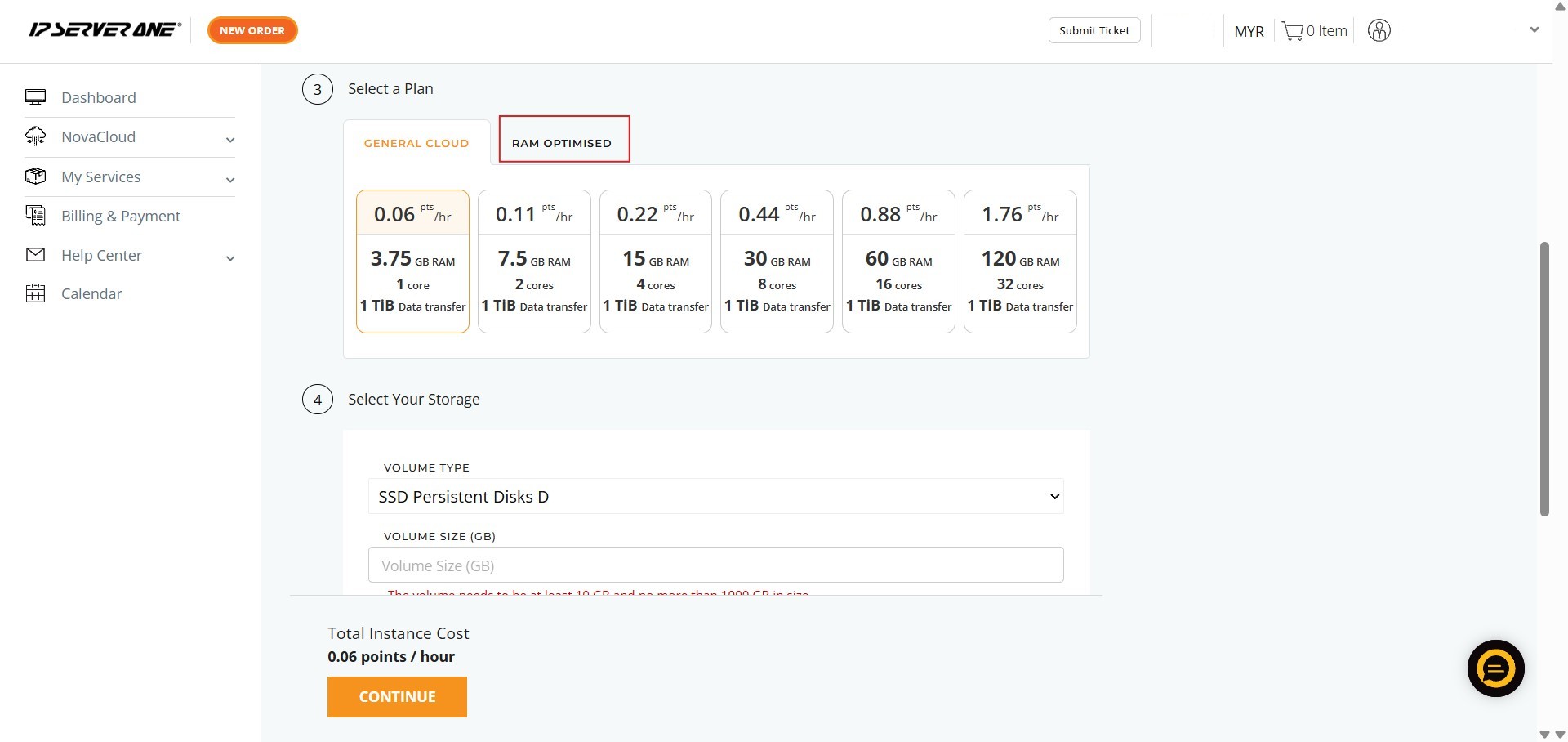
Step 6: Select a Plan
- Choose the appropriate resource plan (CPU, RAM, data transfer limits) for your database instance.
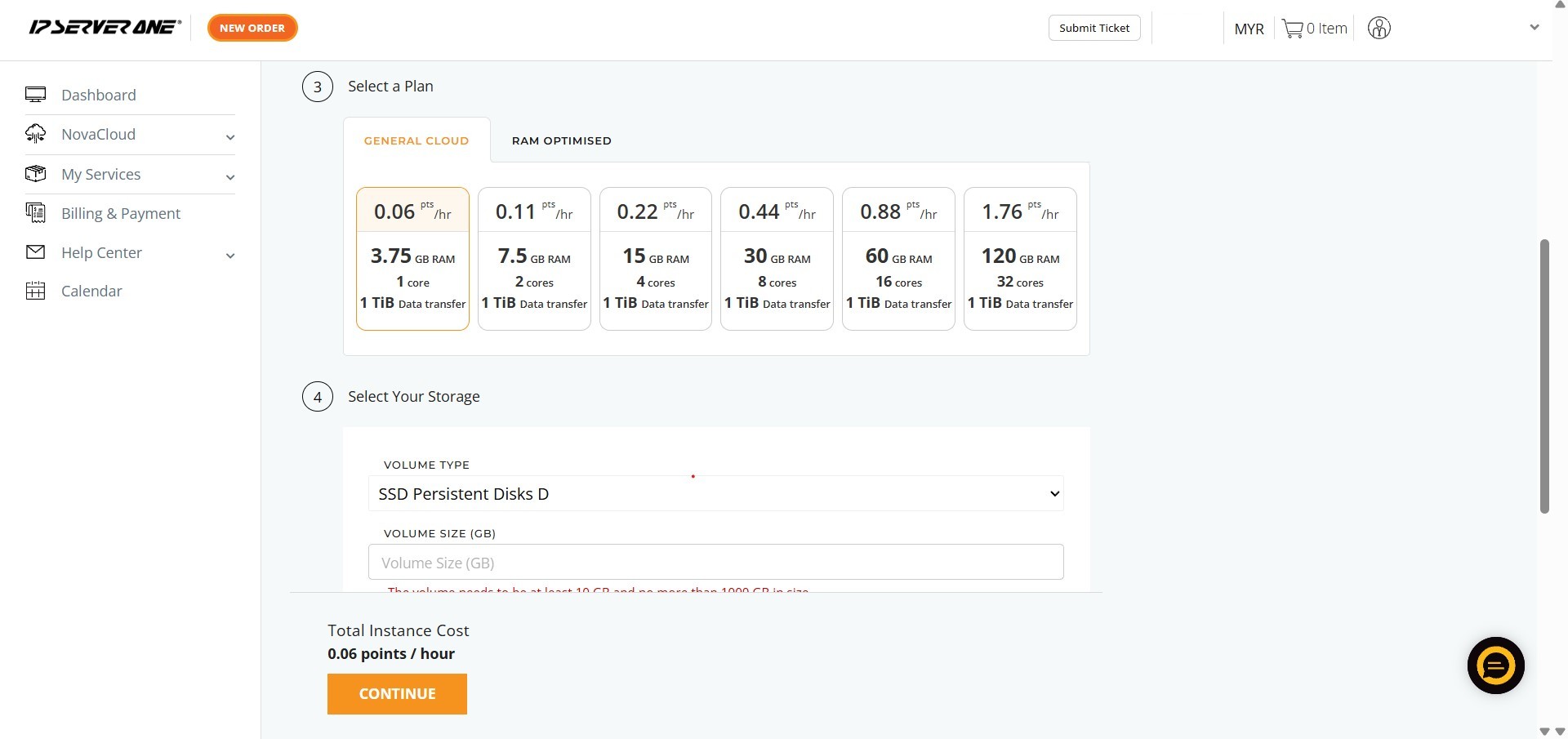

Step 7: Select Your Storage and Key in Volume Size
- Define the volume size for your storage.
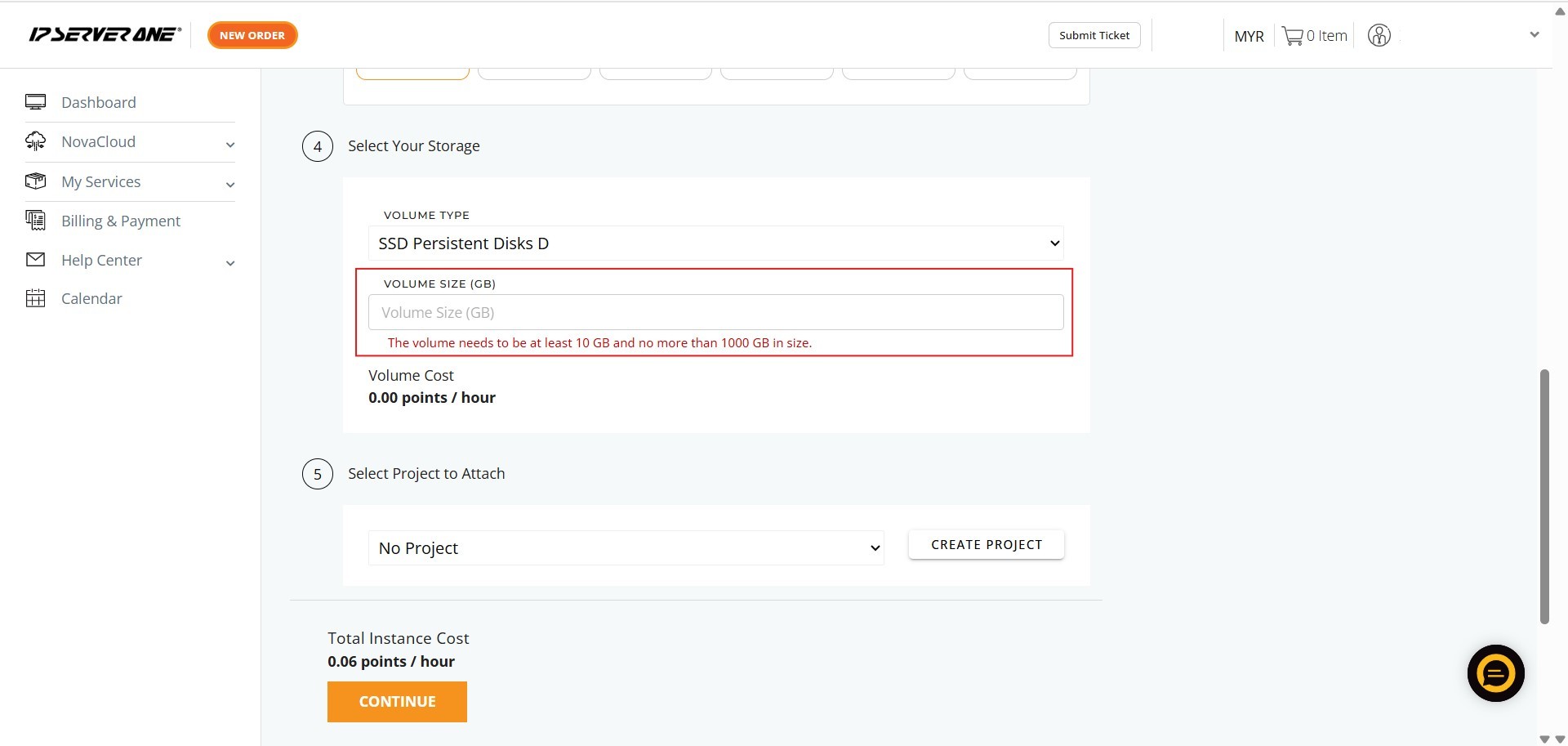
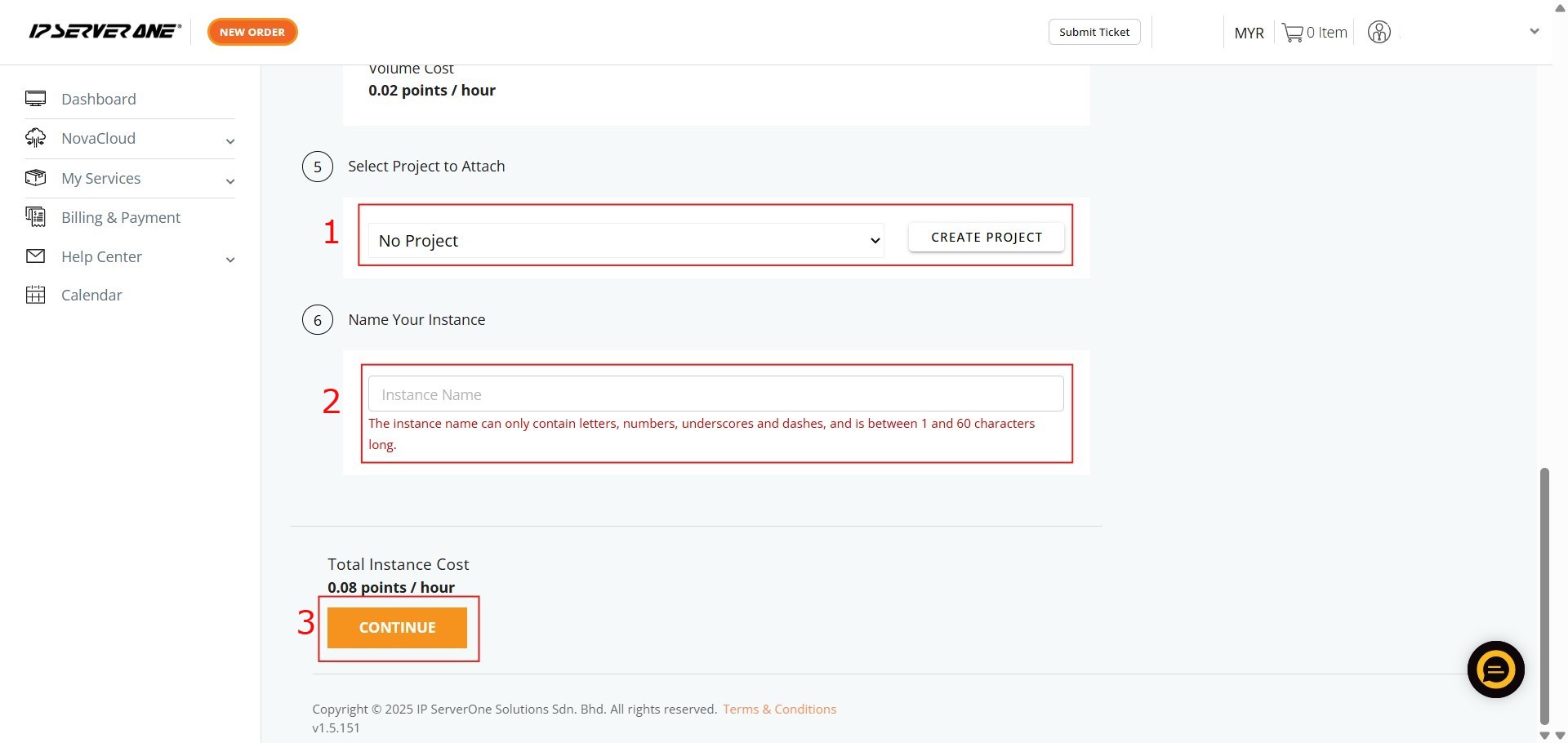
Step 8: Select Project to Attach, Key in Name Instance and Click Continue
- Associate the instance with an existing project (if desired) and provide a unique name for your instance.
Step 9: Select Public Key and Copy Queue Name and Password
- Select the necessary Public Key for secure access.
- Ensure you copy the auto-generated queue name and password.

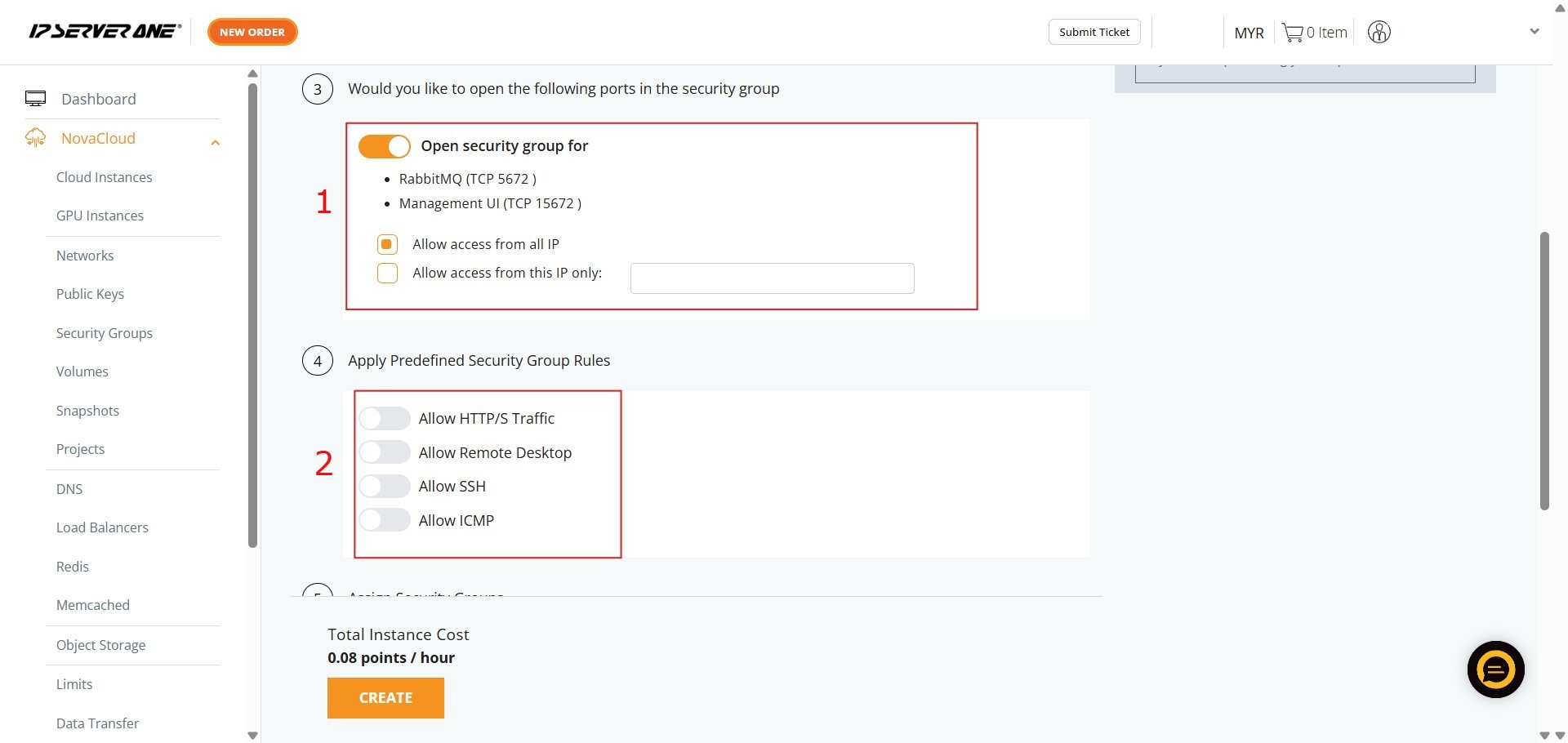
Step 10: Configure Port of Security Group and Security Group Rules
- Define which ports should be opened in the security group for the database (e.g., specific TCP ports)
- Apply predefined security rules (e.g., allowing SSH or HTTP/S traffic).
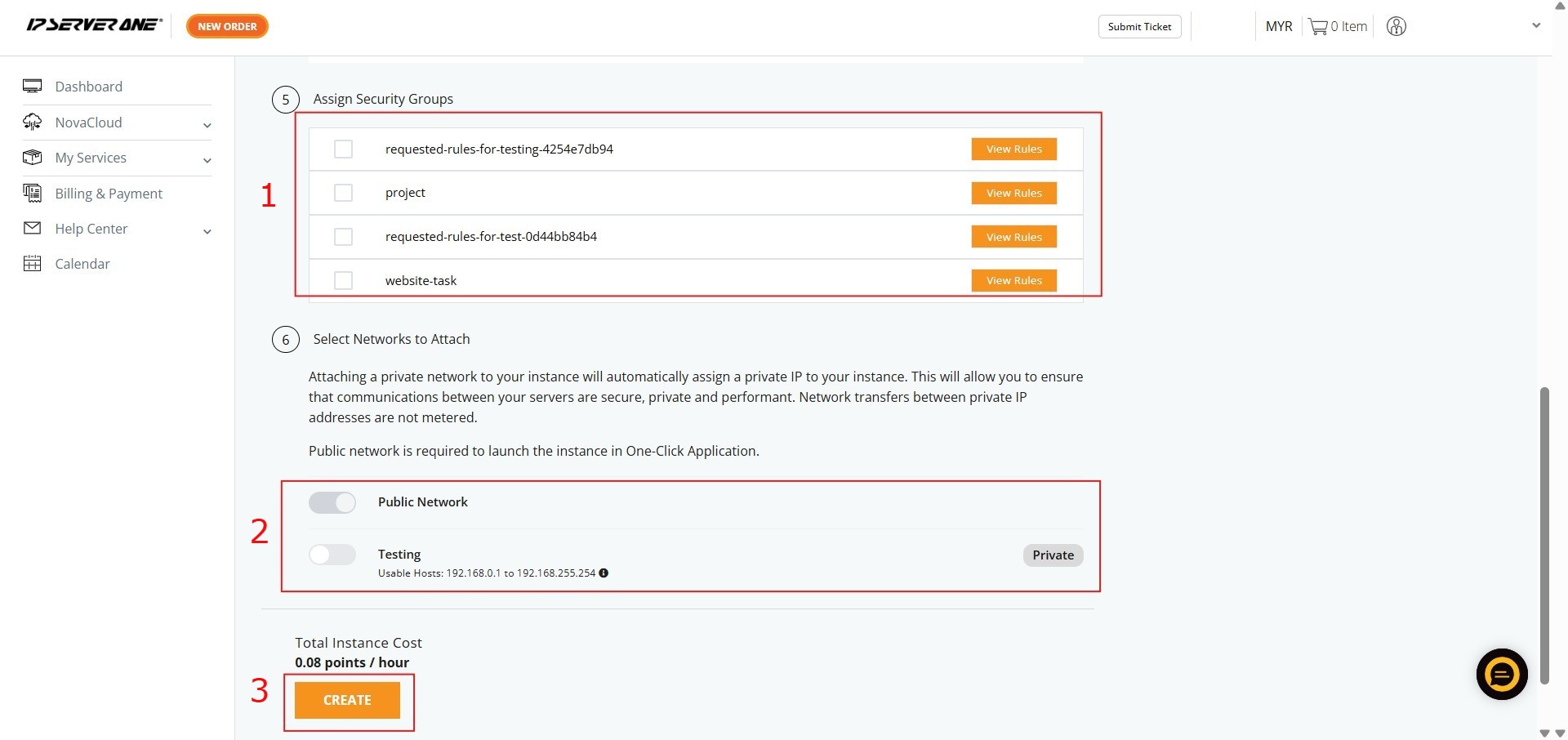
Step 11: Assign Security Groups, Select Network to Attach and Click Create
- Apply specific existing security groups (if needed)
- Select the network(s) to attach.
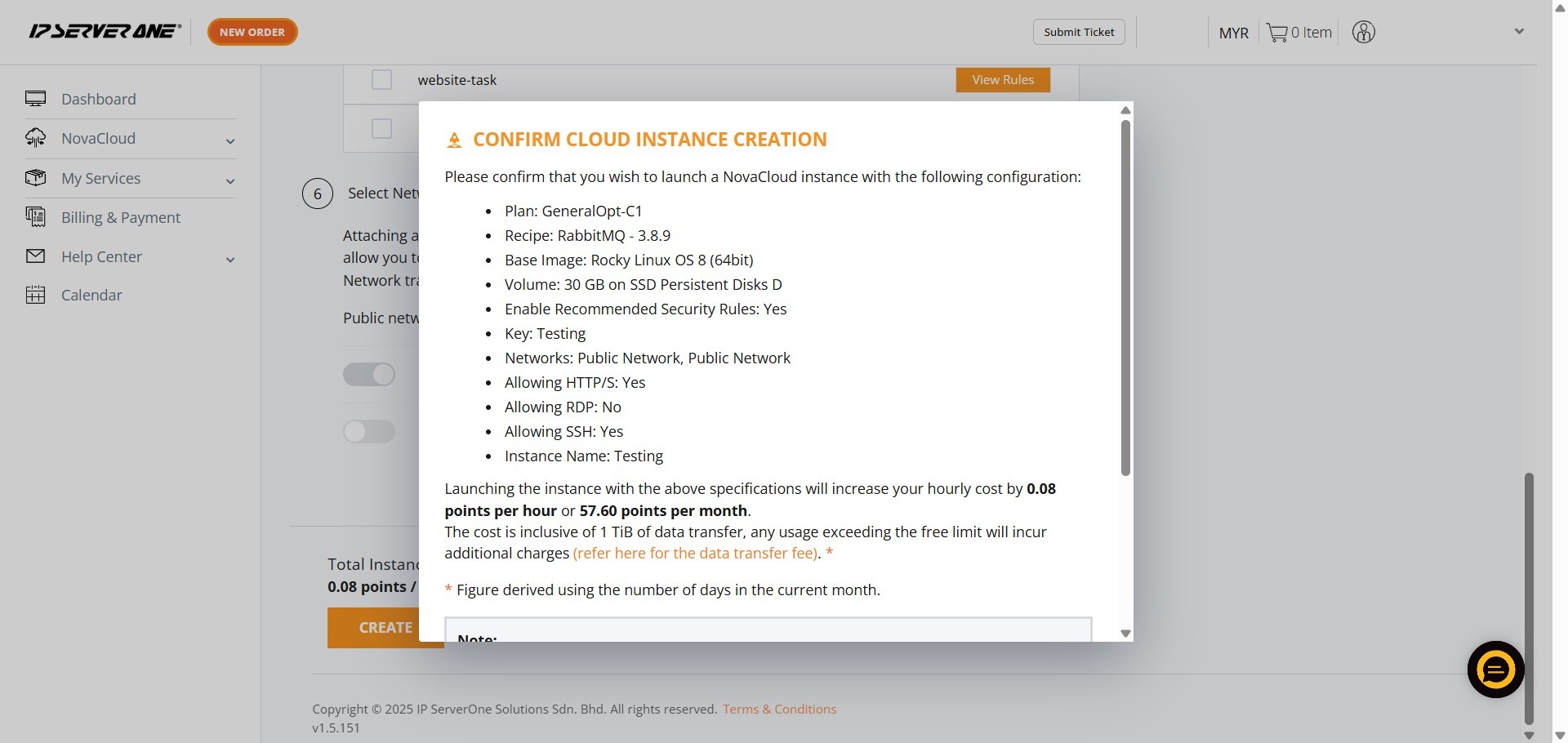
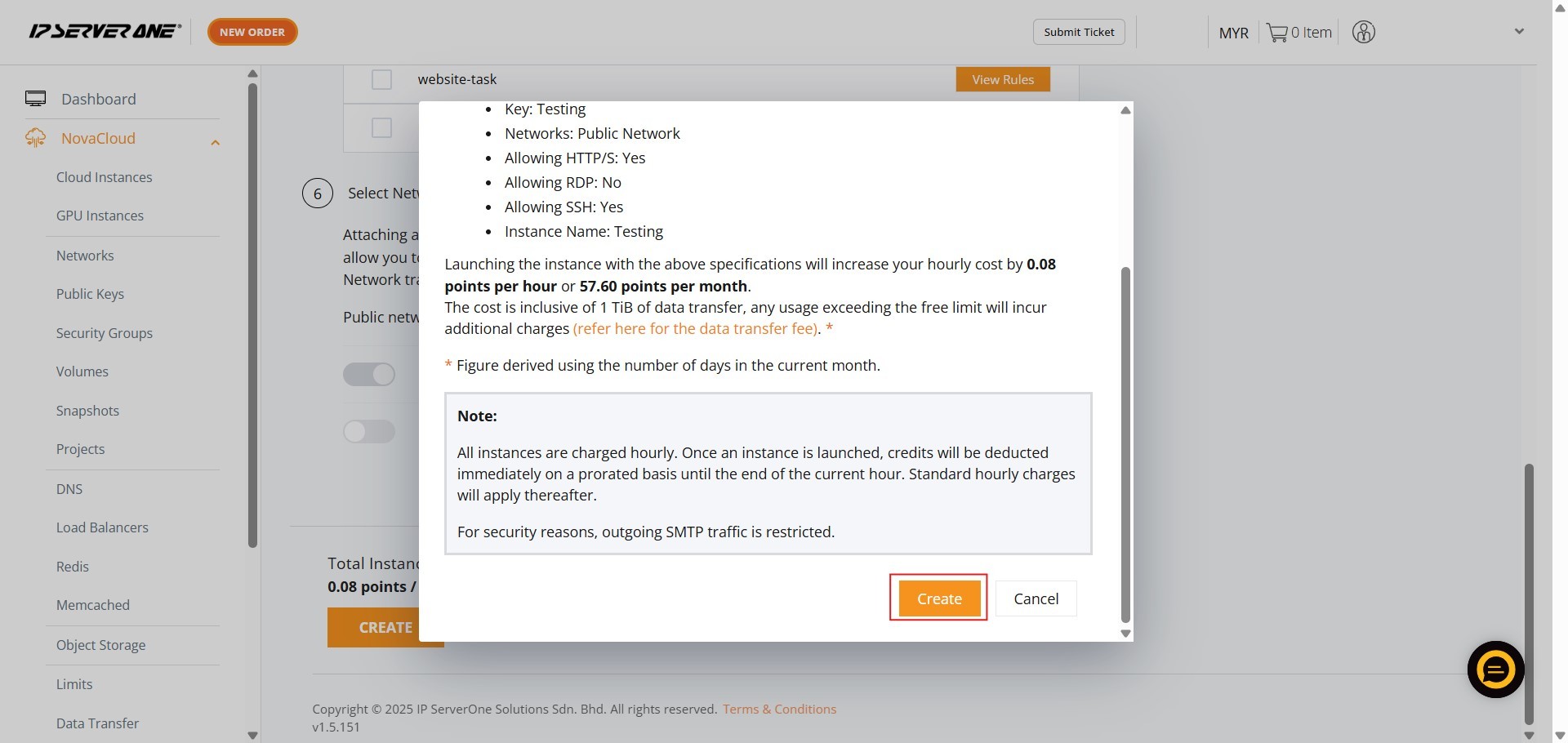
Step 12: Scroll and Click Create
- A confirmation pop-up will appear. Review the specifications, scroll to the bottom, and click Create to launch the instance.
Step 13: Click Instance
- Click the “Instances” button in the confirmation pop-up to navigate to the list of Cloud Instances.

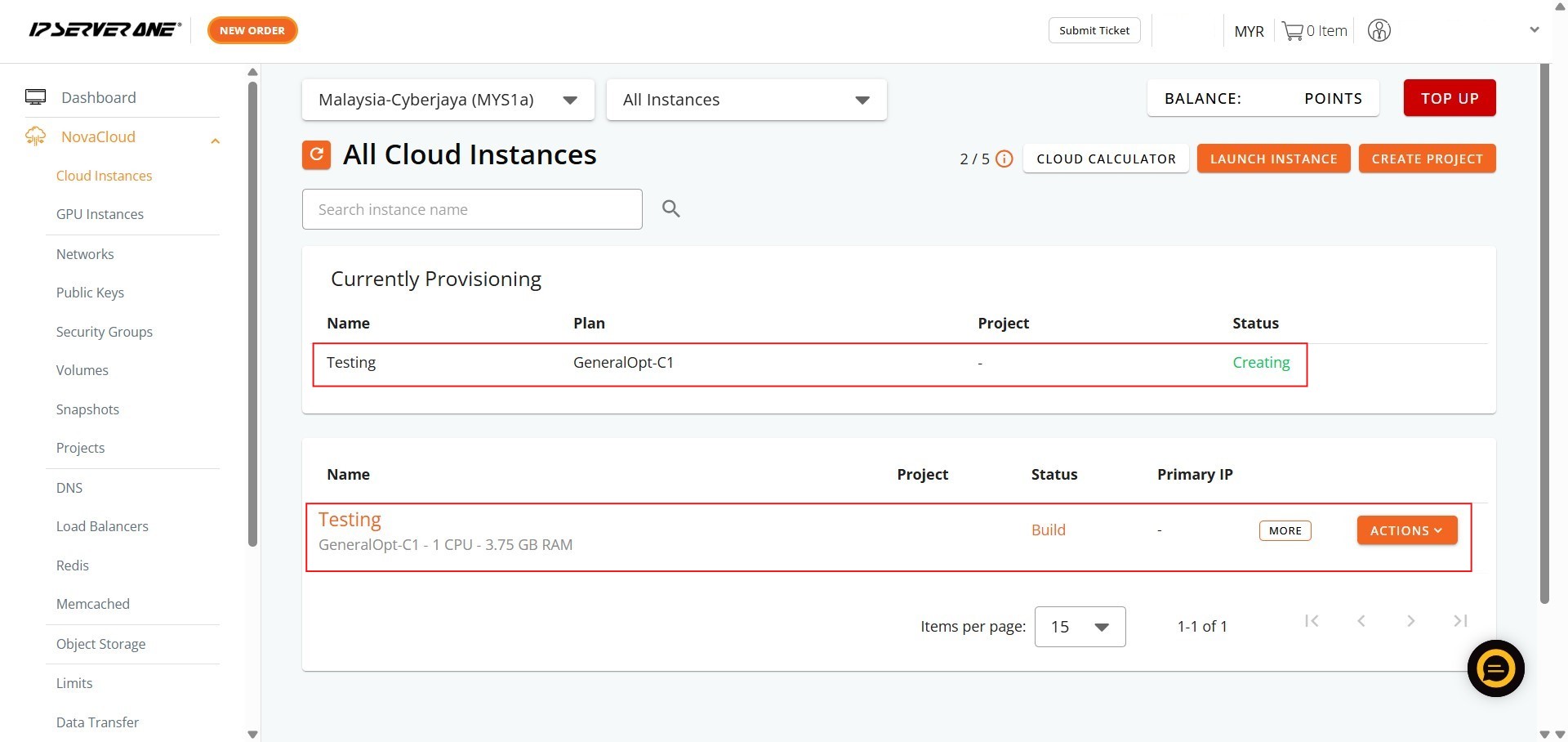
Step 14: Success
- Your request to launch the instance has been queued, and the provisioning process is underway (status “Creating” or “Active”).
Conclusion:
By successfully following the detailed instructions, you have effectively leveraged the streamlined One-Click Application feature to deploy a Queue instance (RabbitMQ) within the NovaCloud Customer Portal. This process successfully facilitated the efficient provisioning of your RabbitMQ queue solution.
Upon confirming the cloud instance creation, your queue instance was queued for provisioning, and its status can be monitored in the “All Cloud Instances” section of your Customer Portal. It is crucial to remember the operational constraints of the service: all instances are charged hourly. Credits are deducted immediately on a prorated basis until the end of the current hour, after which standard hourly charges will apply thereafter. For security purposes, outgoing SMTP traffic is restricted.
Should you encounter any issues or have any questions during this procedure, our support team at IPSERVERONE is always here to assist you. Don’t hesitate to reach out to us at support@ipserverone.com for any help you need.