
Search Our Database
How to Create Online Meetings from Google Calendar Web
Introduction:
For a professional Google Calendar user, utilizing the web interface to facilitate virtual collaboration is essential for maintaining team alignment and project momentum. The platform provides a streamlined workflow for converting a standard calendar entry into a dedicated online meeting, ensuring that all participants have access to a secure and centralized link for communication.
By selecting a preference date and assigning a descriptive meeting name, users can effectively manage their operational schedule while integrating the necessary Google meeting URL directly into the event’s architecture. This process is marked as a success once the meeting is saved, allowing for seamless transitions between individual tasks and collaborative milestones.
Prerequisites:
- Access to the Google Calendar web interface through a browser, ensuring you are logged into the appropriate account.
- A chosen preference date identified on the calendar grid where the meeting will be hosted.
- A designated meeting name to provide a clear title for the calendar entry.
Step-by-step Guide:
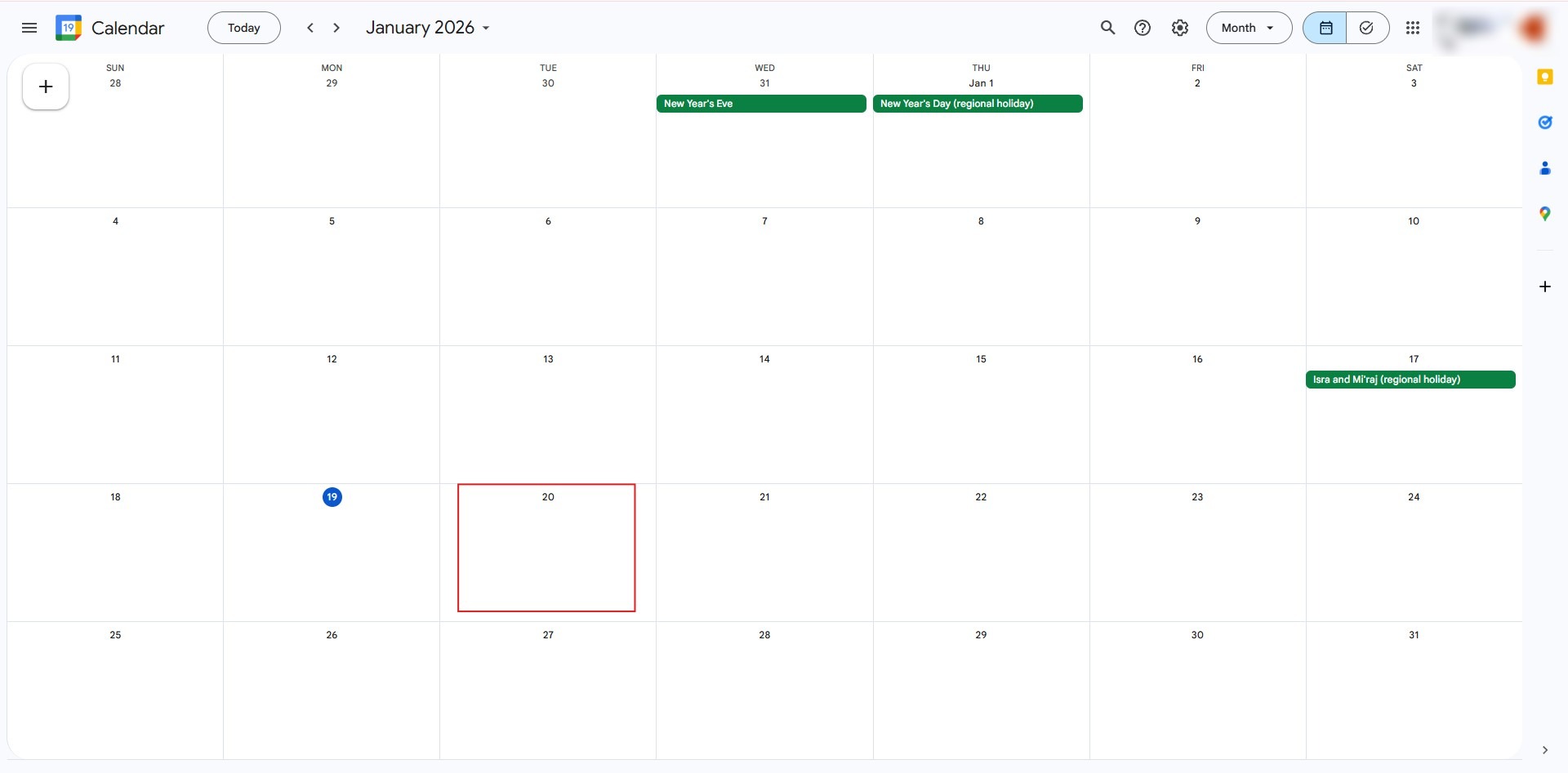
Step 1: Select Date
- Navigate to the calendar grid and click on the preference date for your session.
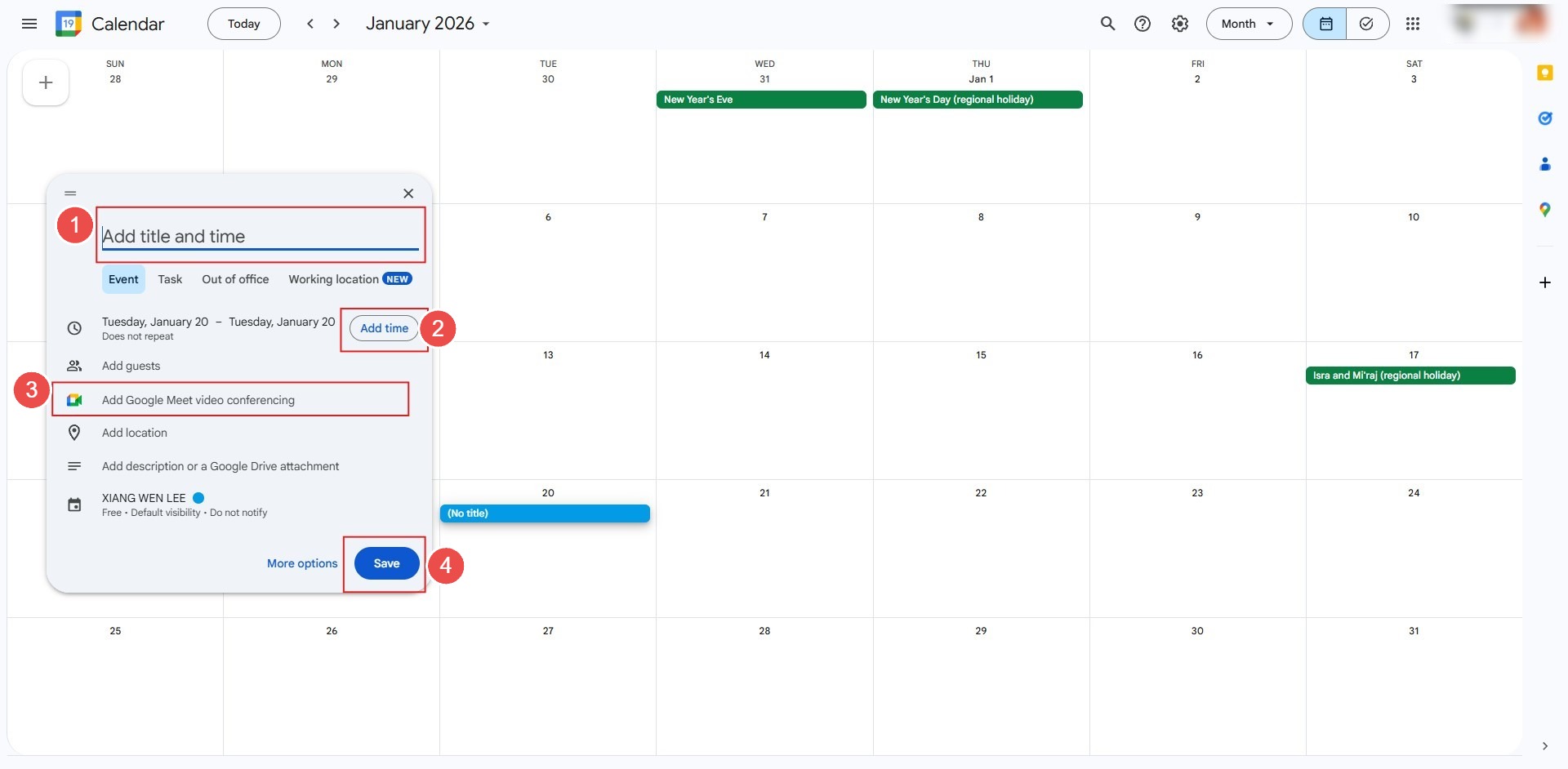
Step 2: Identify Event
- In the event creation window, key in a descriptive meeting name to ensure clarity for all stakeholders.
- Manually add the Google meeting URL to the event architecture to provide a secure entry point.
- Review the details and click save to finalize the calendar appointment.
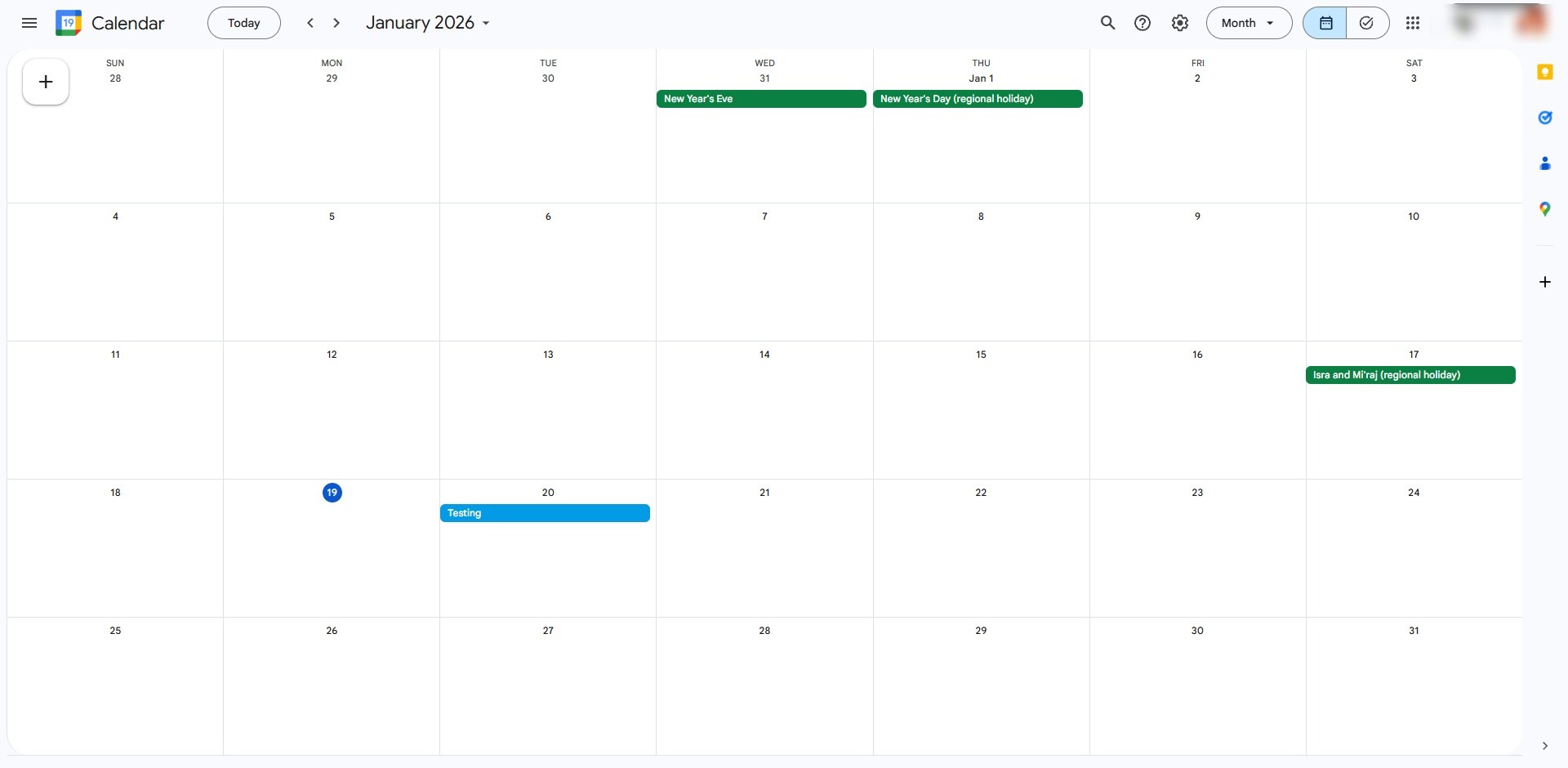
Step 3: Confirmation
- The process is a success once the meeting appears on your schedule with the integrated link.
Conclusion:
In conclusion, the ability to create online meetings through the Google Calendar web interface is a fundamental skill for fostering seamless virtual collaboration and ensuring all attendees have access to a centralized link. The process reaches a successful conclusion when the event details—including a specific meeting name and the Google meeting URL—are finalized and saved to your preference date.