
Search Our Database
How to Create New Database User in DirectAdmin (Evolution Skin)
Introduction
Database users provide authenticated access to your databases, and creating separate user accounts is essential for managing permissions and maintaining security. Setting up dedicated database users for different applications, development environments, or team members enables granular access control and follows security best practices. DirectAdmin’s Databases interface provides a straightforward method for creating new database user accounts with custom credentials. This guide explains how to create database users using the Account Manager > Databases section in DirectAdmin, enabling you to manage database access efficiently and securely.
Prerequisites
- Access to DirectAdmin control panel with the necessary permissions.
Step-by-step Guide
Step 1: Access DirectAdmin
Log in to your DirectAdmin control panel.

Step 2: Access Your Database Users
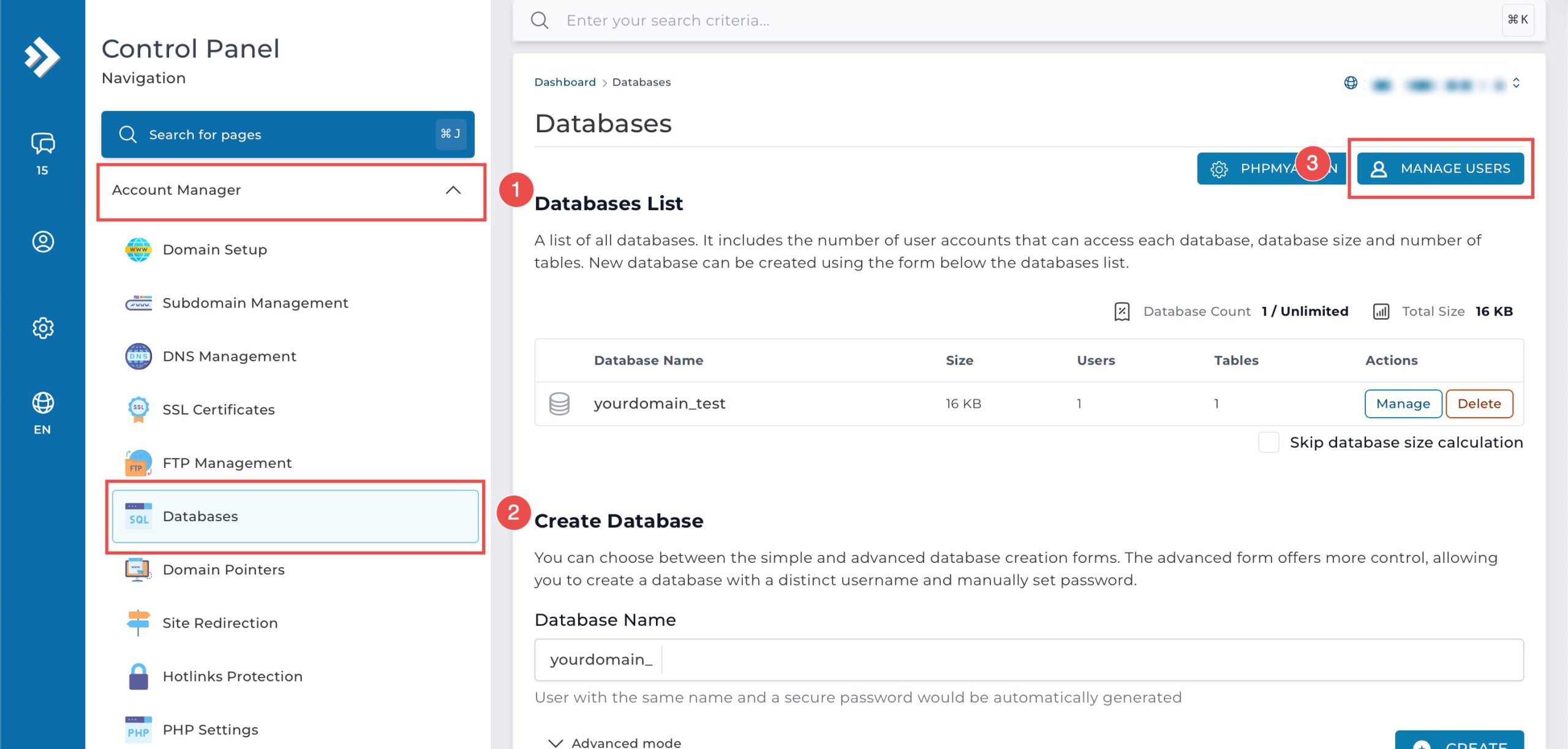
Go to the Account Manager section and click on Databases. You will see the list of databases available in the domain. On the top right, click Manage Users to see the list of existing database users.
Step 3: Create User
Scroll down to the Create User section. Enter the Name and Password for the new database user. Then, click Create at the bottom right.

Step 4: Verify the Changes
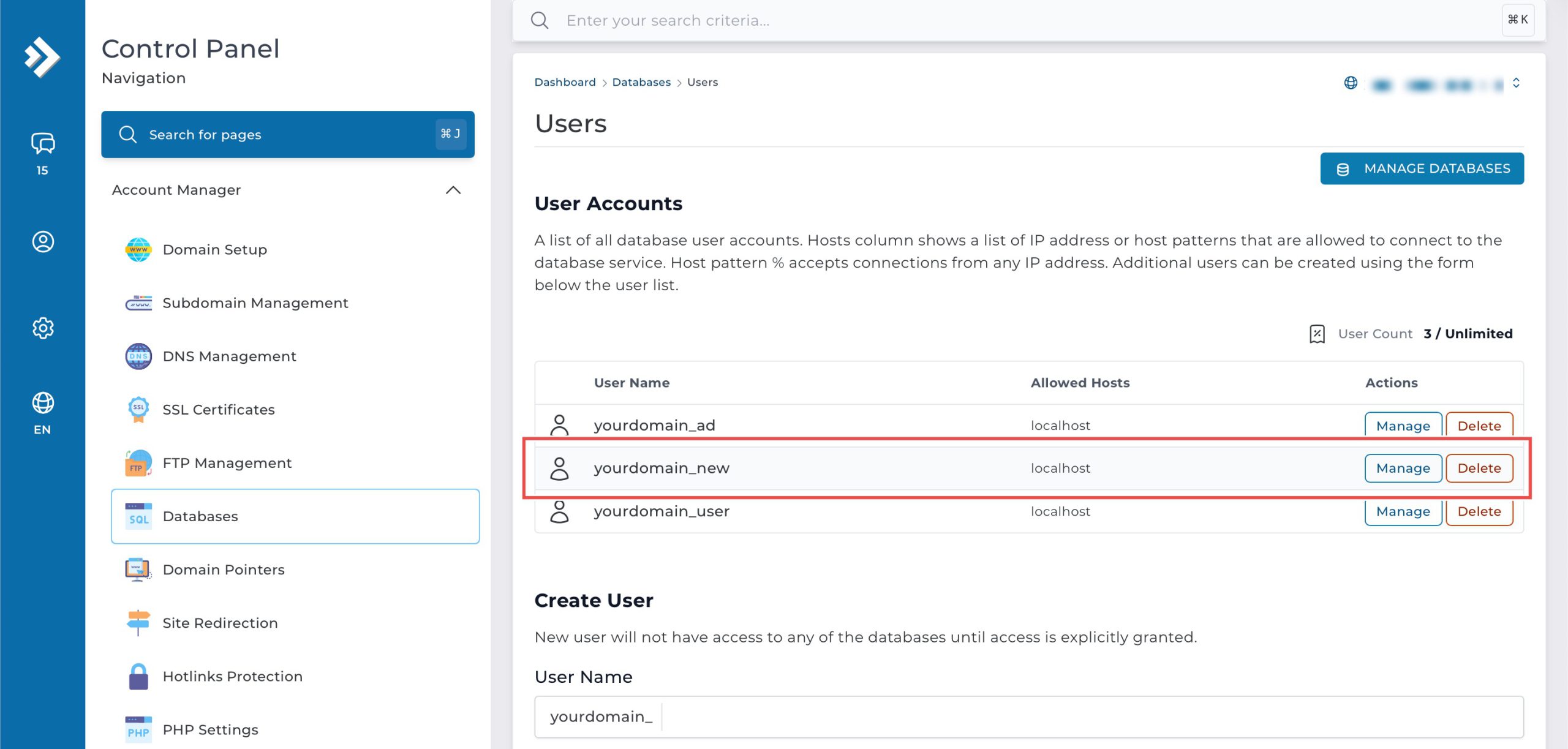
You can verify the user deletion in the updated list of User Accounts.
Conclusion
Creating database users through DirectAdmin’s Databases interface is a simple process that enables secure and organized database access management. Setting up dedicated user accounts with unique credentials supports proper permission management and security practices for your database-driven applications and services.
Should you have any inquiries about the guidelines, please feel free to open a ticket through your portal account or contact us at support@ipserverone.com. We’ll be happy to assist you further.