
Search Our Database
How to Create Email Folders in Roundcube Webmail
Introduction
This Knowledge Base article provides a concise, step-by-step guide on How to Create Email Folders in Roundcube Webmail. Organizing your emails into custom folders helps you maintain a clean and efficient inbox by categorizing messages based on projects, clients, or priorities. Use this guide when you need to create new folders to better organize your email communications.
Prerequisite
- Access to your Roundcube Webmail login page.
Step-by-Step Guide
Step 1: Log in to Roundcube Webmail
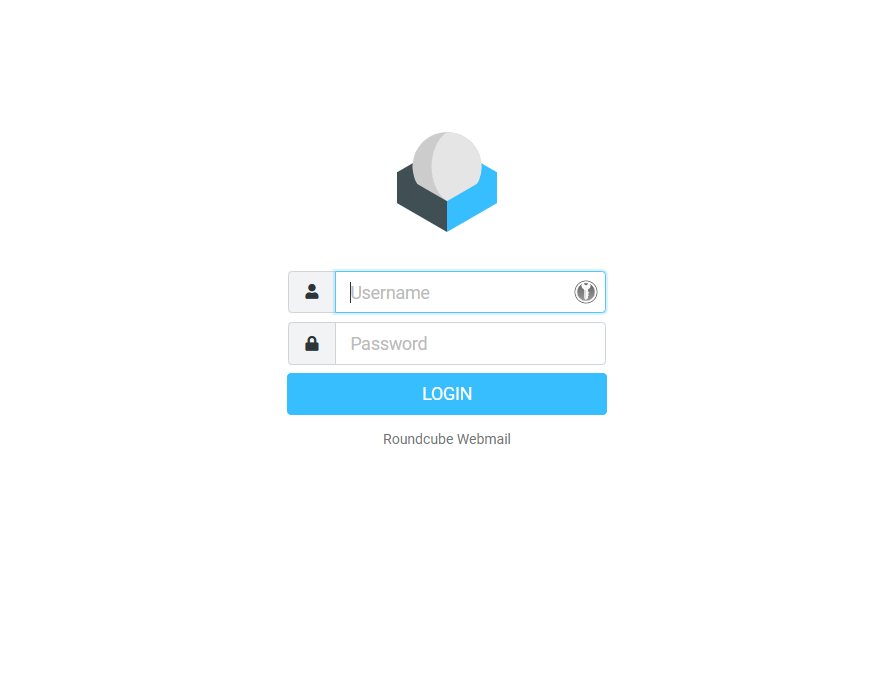
- Visit the webmail login page (e.g., https://webmail.yourdomain.com).
- Enter your email address and password, then click Login .
Step 2: Locate the Folders Section
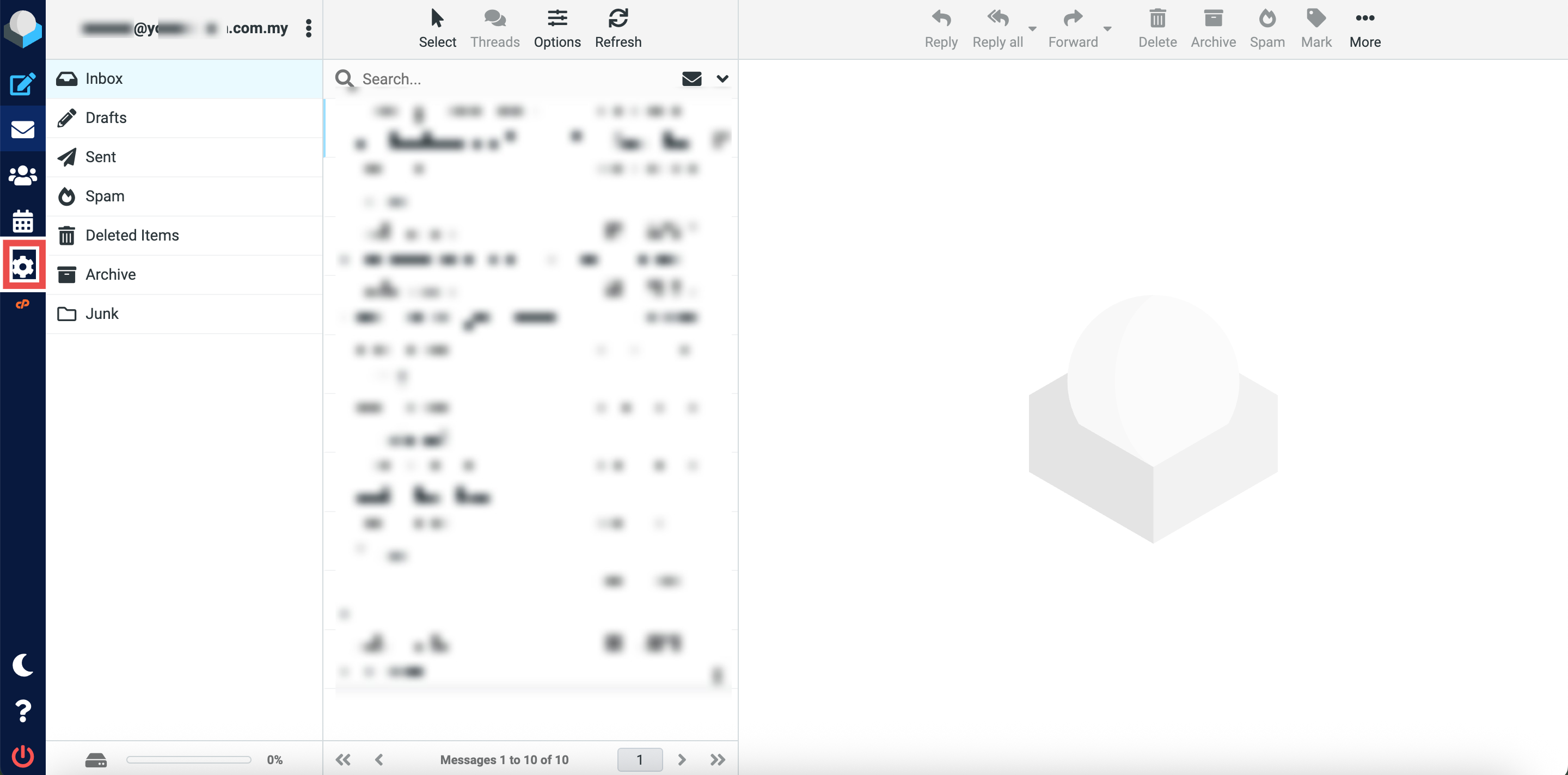
- In Roundcube Webmail, click the gear icon (Settings) in the left side of the page.
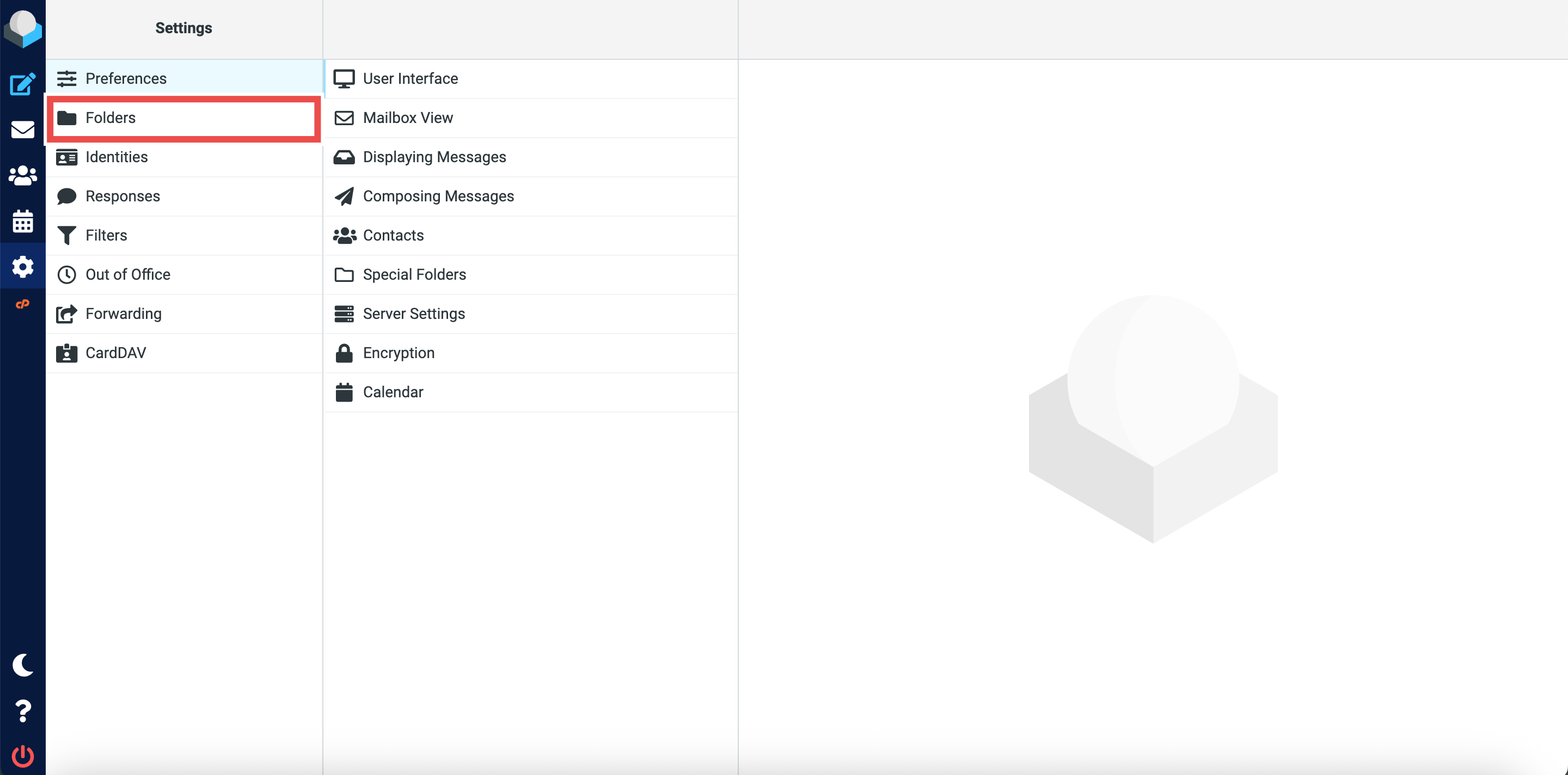
- From the left sidebar, select Folders.
Step 3: Create a New Folder
- At the top-right of the page, click the + icon or Create button.
- Enter your desired folder name in the Folder name field (e.g., “Clients”, “Projects”, “Invoices”).
- Select the Parent Folder for the folder.
- Select the List View Mode you want for the folder.
⚠️ Important Note:
- Parent Folder:
- Select “—” to create the folder at the root level, or choose an existing folder to create it as a subfolder.
- For example, selecting “Drafts” as the parent will display your new folder as “Drafts/FolderName”.
- Settings (List View Mode):
- List: Shows emails individually in chronological order (recommended for most folders).
- Threads: Groups related emails into conversation threads, useful for tracking ongoing discussions.


Step 4: Save the Changes
- Click Save to create the folder.

Step 5: Verify the New Folder Creation
- Successful message will appear confirming the new folder is created successfully.
- The new folder will be displayed in the list.

Conclusion
By following these steps, you can create email folders in Roundcube Webmail to organize your emails efficiently. Custom folders help you categorize messages and maintain a clutter-free inbox. You can create multiple folders and even organize them hierarchically using subfolders.
Should you encounter any issues or have any questions, our support team at IPSERVERONE is always here to assist you. Don’t hesitate to reach out to us at support@ipserverone.com for any help you need.