
Search Our Database
How to Create and Invite Users to Online Meetings in Gmail Web
Introduction:
In a professional digital environment, the ability to coordinate virtual collaborations through a web interface is a cornerstone of effective team management and operational continuity. While your query focuses on the Gmail Web interface, the sources primarily detail this workflow through the Google Calendar Web platform, which serves as the centralized hub for establishing and managing these secure communication bridges.
Successful meeting coordination involves both technical setup and stakeholder engagement. By integrating a specific Google meeting URL into a calendar entry, an administrator creates a dedicated digital workspace. To ensure this workspace is accessible to the right team members, the platform utilizes a sharing and invitation system where users are added via email or name, allowing the organizer to define specific permission levels for each participant.
Prerequisites:
- Access to the web interface while logged into your professional account.
- A chosen preference date identified on the calendar grid where the meeting will be hosted.
- A designated meeting name to provide a clear title for the calendar entry.
Step-by-step Guide:
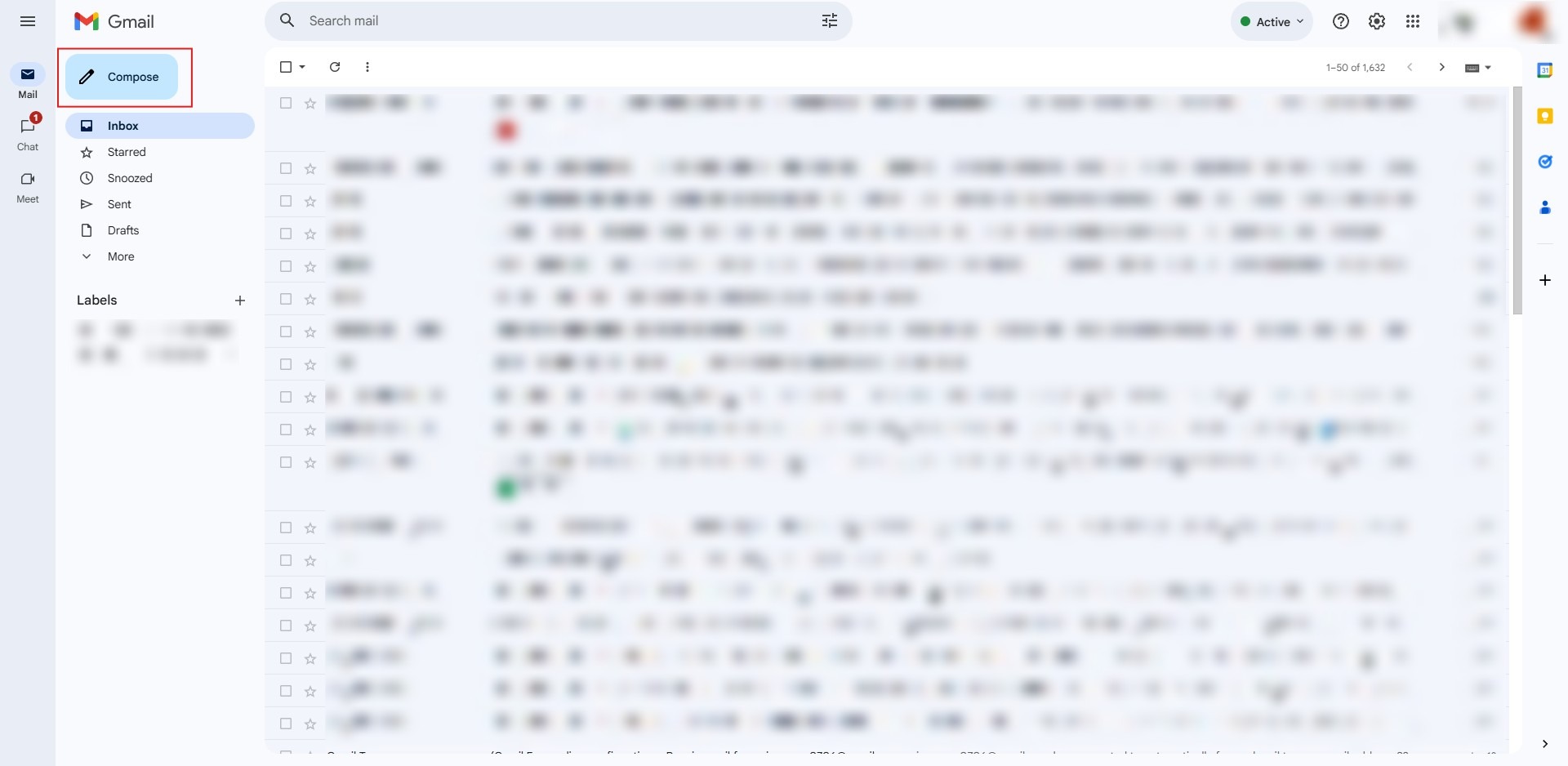
Step 1: Click Compose
- Initiate a new communication stream from your primary inbox.
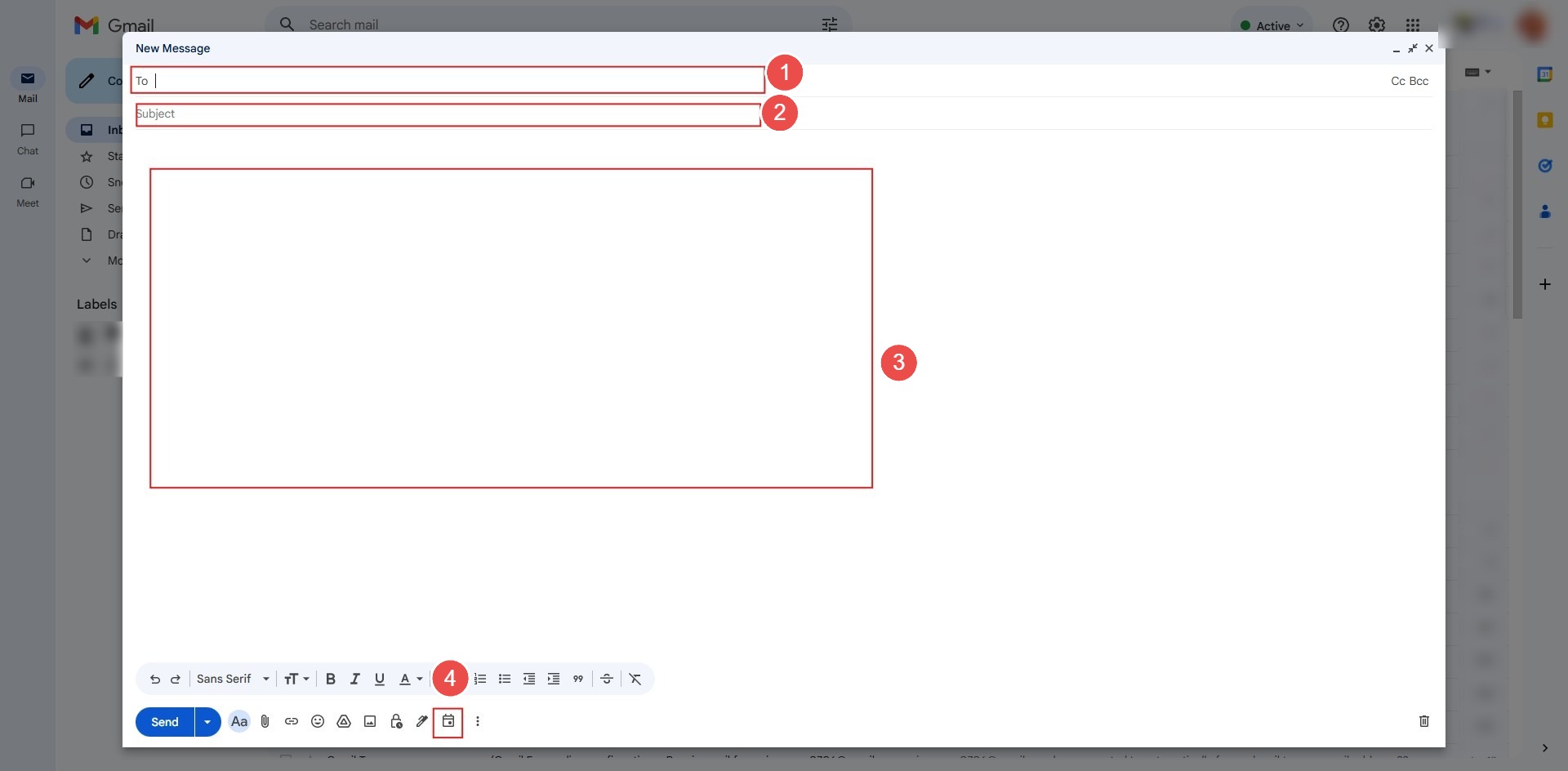
Step 2: Enter Details & Click Calendar Icon
- Key in the recipient’s email, subject, and message; then, select the calendar icon at the bottom of the window to bridge the email with your schedule.
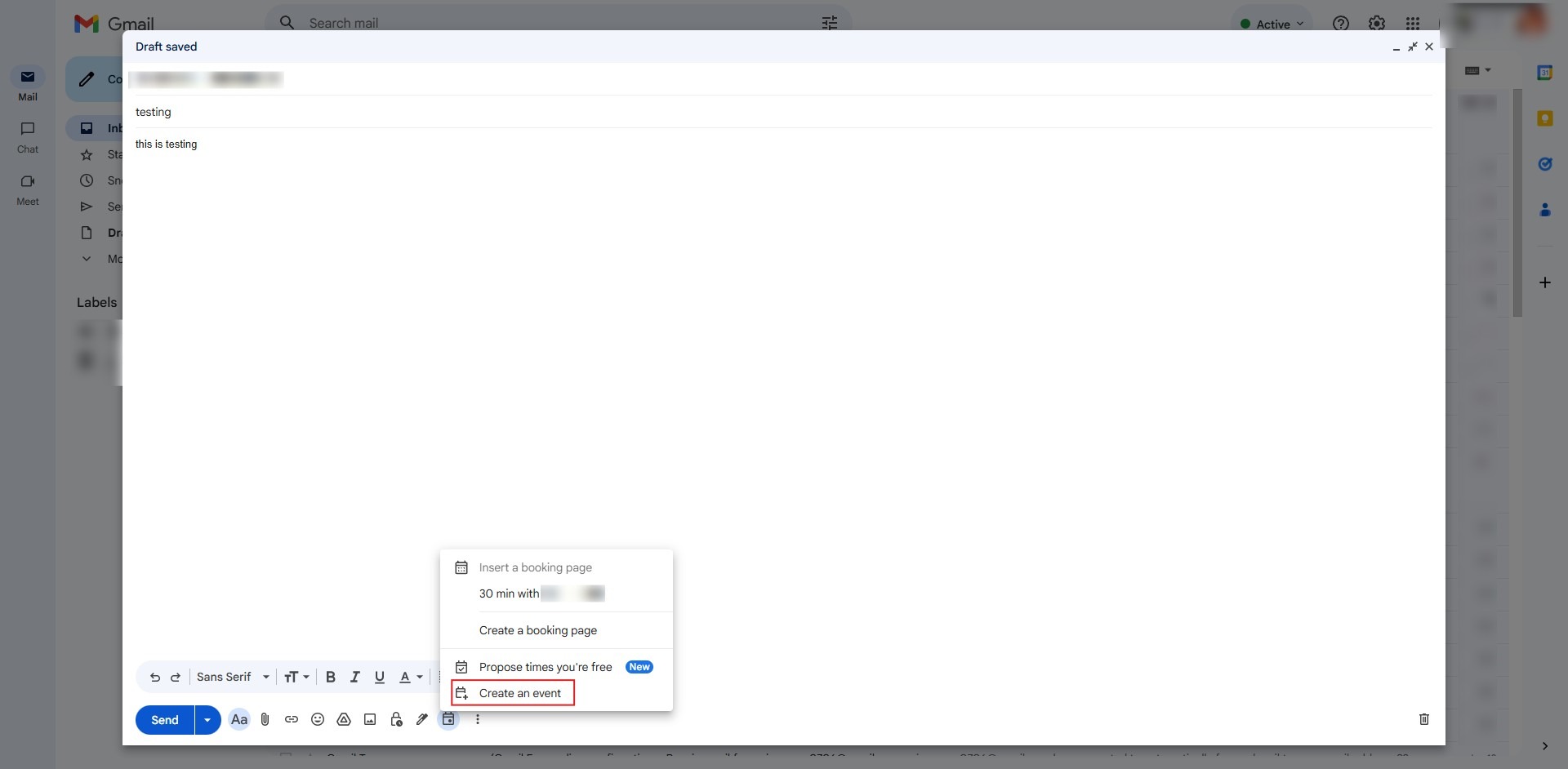
Step 3: Click Create an Event
- This action triggers the event architecture interface within the Gmail ecosystem.
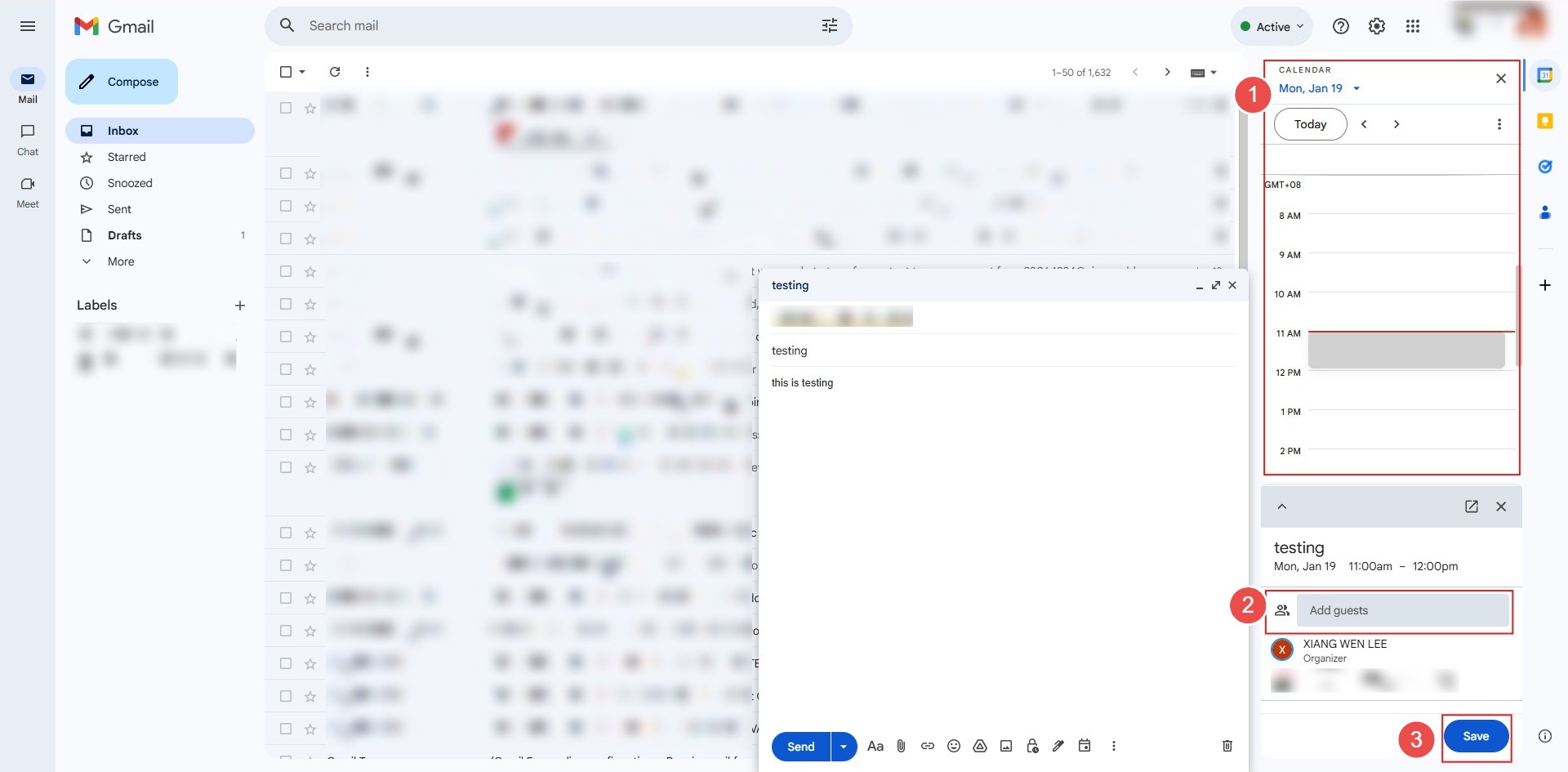
Step 4: Choose Date, Add Guest & Save
- Select your preference date.
- Adding guests mirrors the “Add people and groups” process used to authorize collaborators.
- Click save to commit the event to the timeline.
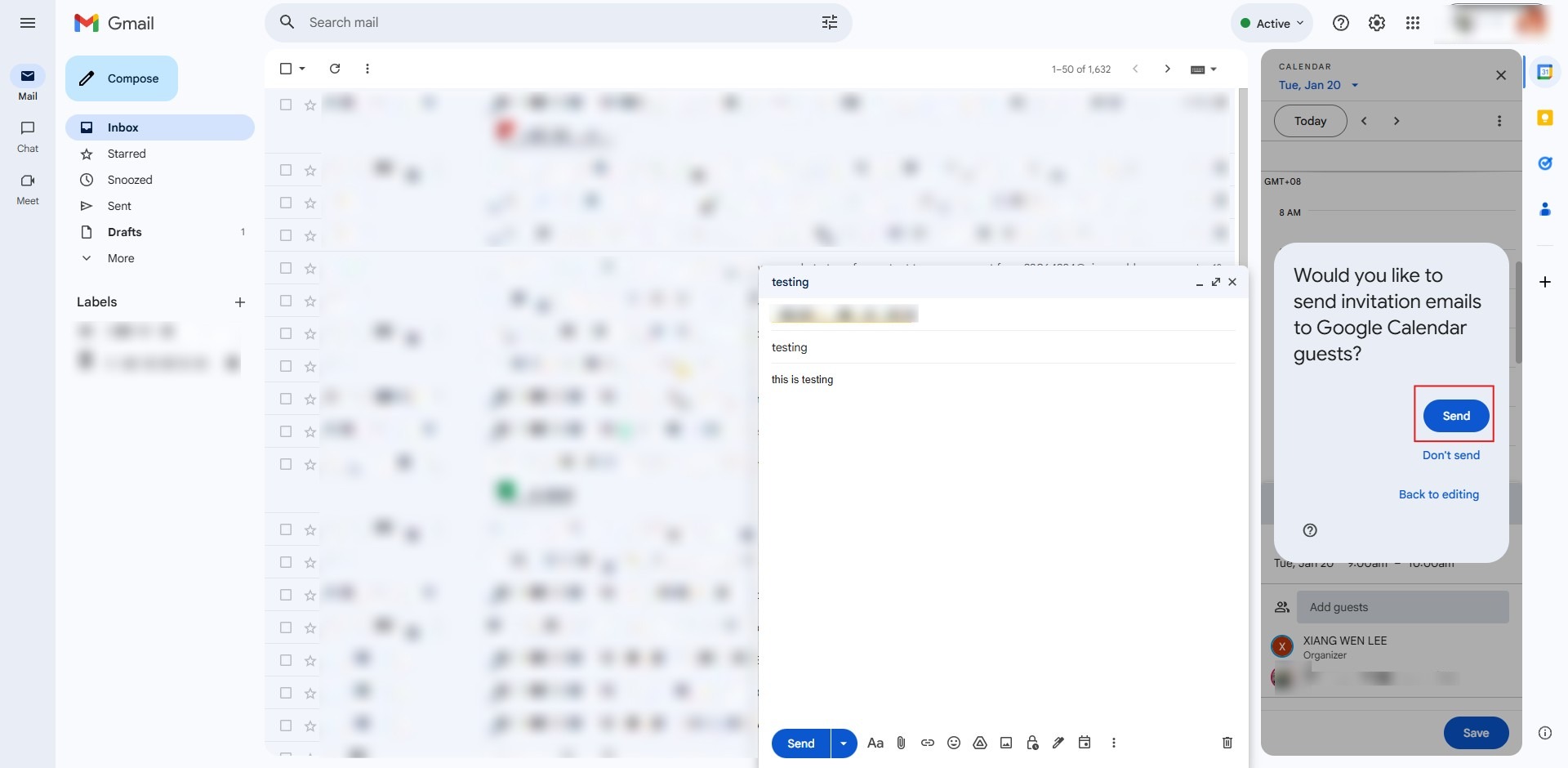
Step 5: Click Send
- Finalize the calendar invitation details.
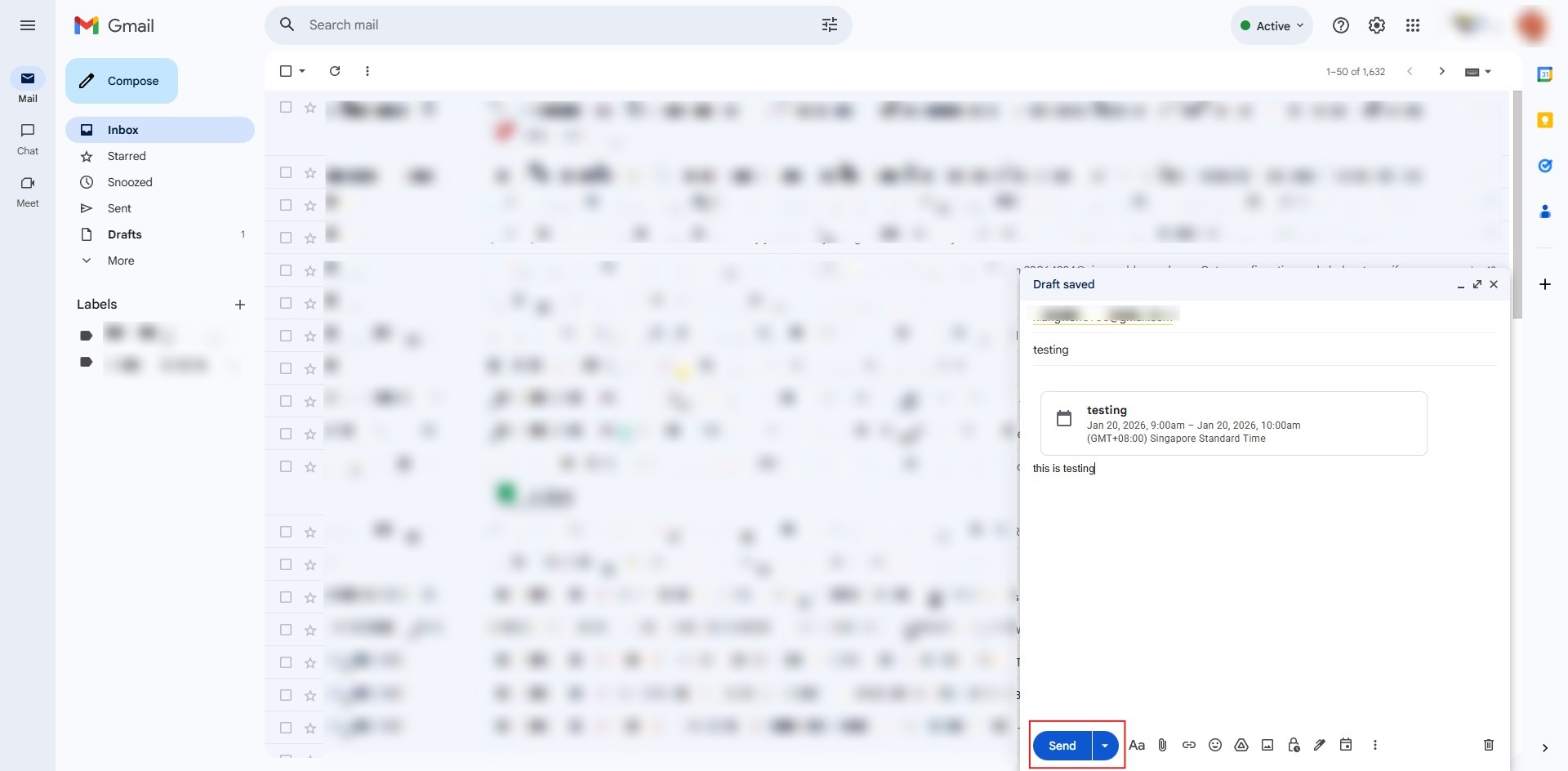
Step 6: Click Send Email
- Dispatch the email containing the meeting invitation to all designated stakeholders.
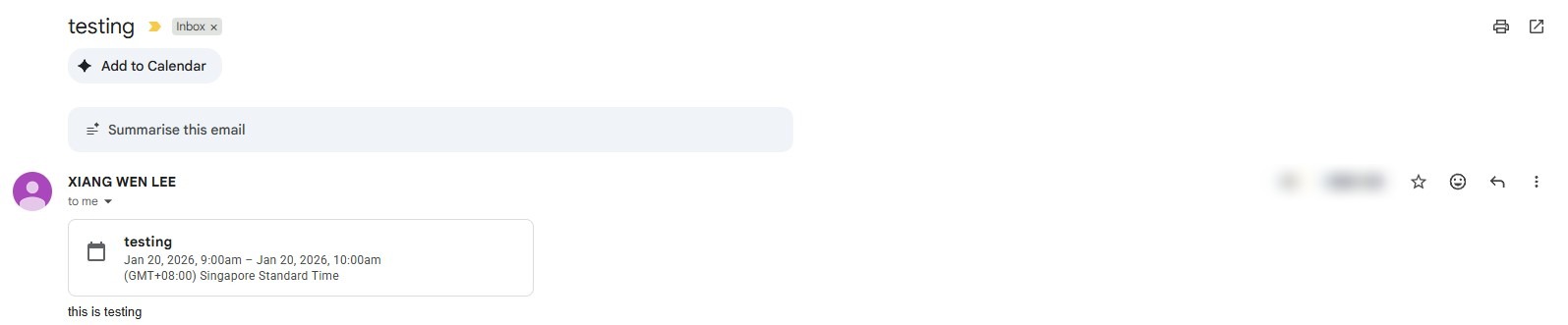
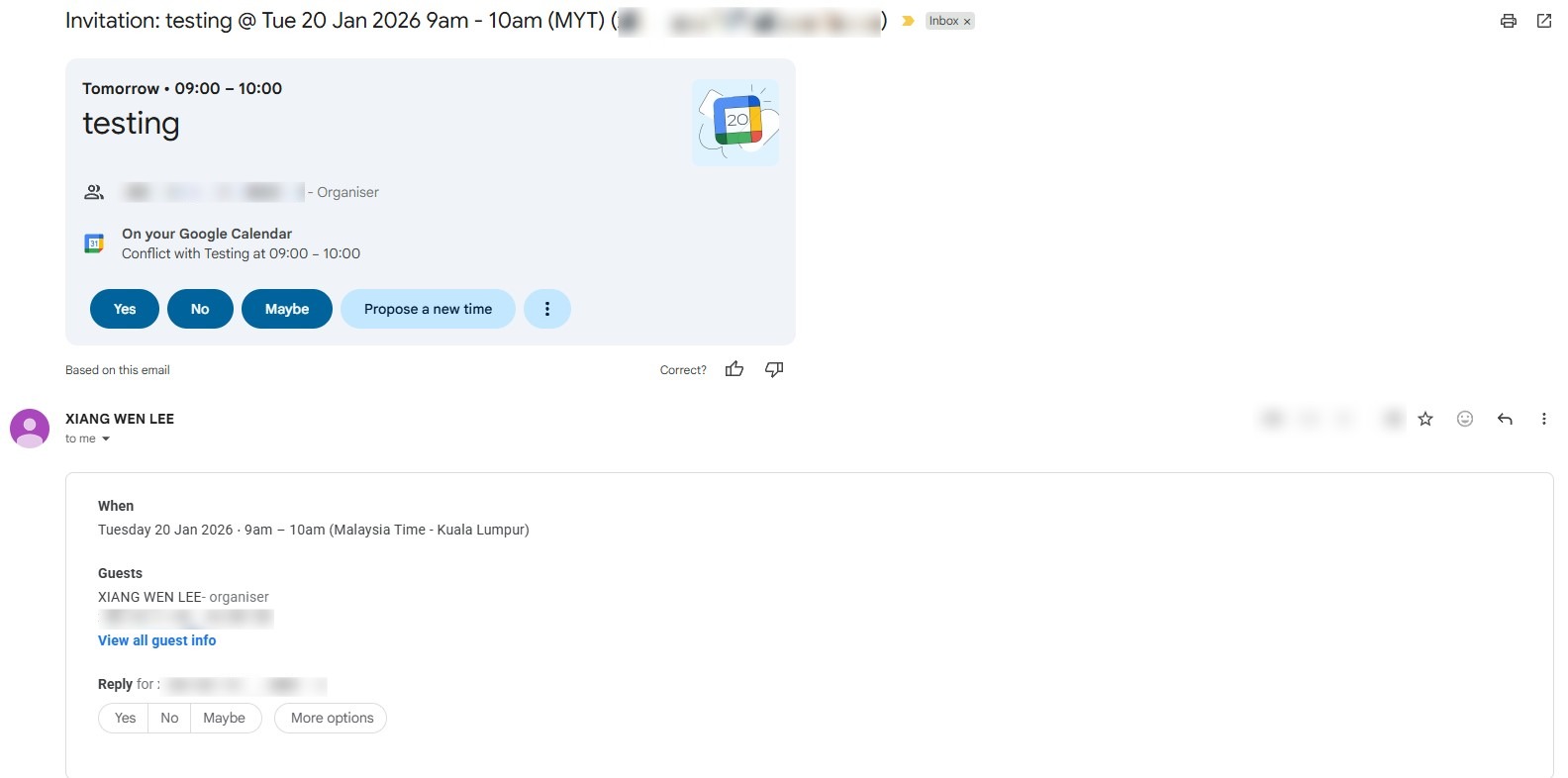
Step 7: Success
- The process is a success once the meeting name and integrated details are officially saved and visible.
Conclusion:
In conclusion, successfully establishing and inviting users to online meetings via the Gmail Web and Google Calendar ecosystem ensures a seamless collaborative environment supported by a centralized access point. The process is finalized as a success when the meeting details—specifically the date, name, and conferencing URL—are saved to the calendar grid and dispatched to authorized invitees.