
Search Our Database
How to configure server disk usage alerts in cPanel
Introduction
Monitoring your disk space is vital for maintaining server stability and preventing website downtime caused by full storage. This guide explains how and why to enable automated disk usage notifications within WHM, ensuring administrators receive timely alerts before reaching critical limits.
Prerequisite
-
Access to WHM with root privileges
-
Basic knowledge of navigating the WHM interface
Step-by-step guide
Step 1: Access Tweak Settings in WHM
-
Login to your cPanel control panel with root privileges.
The URL to your cPanel typically will be like <domain>:2087 or <server IP>:2087. -
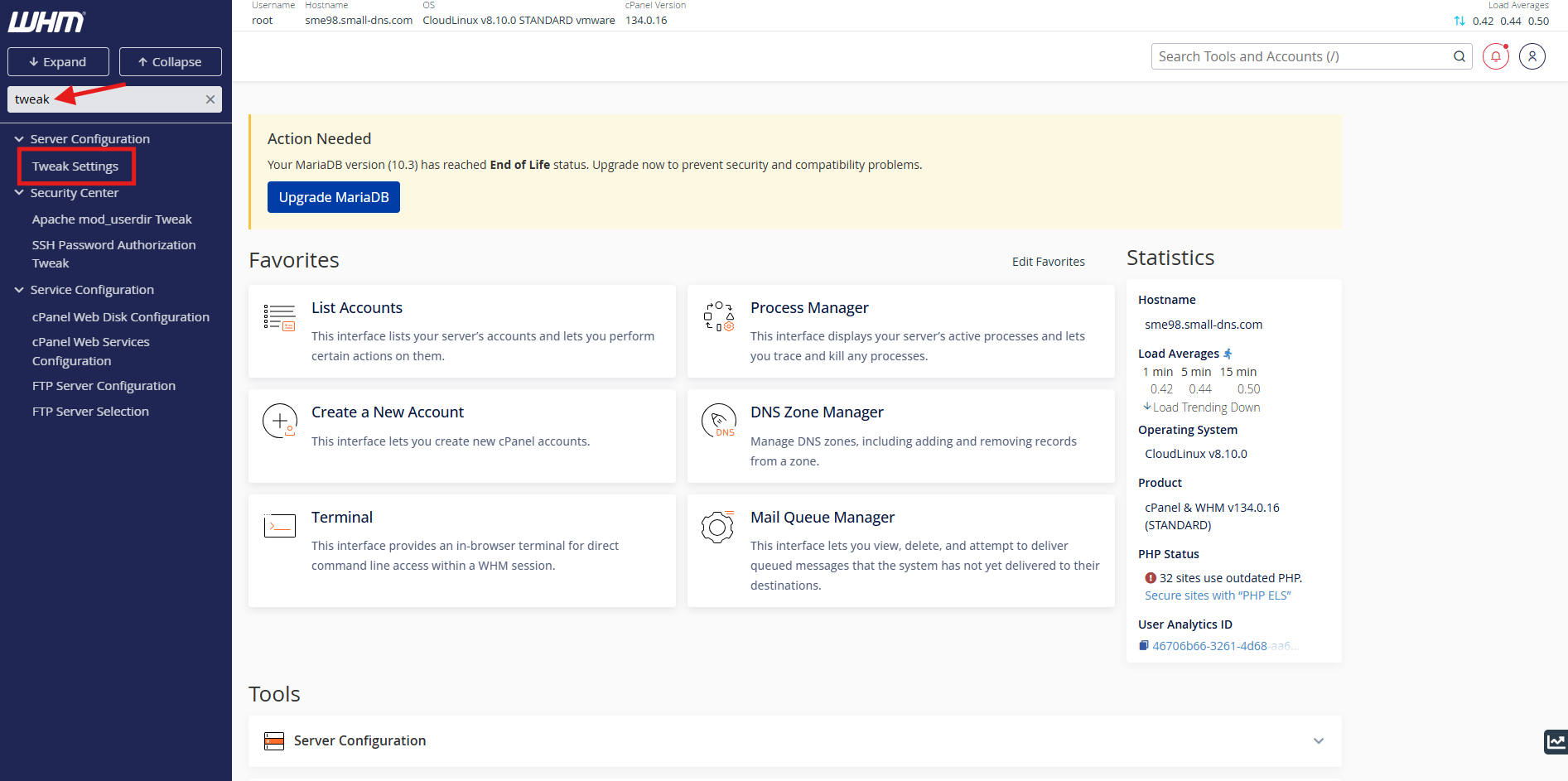
Use the search bar on the left to find and select Tweak Settings.
-
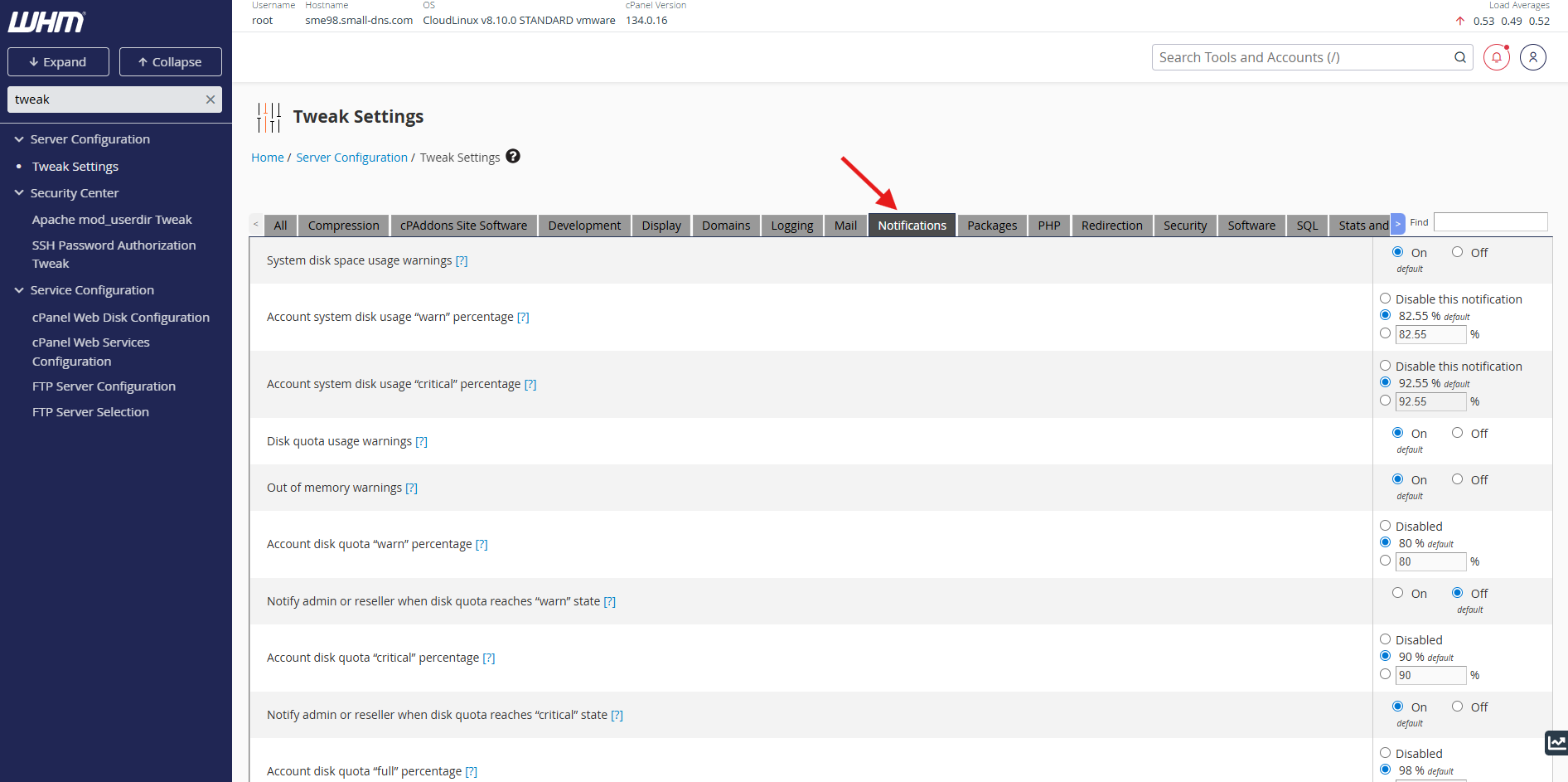
Click on the Notifications to view alert configuration options.
Step 2: Configure disk usage thresholds
-
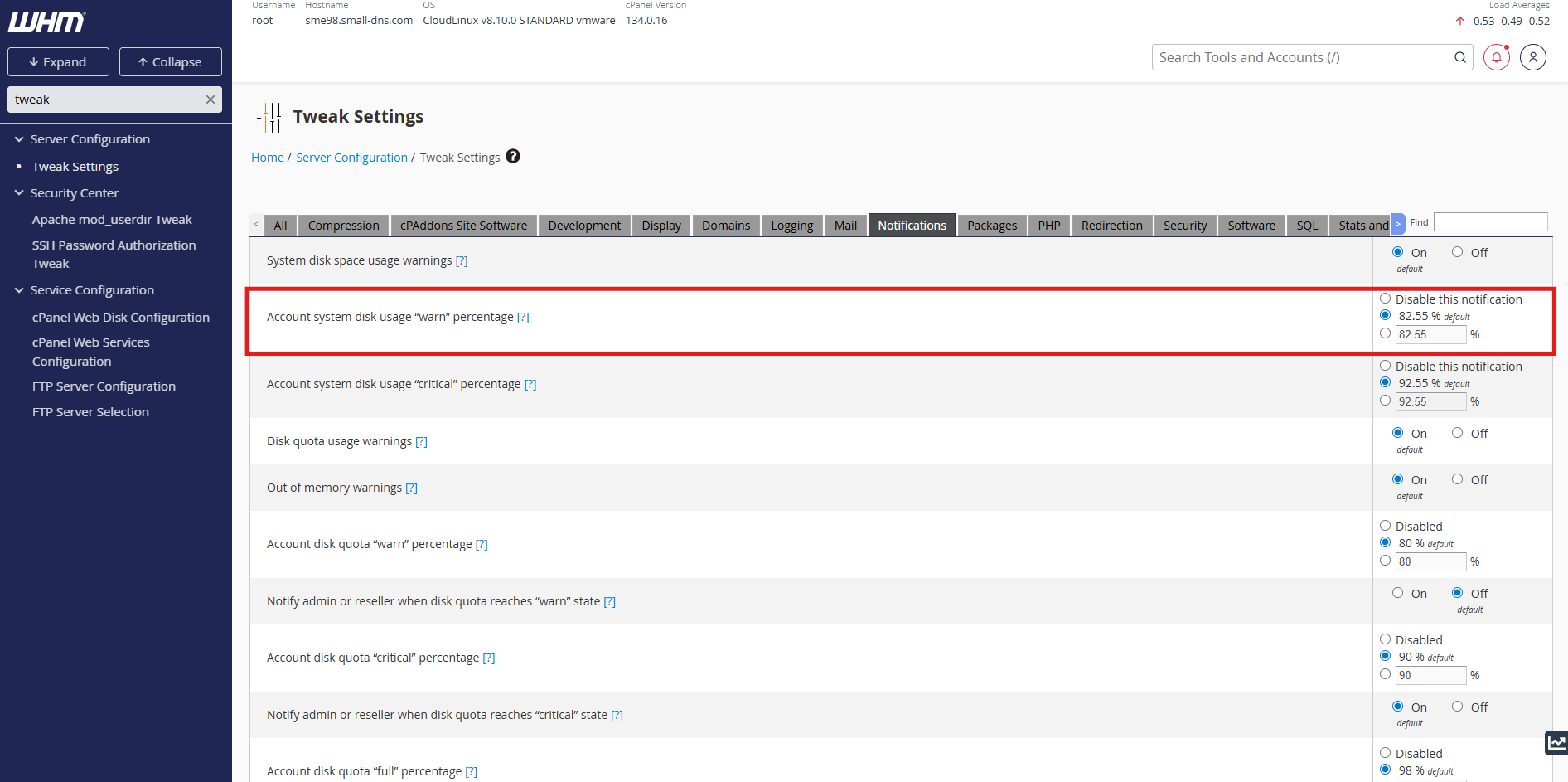
Locate the setting for Account system disk usage “warn” percentage. Enter the percentage at which you want to receive a warning (e.g., 80%).
-
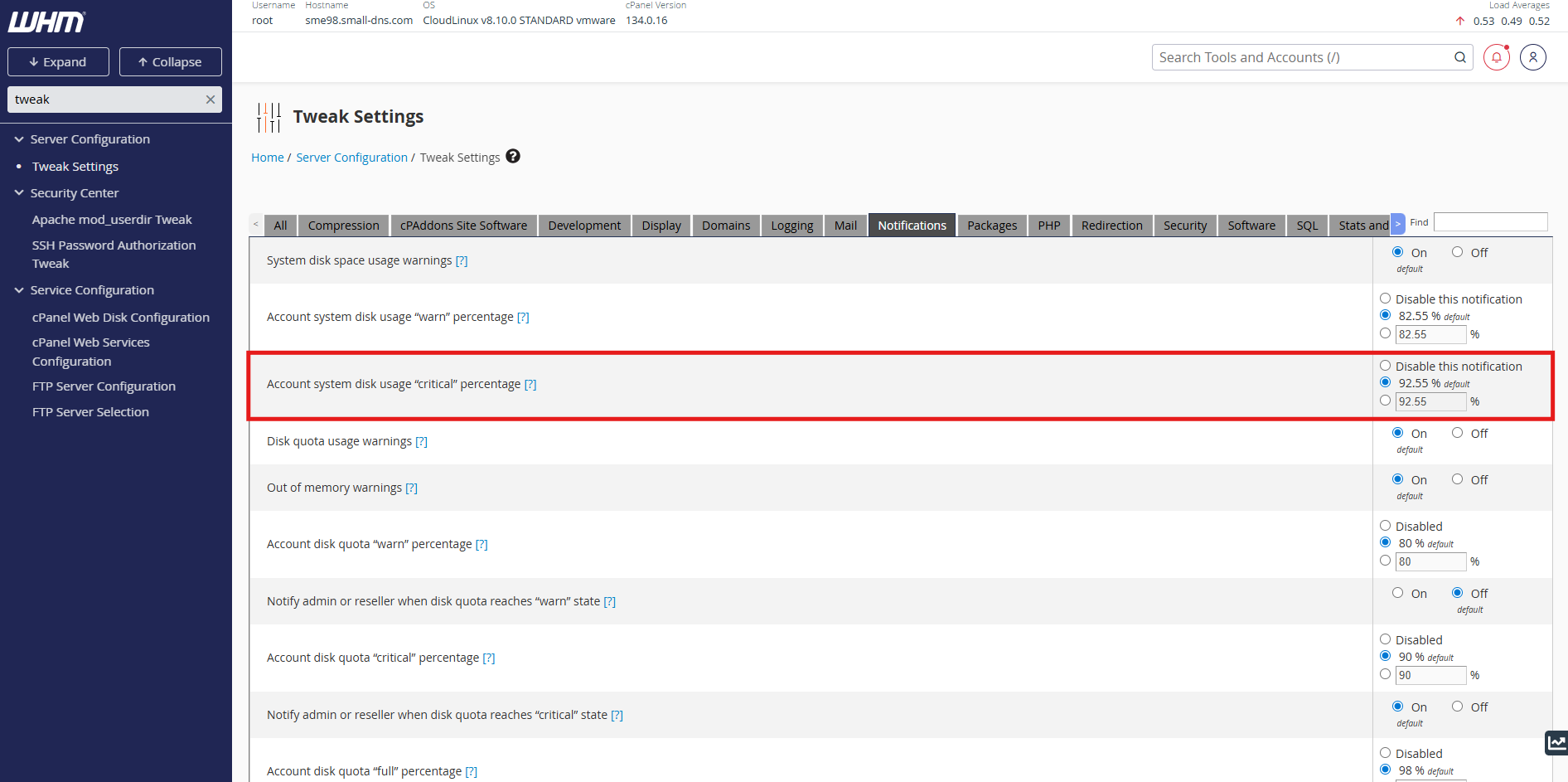
Locate the setting for Account system disk usage “critical” percentage. Enter the percentage at which you want to receive a critical alert (e.g., 90%).
-
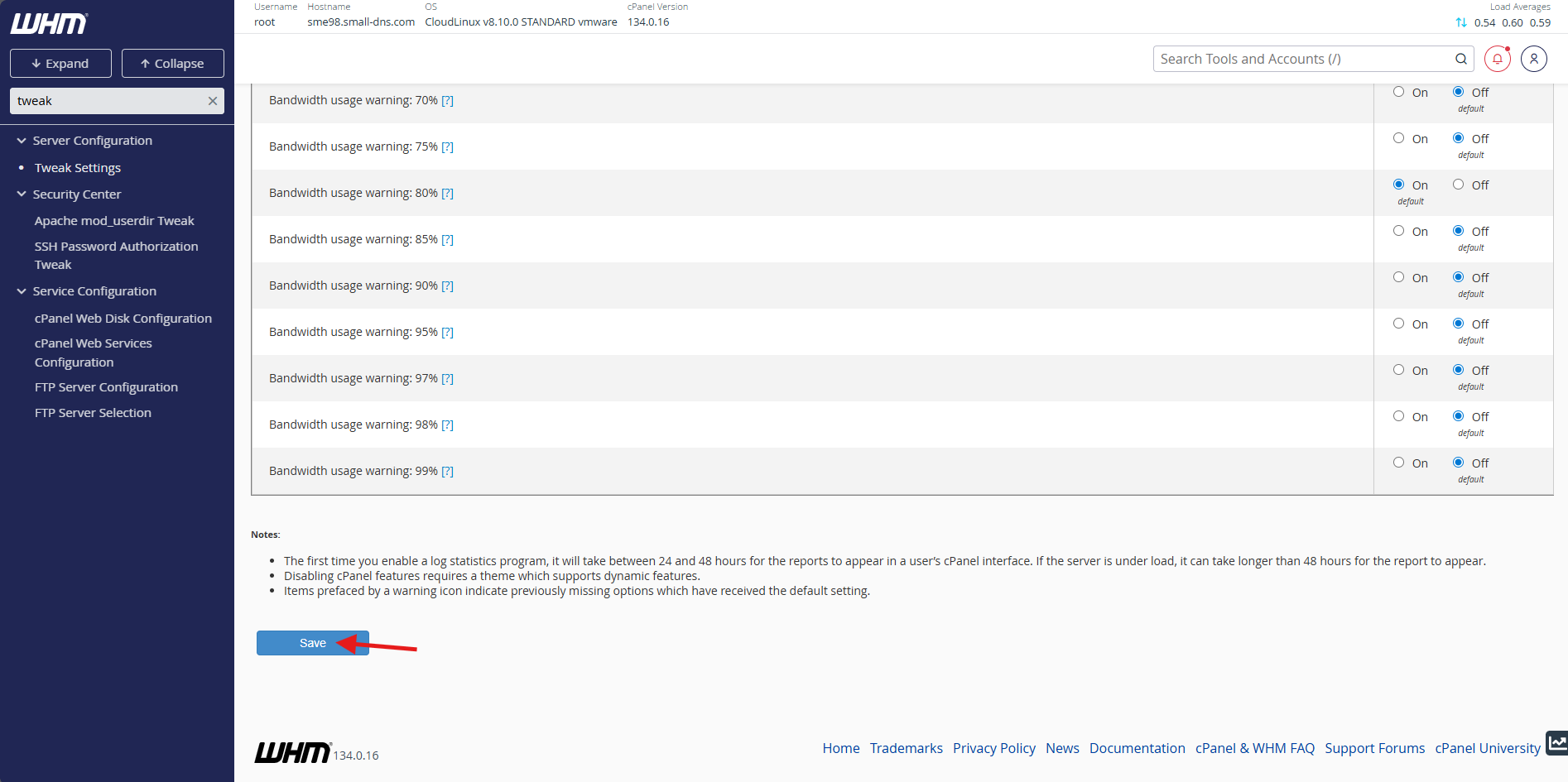
Scroll to the bottom and click Save to apply the changes.
Step 3: Manage notification contacts
-
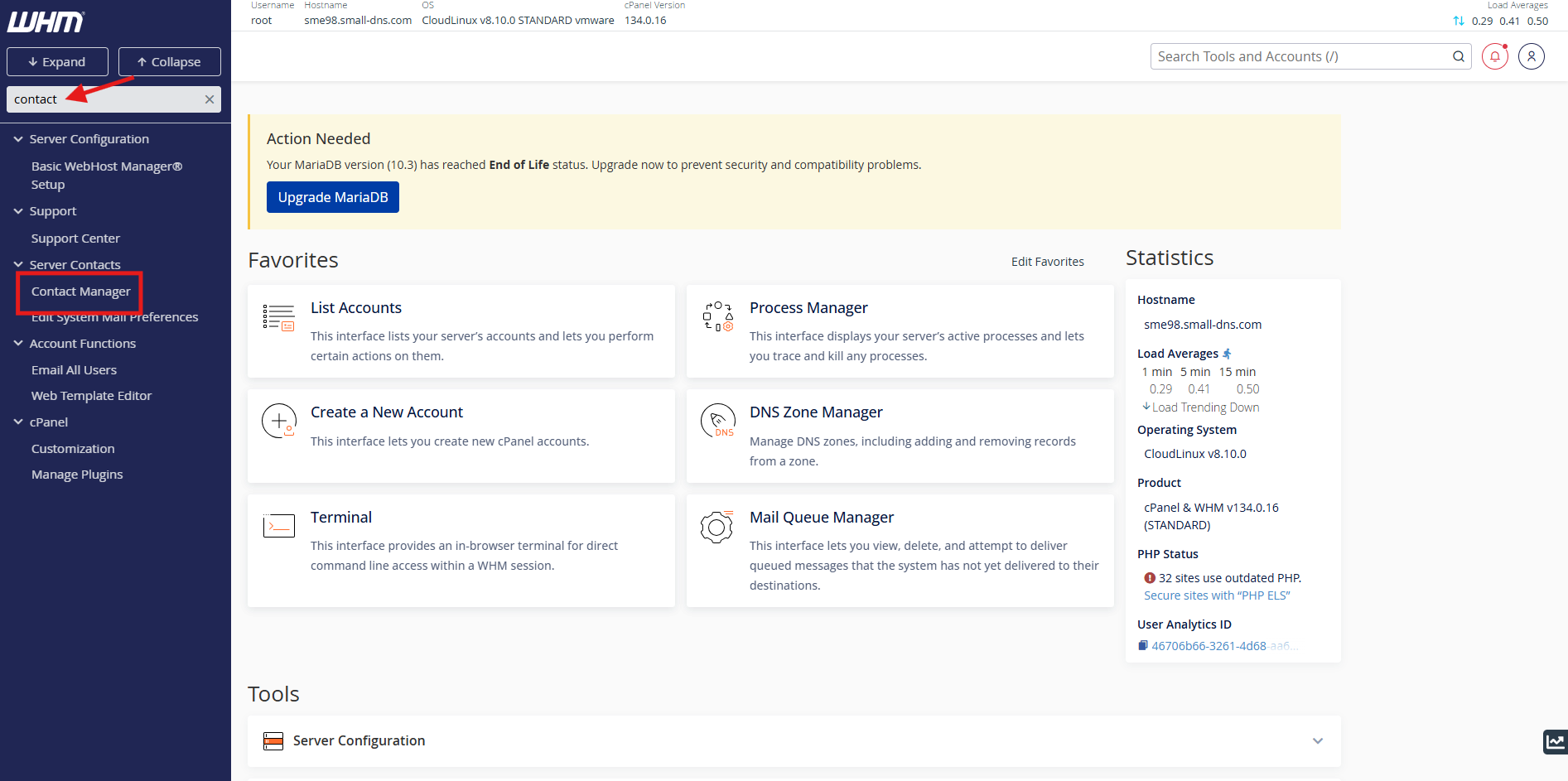
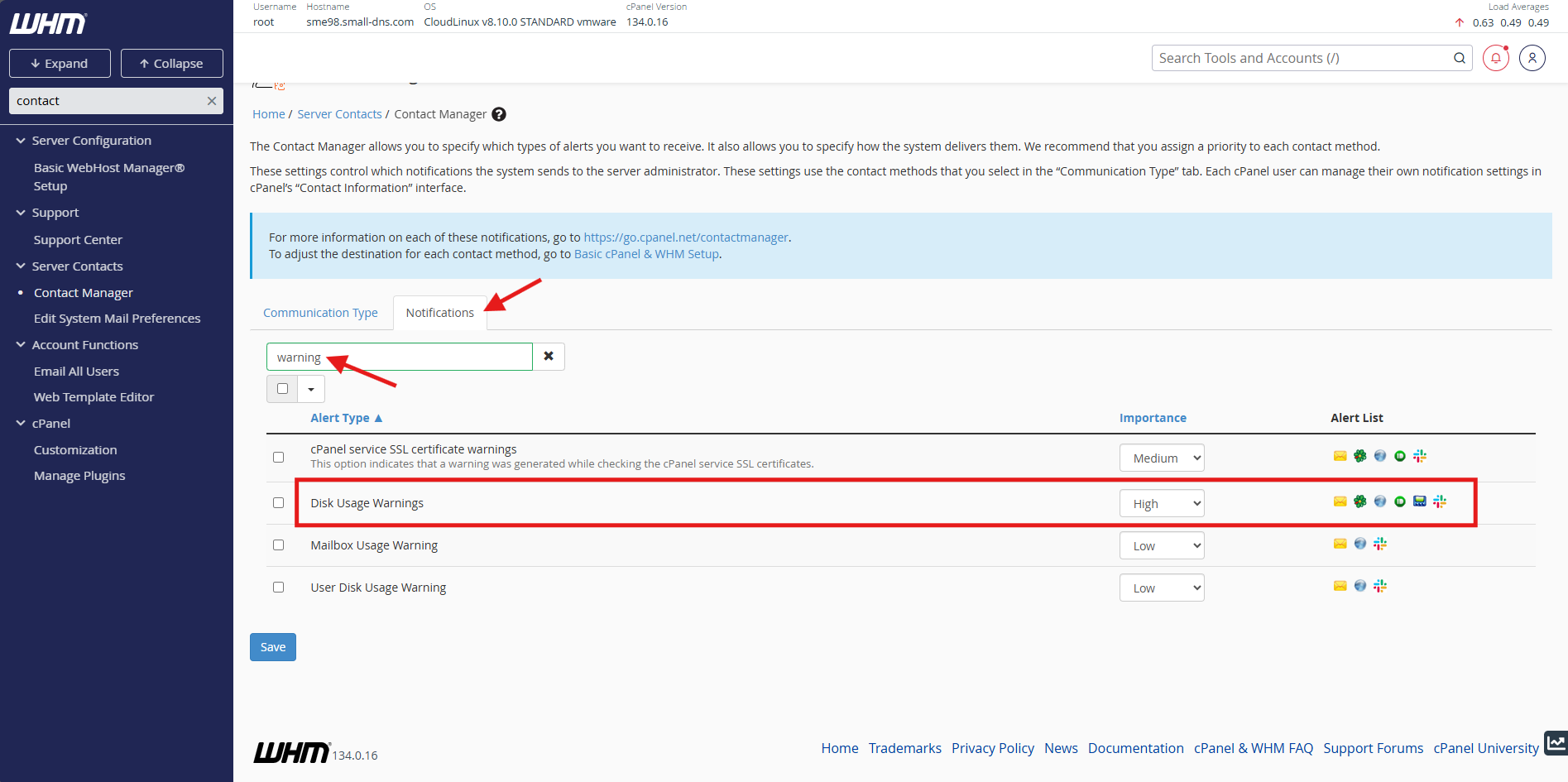
Navigate to the Contact Manager in cPanel.
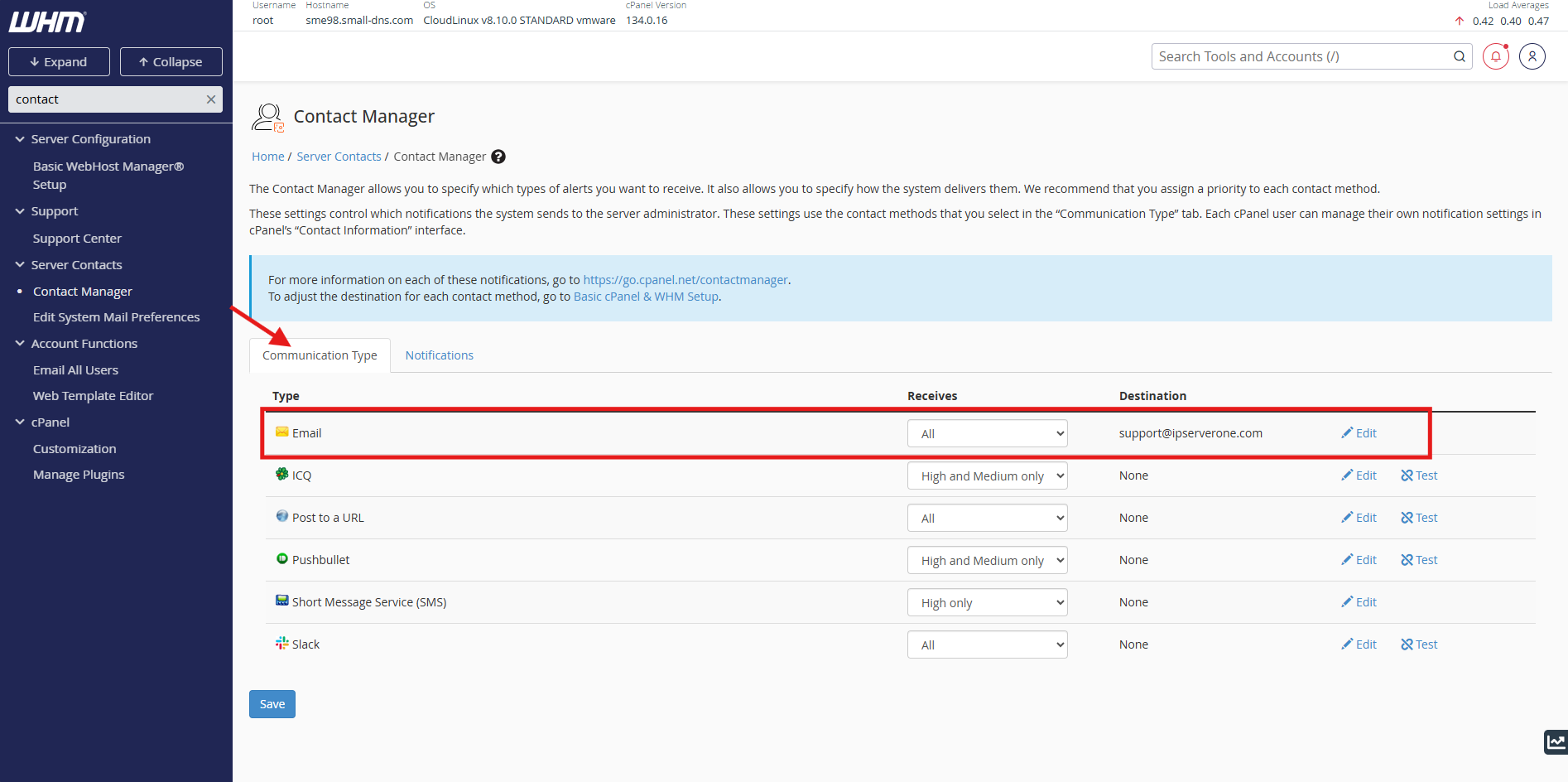
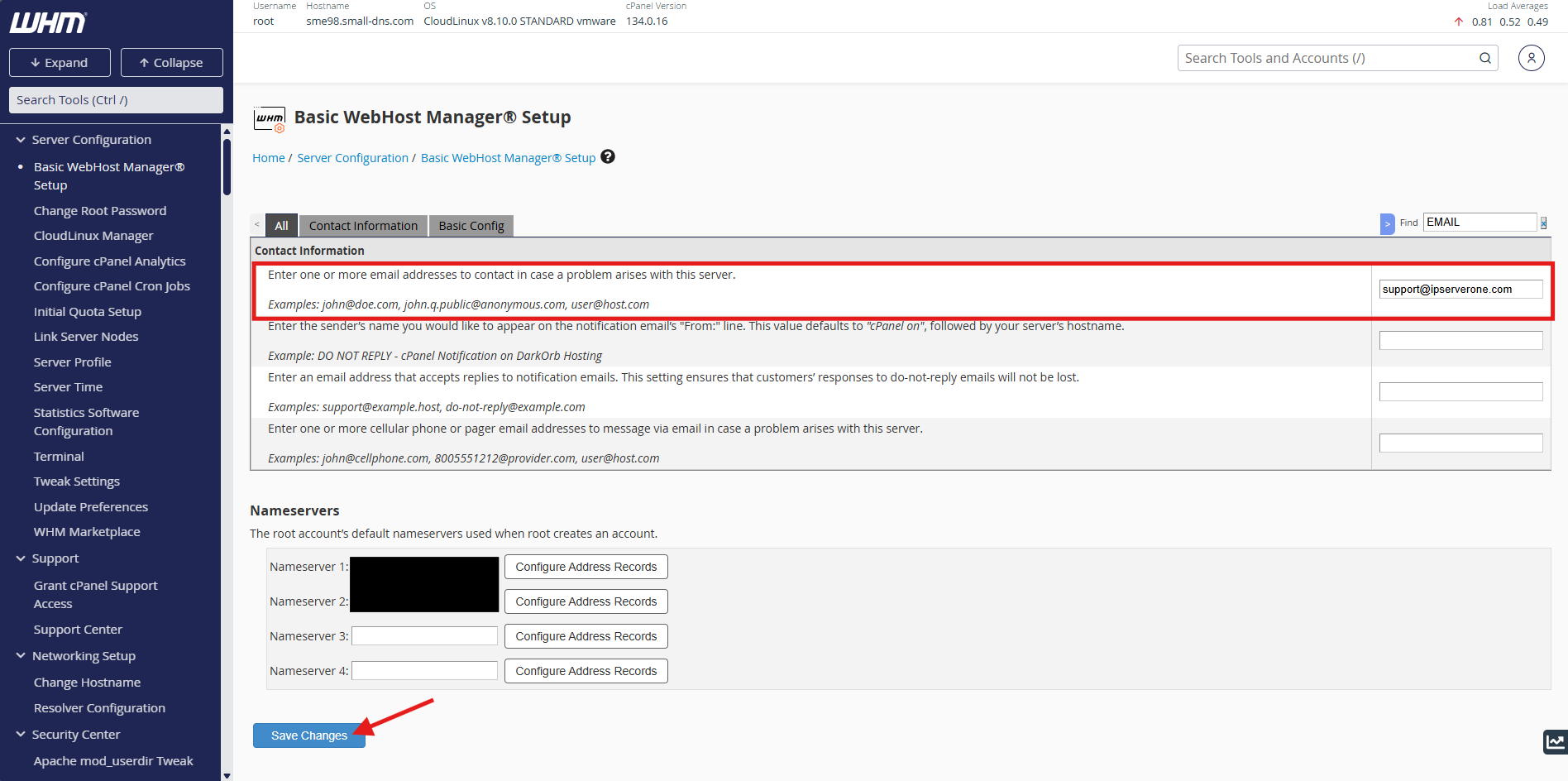
- On the Communication Type. Locate the Email and edit the email address you wish to receive the alert. **Take note that this will navigate to another page.
-
- In Contact Information, enter the email address(s) and click Save Changes to apply the changes.
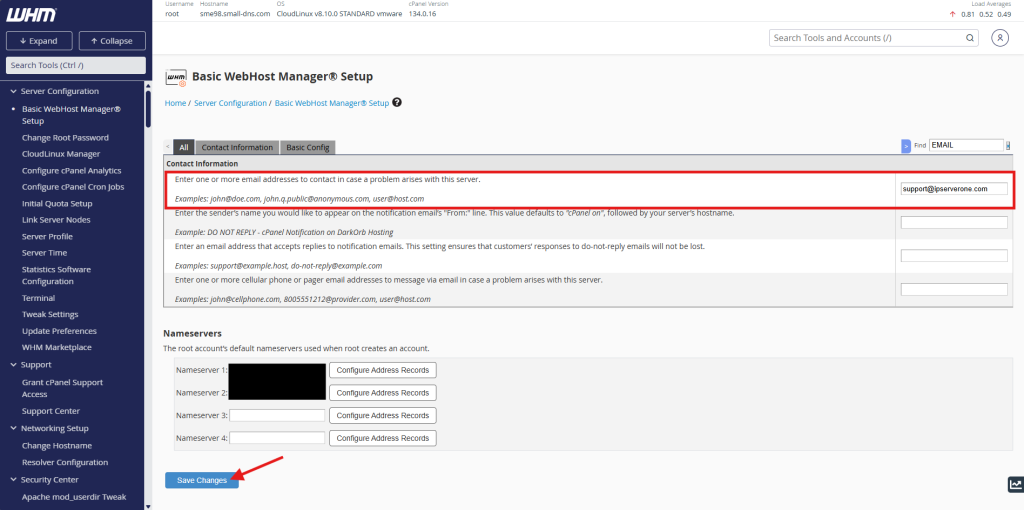
- In Contact Information, enter the email address(s) and click Save Changes to apply the changes.
-
On the Notifications. Locate the Disk Usage Warnings row and adjust the priority of the alert.
Conclusion
By following this guidance, you can ensure your server stays operational by receiving proactive alerts whenever disk space consumption reaches your defined thresholds.
For additional assistance or if you encounter any issues, please contact our support team at support@ipserverone.com.