
Search Our Database
How to Configure Forwarding Option: “Mark Gmail’s Copy as Read” in Gmail Web
Introduction:
Maintaining a streamlined communication flow is a critical component of managing high-performance resources like NovaCloud instances, GPU Servers, and Bare Metal Servers. When you centralize notifications for billing invoices, support ticket updates, and system alerts to a primary address, your original Gmail inbox can quickly become cluttered with redundant “unread” messages. Configuring the forwarding option “Mark Gmail’s Copy as Read” provides a sophisticated solution by automating the redirection of your mail while simultaneously clearing the notification status in the source account.
This administrative setting, located within the “Forwarding and POP/IMAP” tab of Gmail Web, is designed for users who require a silent archive of their professional correspondence. By ensuring that forwarded copies are immediately marked as read, you can maintain a “clean” original inbox without the distraction of rising unread message counts. Mastering this configuration enables a highly organized data retention strategy, where every critical service update is archived for record-keeping but does not interfere with your daily operational focus.
Prerequisites:
- User must possess a fully registered and active Gmail account.
- The procedure explicitly requires accessing the Gmail Web interface.
- You must have a secondary, active email address to serve as the forwarding destination.
- You must have already successfully added and verified a destination email address.
Step-by-step Guide:
Step 1: Access Settings
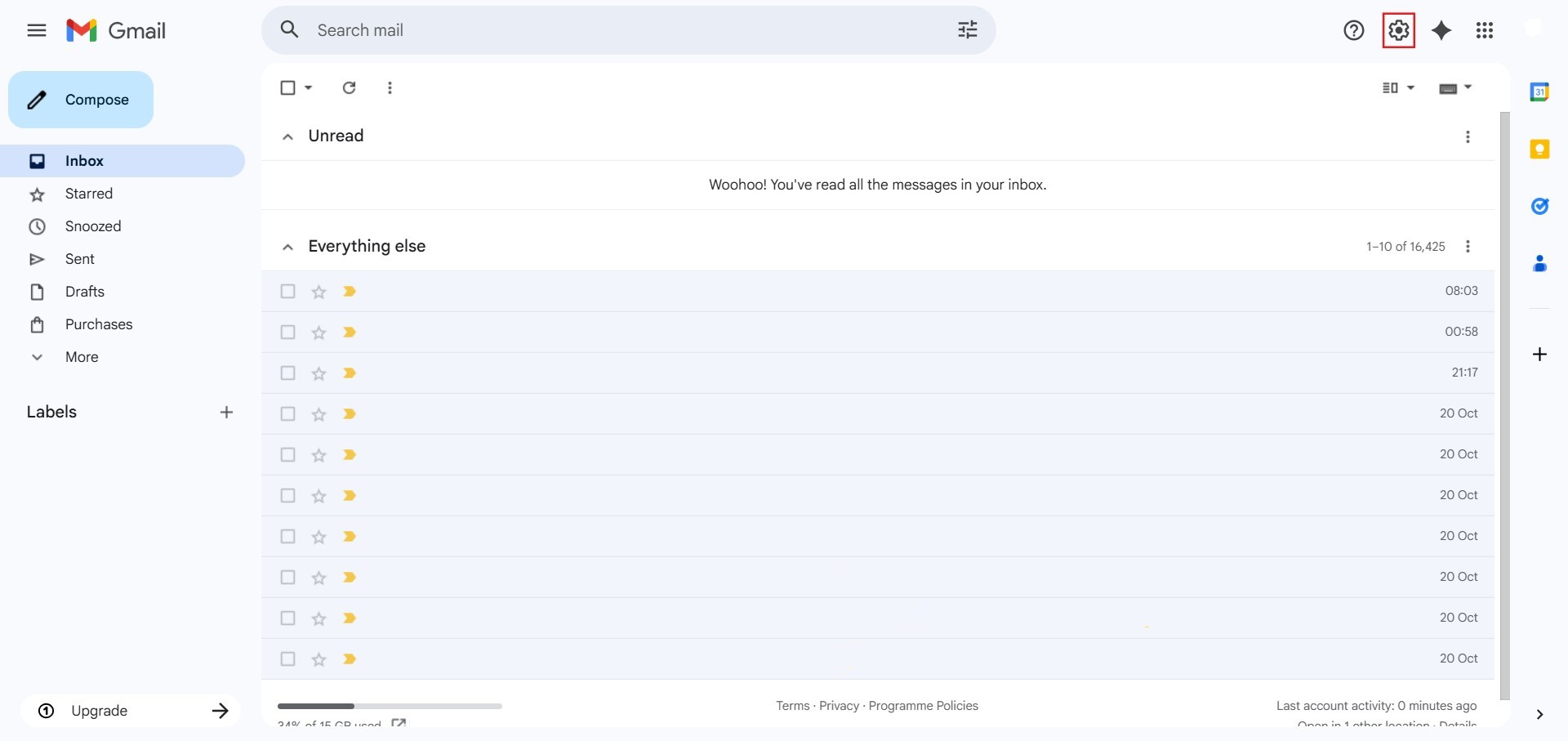
- The initial action required is to Click setting.
Step 2: Navigate to All Settings
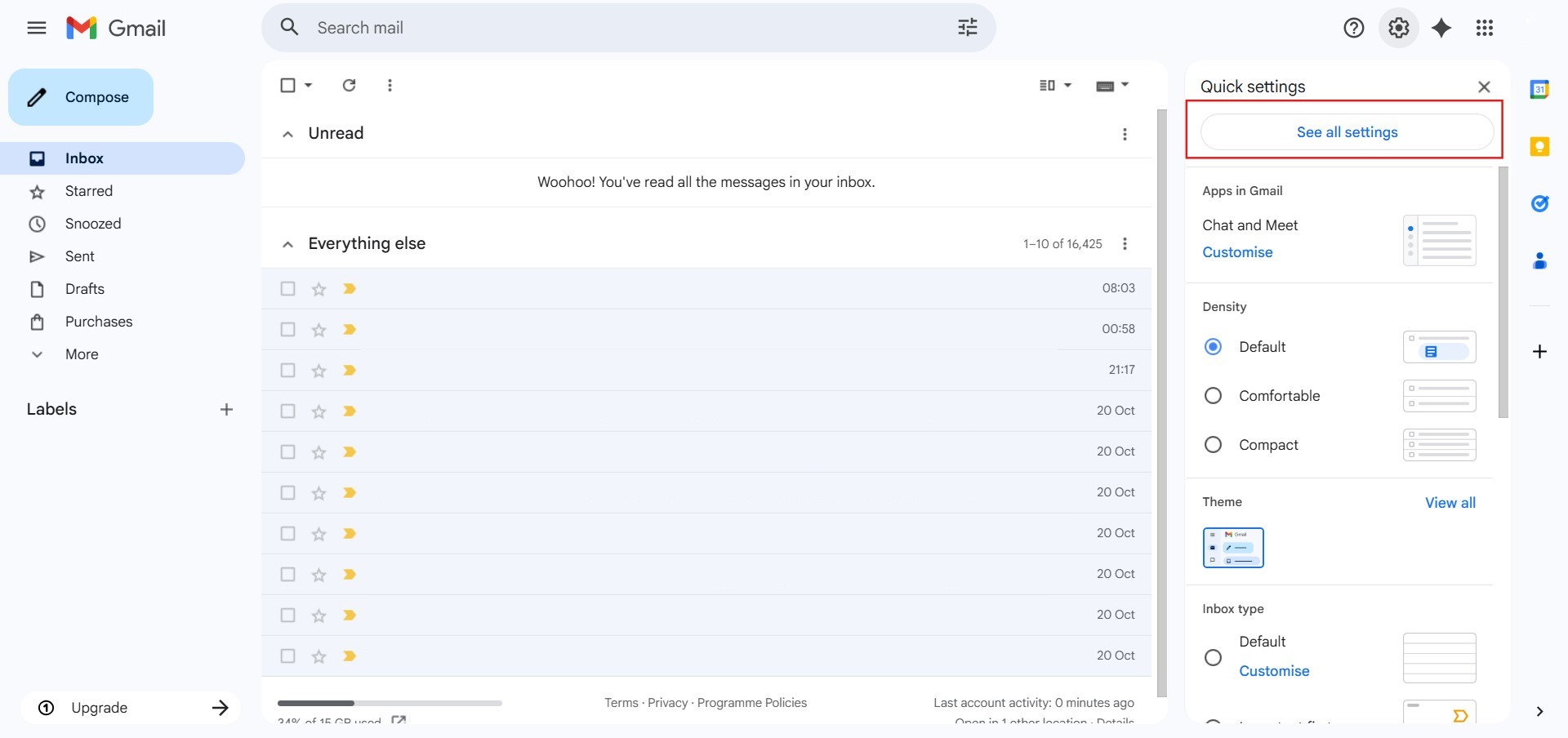
- After clicking “setting,” proceed to select See all Settings.
Step 3: Navigate to Forwarding and POP/IMAP
- Click on the tab labeled “Forwarding and POP/IMAP” located in the top menu bar of the settings page.

Step 4: Choose Recipient
- Ensure the forwarding feature is toggled to “Forward a copy of incoming mail to…”

Step 5: Enter Destination
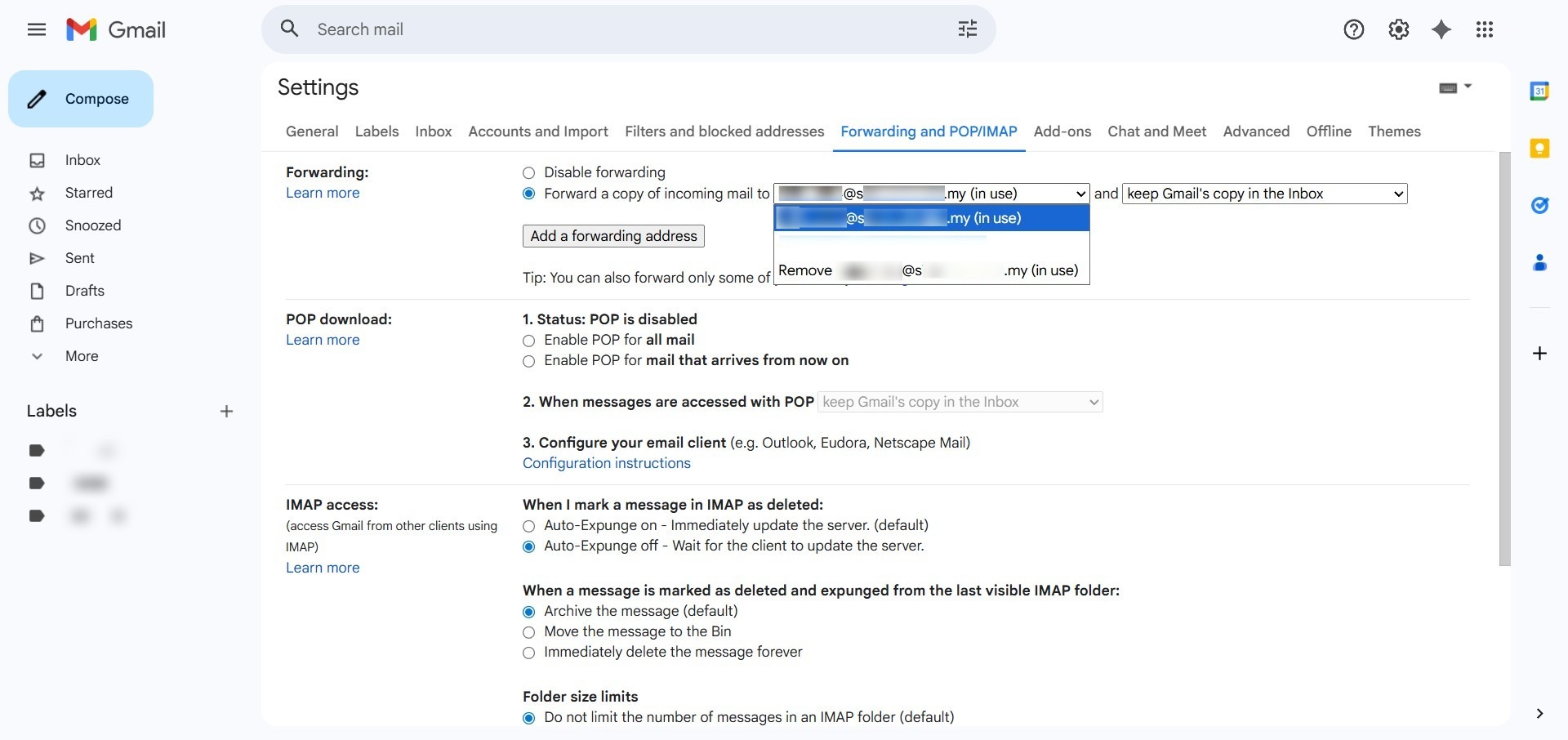
- Select the verified destination email address from the primary dropdown menu.
Step 6: Set Read Status
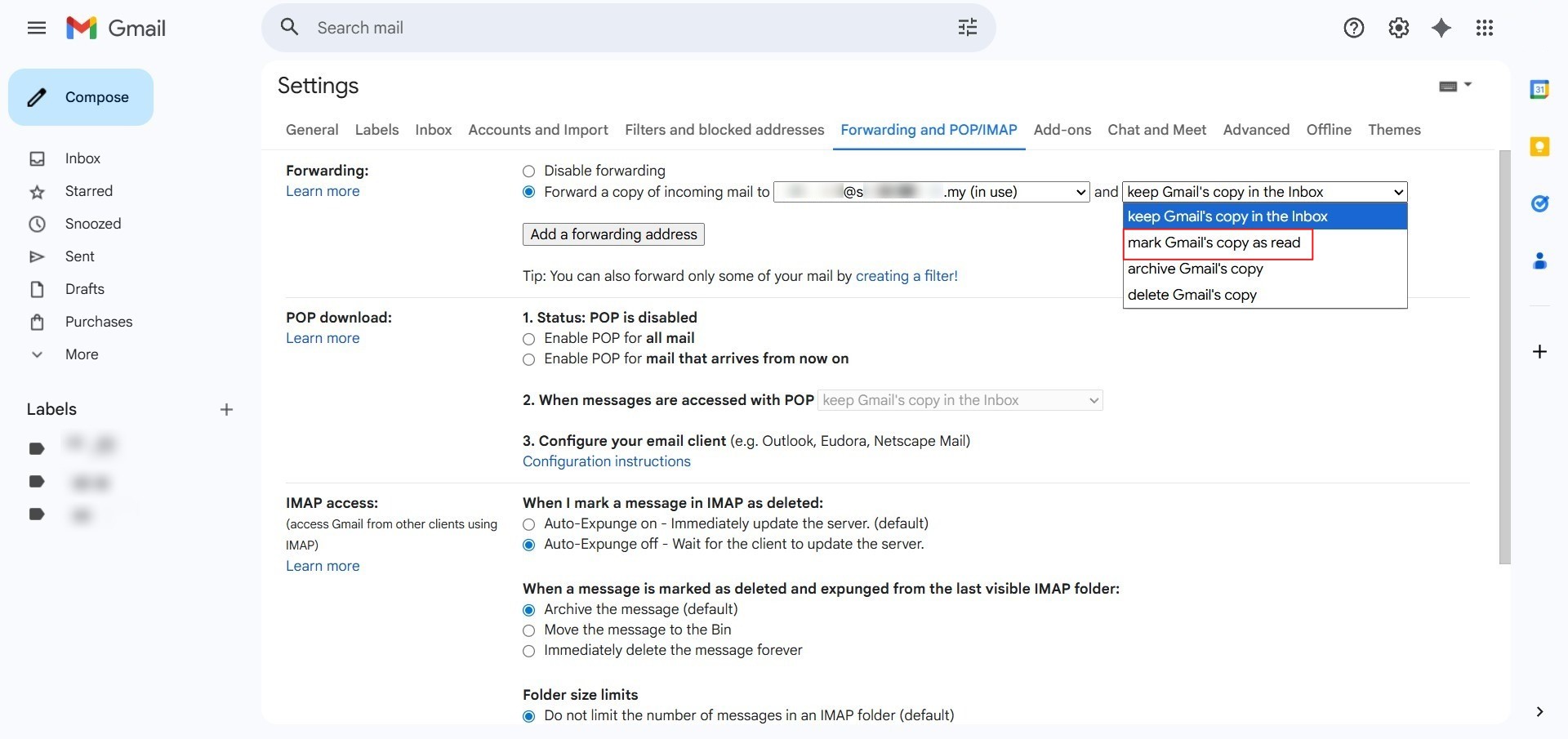
- In the secondary dropdown menu, select the specific action: “mark Gmail’s copy as read”.
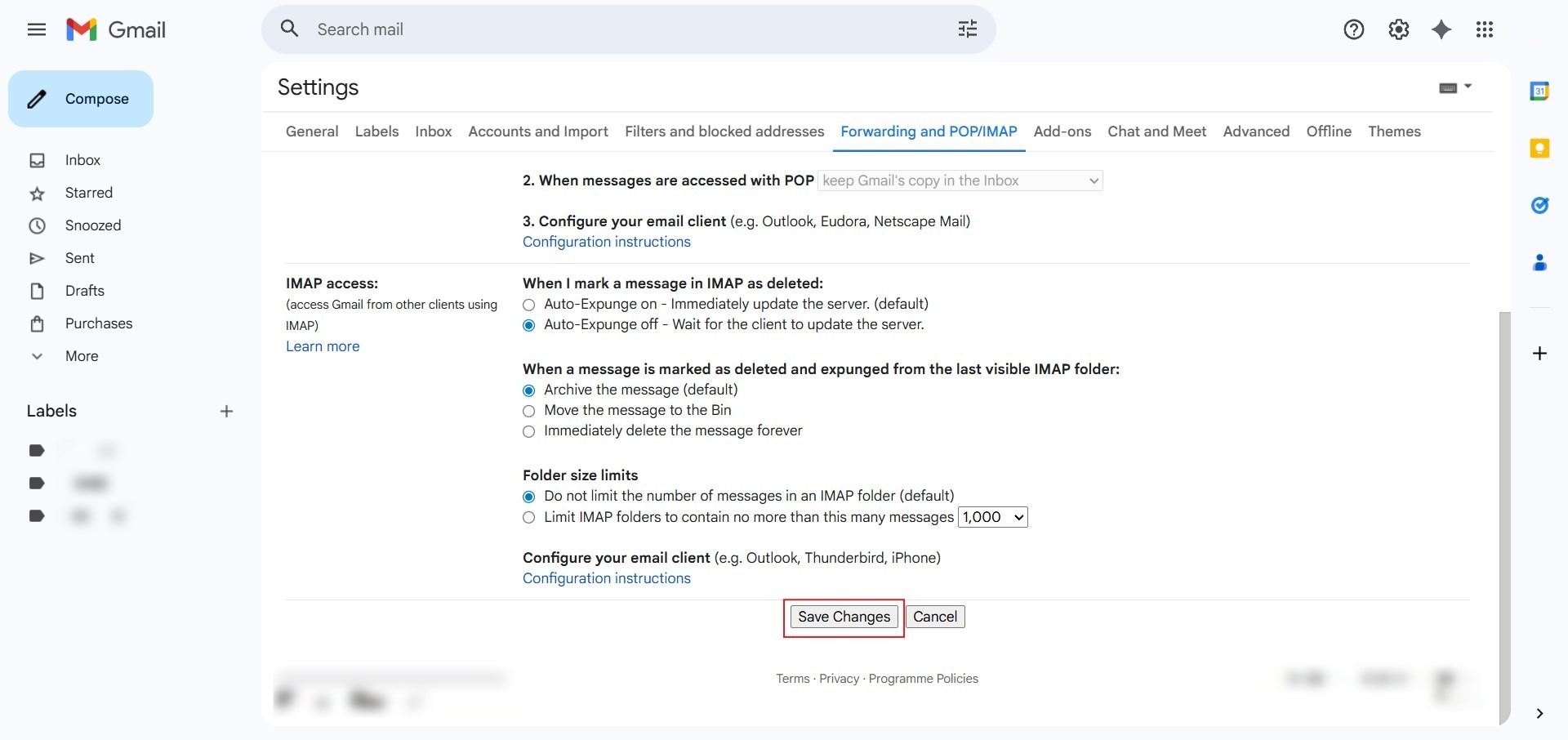
Step 7: Finalize Changes
- Scroll to the bottom of the settings page and click the “Save Changes” button to apply the redundancy rule.
Conclusion:
By successfully enabling the “Mark Gmail’s Copy as Read” option, you have created a streamlined communication workflow that balances data retention with an organized workspace. This configuration ensures that critical alerts for your NovaCloud instances, GPU Servers, and billing invoices are redirected to your primary destination while your source inbox remains a quiet, searchable archive.