
Search Our Database
How to Change Two-Factor Authentication with SMS Authenticator to Authenticator App in Customer Portal
Introduction:
Transitioning your account’s Two-Factor Authentication (2FA) from an SMS Authenticator to an Authenticator App involves a reconfiguration process managed within the Account Security section of the Customer Portal. This modification shifts the delivery of security codes from text messages on your mobile phone to time-based one-time passwords (TOTP) generated by mobile applications such as Google Authenticator or Authy.
According to the sources, the transition requires a two-stage administrative process: you must first disable the existing SMS-based 2FA by verifying your identity with your account password before you can initiate the new setup for the Authenticator App. The process reaches a state of success once you scan a unique QR code with your chosen app and input a live verification code to validate the connection. Upon completion, the IP ServerOne team will send a formal confirmation email stating that your account security method has been updated to TOTP.
Prerequisites:
- You must have an active, registered account and be successfully logged into the IP ServerOne Customer Portal.
- Two-Factor Authentication must already be configured and active on the account.
Step-by-step Guide:
Step 1: Access User Profile
- Click on the User icon or name located in the Customer Portal interface.
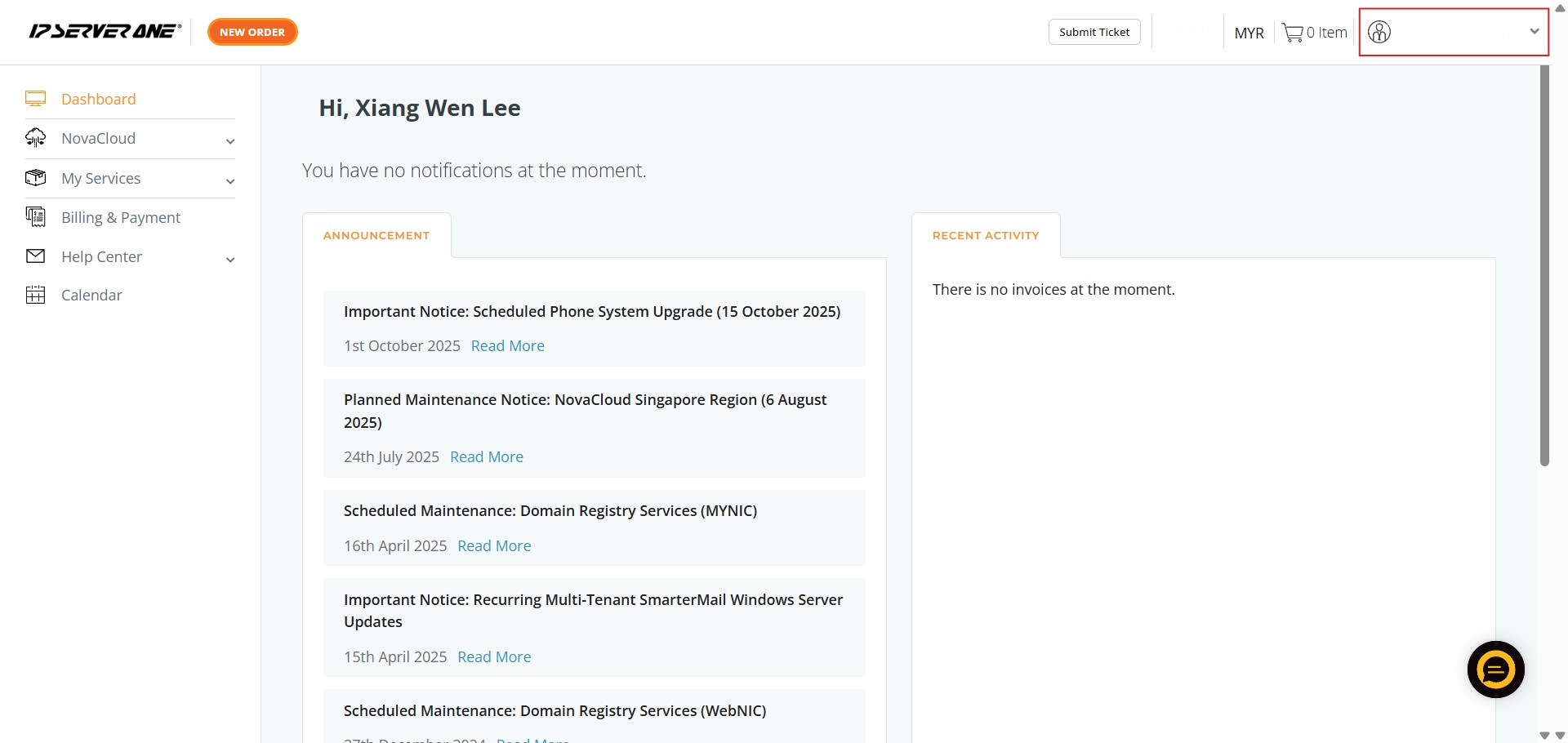
Step 2: Enter Account Settings
- Select “My Account” from the dropdown menu to view your personal profile.
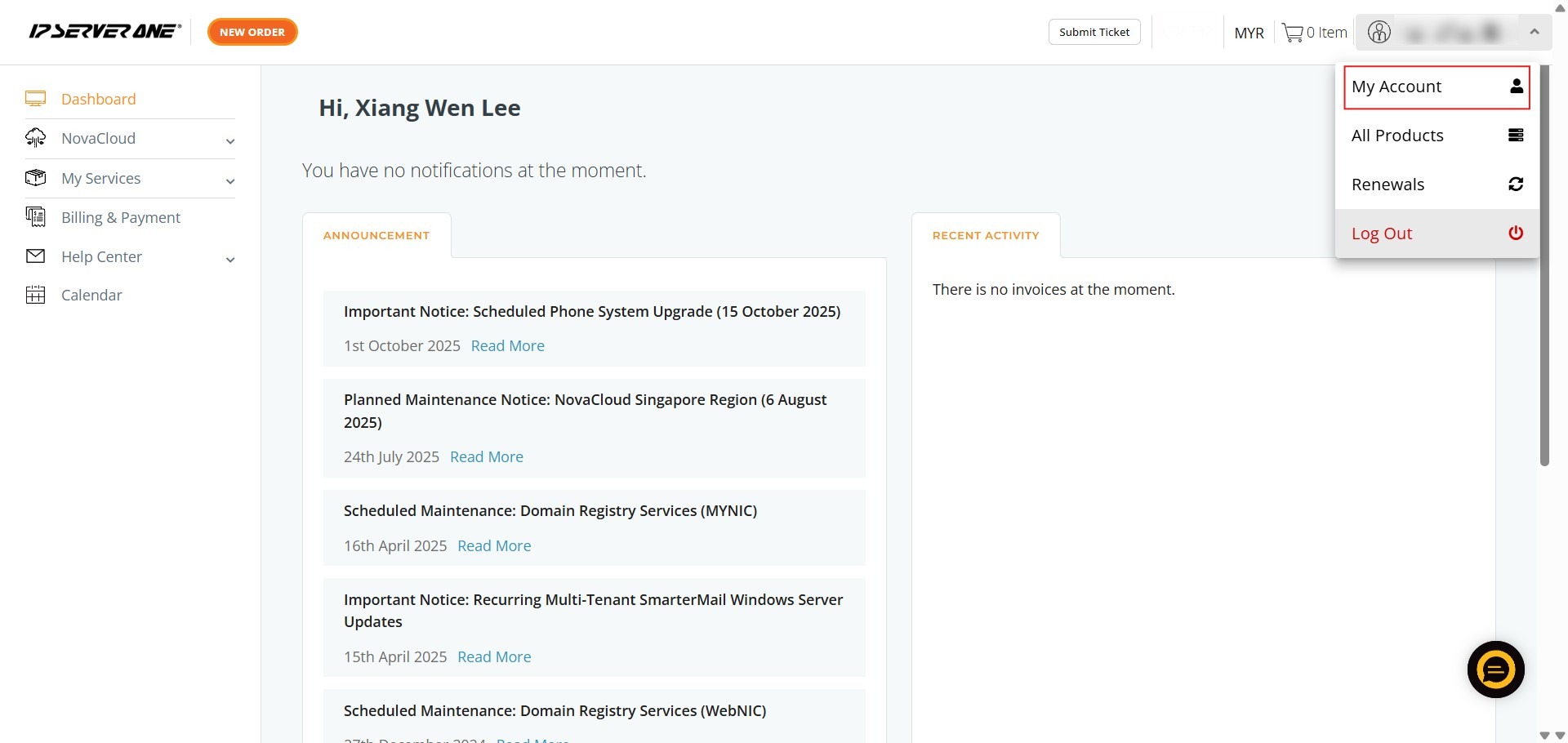
Step 3: Navigate to Security
- Click on the “Account Security” tab to manage your login protection settings.
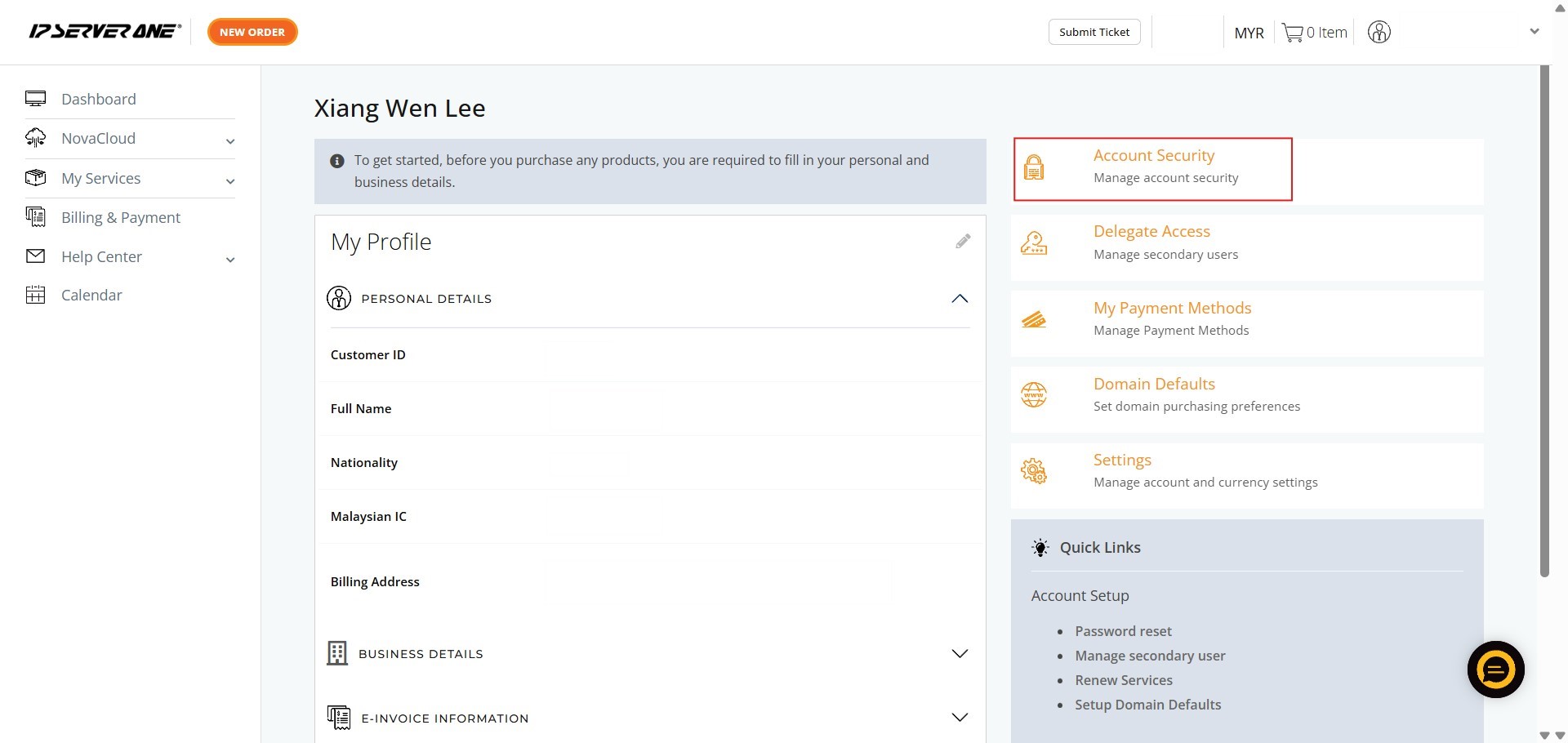
Step 4: Manage 2FA
- Locate and click on “Manage two-factor authentication”. This option is only available if 2FA is currently active.
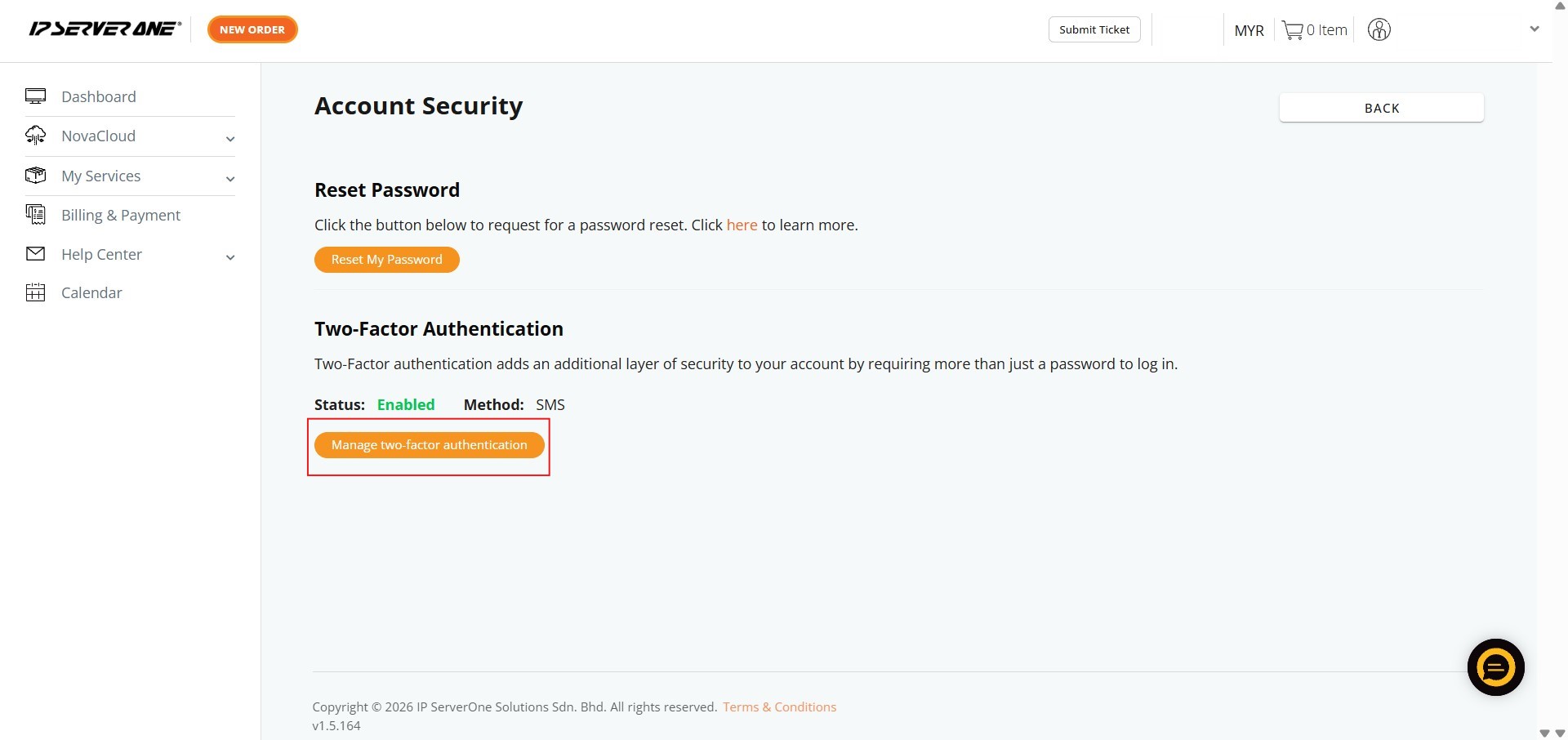
Step 5: Identity Verification and Deactivate
- Enter your account password in the required field to authorize the security downgrade.
- Click the “Disable 2FA” button to remove the secondary authentication requirement.
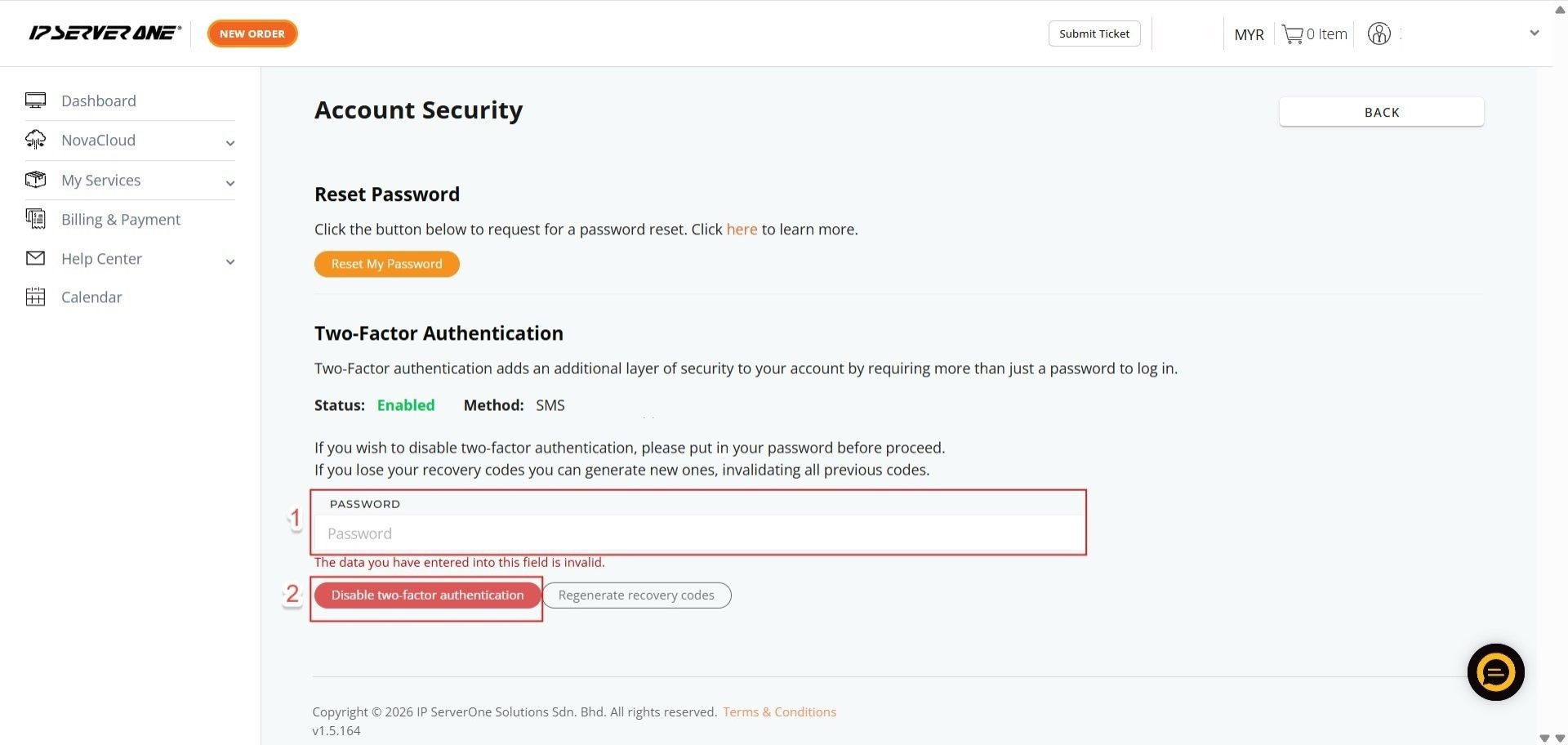
Step 6: Initiate 2FA Setup
- Click the button labeled “Setup Two-Factor Authentication” to begin the process.
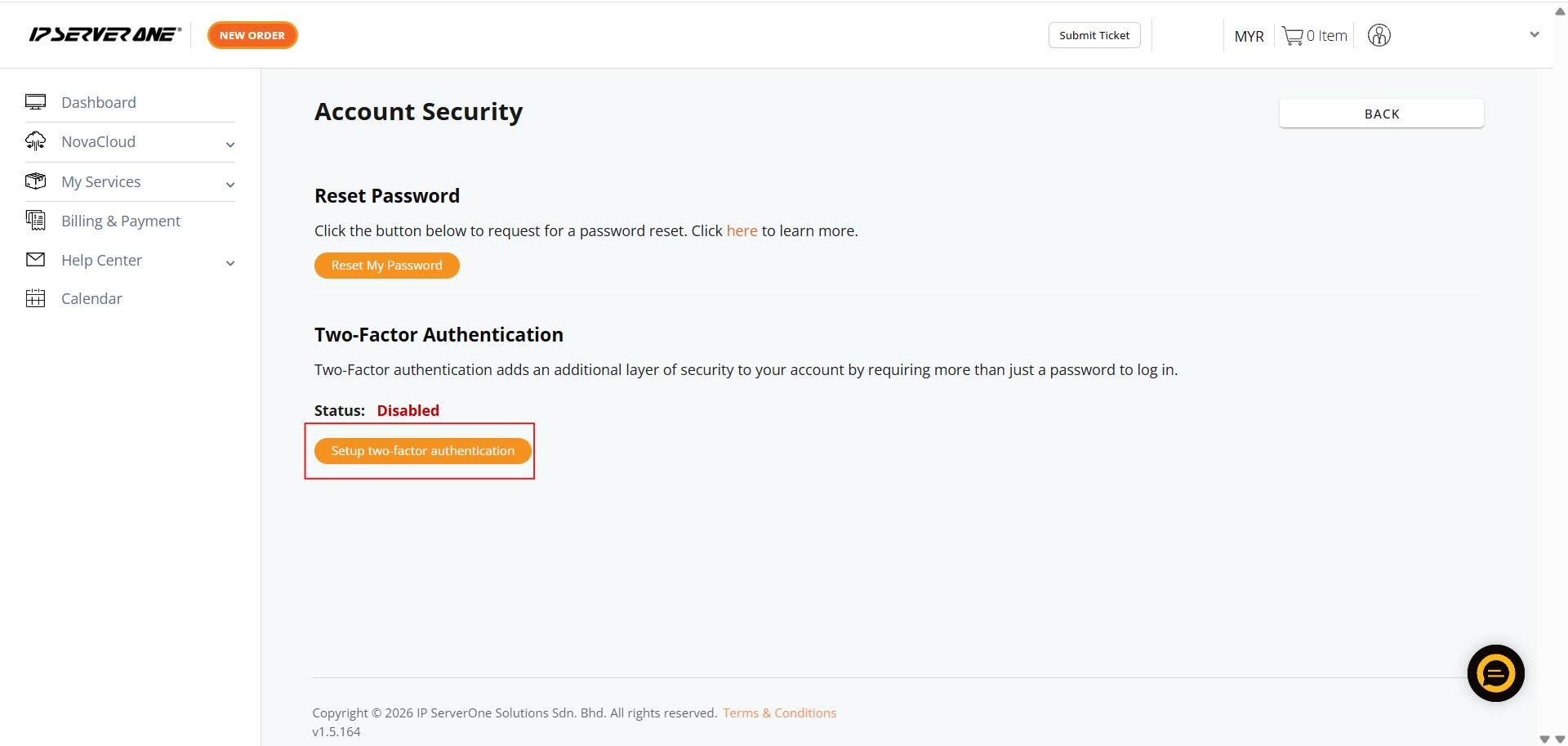
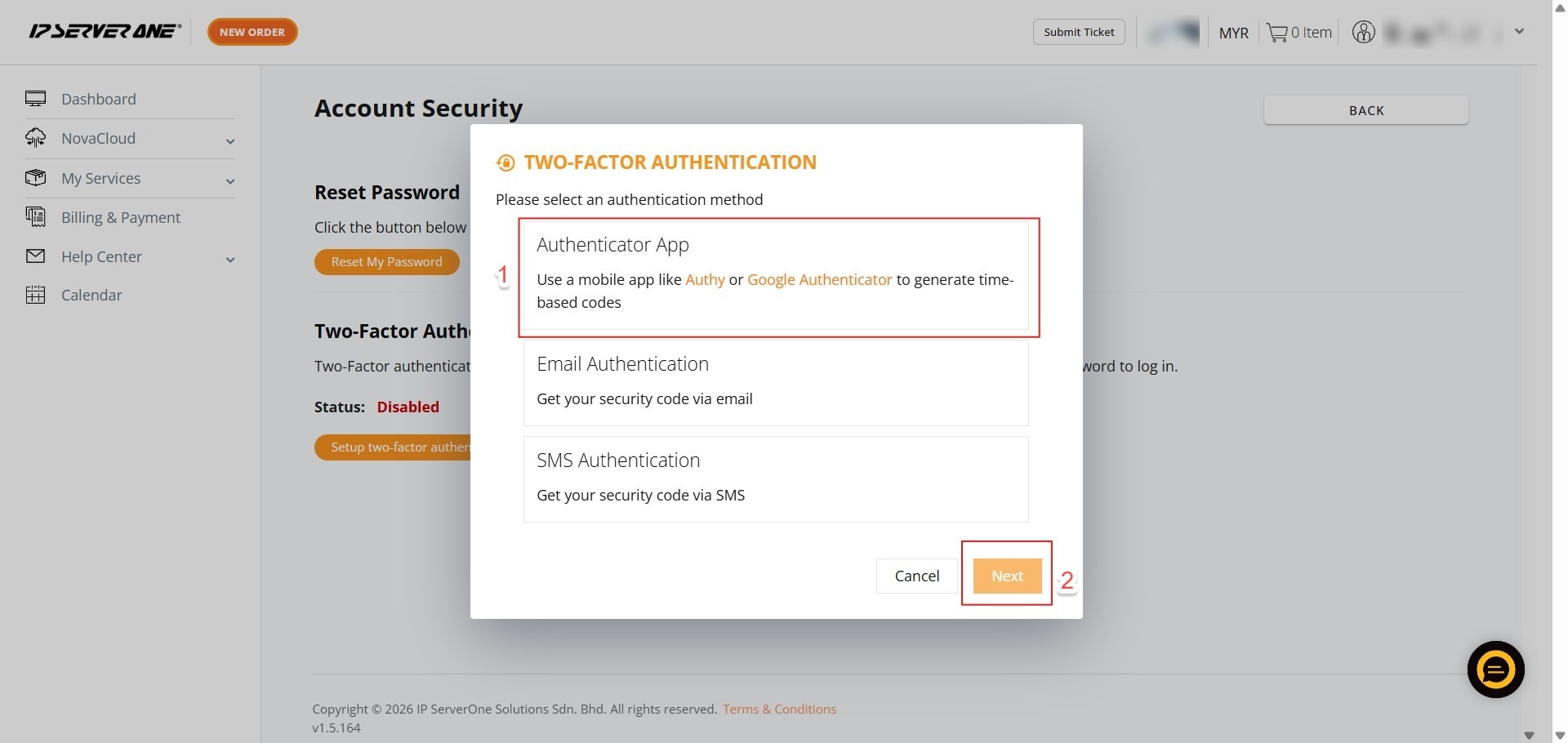
Step 7: Select Method
- Choose “Authenticator App” as your preferred secondary verification method.
Step 8: Verify Identity
- Key in your account password
- Click confirm to authorize the security changes.
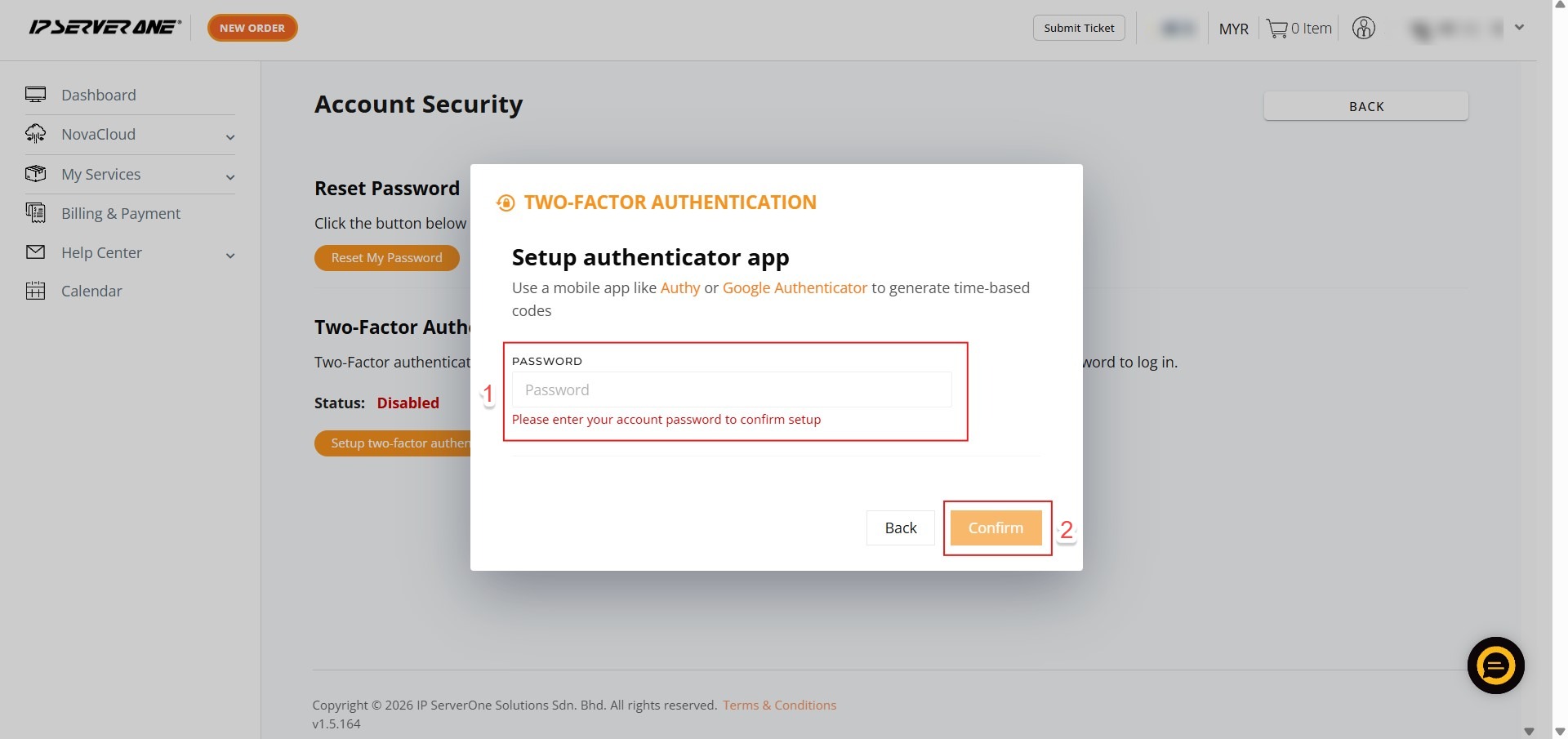
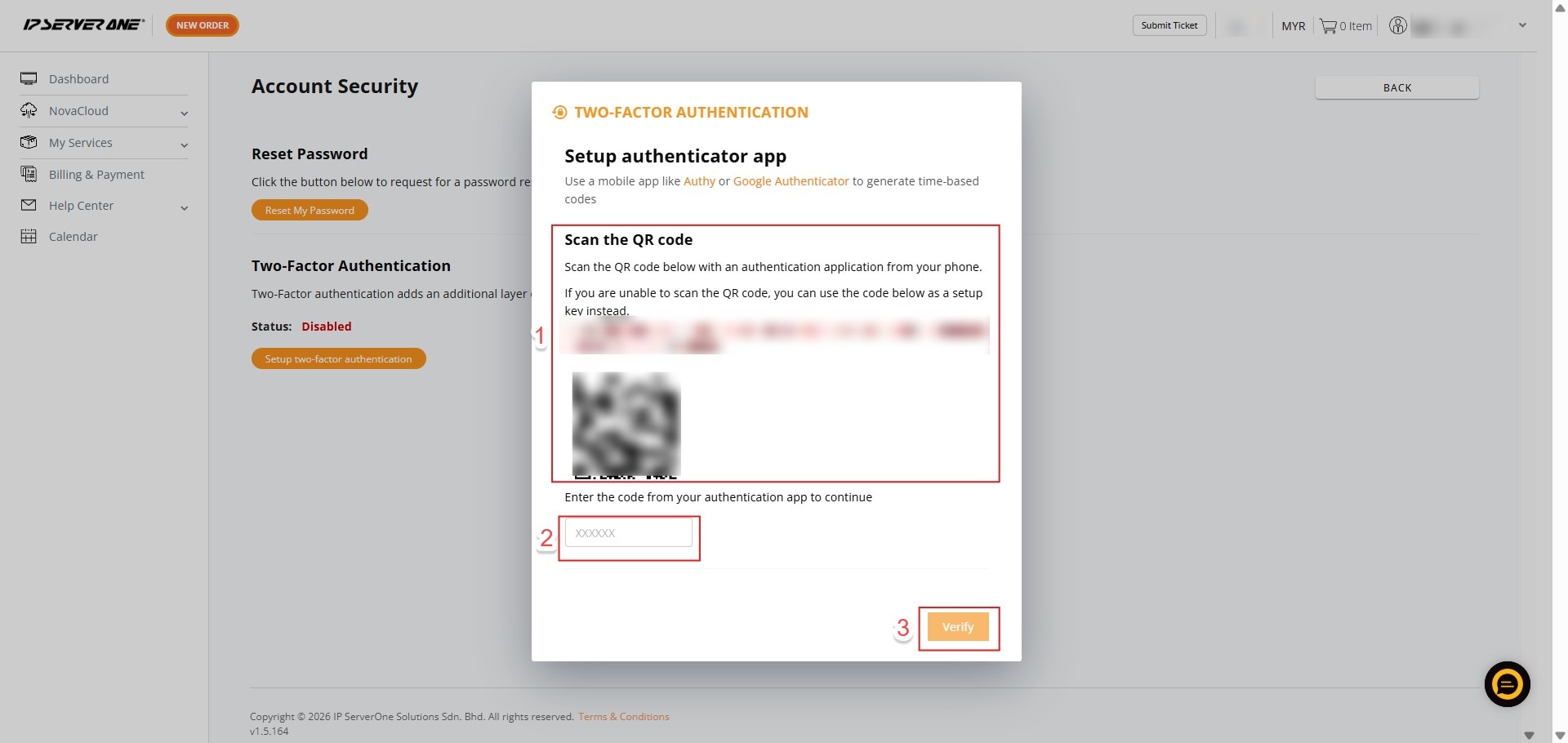
Step 9: Sync Authenticator
- Use Google Authenticator or Authy to scan the provided QR code
- Enter the six-digit code displayed in your app and click “Verify.”
Step 10: Confirm Activation
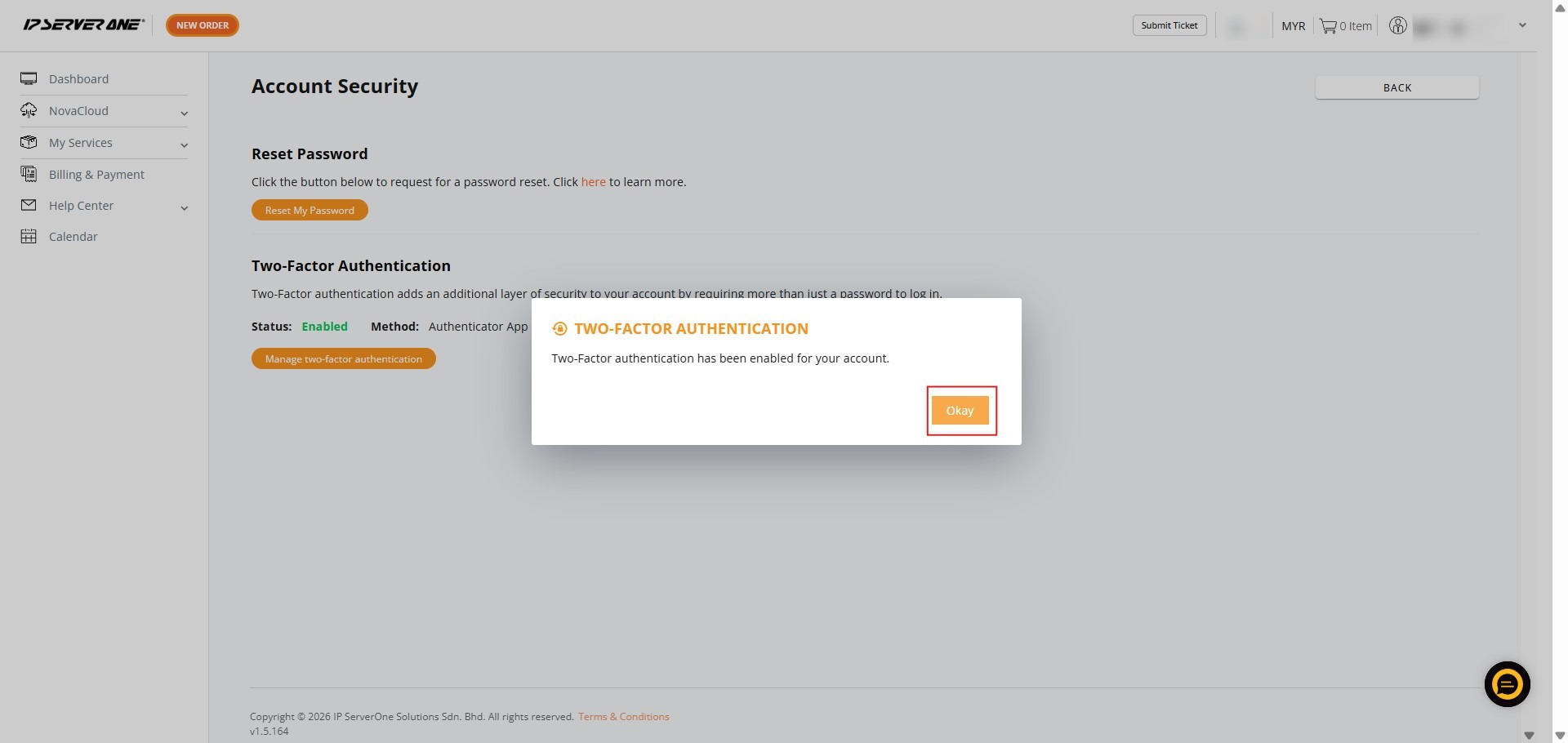
- Click “Okay” to finalize the setup once the verification code is accepted.
Step 11: Completion
- A success message will appear; the IP ServerOne team will also send a confirmation email to your registered address.

Conclusion:
In conclusion, changing your Two-Factor Authentication (2FA) from SMS Authentication to an Authenticator App is a two-stage reconfiguration performed within the Account Security dashboard of the Customer Portal. To successfully complete this transition, you must first disable the existing SMS-based method by verifying your identity with your account password before initiating the new setup for the Authenticator App.