
Search Our Database
How to Change PHP Settings for All Websites using MultiPHP INI Editor in cPanel
Introduction
This Knowledge Base article provides a concise, step-by-step guide on How to Change PHP Settings for All Websites using MultiPHP INI Editor in cPanel. The MultiPHP INI Editor allows you to configure PHP directives that control how PHP behaves across all your websites, such as memory limits, execution time, and file upload sizes. By applying changes to your Home Directory, you can efficiently manage PHP settings for all domains under your hosting account at once.
Prerequisite
- Access to your cPanel login page.
Step-by-Step Guide
Step 1: Log in to cPanel
- Access and log in to your cPanel account using your username and password.

Step 2: Open MultiPHP INI Editor
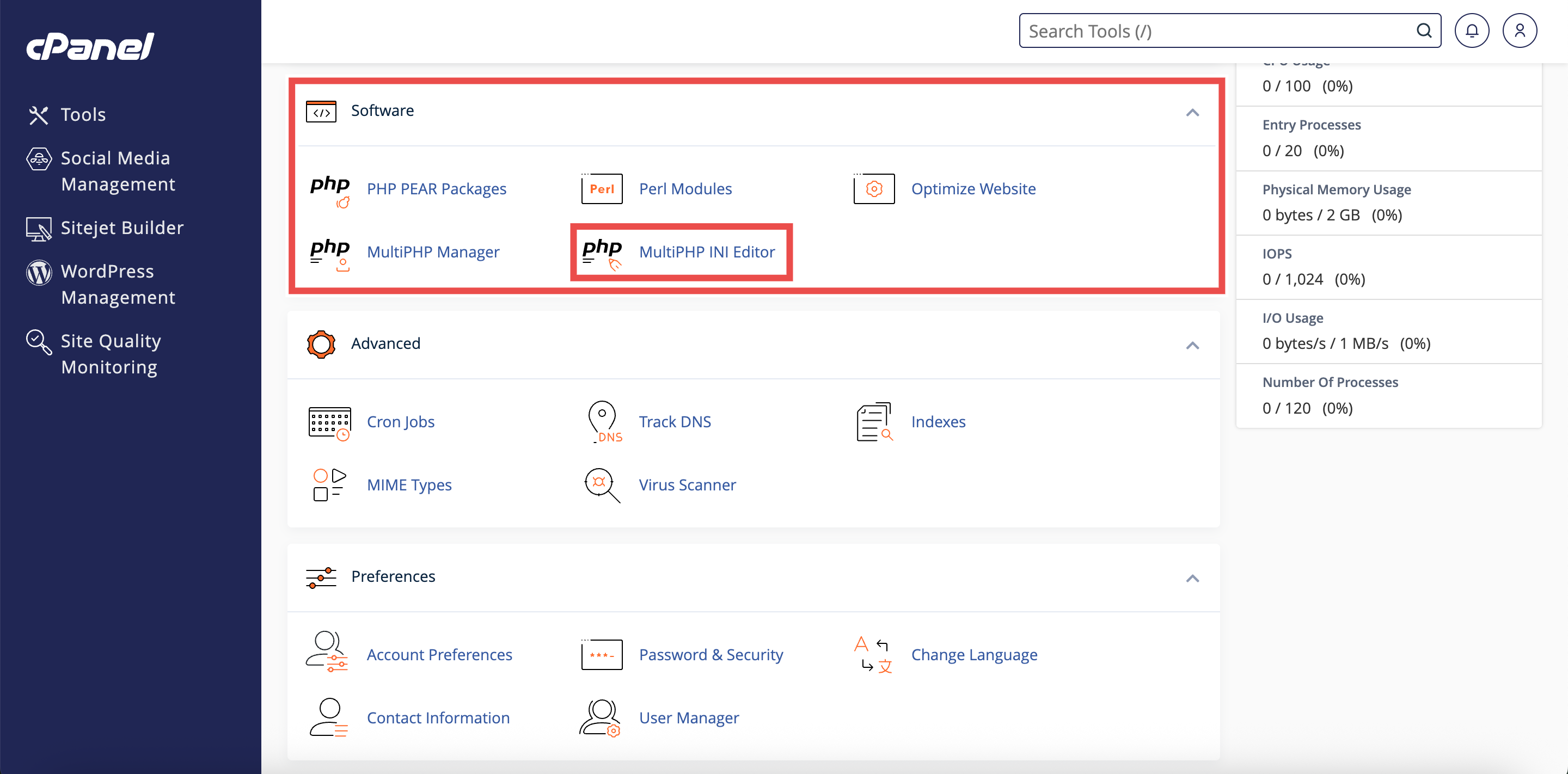
- In the Home page, under Software, click MultiPHP INI Editor.
Step 3: Access Basic Mode
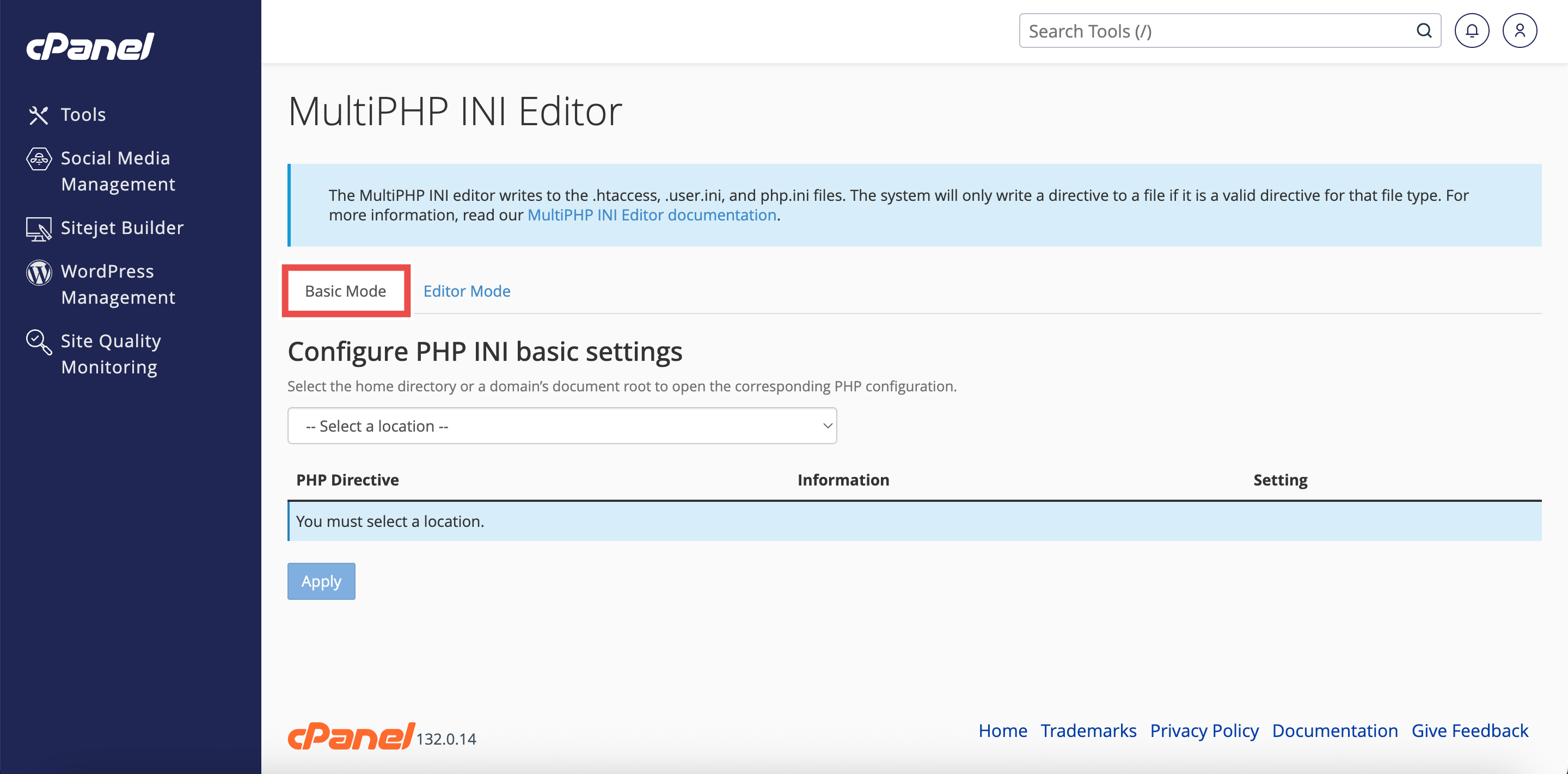
- The interface will open in the Basic Mode tab by default.
- If you are in Editor Mode, click the Basic Mode tab at the top of the interface.
Step 4: Select Home Directory
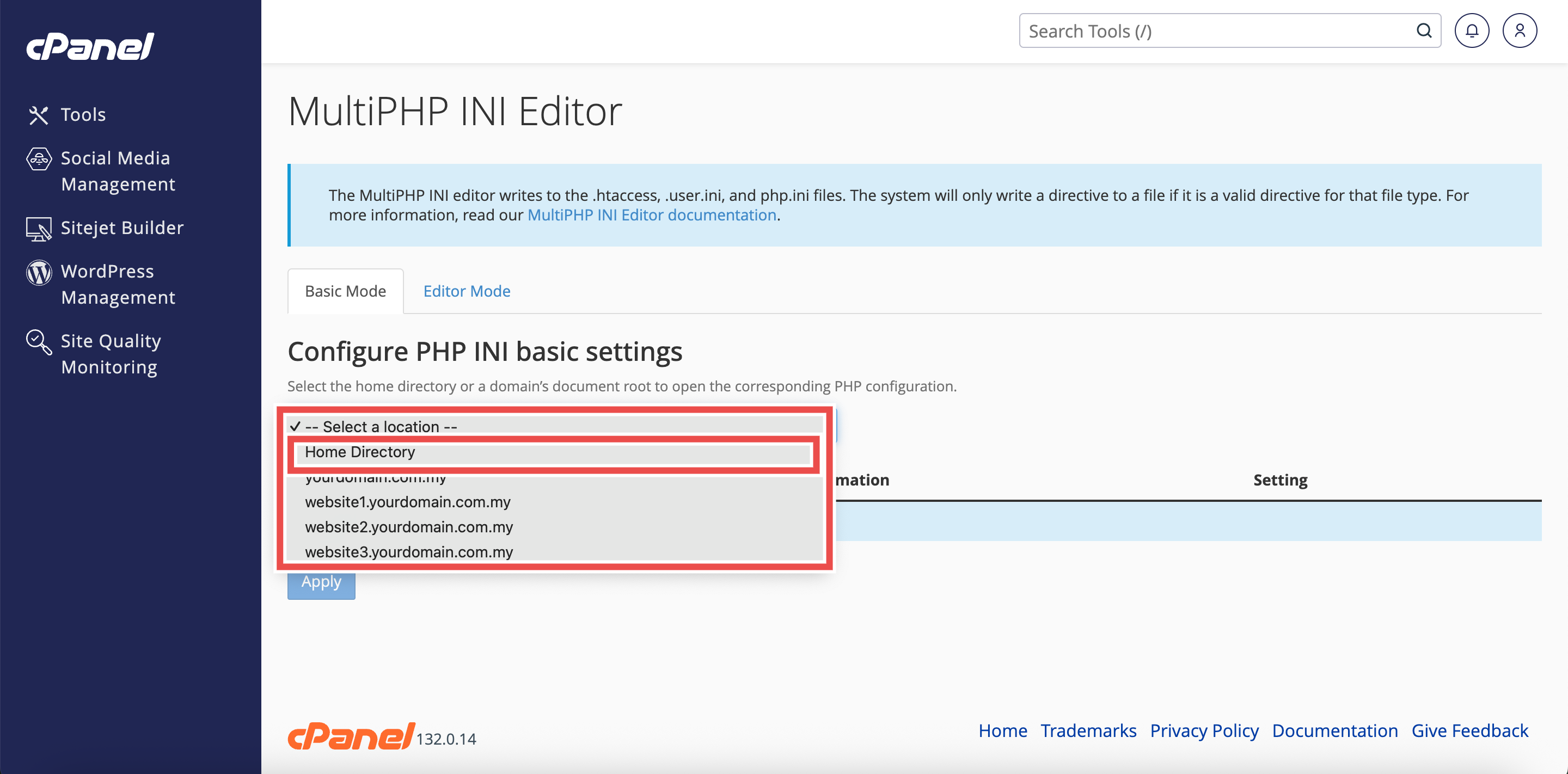
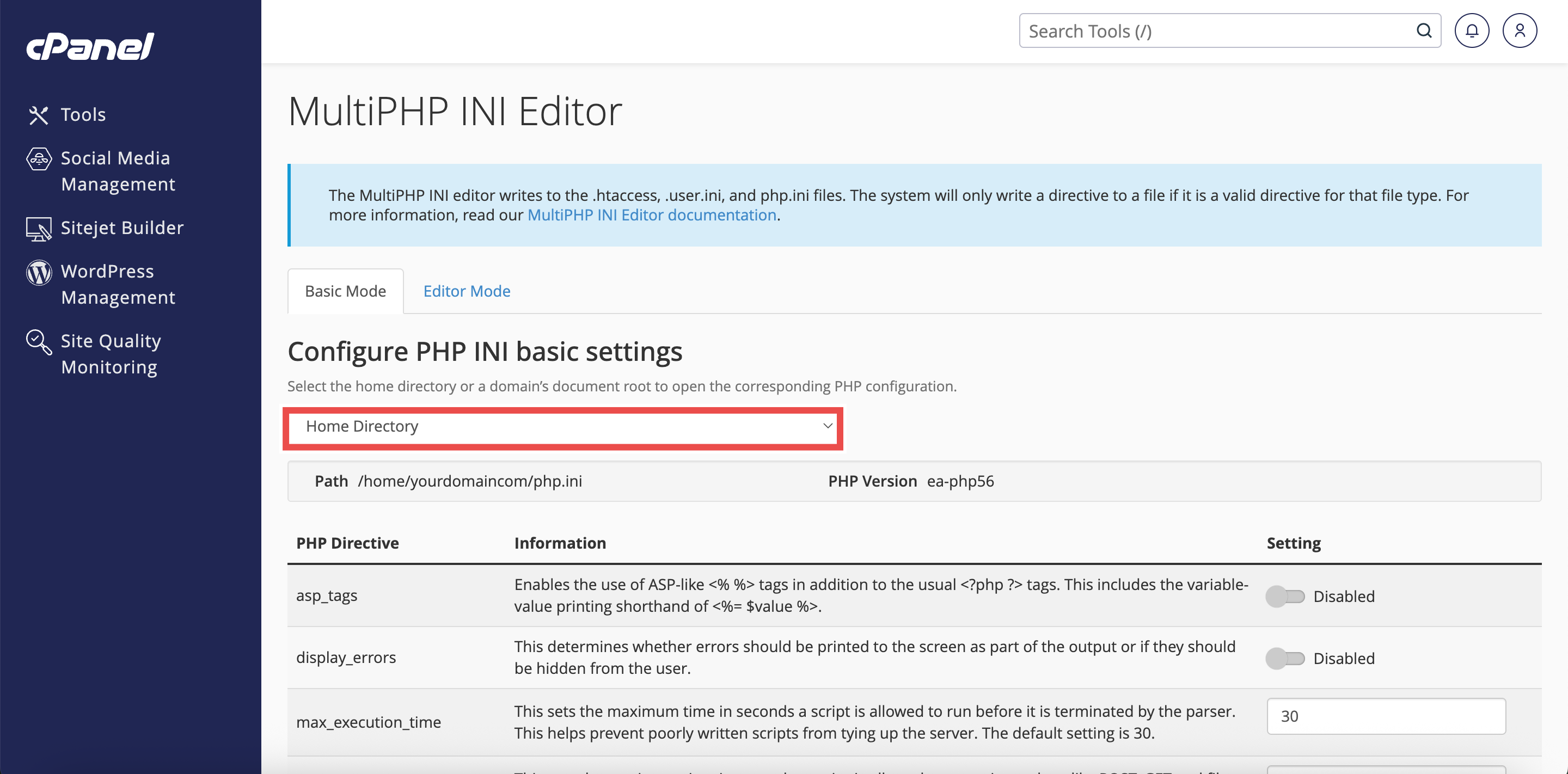
- From the Configure PHP INI basic settings dropdown menu, select Home Directory.
⚠️ Important Note: Selecting Home Directory will apply PHP configuration changes to all domains.
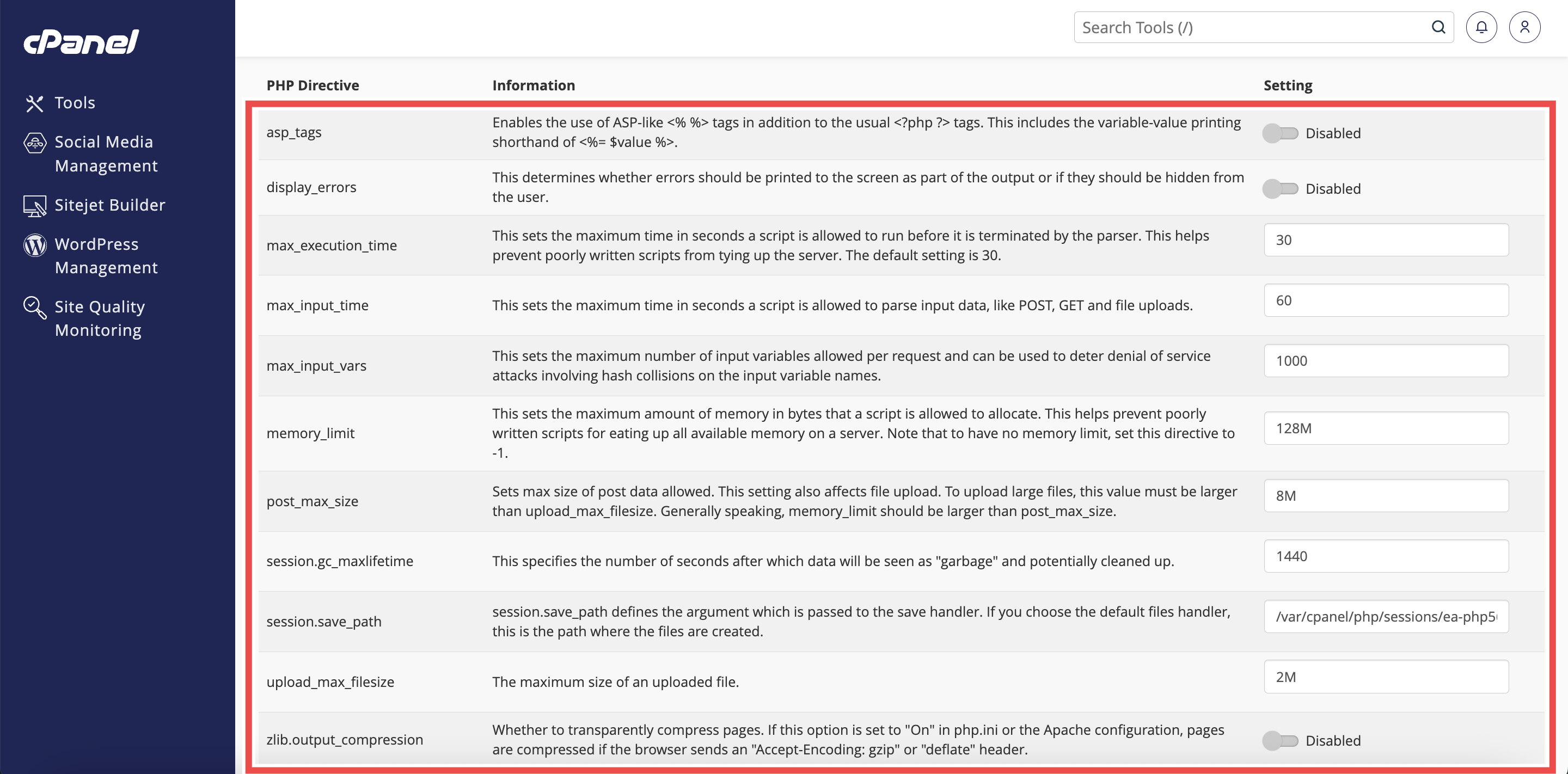
Step 5: Configure PHP Directives
- Modify the values for the directives you want to change. For example: memory_limit, max_execution_time, upload_max_filesize
- Enter the new values in the appropriate fields.
⚠️ Important Note:
- For security purposes, it is strongly recommended that you use the cPanel-provided default values unless you have specific requirements.
- Incorrect values could affect website performance or security.
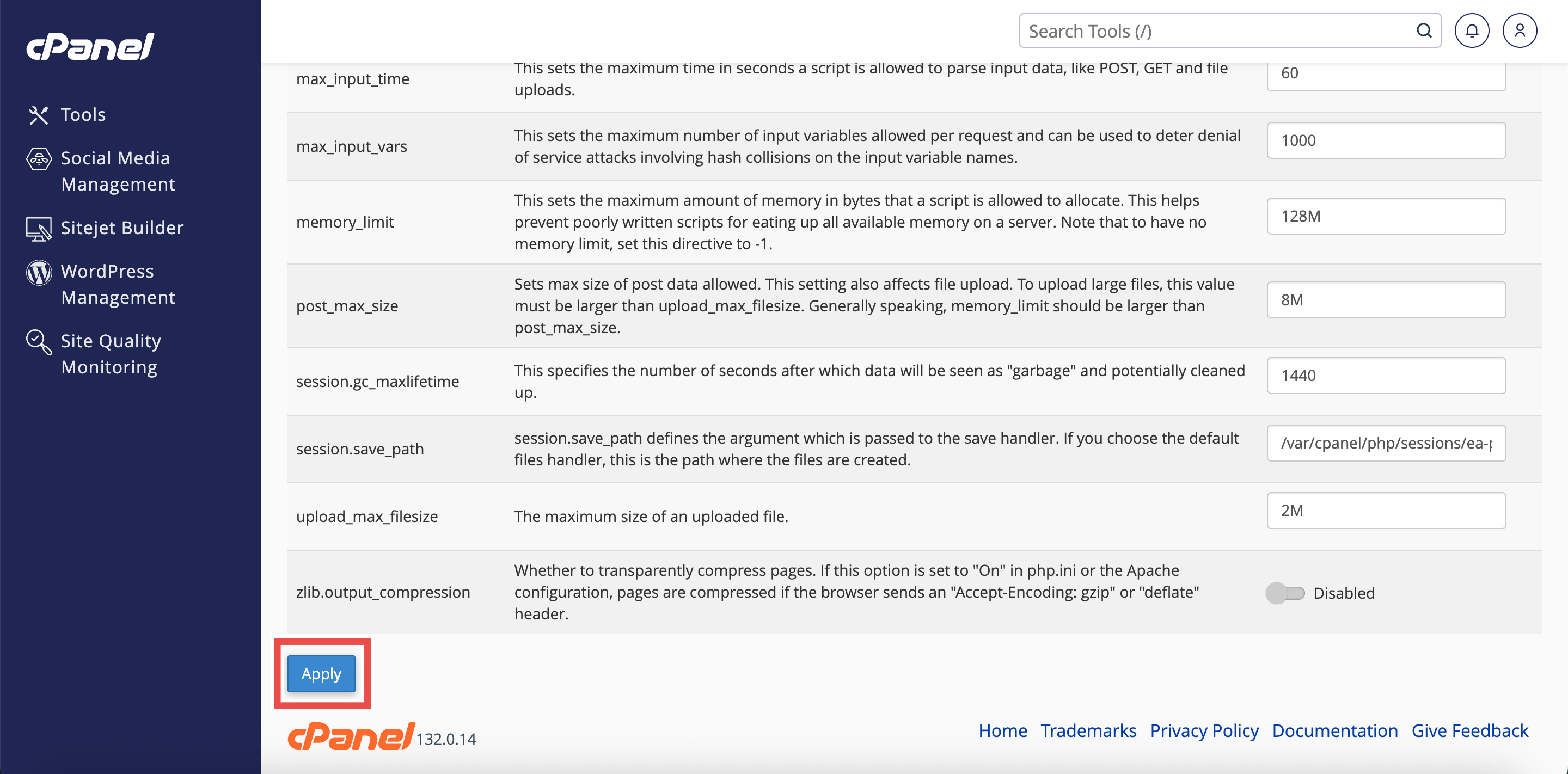
Step 6: Apply the Changes
- Click the Apply button at the bottom of the page to apply the changes made.
Step 7: Verify the Changes
- A successful message will pop up to confirm that the changes is applied successfully.
- Additionally, you may also verify by accessing your website directly through a web browser to confirm the changes have taken effect.
⚠️ Important Note:
- The availability of directives depends on your PHP version.
- If a directive does not appear in your interface, your version of PHP does not support it.

Conclusion
By following these steps, you can change PHP settings for all websites using MultiPHP INI Editor in cPanel. This centralized approach allows you to efficiently manage PHP configurations across all your domains at once, ensuring consistent behavior and performance.
Should you encounter any issues or have any questions, our support team at IPSERVERONE is always here to assist you. Don’t hesitate to reach out to us at support@ipserverone.com for any help you need.