
Search Our Database
How to Change Date Format from DD/MM/YY (UK Style) to MM/DD/YY (US Style) in Gmail App
Introduction:
Adjusting the date format within the Gmail App from the UK style (DD/MM/YY) to the US style (MM/DD/YY) is a configuration task managed through the centralized Google Account settings. According to the sources, the platform’s chronological display is fundamentally tied to the primary language selection in your global profile.
The two regional styles are defined as follows:
- UK Style: This format follows the DD/MM/YY structure (Day/Month/Year), which is activated when the display language is set to English (UK).
- US Style: This format follows the MM/DD/YY structure (Month/Day/Year), which is standard for users who select English (US) as their primary display language.
To effect this change in the mobile application, a user must navigate to the “Manage your Google Account” dashboard to access the Language settings. By searching for and selecting English (United States) as the preferred language, the system reconfigures the app’s interface to prioritize the month over the day in all email timestamps. This process is confirmed as a success when the account profile reflects that the previous regional setting has been replaced by the new US standard.
Prerequisites:
- You must have active access to the Gmail App.
- You must be logged into the specific Google account that requires the formatting adjustment.
- You must have the ability to access the “Manage your Google Account” section.
- You must identify your current Gmail display language (likely set to English (UK)) and be prepared to switch it to English (US) to achieve the MM/DD/YY format.
Step-by-step Guide:
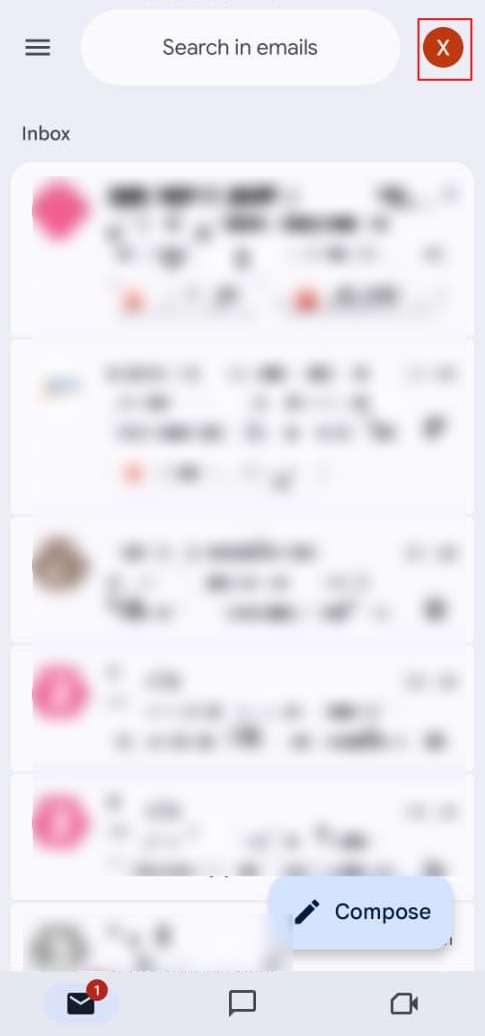
Step 1: Tap Account Icon
- Open the Gmail app and tap your profile icon in the top-right corner of the screen.
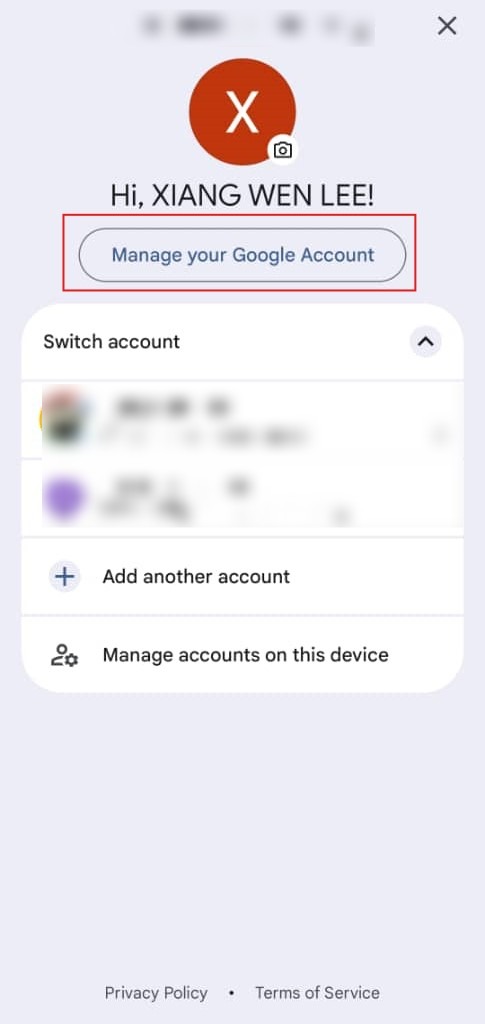
Step 2: Manage Google Account
- Select the button labeled “Manage your Google Account” to enter the centralized settings dashboard.
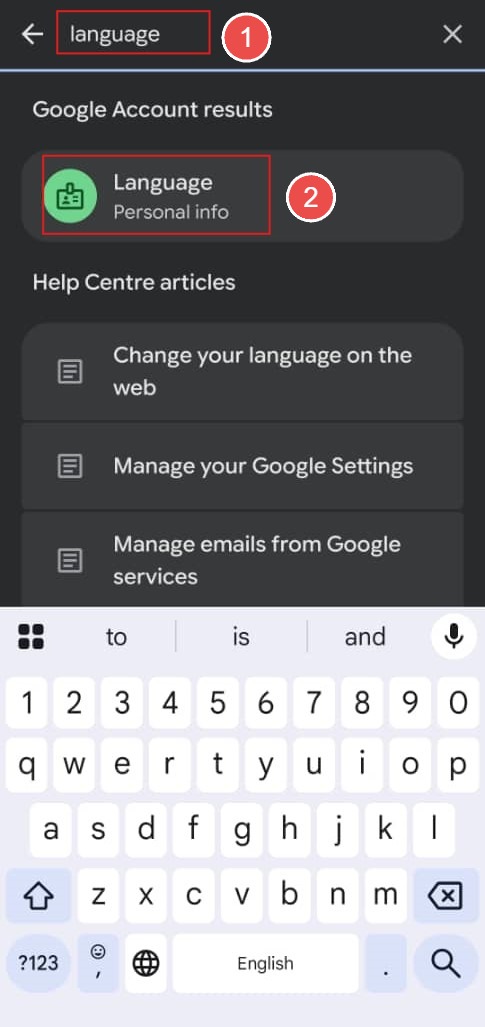
Step 3: Initiate Search
- Tap the Search icon (magnifying glass) located at the top of the Google Account interface.
- Type “Language” into the search bar and select “Language”.
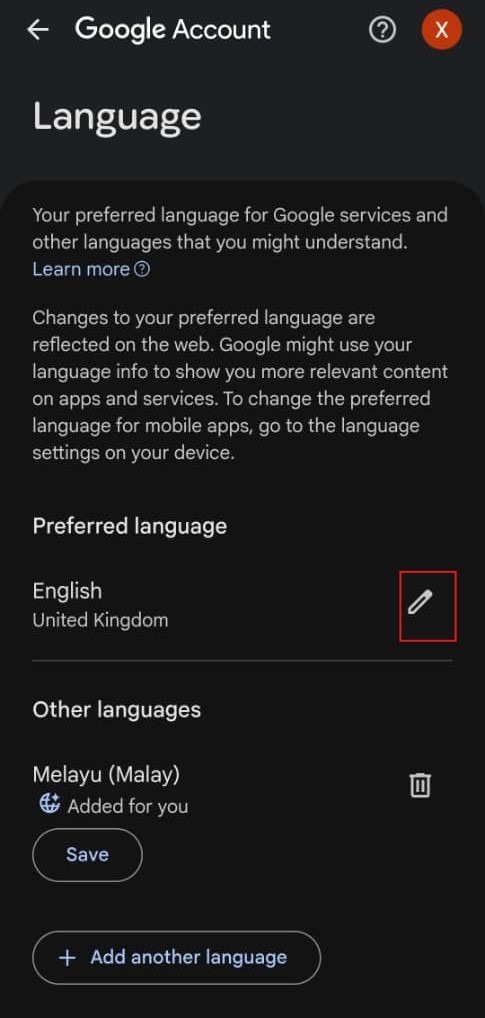
Step 4: Edit Preference
- Under “Preferred language,” tap the Edit (pencil) icon next to English (United Kingdom).
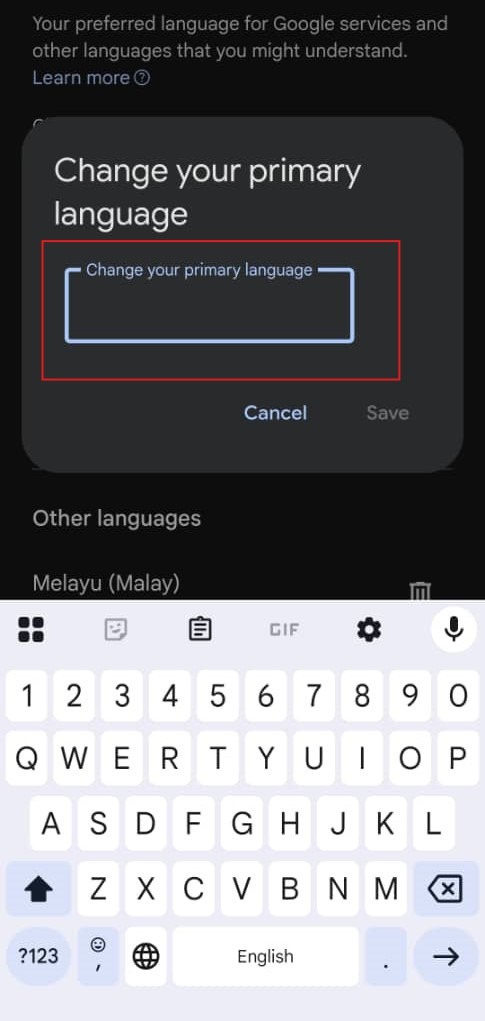
Step 5: Select English
- Type “English” in the search box to bring up the regional variations
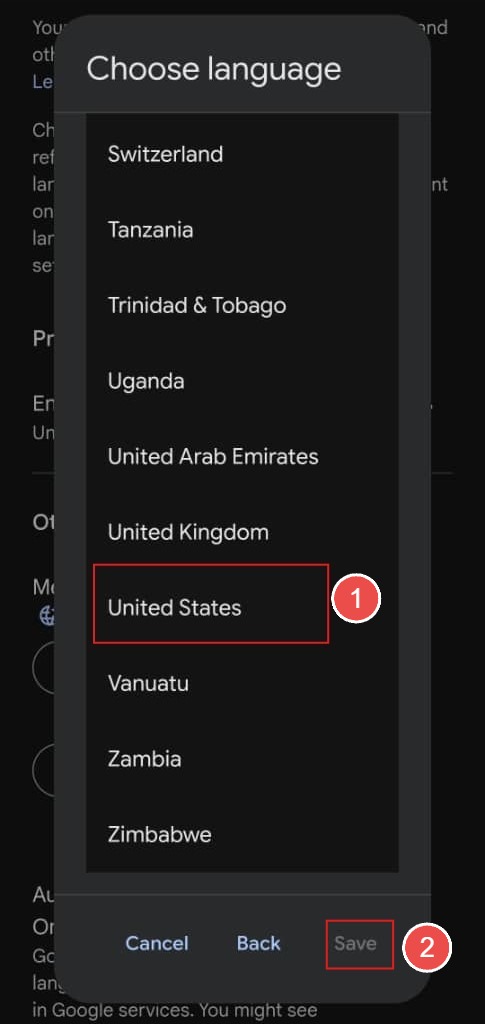
Step 6: Choose United States
- Scroll to find and select “United States” and then tap the “Save” button.
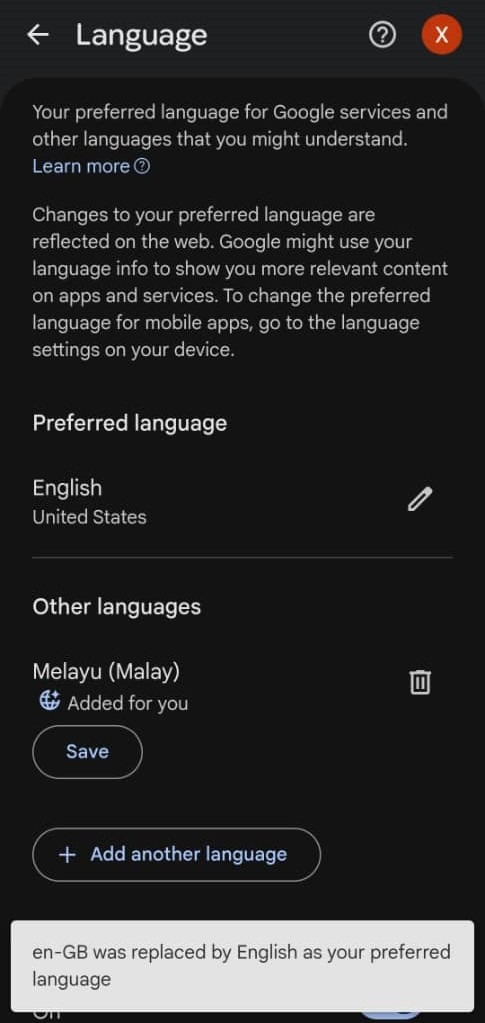
Step 7: Verify Update
- A confirmation message will appear confirming the language replacement, which automatically updates the date format across the app.
Conclusion:
In conclusion, transitioning the date format in Gmail Web from the UK style (DD/MM/YY) to the US style (MM/DD/YY) is an administrative task fundamentally linked to the platform’s regional language settings. By reconfiguring the Gmail display language from English (UK) to English (US), the system automatically reorders the chronological data to prioritize the month over the day.