
Search Our Database
How to Automatically Move Emails to Drafts Folder using Email Filters in cPanel
Introduction
This Knowledge Base article provides a concise, step-by-step guide to on How to Automatically Move Emails to the Drafts folder using Email Filters in cPanel. While the Drafts folder is typically used for saving incomplete outgoing messages, you might want to use email filters to automatically move certain incoming emails to Drafts for temporary storage or special processing. This can be useful for messages that require further review before taking action, or for implementing custom email workflows within your organization.
Prerequisite
- Access to your cPanel login page.
- An active email account in your cPanel.
Step-by-Step Guide
Step 1: Log in to cPanel
- Access and log in to your cPanel account using your username and password.

Step 2: Open Email Filters
- In the Home page, under Email, click Email Filters.

Step 3: Select Email Account
- In the Filters by Users table, locate the email account for which you want to create the filter.
- Click Manage Filters next to the email account.

Step 4: Create a New Filter
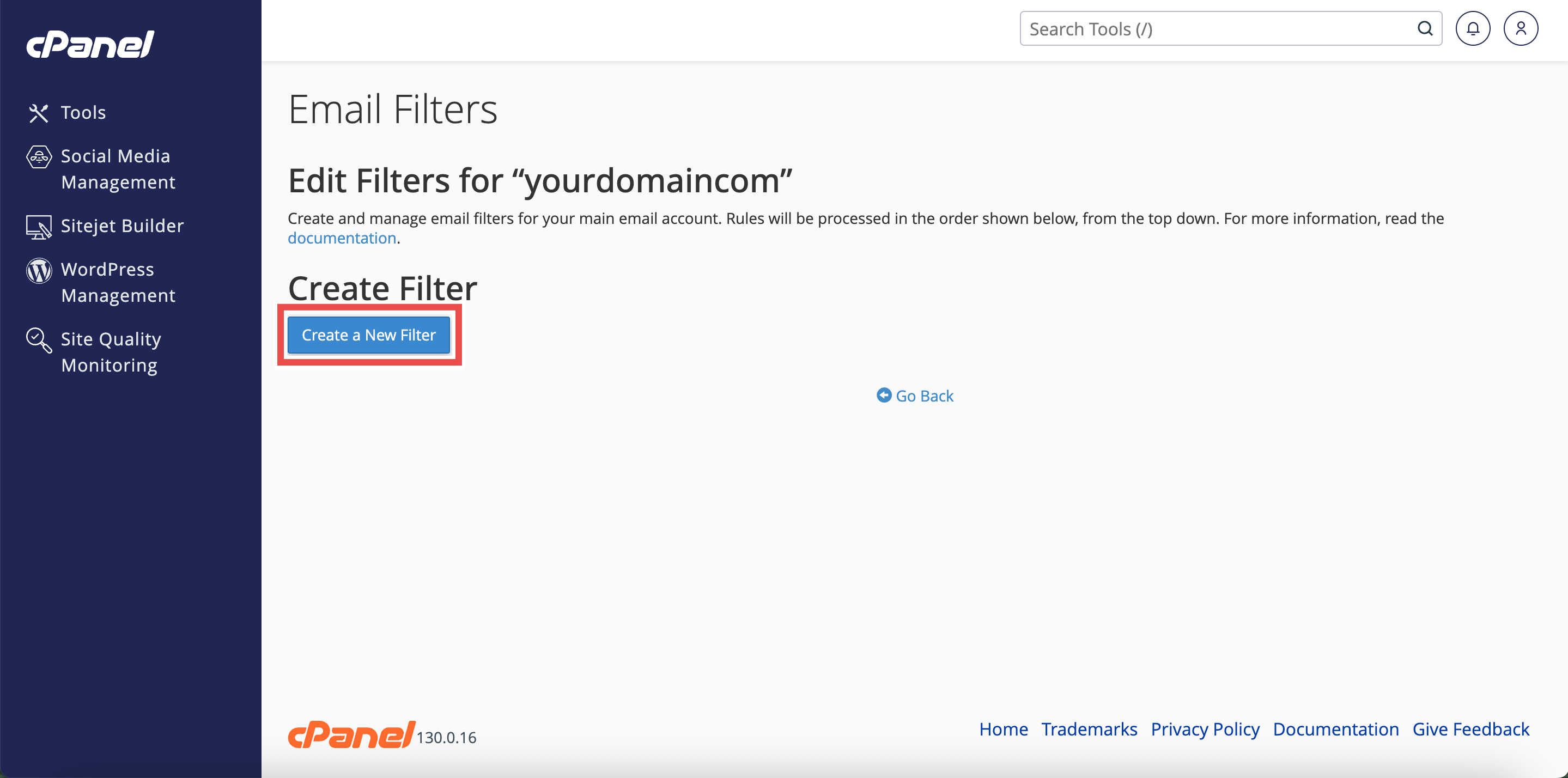
- Click Create a New Filter.
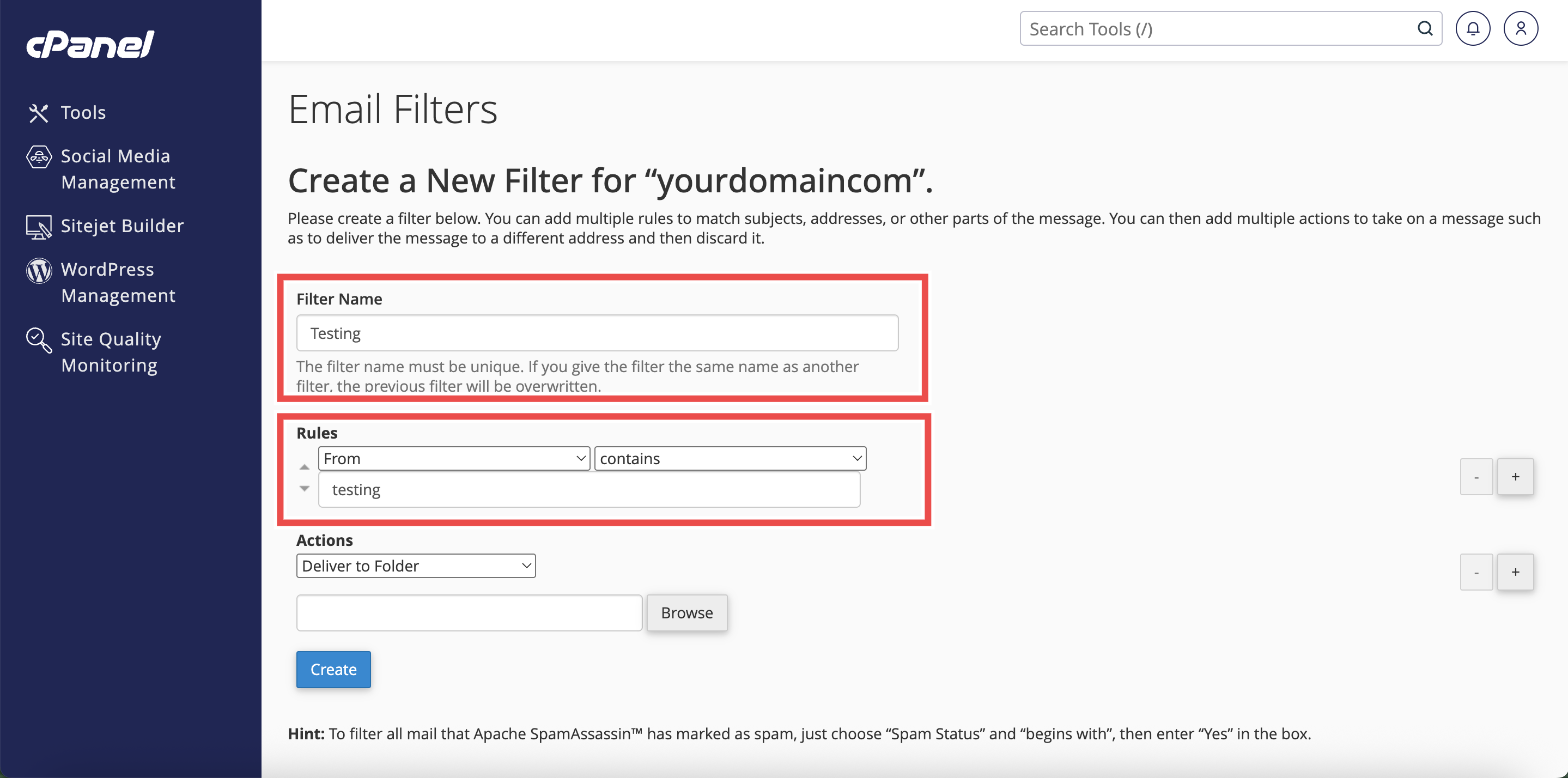
- Add or Change the filter’s Name, Rules, or Actions as needed.
- Filter’s Name: The label for your filter (e.g., Block Promo Emails).
- Rules: Conditions that trigger the filter (like sender, subject, or keywords).
Step 5: Configure Actions
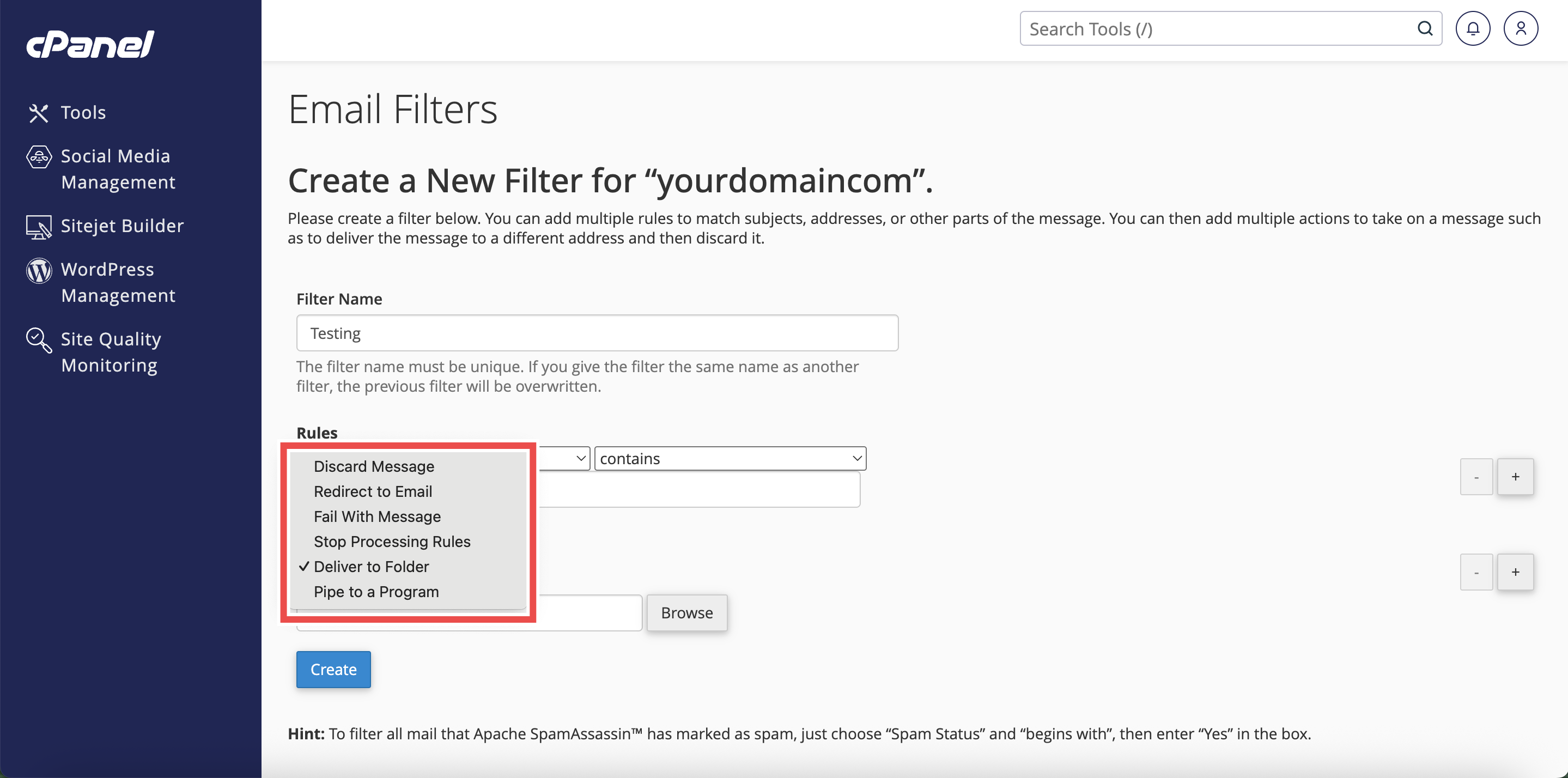
- Under Actions, select Deliver to Folder from the dropdown menu.
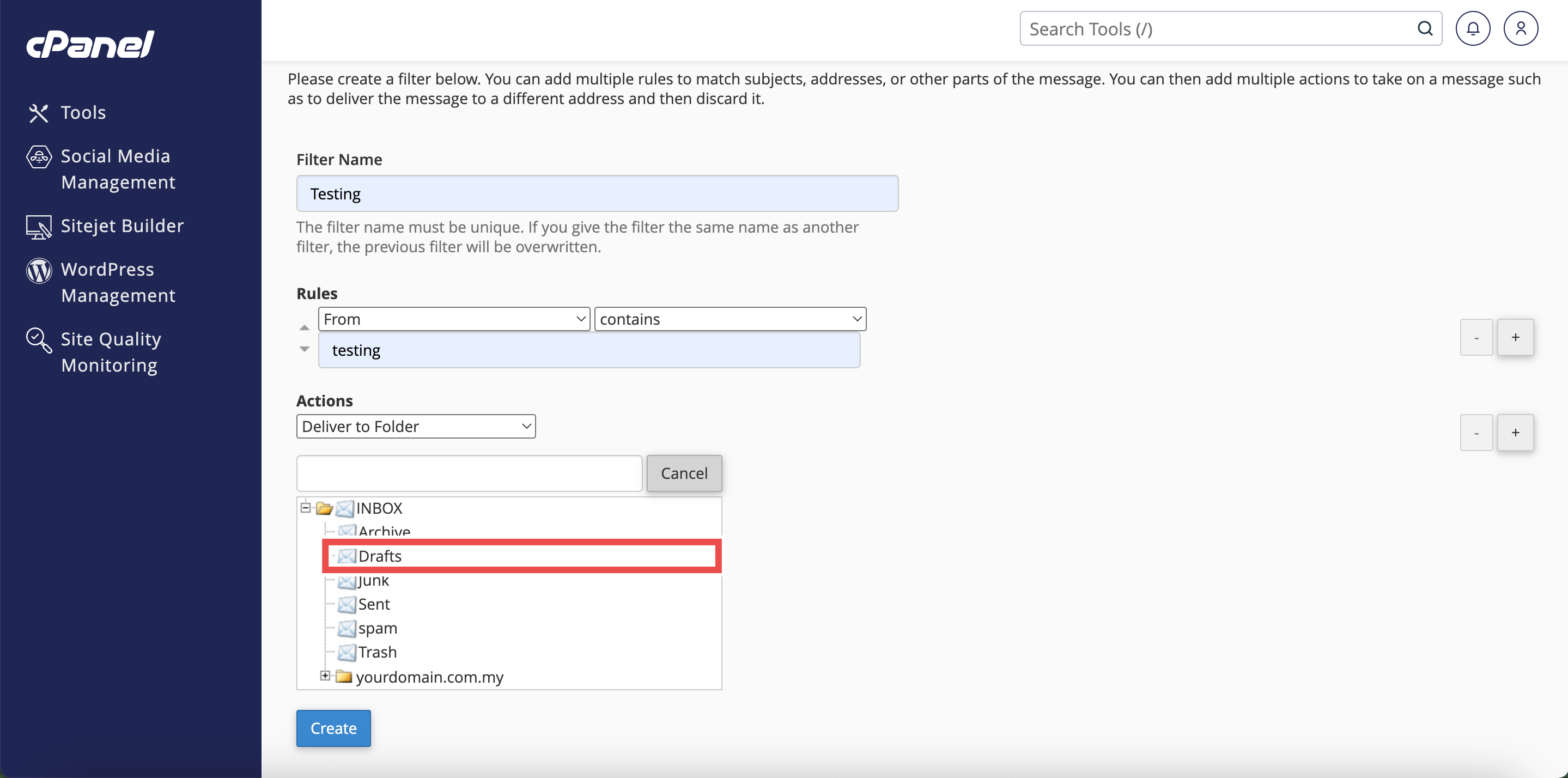
- Click Browse and select Drafts from the folder list.
- Click Create to save the filter.
⚠️ Important Note:The exact folder path may vary depending on your email client and server configuration. Common variations include INBOX.Drafts, Drafts, or INBOX/Drafts. If the filter doesn’t work, check your email folder structure in webmail or your email client.


Step 6: Verify the Changes
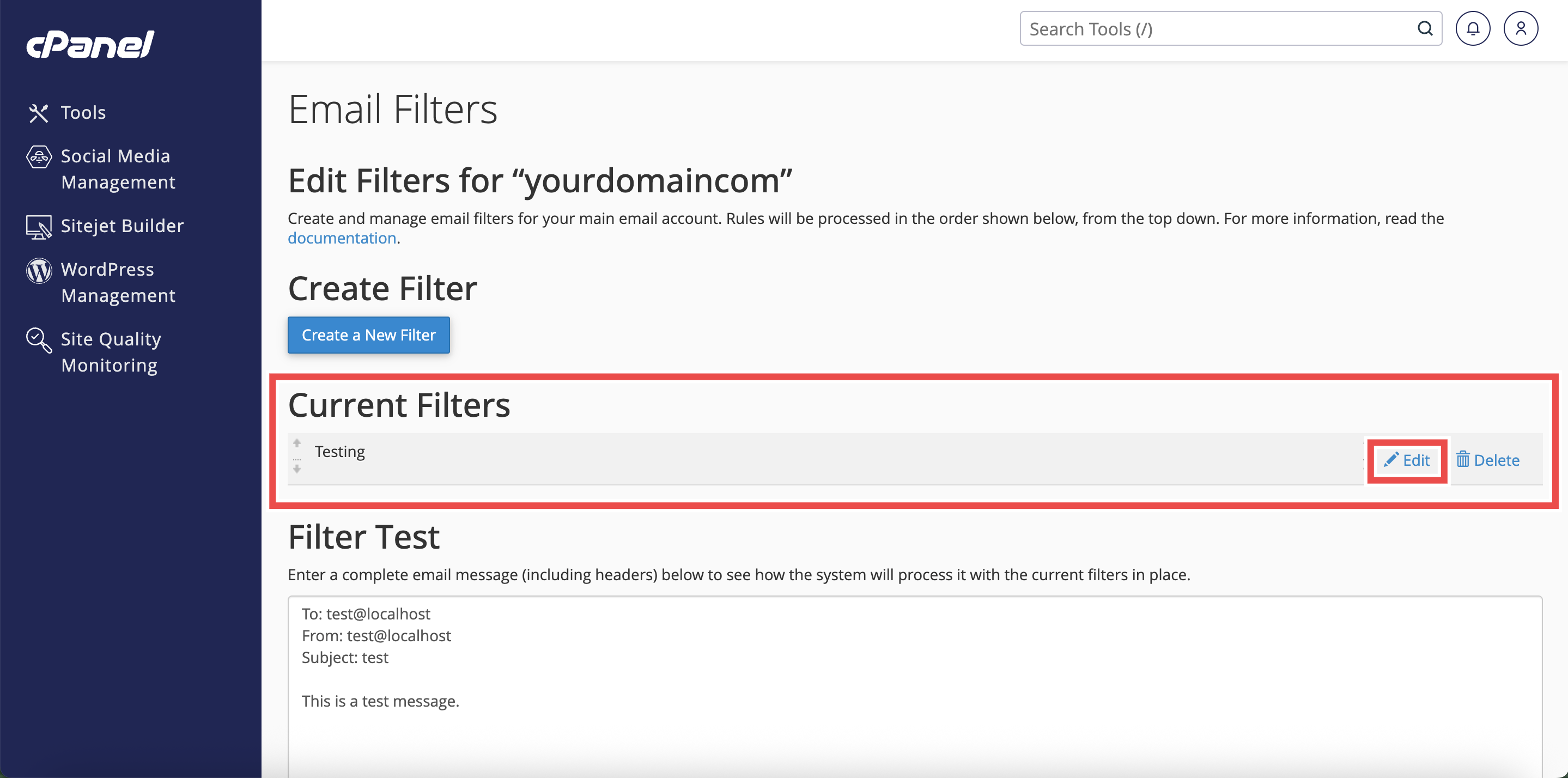
- Check that the filter appears in the Current Filters table and click Edit to check that the current filter’s details reflect the changes you made.


Conclusion
By following these steps, you can automatically move emails to the Drafts folder using Email Filters in cPanel. While this is an unconventional use of the Drafts folder, it can be helpful for custom email management workflows that require temporary storage or special handling of incoming messages. Ensure the folder path is correct for your email configuration.
Should you encounter any issues or have any questions, our support team at IPSERVERONE is always here to assist you. Don’t hesitate to reach out to us at support@ipserverone.com for any help you need.