
Search Our Database
How to Automatically Move Emails to Archive Folder using Global Email Filters in cPanel
Introduction
This Knowledge Base article provides a concise, step-by-step guide on How to Automatically Move Emails to the Archive Folder using Global Email Filters in cPanel. Global Email Filters allow you to create rules that apply to all email accounts under your cPanel domain. Automatically archiving emails is useful for organizing messages you want to keep for reference but don’t need in your primary Inbox, such as receipts, newsletters, or completed project correspondence across all your accounts.
Prerequisite
- Access to your cPanel login page.
- An active email account in your cPanel.
Step-by-Step Guide
Step 1: Log in to cPanel
- Access and log in to your cPanel account using your username and password.

Step 2: Open Global Email Filters
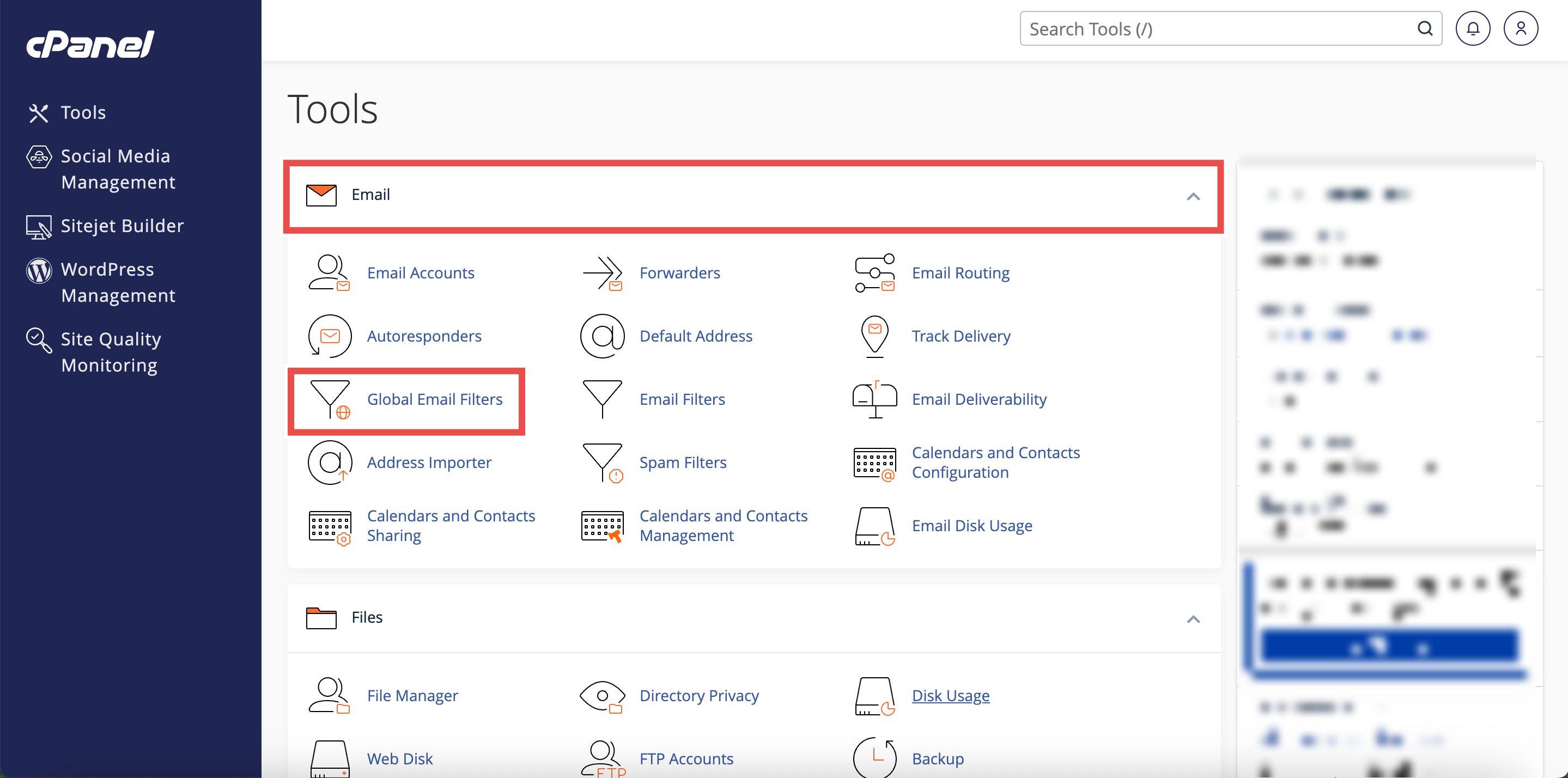
- In the Home page, under Email, click Global Email Filters.
Step 3: Create a New Filter
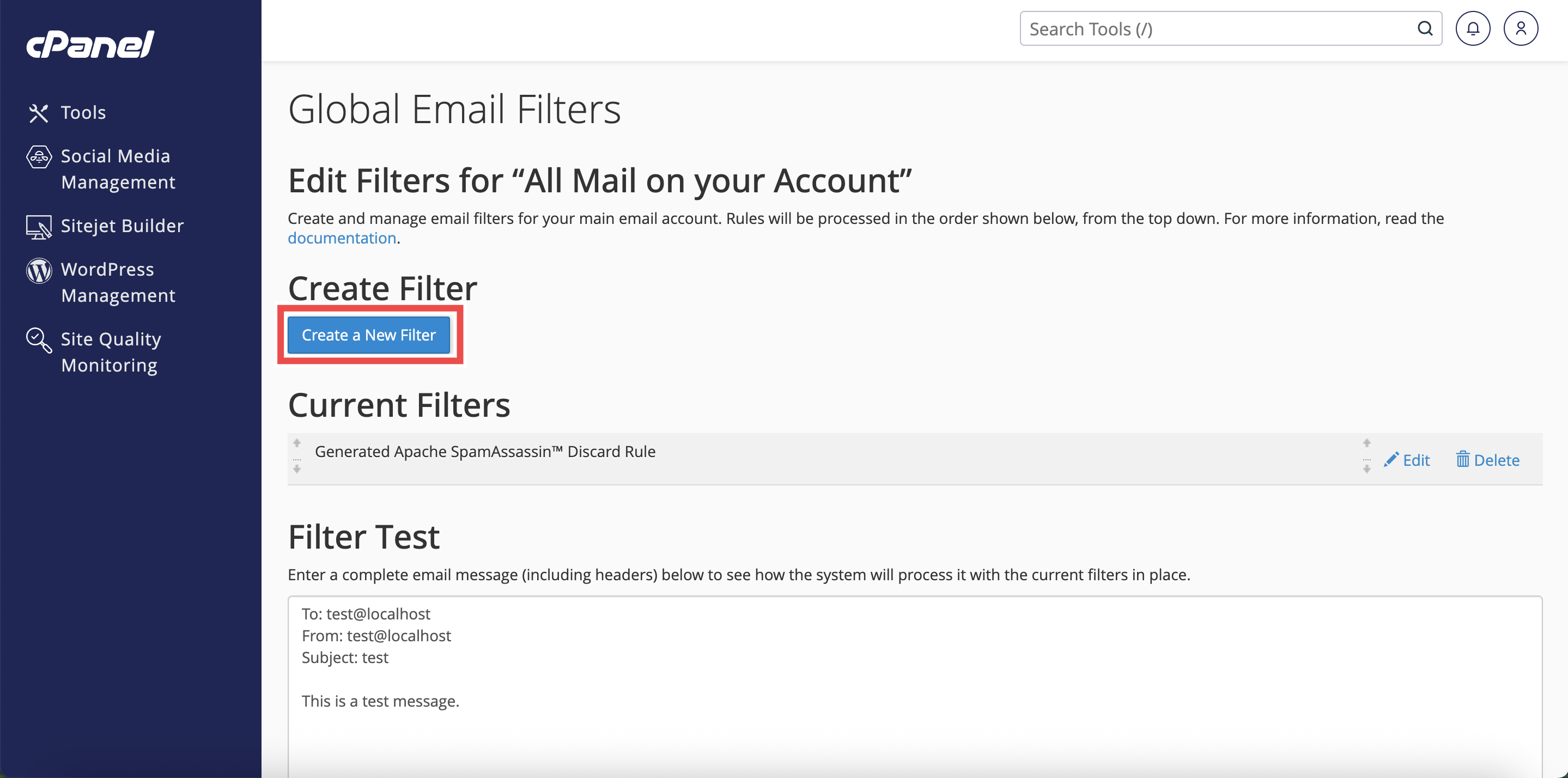
- Click Create a New Filter.
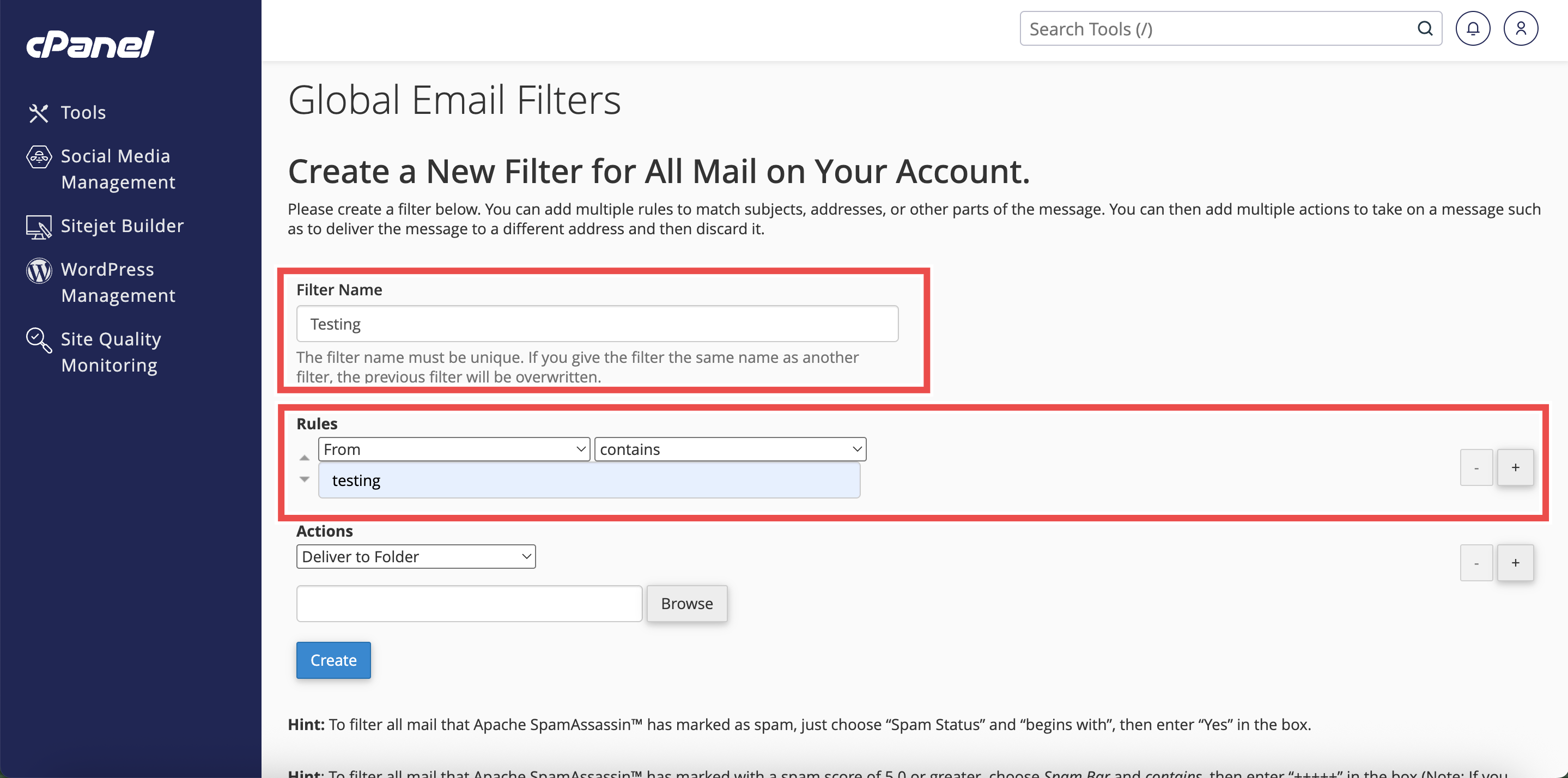
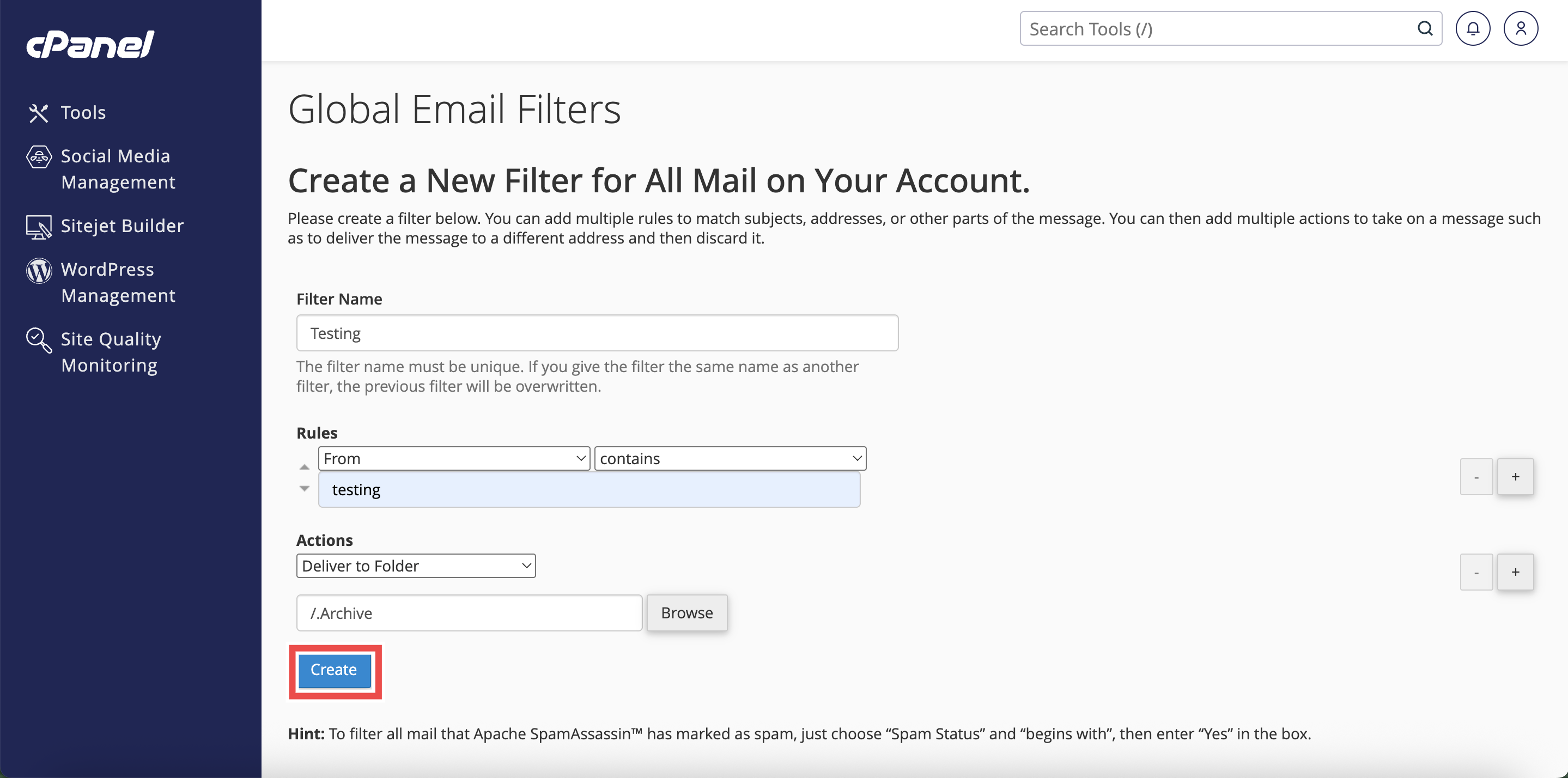
- Add or Change the filter’s Name, Rules, or Actions as needed.
- Filter’s Name: The label for your filter (e.g., Block Promo Emails).
- Rules: Conditions that trigger the filter (like sender, subject, or keywords).
Step 4: Configure Actions
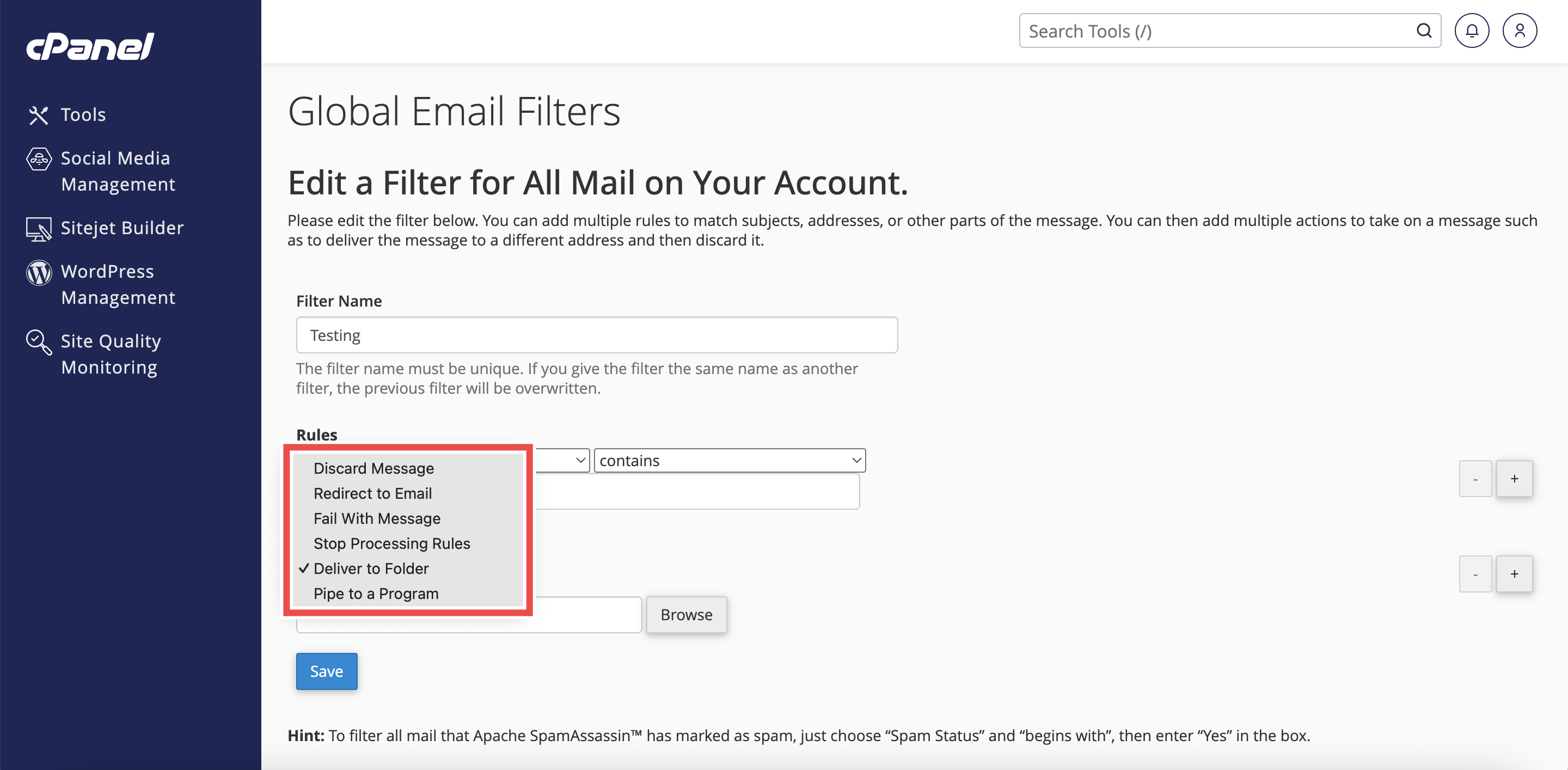
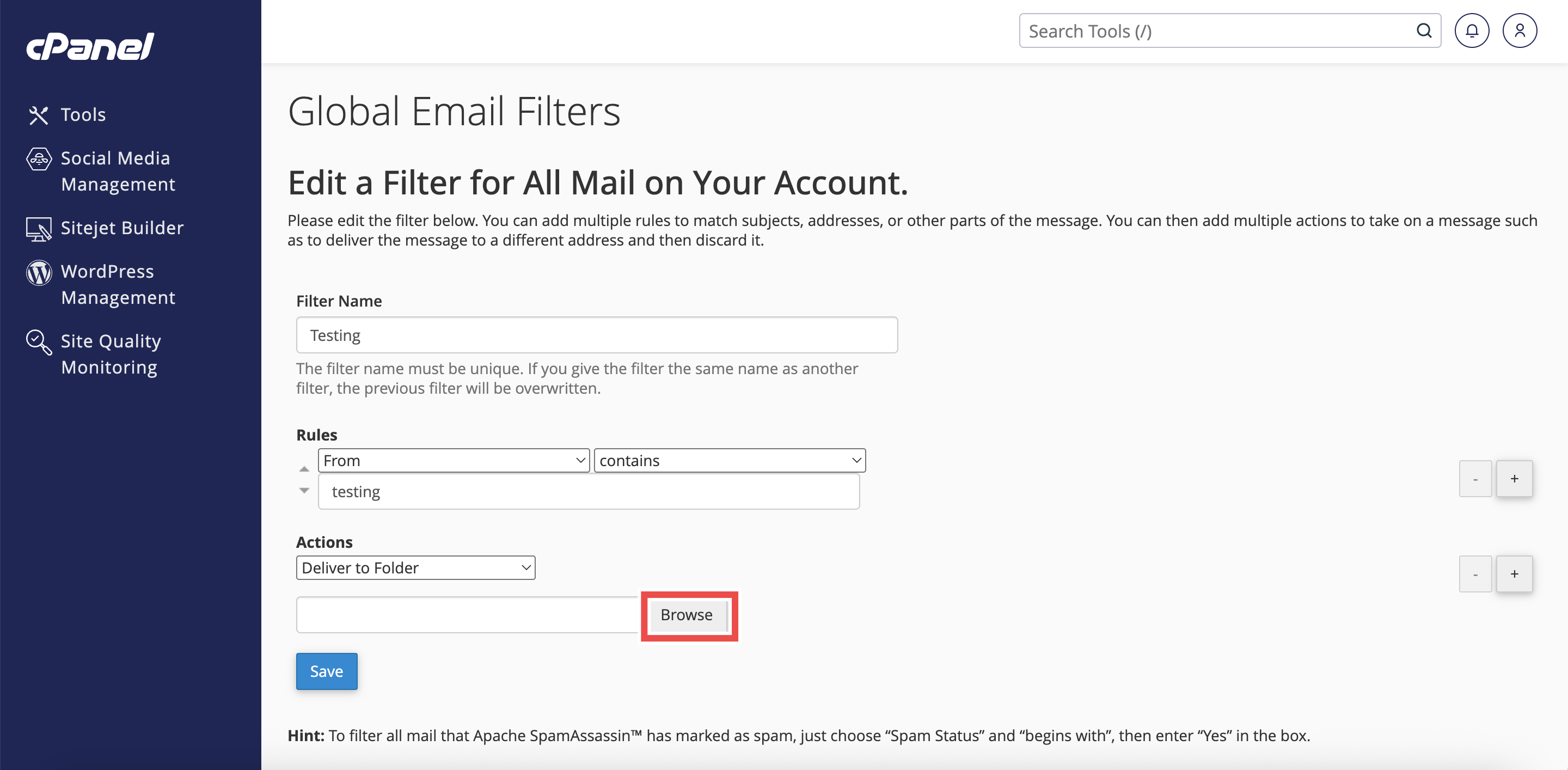
- Under Actions, select Deliver to Folder from the dropdown menu.
- Click Browse and select Archive from the folder list.
- Click Create to save the filter.
⚠️ Important Note: Global Email Filters apply to all email accounts under your cPanel.

Step 5: Verify the Changes
- A successful message will appear to confirm the changes are applied successfully.
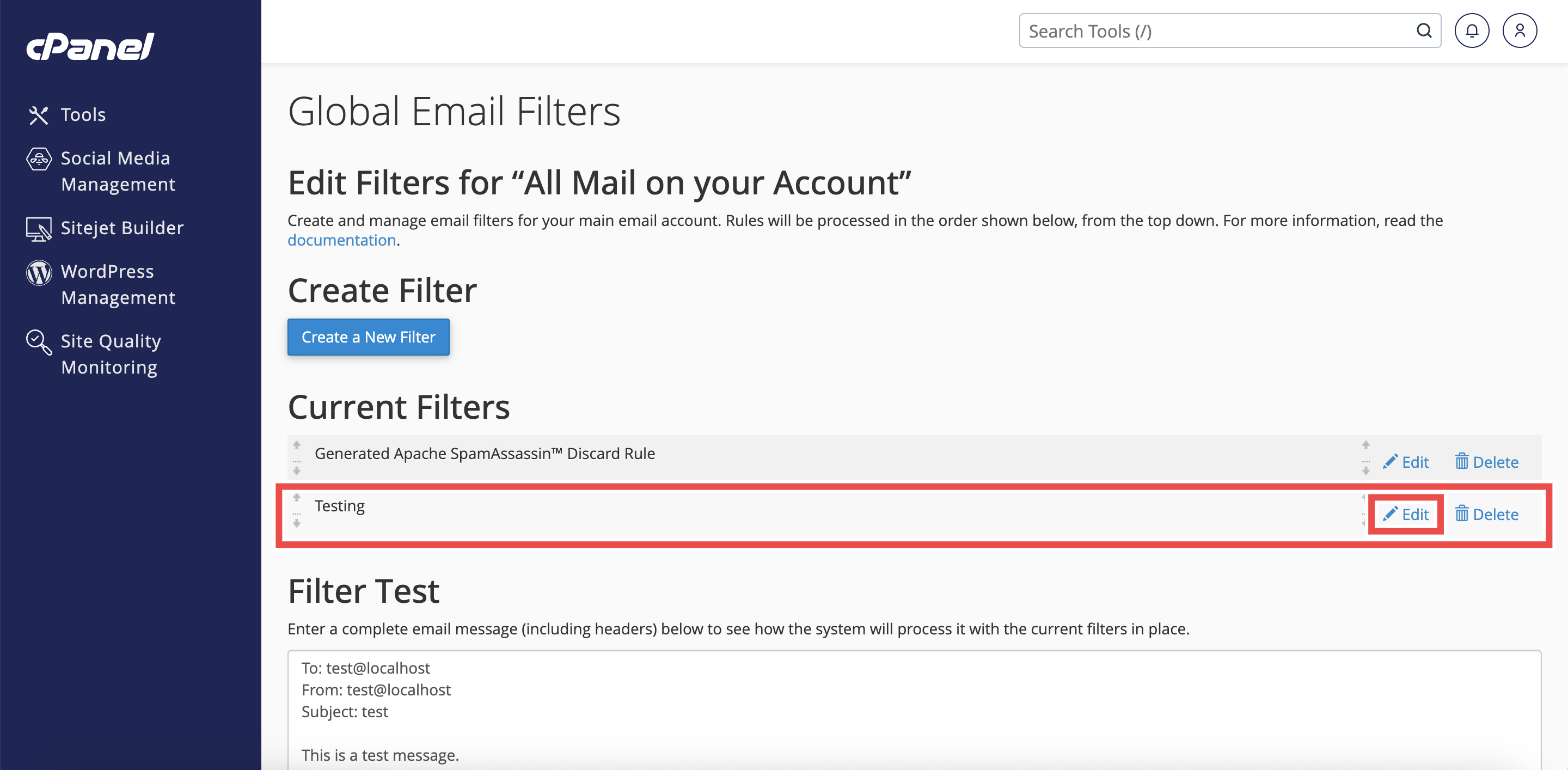
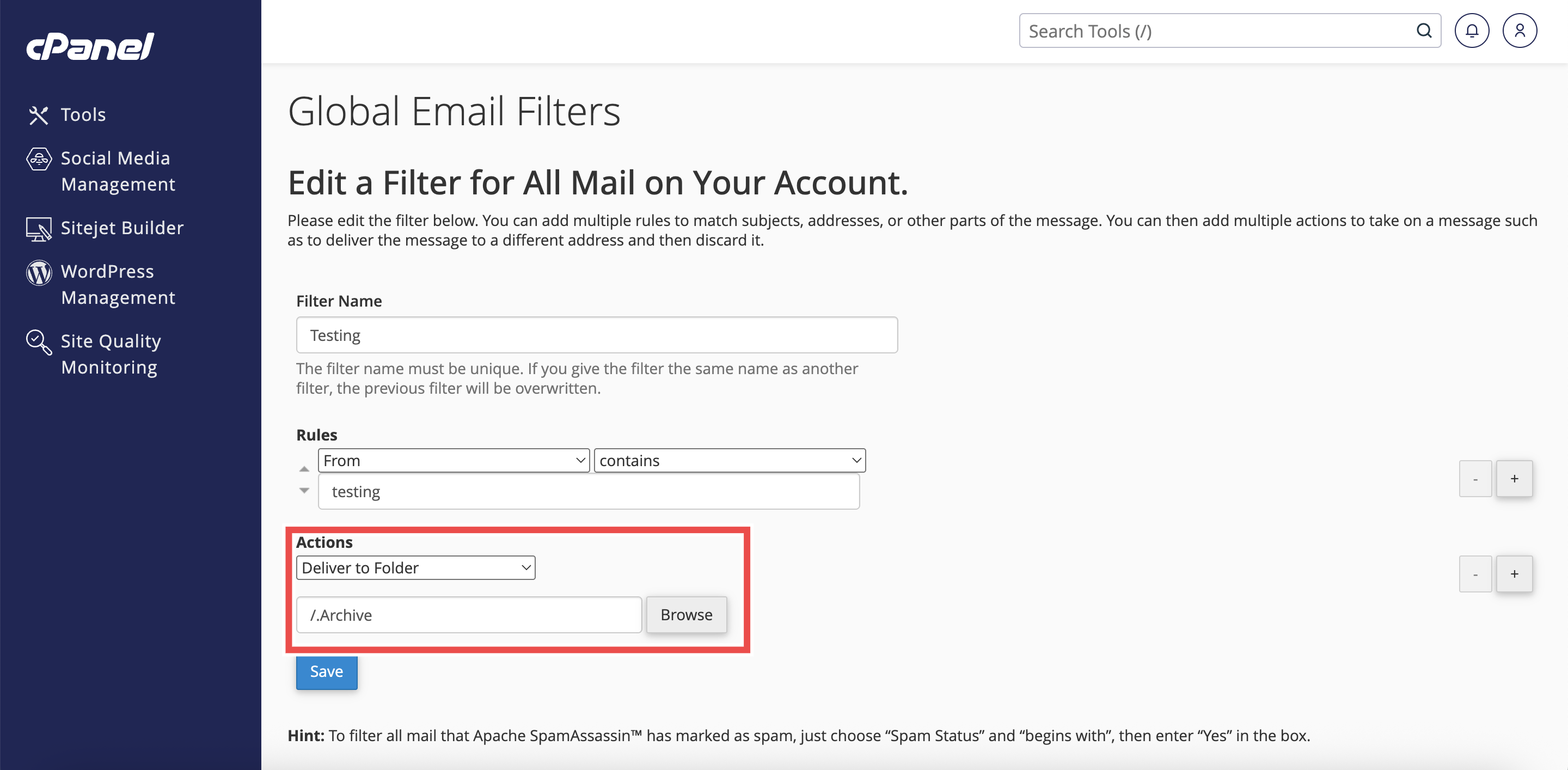
- Check that the filter appears in the Current Filters table and click Edit to check that the current filter’s details reflect the changes you made.

Conclusion
By following these steps, you can automatically move emails to the Archive folder using Global Email Filters in cPanel. This helps keep your Inbox clean while preserving important messages for future reference across all your email accounts.
Should you encounter any issues or have any questions, our support team at IPSERVERONE is always here to assist you. Don’t hesitate to reach out to us at support@ipserverone.com for any help you need.