
Search Our Database
How to Adjust Spam Threshold Score using Spam Filters in cPanel
Introduction
This Knowledge Base article provides a concise, step-by-step guide on How to Adjust the Spam Threshold Score using Spam Filters in cPanel. The Spam Threshold Score determines how aggressively Apache SpamAssassin identifies and marks emails as spam. A lower threshold score (such as 1) is more aggressive and may label legitimate emails as spam, while a higher score (such as 10) is more passive and only flags obvious spam messages. Adjusting this score helps you fine-tune spam detection to match your specific needs and reduce false positives or negatives.
Prerequisite
- Access to your cPanel login page.
- Apache SpamAssassin must be enabled for your account.
Step-by-Step Guide
Step 1: Log in to cPanel
- Access and log in to your cPanel account using your username and password.

Step 2: Open Spam Filters
- In the Home page, under Email, click Spam Filters.

Step 3: Locate Spam Threshold Score Settings
- Click Spam Threshold Score.
- The system will direct you to the Adjust Spam Threshold Score interface.

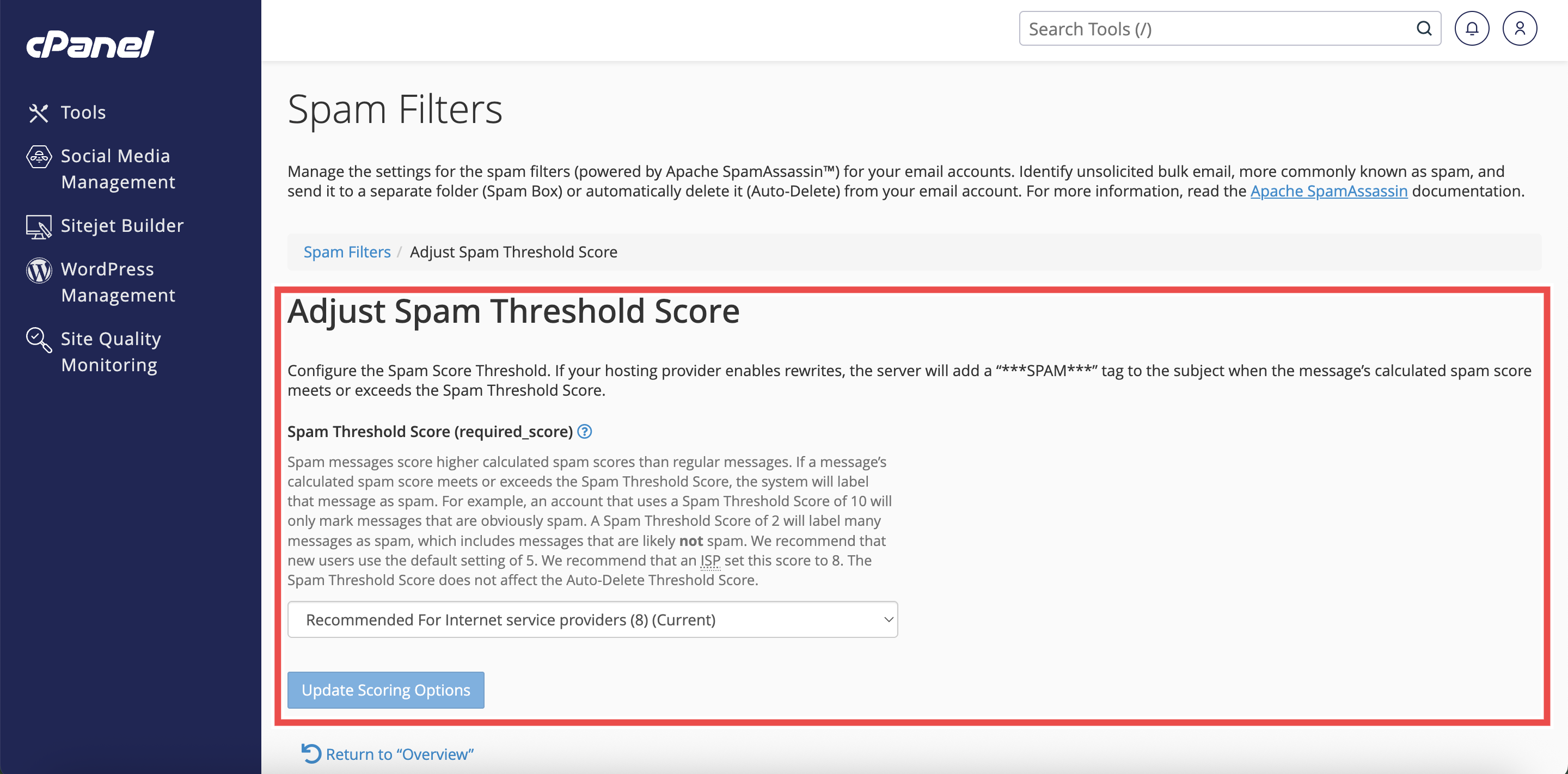
Step 4: Select Spam Threshold Value
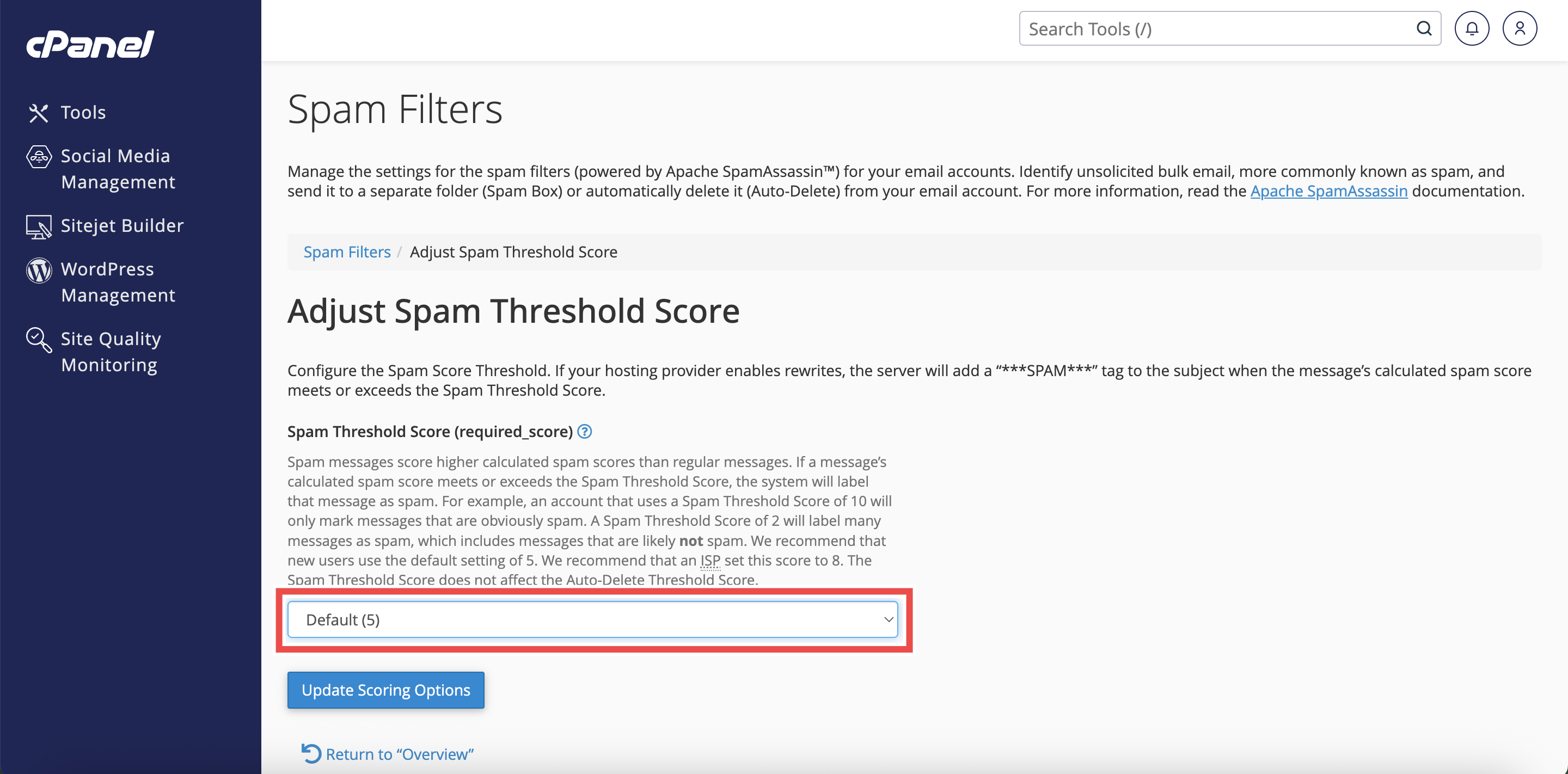
- From the drag-down menu, select your desired spam threshold score value.
- For a custom value, select Custom from the menu and enter your preferred score.
⚠️ Important Note:
- Aggressive, Many False Positives (1): Most aggressive filtering that may mark many legitimate emails as spam.
- Recommended for Well-Tested Servers (4): Balanced filtering for servers with established spam patterns.
- Default (5): Standard recommended setting that balances spam detection and legitimate email delivery.
- Recommended For Internet service providers (8): More lenient filtering suitable for ISPs handling diverse email traffic.
- Passive, Only Very Obvious Spam (10): Least aggressive filtering that only marks clearly identifiable spam.
- Custom: Allows you to enter your own threshold value based on specific requirements.

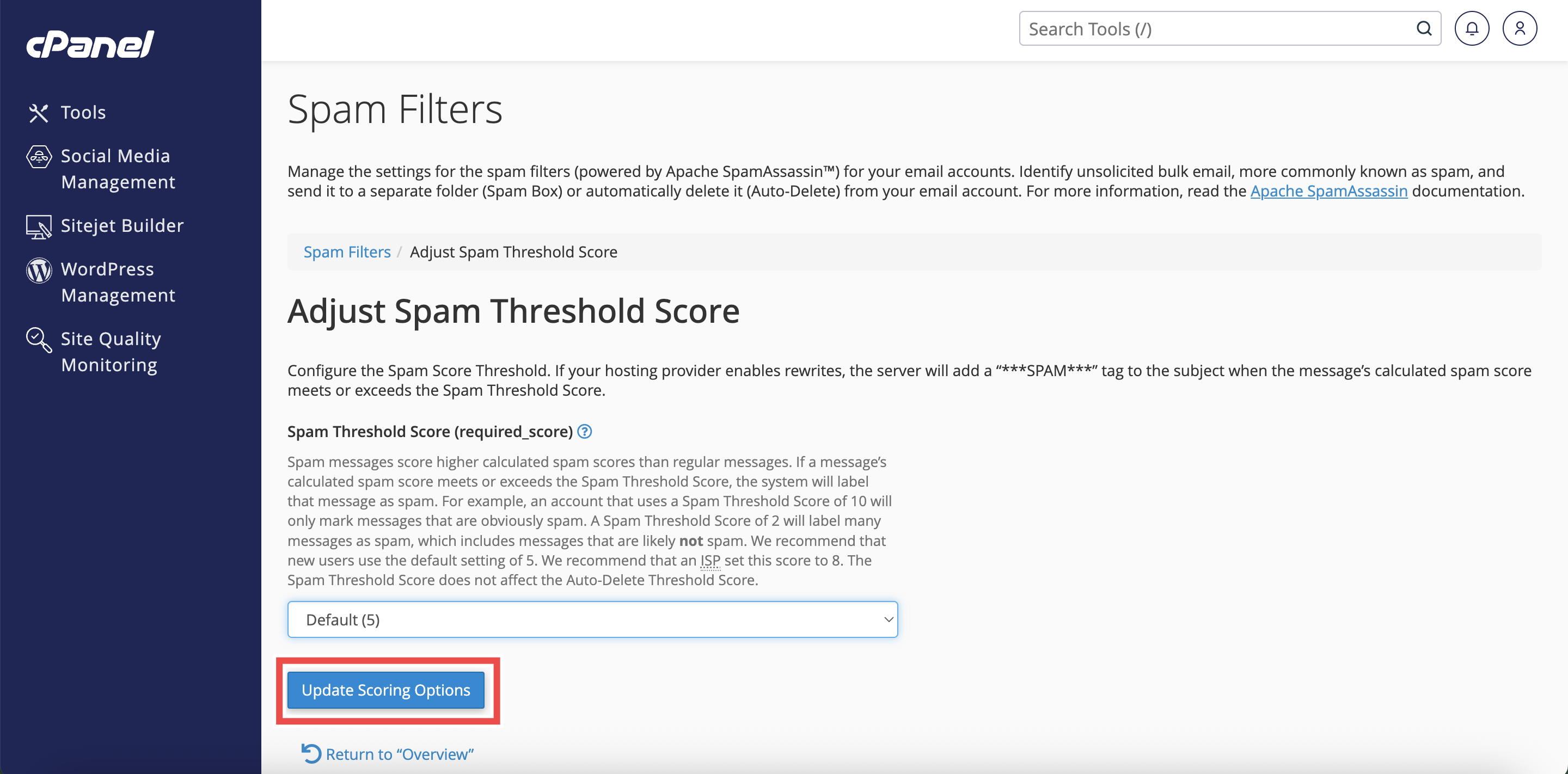
Step 5: Save Your Changes
- Click Update Scoring Options to save your changes.
Step 6: Verify the Changes
- A pop up message will appear to confirm that your spam threshold score has been updated.

Conclusion
By following these steps, you can successfully adjust the Spam Threshold Score using Spam Filters in cPanel. This allows you to customize spam detection sensitivity based on your email needs and helps prevent legitimate messages from being incorrectly flagged as spam.
Should you encounter any issues or have any questions, our support team at IPSERVERONE is always here to assist you. Don’t hesitate to reach out to us at support@ipserverone.com for any help you need.