
Search Our Database
How to Adjust PHP Script Execution Time for All Websites using MultiPHP INI Editor in cPanel
Introduction
This Knowledge Base article provides a concise, step-by-step guide on How to Adjust PHP Script Execution Time for All Websites using MultiPHP INI Editor in cPanel. The max_execution_time directive controls the maximum amount of time in seconds that a PHP script is allowed to run before being terminated by the server. By applying this setting to your Home Directory, you can configure execution time limits across all domains under your hosting account, which is useful for websites that run resource-intensive scripts or long-running processes.
Prerequisite
- Access to your cPanel login page.
Step-by-Step Guide
Step 1: Log in to cPanel
- Access and log in to your cPanel account using your username and password.

Step 2: Open MultiPHP INI Editor
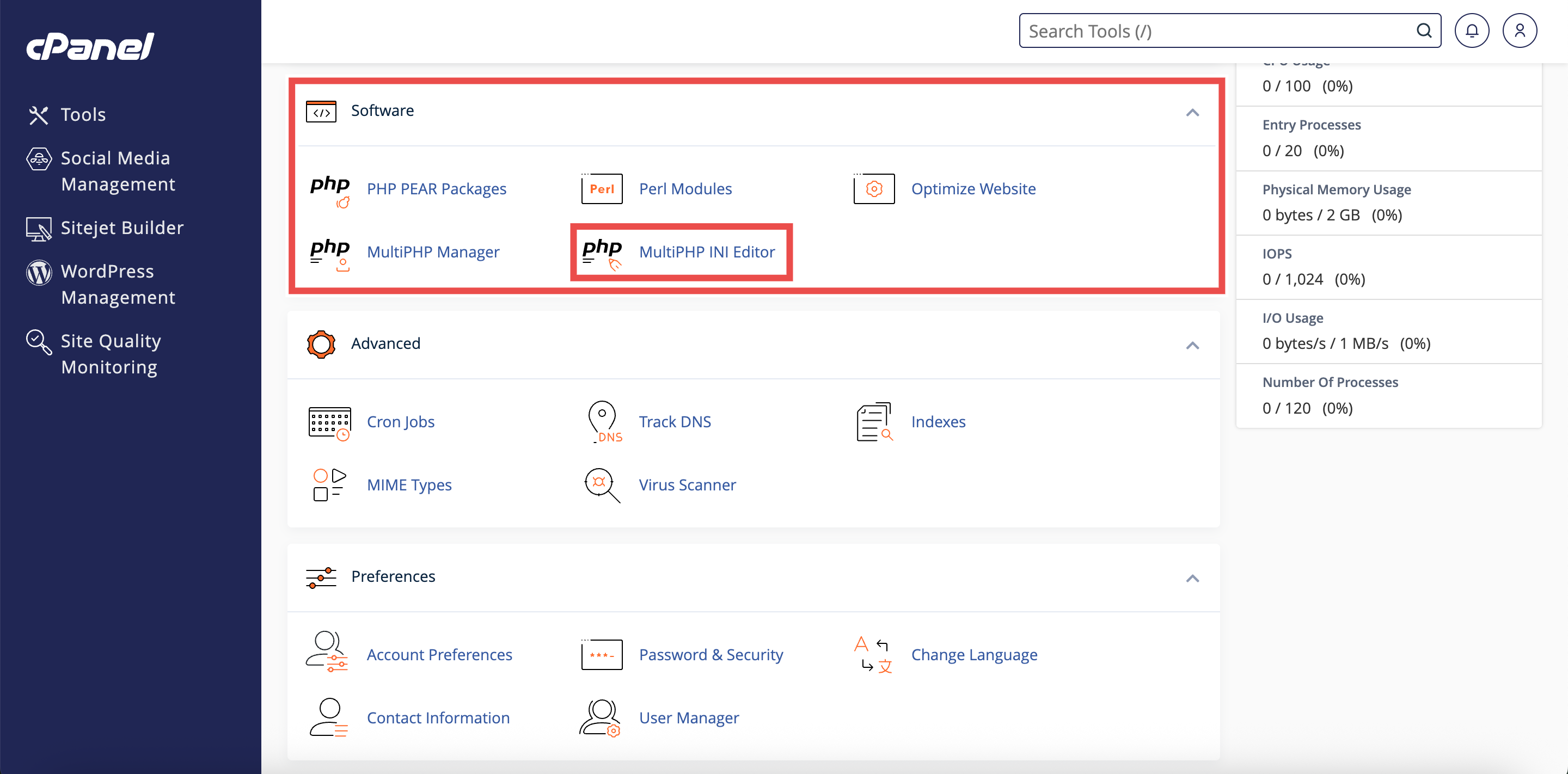
- In the Home page, under Software, click MultiPHP INI Editor.
Step 3: Access Basic Mode
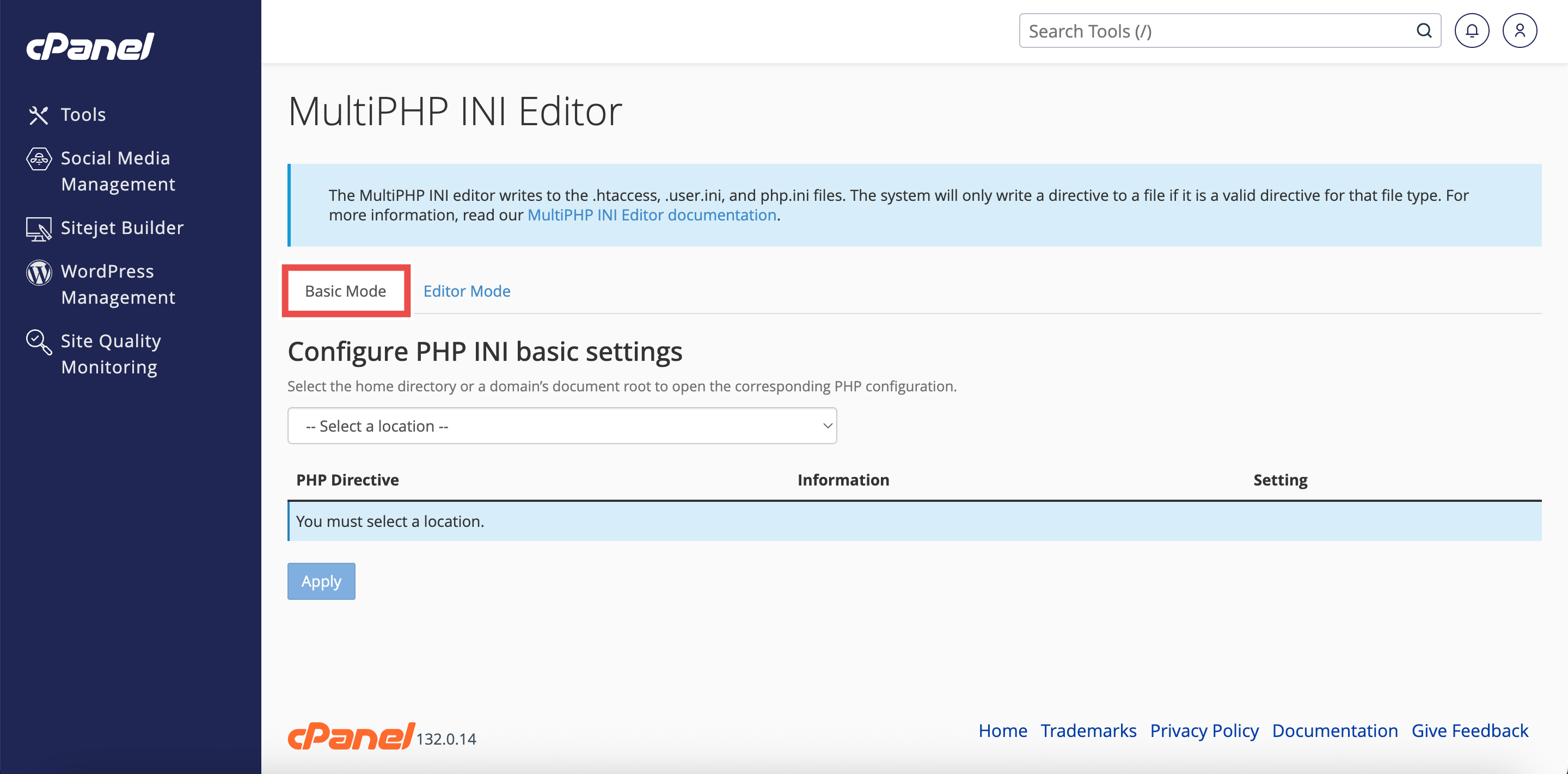
- The interface will open in the Basic Mode tab by default.
- If you are in Editor Mode, click the Basic Mode tab at the top of the interface.
Step 4: Select Home Directory
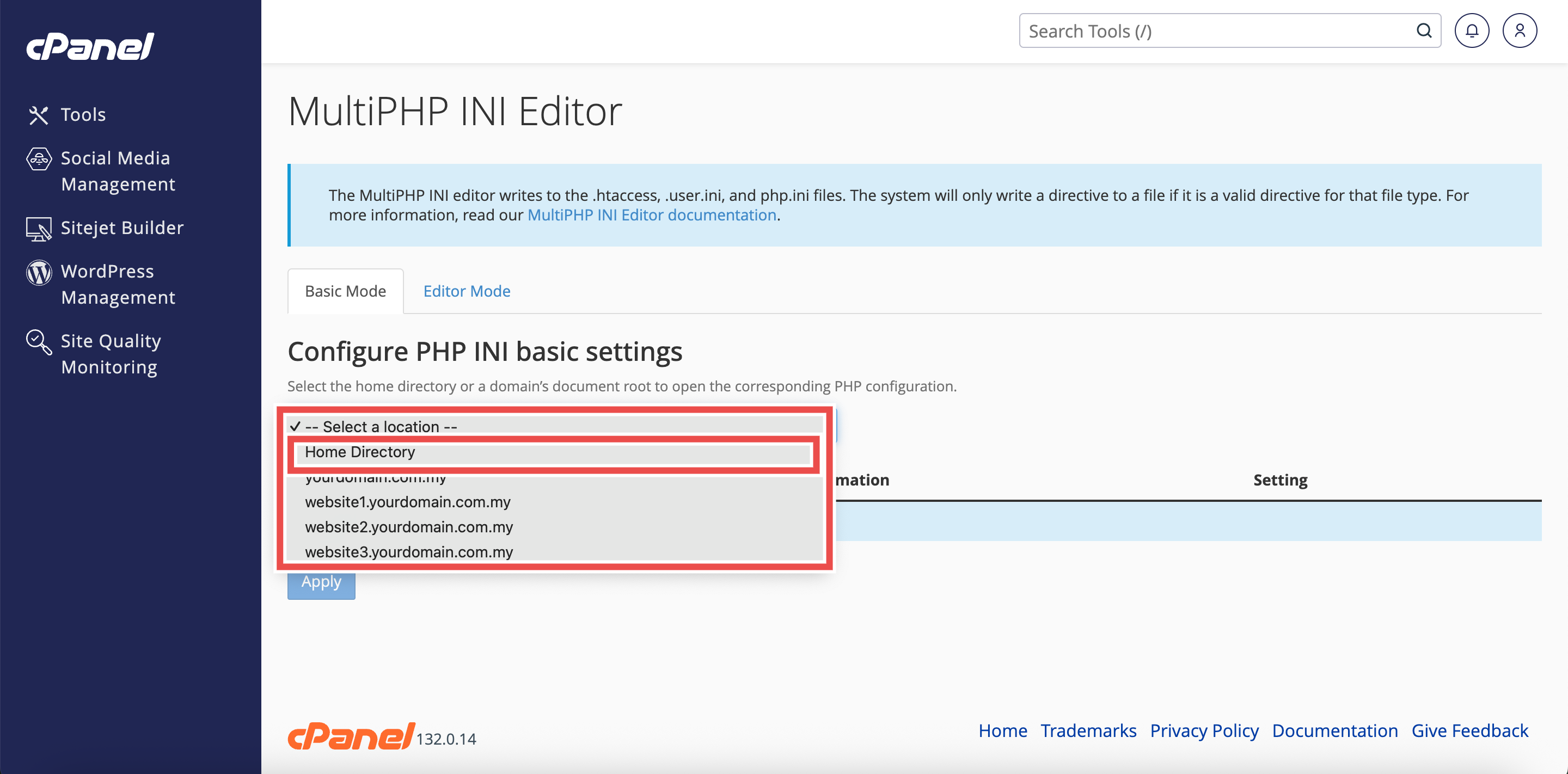
- From the Configure PHP INI basic settings dropdown menu, select Home Directory.
⚠️ Important Note: Selecting Home Directory will apply PHP configuration changes to all domains.
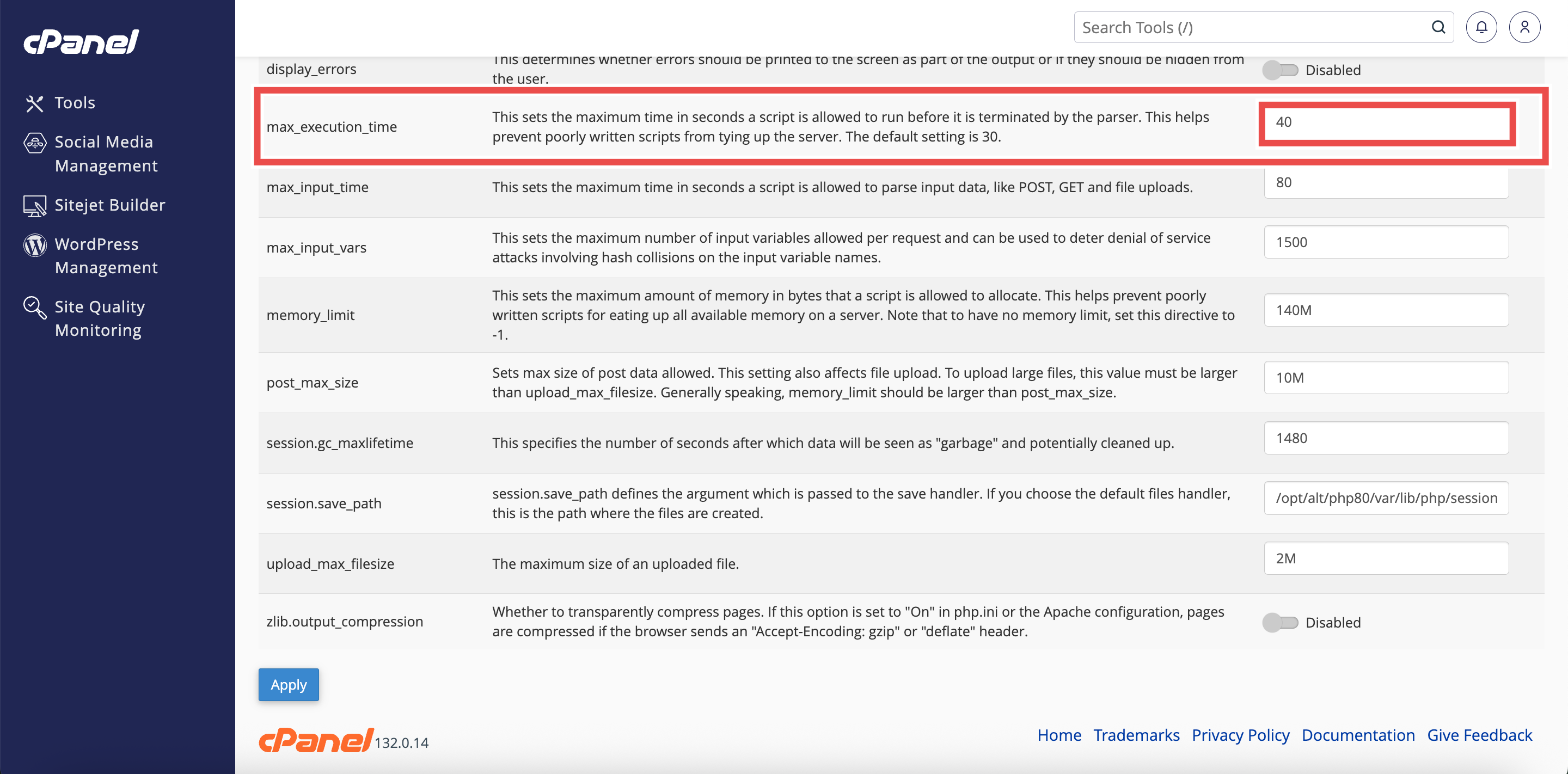
Step 5: Adjust Maximum Execution Time
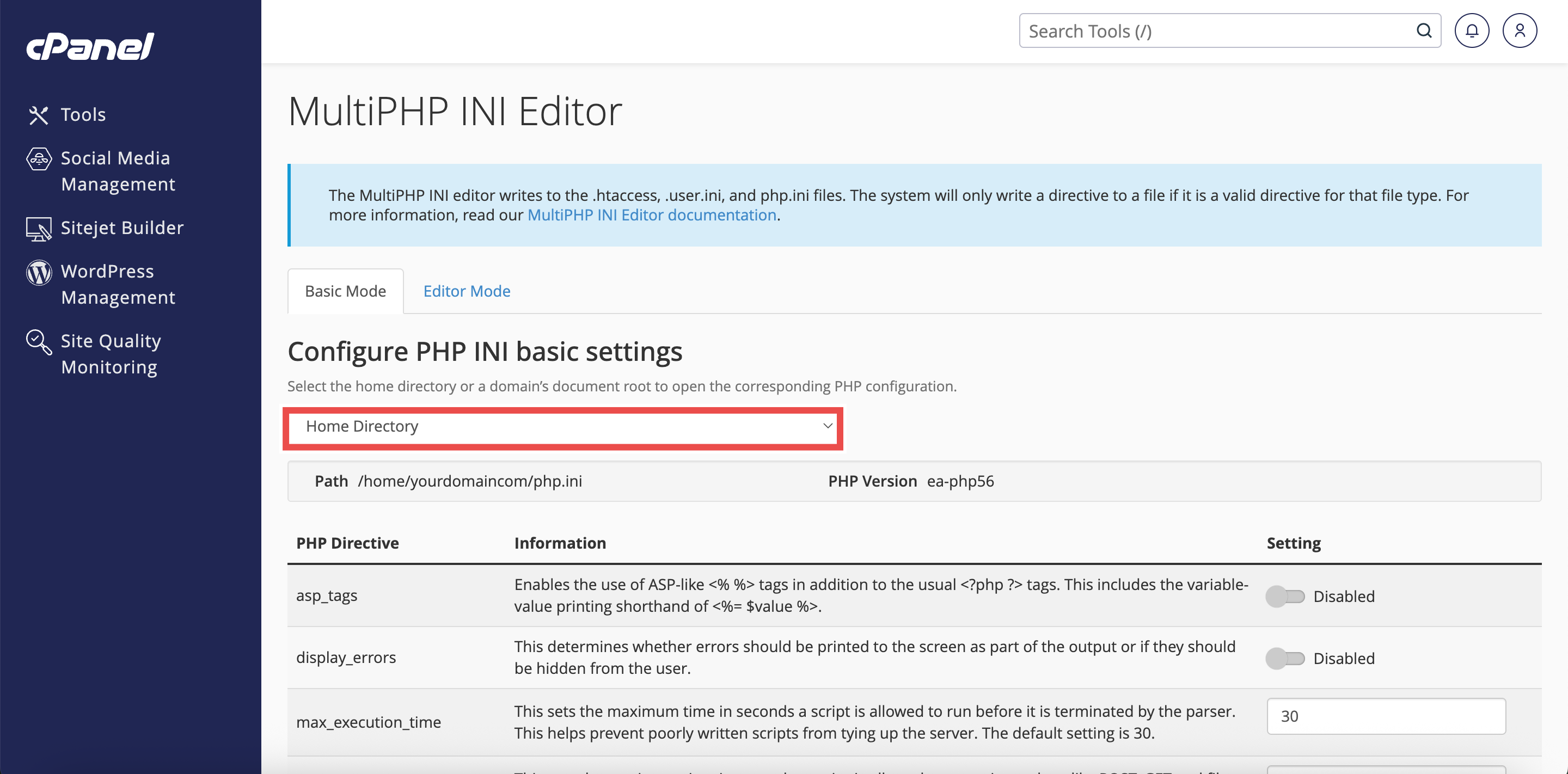
- Locate the max_execution_time directive in the list of PHP directives.
- Enter the desired time limit in seconds (e.g., 300 for 5 minutes, 600 for 10 minutes).
- The default value is typically 30 seconds.
⚠️ Important Note:
- Setting this value too high may allow poorly written scripts to consume server resources for extended periods.
- Only increase this value if you have specific requirements for long-running scripts.
Step 6: Apply the Changes
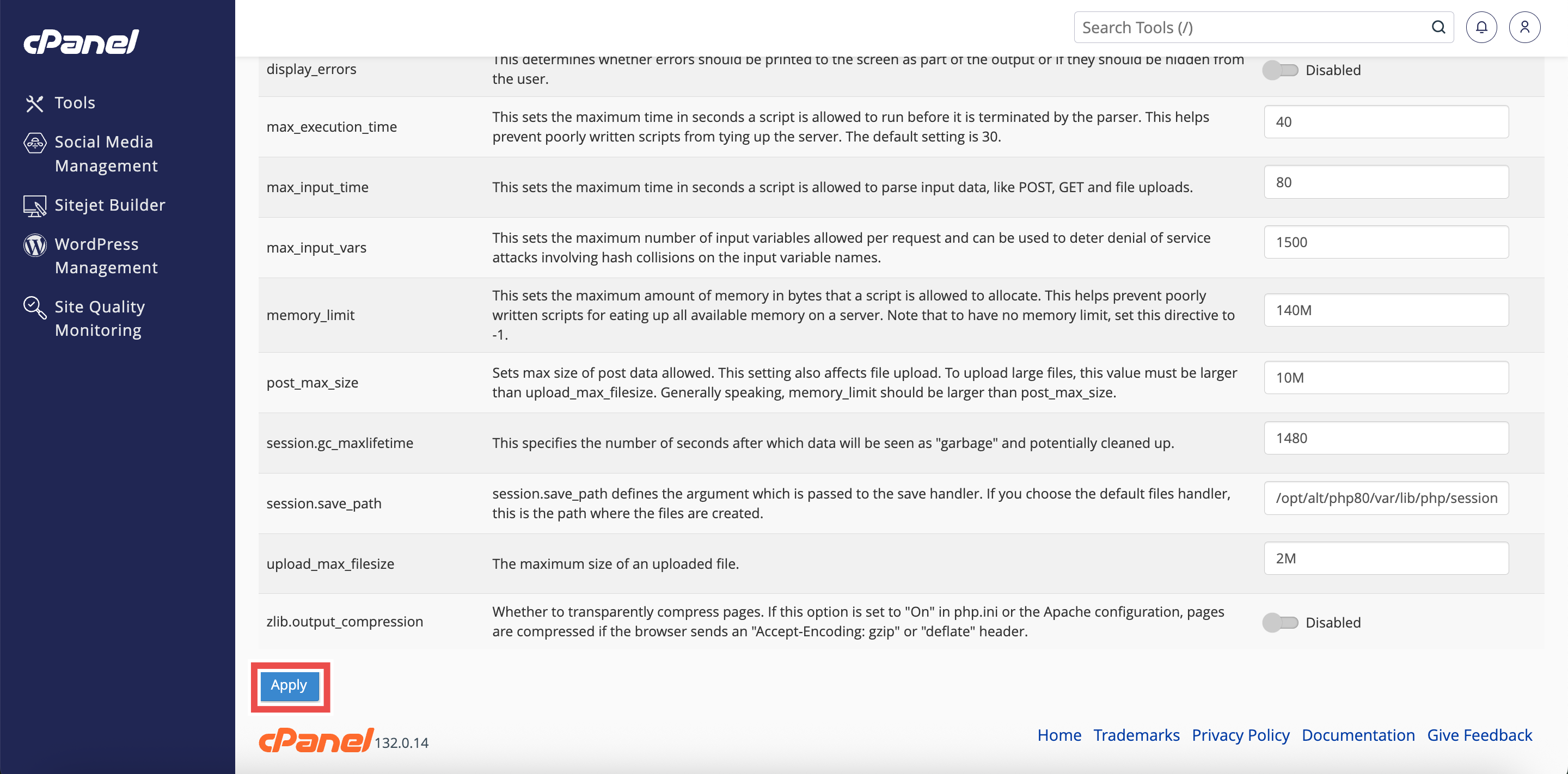
- Click the Apply button at the bottom of the page to apply the changes made.
Step 7: Verify the Changes
- A successful message will pop up to confirm that the changes is applied successfully.
⚠️ Important Note:
- Some hosting providers may impose server-level limits that override your php.ini settings.
- If you continue to experience timeout issues, contact your hosting provider.

Conclusion
By following these steps, you can adjust PHP script execution time for all websites using MultiPHP INI Editor in cPanel. This allows you to accommodate scripts that require more time to complete while maintaining control over server resource usage.
Should you encounter any issues or have any questions, our support team at IPSERVERONE is always here to assist you. Don’t hesitate to reach out to us at support@ipserverone.com for any help you need.