
Search Our Database
How to Adjust Maximum Input Variables for All Websites using MultiPHP INI Editor in cPanel
Introduction
This Knowledge Base article provides a concise, step-by-step guide on How to Adjust Maximum Input Variables for All Websites using MultiPHP INI Editor in cPanel. The max_input_vars directive limits the number of input variables that can be accepted in a single request, including GET, POST, and COOKIE data. By applying this setting to your Home Directory, you can configure input variable limits across all domains under your hosting account, which is important for websites with complex forms or applications that send large amounts of data.
Prerequisite
- Access to your cPanel login page.
Step-by-Step Guide
Step 1: Log in to cPanel
- Access and log in to your cPanel account using your username and password.

Step 2: Open MultiPHP INI Editor
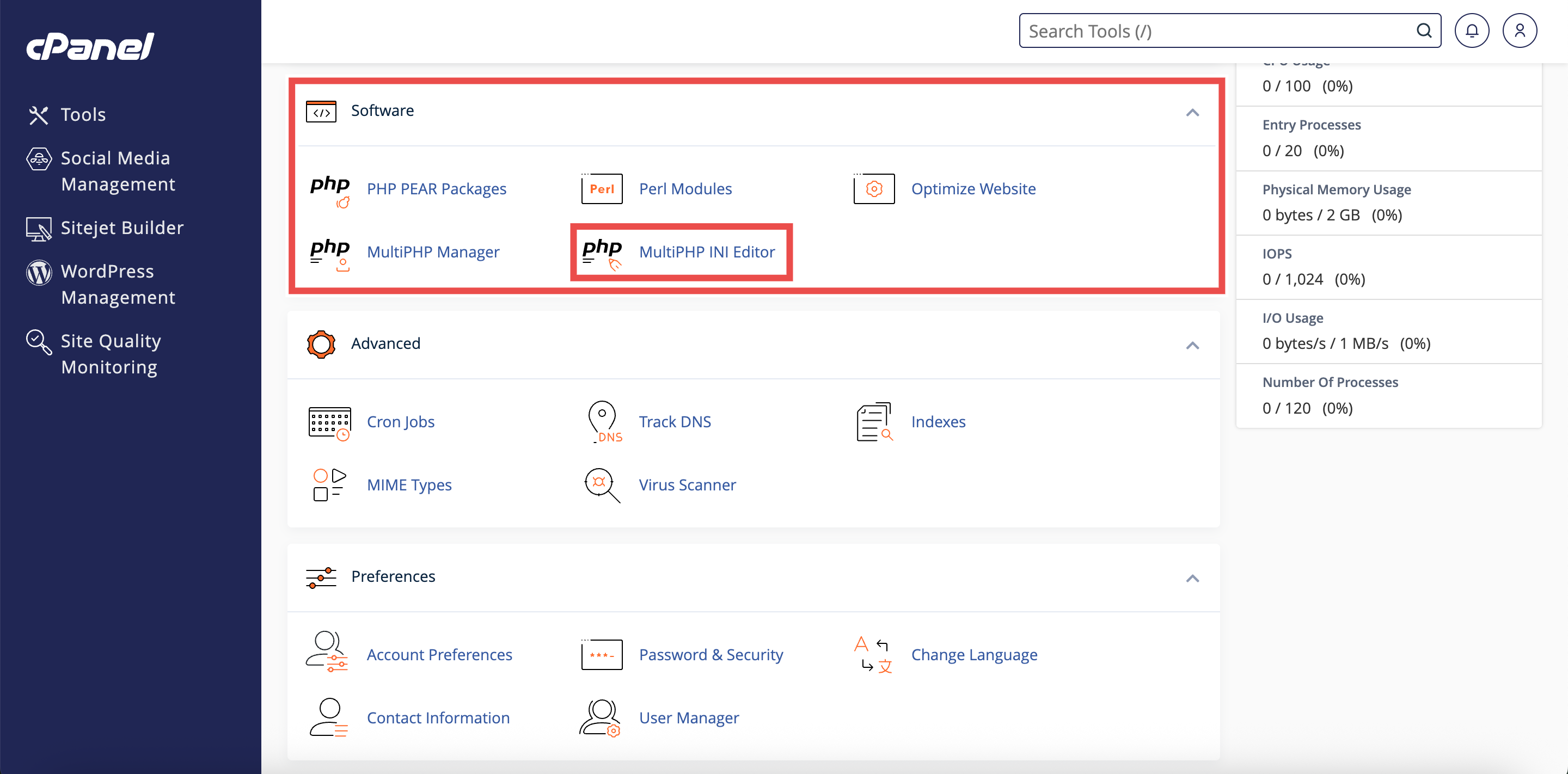
- In the Home page, under Software, click MultiPHP INI Editor.
Step 3: Access Basic Mode
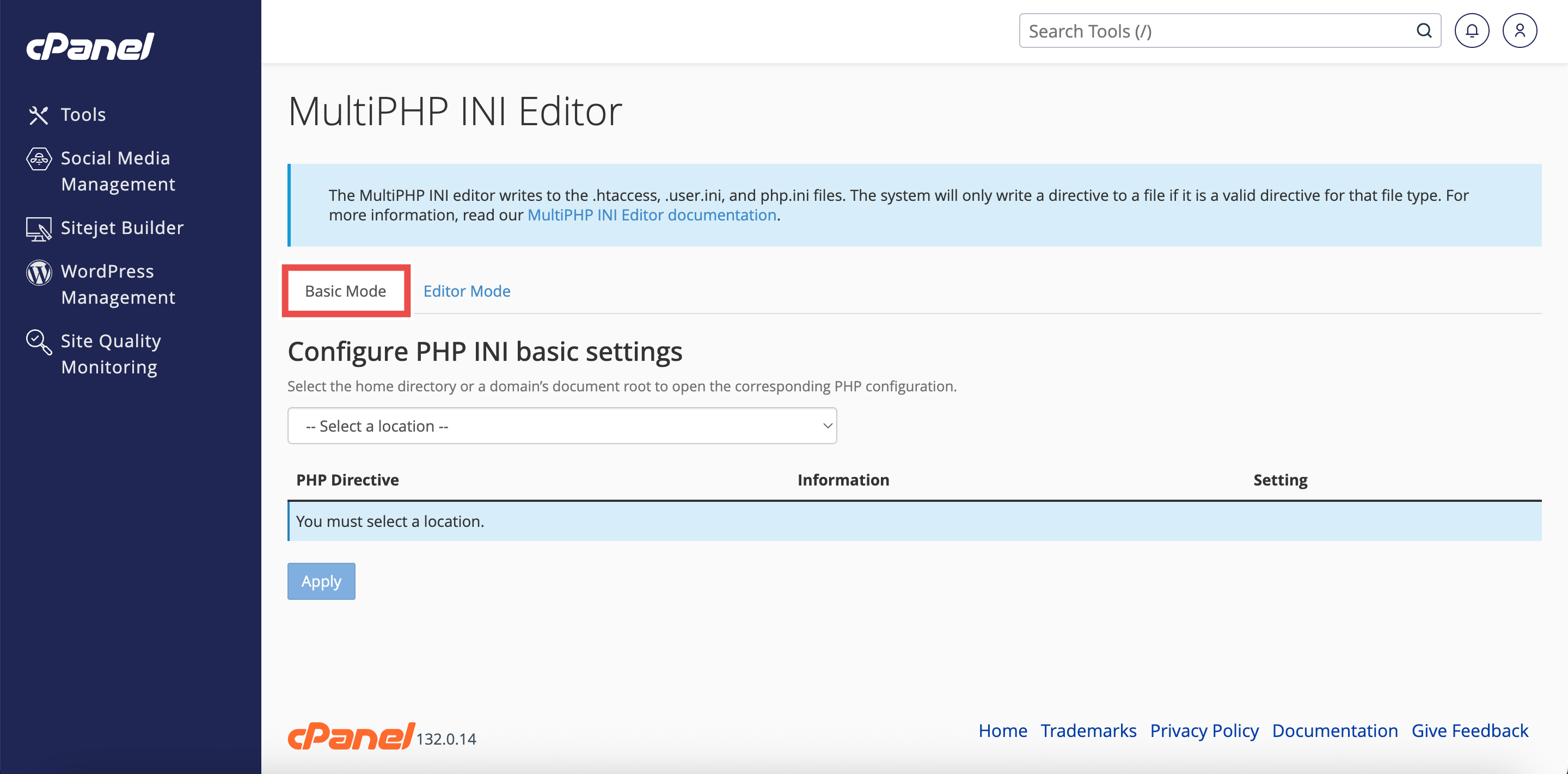
- The interface will open in the Basic Mode tab by default.
- If you are in Editor Mode, click the Basic Mode tab at the top of the interface.
Step 4: Select Home Directory
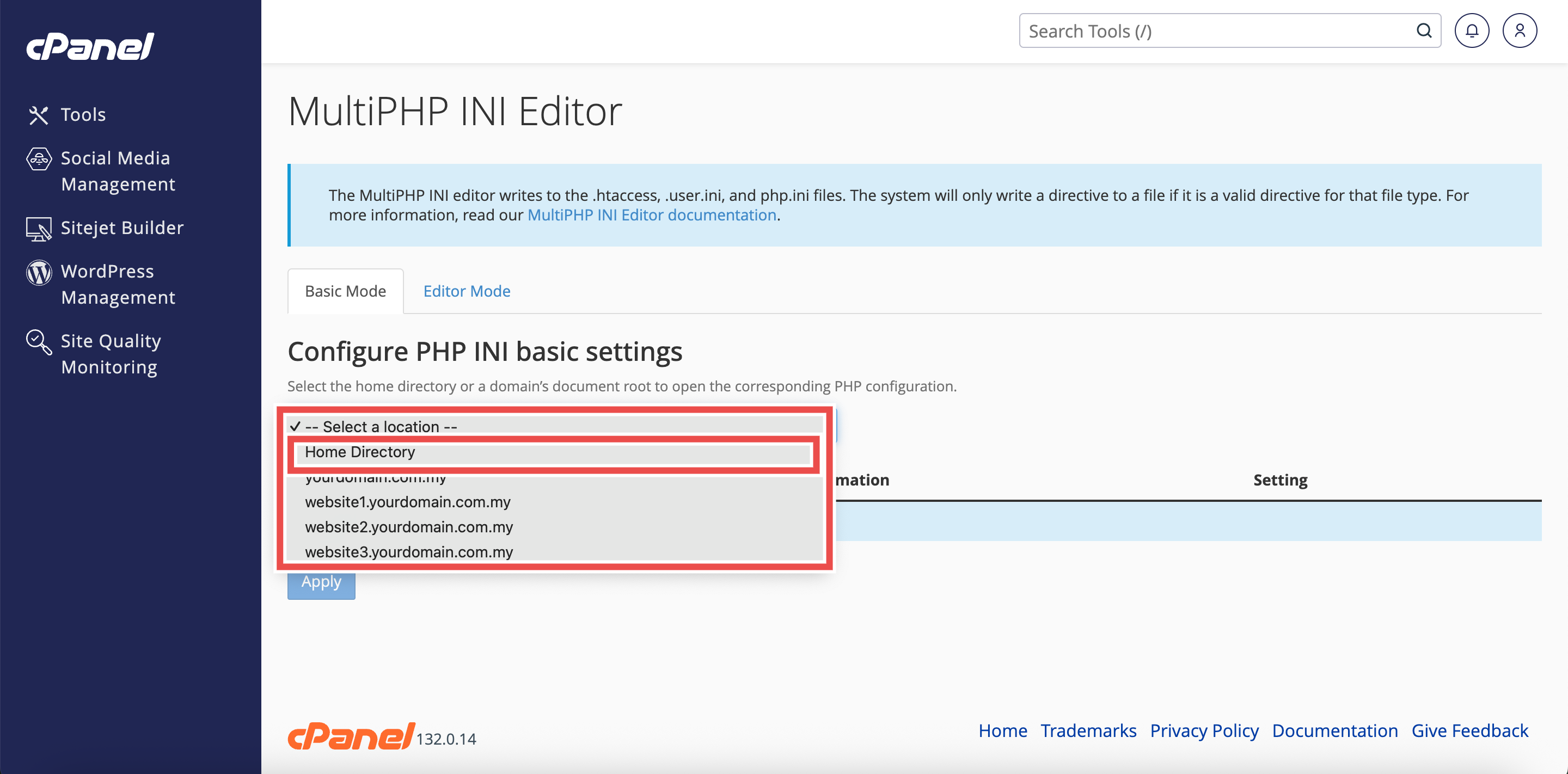
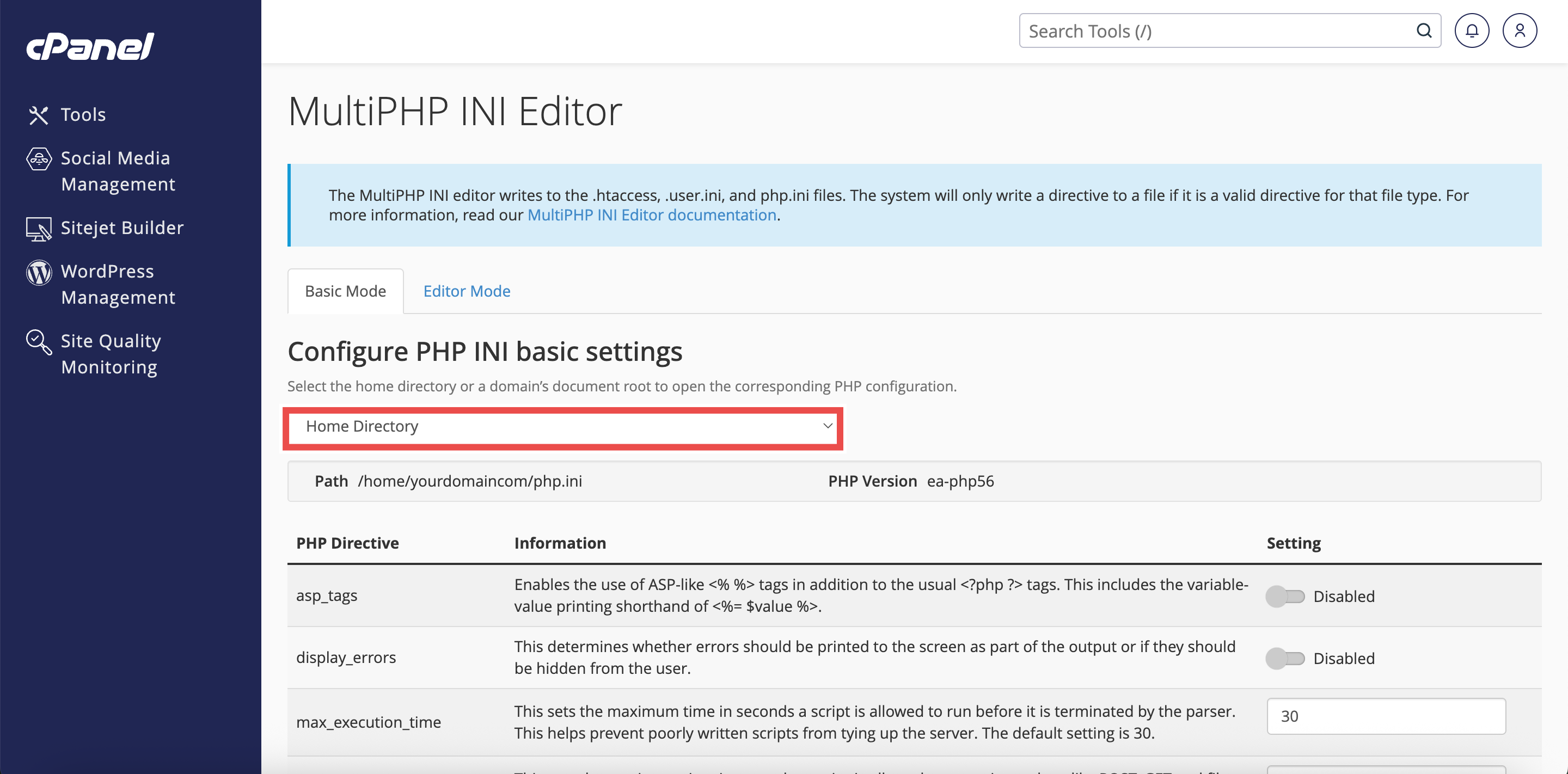
- From the Configure PHP INI basic settings dropdown menu, select Home Directory.
⚠️ Important Note: Selecting Home Directory will apply PHP configuration changes to all domains.
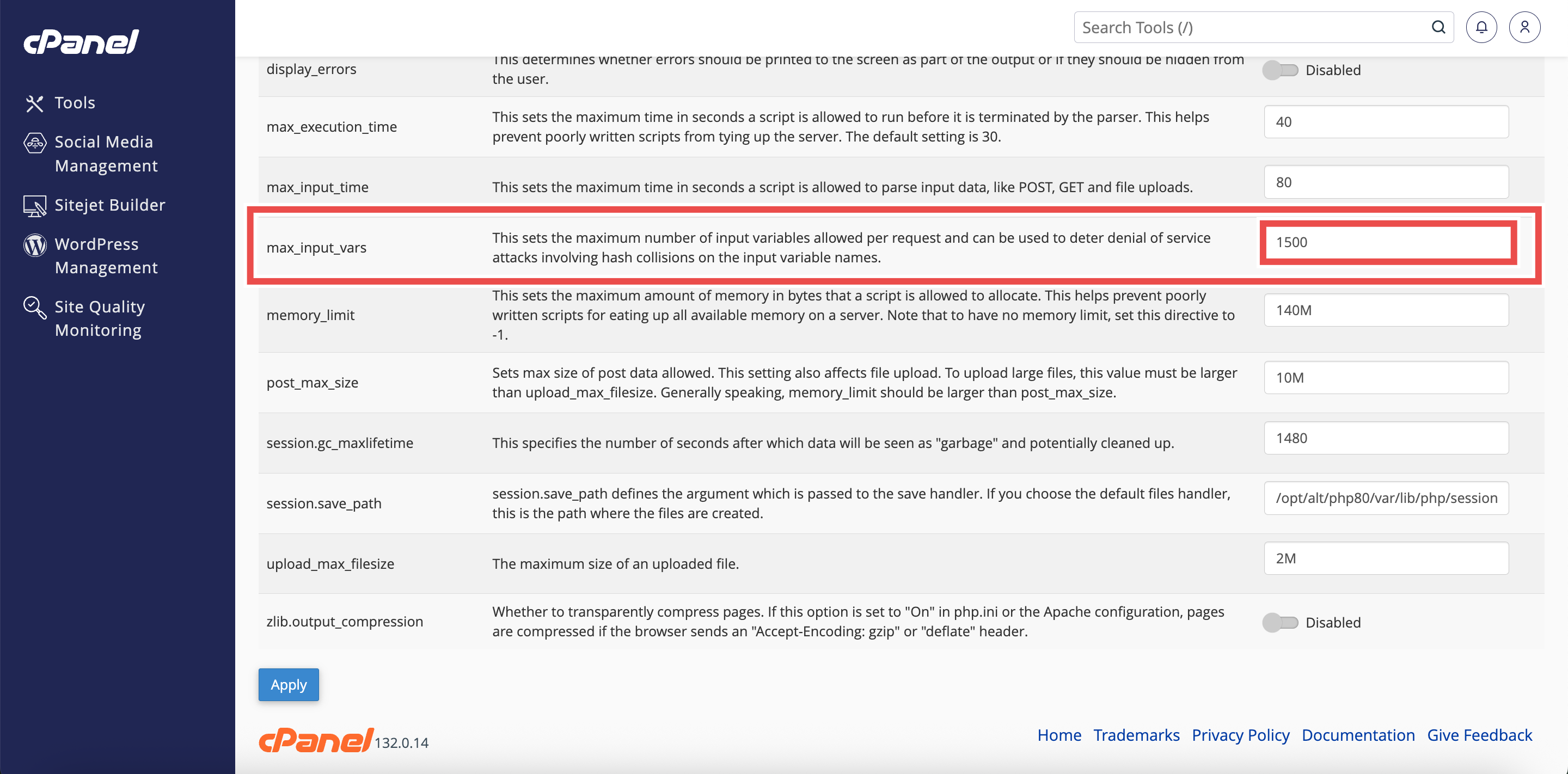
Step 5: Adjust Maximum Input Variables
- Locate the max_input_vars directive in the list of PHP directives.
- Enter the desired limit (e.g., 3000, 5000, or 10000).
- The default value is typically 1000.
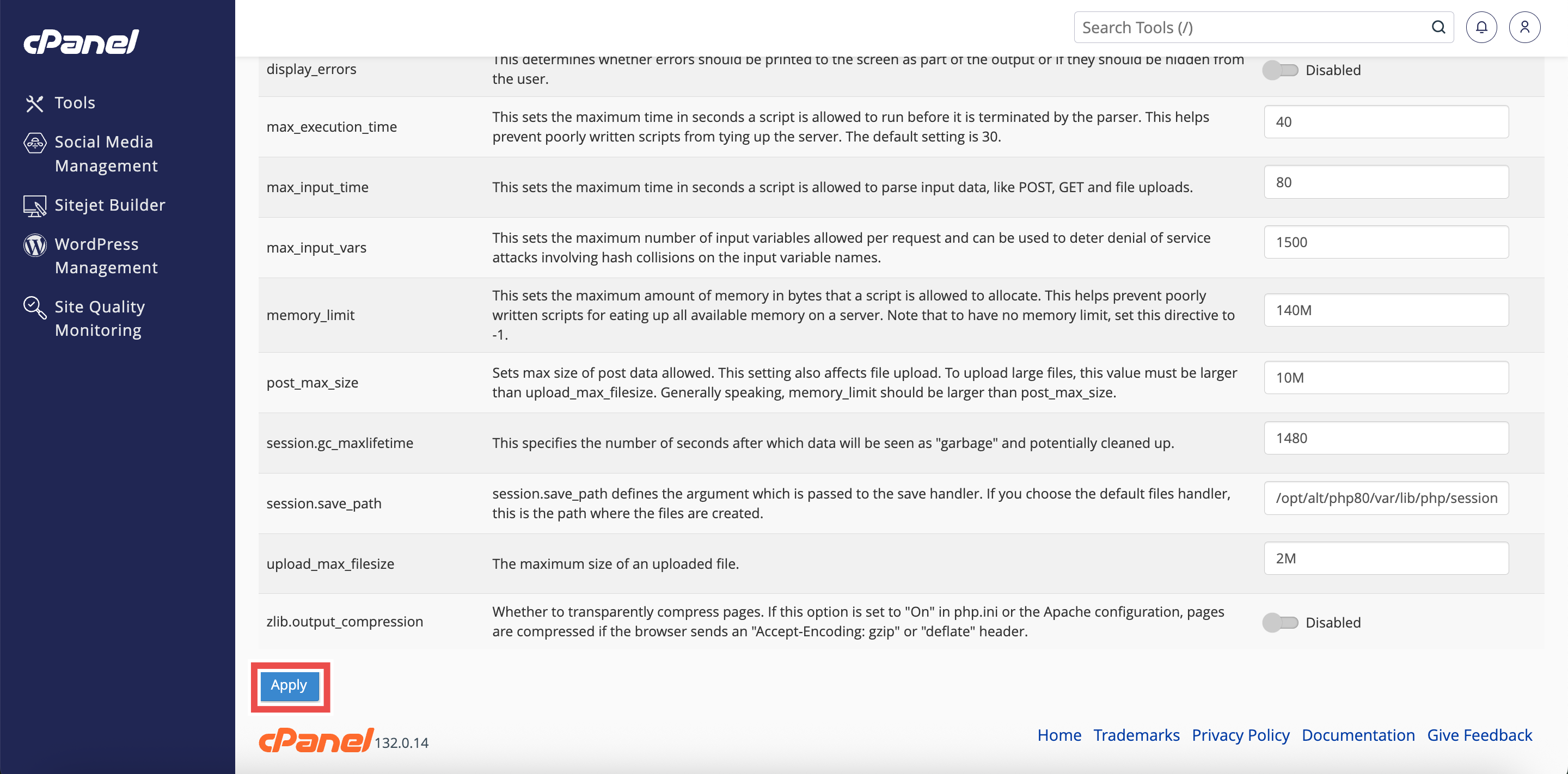
Step 6: Apply the Changes
- Click the Apply button at the bottom of the page to apply the changes made.
Step 7: Verify the Changes
- A successful message will pop up to confirm that the changes is applied successfully.
⚠️ Important Note:
- Setting this value too low may cause data loss in form submissions with many fields.
- Setting it too high may expose your server to potential attacks.

Conclusion
By following these steps, you can adjust maximum input variables for all websites using MultiPHP INI Editor in cPanel. This ensures that your websites can handle complex forms and data submissions without losing information due to variable limits.
Should you encounter any issues or have any questions, our support team at IPSERVERONE is always here to assist you. Don’t hesitate to reach out to us at support@ipserverone.com for any help you need.