
Search Our Database
How to Activate Two-Factor Authentication with SMS Authenticator in Customer Portal
Introduction:
Securing your Customer Portal account is a fundamental step in safeguarding your business’s digital infrastructure, including NovaCloud instances, GPU Servers, and professional Email Hosting. By activating Two-Factor Authentication (2FA) with SMS Authentication, you implement a robust secondary defense layer that requires a time-sensitive verification code sent directly to your mobile device. This ensures that even if your primary password is compromised, unauthorized parties remain barred from accessing sensitive billing data and server configurations.
Managed within the portal’s “Account Security” section, this method offers a high level of administrative control. The setup process requires you to re-verify your identity with your account password before linking your mobile number to the verification system, adhering to professional cybersecurity standards. By choosing SMS authentication, you gain the convenience of mobile-based security, ensuring that every login attempt is explicitly authorized by you through your personal handheld device.
Prerequisites:
- You must have an active, registered account and be successfully logged into the IP ServerOne Customer Portal.
- Ensuring the mobile number is active and reachable.
Step-by-step Guide:
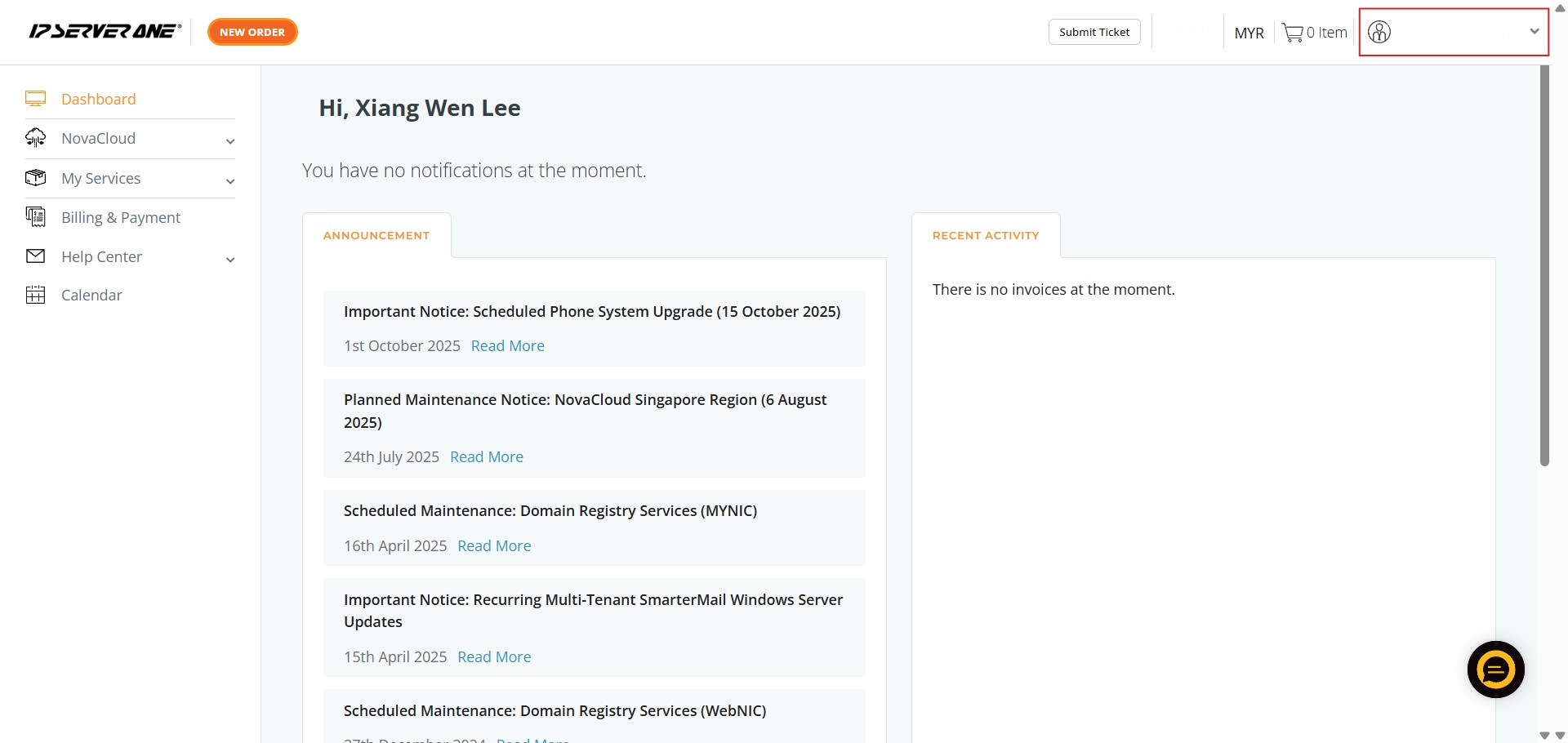
Step 1: Access User Profile
- Click on the User icon or name located in the Customer Portal interface.
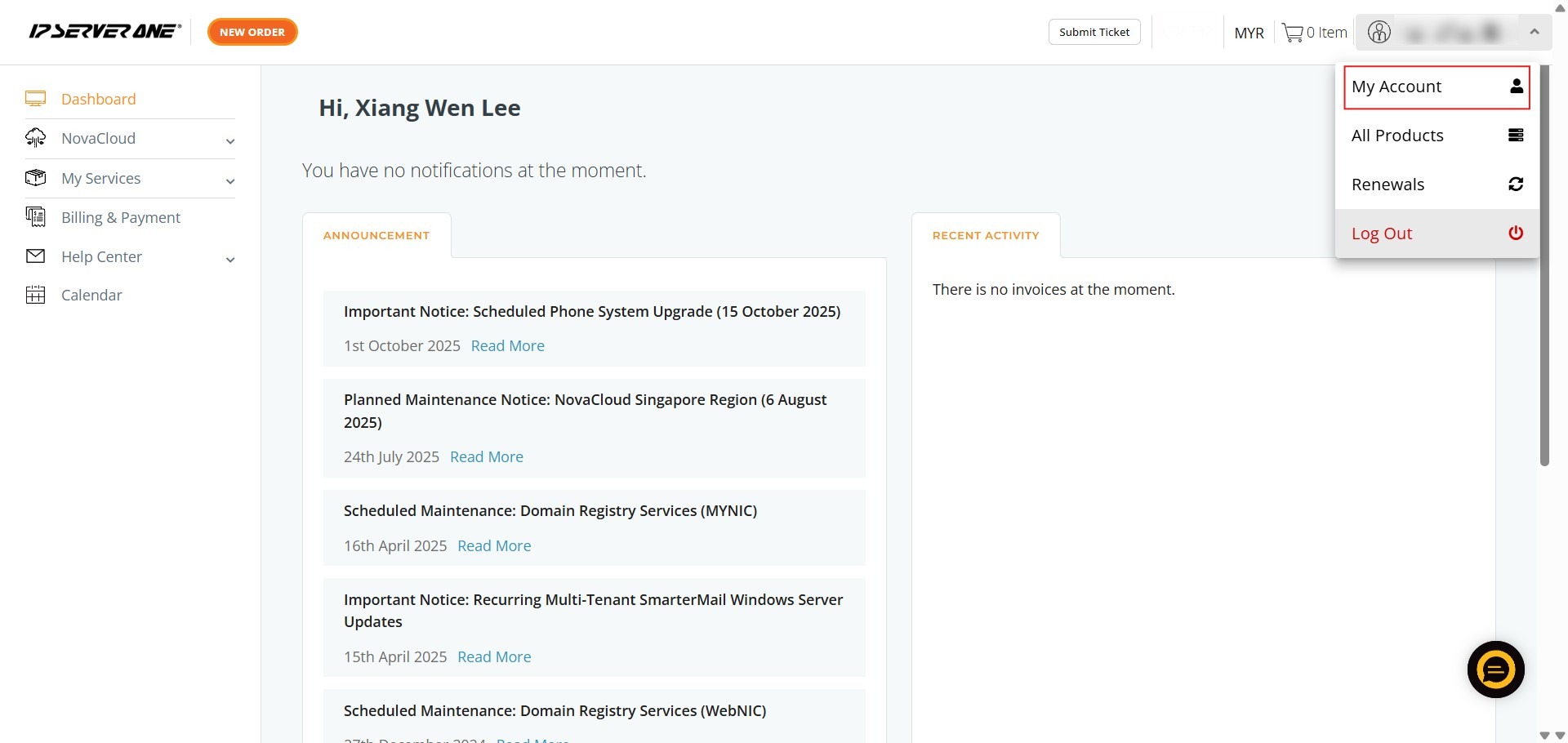
Step 2: Enter Account Settings
- Select “My Account” from the dropdown menu to view your personal profile.
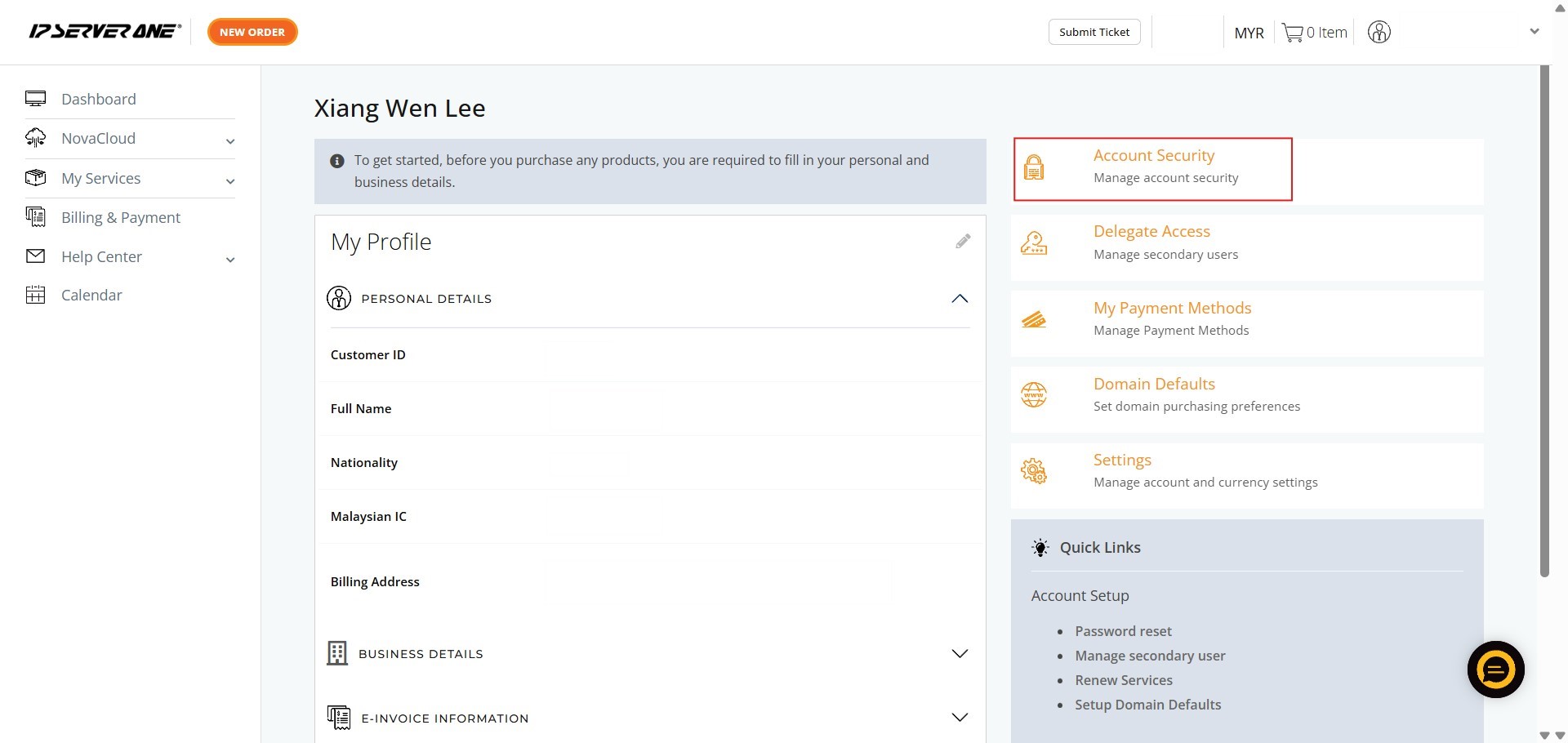
Step 3: Navigate to Security
- Click on the “Account Security” tab to manage your login protection settings.
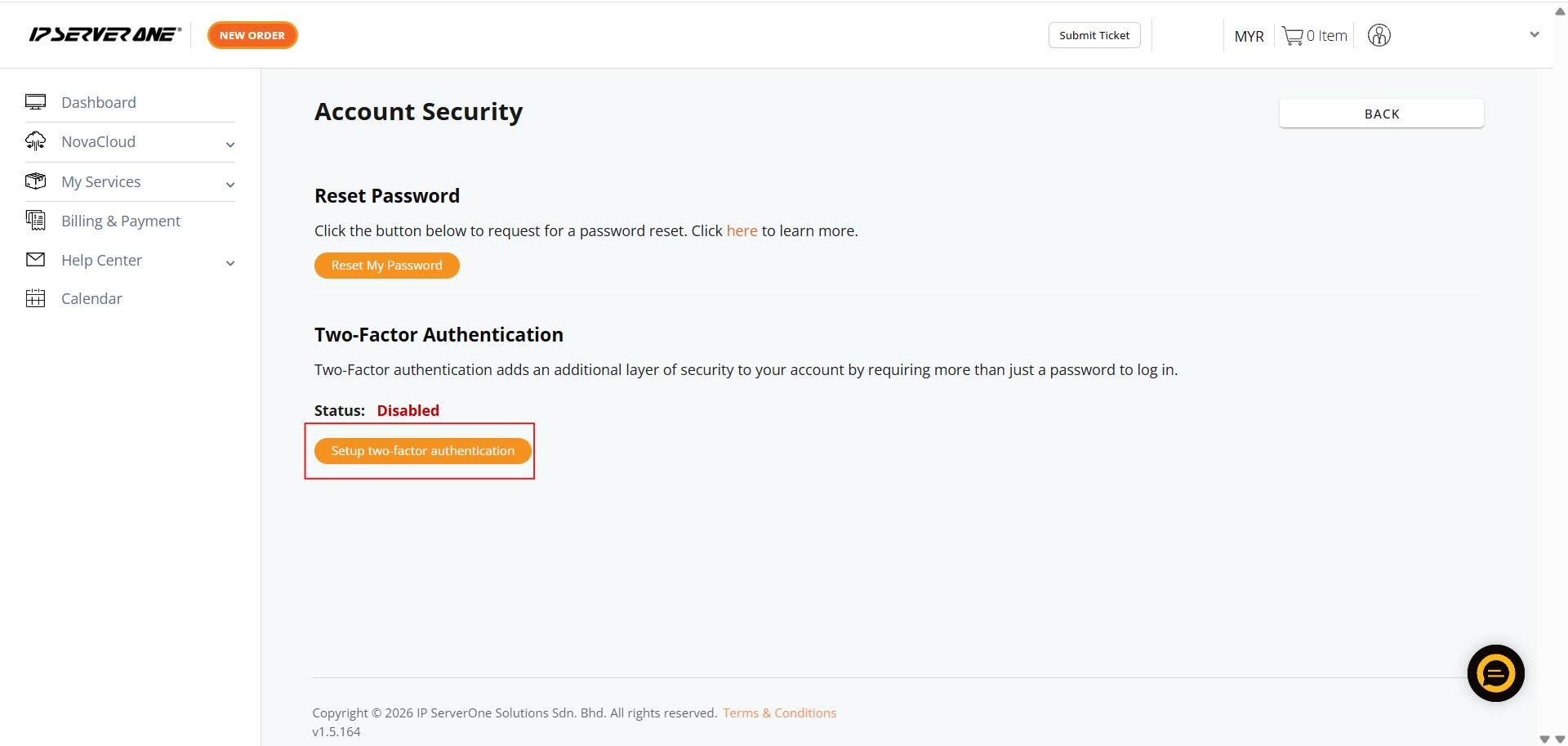
Step 4: Initiate 2FA Setup
- Click the button labeled “Setup Two-Factor Authentication” to begin the process.
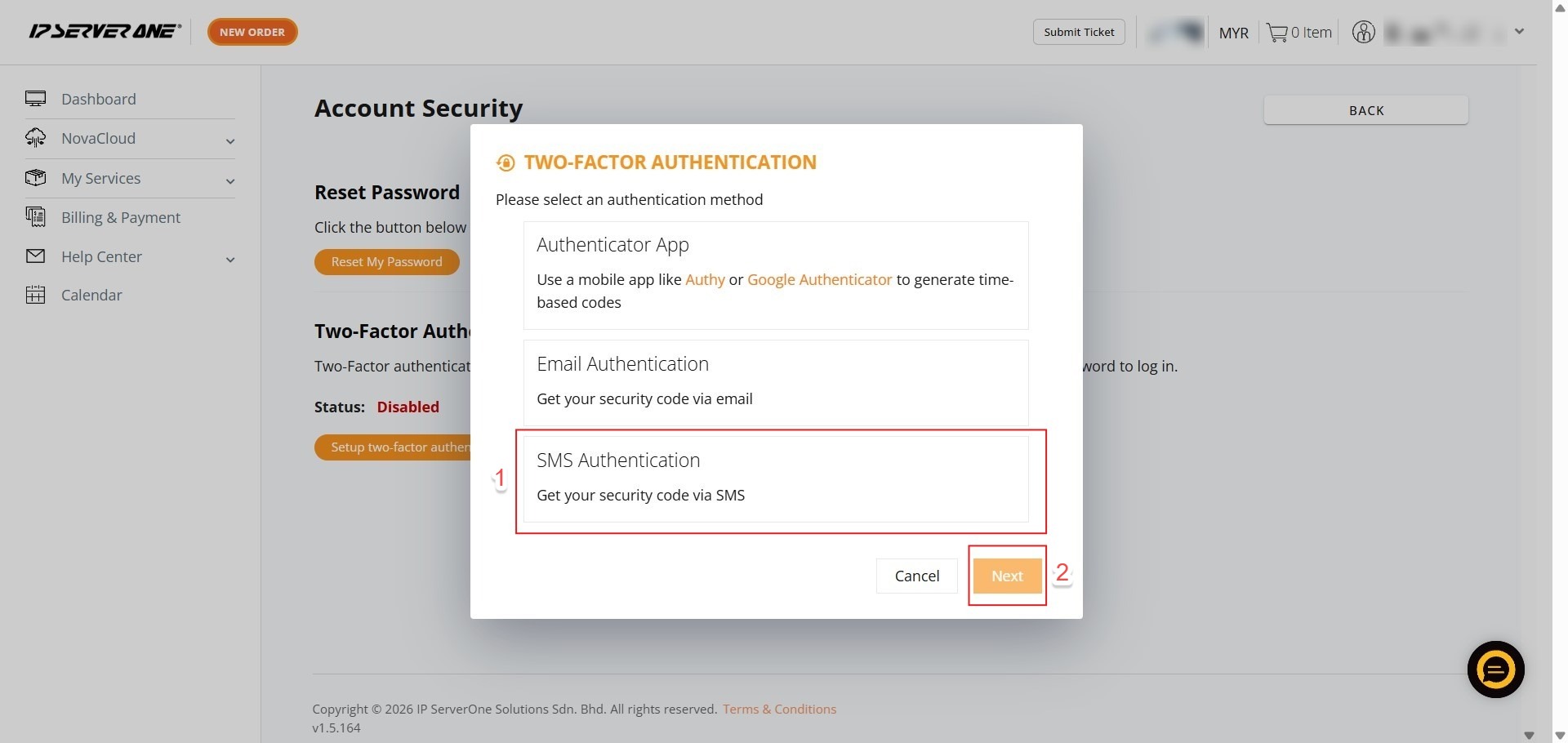
Step 5: Select Method
- Choose “SMS authentication” from the list and click “Next”.
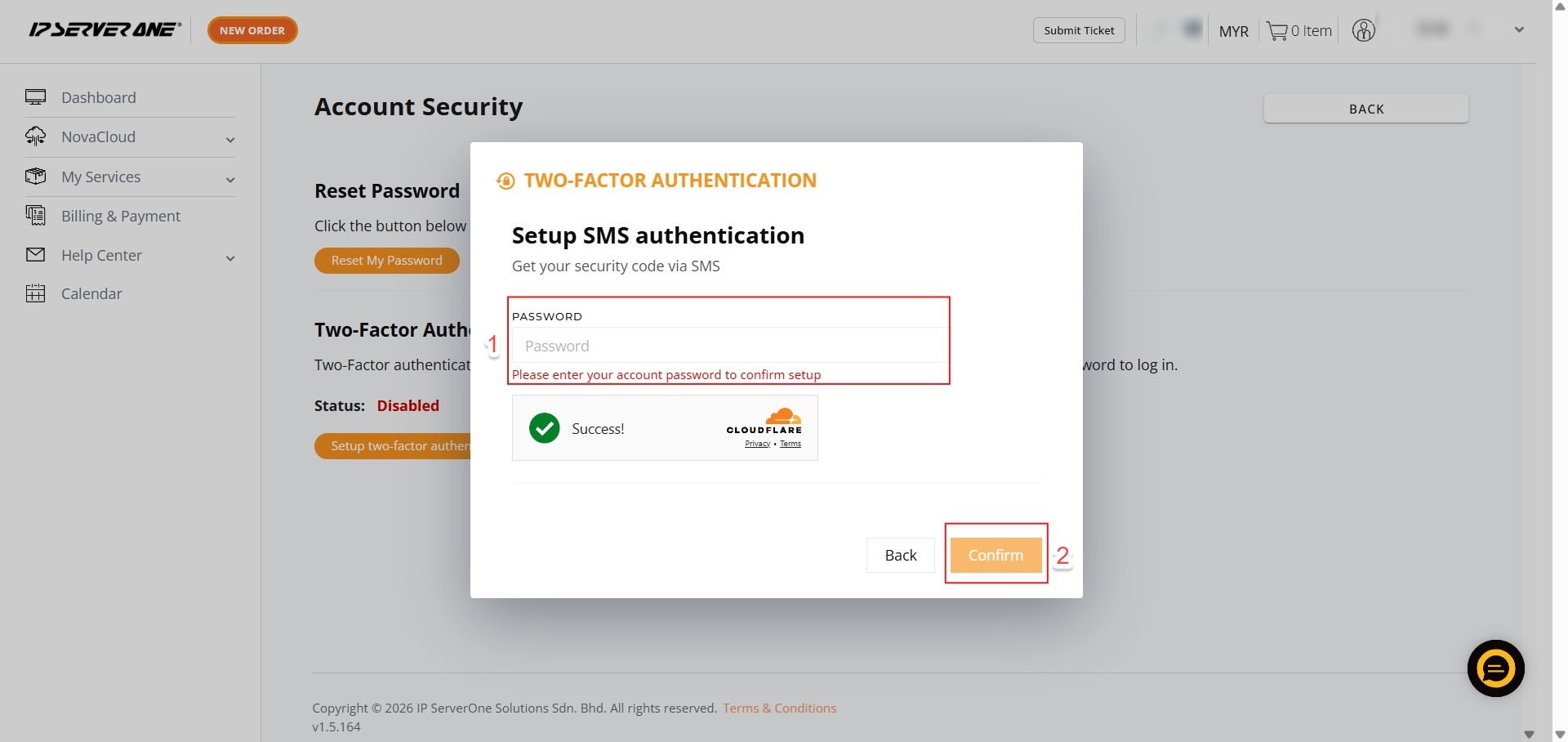
Step 6: Verify Identity
- Key in your account password
- Click confirm to authorize the security changes.
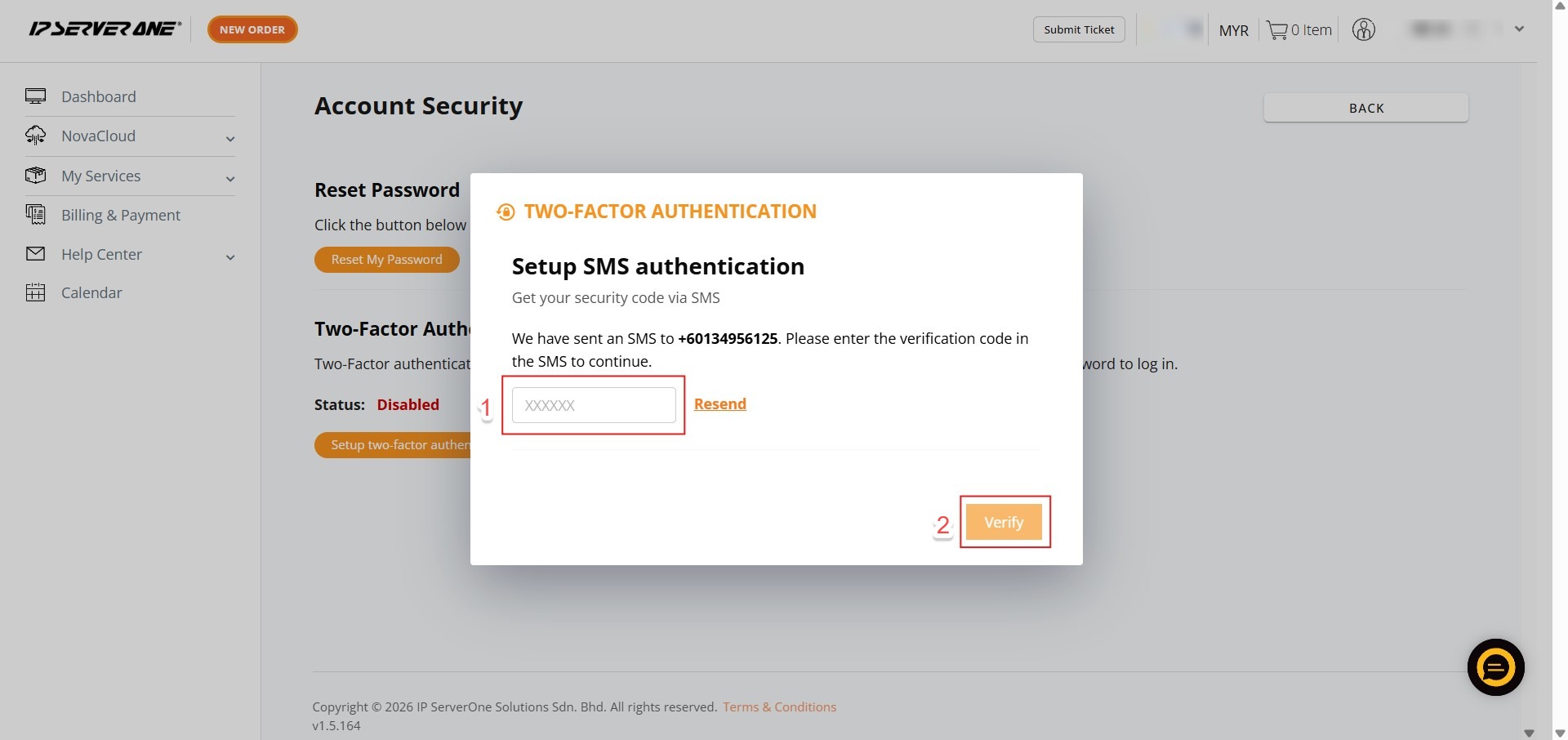
Step 7: Enter Verification Code
- Key in the time-sensitive verification code sent to your active mobile device and click “Verify”.
Step 8: Confirm Activation
- Click “Okay” to finalize the setup once the verification code is accepted.
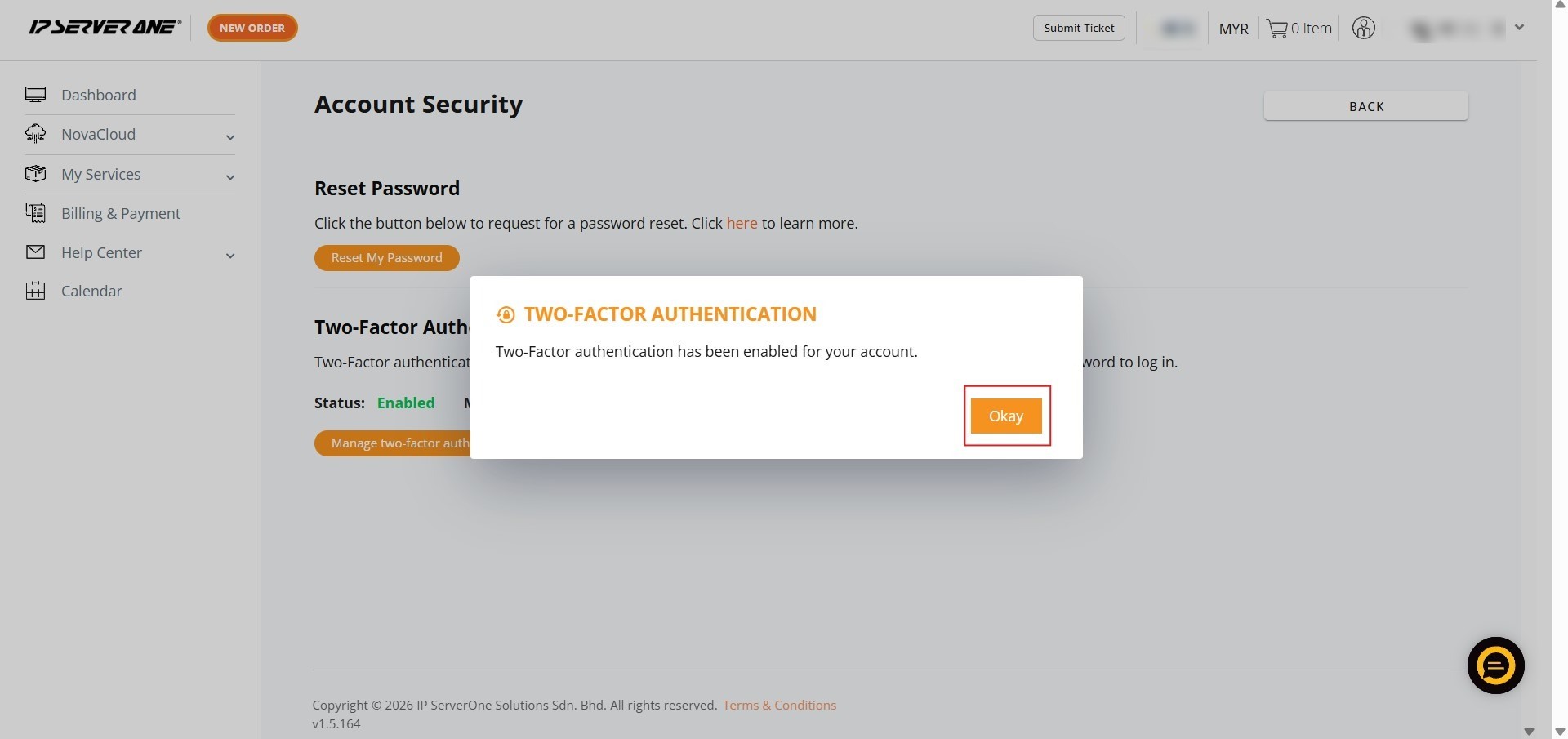
Step 9: Completion
- A success message will appear; the IP ServerOne team will also send a confirmation email to your registered address.


Conclusion:
By successfully activating Two-Factor Authentication (2FA) via SMS, you have implemented a robust secondary defense layer for your Customer Portal account. This security measure ensures that access to your sensitive infrastructure—including NovaCloud instances, GPU Servers, and billing data—requires both your primary password and a time-sensitive code delivered to your personal mobile device.
To maintain a secure and efficient administrative environment, keep the following points in mind:
- Final Confirmation: The activation is complete only after the system verifies your six-digit mobile code and you click “Okay.” You should also receive a confirmation email from the IP ServerOne team verifying the change.
- Infrastructure Protection: With SMS 2FA active, your account is aligned with professional cybersecurity standards, shielding your virtual data centers from unauthorized access even if your password is compromised.
- Technical Support: If you lose access to your device or experience synchronization errors during the setup, you can contact the support team at support@ipserverone.com or call the 24×7 Hotline at +603 2026 1688.