
Search Our Database
How to Activate Two-Factor Authentication with Authenticator App in Customer Portal
Introduction:
Securing your digital infrastructure begins with robust access control. For Customer Portal users, activating Two-Factor Authentication (2FA) via an Authenticator App is a critical step in safeguarding your account and sensitive data from unauthorized access. By adding this secondary layer of verification within the Customer Portal, you ensure that your managed services—ranging from NovaCloud instances to professional Email Hosting—remain protected by more than just a standard password.
This configuration is performed by navigating to the “Account Security” section under your account settings, where you can link your portal access to trusted apps like Google Authenticator or Authy. Implementing 2FA is a proactive measure that aligns with modern cybersecurity standards, providing the personalized care and administrative control necessary for maintaining a reliable business environment.
Prerequisites:
- You must have an active, registered account and be successfully logged into the IP ServerOne Customer Portal.
- Google Authenticator or Authy, must be installed on your mobile device.
Step-by-step Guide:
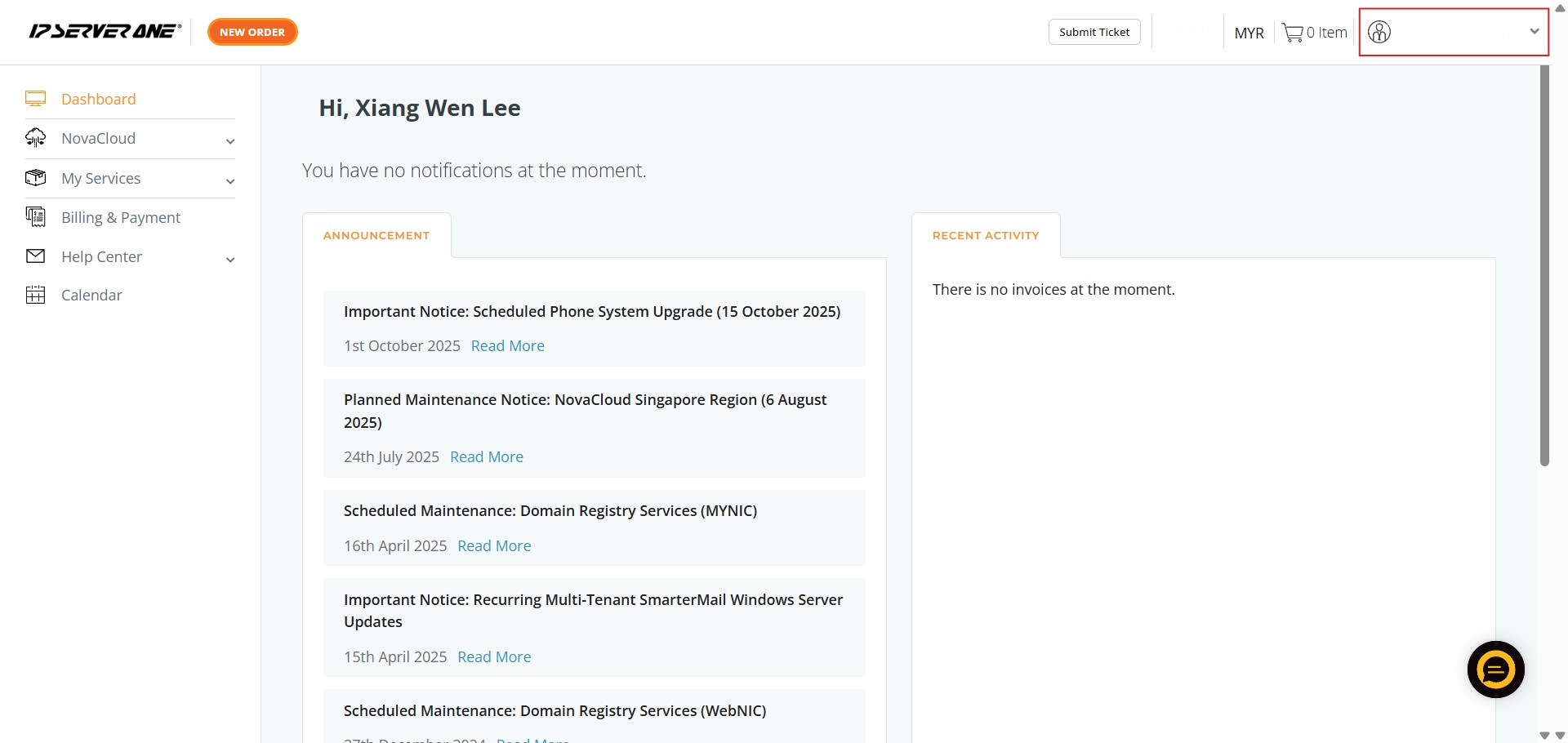
Step 1: Access User Profile
- Click on the User icon or name located in the Customer Portal interface.
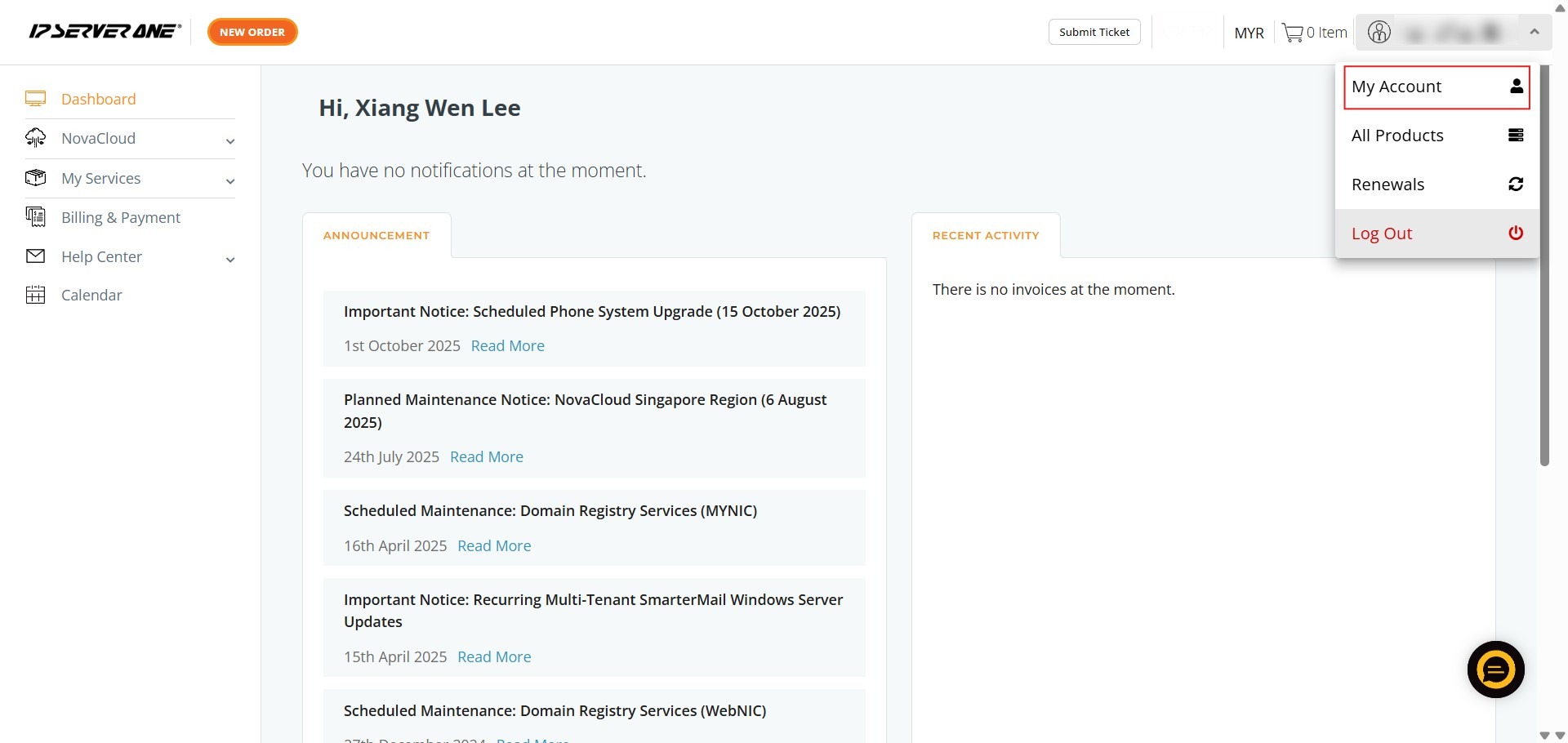
Step 2: Enter Account Settings
- Select “My Account” from the dropdown menu to view your personal profile.
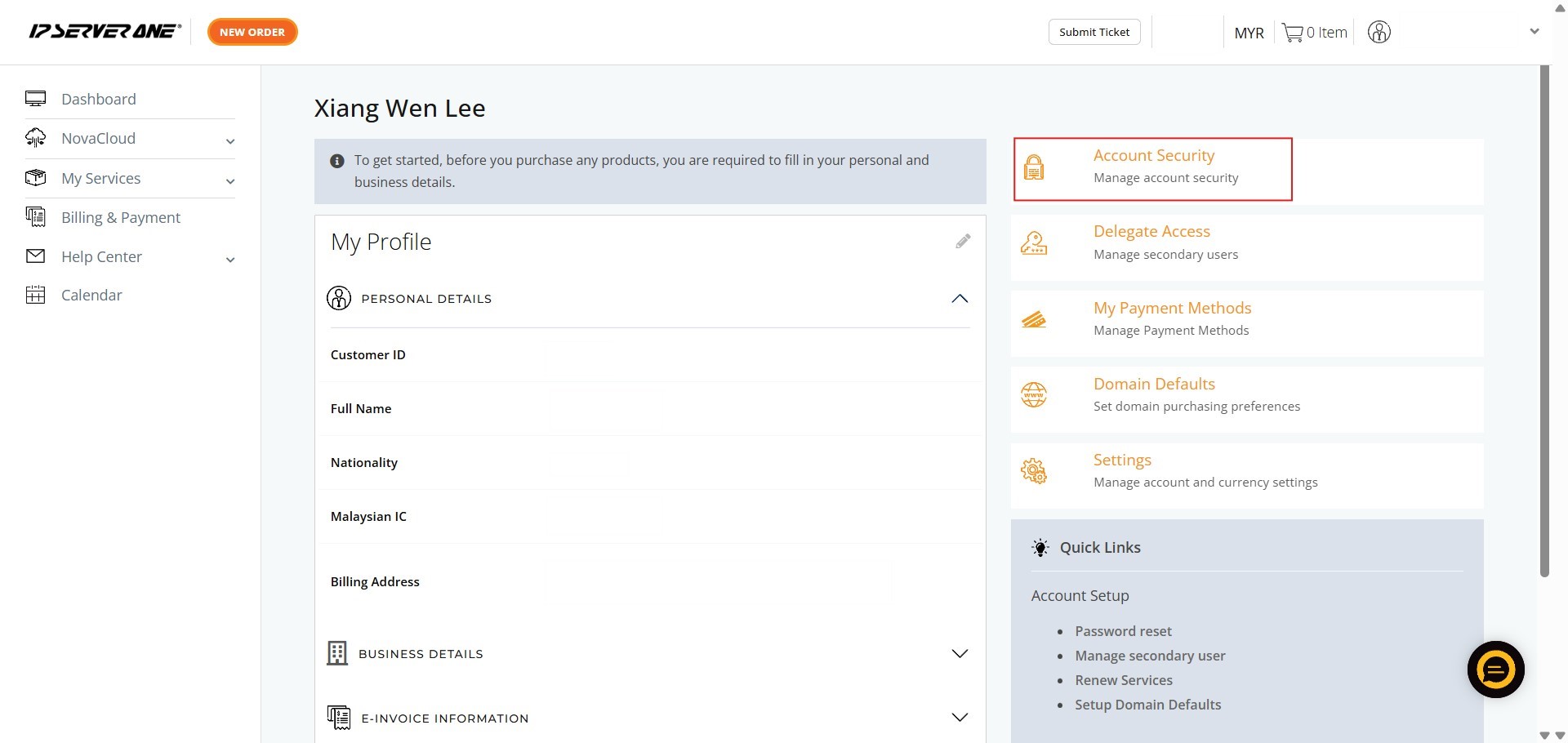
Step 3: Navigate to Security
- Click on the “Account Security” tab to manage your login protection settings.
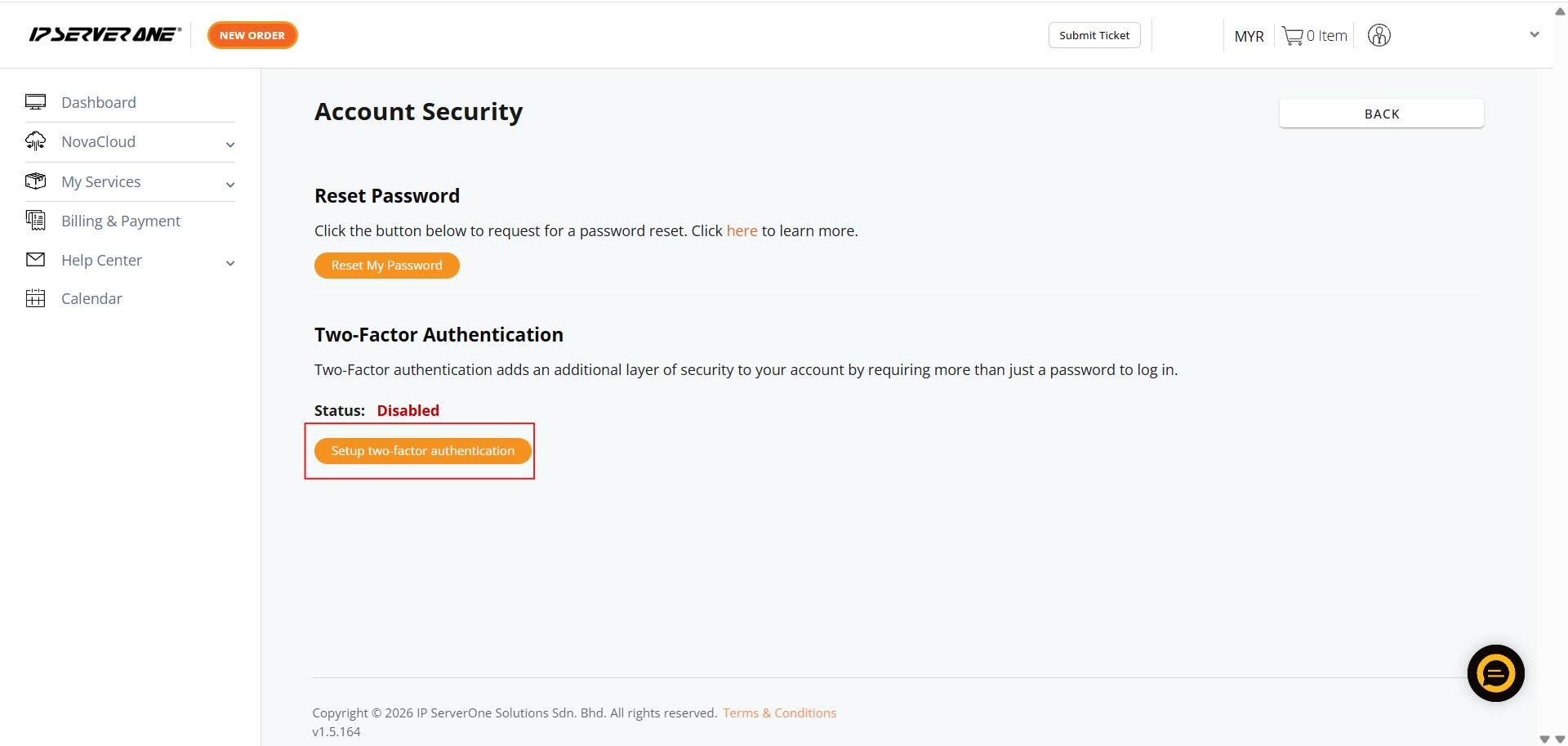
Step 4: Initiate 2FA Setup
- Click the button labeled “Setup Two-Factor Authentication” to begin the process.
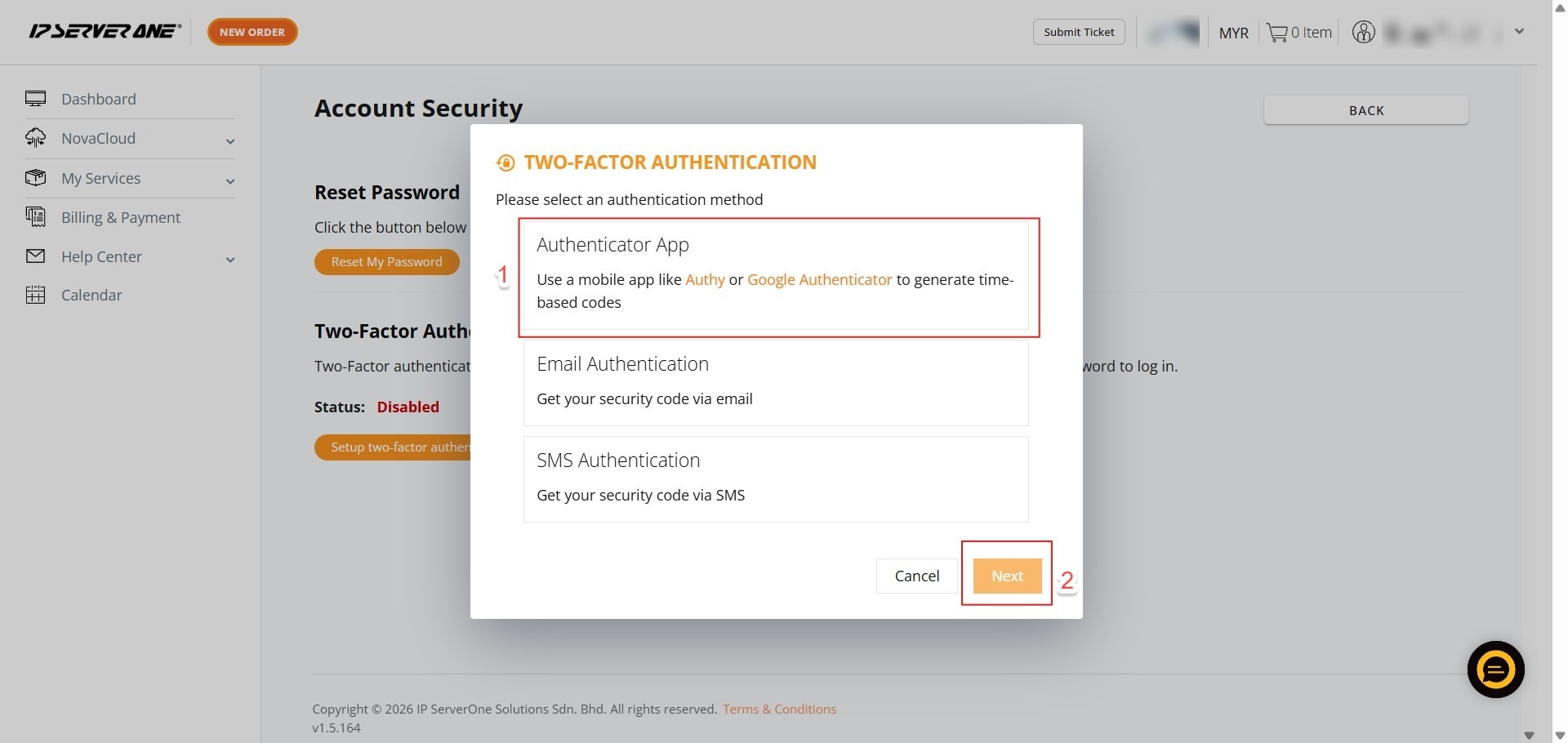
Step 5: Select Method
- Choose “Authenticator App” as your preferred secondary verification method.
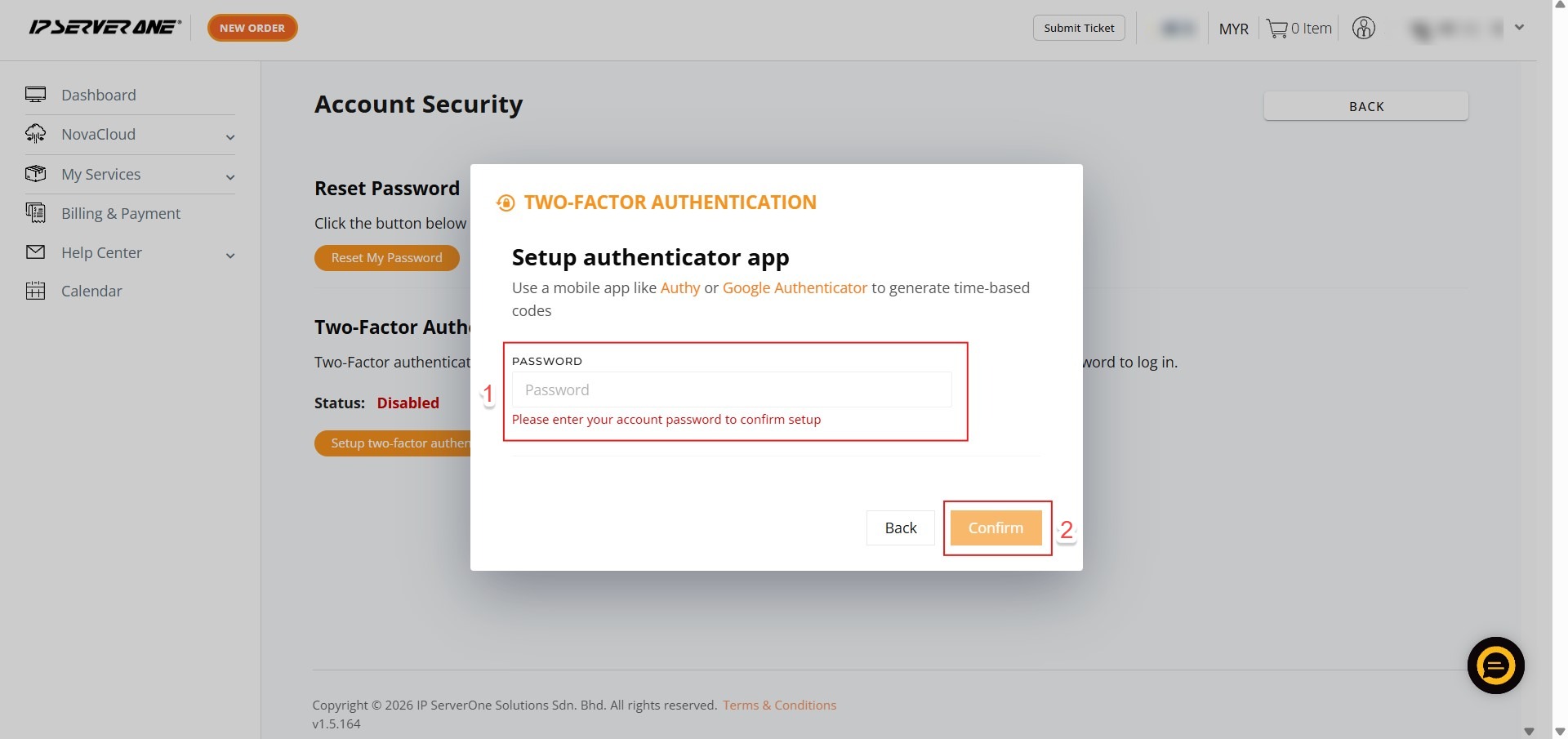
Step 6: Verify Identity
- Key in your account password
- Click confirm to authorize the security changes.
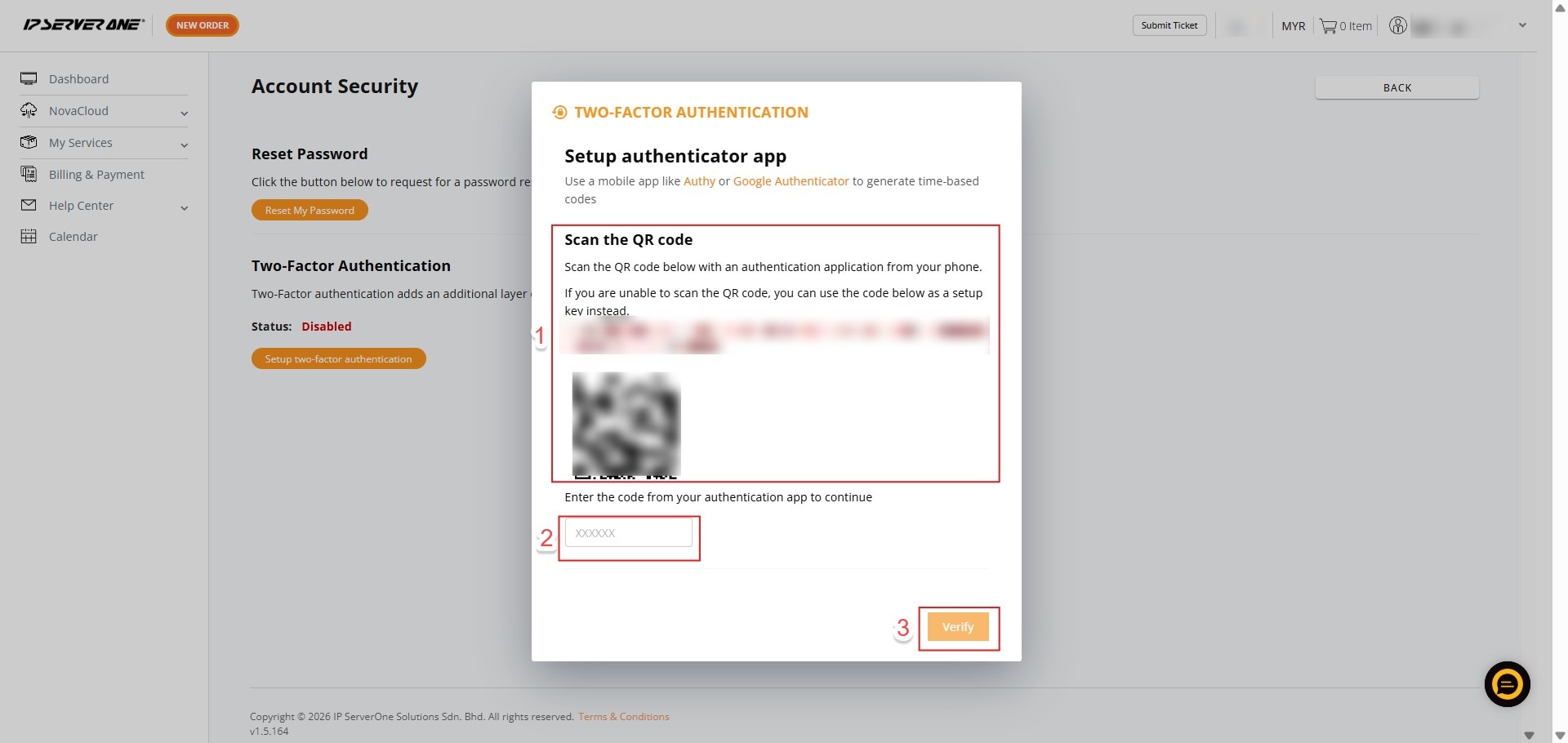
Step 7: Sync Authenticator
- Use Google Authenticator or Authy to scan the provided QR code
- Enter the six-digit code displayed in your app and click “Verify.”
Step 8: Confirm Activation
- Click “Okay” to finalize the setup once the verification code is accepted.
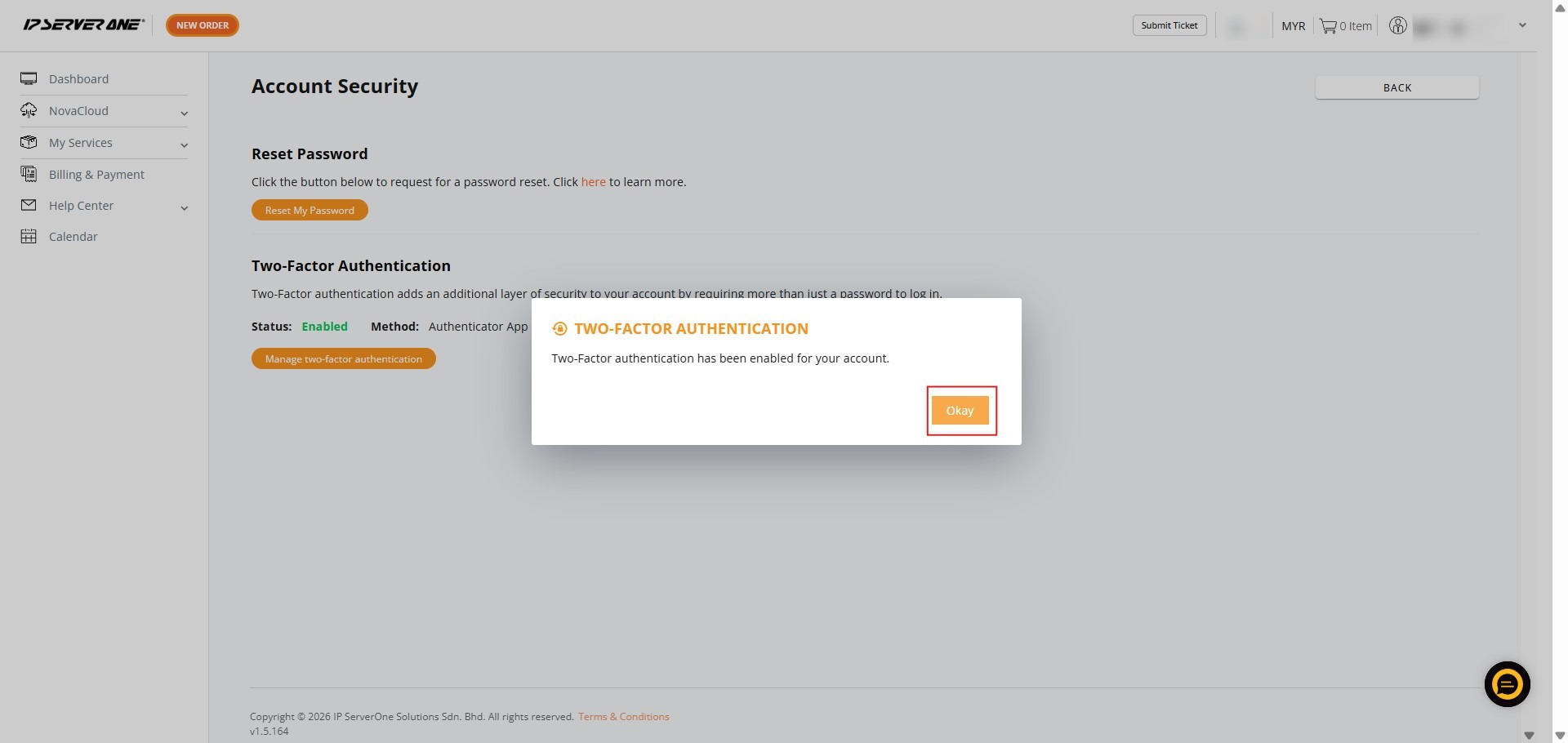
Step 9: Completion
- A success message will appear; the IP ServerOne team will also send a confirmation email to your registered address.

Conclusion:
By completing the activation of Two-Factor Authentication (2FA) via an Authenticator App, you have successfully implemented a critical security layer for your Customer Portal account. This proactive step ensures that your managed infrastructure—including NovaCloud instances, GPU Servers, and Email Hosting—is shielded by more than just a standard password, providing you with the robust administrative control required for modern business operations.
To ensure your account remains accessible and secure, keep these final points in mind:
- Final Confirmation: The setup is officially finalized once you click “Okay” after a successful verification. You should also look for a confirmation email sent by the IP ServerOne team to your registered address.
- Persistent Security: Always keep your mobile device with the Authenticator App (Google Authenticator or Authy) accessible, as this will now be required for every login attempt to verify your identity.
- Technical Support: If you lose access to your device or experience synchronization errors during the setup, you can contact the support team at support@ipserverone.com or call the 24×7 Hotline at +603 2026 1688.