
Search Our Database
How to Access GPU Instance Console in Customer Portal
Introduction:
Accessing the underlying system of a cloud server is a fundamental requirement for troubleshooting, initial configuration, and managing critical software updates. For users leveraging specialized computational power for modern workloads, GPU Instances—offered through NovaGPU—provide affordable, scalable, on-demand GPU resources specifically for tasks like training, fine-tuning, and deploying AI.
Direct interaction with these high-performance resources is essential. The NovaCloud Customer Portal facilitates this by providing a console interface that allows you to gain direct access to the operating system of your virtual machine. This console is a crucial tool for management and ensuring your instances are running smoothly.
This guide offers a professional, step-by-step procedure detailing how to access and interact with the console of your GPU Instances directly within the NovaCloud Customer Portal, empowering you to effectively manage your AI and Machine Learning infrastructure.
Prerequisites:
- Active Customer Portal Account Access.
- Existence of an Eligible GPU Instance.
Step-by-step Guide:
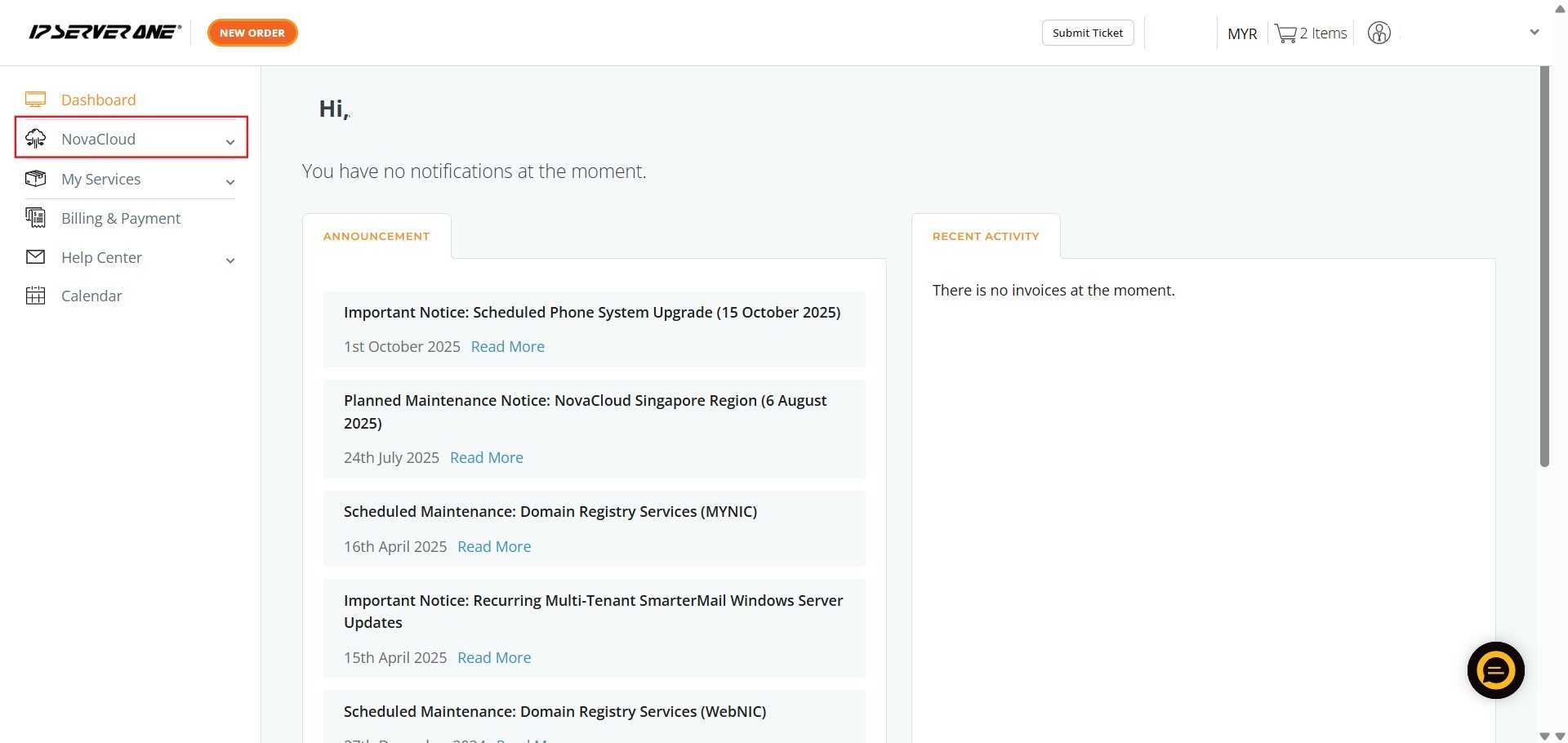
Step 1: Access NovaCloud Services
- After logging into the Customer Portal, locate the left-hand navigation menu. Click NovaCloud.
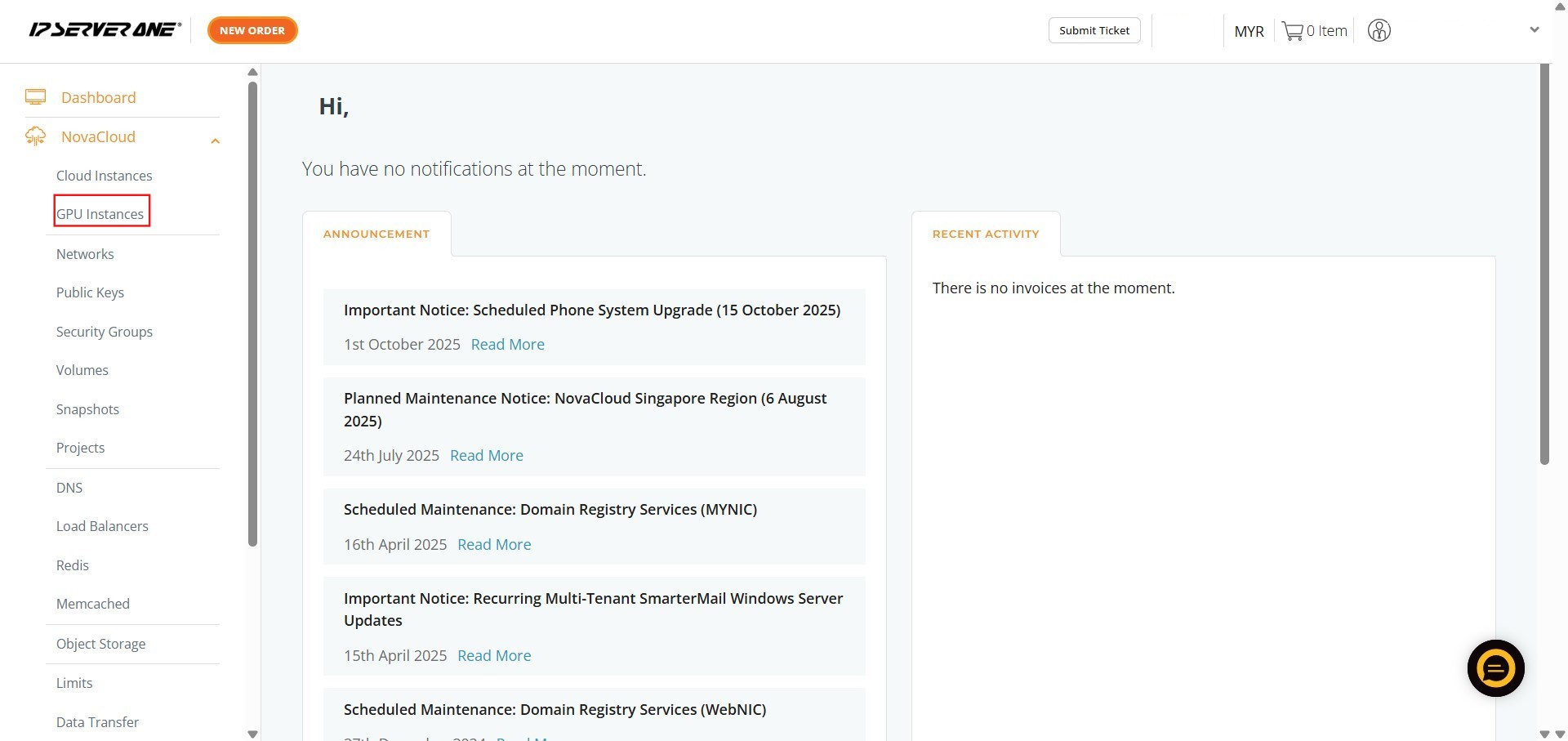
Step 2: Navigate to GPU Instances
- From the expanded NovaCloud menu, locate and Click GPU Instances.
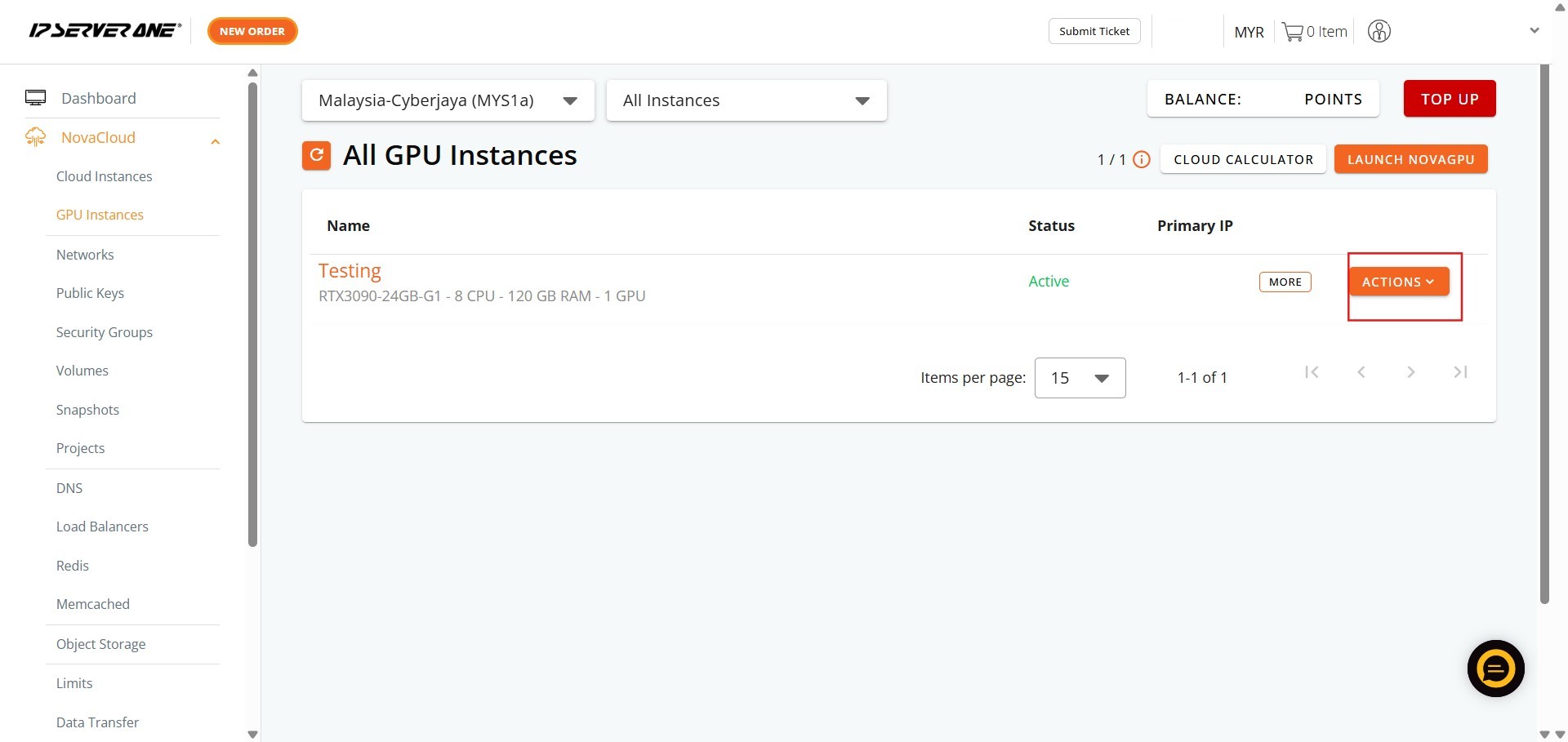
Step 3: Open the Actions Menu
- Identify the specific active GPU instance you intend to stop.
- On the row corresponding to that instance, Click Action. A dropdown menu containing management options will appear.
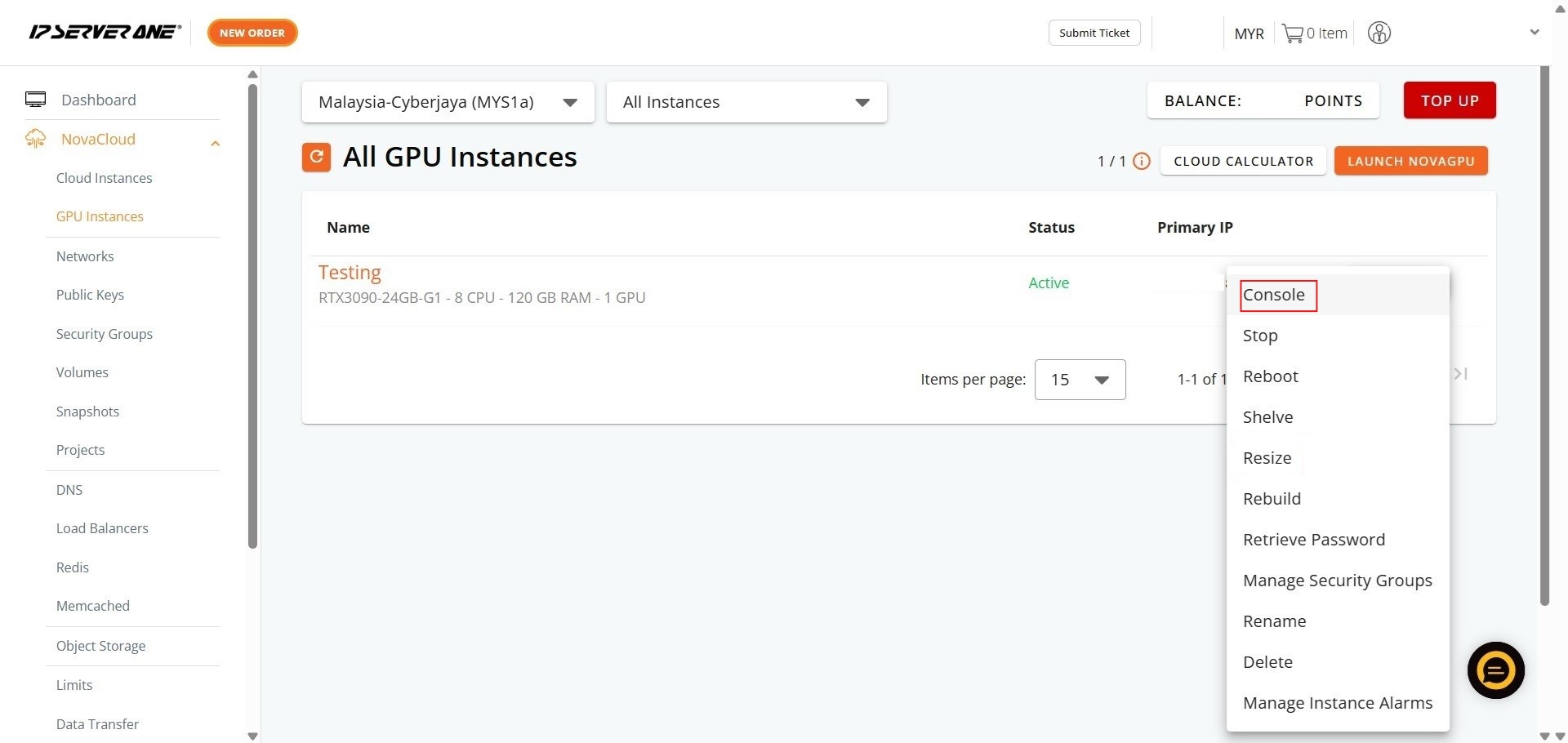
Step 4: Select the Console Option
- From the resulting Action dropdown menu, select Console.
Step 5: Activate the Console
- Once the console screen loads, click on the black screen area once to activate the console.

Conclusion:
By following the guide, you have successfully accessed the console for your NovaGPU Instance via the Customer Portal [Conversation History]. This process involved navigating to the NovaCloud section, selecting GPU Instances, clicking the ACTIONS button for the desired instance, and choosing the Console option. Finally, clicking the black screen area ensured that the console was activated and ready to receive keyboard input.
Accessing the console directly is a fundamental skill for efficient cloud instance management, allowing for direct interaction with the operating system for troubleshooting and operations.
Should you require further assistance with your NovaGPU instances or encounter any issues, you can contact the support team at support@ipserverone.com.